USB port NISSAN VERSA NOTE 2018 Owner´s Manual
[x] Cancel search | Manufacturer: NISSAN, Model Year: 2018, Model line: VERSA NOTE, Model: NISSAN VERSA NOTE 2018Pages: 878, PDF Size: 9.62 MB
Page 226 of 878
Press thebutton while an audio file
on the USB device is playing to advance
one track. Press the
button several
times to skip forward several tracks. If the
last track in a folder on the USB device is
skipped, the first track of the next folder is
played.
Random and repeat play mode
While files on a USB device are playing, the
play pattern can be altered so that songs
are repeated or played randomly.
Random
Touch the “Random” key to apply a random
play pattern to the USB device. When the
random mode is active, the
icon is
displayed to the lef t of the song title or
album name to denote which random pat-
tern is applied. To cancel Random mode,
touch the “Random” key until no
icon
is displayed.
Repeat
Touch the “Repeat” key to apply a repeat
play pattern to the USB device. When the
repeat mode is active, the
icon is dis-
played to the lef t of the song title or album
name to denote which repeat pattern is
applied. To cancel repeat mode, touch the
“Repeat” key until no
icon is displayed.
iPod®* PLAYER OPERATION
WITHOUT NAVIGATION SYSTEM (if
so equipped)
Connecting iPod®
WARNING
Do not connect, disconnect or operate
the USB device while driving. Doing so
can be a distraction. If distracted you
could lose control of your vehicle and
cause an accident or serious injury.
CAUTION
∙ Do not force the USB device into the USB port. Inserting the USB device
tilted or up-side-down into the port
may damage the port. Make sure that
the USB device is connected correctly
into the USB port.
∙ Do not grab the USB port cover (if so equipped) when pulling the USB de-
vice out of the port. This could dam-
age the port and the cover.
∙ Do not leave the USB cable in a place where it can be pulled unintentionally.
Pulling the cable may damage the
port.
For additional information, refer to your de-
vice manufacturer’s owner information re-
garding the proper use and care of the
device.
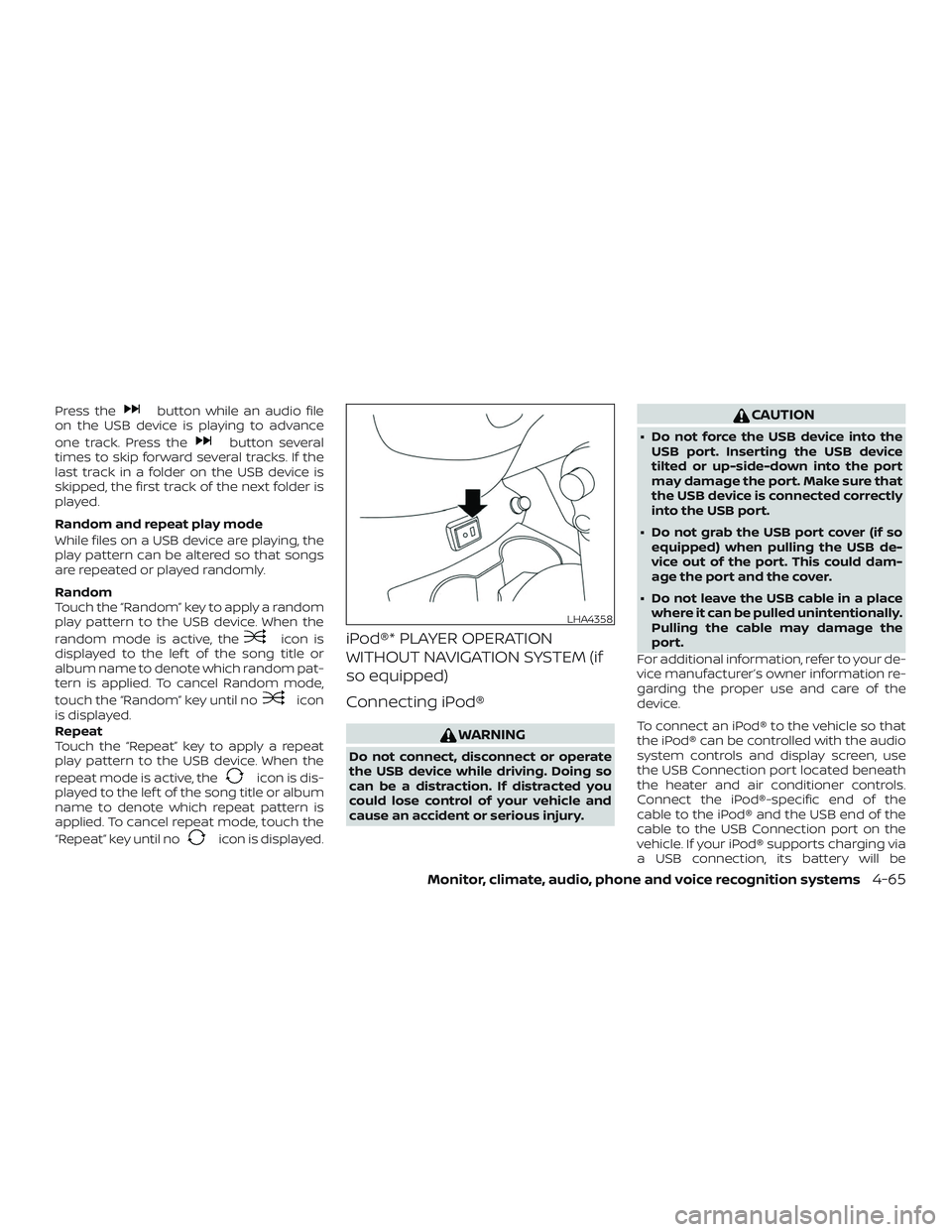
To connect an iPod® to the vehicle so that
the iPod® can be controlled with the audio
system controls and display screen, use
the USB Connection port located beneath
the heater and air conditioner controls.
Connect the iPod®-specific end of the
cable to the iPod® and the USB end of the
cable to the USB Connection port on the
vehicle. If your iPod® supports charging via
a USB connection, its battery will be
LHA4358
Monitor, climate, audio, phone and voice recognition systems4-65
Page 227 of 878
charged while connected to the vehicle
with the ignition switch in the ACC or ON
position.
While connected to the vehicle, the iPod®
can only be operated by the vehicle audio
controls.
To disconnect the iPod® from the vehicle,
remove the USB end of the cable from the
USB Connection port on the vehicle, then
remove the cable from the iPod®.
* iPod® is a trademark of Apple Inc., regis-
tered in the U.S. and other countries.
Compatibility
The following models are compatible:∙ iPod® 5th Generation (firmware version 1.3 or later)
∙ iPod® Classic (80GB) (firmware version 1.1.2PC or later)
∙ iPod® Classic (120GB) (firmware version 2.0.1PC or later)
∙ iPod® nano - 1st generation (firmware version 1.3.1 or later)
∙ iPod® nano - 2nd generation (firmware version 1.1.3 or later) ∙ iPod® nano - 3rd generation (firmware
version 1.1.3PC or later)
∙ iPod® nano - 4th generation (firmware version 1.0PC or later)
∙ iPod® nano - 5th generation (8GB) (firm- ware version 1.0.2PC or later)
∙ iPod® nano - 5th generation (16GB) (firmware version 1.0.1PC or later)
∙ iPod® nano - 6th generation (8GB) (firm- ware version 1.2PC or later)
∙ iPod® nano - 6th generation (8GB) (firm- ware version 1.1PC or later)
∙ iPod® Touch - 1st generation (firmware version 2.2.1 or later)
∙ iPod® Touch - 2nd generation (firmware version 2.2.1 or later)
∙ iPod® Touch - 3rd generation (firmware version 3.1.3 or later)
∙ iPod® Touch - 4th generation (firmware version 4.3.5 or later)
∙ iPhone® 3G (firmware version 4.1 or later)
∙ iPhone® 3GS (firmware version 4.3 or later) ∙ iPhone® 4 (firmware version 5.0 or later)
∙ iPhone® 4S (firmware version 5.1 or later)
∙ iPad® (firmware version 4.3.2 or later)
∙ iPad® 2 (firmware version 4.3.3 or later)
Make sure that your iPod® firmware is up-
dated to the version indicated above.
Audio main operation
Place the ignition switch to the ACC or ON
position. Then, press the iPod MENU button
or MEDIA button repeatedly to switch to
the iPod® mode.
If the audio system is turned off while the
iPod® is playing, the iPod® plays when the
audio system is turned back on.
If the audio system is off, pressing the iPod
MENU button or MEDIA button turns the
audio system on and plays the iPod®.
If the audio system is on, the audio system
automatically begins playing tracks from
the iPod® when it is plugged into the con-
nection port.
4-66Monitor, climate, audio, phone and voice recognition systems
Page 229 of 878
iPod®* PLAYER OPERATION WITH
NAVIGATION SYSTEM (if so
equipped)
Connecting iPod®
WARNING
Do not connect, disconnect or operate
the USB device while driving. Doing so
can be a distraction. If distracted you
could lose control of your vehicle and
cause an accident or serious injury.
CAUTION
∙ Do not force the USB device into theUSB port. Inserting the USB device
tilted or up-side-down into the port
may damage the port. Make sure that
the USB device is connected correctly
into the USB port.
∙ Do not grab the USB port cover (if so equipped) when pulling the USB de-
vice out of the port. This could dam-
age the port and the cover.
∙ Do not leave the USB cable in a place where it can be pulled unintentionally.
Pulling the cable may damage the
port.
For additional information, refer to your de-
vice manufacturer’s owner information re-
garding the proper use and care of the
device.
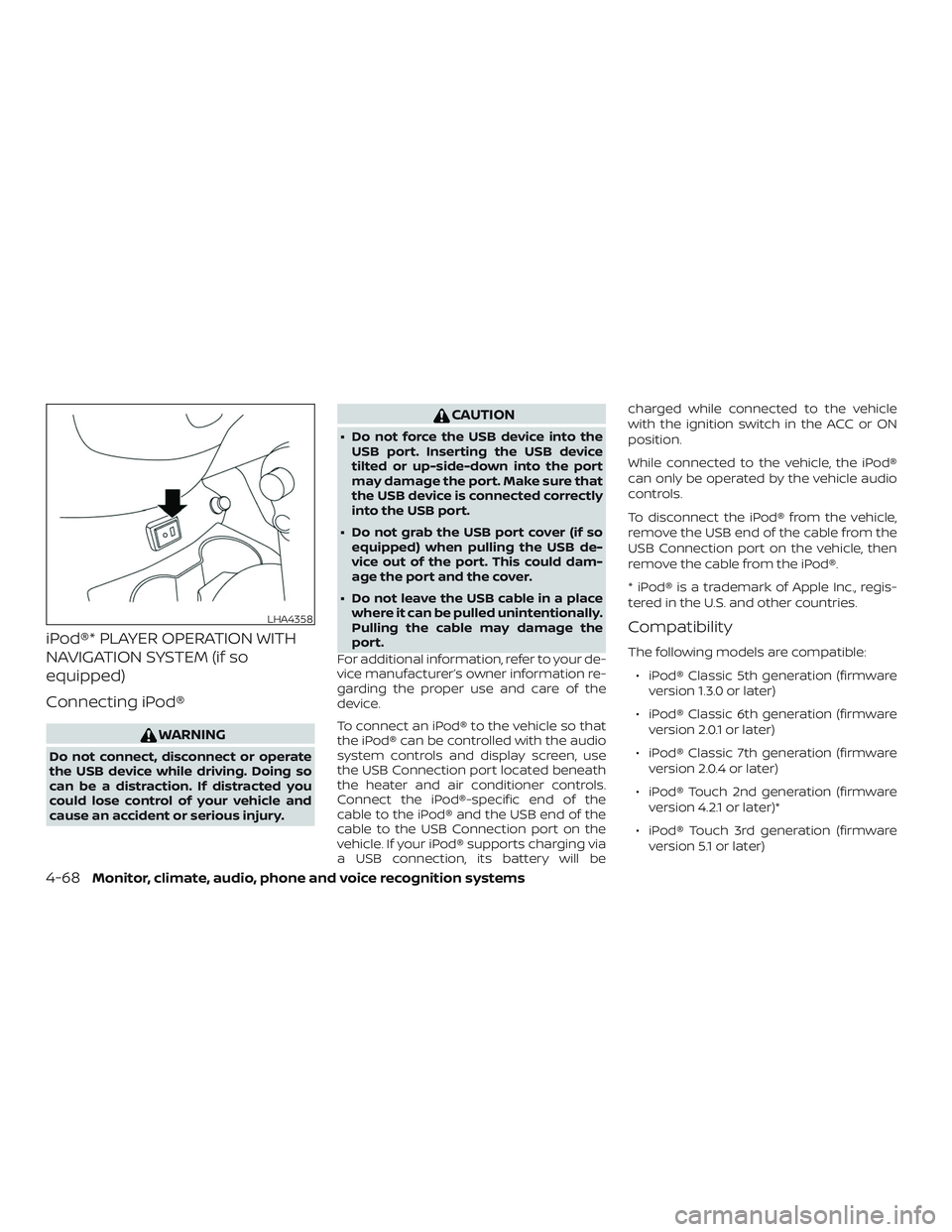
To connect an iPod® to the vehicle so that
the iPod® can be controlled with the audio
system controls and display screen, use
the USB Connection port located beneath
the heater and air conditioner controls.
Connect the iPod®-specific end of the
cable to the iPod® and the USB end of the
cable to the USB Connection port on the
vehicle. If your iPod® supports charging via
a USB connection, its battery will be charged while connected to the vehicle
with the ignition switch in the ACC or ON
position.
While connected to the vehicle, the iPod®
can only be operated by the vehicle audio
controls.
To disconnect the iPod® from the vehicle,
remove the USB end of the cable from the
USB Connection port on the vehicle, then
remove the cable from the iPod®.
* iPod® is a trademark of Apple Inc., regis-
tered in the U.S. and other countries.
Compatibility
The following models are compatible:
∙ iPod® Classic 5th generation (firmware version 1.3.0 or later)
∙ iPod® Classic 6th generation (firmware version 2.0.1 or later)
∙ iPod® Classic 7th generation (firmware version 2.0.4 or later)
∙ iPod® Touch 2nd generation (firmware version 4.2.1 or later)*
∙ iPod® Touch 3rd generation (firmware version 5.1 or later)
LHA4358
4-68Monitor, climate, audio, phone and voice recognition systems
Page 426 of 878
11 Index
A
Air bag (See supplemental restraint
system) .................... .1-44
Air bag system Front (See supplemental front impact air
bagsystem)............... .1-54
Air bag warning labels ............1-62
Airbagwarninglight .........1-62, 2-20
Air bag warning light,
supplemental ..............1-62, 2-20
Air cleaner housing filter ..........8-15
Air conditioner Air conditioner operation ........4-31
Air conditioner service ..........4-36
Air conditioner specification label . .10-12
Air conditioner system refrigerant
and oil recommendations .......10-7
Air conditioner system refrigerant
recommendations ............10-7
Heater and air conditioner
controls ..................4-28
Servicing air conditioner ........4-36
Air flow charts .................4-32
Anchor point locations ............1-27
Antenna ....................4-75
Antifreeze ...................5-34
Anti-lock brake warning light ........2-15
Anti-lock Braking System (ABS) ......5-29
Apps .......................4-76
Armrests.....................1-5
Around View® Monitor ............4-17 Audible reminders
..............2-23
Audiosystem.................4-36 AMradioreception............4-37
Bluetooth® audio ..........4-71, 4-72
Compact disc (CD)
player.............4-47,4-52,4-60
FM-AM radio with compact disc (CD)
player....................4-45
FM/AM/SAT radio with compact disc (CD)
player ................4-49,4-54
FMradioreception............4-36
iPod®Player.............4-65,4-68
iPod® player operation ......4-65,4-68
Radio ....................4-36
Steering wheel audio control
switch....................4-74
USBinterface............4-61,4-63
USB (Universal Serial Bus) Connection
Port..................4-61,4-63
Automatic Automatic power window switch . . .2-42
Automatic door locks .............3-7
AUXjack.................4-48,4-61
B
Battery..................5-34,8-11 Charge warning light ...........2-16
Battery replacement .............8-21
Keyfob................8-21,8-21
NISSAN Intelligent Key® .........8-23Before starting the engine
.........5-14
Belt(Seedrivebelt)..............8-14
Bluetooth® audio ............4 -71, 4-72
Bluetooth® hands-free phone
system ..............4-81,4-96,4-108
Bluetooth® streaming audio with
NavigationSystem..............4-72
Bluetooth® streaming audio without
Navigation System (if so equipped) ....4-71
Booster seats .................1-41
Brake Anti-lock Braking System (ABS) ....5-29
Brakefluid..................8-9
Brakelight(Seestoplight).......8-26
Brakesystem...............5-29
Brakewarninglight............2-15
Brakewearindicators.......2-23,8-18
Parking brake operation .........5-21
Self-adjustingbrakes ..........8-18
Brakeassist..................5-30
Brakefluid....................8-9
Brakes......................8-18
Brakesystem.................5-29
Break-in schedule ..............5-24
Brightness/contrast button .........4-9
Brightness control Instrument panel .............2-29
Bulb check/instrument panel .......2-15
Bulb replacement .............. 8-26
Page 450 of 878
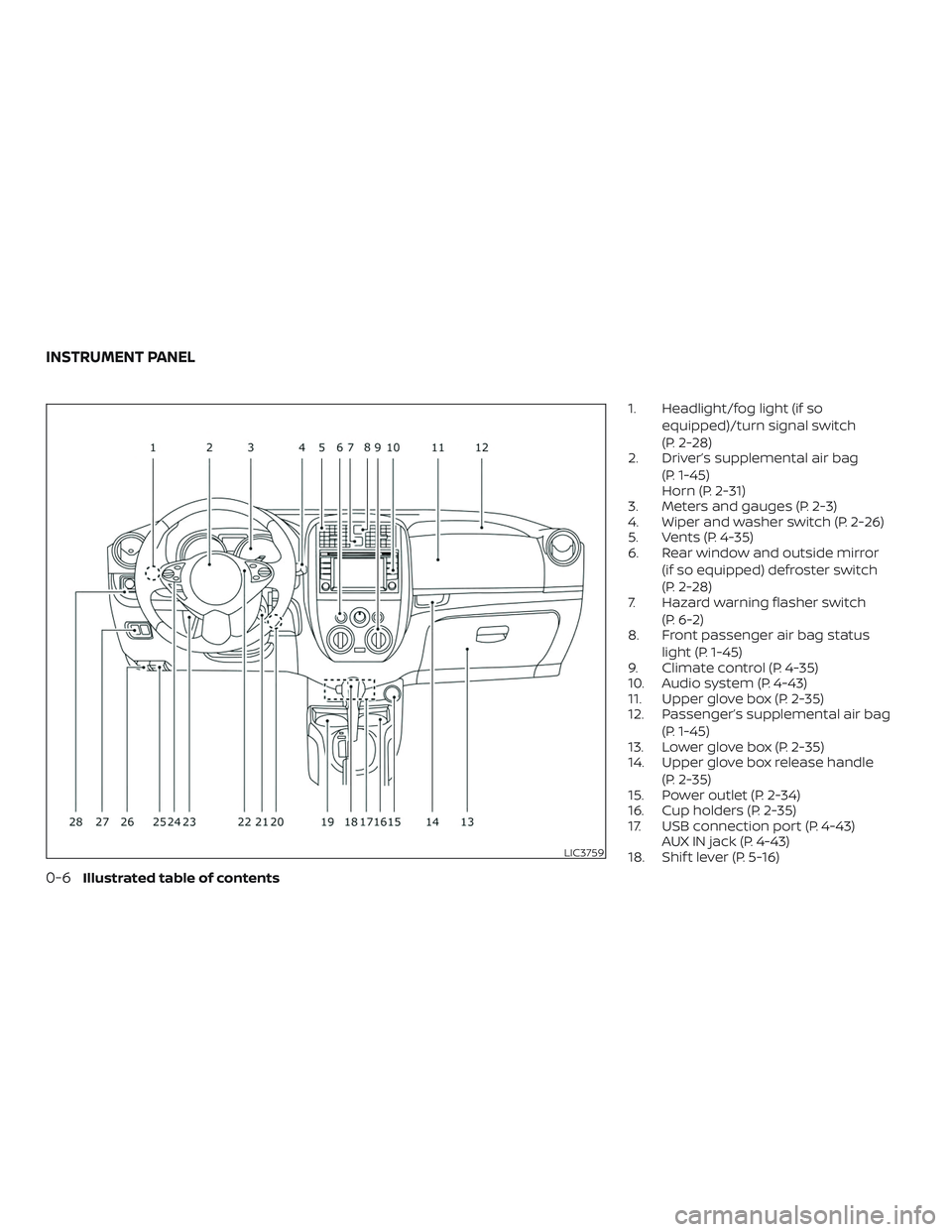
1. Headlight/fog light (if soequipped)/turn signal switch
(P. 2-28)
2. Driver’s supplemental air bag
(P. 1-45)
Horn (P. 2-31)
3. Meters and gauges (P. 2-3)
4. Wiper and washer switch (P. 2-26)
5. Vents (P. 4-35)
6. Rear window and outside mirror
(if so equipped) defroster switch
(P. 2-28)
7. Hazard warning flasher switch
(P. 6-2)
8. Front passenger air bag status
light (P. 1-45)
9. Climate control (P. 4-35)
10. Audio system (P. 4-43)
11. Upper glove box (P. 2-35)
12. Passenger’s supplemental air bag
(P. 1-45)
13. Lower glove box (P. 2-35)
14. Upper glove box release handle
(P. 2-35)
15. Power outlet (P. 2-34)
16. Cup holders (P. 2-35)
17. USB connection port (P. 4-43) AUX IN jack (P. 4-43)
18. Shif t lever (P. 5-16)
LIC3759
INSTRUMENT PANEL
0-6Illustrated table of contents
Page 522 of 878
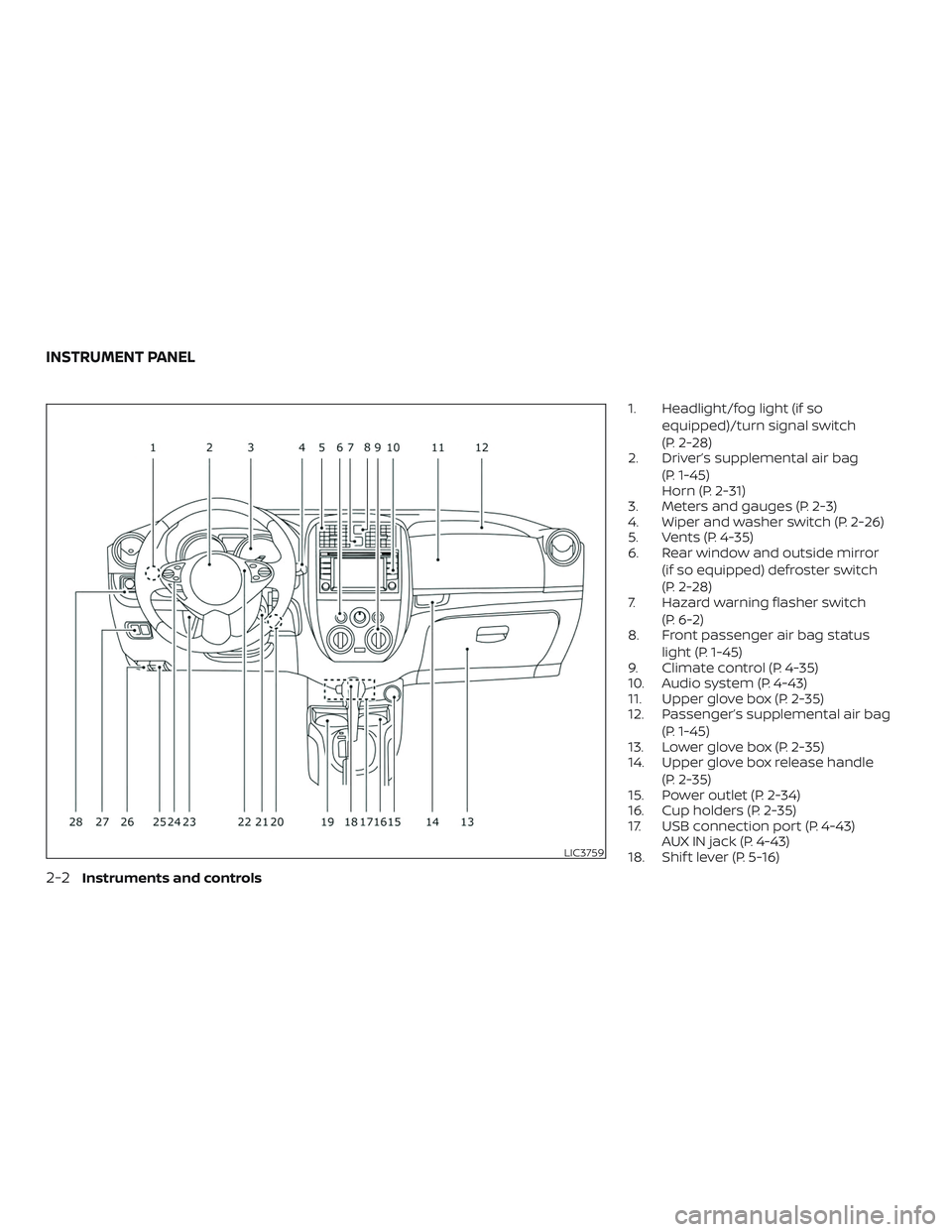
1. Headlight/fog light (if soequipped)/turn signal switch
(P. 2-28)
2. Driver’s supplemental air bag
(P. 1-45)
Horn (P. 2-31)
3. Meters and gauges (P. 2-3)
4. Wiper and washer switch (P. 2-26)
5. Vents (P. 4-35)
6. Rear window and outside mirror
(if so equipped) defroster switch
(P. 2-28)
7. Hazard warning flasher switch
(P. 6-2)
8. Front passenger air bag status
light (P. 1-45)
9. Climate control (P. 4-35)
10. Audio system (P. 4-43)
11. Upper glove box (P. 2-35)
12. Passenger’s supplemental air bag
(P. 1-45)
13. Lower glove box (P. 2-35)
14. Upper glove box release handle
(P. 2-35)
15. Power outlet (P. 2-34)
16. Cup holders (P. 2-35)
17. USB connection port (P. 4-43) AUX IN jack (P. 4-43)
18. Shif t lever (P. 5-16)
LIC3759
INSTRUMENT PANEL
2-2Instruments and controls
Page 602 of 878
FM radio reception.......................... 4-43
AM radio reception .......................... 4-44
Satellite radio reception (if so equipped) .....4-44
Audio operation precautions ................4-45
FM/AM radio (if so equipped) ................4-52
FM/AM/SAT radio with Compact Disc
(CD) player (if so equipped) ..................4-57
USB (Universal Serial Bus) connection
port (models without Navigation
System) (if so equipped) .....................4-65
USB (Universal Serial Bus) connection
port (models with Navigation System)
(if so equipped) .............................. 4-68
iPod®* player operation (models
without Navigation System) (if so
equipped) ................................... 4-69
iPod®* player operation (models with
Navigation System) (if so equipped) ..........4-72
Bluetooth® streaming audio (models
without Navigation System)
(if so equipped) .............................. 4-76
Bluetooth® streaming audio
(models with Navigation System)
(if so equipped) .............................. 4-79CD care and cleaning
........................ 4-81
Steering wheel switch for audio control ......4-81
Antenna ..................................... 4-83
NissanConnect® Mobile Apps (if so equipped). . . 4-83 Registering with NissanConnect®
Mobile Apps ................................. 4-83
Connect phone .............................. 4-83
Application download .......................4-84
Siri® Eyes Free (models without Navigation
System) (if so equipped) ........................4-84
Requirements ............................... 4-84
Operating Siri® Eyes Free ....................4-85
Troubleshooting guide ......................4-86
Siri® Eyes Free (models with Navigation
System) (if so equipped) ........................4-87
Requirements ............................... 4-87
Siri® Activation ............................... 4-88
Operating Siri® Eyes Free ....................4-88
Changing Siri® Eyes Free settings ............4-88
Troubleshooting guide ......................4-89
Car phone or CB radio .......................... 4-90
Bluetooth® Hands-Free Phone System
without Navigation System (if so equipped) .....4-90
R
egulatory information ......................4-92
Page 650 of 878
USB (Universal Serial Bus)
connection port
WARNING
Do not connect, disconnect or operate
the USB device while driving. Doing so
can be a distraction. If distracted you
could lose control of your vehicle and
cause an accident or serious injury.
CAUTION
∙ Do not force the USB device into theUSB port. Inserting the USB device
tilted or up-side-down into the port
may damage the port. Make sure that
the USB device is connected correctly
into the USB port.
∙ Do not grab the USB port cover (if so equipped) when pulling the USB de-
vice out of the port. This could dam-
age the port and the cover.
∙ Do not leave the USB cable in a place where it can be pulled unintentionally.
Pulling the cable may damage the
port. The vehicle is not equipped with a USB de-
vice. USB devices should be purchased
separately as necessary.
This system cannot be used to format USB
devices. To format a USB device, use a per-
sonal computer.
In some jurisdictions, the USB device for the
front seats plays only sound without im-
ages for regulatory reasons, even when the
vehicle is parked.
This system supports various USB
memory devices, USB hard drives and
iPod® players. Some USB devices may not
be supported by this system.
∙ Partitioned USB devices may not play correctly.
∙ Some characters used in other lan- guages (Chinese, Japanese, etc.) may
not appear properly in the display. Using
English language characters with a USB
device is recommended.
General notes for USB use: ∙ For additional information, refer to your device manufacturer’s owner informa-
tion regarding the proper use and care
of the device. Notes for iPod® use:
iPod® is a trademark of Apple Inc., regis-
tered in the U.S. and other countries.
∙ Improperly plugging in the iPod® may cause a checkmark to be displayed on
and off (flickering). Always make sure
that the iPod® is connected properly.
∙ An iPod® nano (1st Generation) may re- main in fast forward or rewind mode if it
is connected during a seek operation. In
this case, please manually reset the
iPod®.
∙ An iPod® nano (2nd Generation) will continue to fast-forward or rewind if it is
disconnected during a seek operation.
∙ An incorrect song title may appear when the Play Mode is changed while
using an iPod® nano (2nd Generation).
∙ Audiobooks may not play in the same order as they appear on an iPod®.
∙ Large video files cause slow responses in an iPod®. The vehicle center display
may momentarily black out, but will
soon recover.
4-50Monitor, climate, audio, phone and voice recognition systems
Page 656 of 878
Auxiliary (AUX) devices operation
Connecting auxiliary devices
Connect an AUX device into the AUX input
jack located on the center console below
the heater and air conditioner controls.
The AUX input jack accepts any standard
analog audio input such as from a portable
cassette player, CD player, MP3 player or
phone.
Insert a 1/8 in (3.5 mm) stereo mini plug in
the audio input jack. If a cable with a mono
plug is used, the audio output may not
function normally.
Activation and playing
Turn on the AUX device. Connect an AUX
cable to the AUX device and the AUX input
jack. Select AUX mode from the audio
source menu screen or by pressing the
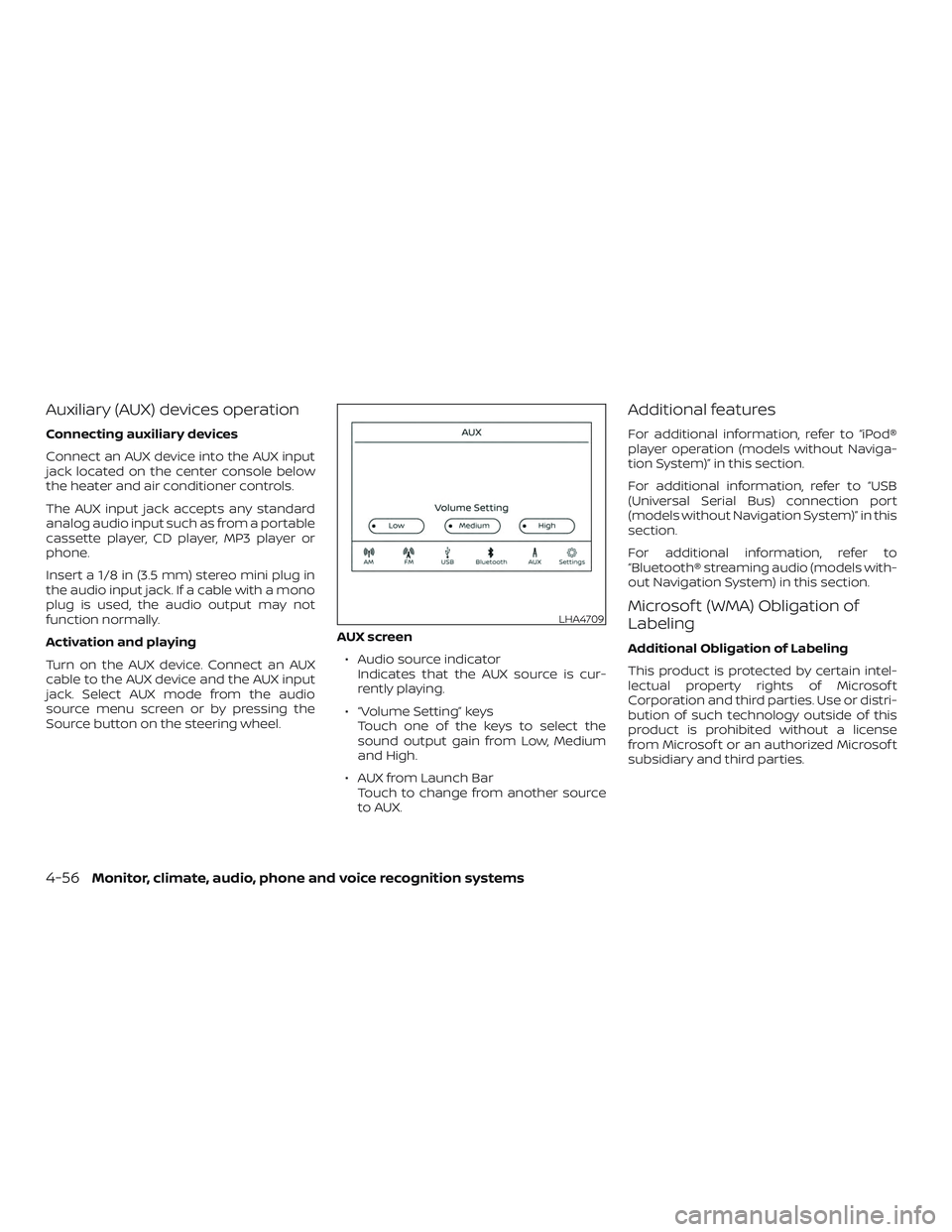
Source button on the steering wheel.AUX screen
∙ Audio source indicator Indicates that the AUX source is cur-
rently playing.
∙ “Volume Setting” keys Touch one of the keys to select the
sound output gain from Low, Medium
and High.
∙ AUX from Launch Bar Touch to change from another source
to AUX.
Additional features
For additional information, refer to “iPod®
player operation (models without Naviga-
tion System)” in this section.
For additional information, refer to “USB
(Universal Serial Bus) connection port
(models without Navigation System)” in this
section.
For additional information, refer to
“Bluetooth® streaming audio (models with-
out Navigation System) in this section.
Microsof t (WMA) Obligation of
Labeling
Additional Obligation of Labeling
This product is protected by certain intel-
lectual property rights of Microsof t
Corporation and third parties. Use or distri-
bution of such technology outside of this
product is prohibited without a license
from Microsof t or an authorized Microsof t
subsidiary and third parties.
LHA4709
4-56Monitor, climate, audio, phone and voice recognition systems
Page 664 of 878
SEEK (Reverse or FastForward) buttons
Press and hold the SEEK buttons
orfor 1.5 seconds while the compact
disc is playing to reverse or fast forward the
track being played. The compact disc plays
at an increased speed while reversing or
fast forwarding. When the button is re-
leased, the compact disc returns to normal
play speed.
SEEK buttons
Press the SEEK button
while a CD or
MP3/WMA CD is playing to return to the
beginning of the current track. Press the
SEEK button
several times to skip
backward several tracks.
Press the SEEK button
while a CD or
MP3/WMA CD is playing to advance one
track. Press the SEEK button
several
times to skip forward several tracks. If the
last track on a CD is skipped, the first track
on the disc is played. If the last track in a
folder of an MP3/WMA CD is skipped, the
first track of the next folder is played. AUX button
The AUX IN audio input jack accepts any
standard analog audio input such as from
a portable cassette tape/CD player, MP3
player or a laptop computer. Press the AUX
button to play a compatible device
plugged into the AUX IN jack.
EJECT button
When the
button is pressed with a
compact disc loaded, the compact disc will
eject and the last source will be played.
If the disc is not removed within 10 seconds,
the disc will reload.
Additional features
For additional information, refer to “iPod®
player operation (models with Navigation
System)” in this section.
For additional information, refer to “USB
(Universal Serial Bus) connection port
(models with Navigation System)” in this
section.
For additional information, refer to
“Bluetooth® streaming audio (models with
Navigation System) in this section.
Microsof t (WMA) Obligation of
Labeling
Additional Obligation of Labeling
This product is protected by certain intel-
lectual property rights of Microsof t
Corporation and third parties. Use or distri-
bution of such technology outside of this
product is prohibited without a license
from Microsof t or an authorized Microsof t
subsidiary and third parties.
4-64Monitor, climate, audio, phone and voice recognition systems