USB port NISSAN VERSA NOTE 2018 Owner´s Manual
[x] Cancel search | Manufacturer: NISSAN, Model Year: 2018, Model line: VERSA NOTE, Model: NISSAN VERSA NOTE 2018Pages: 878, PDF Size: 9.62 MB
Page 665 of 878
USB (Universal Serial Bus)
CONNECTION PORT (models
without Navigation System) (if so
equipped)
Connecting a device to the USB
connection port
WARNING
Do not connect, disconnect, or operate
the USB device while driving. Doing so
can be a distraction. If distracted you
could lose control of your vehicle and
cause an accident or serious injury.
CAUTION
∙ To avoid damage and loss of functionwhen using a USB device, note the fol-
lowing precautions.
∙ Do not force the USB device into the USB port. Inserting the USB device
tilted or up-side-down into the port
may damage the port. Make sure that
the USB device is connected correctly
into the USB port.
∙ Do not grab the USB port cover (if so equipped) when pulling the USB de-
vice out of the port. This could dam-
age the port and the cover.
∙ Do not leave the USB cable in a place where it can be pulled unintentionally.
Pulling the cable may damage the
port.
For additional information, refer to your de-
vice manufacturer’s owner information re-
garding the proper use and care of the
device.
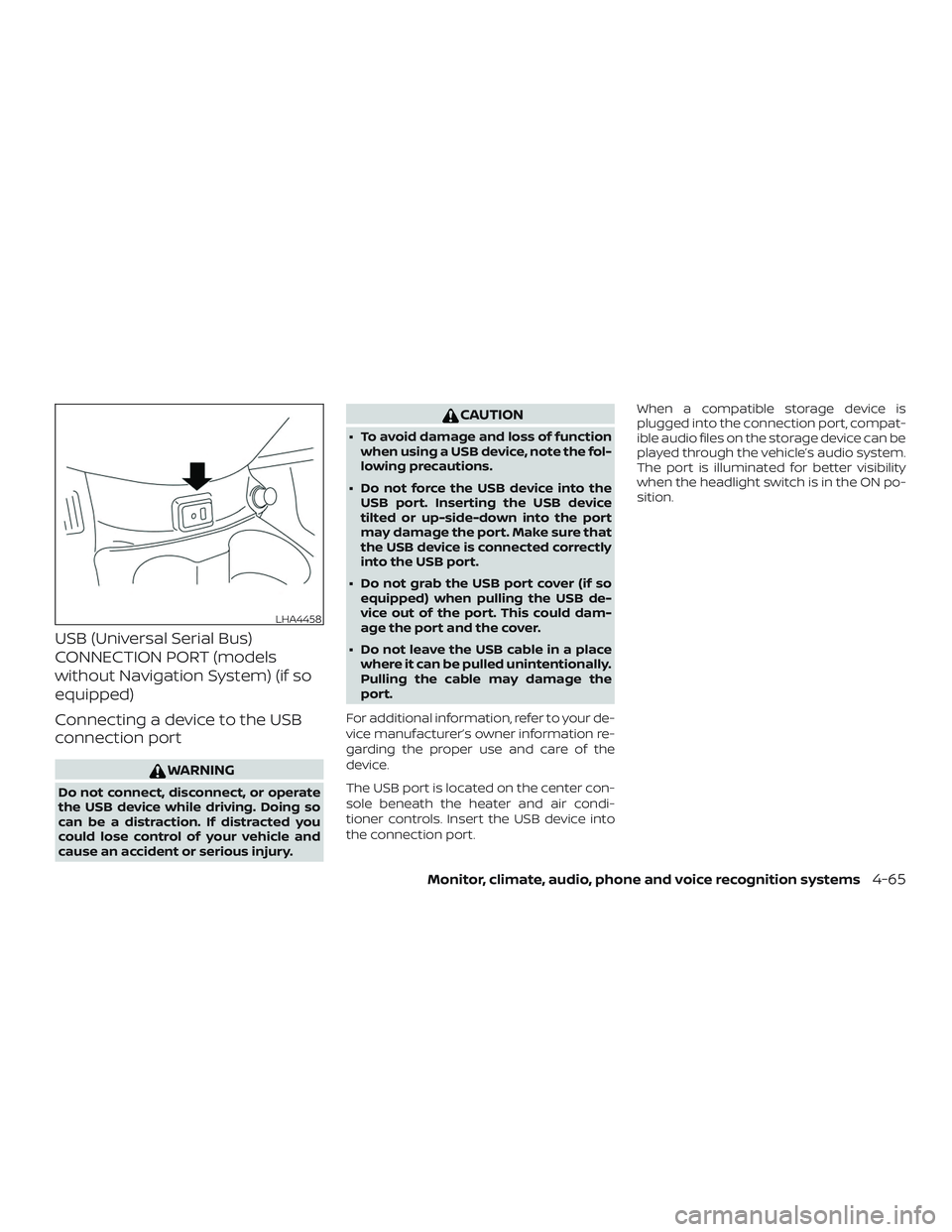
The USB port is located on the center con-
sole beneath the heater and air condi-
tioner controls. Insert the USB device into
the connection port. When a compatible storage device is
plugged into the connection port, compat-
ible audio files on the storage device can be
played through the vehicle’s audio system.
The port is illuminated for better visibility
when the headlight switch is in the ON po-
sition.
LHA4458
Monitor, climate, audio, phone and voice recognition systems4-65
Page 667 of 878
USB memory device player
operation
Activation and playing
Connecting the USB memory device into
the port will start playing the USB memory.
USB memory device can also be played by
touching the “USB” key on the Menu screen
or by touching USB on the Launch Bar.
To pause playing the USB memory device
touch the “
” key. To resume playing,
touch the “
”key.
Skipping tracks
To skip the tracks, push the
orbuttons on the control panel or touch the
“
”or“” keys on the screen repeat-
edly until the preferred track is selected. NOTE:
Depending on the condition, skipping to
the previous track may require pushing
the button or touching the key twice.
Pushing the button or touching the key
once may only restart the current track
from the beginning.
Fast-forwarding/rewinding
To rewind or fast-forward the track, push
and hold the
orbuttons on the
control panel or touch and hold the “
”
or “
” keys on the screen.
Changing play mode
Repeat mode
Touch the “
” key on the USB screen to
change the repeat mode.
The following modes are available:
No text displayed: Repeat off
All: Repeat all
1 Folder: Repeat folder/sub-folder
1 Track: Repeat track Random mode
Touch the “
” key on the screen to
change the random mode as follows:
No text displayed: Random off
Random: Random play
All: Repeat all
1 Folder: Repeat folder/sub-folder
USB menu
Touch the “USB Menu” key on the USB
screen to display the USB Menu screen.
“Now Playing” key Touch to display the USB
screen.
“Folder List” key Touch to display the folder list. Touch an item on the list
to select the folder. The sub-
folder or track list will be
displayed. Select a sub-folder
or track from the list.
“Album Artwork” Touch to run on/off the al- bum artwork display on the
USB screen.
Monitor, climate, audio, phone and voice recognition systems4-67
Page 668 of 878
USB (Universal Serial Bus)
CONNECTION PORT (models with
Navigation System) (if so
equipped)
Connecting a device to the USB
connection port
WARNING
Do not connect, disconnect or operate
the USB device while driving. Doing so
can be a distraction. If distracted you
could lose control of your vehicle and
cause an accident or serious injury.
CAUTION
∙ Do not force the USB device into theUSB port. Inserting the USB device
tilted or up-side-down into the port
may damage the port. Make sure that
the USB device is connected correctly
into the USB port.
∙ Do not grab the USB port cover (if so equipped) when pulling the USB de-
vice out of the port. This could dam-
age the port and the cover.
∙ Do not leave the USB cable in a place where it can be pulled unintentionally.
Pulling the cable may damage the
port.
For additional information, refer to your de-
vice manufacturer’s owner information re-
garding the proper use and care of the
device.
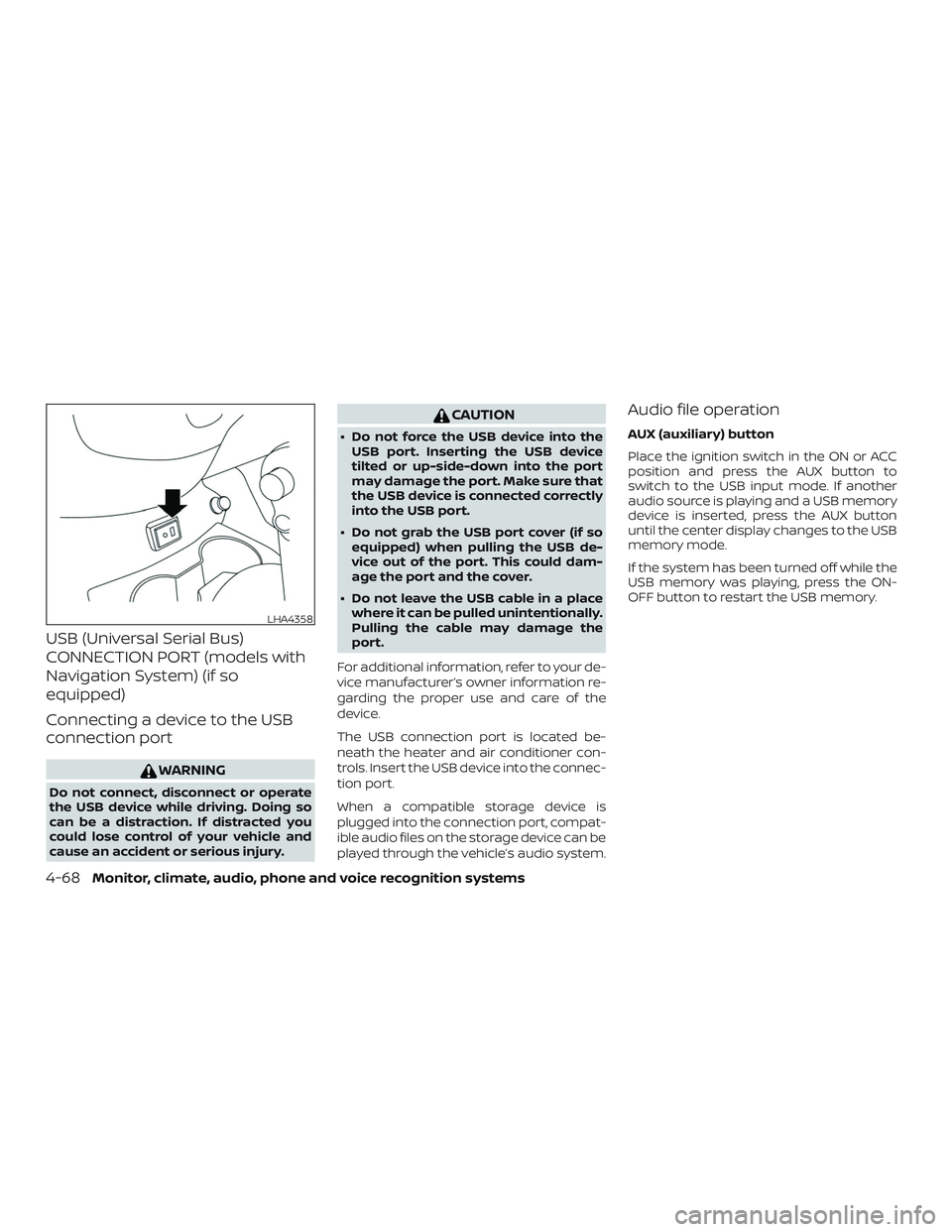
The USB connection port is located be-
neath the heater and air conditioner con-
trols. Insert the USB device into the connec-
tion port.
When a compatible storage device is
plugged into the connection port, compat-
ible audio files on the storage device can be
played through the vehicle’s audio system.
Audio file operation
AUX (auxiliary) button
Place the ignition switch in the ON or ACC
position and press the AUX button to
switch to the USB input mode. If another
audio source is playing and a USB memory
device is inserted, press the AUX button
until the center display changes to the USB
memory mode.
If the system has been turned off while the
USB memory was playing, press the ON-
OFF button to restart the USB memory.
LHA4358
4-68Monitor, climate, audio, phone and voice recognition systems
Page 670 of 878
CAUTION
∙ Do not force the USB device into theUSB port. Inserting the USB device
tilted or up-side-down into the port
may damage the port. Make sure that
the USB device is connected correctly
into the USB port.
∙ Do not grab the USB port cover (if so equipped) when pulling the USB de-
vice out of the port. This could dam-
age the port and the cover.
∙ Do not leave the USB cable in a place where it can be pulled unintentionally.
Pulling the cable may damage the
port.
For additional information, refer to your de-
vice manufacturer’s owner information re-
garding the proper use and care of the
device.
To connect an iPod® to the vehicle so that
the iPod® can be controlled with the audio
system controls and display screen, use
the USB connection port located on the
center console below the heater and air
conditioner controls. Connect the iPod®-
specific end of the cable to the iPod® and
the USB end of the cable to the USB con-
nection port on the vehicle. If your iPod®
supports charging via a USB connection, its battery will be charged while connected to
the vehicle with the ignition switch in the
ON position. The port is illuminated for bet-
ter visibility when the headlight switch is in
the ON position.
While connected to the vehicle, the iPod®
can only be operated by the vehicle audio
controls.
To disconnect the iPod® from the vehicle,
remove the USB end of the cable from the
USB connection port on the vehicle, then
remove the cable from the iPod®.
* iPod® is a trademark of Apple Inc., regis-
tered in the U.S. and other countries.
Compatibility
The following models are compatible:
∙ iPod® Classic 5th generation (firmware version 1.3.0 or later)
∙ iPod® Classic 6th generation (firmware version 2.0.1 or later)
∙ iPod® Classic 7th generation (firmware version 2.0.4 or later)
∙ iPod® Touch 2nd generation (firmware version 4.2.1 or later)*
∙ iPod® Touch 3rd generation (firmware version 5.1 or later) ∙ iPod® Touch 4th generation (firmware
version 5.1 or later)
∙ iPod® nano - 1st generation (firmware version 1.3.1 or later)
∙ iPod® nano - 2nd generation (firmware version 1.1.3 or later)
∙ iPod® nano - 3rd generation (firmware version 1.1.3 or later)
∙ iPod® nano - 4th generation (firmware version 1.0.4 or later)
∙ iPod® nano - 5th generation (firmware version 1.0.2 or later)
∙ iPod® nano - 6th generation (firmware version 1.1 or later)
∙ iPhone® 3G (firmware version 4.2.1 or later)
∙ iPhone® 3GS (firmware version 5.1 or later)
∙ iPhone® 4 (firmware version 5.1 or later)
∙ iPhone® 4S (firmware version 5.1 or later)
* Some features of this iPod® may not be
fully functional.
Make sure that your iPod® firmware is up-
dated to the version indicated above.
4-70Monitor, climate, audio, phone and voice recognition systems
Page 673 of 878
CAUTION
∙ Do not force the USB device into theUSB port. Inserting the USB device
tilted or up-side-down into the port
may damage the port. Make sure that
the USB device is connected correctly
into the USB port.
∙ Do not grab the USB port cover (if so equipped) when pulling the USB de-
vice out of the port. This could dam-
age the port and the cover.
∙ Do not leave the USB cable in a place where it can be pulled unintentionally.
Pulling the cable may damage the
port.
For additional information, refer to your de-
vice manufacturer’s owner information re-
garding the proper use and care of the
device.
To connect an iPod® to the vehicle so that
the iPod® can be controlled with the audio
system controls and display screen, use
the USB Connection port located beneath
the heater and air conditioner controls.
Connect the iPod®-specific end of the
cable to the iPod® and the USB end of the
cable to the USB Connection port on the
vehicle. If your iPod® supports charging via a USB connection, its battery will be
charged while connected to the vehicle
with the ignition switch in the ACC or ON
position.
While connected to the vehicle, the iPod®
can only be operated by the vehicle audio
controls.
To disconnect the iPod® from the vehicle,
remove the USB end of the cable from the
USB Connection port on the vehicle, then
remove the cable from the iPod®.
* iPod® is a trademark of Apple Inc., regis-
tered in the U.S. and other countries.
Compatibility
The following models are compatible:
∙ iPod® Classic 5th generation (firmware version 1.3.0 or later)
∙ iPod® Classic 6th generation (firmware version 2.0.1 or later)
∙ iPod® Classic 7th generation (firmware version 2.0.4 or later)
∙ iPod® Touch 2nd generation (firmware version 4.2.1 or later)*
∙ iPod® Touch 3rd generation (firmware version 5.1 or later) ∙ iPod® Touch 4th generation (firmware
version 5.1 or later)
∙ iPod® nano - 1st generation (firmware version 1.3.1 or later)
∙ iPod® nano - 2nd generation (firmware version 1.1.3 or later)
∙ iPod® nano - 3rd generation (firmware version 1.1.3 or later)
∙ iPod® nano - 4th generation (firmware version 1.0.4 or later)
∙ iPod® nano - 5th generation (firmware version 1.0.2 or later)
∙ iPod® nano - 6th generation (firmware version 1.1 or later)
∙ iPhone® 3G (firmware version 4.2.1 or later)
∙ iPhone® 3GS (firmware version 5.1 or later)
∙ iPhone® 4 (firmware version 5.1 or later)
∙ iPhone® 4S (firmware version 5.1 or later)
* Some features of this iPod® may not be
fully functional.
Make sure that your iPod® firmware is up-
dated to the version indicated above.
Monitor, climate, audio, phone and voice recognition systems4-73
Page 867 of 878
11 Index
A
ActiveTraceControl.............4-97
Air bag (See supplemental restraint
system) .................... .1-45
Air bag system Front (See supplemental front impact air
bagsystem)............... .1-55
Air bag warning labels ............1-63
Airbagwarninglight .........1-63, 2-20
Air bag warning light,
supplemental ..............1-63, 2-20
Air cleaner housing filter ..........8-14
Air conditioner Air conditioner operation ........4-38
Air conditioner service ..........4-43
Air conditioner specification label . .10-13
Air conditioner system refrigerant and oil
recommendations ............10-8
Air conditioner system refrigerant
recommendations ............10-8
Heater and air conditioner
controls...................4-35
Servicing air conditioner ........4-43
Air flow charts .................4-39
Anchor point locations ...........1-28
Antenna ....................4-83
Antifreeze ...................5-35
Anti-lock brake warning light ........2-15
Anti-lock Braking System (ABS) ......5-30
Apps ......................4-83
Armrests.....................1-5 Around View® Monitor
............4-23
Audible reminders ..............2-23
Audiosystem.................4-43 AM/FMradio................4-54
AMradioreception............4-44
Auxliliary (AUX) devices operation . . .4-56
Bluetooth® audio .........4-76,4-79
Compact disc (CD) player ........4-62
FM/AM/SAT radio with compact disc (CD)
player.................4-52,4-57
FMradioreception............4-43
iPod®Player.............4-69,4-72
iPod® player operation ......4-69,4-72
Radio ....................4-43
Steering wheel audio control
switch....................4-81
USBinterface............4-65,4-68
USB (Universal Serial Bus) Connection
Port..................4-65,4-68
Automatic Automatic power window switch . . .2-42
Automatic door locks .............3-7
AUXjack....................4-64
B
Battery..................5-35,8-11 Charge warning light ...........2-16
Battery replacement ............8-20
Keyfob................8-20,8-20
NISSAN Intelligent Key® .........8-22
Before starting the engine .........5-15Belt(Seedrivebelt)..............8-13
Bluetooth® audio
...........4-76,4-79
Bluetooth® hands-free phone
system .................4-90,4-109
Bluetooth® connections ........4-106
Connecting procedure .........4-95
Text messaging .............4-102
Bluetooth® streaming audio with
NavigationSystem..............4-79
Booster seats .................1-41
Brake Anti-lock Braking System (ABS) ....5-30
Brakefluid..................8-9
Brakelight(Seestoplight).......8-25
Brakesystem...............5-30
Brakewarninglight............2-15
Brakewearindicators.......2-23,8-17
Parking brake operation ........5-22
Self-adjustingbrakes ..........8-17
Brakeassist..................5-31
Brakefluid....................8-9
Brakes......................8-17
Brakesystem.................5-30
Break-in schedule ..............5-25
Brightness/contrast button ......4-9,4-15
Brightness
control
Instrument panel .............2-30
Bulb check/instrument panel .......2-15
Bulb replacement ..............8-25