change time NISSAN VERSA NOTE 2018 Owner´s Manual
[x] Cancel search | Manufacturer: NISSAN, Model Year: 2018, Model line: VERSA NOTE, Model: NISSAN VERSA NOTE 2018Pages: 878, PDF Size: 9.62 MB
Page 209 of 878
SEEK and TRACK(Fast Forward, Rewind)
buttons
When the SEEK button
or
TRACK
button is pressed while the
compact disc is playing, the compact disc
plays at an increased speed while fast for-
warding or rewinding. When the button is
released, the compact disc returns to nor-
mal play speed.
SEEK and TRACK
buttons
When the SEEKbutton is pressed while
the compact disc is playing, the next track
following the present one starts to play from
the beginning. Press the SEEK
button
several times to skip several tracks. Each
time the button is pressed, the CD advances
one additional track. The track number ap-
pears in the display window. (When the last
track on the compact disc is skipped, the first
track is played.)
When the TRACKbutton is pressed,
the track being played returns to the be-
ginning. Press the TRACK
button sev-
eral times to skip back several tracks. Each
time the button is pressed the CD moves
back one track. RPT (repeat)/RDM (random) button
Press the RPT/RDM button while a com-
pact disc is playing to change the play pat-
tern as follows:
CD:
TRACK REPEAT
→DISC RANDOM →DISC
REPEAT
MP3/WMA CD:
FOLDER REPEAT →TRACK REPEAT →DISC
RANDOM →FOLDER RANDOM →DISC RE-
PEAT
TRACK REPEAT: The track that is currently
playing will be repeated.
DISC RANDOM: The order of the tracks on
the disc will be mixed during play.
DISC REPEAT: The disc currently playing will
be repeated.
FOLDER REPEAT: The tracks in the current
folder will be repeated.
FOLDER RANDOM: The order of the tracks in
the folder will be mixed during play.
SCAN (CDs) button
Press the SCAN button for less than 1.5 sec-
onds to scan all tracks of the current disc for 10 seconds per track. The SCAN icon is
flashed during scan mode.
The scan mode is canceled once it scans
through all tracks on the disc, or if the SCAN
button is pressed during scan mode.
CD EJECT
When the
button is pressed with a
compact disc loaded, the compact disc will
be ejected.
When the
button is pressed while the
compact disc is playing, the compact disc
will eject and the system will turn off.
AUX (Auxiliary) button
The AUX IN jack is located on the CD player.
The AUX IN audio input jack accepts any
standard analog audio input such as from
a portable cassette tape/CD player, MP3
player or laptop computers.
Press the AUX button to play a compatible
device when it is plugged into the AUX IN
jack.
Press the MENU button repeatedly until
“AUX IN Volume” appears on the screen to
control the incoming volume level of the
auxiliary input device. Turn the
TUNE/FOLDER knob to adjust the level be-
tween 0 and +3.
4-48Monitor, climate, audio, phone and voice recognition systems
Page 211 of 878
Audio main operation
(power) button / VOL (volume)
control knob
Place the ignition switch in the ACC or ON
position and press the
(power) but-
ton while the system is off to call up the
mode (radio, CD, AUX, Bluetooth® audio,
USB or iPod®) that was playing immediately
before the system was turned off. To turn the system off, press the
(power) button.
Turn the VOL (volume) control knob to ad-
just the volume.
This vehicle may be equipped with Speed
Sensitive Volume. When this feature is ac-
tive, the audio volume changes as the driv-
ing speed changes.
ENTER/SETTING button
Press the ENTER/SETTING button to show
the Settings screen on the display. Turn the
TUNE/SCROLL knob to navigate the op-
tions and then press the ENTER/SETTING
button to make a selection.
Audio
Bass Adjusts the bass to the desired level.
Treble Adjusts the treble to the desired level.
Balance Adjusts the balance to the desired level. Balance adjusts the sound level between the lef t and right speakers.
Fade Adjusts the fade to the desired level. Fade adjusts the sound level between the front and rear speakers.
Brightness Adjust the brightness to adjust the appearance of the display screen.
Contrast Adjust the contrast to adjust the appearance of the display screen.
Clock Adjust Allows the user to set time manually.
On-Screen Clock Toggles ON or OFF the clock display on the upper right corner of the display screen.
RDS Display Toggles ON or OFF the RDS information displayed on the screen while the radio is playing.
Speed Sensitive Vol. (Volume) Adjusts the speed sensitive volume function, which increases the volume of the audio system as the speed of the ve- hicle increases. Set to “OFF” to disable the feature. The higher the setting, the more the volume increases in relation to
vehicle speed.
AUX Vol. Choose a setting from 0 to +3 to control the boost of incoming auxiliary device volume. A setting of 0 provides no ad-
ditional boost in volume. A setting of +3 provides the greatest boost in volume.
Language Select Select the desired language for the system from the available options.
Auto Source Change Select ON or OFF for the Auto Source Change. With Auto Source Change ON: when device is plugged into USB port,
radio will automatically switch to USB source. With Auto Source Change OFF: when device is plugged into USB port,
radio will stay on currently selected source.
Bass, treble, balance and fade can also be adjusted by pressing the ENTER/SETTING button and turning the TUNE/SCROLL control knob to select the
item to adjust. When the desired item is shown on the display, turn the tuning to adjust and then press the ENTER/SETTING button until the display
returns to the main audio screen. If the button is not pressed for approximately 10 seconds, the radio or CD display will automatically reappear.
4-50Monitor, climate, audio, phone and voice recognition systems
Page 214 of 878
Press the SEEK/CAT buttonwhile a
CD or MP3/WMA CD is playing to advance
one track. Press the SEEK/CAT button
several times to skip forward several
tracks. If the last track on a CD is skipped,
the first track on the disc is played. If the last
track in a folder of an MP3/WMA CD is
skipped, the first track of the next folder is
played.
TUNE/SCROLL knob (MP3/WMA CD only)
If a MP3/WMA CD with multiple folders is
playing, turn the TUNE/SCROLL knob to
change folders. Turn the knob to the lef t to
skip back a folder. Turn the knob to the right
to skip ahead a folder.
RPT (repeat) button
When the RPT button is pressed while a
compact disc is playing, the play pattern
can be changed as follows:
CD:
1 Track Repeat ←→OFF
CD with MP3 or WMA:
1 Folder Repeat →1 Track Repeat →OFF
1 Track Repeat: the current track will be
repeated. 1 Folder Repeat: the current folder will be
repeated.
OFF: No repeat play pattern is applied. The
indicator on the display will turn off.
The current play pattern of the CD is dis-
played on the screen unless no pattern is
applied.
RDM (random) button
When the RDM button is pressed while a
compact disc is playing, the play pattern
can be changed as follows:
CD:
1 Disc Random
←→OFF
CD with MP3 or WMA:
1 Disc Random →1 Folder Random →OFF
1 Disc Random: all tracks on the disc will be
played randomly.
1 Folder Random: all tracks in the current
folder will be played randomly.
OFF: No random play pattern is applied. The
indicator on the display will turn off.
The current play pattern of the CD is dis-
played on the screen unless no pattern is
applied.
EJECT button
When the
button is pressed with a
compact disc loaded, the compact disc will
eject and the last source will be played.
If the disc is not removed within 20 sec-
onds, the disc will reload.
Additional features
For additional information, refer to “iPod®
player operation without Navigation Sys-
tem” in this section.
For additional information, refer to “USB
(Universal Serial Bus) connection port
(models without Navigation System)” in this
section.
For additional information, refer to
“Bluetooth® streaming audio without Navi-
gation System” in this section.
Monitor, climate, audio, phone and voice recognition systems4-53
Page 223 of 878
CAUTION
∙ Do not force the USB device into theUSB port. Inserting the USB device
tilted or up-side-down into the port
may damage the port. Make sure that
the USB device is connected correctly
into the USB port.
∙ Do not grab the USB port cover (if so equipped) when pulling the USB de-
vice out of the port. This could dam-
age the port and the cover.
∙ Do not leave the USB cable in a place where it can be pulled unintentionally.
Pulling the cable may damage the
port.
For additional information, refer to your de-
vice manufacturer’s owner information re-
garding the proper use and care of the
device.
The USB connection port is located be-
neath the heater and air conditioner con-
trols. Insert the USB device into the connec-
tion port.
When a compatible storage device is
plugged into the connection port, compat-
ible audio files on the storage device can be
played through the vehicle’s audio system.
Audio file operation
MEDIA button
Place the ignition switch in the ON or ACC
position and press the MEDIA button to
switch to the USB input mode. If a CD is
playing or another audio source is plugged
in through the AUX IN jack located on the
instrument panel, the MEDIA button
toggles between the three sources.
Play information
Information about the audio files being
played can be displayed on the display
screen of the vehicle’s audio system. De-
pending on how the audio files are en-
coded, information such as Folder, Song
and Artist will be displayed.
The track number and number of total
tracks in the folder are displayed on the
screen as well.
SEEK/CAT and TRACK (Reverse or Fast For-
ward) button
Press and hold the
orSEEK/CAT
and TRACK buttons for 1.5 seconds while an
audio file on the USB device is playing to
reverse or fast forward the track being
played. The track plays at an increased speed while reversing or fast forwarding.
When the button is released, the audio file
returns to normal play speed.
SEEK/CAT and TRACK
buttons
Press the SEEK/CAT or TRACK button
while an audio file on the USB device is
playing to return to the beginning of the
current track. Press the SEEK/CAT or TRACK
button
several times to skip back-
ward several tracks.
Press the SEEK/CAT or TRACK button
while an audio file on the USB device is
playing to advance one track. Press the
SEEK/CAT or TRACK button
several
times to skip forward several tracks. If the
last track in a folder on the USB device is
skipped, the first track of the next folder is
played.
RDM (random) button
When the RDM button is pressed while an
audio file on the USB device is playing, the
play pattern can be changed as follows:
All Random →1 Folder Random →OFF
All Random: all tracks on the USB device will
be played randomly.
4-62Monitor, climate, audio, phone and voice recognition systems
Page 225 of 878
CAUTION
∙ Do not force the USB device into theUSB port. Inserting the USB device
tilted or up-side-down into the port
may damage the port. Make sure that
the USB device is connected correctly
into the USB port.
∙ Do not grab the USB port cover (if so equipped) when pulling the USB de-
vice out of the port. This could dam-
age the port and the cover.
∙ Do not leave the USB cable in a place where it can be pulled unintentionally.
Pulling the cable may damage the
port.
For additional information, refer to your de-
vice manufacturer’s owner information re-
garding the proper use and care of the
device.
The USB connection port is located be-
neath the heater and air conditioner con-
trols. Insert the USB device into the connec-
tion port.
When a compatible storage device is
plugged into the connection port, compat-
ible audio files on the storage device can be
played through the vehicle’s audio system.
Audio file operation
AUX (auxiliary) button
Place the ignition switch in the ON or ACC
position and press the AUX button to
switch to the USB input mode. If another
audio source is playing and a USB memory
device is inserted, press the AUX button
until the center display changes to the USB
memory mode.
If the system has been turned off while the
USB memory was playing, press the ON-
OFF button to restart the USB memory.
Play information
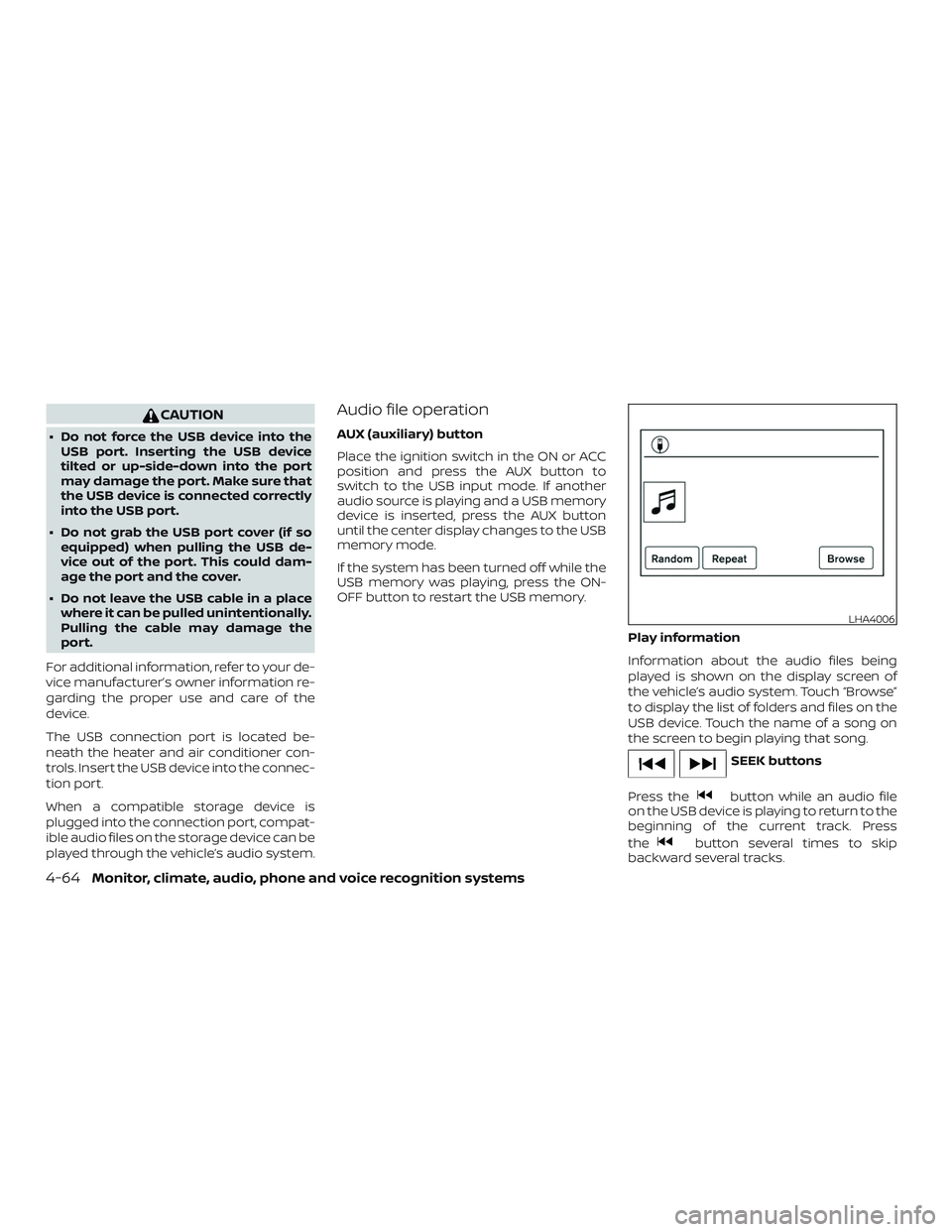
Information about the audio files being
played is shown on the display screen of
the vehicle’s audio system. Touch “Browse”
to display the list of folders and files on the
USB device. Touch the name of a song on
the screen to begin playing that song.
SEEK buttons
Press the
button while an audio file
on the USB device is playing to return to the
beginning of the current track. Press
the
button several times to skip
backward several tracks.
LHA4006
4-64Monitor, climate, audio, phone and voice recognition systems
Page 241 of 878
TROUBLESHOOTING GUIDE
SymptomCause and Countermeasure
Cannot access Siri Eyes Free from switch
on the steering wheel Check if a Bluetooth® connection is established between the iPhone® and the system.
Check if Siri is enabled on the device. On your phone, go to Siri setting.
Check that Siri can be accessed from the device lock screen. This can be set in the settings menu of your phone.
Models without navigation system:
Check the settings for Siri Eyes Free activation on the vehicle audio system. If the setting is “Long Press”, you must
push and hold the
/TALK switch on the steering wheel for more than 1.5 seconds to start Siri Eyes Free.
If the setting is “Short Press”, a short push and release of the switch should start Siri Eyes Free.
Audio Source does not change automati-
cally to iPod® or Bluetooth® Audio mode For best results, use the native Music app. Performance of music control function while using Podcasts, Audiobook
or other 3rd party music apps may vary.
For best results, play media already stored on your device. Streaming music or playback from cloud storage may
degrade performance.
Switch the source manually by pressing the AUX or MEDIA button on the vehicle audio system or the SOURCE select
switch on the steering wheel.
Play, pause, next track, previous track or
play timer does not work For best results, use the native Music app. Performance of music control function while using Podcasts, Audiobook
or other 3rd party music apps may vary and is controlled by the device.
Cannot hear any music/audio being
played back from a connected iPhone® Check that the audio source is set to Bluetooth® Audio or iPod® mode. A USB connection is required for iPod®
mode.
Cannot hear map turn-by-turn direction
guidance from a connected iPhone® Check that the audio source is set to Bluetooth® Audio or iPod® mode. A USB connection is required for iPod®
mode.
Cannot receive text message notifications
on the vehicle audio system Check if “Send Notifications” is enabled on your phone. On the phone, go to Bluetooth® settings. Find the device
name, like “My Car”. Press the info button. Turn on “Show Notifications”.
Cannot reply to text message notifications
by Siri Eyes Free Af ter receiving an incoming text message, follow on-screen guidance. Push or push and hold
the
/TALK switch on the steering wheel for Siri Eyes Free. Af ter Siri Eyes Free starts, say “Text Message”.
4-80Monitor, climate, audio, phone and voice recognition systems
Page 247 of 878
CONTROL BUTTONS
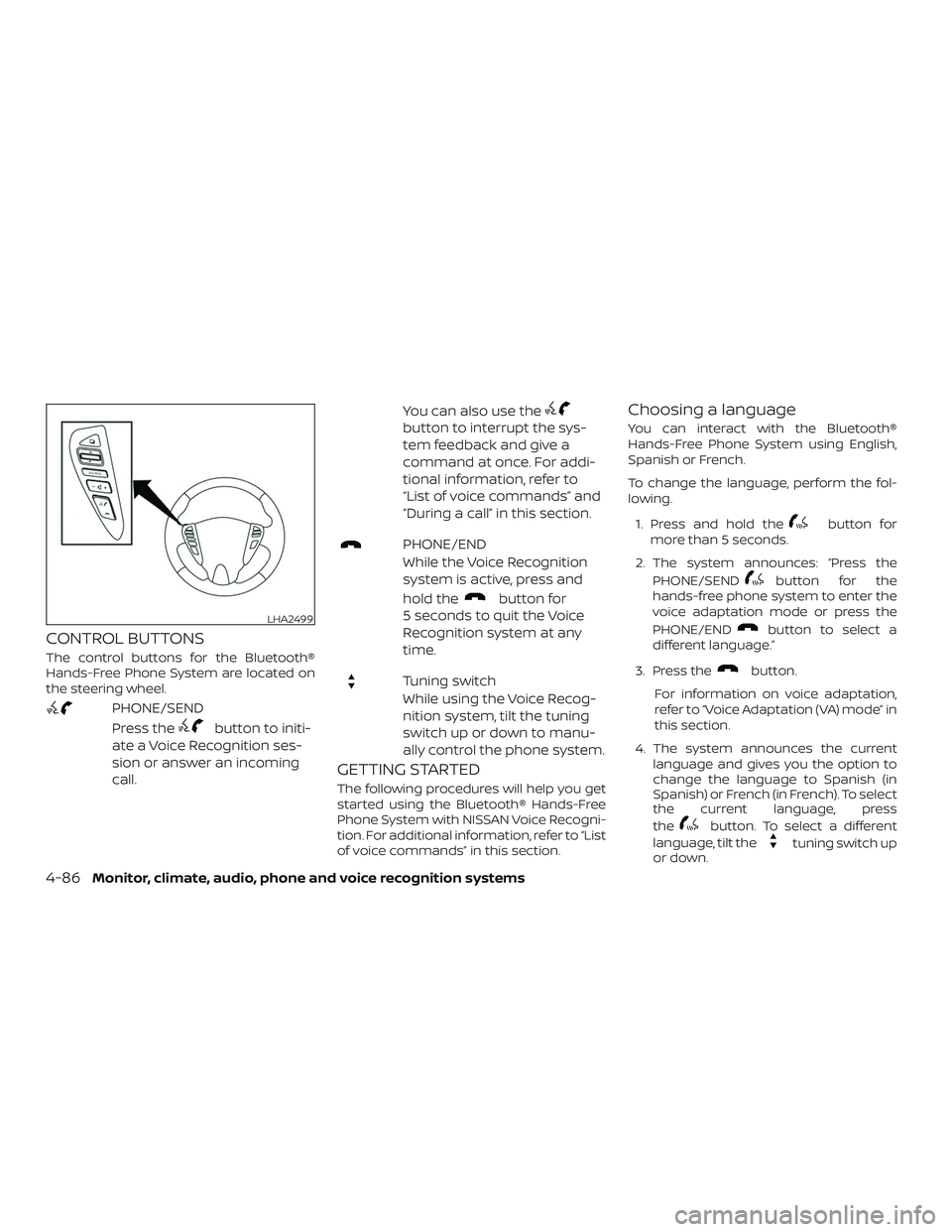
The control buttons for the Bluetooth®
Hands-Free Phone System are located on
the steering wheel.
PHONE/SEND
Press the
button to initi-
ate a Voice Recognition ses-
sion or answer an incoming
call. You can also use the
button to interrupt the sys-
tem feedback and give a
command at once. For addi-
tional information, refer to
“List of voice commands” and
“During a call” in this section.
PHONE/END
While the Voice Recognition
system is active, press and
hold the
button for
5 seconds to quit the Voice
Recognition system at any
time.
Tuning switch
While using the Voice Recog-
nition system, tilt the tuning
switch up or down to manu-
ally control the phone system.
GETTING STARTED
The following procedures will help you get
started using the Bluetooth® Hands-Free
Phone System with NISSAN Voice Recogni-
tion. For additional information, refer to “List
of voice commands” in this section.
Choosing a language
You can interact with the Bluetooth®
Hands-Free Phone System using English,
Spanish or French.
To change the language, perform the fol-
lowing.
1. Press and hold the
button for
more than 5 seconds.
2. The system announces: “Press the PHONE/SEND
button for the
hands-free phone system to enter the
voice adaptation mode or press the
PHONE/END
button to select a
different language.”
3. Press the
button.
For information on voice adaptation,
refer to “Voice Adaptation (VA) mode” in
this section.
4. The system announces the current language and gives you the option to
change the language to Spanish (in
Spanish) or French (in French). To select
the current language, press
the
button. To select a different
language, tilt the
tuning switch up
or down.
LHA2499
4-86Monitor, climate, audio, phone and voice recognition systems
Page 287 of 878
WARNING
∙ Do not leave children or adults whowould normally require the assis-
tance of others alone in your vehicle.
Pets should also not be lef t alone.
They could accidentally injure them-
selves or others through inadvertent
operation of the vehicle. Also, on hot,
sunny days, temperatures in a closed
vehicle could quickly become high
enough to cause severe or possibly
fatal injuries to people or animals.
∙ Properly secure all cargo to help pre- vent it from sliding or shif ting. Do not
place cargo higher than the seat-
backs. In a sudden stop or collision,
unsecured cargo could cause per-
sonal injury.
EXHAUST GAS (carbon monoxide)
WARNING
∙ Do not breathe exhaust gases; theycontain colorless and odorless carbon
monoxide. Carbon monoxide is dan-
gerous. It can cause unconsciousness
or death. ∙ If you suspect that exhaust fumes are
entering the vehicle, drive with all
windows fully open, and have the ve-
hicle inspected immediately.
∙ Do not run the engine in closed spaces such as a garage.
∙ Do not park the vehicle with the en- gine running for any extended length
of time.
∙ Keep the rear vent windows, doors and trunk lids (if so equipped) closed
while driving, otherwise exhaust
gases could be drawn into the pas-
senger compartment. If you must
drive with one of these open, follow
these precautions:
1. Open all the windows.
2. Turn the air recirculation mode off and set the fan speed control to
the highest level to circulate the
air.
∙ The exhaust system and body should be inspected by a qualified mechanic
whenever:
a. The vehicle is raised for service. b. You suspect that exhaust fumes
are entering into the passenger
compartment.
c. You notice a change in the sound of the exhaust system.
d. You have had an accident involving damage to the exhaust system,
underbody, or rear of the vehicle.
THREE-WAY CATALYST
The three-way catalyst is an emission con-
trol device installed in the exhaust system.
Exhaust gases in the three-way catalyst
are burned at high temperatures to help
reduce pollutants.
WARNING
∙ The exhaust gas and the exhaust sys-tem are very hot. Keep people, ani-
mals or flammable materials away
from the exhaust system
components.
∙ Do not stop or park the vehicle over flammable materials such as dry
grass, waste paper or rags. They may
ignite and cause a fire.
PRECAUTIONS WHEN STARTING AND
DRIVING
5-2Starting and driving
Page 293 of 878
1. Remain calm and do not overreact.
2. Maintain a firm grip on the steeringwheel with both hands and try to hold a
straight course.
3. When appropriate, slowly release the accelerator pedal to gradually slow the
vehicle.
4. Gradually steer the vehicle to a safe location off the road and away from
traffic if possible.
5. Lightly apply the brake pedal to gradu- ally stop the vehicle.
6. Turn on the hazard warning flashers and contact a roadside emergency
service to change the tire. For addi-
tional information, refer to “Changing a
flat tire” in the “In case of emergency”
section of this manual.DRINKING ALCOHOL/DRUGS AND
DRIVING
WARNING
Never drive under the influence of alco-
hol or drugs. Alcohol in the bloodstream
reduces coordination, delays reaction
time and impairs judgement. Driving
af ter drinking alcohol increases the
likelihood of being involved in an acci-
dent injuring yourself and others. Addi-
tionally, if you are injured in an accident,
alcohol can increase the severity of the
injury.
NISSAN is committed to safe driving. How-
ever, you must choose not to drive under the
influence of alcohol. Every year thousands of
people are injured or killed in alcohol-related
collisions. Although the local laws vary on
what is considered to be legally intoxicated,
the fact is that alcohol affects all people dif-
ferently and most people underestimate the
effects of alcohol.
Remember, drinking and driving don’t mix!
That is true for drugs (over-the-counter,
prescription) and illegal drugs, too. Don’t
drive if your ability to operate your vehicle is
impaired by alcohol, drugs, or some other
physical condition.
WARNING
∙ Never remove the ignition key or placethe ignition switch in the LOCK posi-
tion while driving. The steering wheel
will lock. This may cause the driver to
lose control of the vehicle and could
result in serious vehicle damage or
personal injury.
IGNITION SWITCH (if so equipped)
5-8Starting and driving
Page 296 of 878
When the ignition switch is pushed without
depressing the brake pedal or the clutch
pedal for manual transmission models
(M/T), the ignition switch position will illumi-
nate as follows:
Push center:∙ Once to change to ACC.
∙ Two times to change to ON.
∙ Three times to return to OFF.
The ignition switch will automatically re-
turn to the LOCK position when any door is
either opened or closed with the switch in
the OFF position.
The ignition lock is designed so that the
ignition switch position cannot be
switched to OFF until the shif t lever is
moved to the P (Park) position or N (Neutral)
position (M/T).
When the ignition switch cannot be pushed
toward the OFF position, proceed as fol-
lows: 1. Move the shif t lever to the P (Park) posi- tion or N (Neutral) position (M/T).
2. Push the ignition switch. The ignition switch position will change to the ON
position. 3. Push the ignition switch again to the
OFF position.
The shif t lever can be moved from the P
(Park) position if the ignition switch is in
the ON position and the brake pedal is
depressed.
If the battery of the vehicle is discharged,
the push-button ignition switch cannot
be moved from the LOCK position.
Some indicators and warnings for opera-
tion are displayed in the meter. For addi-
tional information, refer to “Warning lights,
indicator lights and audible reminders” in
the “Instruments and controls” section of
this manual.
OPERATING RANGE
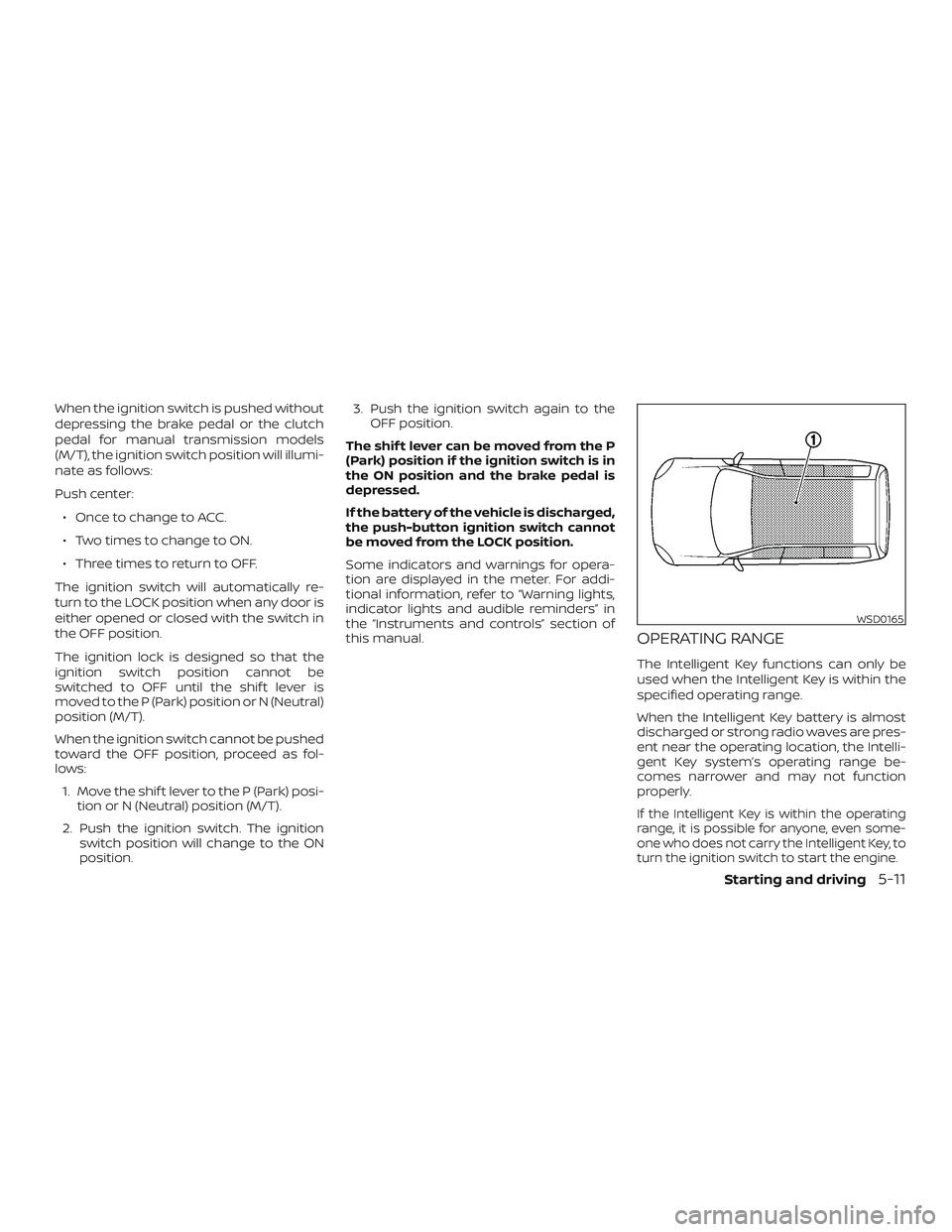
The Intelligent Key functions can only be
used when the Intelligent Key is within the
specified operating range.
When the Intelligent Key battery is almost
discharged or strong radio waves are pres-
ent near the operating location, the Intelli-
gent Key system’s operating range be-
comes narrower and may not function
properly.
If the Intelligent Key is within the operating
range, it is possible for anyone, even some-
one who does not carry the Intelligent Key, to
turn the ignition switch to start the engine.
WSD0165
Starting and driving5-11