menu NISSAN VERSA NOTE 2018 Owner´s Manual
[x] Cancel search | Manufacturer: NISSAN, Model Year: 2018, Model line: VERSA NOTE, Model: NISSAN VERSA NOTE 2018Pages: 878, PDF Size: 9.62 MB
Page 221 of 878
Compact disc (CD) player
operation
If the radio is already operating, it automati-
cally turns off and the compact disc begins
to play.CD button
When the CD button is pressed with the
system off and the compact disc loaded,
the system will turn on and the compact
disc will start to play.
When the CD button is pressed with a com-
pact disc loaded and the radio playing, the
radio will automatically be turned off and
the compact disc will start to play.
CD/MP3 display mode
Menu item
CD/MP3 display mode While listening to a CD or an MP3/WMA CD, certain text may be displayed (when a CD encoded
with text is being used). Depending on how the CD or MP3/WMA CD is encoded, the text is dis-
played listing the artist, album and song title. There are other keys displayed on the screen when
aCDisplaying:
Random Touch the “Random” key to apply a random play pattern to the CD. If an MP3 CD is playing, touch-
ing “Random” or alternates between Random Folder, and Random All. This text will appear on the
display. To cancel Random mode, touch the “Random” key until the key is no longer highlighted.
Repeat Touch the “Repeat” key to apply a repeat play pattern to the CD. If an MP3 CD is playing, touching
“Repeat” alternates between repeating the current song and repeating the current folder. This text
will appear on the display. To cancel repeat mode, touch the “Repeat” key until the key is no longer
highlighted
Browse Touch the “Browse” key to display the titles on the CD in list format. Touch the title of a song in the
list to begin playing that song. If an MP3 CD is playing, touching the “Browse” key will also list the
folders on the disc. Follow the procedure for selecting a song with the touch-screen to choose a
folder.
4-60Monitor, climate, audio, phone and voice recognition systems
Page 227 of 878
charged while connected to the vehicle
with the ignition switch in the ACC or ON
position.
While connected to the vehicle, the iPod®
can only be operated by the vehicle audio
controls.
To disconnect the iPod® from the vehicle,
remove the USB end of the cable from the
USB Connection port on the vehicle, then
remove the cable from the iPod®.
* iPod® is a trademark of Apple Inc., regis-
tered in the U.S. and other countries.
Compatibility
The following models are compatible:∙ iPod® 5th Generation (firmware version 1.3 or later)
∙ iPod® Classic (80GB) (firmware version 1.1.2PC or later)
∙ iPod® Classic (120GB) (firmware version 2.0.1PC or later)
∙ iPod® nano - 1st generation (firmware version 1.3.1 or later)
∙ iPod® nano - 2nd generation (firmware version 1.1.3 or later) ∙ iPod® nano - 3rd generation (firmware
version 1.1.3PC or later)
∙ iPod® nano - 4th generation (firmware version 1.0PC or later)
∙ iPod® nano - 5th generation (8GB) (firm- ware version 1.0.2PC or later)
∙ iPod® nano - 5th generation (16GB) (firmware version 1.0.1PC or later)
∙ iPod® nano - 6th generation (8GB) (firm- ware version 1.2PC or later)
∙ iPod® nano - 6th generation (8GB) (firm- ware version 1.1PC or later)
∙ iPod® Touch - 1st generation (firmware version 2.2.1 or later)
∙ iPod® Touch - 2nd generation (firmware version 2.2.1 or later)
∙ iPod® Touch - 3rd generation (firmware version 3.1.3 or later)
∙ iPod® Touch - 4th generation (firmware version 4.3.5 or later)
∙ iPhone® 3G (firmware version 4.1 or later)
∙ iPhone® 3GS (firmware version 4.3 or later) ∙ iPhone® 4 (firmware version 5.0 or later)
∙ iPhone® 4S (firmware version 5.1 or later)
∙ iPad® (firmware version 4.3.2 or later)
∙ iPad® 2 (firmware version 4.3.3 or later)
Make sure that your iPod® firmware is up-
dated to the version indicated above.
Audio main operation
Place the ignition switch to the ACC or ON
position. Then, press the iPod MENU button
or MEDIA button repeatedly to switch to
the iPod® mode.
If the audio system is turned off while the
iPod® is playing, the iPod® plays when the
audio system is turned back on.
If the audio system is off, pressing the iPod
MENU button or MEDIA button turns the
audio system on and plays the iPod®.
If the audio system is on, the audio system
automatically begins playing tracks from
the iPod® when it is plugged into the con-
nection port.
4-66Monitor, climate, audio, phone and voice recognition systems
Page 228 of 878
iPod MENU button
Press the iPod MENU button while the
iPod® is connected to show the iPod® op-
eration menu on the audio display. Scroll
through the menu list using the
TUNE/SCROLL knob. Press the
ENTER/SETTING button to select a menu
item. Items in the iPod® menu appear on
the display in the following order:∙ Now playing
∙ Playlists
∙ Artists
∙ Albums
∙ Songs
∙ Podcasts
∙ Genres
∙ Composers
∙ Audiobooks
∙ Shuffle songs
For additional information, refer to the
iPod® Owner’s Manual regarding each
item. MEDIA button
Place the ignition switch in the ON or ACC
position and press the MEDIA button re-
peatedly with an iPod® connected to
switch to the iPod® input mode. If a CD is
playing or another audio source is plugged
in through the AUX IN jack located on the
instrument panel, the MEDIA button
toggles between the available sources.
SEEK/CAT or TRACK
buttons
Press the SEEK/CAT or TRACK
buttons
orto skip backward or
forward one track.
Press and hold the SEEK/CAT or TRACK
buttons
orfor 1.5 seconds while
a track is playing to reverse or fast forward
the track being played. The track plays at
an increased speed while reversing or fast
forwarding. When the button is released,
the track returns to normal play speed.
(RPT) REPEAT
When the RPT button is pressed while a
track is being played, the play pattern can
be changed as follows:
Repeat Off →1 Track Repeat →All Repeat →
Repeat Off 1 Track Repeat: the current track will be
repeated.
All Repeat: all songs in the current list are
repeated.
Repeat Off: no repeat play pattern is ap-
plied.
(RDM) RANDOM
When the RDM button is pressed while a
track is being played, the play pattern can
be changed as follows:
Shuffle Off
→Track Shuffle →Shuffle Off
Track Shuffle: the tracks in the current list
will be played randomly.
Shuffle Off: no random play pattern is ap-
plied.BACK button
When the
BACK button is pressed, it
returns to the previous menu.
Monitor, climate, audio, phone and voice recognition systems4-67
Page 231 of 878
Interface
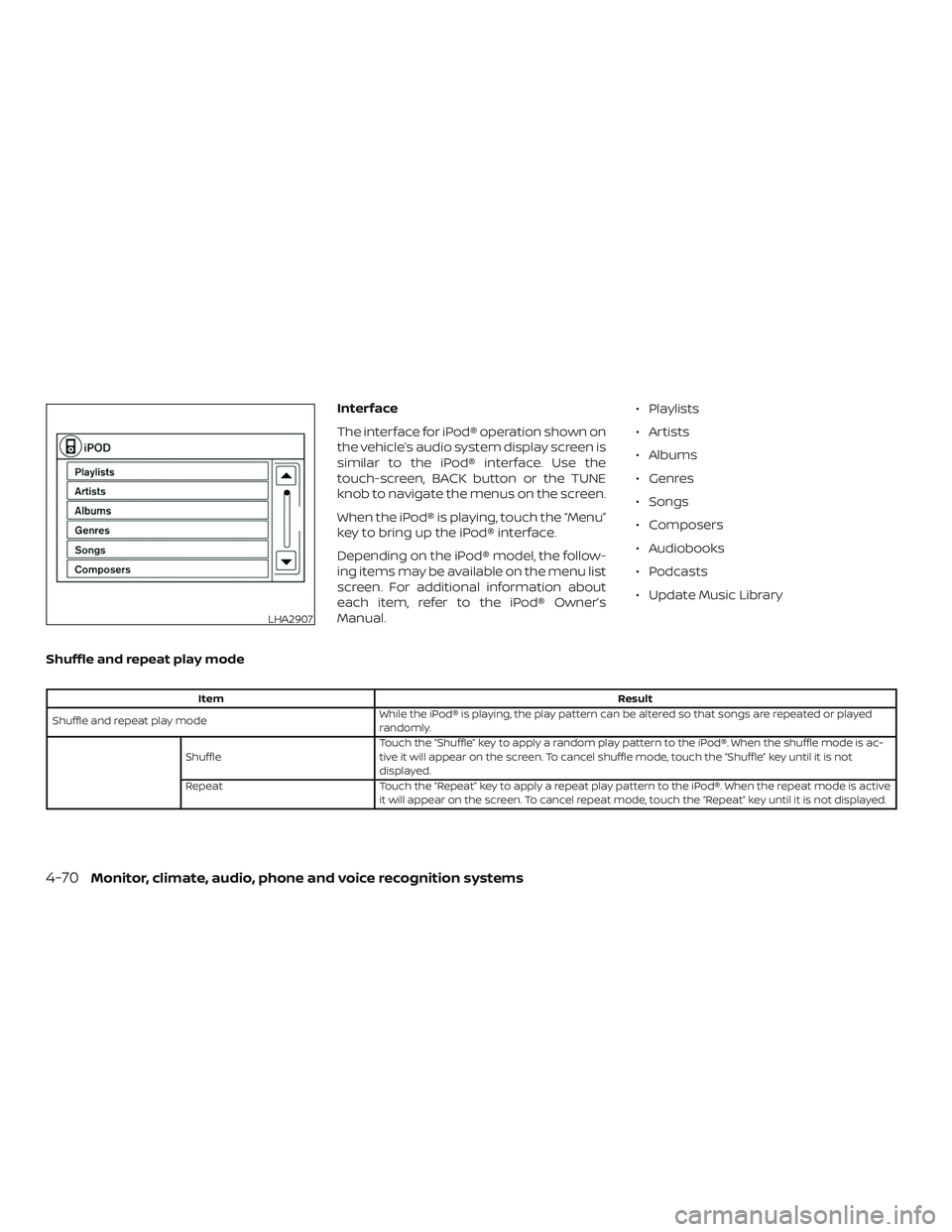
The interface for iPod® operation shown on
the vehicle’s audio system display screen is
similar to the iPod® interface. Use the
touch-screen, BACK button or the TUNE
knob to navigate the menus on the screen.
When the iPod® is playing, touch the “Menu”
key to bring up the iPod® interface.
Depending on the iPod® model, the follow-
ing items may be available on the menu list
screen. For additional information about
each item, refer to the iPod® Owner’s
Manual.∙ Playlists
∙ Artists
∙ Albums
∙ Genres
∙ Songs
∙ Composers
∙ Audiobooks
∙ Podcasts
∙ Update Music Library
Shuffle and repeat play mode
Item Result
Shuffle and repeat play mode While the iPod® is playing, the play pattern can be altered so that songs are repeated or played
randomly.
Shuffle Touch the “Shuffle” key to apply a random play pattern to the iPod®. When the shuffle mode is ac-
tive it will appear on the screen. To cancel shuffle mode, touch the “Shuffle” key until it is not
displayed.
Repeat Touch the “Repeat” key to apply a repeat play pattern to the iPod®. When the repeat mode is active it will appear on the screen. To cancel repeat mode, touch the “Repeat” key until it is not displayed.
LHA2907
4-70Monitor, climate, audio, phone and voice recognition systems
Page 232 of 878
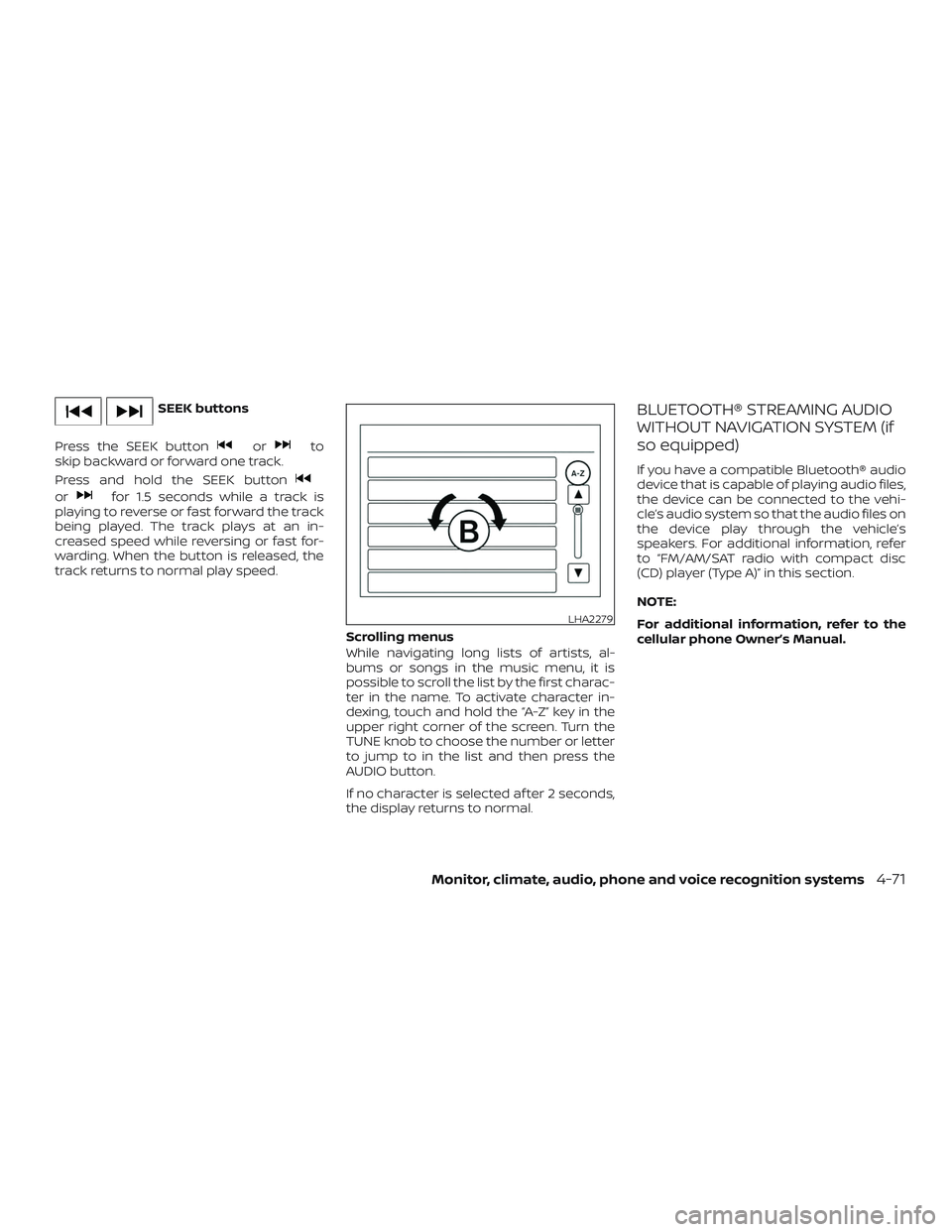
SEEK buttons
Press the SEEK button
orto
skip backward or forward one track.
Press and hold the SEEK button
orfor 1.5 seconds while a track is
playing to reverse or fast forward the track
being played. The track plays at an in-
creased speed while reversing or fast for-
warding. When the button is released, the
track returns to normal play speed.
Scrolling menus
While navigating long lists of artists, al-
bums or songs in the music menu, it is
possible to scroll the list by the first charac-
ter in the name. To activate character in-
dexing, touch and hold the “A-Z” key in the
upper right corner of the screen. Turn the
TUNE knob to choose the number or letter
to jump to in the list and then press the
AUDIO button.
If no character is selected af ter 2 seconds,
the display returns to normal.
BLUETOOTH® STREAMING AUDIO
WITHOUT NAVIGATION SYSTEM (if
so equipped)
If you have a compatible Bluetooth® audio
device that is capable of playing audio files,
the device can be connected to the vehi-
cle’s audio system so that the audio files on
the device play through the vehicle’s
speakers. For additional information, refer
to “FM/AM/SAT radio with compact disc
(CD) player (Type A)” in this section.
NOTE:
For additional information, refer to the
cellular phone Owner’s Manual.
LHA2279
Monitor, climate, audio, phone and voice recognition systems4-71
Page 233 of 878
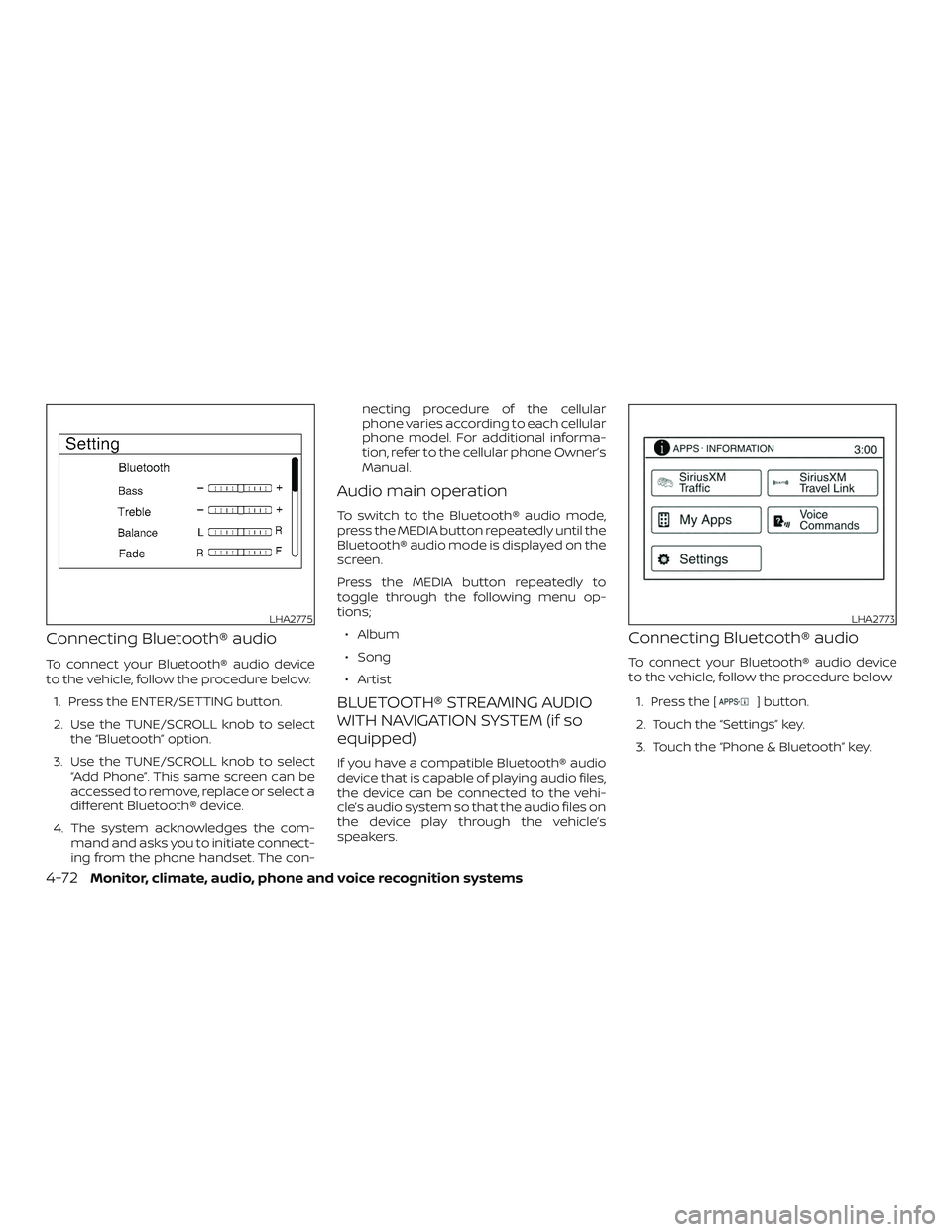
Connecting Bluetooth® audio
To connect your Bluetooth® audio device
to the vehicle, follow the procedure below:1. Press the ENTER/SETTING button.
2. Use the TUNE/SCROLL knob to select the “Bluetooth” option.
3. Use the TUNE/SCROLL knob to select “Add Phone”. This same screen can be
accessed to remove, replace or select a
different Bluetooth® device.
4. The system acknowledges the com- mand and asks you to initiate connect-
ing from the phone handset. The con- necting procedure of the cellular
phone varies according to each cellular
phone model. For additional informa-
tion, refer to the cellular phone Owner’s
Manual.
Audio main operation
To switch to the Bluetooth® audio mode,
press the MEDIA button repeatedly until the
Bluetooth® audio mode is displayed on the
screen.
Press the MEDIA button repeatedly to
toggle through the following menu op-
tions;
∙ Album
∙ Song
∙ Artist
BLUETOOTH® STREAMING AUDIO
WITH NAVIGATION SYSTEM (if so
equipped)
If you have a compatible Bluetooth® audio
device that is capable of playing audio files,
the device can be connected to the vehi-
cle’s audio system so that the audio files on
the device play through the vehicle’s
speakers.
Connecting Bluetooth® audio
To connect your Bluetooth® audio device
to the vehicle, follow the procedure below:
1. Press the [
] button.
2. Touch the “Settings” key.
3. Touch the “Phone & Bluetooth” key.
LHA2775LHA2773
4-72Monitor, climate, audio, phone and voice recognition systems
Page 239 of 878
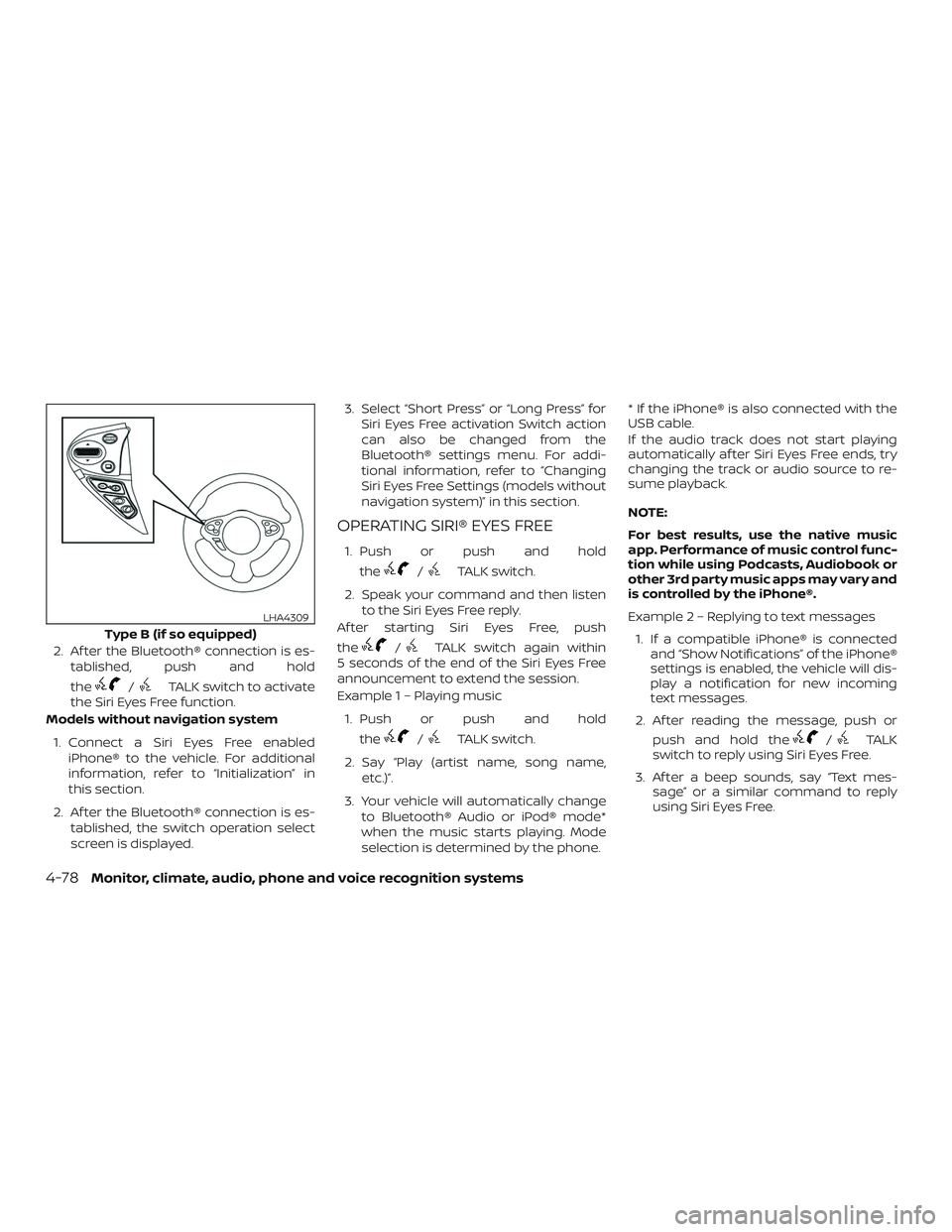
2. Af ter the Bluetooth® connection is es-tablished, push and hold
the
/TALK switch to activate
the Siri Eyes Free function.
Models without navigation system
1. Connect a Siri Eyes Free enabled iPhone® to the vehicle. For additional
information, refer to “Initialization” in
this section.
2. Af ter the Bluetooth® connection is es- tablished, the switch operation select
screen is displayed. 3. Select “Short Press” or “Long Press” for
Siri Eyes Free activation Switch action
can also be changed from the
Bluetooth® settings menu. For addi-
tional information, refer to “Changing
Siri Eyes Free Settings (models without
navigation system)” in this section.
OPERATING SIRI® EYES FREE
1. Push or push and hold
the
/TALK switch.
2. Speak your command and then listen to the Siri Eyes Free reply.
Af ter starting Siri Eyes Free, push
the
/TALK switch again within
5 seconds of the end of the Siri Eyes Free
announcement to extend the session.
Example 1 – Playing music
1. Push or push and hold the
/TALK switch.
2. Say “Play (artist name, song name, etc.)”.
3. Your vehicle will automatically change to Bluetooth® Audio or iPod® mode*
when the music starts playing. Mode
selection is determined by the phone. * If the iPhone® is also connected with the
USB cable.
If the audio track does not start playing
automatically af ter Siri Eyes Free ends, try
changing the track or audio source to re-
sume playback.
NOTE:
For best results, use the native music
app. Performance of music control func-
tion while using Podcasts, Audiobook or
other 3rd party music apps may vary and
is controlled by the iPhone®.
Example2–Repl
ying to text messages
1. If a compatible iPhone® is connected and “Show Notifications” of the iPhone®
settings is enabled, the vehicle will dis-
play a notification for new incoming
text messages.
2. Af ter reading the message, push or push and hold the/TALK
switch to reply using Siri Eyes Free.
3. Af ter a beep sounds, say “Text mes- sage” or a similar command to reply
using Siri Eyes Free.
Type B (if so equipped)
LHA4309
4-78Monitor, climate, audio, phone and voice recognition systems
Page 240 of 878
CHANGING SIRI® EYES FREE
SETTINGS (models without
navigation system)
Settings for Siri® Eyes Free can be found in
the Bluetooth® settings menu. For addi-
tional information, refer to “Bluetooth® set-
tings” in this section.1. Press the ENTER/SETTING button.
2. Use the TUNE/SCROLL knob to select “Bluetooth” and then press the
ENTER/SETTING button.
3. Use the TUNE/SCROLL knob to select “Siri” and then press the
ENTER/SETTING button.
4. Select “Short Press” or “Long Press” us- ing the TUNE/SCROLL knob and then
press the ENTER/SETTING button.
CHANGING SIRI® EYES FREE
SETTINGS (models with
navigation system)
Settings for Siri® Eyes Free can be found in
the Bluetooth® settings menu. For addi-
tional information, refer to “Bluetooth® set-
tings” in this section.
1. Press the [
] button.
2. Touch the “Settings” key.
3. Touch the “Phone & Bluetooth” key.
4. Touch the “Phone settings” key.
5. Select “Short Press” or “Long Press” to set the activation.
Monitor, climate, audio, phone and voice recognition systems4-79
Page 241 of 878
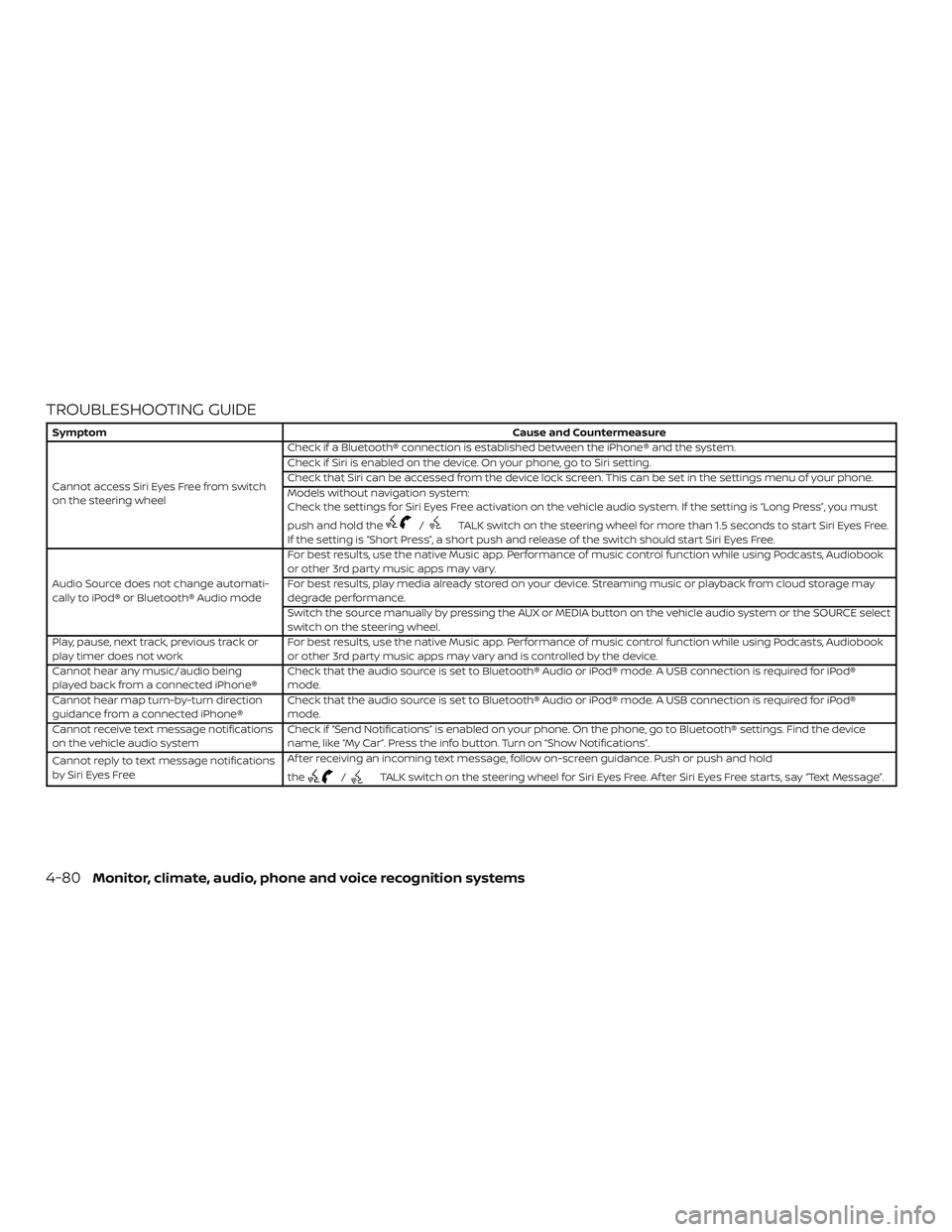
TROUBLESHOOTING GUIDE
SymptomCause and Countermeasure
Cannot access Siri Eyes Free from switch
on the steering wheel Check if a Bluetooth® connection is established between the iPhone® and the system.
Check if Siri is enabled on the device. On your phone, go to Siri setting.
Check that Siri can be accessed from the device lock screen. This can be set in the settings menu of your phone.
Models without navigation system:
Check the settings for Siri Eyes Free activation on the vehicle audio system. If the setting is “Long Press”, you must
push and hold the
/TALK switch on the steering wheel for more than 1.5 seconds to start Siri Eyes Free.
If the setting is “Short Press”, a short push and release of the switch should start Siri Eyes Free.
Audio Source does not change automati-
cally to iPod® or Bluetooth® Audio mode For best results, use the native Music app. Performance of music control function while using Podcasts, Audiobook
or other 3rd party music apps may vary.
For best results, play media already stored on your device. Streaming music or playback from cloud storage may
degrade performance.
Switch the source manually by pressing the AUX or MEDIA button on the vehicle audio system or the SOURCE select
switch on the steering wheel.
Play, pause, next track, previous track or
play timer does not work For best results, use the native Music app. Performance of music control function while using Podcasts, Audiobook
or other 3rd party music apps may vary and is controlled by the device.
Cannot hear any music/audio being
played back from a connected iPhone® Check that the audio source is set to Bluetooth® Audio or iPod® mode. A USB connection is required for iPod®
mode.
Cannot hear map turn-by-turn direction
guidance from a connected iPhone® Check that the audio source is set to Bluetooth® Audio or iPod® mode. A USB connection is required for iPod®
mode.
Cannot receive text message notifications
on the vehicle audio system Check if “Send Notifications” is enabled on your phone. On the phone, go to Bluetooth® settings. Find the device
name, like “My Car”. Press the info button. Turn on “Show Notifications”.
Cannot reply to text message notifications
by Siri Eyes Free Af ter receiving an incoming text message, follow on-screen guidance. Push or push and hold
the
/TALK switch on the steering wheel for Siri Eyes Free. Af ter Siri Eyes Free starts, say “Text Message”.
4-80Monitor, climate, audio, phone and voice recognition systems
Page 245 of 878
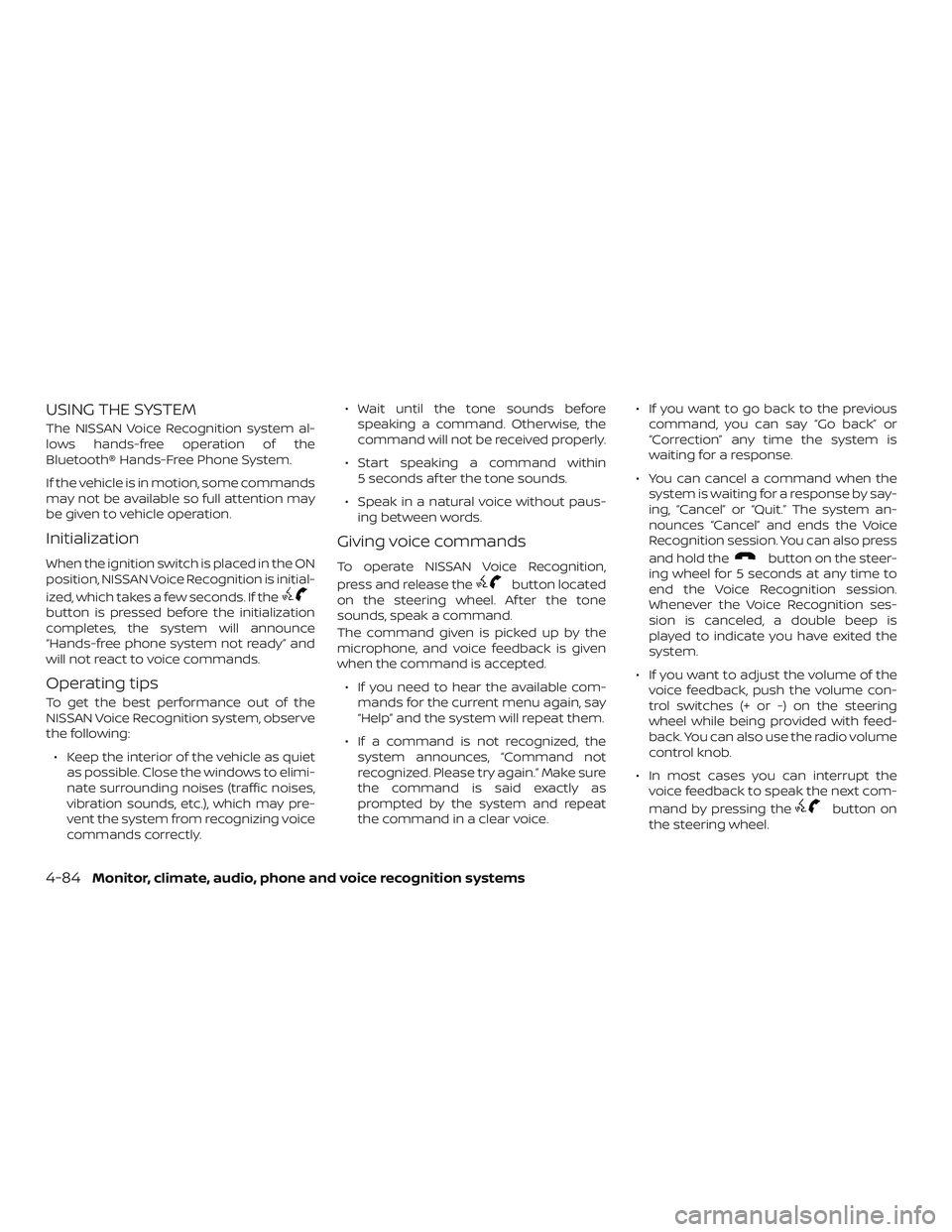
USING THE SYSTEM
The NISSAN Voice Recognition system al-
lows hands-free operation of the
Bluetooth® Hands-Free Phone System.
If the vehicle is in motion, some commands
may not be available so full attention may
be given to vehicle operation.
Initialization
When the ignition switch is placed in the ON
position, NISSAN Voice Recognition is initial-
ized, which takes a few seconds. If the
button is pressed before the initialization
completes, the system will announce
“Hands-free phone system not ready” and
will not react to voice commands.
Operating tips
To get the best performance out of the
NISSAN Voice Recognition system, observe
the following:∙ Keep the interior of the vehicle as quiet as possible. Close the windows to elimi-
nate surrounding noises (traffic noises,
vibration sounds, etc.), which may pre-
vent the system from recognizing voice
commands correctly. ∙ Wait until the tone sounds before
speaking a command. Otherwise, the
command will not be received properly.
∙ Start speaking a command within 5 seconds af ter the tone sounds.
∙ Speak in a natural voice without paus- ing between words.
Giving voice commands
To operate NISSAN Voice Recognition,
press and release the
button located
on the steering wheel. Af ter the tone
sounds, speak a command.
The command given is picked up by the
microphone, and voice feedback is given
when the command is accepted.
∙ If you need to hear the available com- mands for the current menu again, say
“Help” and the system will repeat them.
∙ If a command is not recognized, the system announces, “Command not
recognized. Please try again.” Make sure
the command is said exactly as
prompted by the system and repeat
the command in a clear voice. ∙ If you want to go back to the previous
command, you can say “Go back” or
“Correction” any time the system is
waiting for a response.
∙ You can cancel a command when the system is waiting for a response by say-
ing, “Cancel” or “Quit.” The system an-
nounces “Cancel” and ends the Voice
Recognition session. You can also press
and hold the
button on the steer-
ing wheel for 5 seconds at any time to
end the Voice Recognition session.
Whenever the Voice Recognition ses-
sion is canceled, a double beep is
played to indicate you have exited the
system.
∙ If you want to adjust the volume of the voice feedback, push the volume con-
trol switches (+ or -) on the steering
wheel while being provided with feed-
back. You can also use the radio volume
control knob.
∙ In most cases you can interrupt the voice feedback to speak the next com-
mand by pressing the
button on
the steering wheel.
4-84Monitor, climate, audio, phone and voice recognition systems