phone NISSAN VERSA NOTE 2019 Owner´s Manual
[x] Cancel search | Manufacturer: NISSAN, Model Year: 2019, Model line: VERSA NOTE, Model: NISSAN VERSA NOTE 2019Pages: 388, PDF Size: 4.46 MB
Page 188 of 388
Fade and drif t: As your vehicle moves away
from a station transmitter, the signals will
tend to fade and/or drif t.
Static and flutter: During signal interfer-
ence from buildings, large hills or due to
antenna position (usually in conjunction
with increased distance from the station
transmitter), static or flutter can be heard.
This can be reduced by adjusting the treble
control to reduce treble response.
Multipath reception: Because of the reflec-
tive characteristics of FM signals, direct and
reflected signals reach the receiver at the
same time. The signals may cancel each
other, resulting in momentary flutter or loss
of sound.
AM RADIO RECEPTION
AM signals, because of their low frequency,
can bend around objects and skip along
the ground. In addition, the signals can be
bounced off the ionosphere and bent back
to earth. Because of these characteristics,
AM signals are also subject to interference
as they travel from transmitter to receiver.
Fading: Occurs while the vehicle is passing
through freeway underpasses or in areas
with many tall buildings. It can also occurfor several seconds during ionospheric tur-
bulence even in areas where no obstacles
exist.
Static: Caused by thunderstorms, electrical
power lines, electric signs and even traffic
lights.
AUDIO OPERATION PRECAUTIONS
USB (Universal Serial Bus)
connection port
WARNING
Do not connect, disconnect or operate
the USB device while driving. Doing so
can be a distraction. If distracted you
could lose control of your vehicle and
cause an accident or serious injury.
CAUTION
∙ Do not force the USB device into the
USB port. Inserting the USB device
tilted or up-side-down into the port
may damage the port. Make sure that
the USB device is connected correctly
into the USB port. ∙ Do not grab the USB port cover (if so
equipped) when pulling the USB de-
vice out of the port. This could dam-
age the port and the cover.
∙ Do not leave the USB cable in a place where it can be pulled unintentionally.
Pulling the cable may damage the
port.
The vehicle is not equipped with a USB de-
vice. USB devices should be purchased
separately as necessary.
This system cannot be used to format USB
devices. To format a USB device, use a per-
sonal computer.
In some jurisdictions, the USB device for the
front seats plays only sound without im-
ages for regulatory reasons, even when the
vehicle is parked.
This system supports various USB
memory devices, USB hard drives and
iPod® players. Some USB devices may not
be supported by this system. ∙ Partitioned USB devices may not play correctly.
4-24Monitor, climate, audio, phone and voice recognition systems
Page 189 of 388
∙ Some characters used in other lan-guages (Chinese, Japanese, etc.) may
not appear properly in the display. Using
English language characters with a USB
device is recommended.
General notes for USB use: ∙ For additional information, refer to your device manufacturer’s owner informa-
tion regarding the proper use and care
of the device.
Notes for iPod® use:
iPod® is a trademark of Apple Inc., regis-
tered in the U.S. and other countries. ∙ Improperly plugging in the iPod® may cause a checkmark to be displayed on
and off (flickering). Always make sure
that the iPod® is connected properly.
∙ An iPod® nano (1st Generation) may re- main in fast forward or rewind mode if it
is connected during a seek operation. In
this case, please manually reset the
iPod®.
∙ An iPod® nano (2nd Generation) will continue to fast-forward or rewind if it is
disconnected during a seek operation. ∙ An incorrect song title may appear
when the Play Mode is changed while
using an iPod® nano (2nd Generation).
∙ Audiobooks may not play in the same order as they appear on an iPod®.
∙ Large video files cause slow responses in an iPod®. The vehicle center display
may momentarily black out, but will
soon recover.
∙ If an iPod® automatically selects large video files while in the shuffle mode, the
vehicle center display may momen-
tarily black out, but will soon recover.
Bluetooth® streaming audio
∙ Some Bluetooth® audio devices maynot be recognized by the in-vehicle au-
dio system.
∙ It is necessary to set up the wireless connection between a compatible
Bluetooth® audio device and the in-
vehicle Bluetooth® module before using
the Bluetooth® audio.
∙ Operating procedure of the Bluetooth® audio will vary depending on the de-
vices. Make sure how to operate your
audio device before using it with this
system. ∙ The Bluetooth® audio may be stopped
under the following conditions:
∙ Receiving a call on the Bluetooth® Hands-Free Phone System.
∙ Checking the connection to the hands-free phone.
∙ Do not place the Bluetooth® audio de- vice in an area surrounded by metal or
far away from the in-vehicle Bluetooth®
module to prevent tone quality degra-
dation and wireless connection disrup-
tion.
∙ While an audio device is connected through the Bluetooth® wireless con-
nection, the battery power of the device
may discharge quicker than usual.
∙ This system supports the Bluetooth® Audio Distribution Profile (A2DP, AVRCP).
BLUETOOTH® is a
trademark owned
by Bluetooth SIG,
Inc. and licensed
to Panasonic.
Monitor, climate, audio, phone and voice recognition systems4-25
Page 190 of 388
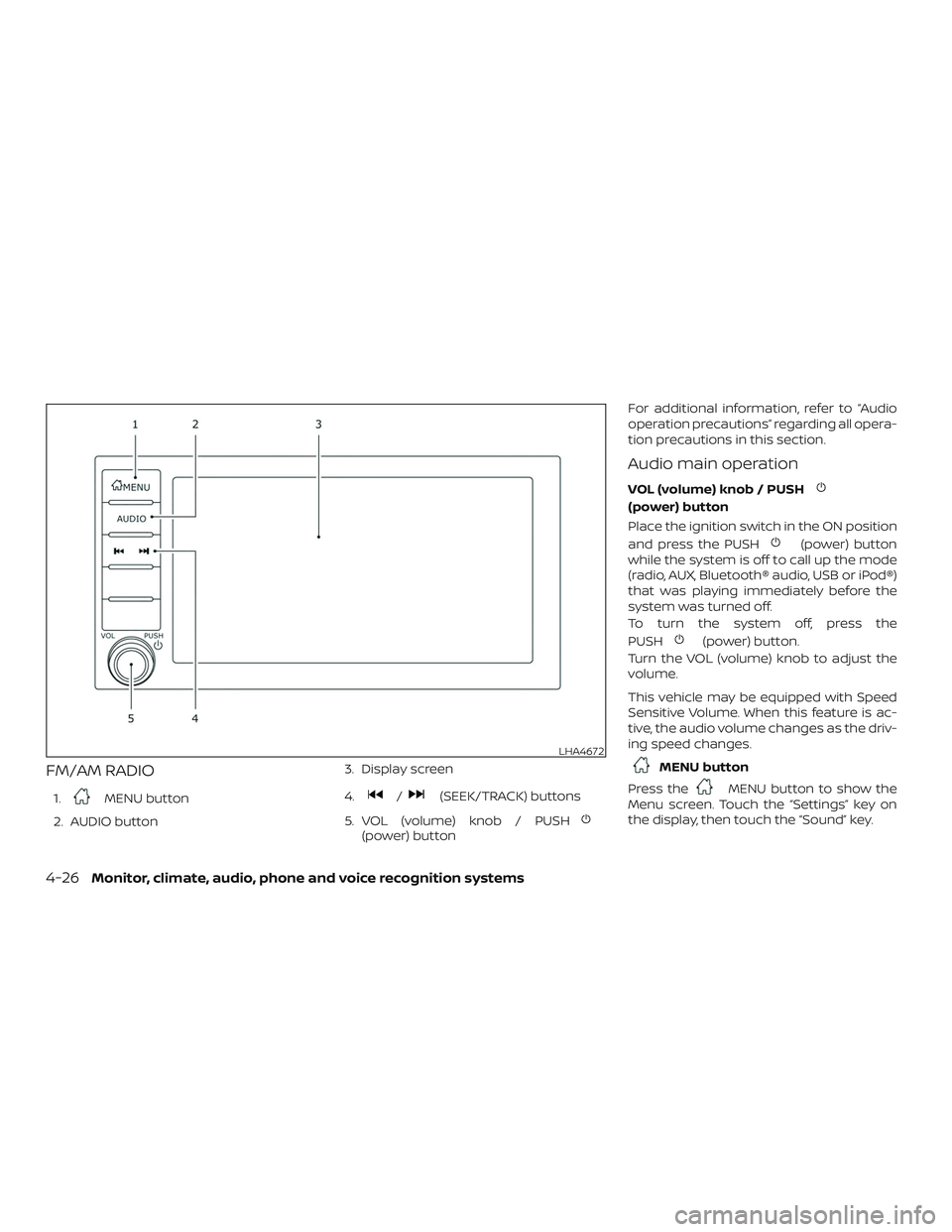
FM/AM RADIO
1.MENU button
2. AUDIO button 3. Display screen
4./(SEEK/TRACK) buttons
5. VOL (volume) knob / PUSH
(power) button For additional information, refer to “Audio
operation precautions” regarding all opera-
tion precautions in this section.
Audio main operation
VOL (volume) knob / PUSH
(power) button
Place the ignition switch in the ON position
and press the PUSH
(power) button
while the system is off to call up the mode
(radio, AUX, Bluetooth® audio, USB or iPod®)
that was playing immediately before the
system was turned off.
To turn the system off, press the
PUSH
(power) button.
Turn the VOL (volume) knob to adjust the
volume.
This vehicle may be equipped with Speed
Sensitive Volume. When this feature is ac-
tive, the audio volume changes as the driv-
ing speed changes.
MENU button
Press the
MENU button to show the
Menu screen. Touch the “Settings” key on
the display, then touch the “Sound” key.
LHA4672
4-26Monitor, climate, audio, phone and voice recognition systems
Page 191 of 388
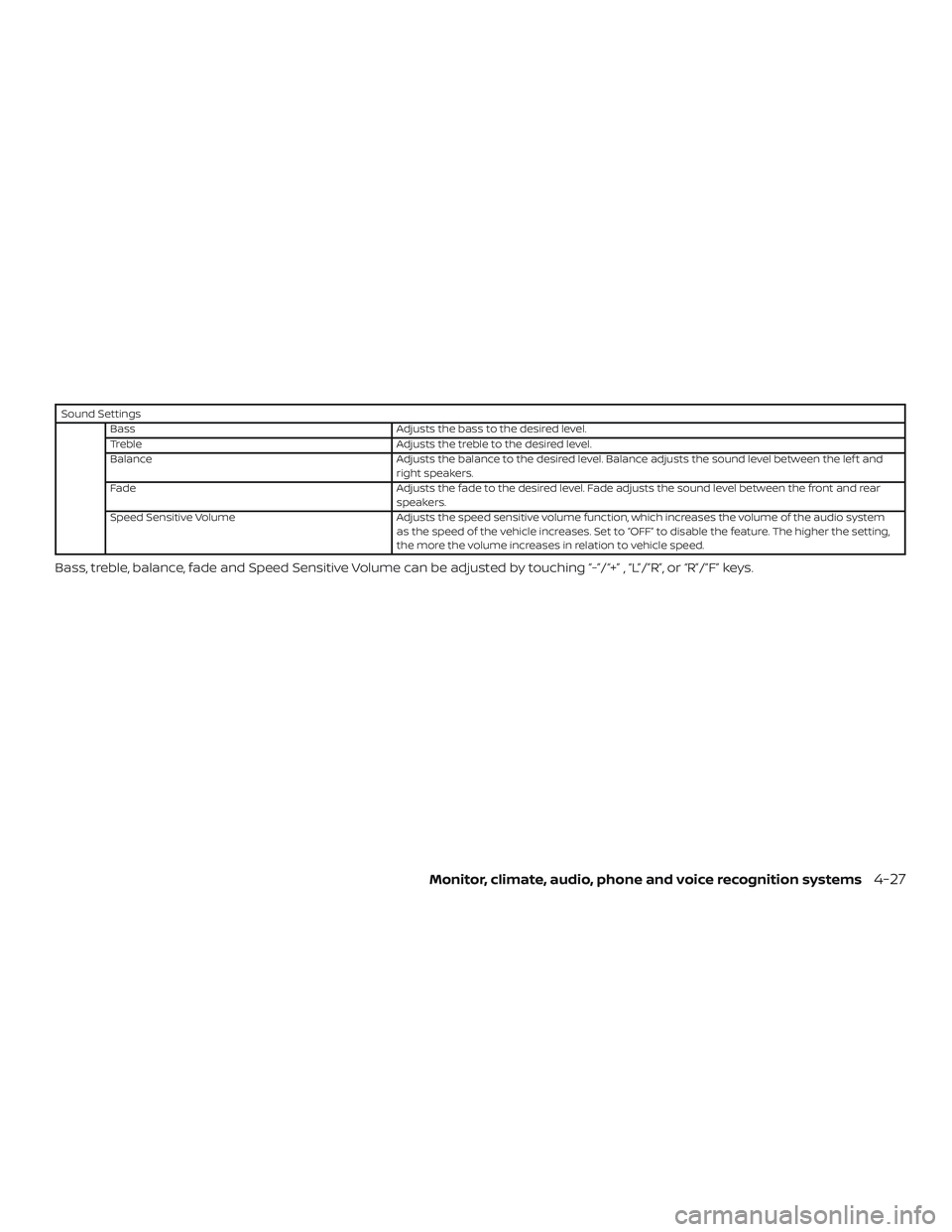
Sound SettingsBass Adjusts the bass to the desired level.
Treble Adjusts the treble to the desired level.
Balance Adjusts the balance to the desired level. Balance adjusts the sound level between the lef t and
right speakers.
Fade Adjusts the fade to the desired level. Fade adjusts the sound level between the front and rear
speakers.
Speed Sensitive Volume Adjusts the speed sensitive volume function, which increases the volume of the audio system
as the speed of the vehicle increases. Set to “OFF” to disable the feature. The higher the setting,
the more the volume increases in relation to vehicle speed.
Bass, treble, balance, fade and Speed Sensitive Volume can be adjusted by touching “-”/“+” , “L”/”R”, or “R”/”F” keys.
Monitor, climate, audio, phone and voice recognition systems4-27
Page 192 of 388

AUDIO button
Push to display the audio screen. When this
button is pushed while the audio screen is
not displayed, the last audio source played
will play.
AM/FM radio screen
1. “AM Menu” / “FM Menu” keyTouch to display the radio menu
screen.
2. Direct Tune Touch to manually enter a station.
3. Audio source indicator Indicates the currently selected audio
source.
4. Reception information display Reception information currently avail-
able such as frequency, station name,
etc. is displayed. 5. Preset list
To listen to a preset station, touch the
corresponding station from the preset
list. If displayed, touch the “ <”or“>”keys
to scroll the preset list.
AM radio operation
Press theMENU button and touch the
“AM” key or press the AUDIO button and
select AM on the bottom of the Launch Bar
to bring up the AM display screen.
If another audio source is playing when the
“AM” key is pressed, the audio source play-
ing will automatically be turned off and the
last radio station played will begin playing.
AM Menu
Touch the “AM Menu” key to display the AM
Menu screen options:
∙ SCAN: To scan tune the stations, touch the “AM Menu” key on the radio screen
and then touch the “SCAN” key. The sta-
tions will be tuned from low to high fre-
quencies and stop at each broadcast-
ing station for several seconds.
Touching the “SCAN” key again during
this period of several seconds will stop
tuning and the radio will remain tuned
to that station.
LHA4708
4-28Monitor, climate, audio, phone and voice recognition systems
Page 193 of 388
∙ Refresh: Touch the “Refresh” key to scanand update the station list displayed on
the right side of the AM Menu screen.
(SEEK/TRACK) buttons
Press the
orbuttons to tune
from low to high or high to low frequencies
and to stop at the next broadcasting sta-
tion.
1 to 6 station memory operations
Up to six stations can be registered in the
preset list.
1. Select the AM radio band.
2. Tune to the station you wish to store.
3. Touch and hold one of the preset num- bers in the preset list.
The information such as frequency will be
displayed on the preset list.
To select and listen to the preset stations,
push
oron the steering wheel
briefly or touch a preferred station on the
preset list on the radio screen.
FM radio operation
Press theMENU button and touch the
“FM” key or press the AUDIO button and
select FM on the bottom of the Launch Bar
to bring up the FM display screen.
If another audio source is playing when the
“FM” key is pressed, the audio source play-
ing will automatically be turned off and the
last radio station played will begin playing.
The FM stereo indicator (STEREO) is shown
on the screen during FM stereo reception.
When the stereo broadcast signal is weak,
the radio automatically changes from ste-
reo to monaural reception.
FM Menu
Touch the “FM Menu” key to display the FM
Menu screen options:
∙ SCAN: To scan tune the stations, touch the “FM Menu” key on the radio screen
and then touch the “SCAN” key. The sta-
tions will be tuned from low to high fre-
quencies and stop at each broadcast-
ing stations for several seconds.
Touching the “SCAN” key again during
this period of several seconds will stop
tuning and the radio will remain tuned
to that station. ∙ Refresh: Touch the “Refresh” key to up-
date the station list displayed on the
right side of the FM Menu screen.
∙ RDS Info: Radio station and song infor- mation can be displayed on the FM dis-
play screen.
(SEEK/TRACK) buttons
Press the
orbuttons to tune
from low to high or high to low frequencies
and to stop at the next broadcasting sta-
tion.
1 to 12 Station memory operations
Up to 12 stations can be registered in the
preset list.
1. Select the FM radio band.
2. Tune to the station you wish to store.
3. Touch and hold one of the preset num- bers in the preset list.
The information such as frequency will be
displayed on the preset list.
To select and listen to the preset stations,
push
oron the steering wheel
briefly or touch a preferred station on the
preset list on the radio screen.
Monitor, climate, audio, phone and voice recognition systems4-29
Page 194 of 388
Auxiliary (AUX) devices operation
Connecting auxiliary devices
Connect an AUX device into the AUX input
jack located on the center console below
the heater and air conditioner controls.
The AUX input jack accepts any standard
analog audio input such as from a portable
cassette player, CD player, MP3 player or
phone.
Insert a 1/8 in (3.5 mm) stereo mini plug in
the audio input jack. If a cable with a mono
plug is used, the audio output may not
function normally.
Activation and playing
Turn on the AUX device. Connect an AUX
cable to the AUX device and the AUX input
jack. Select AUX mode from the audio
source menu screen or by pressing the
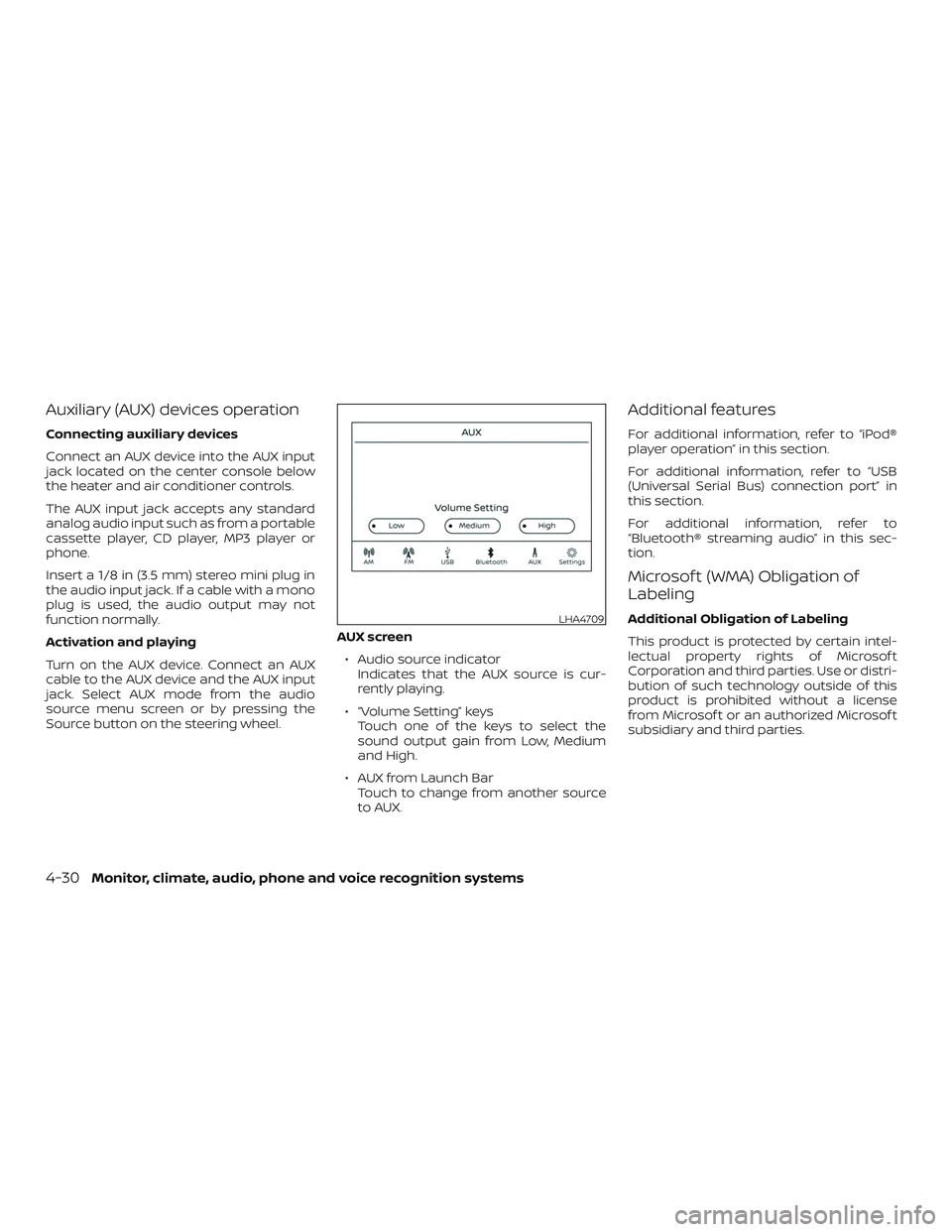
Source button on the steering wheel.AUX screen
∙ Audio source indicator Indicates that the AUX source is cur-
rently playing.
∙ “Volume Setting” keys Touch one of the keys to select the
sound output gain from Low, Medium
and High.
∙ AUX from Launch Bar Touch to change from another source
to AUX.
Additional features
For additional information, refer to “iPod®
player operation” in this section.
For additional information, refer to “USB
(Universal Serial Bus) connection port” in
this section.
For additional information, refer to
“Bluetooth® streaming audio” in this sec-
tion.
Microsof t (WMA) Obligation of
Labeling
Additional Obligation of Labeling
This product is protected by certain intel-
lectual property rights of Microsof t
Corporation and third parties. Use or distri-
bution of such technology outside of this
product is prohibited without a license
from Microsof t or an authorized Microsof t
subsidiary and third parties.LHA4709
4-30Monitor, climate, audio, phone and voice recognition systems
Page 195 of 388
USB (Universal Serial Bus)
CONNECTION PORT
Connecting a device to the USB
connection port
WARNING
Do not connect, disconnect, or operate
the USB device while driving. Doing so
can be a distraction. If distracted you
could lose control of your vehicle and
cause an accident or serious injury.
CAUTION
∙ To avoid damage and loss of functionwhen using a USB device, note the fol-
lowing precautions.
∙ Do not force the USB device into the USB port. Inserting the USB device
tilted or up-side-down into the port
may damage the port. Make sure that
the USB device is connected correctly
into the USB port.
∙ Do not grab the USB port cover (if so equipped) when pulling the USB de-
vice out of the port. This could dam-
age the port and the cover.
∙ Do not leave the USB cable in a place where it can be pulled unintentionally.
Pulling the cable may damage the
port.
For additional information, refer to your de-
vice manufacturer’s owner information re-
garding the proper use and care of the
device.
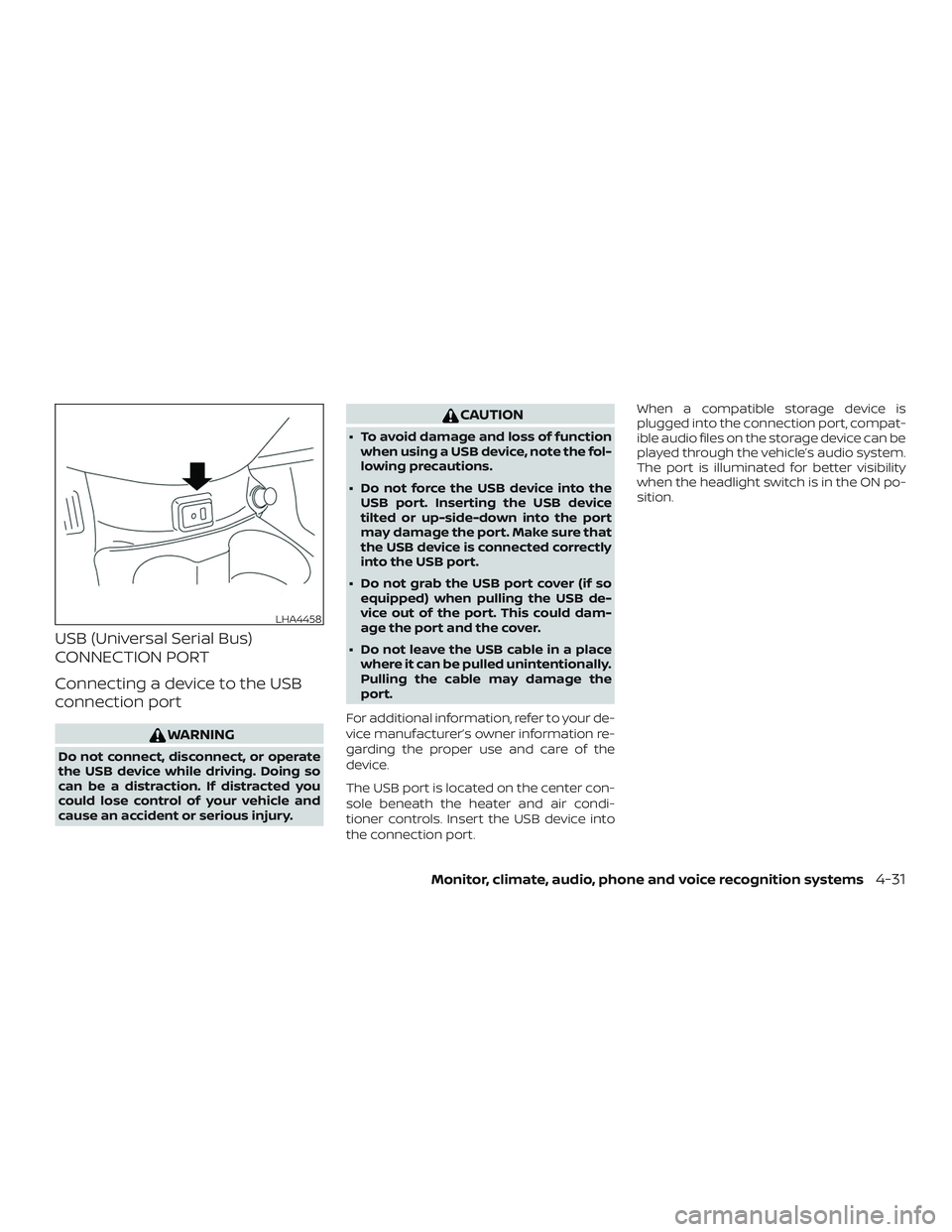
The USB port is located on the center con-
sole beneath the heater and air condi-
tioner controls. Insert the USB device into
the connection port. When a compatible storage device is
plugged into the connection port, compat-
ible audio files on the storage device can be
played through the vehicle’s audio system.
The port is illuminated for better visibility
when the headlight switch is in the ON po-
sition.
LHA4458
Monitor, climate, audio, phone and voice recognition systems4-31
Page 196 of 388
USB connections screen
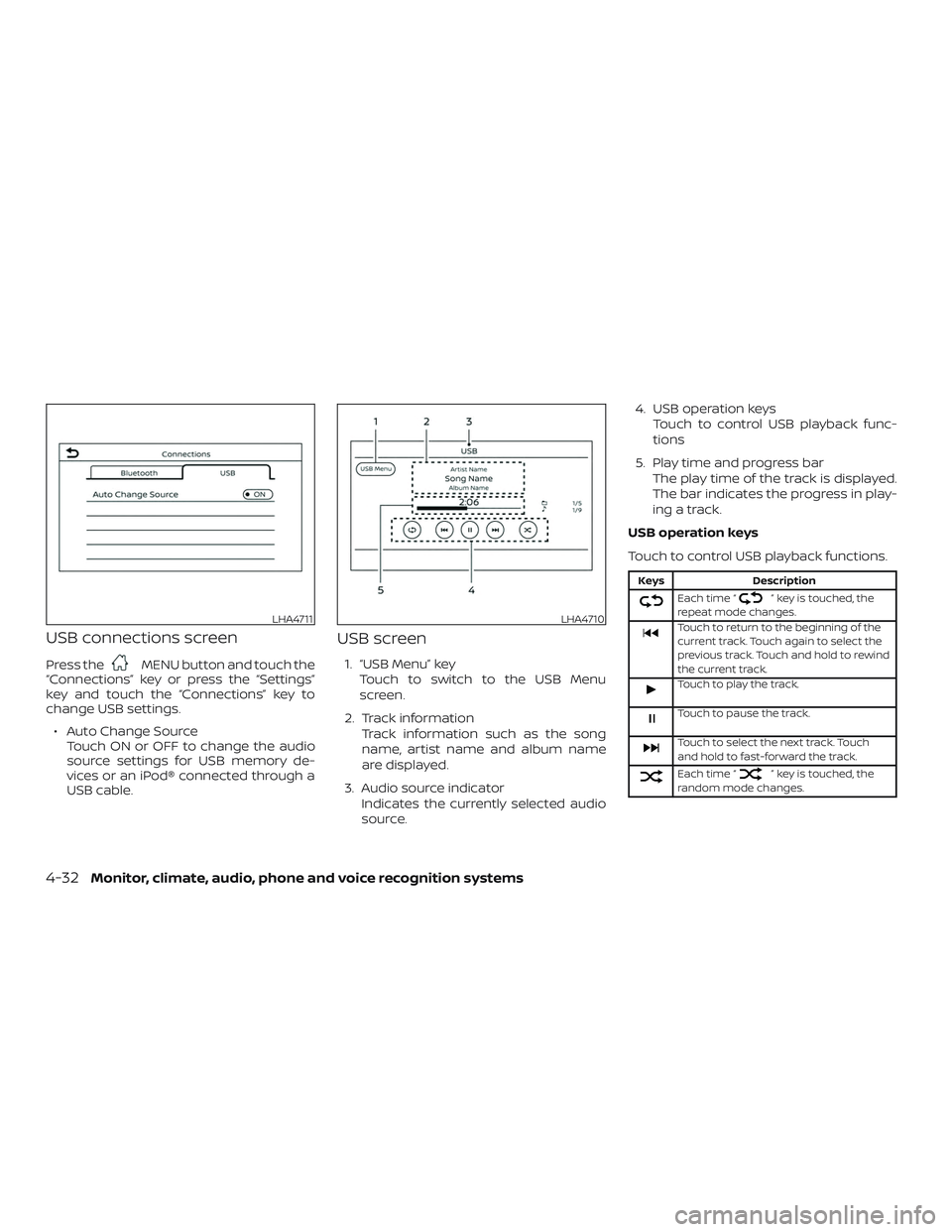
Press theMENU button and touch the
“Connections” key or press the “Settings”
key and touch the “Connections” key to
change USB settings.
∙ Auto Change Source Touch ON or OFF to change the audio
source settings for USB memory de-
vices or an iPod® connected through a
USB cable.
USB screen
1. “USB Menu” key
Touch to switch to the USB Menu
screen.
2. Track information Track information such as the song
name, artist name and album name
are displayed.
3. Audio source indicator Indicates the currently selected audio
source. 4. USB operation keys
Touch to control USB playback func-
tions
5. Play time and progress bar The play time of the track is displayed.
The bar indicates the progress in play-
ing a track.
USB operation keys
Touch to control USB playback functions.
Keys Description
Each time “” key is touched, the
repeat mode changes.
Touch to return to the beginning of the
current track. Touch again to select the
previous track. Touch and hold to rewind
the current track.
Touch to play the track.
Touch to pause the track.
Touch to select the next track. Touch
and hold to fast-forward the track.
Each time “” key is touched, the
random mode changes.
LHA4711LHA4710
4-32Monitor, climate, audio, phone and voice recognition systems
Page 197 of 388
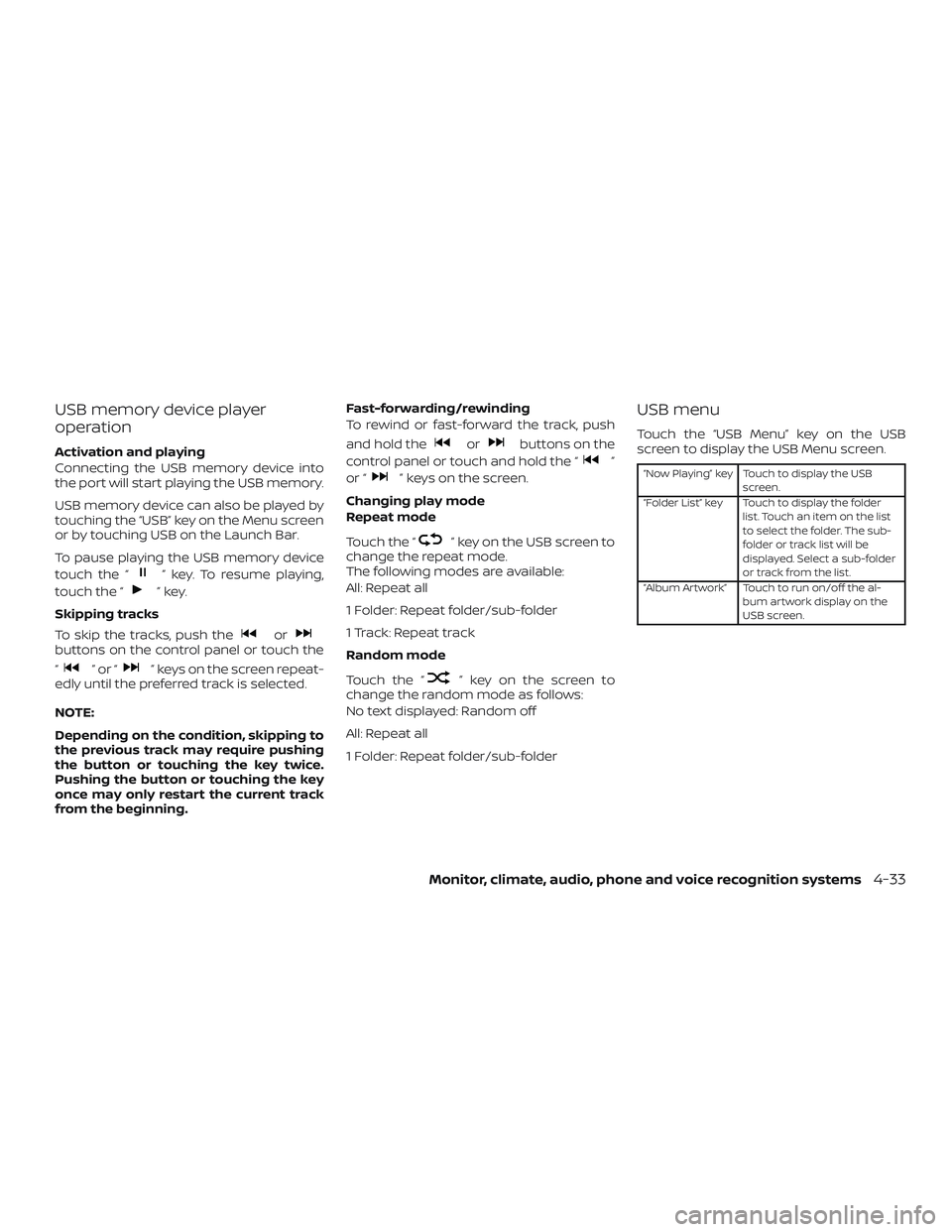
USB memory device player
operation
Activation and playing
Connecting the USB memory device into
the port will start playing the USB memory.
USB memory device can also be played by
touching the “USB” key on the Menu screen
or by touching USB on the Launch Bar.
To pause playing the USB memory device
touch the “
” key. To resume playing,
touch the “
”key.
Skipping tracks
To skip the tracks, push the
orbuttons on the control panel or touch the
“
”or“” keys on the screen repeat-
edly until the preferred track is selected.
NOTE:
Depending on the condition, skipping to
the previous track may require pushing
the button or touching the key twice.
Pushing the button or touching the key
once may only restart the current track
from the beginning. Fast-forwarding/rewinding
To rewind or fast-forward the track, push
and hold the
orbuttons on the
control panel or touch and hold the “
”
or “
” keys on the screen.
Changing play mode
Repeat mode
Touch the “
” key on the USB screen to
change the repeat mode.
The following modes are available:
All: Repeat all
1 Folder: Repeat folder/sub-folder
1 Track: Repeat track
Random mode
Touch the “
” key on the screen to
change the random mode as follows:
No text displayed: Random off
All: Repeat all
1 Folder: Repeat folder/sub-folder
USB menu
Touch the “USB Menu” key on the USB
screen to display the USB Menu screen.
“Now Playing” key Touch to display the USB
screen.
“Folder List” key Touch to display the folder list. Touch an item on the list
to select the folder. The sub-
folder or track list will be
displayed. Select a sub-folder
or track from the list.
“Album Artwork” Touch to run on/off the al- bum artwork display on the
USB screen.
Monitor, climate, audio, phone and voice recognition systems4-33