change time NISSAN VERSA NOTE 2020 Owner´s Manual
[x] Cancel search | Manufacturer: NISSAN, Model Year: 2020, Model line: VERSA NOTE, Model: NISSAN VERSA NOTE 2020Pages: 492, PDF Size: 6.12 MB
Page 187 of 492
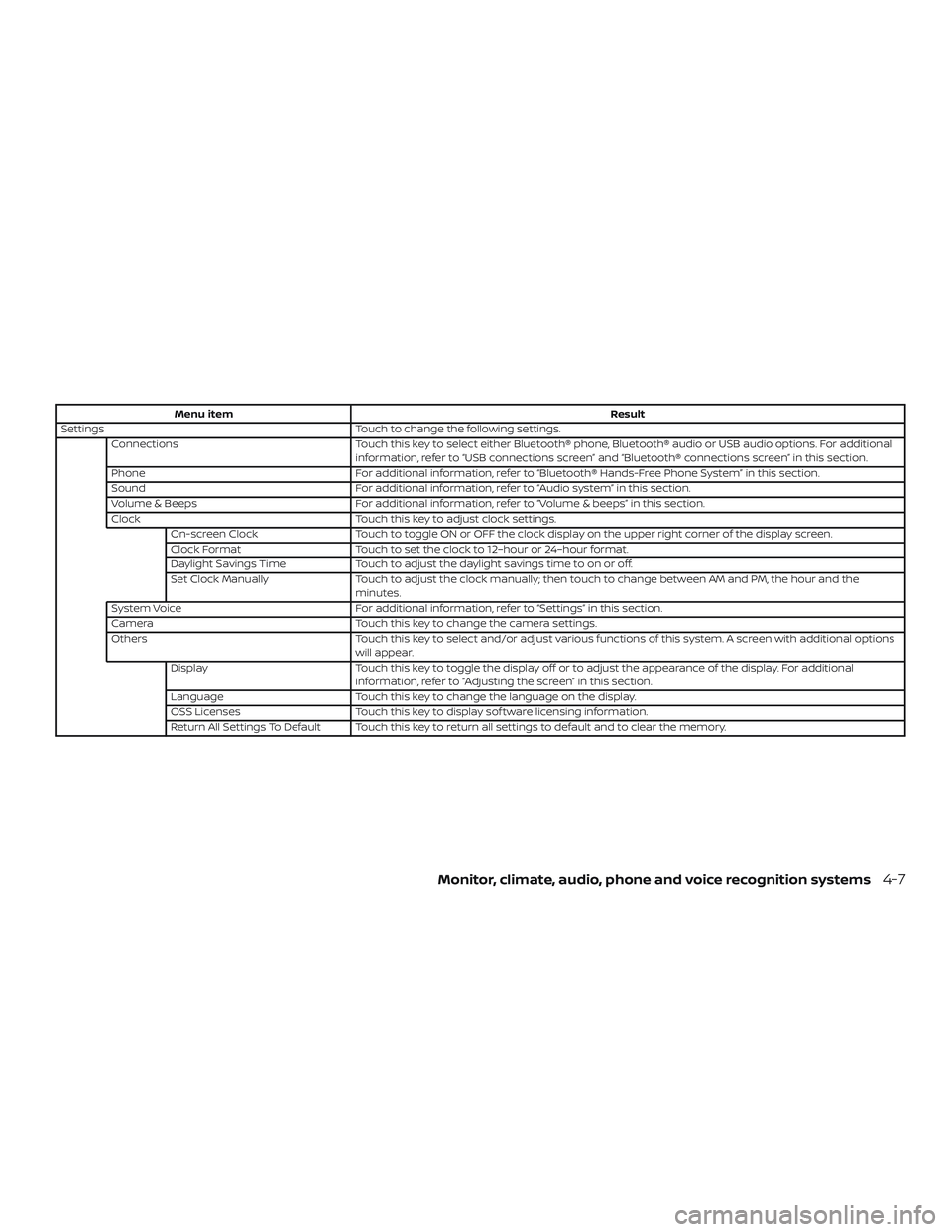
Menu itemResult
Settings Touch to change the following settings.
Connections Touch this key to select either Bluetooth® phone, Bluetooth® audio or USB audio options. For additional
information, refer to “USB connections screen” and “Bluetooth® connections screen” in this section.
Phone For additional information, refer to “Bluetooth® Hands-Free Phone System” in this section.
Sound For additional information, refer to “Audio system” in this section.
Volume & Beeps For additional information, refer to “Volume & beeps” in this section.
Clock Touch this key to adjust clock settings.
On-screen Clock Touch to toggle ON or OFF the clock display on the upper right corner of the display screen.
Clock Format Touch to set the clock to 12–hour or 24–hour format.
Daylight Savings Time Touch to adjust the daylight savings time to on or off.
Set Clock Manually Touch to adjust the clock manually; then touch to change between AM and PM, the hour and the
minutes.
System Voice For additional information, refer to “Settings” in this section.
Camera Touch this key to change the camera settings.
Others Touch this key to select and/or adjust various functions of this system. A screen with additional options
will appear.
Display Touch this key to toggle the display off or to adjust the appearance of the display. For additional
information, refer to “Adjusting the screen” in this section.
Language Touch this key to change the language on the display.
OSS Licenses Touch this key to display sof tware licensing information.
Return All Settings To Default Touch this key to return all settings to default and to clear the memory.
Monitor, climate, audio, phone and voice recognition systems4-7
Page 209 of 492
RADIO
When the ignition is placed in the AUTO
ACC or ON position, press the PUSH
(power) button to turn the radio on. If you
listen to the radio with the engine not run-
ning, the ignition should be placed in the
AUTO ACC position.
Radio reception is affected by station sig-
nal strength, distance from radio transmit-
ter, buildings, bridges, mountains and other
external influences. Intermittent changes
in reception quality normally are caused by
these external influences.
Using a cellular phone in or near the ve-
hicle may influence radio reception qual-
ity.
Radio reception
Your NISSAN radio system is equipped with
state-of-the-art electronic circuits to en-
hance radio reception. These circuits are
designed to extend reception range, and to
enhance the quality of that reception.
However, there are some general charac-
teristics of both FM and AM radio signals
that can affect radio reception quality in a
moving vehicle, even when the finest
equipment is used. These characteristics
are completely normal in a given receptionarea and do not indicate any malfunction
in your NISSAN radio system.
Reception conditions will constantly
change because of vehicle movement.
Buildings, terrain, signal distance and inter-
ference from other vehicles can work
against ideal reception. Described below
are some of the factors that can affect your
radio reception.
Some cellular phones or other devices may
cause interference or a buzzing noise to
come from the audio system speakers.
Storing the device in a different location
may reduce or eliminate the noise.
FM RADIO RECEPTION
Range: FM range is normally limited to 25 –
30 mi (40 – 48 km), with monaural (single
channel) FM having slightly more range
than stereo FM. External influences may
sometimes interfere with FM station re-
ception even if the FM station is within 25
mi (40 km). The strength of the FM signal is
directly related to the distance between
the transmitter and receiver. FM signals fol-
low a line-of-sight path, exhibiting many of
the same characteristics as light. For ex-
ample, they will reflect off objects.
Fade and drif t: As your vehicle moves away
from a station transmitter, the signals will
tend to fade and/or drif t.
Static and flutter: During signal interfer-
ence from buildings, large hills or due to
antenna position (usually in conjunction
with increased distance from the station
transmitter), static or flutter can be heard.
This can be reduced by adjusting the treble
control to reduce treble response.
Multipath reception: Because of the reflec-
tive characteristics of FM signals, direct and
reflected signals reach the receiver at the
same time. The signals may cancel each
other, resulting in momentary flutter or loss
of sound.AM RADIO RECEPTION
AM signals, because of their low frequency,
can bend around objects and skip along
the ground. In addition, the signals can be
bounced off the ionosphere and bent back
to earth. Because of these characteristics,
AM signals are also subject to interference
as they travel from transmitter to receiver.
AUDIO SYSTEM
Monitor, climate, audio, phone and voice recognition systems4-29
Page 212 of 492
∙ If the iPod® automatically selects largevideo podcast files while in the shuffle
mode, the vehicle center display may
momentarily black out, but it will soon
recover.
∙ Improperly plugging in the iPod® may cause a checkmark to be displayed on
and off (flickering). Always make sure
that the iPod® is connected properly.
∙ The iPod® nano (2nd Generation) will continue to fast forward or rewind if it is
disconnected during a seek operation.
∙ An incorrect song title may appear when the Play Mode is changed while
using the iPod® nano (2nd Generation).
∙ Audiobooks may not play in the same order as they appear on the iPod®.
∙ The iPod® nano (1st Generation) may remain in fast forward or rewind mode if
it is connected during a seek operation.
In this case, please manually reset the
iPod®.
∙ If you are using an iPod® (3rd Generation with Dock connector), do not use very
long names for the song title, album
name or artist name to prevent the
iPod® from resetting itself. ∙ Be careful not to do the following, or the
cable could be damaged and a loss of
function may occur:
∙ Bend the cable excessively (1.6 in (40 mm) radius maximum).
∙ Twist the cable excessively (more than 180 degrees).
∙ Pull or drop the cable.
∙ Do not force the iPod® cable connec- tor into the device port.
∙ Close the center console lid on the cable or connectors.
∙ Store objects with sharp edges in the storage where the cable is stored.
∙ Spill liquids on the cable and connec- tors.
∙ Do not connect the cable to the iPod® if the cable and/or connectors are wet. It
may damage the iPod®.
∙ If the cable and connectors are ex- posed to water, allow the cable and/or
connectors to dry completely before
connecting the cable to the iPod® (wait
24 hours for it to dry). ∙ If the connector is exposed to fluids
other than water, evaporative residue
may cause a short between the con-
nector pins. In this case, replace the
cable, otherwise damage to the iPod®
and a loss of function may occur.
∙ If the cable is damaged (insulation cut, connectors cracked, contamination
such as liquids, dust, dirt, etc. in the con-
nectors), do not use the cable. It is rec-
ommended that you visit a NISSAN
dealer to replace the cable with a new
one.
∙ When not in use for extended periods of time, store the cable in a clean, dust free
environment at room temperature and
without direct sun exposure.
∙ Do not use the cable for any other pur- poses other than its intended use in the
vehicle.
*iPod® is a trademark of Apple Inc., regis-
tered in the U.S. and other countries.
4-32Monitor, climate, audio, phone and voice recognition systems
Page 220 of 492
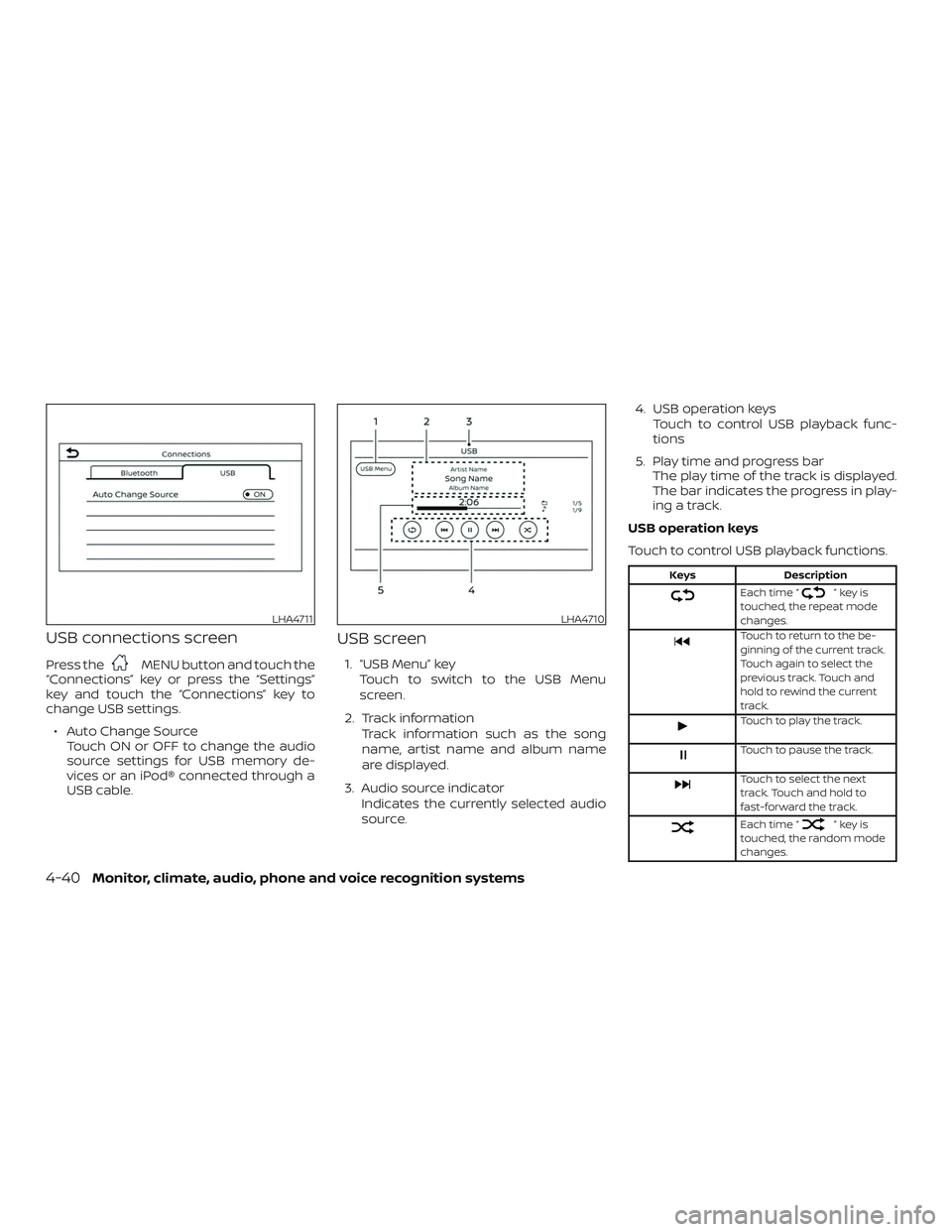
USB connections screen
Press theMENU button and touch the
“Connections” key or press the “Settings”
key and touch the “Connections” key to
change USB settings.
∙ Auto Change Source Touch ON or OFF to change the audio
source settings for USB memory de-
vices or an iPod® connected through a
USB cable.
USB screen
1. “USB Menu” key
Touch to switch to the USB Menu
screen.
2. Track information Track information such as the song
name, artist name and album name
are displayed.
3. Audio source indicator Indicates the currently selected audio
source. 4. USB operation keys
Touch to control USB playback func-
tions
5. Play time and progress bar The play time of the track is displayed.
The bar indicates the progress in play-
ing a track.
USB operation keys
Touch to control USB playback functions.
Keys Description
Each time “”keyis
touched, the repeat mode
changes.
Touch to return to the be-
ginning of the current track.
Touch again to select the
previous track. Touch and
hold to rewind the current
track.
Touch to play the track.
Touch to pause the track.
Touch to select the next
track. Touch and hold to
fast-forward the track.
Each time “”keyis
touched, the random mode
changes.
LHA4711LHA4710
4-40Monitor, climate, audio, phone and voice recognition systems
Page 223 of 492
∙ iPod® Touch 4th generation (firmwareversion 5.1 or later)
∙ iPod® nano - 1st generation (firmware version 1.3.1 or later)
∙ iPod® nano - 2nd generation (firmware version 1.1.3 or later)
∙ iPod® nano - 3rd generation (firmware version 1.1.3 or later)
∙ iPod® nano - 4th generation (firmware version 1.0.4 or later)
∙ iPod® nano - 5th generation (firmware version 1.0.2 or later)
∙ iPod® nano - 6th generation (firmware version 1.1 or later)
∙ iPhone® 3G (firmware version 4.2.1 or later)
∙ iPhone® 3GS (firmware version 5.1 or later)
∙ iPhone® 4 (firmware version 5.1 or later)
∙ iPhone® 4S (firmware version 5.1 or later)
* Some features of this iPod® may not be
fully functional.
Make sure that your iPod® firmware is up-
dated to the version indicated above.
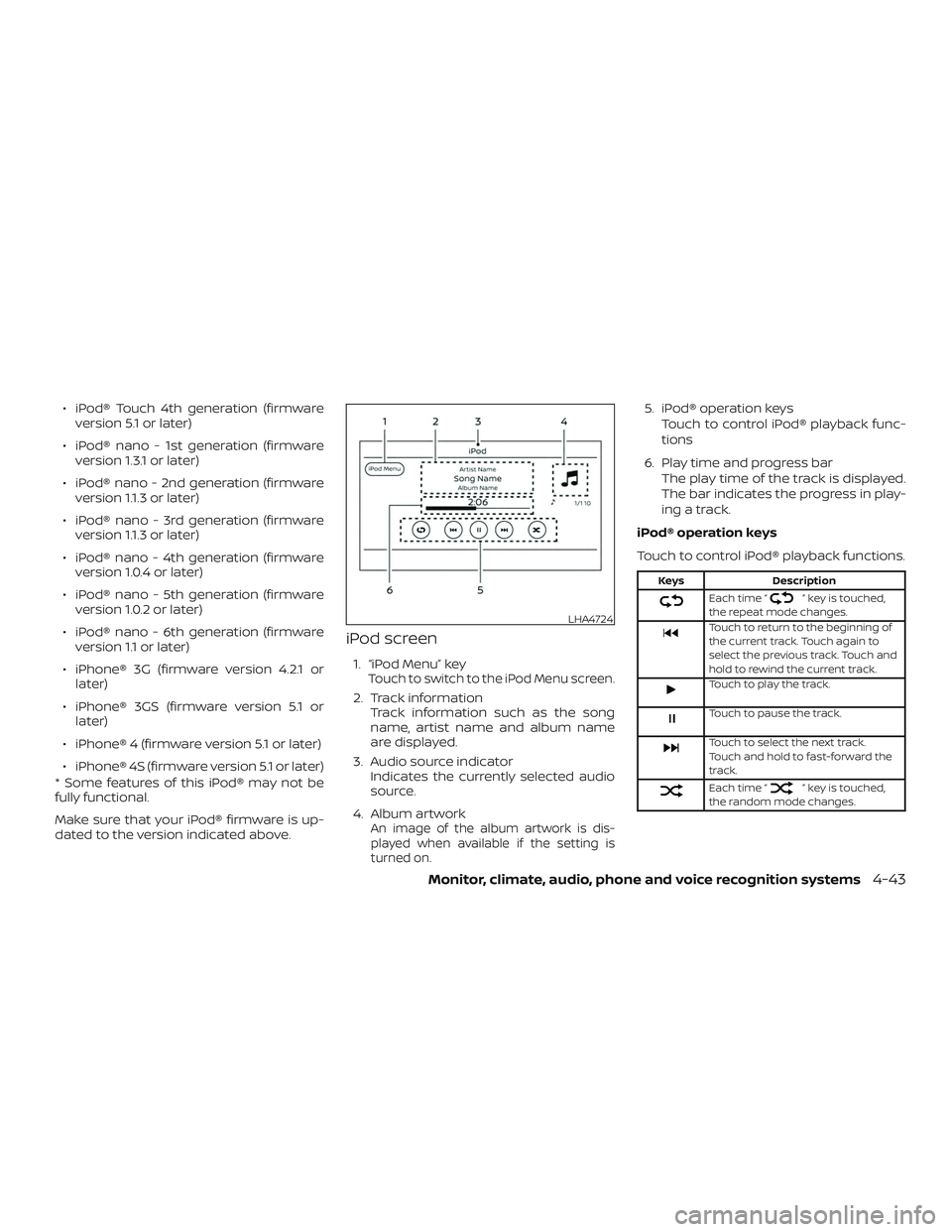
iPod screen
1. “iPod Menu” keyTouch to switch to the iPod Menu screen.
2. Track information Track information such as the song
name, artist name and album name
are displayed.
3. Audio source indicator Indicates the currently selected audio
source.
4. Album artwork
An image of the album artwork is dis-
played when available if the setting is
turned on.
5. iPod® operation keys Touch to control iPod® playback func-
tions
6. Play time and progress bar The play time of the track is displayed.
The bar indicates the progress in play-
ing a track.
iPod® operation keys
Touch to control iPod® playback functions.
Keys Description
Each time “” key is touched,
the repeat mode changes.
Touch to return to the beginning of
the current track. Touch again to
select the previous track. Touch and
hold to rewind the current track.
Touch to play the track.
Touch to pause the track.
Touch to select the next track.
Touch and hold to fast-forward the
track.
Each time “” key is touched,
the random mode changes.
LHA4724
Monitor, climate, audio, phone and voice recognition systems4-43
Page 226 of 492
Automatic Connecting Procedure
If no phone is connected to the system,
press and hold the
button on the
steering wheel for less than 1.5 seconds.
Af ter the prompt, speak “Add Phone”, the
system will announce “transferring to the
add phone settings menu”. The system will
start the pairing procedure. When a com-
patible phone is found, a message with a
PIN appears on the screen. Operate the
Bluetooth® phone to complete the con-
nection process. For additional informa-
tion, refer to “Bluetooth® connections
screen” in this section.
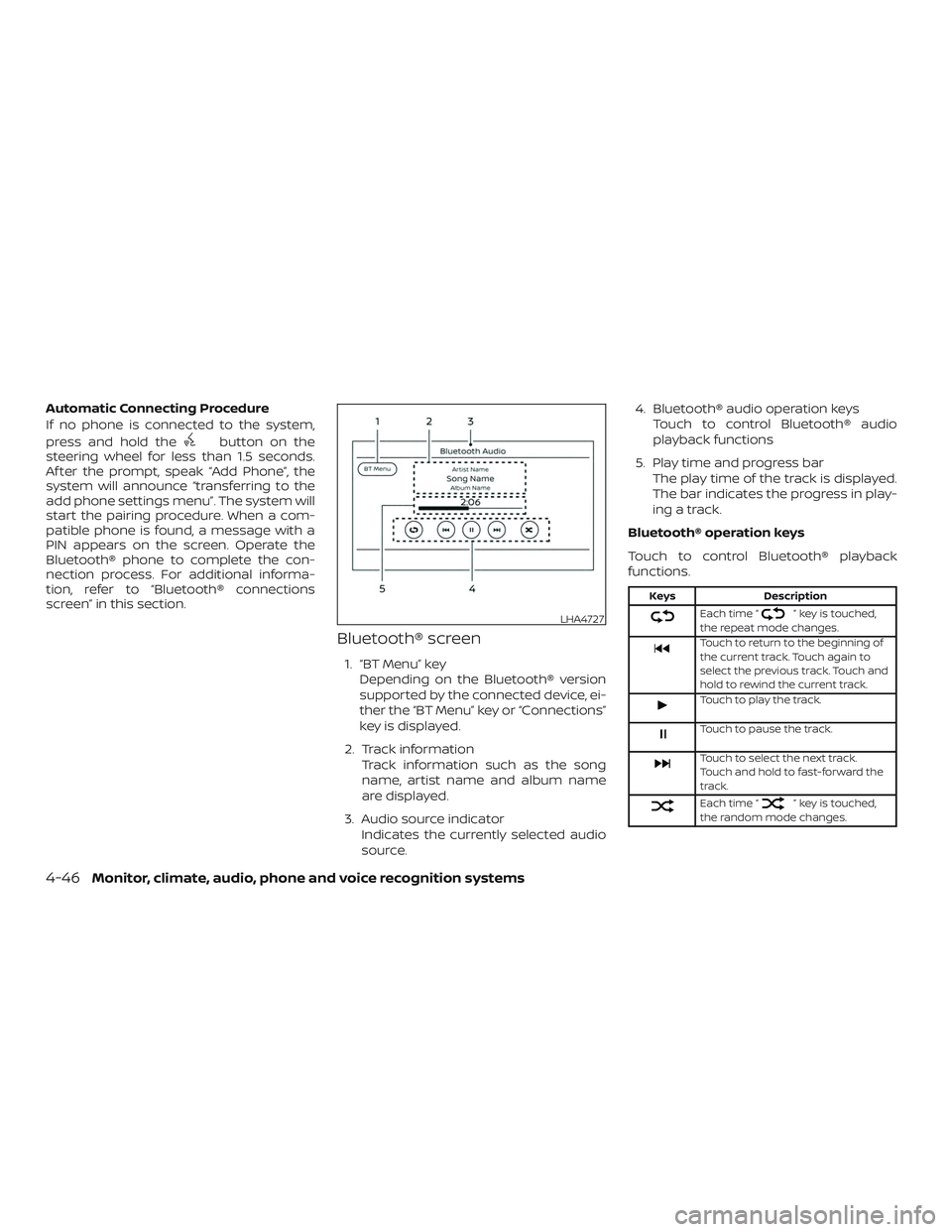
Bluetooth® screen
1. “BT Menu” key
Depending on the Bluetooth® version
supported by the connected device, ei-
ther the “BT Menu” key or “Connections”
key is displayed.
2. Track information Track information such as the song
name, artist name and album name
are displayed.
3. Audio source indicator Indicates the currently selected audio
source. 4. Bluetooth® audio operation keys
Touch to control Bluetooth® audio
playback functions
5. Play time and progress bar The play time of the track is displayed.
The bar indicates the progress in play-
ing a track.
Bluetooth® operation keys
Touch to control Bluetooth® playback
functions.
Keys Description
Each time “” key is touched,
the repeat mode changes.
Touch to return to the beginning of
the current track. Touch again to
select the previous track. Touch and
hold to rewind the current track.
Touch to play the track.
Touch to pause the track.
Touch to select the next track.
Touch and hold to fast-forward the
track.
Each time “” key is touched,
the random mode changes.
LHA4727
4-46Monitor, climate, audio, phone and voice recognition systems
Page 232 of 492
TROUBLESHOOTING GUIDE
SymptomCause and Countermeasure
Cannot access Siri Eyes
Freefromswitchonthe
steering wheel Check if a Bluetooth® connection is established between the iPhone® and the system.
Check if Siri is enabled on the device. On your phone, go to Siri setting.
Check that Siri can be accessed from the device lock screen. This can be set in the settings menu of your phone.
Audio Source does not
change automatically to
iPod® or Bluetooth® Au-
dio mode For best results, use the native Music app. Performance of music control function while using Podcasts, Audiobook or other 3rd party
music apps may vary.
For best results, play media already stored on your device. Streaming music or playback from cloud storage may degrade
performance.
Switch the source manually by pressing the AUX or MEDIA button on the vehicle audio system or the SOURCE select switch on the
steering wheel.
Play, pause, next track,
previous track or play
timer does not work For best results, use the native Music app. Performance of music control function while using Podcasts, Audiobook or other 3rd party
music apps may vary and is controlled by the device.
Cannot hear any music/
audio being played back
from a connected
iPhone® Check that the audio source is set to Bluetooth® Audio or iPod® mode. A USB connection is required for iPod® mode.
Cannot receive text mes-
sage notifications on the
vehicle audio system Check if “Send Notifications” is enabled on your phone. On the phone, go to Bluetooth® settings. Find the device name, like “My Car”.
Press the INFO button. Turn on “Show Notifications”.
Cannot reply to text
message notifications by
Siri Eyes Free Af ter receiving an incoming text message, follow on-screen guidance. Press the
button for 1.5 seconds on the steering wheel
for Siri Eyes Free. Af ter Siri Eyes Free starts, say “Text Message”.
4-52Monitor, climate, audio, phone and voice recognition systems
Page 256 of 492
WARNING
∙ Do not leave children or adults whowould normally require the assis-
tance of others alone in your vehicle.
Pets should also not be lef t alone.
They could accidentally injure them-
selves or others through inadvertent
operation of the vehicle. Also, on hot,
sunny days, temperatures in a closed
vehicle could quickly become high
enough to cause severe or possibly
fatal injuries to people or animals.
∙ Properly secure all cargo to help pre- vent it from sliding or shif ting. Do not
place cargo higher than the seat-
backs. In a sudden stop or collision,
unsecured cargo could cause per-
sonal injury.
∙ Closely supervise children when they are around cars to prevent them from
playing and becoming locked in the
trunk where they could be seriously
injured. Keep the car locked, with the
rear seatback and trunk lid securely
latched when not in use, and prevent
children’s access to car keys.
EXHAUST GAS (carbon monoxide)
WARNING
∙ Do not breathe exhaust gases; theycontain colorless and odorless carbon
monoxide. Carbon monoxide is dan-
gerous. It can cause unconsciousness
or death.
∙ If you suspect that exhaust fumes are entering the vehicle, drive with all
windows fully open, and have the ve-
hicle inspected immediately.
∙ Do not run the engine in closed spaces such as a garage.
∙ Do not park the vehicle with the en- gine running for any extended length
of time.
∙ Keep the rear vent windows, doors and trunk lids (if so equipped) closed
while driving, otherwise exhaust
gases could be drawn into the pas-
senger compartment. If you must
drive with one of these open, follow
these precautions:
1. Open all the windows. 2. Turn the air recirculation mode off
and set the fan speed control to
the highest level to circulate the
air.
∙ The exhaust system and body should be inspected by a qualified mechanic
whenever:
a. The vehicle is raised for service.
b. You suspect that exhaust fumes are entering into the passenger
compartment.
c. You notice a change in the sound of the exhaust system.
d. You have had an accident involving damage to the exhaust system,
underbody, or rear of the vehicle.
THREE-WAY CATALYST
The three-way catalyst is an emission con-
trol device installed in the exhaust system.
Exhaust gases in the three-way catalyst
are burned at high temperatures to help
reduce pollutants.
PRECAUTIONS WHEN STARTING AND
DRIVING
5-4Starting and driving
Page 260 of 492
∙ If the wheel is not originally specified byNISSAN.
FCC Notice:
For USA: FCC ID: PAXPMVCA74
This device complies with Part 15 of the
FCC Rules. Operation is subject to the fol-
lowing two conditions: (1) This device
may not cause harmful interference, and
(2) this device must accept any interfer-
ence received, including interference
that may cause undesired operation.
NOTE:
Changes or modifications not expressly
approved by the party responsible for
compliance could void the user’s author-
ity to operate the equipment.
For Canada: Model: PMV-CA74
This device complies with Industry
Canada licence-exempt RSS standard(s).
Operation is subject to the following two
conditions: (1) this device may not cause
interference, and (2) this device must ac-
cept any interference, including interfer-
ence that may cause undesired opera-
tion of the device.TPMS with Easy-Fill Tire Alert
When adding air to an under-inflated tire,
the TPMS with Easy-Fill Tire Alert provides
visual and audible signals outside the ve-
hicle to help you inflate the tires to the rec-
ommended COLD tire pressure.
Vehicle set-up: 1. Park the vehicle in a safe and level place.
2. Apply the parking brake and place the shif t lever in the P (Park) position (if so
equipped).
3. Place the ignition switch in the ON po- sition. Do not start the engine.
Operation: 1. Add air to the tire.
2. Af ter a few seconds, the hazard indica- tors will start flashing.
3. When the designated pressure is reached, the horn beeps once and the
hazard indicators stop flashing.
4. Perform the above steps for each tire. ∙ If the tire is over-inflated more thanapproximately 4 psi (30 kPa), the horn
beeps and the hazard indicators
flash three times. To correct the pres- sure, push the core of the valve stem
on the tire briefly to release pressure.
When the pressure reaches the des-
ignated pressure, the horn beeps
once.
∙ If the hazard indicator does not flash within approximately 15 seconds af-
ter starting to inflate the tire, it indi-
cates that the Easy-Fill Tire Alert is
not operating.
∙ The TPMS will not activate the Easy- Fill Tire Alert under the following con-
ditions:
– If there is interference from an exter- nal device or transmitter.
– The air pressure from the inflation device is not sufficient to inflate the
tire.
– There is a malfunction in the TPMS.
– There is a malfunction in the horn or hazard indicators.
– The identification code of the tire’s pressure sensor is not registered to
the system.
– The battery of the tire pressure sen- sor is low.
5-8Starting and driving
Page 262 of 492
Help prevent rapid air pressure loss by
maintaining the correct air pressure and
visually inspecting the tires for wear and
damage. For additional information, refer
to “Wheels and tires” in the “Do-it-yourself ”
section of this manual. If a tire rapidly loses
air pressure or “blows-out” while driving,
maintain control of the vehicle by following
the procedure below. Please note that this
procedure is only a general guide. The ve-
hicle must be driven as appropriate based
on the conditions of the vehicle, road and
traffic.
WARNING
The following actions can increase the
chance of losing control of the vehicle if
there is a sudden loss of tire air pres-
sure. Losing control of the vehicle may
cause a collision and result in personal
injury.
∙ The vehicle generally moves or pullsin the direction of the flat tire.
∙ Do not rapidly apply the brakes.
∙ Do not rapidly release the accelerator pedal.
∙ Do not rapidly turn the steering wheel. 1. Remain calm and do not overreact.
2. Maintain a firm grip on the steering
wheel with both hands and try to hold a
straight course.
3. When appropriate, slowly release the accelerator pedal to gradually slow the
vehicle.
4. Gradually steer the vehicle to a safe location off the road and away from
traffic if possible.
5. Lightly apply the brake pedal to gradu- ally stop the vehicle.
6. Turn on the hazard warning flashers and contact a roadside emergency
service to change the tire. For addi-
tional information, refer to “Changing a
flat tire” in the “In case of emergency”
section of this manual.
DRINKING ALCOHOL/DRUGS AND
DRIVING
WARNING
Never drive under the influence of alco-
hol or drugs. Alcohol in the bloodstream
reduces coordination, delays reaction
time and impairs judgement. Driving
af ter drinking alcohol increases the
likelihood of being involved in an acci-
dent injuring yourself and others. Addi-
tionally, if you are injured in an accident,
alcohol can increase the severity of the
injury.
NISSAN is committed to safe driving. How-
ever, you must choose not to drive under the
influence of alcohol. Every year thousands of
people are injured or killed in alcohol-related
collisions. Although the local laws vary on
what is considered to be legally intoxicated,
the fact is that alcohol affects all people dif-
ferently and most people underestimate the
effects of alcohol.
Remember, drinking and driving don’t mix!
That is true for drugs (over-the-counter,
prescription) and illegal drugs, too. Don’t
drive if your ability to operate your vehicle is
impaired by alcohol, drugs, or some other
physical condition.
5-10Starting and driving