navigation system NISSAN VERSA SEDAN 2017 2.G User Guide
[x] Cancel search | Manufacturer: NISSAN, Model Year: 2017, Model line: VERSA SEDAN, Model: NISSAN VERSA SEDAN 2017 2.GPages: 404, PDF Size: 4.02 MB
Page 154 of 404
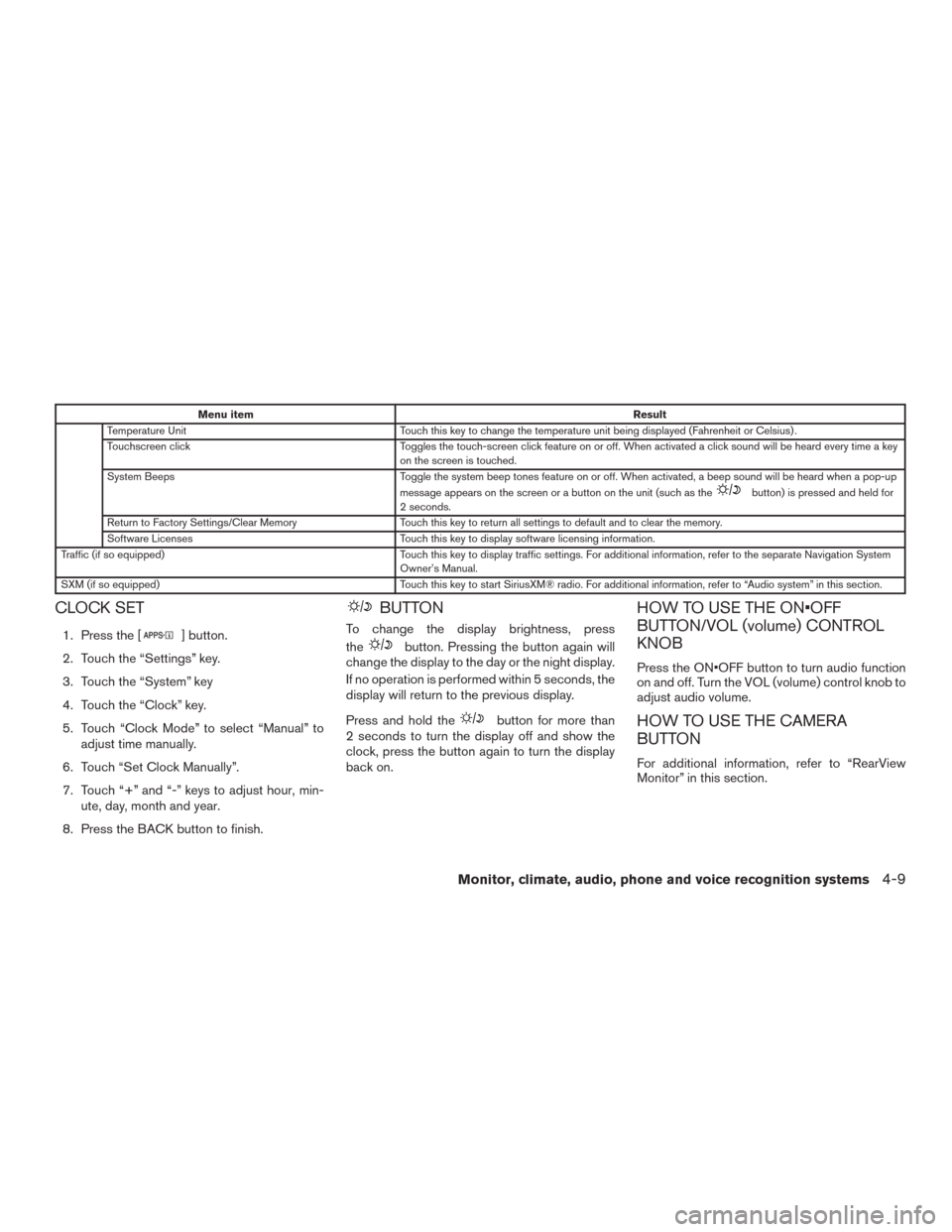
Menu itemResult
Temperature Unit Touch this key to change the temperature unit being displayed (Fahrenheit or Celsius) .
Touchscreen click Toggles the touch-screen click feature on or off. When activated a click sound will be heard every time a key
on the screen is touched.
System Beeps Toggle the system beep tones feature on or off. When activated, a beep sound will be heard when a pop-up
message appears on the screen or a button on the unit (such as the
button) is pressed and held for
2 seconds.
Return to Factory Settings/Clear Memory Touch this key to return all settings to default and to clear the memory.
Software Licenses Touch this key to display software licensing information.
Traffic (if so equipped) Touch this key to display traffic settings. For additional information, refer to the separate Navigation System
Owner’s Manual.
SXM (if so equipped) Touch this key to start SiriusXM® radio. For additional information, refer to “Audio system” in this section.
CLOCK SET
1. Press the [] button.
2. Touch the “Settings” key.
3. Touch the “System” key
4. Touch the “Clock” key.
5. Touch “Clock Mode” to select “Manual” to adjust time manually.
6. Touch “Set Clock Manually”.
7. Touch “+” and “-” keys to adjust hour, min- ute, day, month and year.
8. Press the BACK button to finish.
BUTTON
To change the display brightness, press
the
button. Pressing the button again will
change the display to the day or the night display.
If no operation is performed within 5 seconds, the
display will return to the previous display.
Press and hold the
button for more than
2 seconds to turn the display off and show the
clock, press the button again to turn the display
back on.
HOW TO USE THE ON•OFF
BUTTON/VOL (volume) CONTROL
KNOB
Press the ON•OFF button to turn audio function
on and off. Turn the VOL (volume) control knob to
adjust audio volume.
HOW TO USE THE CAMERA
BUTTON
For additional information, refer to “RearView
Monitor” in this section.
Monitor, climate, audio, phone and voice recognition systems4-9
Page 155 of 404

1. CAMERA button (models with navigation)WARNING
●Failure to follow the warnings and in-
structions for proper use of the Rear-
View Monitor system could result in se-
rious injury or death. ●
RearView Monitor is a convenience fea-
ture and is not a substitute for proper
backing. Always turn and look out the
windows and check mirrors to be sure
that it is safe to move before operating
the vehicle. Always back up slowly.
LHA3767
REARVIEW MONITOR (if so
equipped)
4-10Monitor, climate, audio, phone and voice recognition systems
Page 159 of 404

ADJUSTING THE SCREEN
The procedure for adjusting the display settings
of the screen differs depending on the type of
screen present on the vehicle.
For vehicles without Navigation System1. Firmly apply the brake and place the shift lever in R (reverse)
2. Press the ENTER/SETTING button.
3. The screen will display the Brightness set- tings. 4. Turn the TUNE/SCROLL knob to adjust the
setting up or down.
5. Press the ENTER/SETTING button again to display the Contrast settings.
6. Turn the TUNE/SCROLL knob to adjust the setting up or down.
7. Press the ENTER/SETTING button to com- plete the adjustment.
● Do not adjust the display settings of the
RearView Monitor while the vehicle is mov-
ing. For vehicles with Navigation System
1. Firmly apply the brake and place the shift lever in R (reverse)
2. Press the
button on the control panel.
3. The screen will display the Night settings.
4. Turn the TUNE knob to adjust the setting up or down.
5. Press the
button again to access the
Auto settings.
6. Turn the TUNE knob to adjust the setting up or down.
● Do not adjust the display settings of the
RearView Monitor while the vehicle is mov-
ing.
REARVIEW MONITOR SYSTEM
LIMITATIONS
WARNING
Listed below are the system limitations for
RearView Monitor. Failure to operate the
vehicle in accordance with these system
limitations could result in serious injury or
death.
Models without navigation
LHA3639
Models with navigation
LHA3679
4-14Monitor, climate, audio, phone and voice recognition systems
Page 182 of 404
RPT (repeat)/RDM (random) button
Press the RPT/RDM button while a compact disc
is playing to change the play pattern as follows:
CD:
TRACK REPEAT→DISC RANDOM →DISC
REPEAT
MP3/WMA CD:
FOLDER REPEAT →TRACK REPEAT →DISC
RANDOM →FOLDER RANDOM →DISC RE-
PEAT
TRACK REPEAT: The track that is currently play-
ing will be repeated.
DISC RANDOM: The order of the tracks on the
disc will be mixed during play.
DISC REPEAT: The disc currently playing will be
repeated.
FOLDER REPEAT: The tracks in the current
folder will be repeated.
FOLDER RANDOM: The order of the tracks in
the folder will be mixed during play.
SCAN (CDs) button
Press the SCAN button for less than 1.5 seconds
to scan all tracks of the current disc for 10 sec-
onds per track. The SCAN icon is flashed during
scan mode. The scan mode is canceled once it scans through
all tracks on the disc, or if the SCAN button is
pressed during scan mode.
CD EJECT
When the
button is pressed with a com-
pact disc loaded, the compact disc will be
ejected.
When the
button is pressed while the
compact disc is playing, the compact disc will
eject and the system will turn off.
AUX (Auxiliary) button
The AUX IN jack is located on the CD player. The
AUX IN audio input jack accepts any standard
analog audio input such as from a portable cas-
sette tape/CD player, MP3 player or laptop com-
puters.
Press the AUX button to play a compatible device
when it is plugged into the AUX IN jack.
Press the MENU button repeatedly until “AUX IN
Volume” appears on the screen to control the
incoming volume level of the auxiliary input de-
vice. Turn the TUNE/FOLDER knob to adjust the
level between 0 and +3.
Additional features
For additional information, refer to “Bluetooth®
streaming audio without Navigation System
(Type A)” in this section.
Monitor, climate, audio, phone and voice recognition systems4-37
Page 185 of 404
How to use the SETUP button
To select and/or adjust several functions, fea-
tures and modes that are available for your ve-
hicle:1. Press the SETUP button.
2. Turn the TUNE/MENU knob until the desired item is selected on the menu list and then
press the ENTER button.
Menu item Result
Audio Selecting this item allows user to adjust various audio settings.
Bass Adjusts the bass to the desired level.
Treble Adjusts the treble to the desired level.
Balance Adjusts the balance to the desired level. Balance adjusts the sound level between the left and right speakers.
Fade Adjusts the fade to the desired level. Fade adjusts the sound level between the front and rear speakers.
AUX Vol. Controls the volume level of incoming sound when an auxiliary device is connected to the system. Available options are LOW, MID,
and HIGH.
Clock Selecting this item allows user to adjust various clock settings.
Set Time Allows user to set time manually.
ON/OFF Switches clock display on or off.
Format 12h:24h Allows user to change time format between 12 hour and 24 hour.
Bluetooth For additional information, refer to “Bluetooth® Hands-Free Phone System without Navigation System (Type A)” in this section.
Language Allows user to change system language.
List of Languages Available language are Spanish, Portuguese, English, and French.
Scroll Direction Allows user to change the scrolling direction used by the TUNE/MENU knob.
Clockwise Select up or down and press ENTER button.
4-40Monitor, climate, audio, phone and voice recognition systems
Page 187 of 404
If the battery cable is disconnected or if the fuse
opens, the radio memory will be canceled. In that
case, reset the desired stations.
Compact disc (CD) player operation
If the radio is already operating, it automatically
turns off and the compact disc begins to play.
CD button
When the CD button is pressed with the system
off and the compact disc loaded, the system will
turn on and the compact disc will start to play.
When the CD button is pressed with a compact
disc loaded and the radio playing, the radio will
automatically be turned off and the compact disc
will start to play.
DISP button
When the DISP button is pressed while a CD is
playing, the display will change as follows:
CD:
Track Time→Album →Artist →Track Time
CD with MP3 or WMA:
Track time→ Folder title→Artist →Song title →
Track number
SEEK/TRACK (Reverse or
Fast Forward) button
Press and hold the SEEK/TRACK button
orfor 1.5 seconds while the compact disc
is playing to reverse or fast forward the track
being played. The compact disc plays at an in-
creased speed while reversing or fast forwarding.
When the button is released, the compact disc
returns to normal play speed.
SEEK/TRACK button
Press the SEEK/TRACK button
while a
CD or MP3/WMA CD is playing to return to the
beginning of the current track. Press the
SEEK/TRACK button
several times to skip
backward several tracks.
Press the SEEK/TRACK button
while a
CD or MP3/WMA CD is playing to advance one
track. Press the SEEK/TRACK button
sev-
eral times to skip forward several tracks. If the last
track on a CD is skipped, the first track on the
disc is played. If the last track in a folder of an
MP3/WMA CD is skipped, the first track of the
next folder is played.
TUNE/MENU knob (MP3/WMA CD only)
If an MP3/WMA CD with multiple folders is play-
ing, press the ENTER button to view the track list
and press the button again to view the folder list. To select a folder or track, turn the TUNE/MENU
knob to scroll through the folders/songs and
press the ENTER button to make selection.
RPT (repeat) button
When the RPT button (Preset station number 1)
is pressed while a compact disc is playing, the
repeat mode is toggled.
RDM (random) button
When the RDM button (Preset station number 2)
is pressed while a compact disc is playing, the
Random mode is toggled.
CD EJECT button
When the
button is pressed with a com-
pact disc loaded, the compact disc will eject and
the last source will be played.
Additional features
For additional information, refer to “iPod® player
operation without Navigation System” in this sec-
tion.
For additional information, refer to “USB (Univer-
sal Serial Bus) connection port (models without
Navigation System)” in this section.
For additional information, refer to “Bluetooth®
streaming audio without Navigation System
(Type A)” in this section.
4-42Monitor, climate, audio, phone and voice recognition systems
Page 190 of 404
Clock Set1. Press the ENTER/SETTING button.
2. Turn the TUNE/SCROLL knob to select CLOCK.
3. Press the ENTER/SETTING button.
4. Turn the TUNE/SCROLL knob to select “set time”.
5. Press the ENTER/SETTING button.
6. Rotate the TUNE/SCROLL knob to adjust hours.
7. Press the ENTER/SETTING button.
8. Turn the TUNE/SCROLL knob to adjust min- utes.
9. Press the ENTER/SETTING button.
10. Press the
BACK button to finish.
iPod MENU button
This button can only be used for iPod® opera-
tions. For additional information, refer to “iPod®
player operation without Navigation System” in
this section.
DISP (display) button
The DISP (display) button turns the display
screen on or off.
FM/AM/SAT radio operation
FM·AM button
Press the FM·AM button to change the band as
follows:
AM →FM1 →FM2 →AM
If another audio source is playing when the
FM·AM button is pressed, the audio source play-
ing will automatically be turned off and the last
radio station played will begin playing.
XM band select
Press the XM button to change the band as
follows:
XM1* →XM2* →XM3* →XM1 (satellite, if so
equipped)
When the XM button is pressed while the ignition
switch is in the ACC or ON position, the radio will
come on at the station last played.
The last station played will also come on when
the
(power) button is pressed on.
*When the XM button is pressed, the satellite
radio reception will not be available unless an
optional satellite receiver and antenna are in-
stalled and a SiriusXM® Satellite Radio service
subscription is active. Satellite radio is not avail-
able in Alaska, Hawaii and Guam. If a compact disc is playing when the XM button
is pressed, the compact disc will automatically be
turned off and the last radio station played will
come on.
TUNE/FOLDER knob (Tuning)
Turn the TUNE/FOLDER knob to the left or right
for manual tuning.
SEEK tuning
Press the
SEEK button orTRACK
button to tune from low to high or high to low
frequencies and to stop at the next broadcasting
station.
SCAN tuning
Press the SCAN button to stop at each broad-
casting station for 5 seconds. SCAN will appear
on the screen while the radio is scan tuning.
Pressing the button again during this 5 second
period will stop SCAN tuning and the radio will
remain tuned to that station. If the SCAN button is
not pressed within 5 seconds, SCAN tuning
moves to the next station.
1 to 6 Station memory operations
Six stations can be set for the AM band. Twelve
stations can be set for the FM band (6 for FM1, 6
for FM2) . Eighteen channels can be set for the
satellite radio (6 for XM1, 6 for XM2, 6 for XM3) .
Monitor, climate, audio, phone and voice recognition systems4-45
Page 192 of 404
RDM (random) button
When the RDM button is pressed while a com-
pact disc is playing, the play pattern can be
changed as follows:
CD:
1 Disc Random←→OFF
CD with MP3 or WMA:
1 Disc Random →1 Folder Random →OFF
1 Disc Random: all tracks on the disc will be
played randomly.
1 Folder Random: all tracks in the current folder
will be played randomly.
OFF: No random play pattern is applied. The
indicator on the display will turn off.
The current play pattern of the CD is displayed on
the screen unless no pattern is applied.
EJECT button
When the
button is pressed with a com-
pact disc loaded, the compact disc will eject and
the last source will be played.
When the
button is pressed twice with a
compact disc loaded, the compact disc will be
ejected further for easier CD removal. If the disc
is not removed within 20 seconds, the disc will
reload.
Additional features
For additional information, refer to “iPod® player
operation without Navigation System” in this sec-
tion.
For additional information, refer to “USB (Univer-
sal Serial Bus) connection port (models without
Navigation System)” in this section.
For additional information, refer to “Bluetooth®
streaming audio without Navigation System
(Type B)” in this section.
Monitor, climate, audio, phone and voice recognition systems4-47
Page 199 of 404
SEEK (Reverse or FastForward) buttons
Press and hold the SEEK buttons
orfor 1.5 seconds while the compact disc
is playing to reverse or fast forward the track
being played. The compact disc plays at an in-
creased speed while reversing or fast forwarding.
When the button is released, the compact disc
returns to normal play speed.
SEEK buttons
Press the SEEK button
while a CD or
MP3/WMA CD is playing to return to the begin-
ning of the current track. Press the SEEK
button
several times to skip backward sev-
eral tracks.
Press the SEEK button
while a CD or
MP3/WMA CD is playing to advance one track.
Press the SEEK button
several times to
skip forward several tracks. If the last track on a
CD is skipped, the first track on the disc is played.
If the last track in a folder of an MP3/WMA CD is
skipped, the first track of the next folder is played. AUX button
The AUX IN audio input jack accepts any stan-
dard analog audio input such as from a portable
cassette tape/CD player, MP3 player or a laptop
computer. Press the AUX button to play a com-
patible device plugged into the AUX IN jack.
EJECT button
When the
button is pressed with a com-
pact disc loaded, the compact disc will eject and
the last source will be played.
If the disc is not removed within 10 seconds, the
disc will reload.
Additional features
For additional information, refer to “iPod® player
operation with Navigation System” in this section.
For additional information, refer to “USB (Univer-
sal Serial Bus) connection port (models with
Navigation System)” in this section.
For additional information, refer to “Bluetooth®
streaming audio with Navigation System” in this
section.USB (Universal Serial Bus)
CONNECTION PORT (models
without Navigation System) (if so
equipped)
Connecting a device to the USB
connection port
WARNING
Do not connect, disconnect or operate the
USB device while driving. Doing so can be
a distraction. If distracted you could lose
control of your vehicle and cause an acci-
dent or serious injury.
LHA4252
4-54Monitor, climate, audio, phone and voice recognition systems
Page 201 of 404
RDM (random) button
When the RDM button is pressed while an audio
file on the USB device is playing, the play pattern
can be changed as follows:
All Random→1 Folder Random →OFF
All Random: all tracks on the USB device will be
played randomly.
1 Folder Random: all tracks in the current folder
will be played randomly.
OFF: No random play pattern is applied. The
indicator on the display will turn off.
The current play pattern of the USB device is
displayed on the screen unless no pattern is
applied.
RPT (repeat) button
When the RPT button is pressed while an audio
file on the USB device is playing, the play pattern
can be changed as follows:
1 Folder Repeat →1 Track Repeat →OFF
1 Track Repeat: the current track will be re-
peated.
1 Folder Repeat: the current folder will be re-
peated.
OFF: No repeat play pattern is applied. The indi-
cator on the display will turn off. The current play pattern of the USB device is
displayed on the screen unless no pattern is
applied.
TUNE/MENU or TUNE/SCROLL knob
If there are multiple folders with audio files on the
USB device, turn the TUNE/MENU or
TUNE/SCROLL knob to change folders. Turn the
knob to the left to skip back a folder. Turn the
knob to the right to skip ahead a folder. If there is
only one folder of audio files on the USB device,
turning the TUNE/MENU or TUNE/SCROLL
knob in either direction will return to the first track
on the USB device.
USB (Universal Serial Bus)
CONNECTION PORT (models with
Navigation System) (if so equipped)
Connecting a device to the USB
connection port
WARNING
Do not connect, disconnect or operate the
USB device while driving. Doing so can be
a distraction. If distracted you could lose
control of your vehicle and cause an acci-
dent or serious injury.
LHA4252
4-56Monitor, climate, audio, phone and voice recognition systems