USB NISSAN VERSA SEDAN 2018 Owner´s Manual
[x] Cancel search | Manufacturer: NISSAN, Model Year: 2018, Model line: VERSA SEDAN, Model: NISSAN VERSA SEDAN 2018Pages: 702, PDF Size: 8.98 MB
Page 513 of 702
∙ ID3/WMA Tag — The ID3/WMA tag is thepart of the encoded MP3 or WMA file
that contains information about the
digital music file such as song title, art-
ist, encoding bit rate, track time dura-
tion, etc. ID3 tag information is displayed
on the Artist/song title line on the dis-
play.
* Windows® and Windows Media® are reg-
istered trademarks and trademarks in the
United States of America and other coun-
tries of Microsof t Corporation of the USA.
USB (Universal Serial Bus)
Connection Port
WARNING
Do not connect, disconnect or operate
the USB device while driving. Doing so
can be a distraction. If distracted you
could lose control of your vehicle and
cause an accident or serious injury.
CAUTION
∙ Do not force the USB device into the USB port. Inserting the USB device
tilted or up-side-down into the port
may damage the port. Make sure that
the USB device is connected correctly
into the USB port.
∙ Do not grab the USB port cover (if so equipped) when pulling the USB de-
vice out of the port. This could dam-
age the port and the cover.
∙ Do not leave the USB cable in a place where it can be pulled unintentionally.
Pulling the cable may damage the
port.
The vehicle is not equipped with a USB de-
vice. USB devices should be purchased
separately as necessary.
This system cannot be used to format USB
devices. To format a USB device, use a per-
sonal computer.
In some jurisdictions, the USB device for the
front seats plays only sound without im-
ages for regulatory reasons, even when the
vehicle is parked.
This system supports various USB
memory devices, USB hard drives and iPod® players. Some USB devices may not
be supported by this system.
∙ Partitioned USB devices may not play correctly.
∙ Some characters used in other lan- guages (Chinese, Japanese, etc.) may
not appear properly in the display. Using
English language characters with a USB
device is recommended.
General notes for USB use: ∙ For additional information, refer to your device manufacturer’s owner informa-
tion regarding the proper use and care
of the device.
Notes for iPod® use:
iPod® is a trademark of Apple Inc., regis-
tered in the U.S. and other countries. ∙ Improperly plugging in the iPod® may cause a checkmark to be displayed on
and off (flickering). Always make sure
that the iPod® is connected properly.
∙ An iPod® nano (1st Generation) may re- main in fast forward or rewind mode if it
is connected during a seek operation. In
this case, please manually reset the
iPod®.
Display screen, heater, air conditioner, audio and phone systems4-25
Page 516 of 702
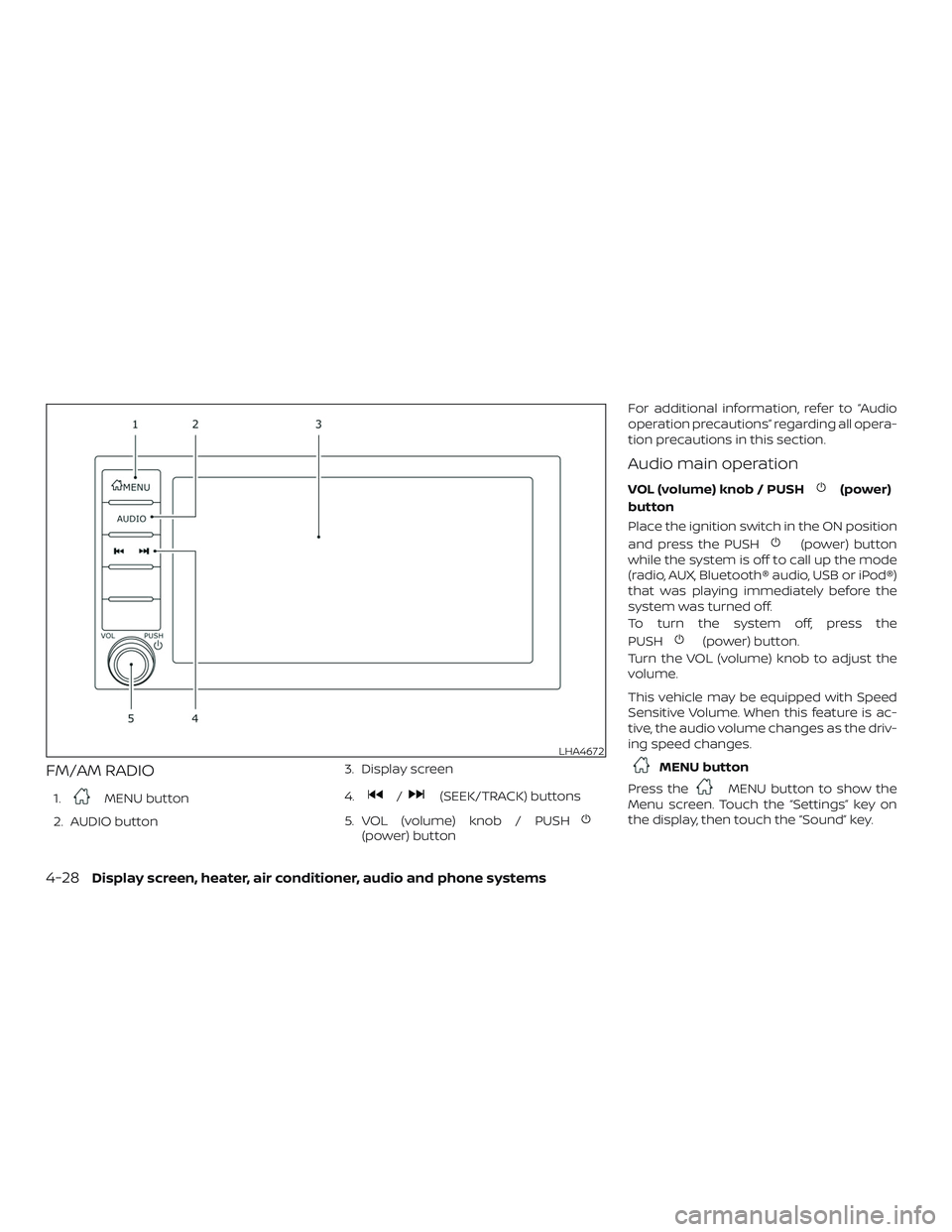
FM/AM RADIO
1.MENU button
2. AUDIO button 3. Display screen
4./(SEEK/TRACK) buttons
5. VOL (volume) knob / PUSH
(power) button For additional information, refer to “Audio
operation precautions” regarding all opera-
tion precautions in this section.
Audio main operation
VOL (volume) knob / PUSH(power)
button
Place the ignition switch in the ON position
and press the PUSH
(power) button
while the system is off to call up the mode
(radio, AUX, Bluetooth® audio, USB or iPod®)
that was playing immediately before the
system was turned off.
To turn the system off, press the
PUSH
(power) button.
Turn the VOL (volume) knob to adjust the
volume.
This vehicle may be equipped with Speed
Sensitive Volume. When this feature is ac-
tive, the audio volume changes as the driv-
ing speed changes.
MENU button
Press the
MENU button to show the
Menu screen. Touch the “Settings” key on
the display, then touch the “Sound” key.
LHA4672
4-28Display screen, heater, air conditioner, audio and phone systems
Page 520 of 702
The AUX input jack accepts any standard
analog audio input such as from a portable
cassette player, CD player, MP3 player or
phone.
Insert a 1/8 in (3.5 mm) stereo mini plug in
the audio input jack. If a cable with a mono
plug is used, the audio output may not
function normally.
Activation and playing
Turn on the AUX device. Connect an AUX
cable to the AUX device and the AUX input
jack. Select AUX mode from the audio
source menu screen or by pressing the
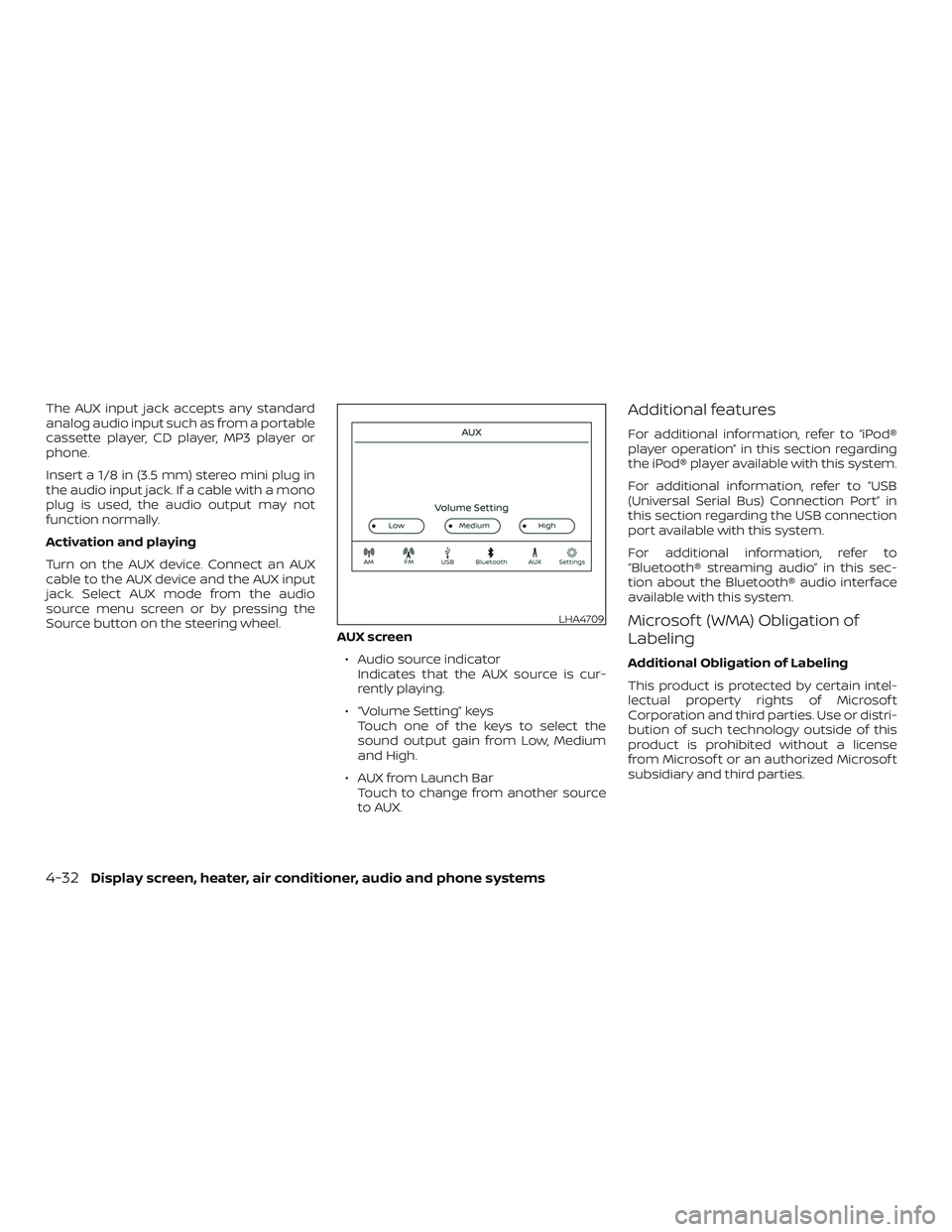
Source button on the steering wheel.AUX screen
∙ Audio source indicator Indicates that the AUX source is cur-
rently playing.
∙ “Volume Setting” keys Touch one of the keys to select the
sound output gain from Low, Medium
and High.
∙ AUX from Launch Bar Touch to change from another source
to AUX.Additional features
For additional information, refer to “iPod®
player operation” in this section regarding
the iPod® player available with this system.
For additional information, refer to “USB
(Universal Serial Bus) Connection Port” in
this section regarding the USB connection
port available with this system.
For additional information, refer to
“Bluetooth® streaming audio” in this sec-
tion about the Bluetooth® audio interface
available with this system.
Microsof t (WMA) Obligation of
Labeling
Additional Obligation of Labeling
This product is protected by certain intel-
lectual property rights of Microsof t
Corporation and third parties. Use or distri-
bution of such technology outside of this
product is prohibited without a license
from Microsof t or an authorized Microsof t
subsidiary and third parties.
LHA4709
4-32Display screen, heater, air conditioner, audio and phone systems
Page 521 of 702
USB (Universal Serial Bus)
CONNECTION PORT
Connecting a device to the USB
Connection Port
WARNING
Do not connect, disconnect, or operate
the USB device while driving. Doing so
can be a distraction. If distracted you
could lose control of your vehicle and
cause an accident or serious injury.
CAUTION
∙ To avoid damage and loss of functionwhen using a USB device, note the fol-
lowing precautions.
∙ Do not force the USB device into the USB port. Inserting the USB device
tilted or up-side-down into the port
may damage the port. Make sure that
the USB device is connected correctly
into the USB port.
∙ Do not grab the USB port cover (if so equipped) when pulling the USB de-
vice out of the port. This could dam-
age the port and the cover.
∙ Do not leave the USB cable in a place where it can be pulled unintentionally.
Pulling the cable may damage the
port.
For additional information, refer to your de-
vice manufacturer’s owner information re-
garding the proper use and care of the
device.
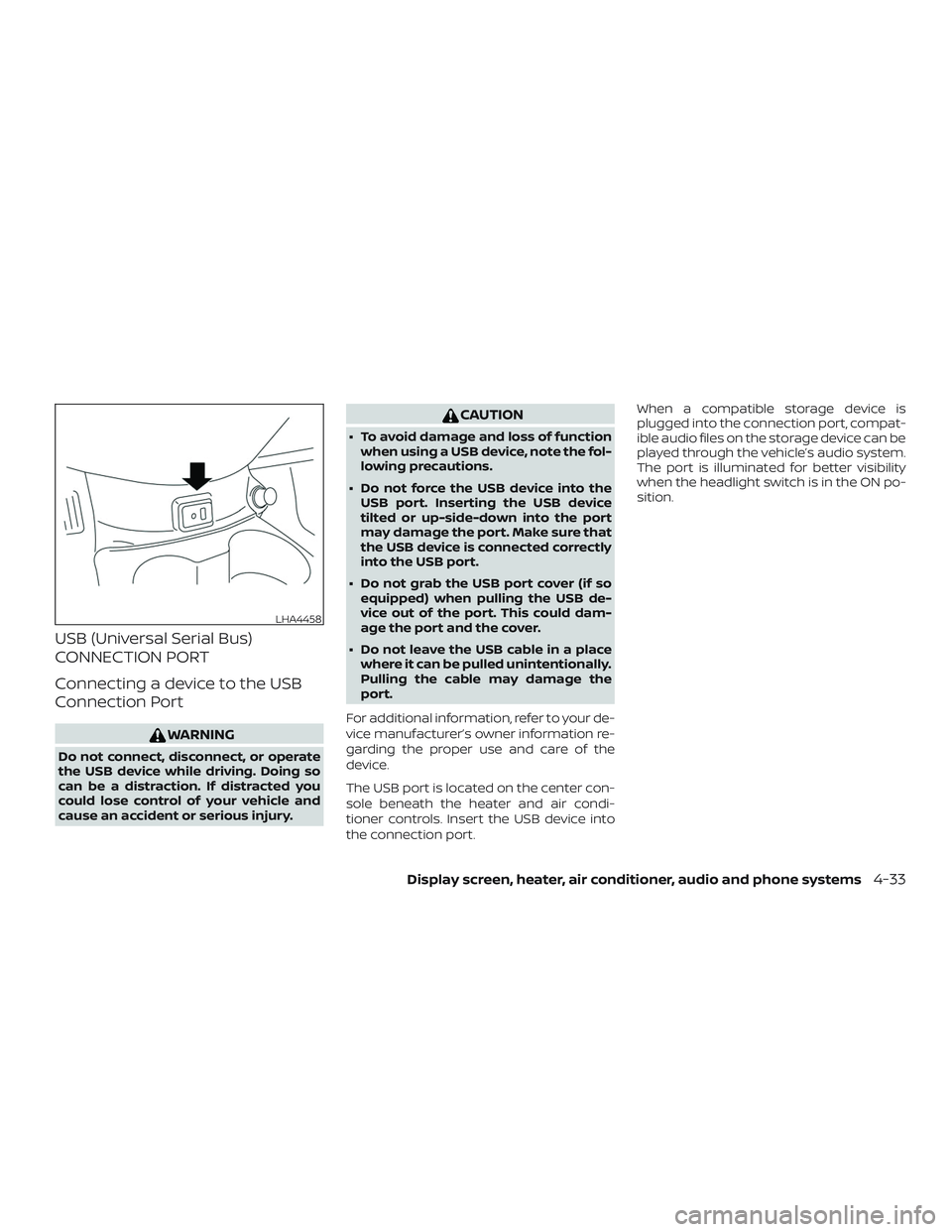
The USB port is located on the center con-
sole beneath the heater and air condi-
tioner controls. Insert the USB device into
the connection port. When a compatible storage device is
plugged into the connection port, compat-
ible audio files on the storage device can be
played through the vehicle’s audio system.
The port is illuminated for better visibility
when the headlight switch is in the ON po-
sition.
LHA4458
Display screen, heater, air conditioner, audio and phone systems4-33
Page 522 of 702
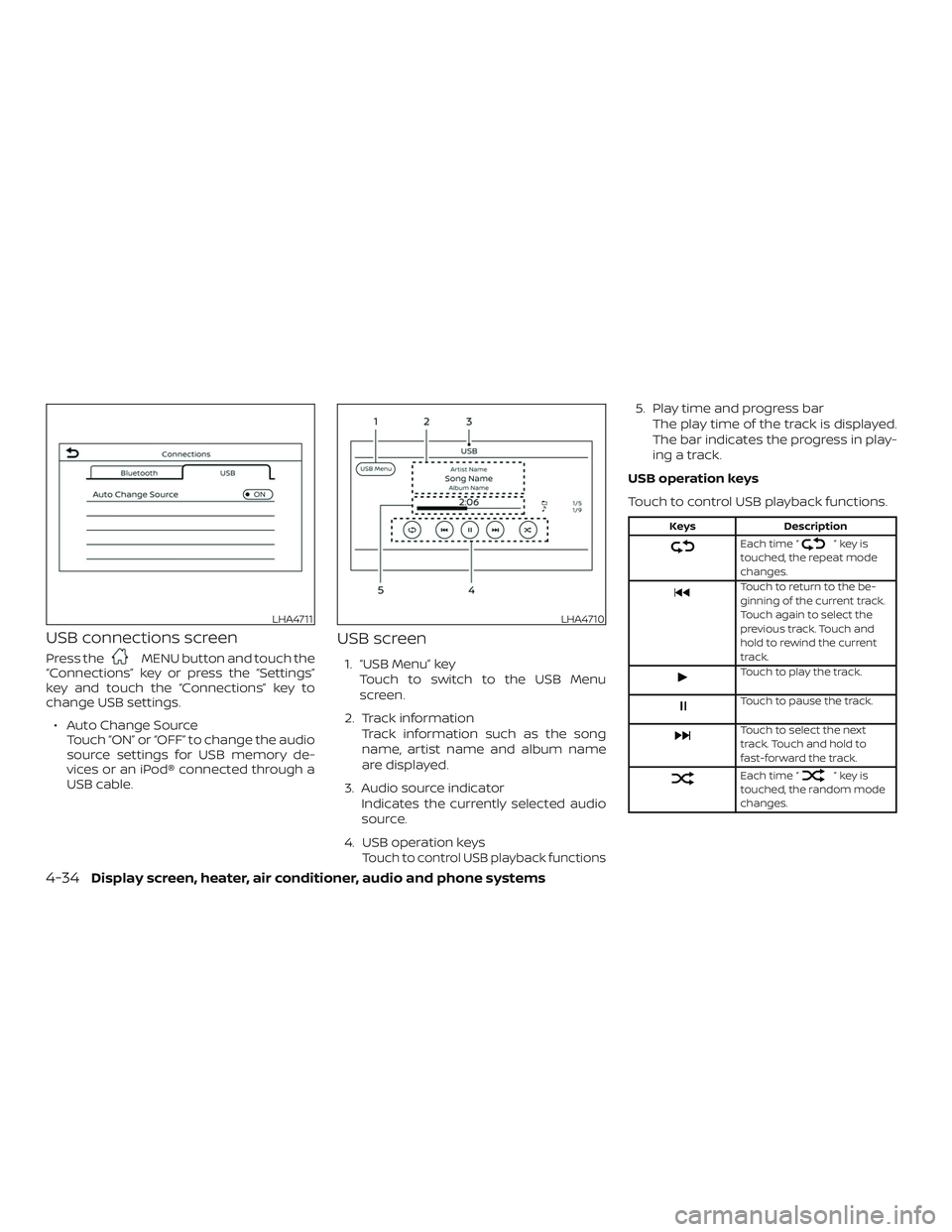
USB connections screen
Press theMENU button and touch the
“Connections” key or press the “Settings”
key and touch the “Connections” key to
change USB settings.
∙ Auto Change Source Touch “ON” or “OFF” to change the audio
source settings for USB memory de-
vices or an iPod® connected through a
USB cable.
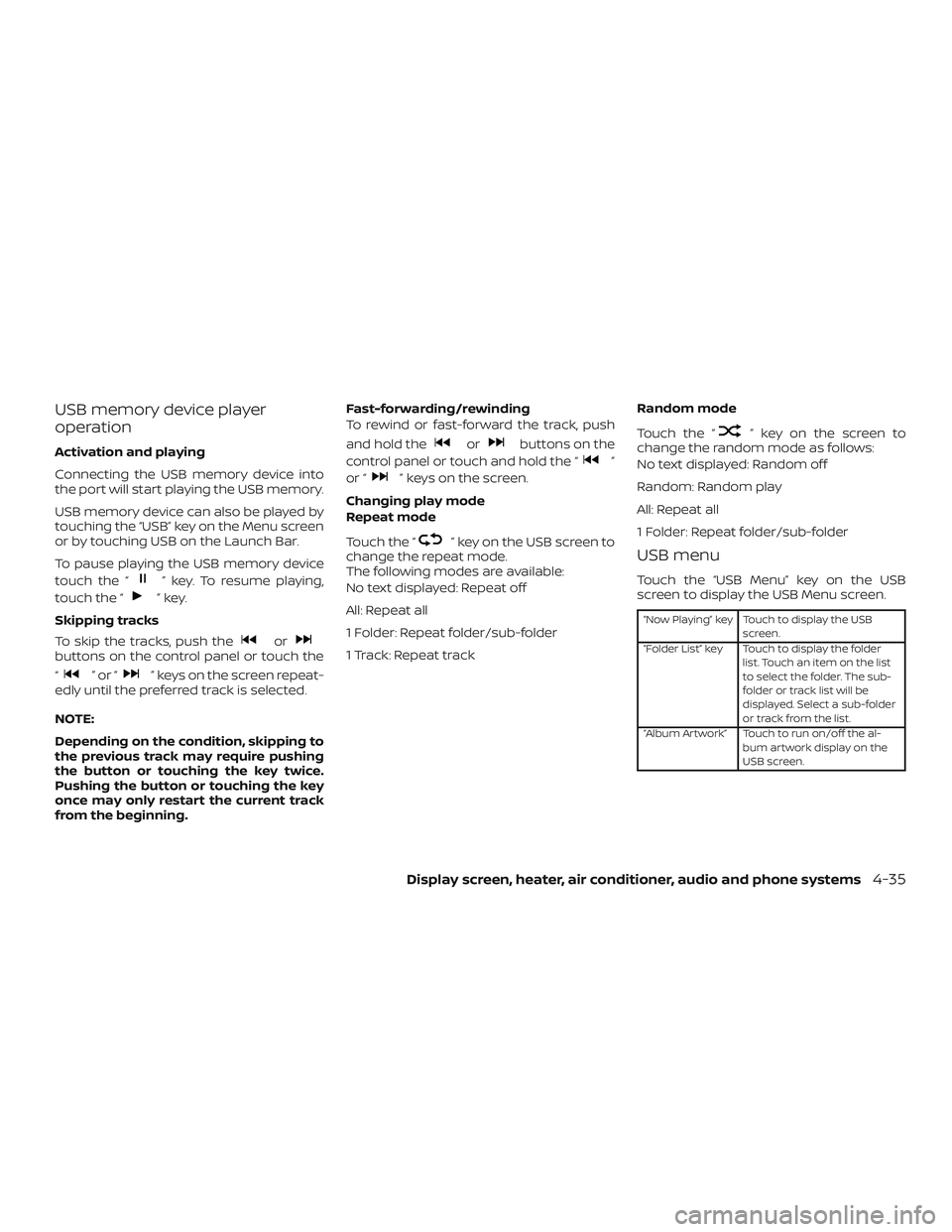
USB screen
1. “USB Menu” key
Touch to switch to the USB Menu
screen.
2. Track information Track information such as the song
name, artist name and album name
are displayed.
3. Audio source indicator Indicates the currently selected audio
source.
4. USB operation keys
Touch to control USB playback functions
5. Play time and progress bar The play time of the track is displayed.
The bar indicates the progress in play-
ing a track.
USB operation keys
Touch to control USB playback functions.
Keys Description
Each time “”keyis
touched, the repeat mode
changes.
Touch to return to the be-
ginning of the current track.
Touch again to select the
previous track. Touch and
hold to rewind the current
track.
Touch to play the track.
Touch to pause the track.
Touch to select the next
track. Touch and hold to
fast-forward the track.
Each time “”keyis
touched, the random mode
changes.
LHA4711LHA4710
4-34Display screen, heater, air conditioner, audio and phone systems
Page 523 of 702
USB memory device player
operation
Activation and playing
Connecting the USB memory device into
the port will start playing the USB memory.
USB memory device can also be played by
touching the “USB” key on the Menu screen
or by touching USB on the Launch Bar.
To pause playing the USB memory device
touch the “
” key. To resume playing,
touch the “
”key.
Skipping tracks
To skip the tracks, push the
orbuttons on the control panel or touch the
“
”or“” keys on the screen repeat-
edly until the preferred track is selected.
NOTE:
Depending on the condition, skipping to
the previous track may require pushing
the button or touching the key twice.
Pushing the button or touching the key
once may only restart the current track
from the beginning. Fast-forwarding/rewinding
To rewind or fast-forward the track, push
and hold the
orbuttons on the
control panel or touch and hold the “
”
or “
” keys on the screen.
Changing play mode
Repeat mode
Touch the “
” key on the USB screen to
change the repeat mode.
The following modes are available:
No text displayed: Repeat off
All: Repeat all
1 Folder: Repeat folder/sub-folder
1 Track: Repeat track Random mode
Touch the “
” key on the screen to
change the random mode as follows:
No text displayed: Random off
Random: Random play
All: Repeat all
1 Folder: Repeat folder/sub-folder
USB menu
Touch the “USB Menu” key on the USB
screen to display the USB Menu screen.
“Now Playing” key Touch to display the USB
screen.
“Folder List” key Touch to display the folder list. Touch an item on the list
to select the folder. The sub-
folder or track list will be
displayed. Select a sub-folder
or track from the list.
“Album Artwork” Touch to run on/off the al- bum artwork display on the
USB screen.
Display screen, heater, air conditioner, audio and phone systems4-35
Page 524 of 702
iPod®* PLAYER OPERATION
Connecting iPod®
WARNING
Do not connect, disconnect, or operate
the USB device while driving. Doing so
can be a distraction. If distracted you
could lose control of your vehicle and
cause an accident or serious injury.
CAUTION
∙ Do not force the USB device into theUSB port. Inserting the USB device
tilted or up-side-down into the port
may damage the port. Make sure that
the USB device is connected correctly
into the USB port.
∙ Do not grab the USB port cover (if so equipped) when pulling the USB de-
vice out of the port. This could dam-
age the port and the cover.
∙ Do not leave the USB cable in a place where it can be pulled unintentionally.
Pulling the cable may damage the
port.
For additional information, refer to your de-
vice manufacturer’s owner information re-
garding the proper use and care of the
device.
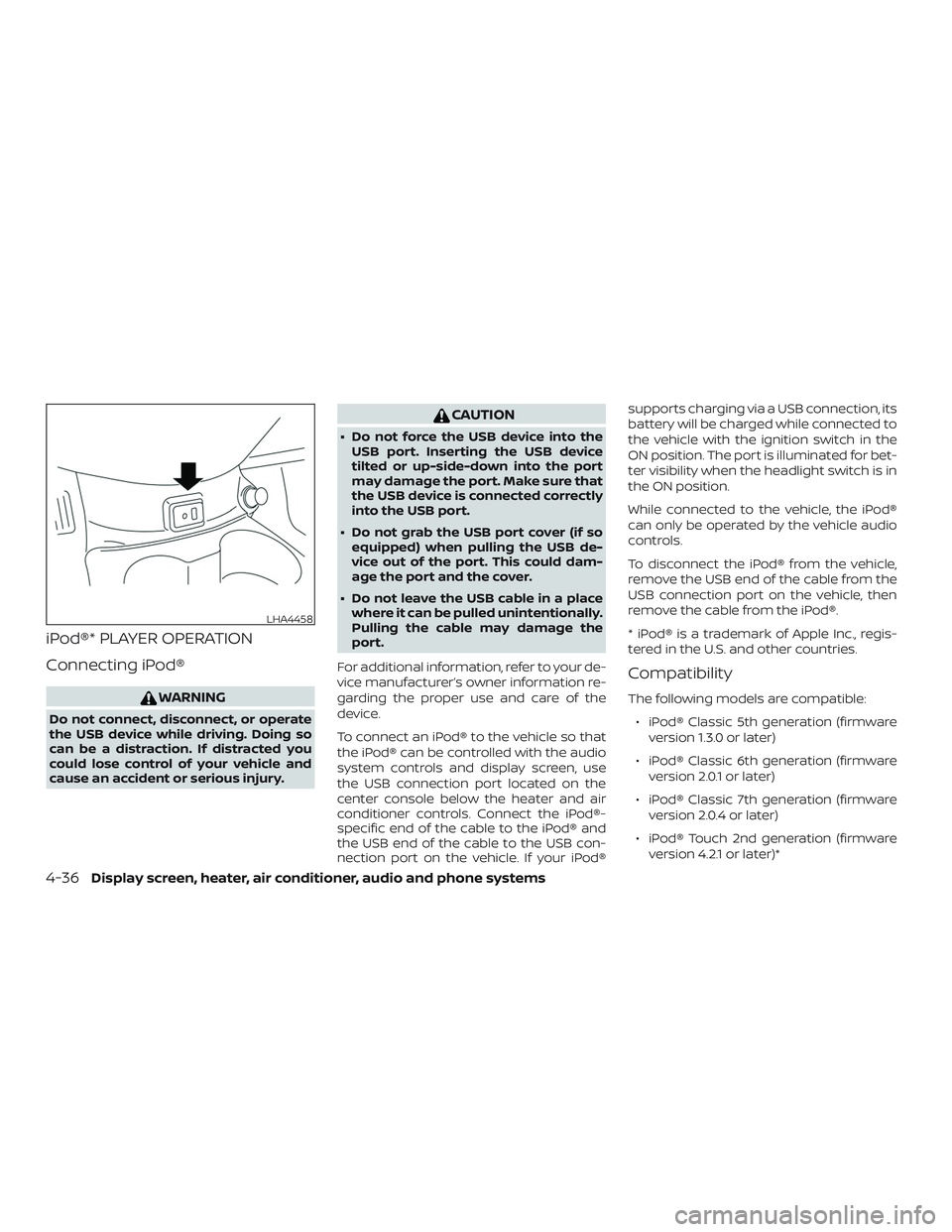
To connect an iPod® to the vehicle so that
the iPod® can be controlled with the audio
system controls and display screen, use
the USB connection port located on the
center console below the heater and air
conditioner controls. Connect the iPod®-
specific end of the cable to the iPod® and
the USB end of the cable to the USB con-
nection port on the vehicle. If your iPod® supports charging via a USB connection, its
battery will be charged while connected to
the vehicle with the ignition switch in the
ON position. The port is illuminated for bet-
ter visibility when the headlight switch is in
the ON position.
While connected to the vehicle, the iPod®
can only be operated by the vehicle audio
controls.
To disconnect the iPod® from the vehicle,
remove the USB end of the cable from the
USB connection port on the vehicle, then
remove the cable from the iPod®.
* iPod® is a trademark of Apple Inc., regis-
tered in the U.S. and other countries.
Compatibility
The following models are compatible:
∙ iPod® Classic 5th generation (firmware version 1.3.0 or later)
∙ iPod® Classic 6th generation (firmware version 2.0.1 or later)
∙ iPod® Classic 7th generation (firmware version 2.0.4 or later)
∙ iPod® Touch 2nd generation (firmware version 4.2.1 or later)*
LHA4458
4-36Display screen, heater, air conditioner, audio and phone systems
Page 526 of 702
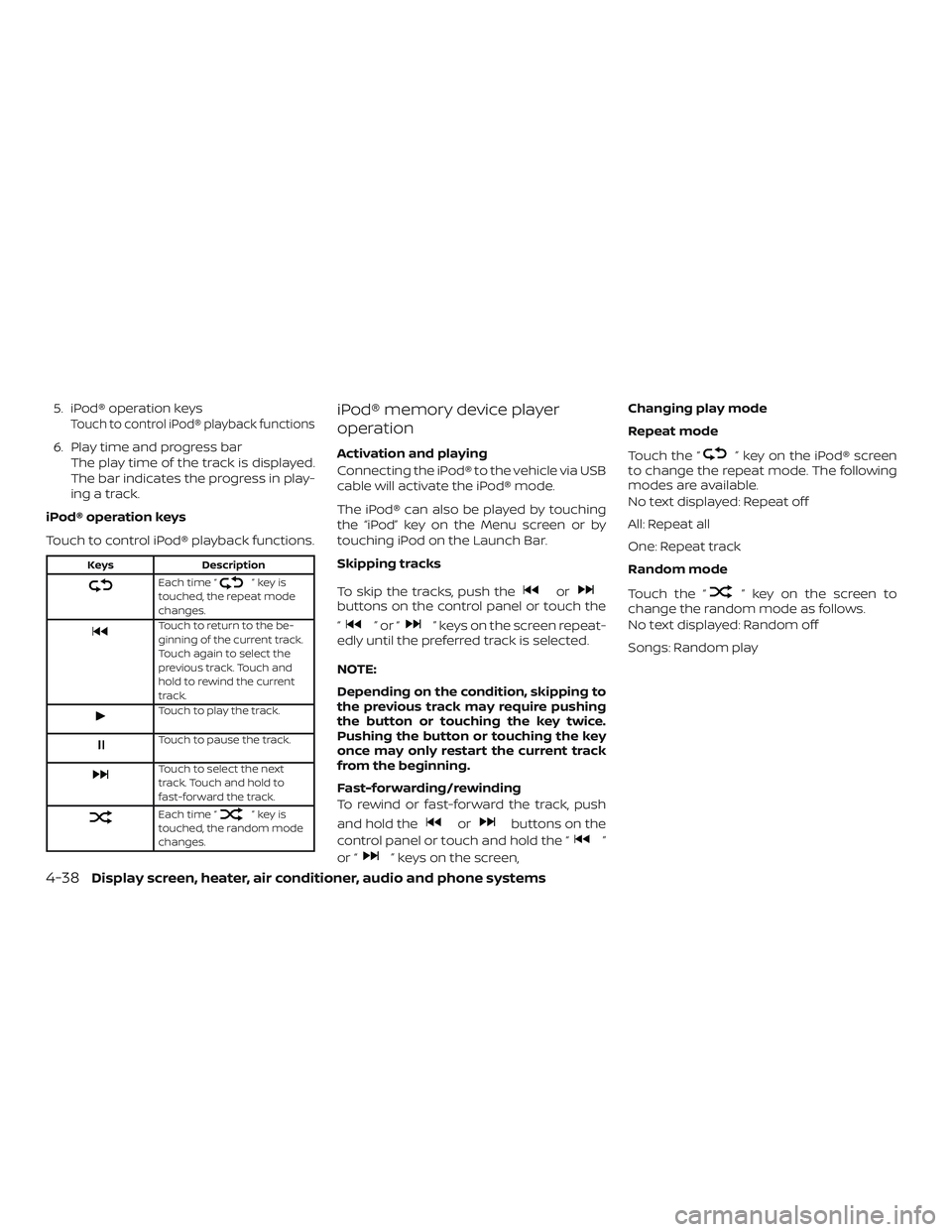
5. iPod® operation keysTouch to control iPod® playback functions
6. Play time and progress barThe play time of the track is displayed.
The bar indicates the progress in play-
ing a track.
iPod® operation keys
Touch to control iPod® playback functions.
Keys Description
Each time “”keyis
touched, the repeat mode
changes.
Touch to return to the be-
ginning of the current track.
Touch again to select the
previous track. Touch and
hold to rewind the current
track.
Touch to play the track.
Touch to pause the track.
Touch to select the next
track. Touch and hold to
fast-forward the track.
Each time “”keyis
touched, the random mode
changes.
iPod® memory device player
operation
Activation and playing
Connecting the iPod® to the vehicle via USB
cable will activate the iPod® mode.
The iPod® can also be played by touching
the “iPod” key on the Menu screen or by
touching iPod on the Launch Bar.
Skipping tracks
To skip the tracks, push the
orbuttons on the control panel or touch the
“
”or“” keys on the screen repeat-
edly until the preferred track is selected.
NOTE:
Depending on the condition, skipping to
the previous track may require pushing
the button or touching the key twice.
Pushing the button or touching the key
once may only restart the current track
from the beginning.
Fast-forwarding/rewinding
To rewind or fast-forward the track, push
and hold the
orbuttons on the
control panel or touch and hold the “
”
or “
” keys on the screen, Changing play mode
Repeat mode
Touch the “
” key on the iPod® screen
to change the repeat mode. The following
modes are available.
No text displayed: Repeat off
All: Repeat all
One: Repeat track
Random mode
Touch the “
” key on the screen to
change the random mode as follows.
No text displayed: Random off
Songs: Random play
4-38Display screen, heater, air conditioner, audio and phone systems
Page 527 of 702
iPod® Menu
Touch the “iPod Menu” key on the iPod®
screen to display the iPod® Menu screen.
“Now Playing” key Touch to display the USBscreen.
“Folder List” key
(if so equipped) Touch to display the folder
list. Touch an item on the list
to select the folder. The sub-
folder or track list will be
displayed. Select a sub-folder
or track from the list.
“Album Artwork”
key Touch to run on/off the al-
bum artwork display on the
USB screen.
“Playlists” key Touch to display the list ac- cording to the selected item.
“Artists” key
“Albums” key
“Songs” key
“Podcasts” key
“Genres” key
“Composers” key
“Audiobooks” key
“iTunes Radio”
key
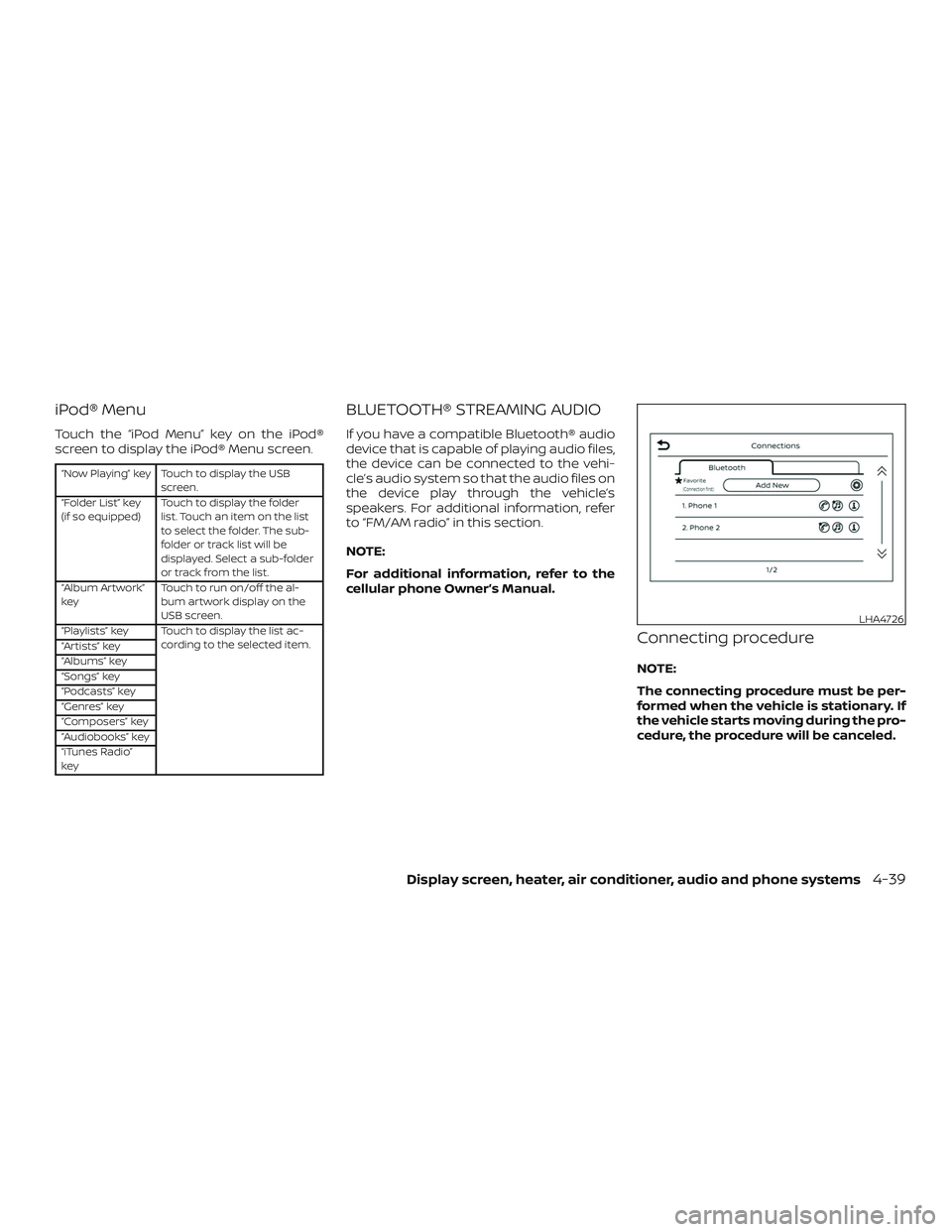
BLUETOOTH® STREAMING AUDIO
If you have a compatible Bluetooth® audio
device that is capable of playing audio files,
the device can be connected to the vehi-
cle’s audio system so that the audio files on
the device play through the vehicle’s
speakers. For additional information, refer
to “FM/AM radio” in this section.
NOTE:
For additional information, refer to the
cellular phone Owner’s Manual.
Connecting procedure
NOTE:
The connecting procedure must be per-
formed when the vehicle is stationary. If
the vehicle starts moving during the pro-
cedure, the procedure will be canceled.
LHA4726
Display screen, heater, air conditioner, audio and phone systems4-39
Page 531 of 702
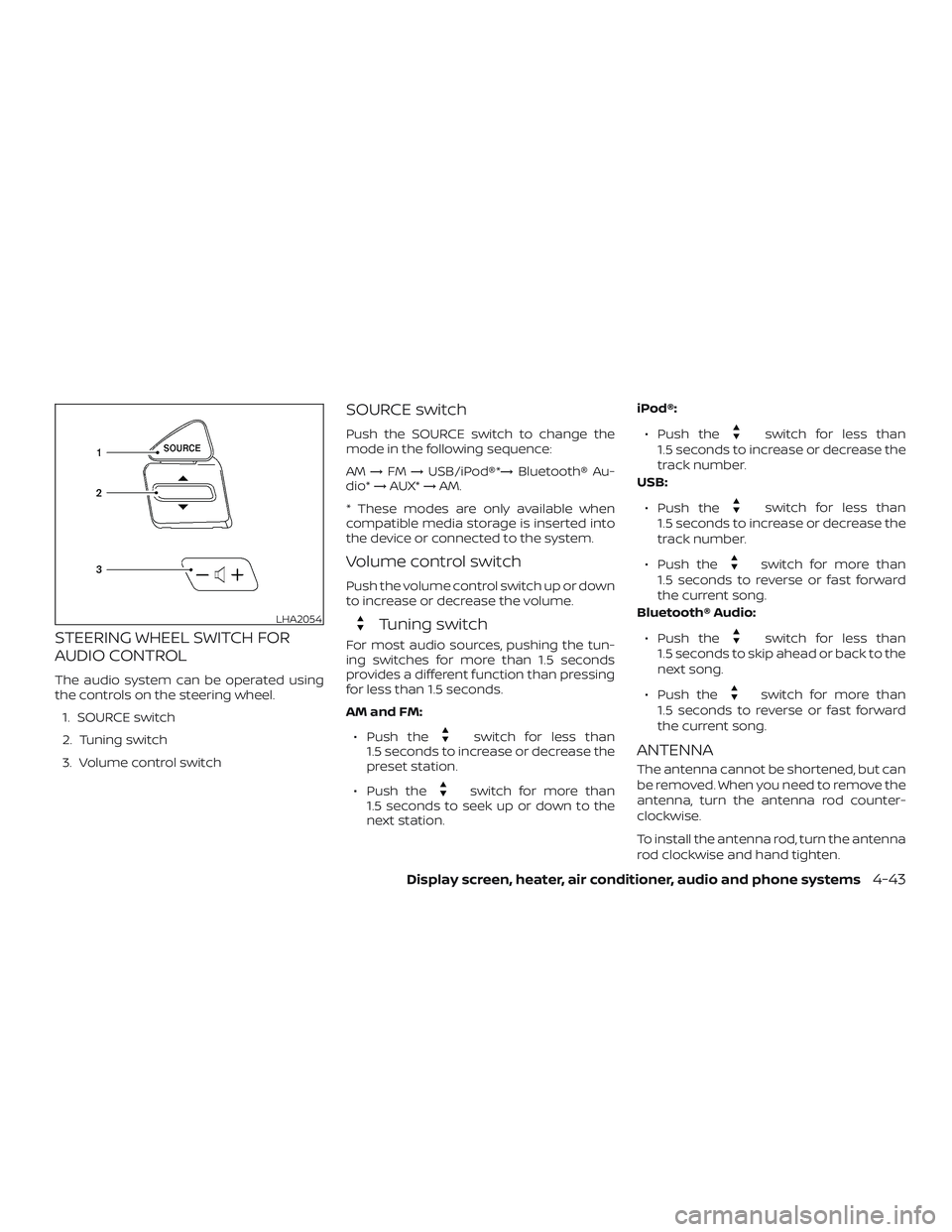
STEERING WHEEL SWITCH FOR
AUDIO CONTROL
The audio system can be operated using
the controls on the steering wheel.1. SOURCE switch
2. Tuning switch
3. Volume control switch
SOURCE switch
Push the SOURCE switch to change the
mode in the following sequence:
AM →FM →USB/iPod®*→ Bluetooth® Au-
dio* →AUX* →AM.
* These modes are only available when
compatible media storage is inserted into
the device or connected to the system.
Volume control switch
Push the volume control switch up or down
to increase or decrease the volume.
Tuning switch
For most audio sources, pushing the tun-
ing switches for more than 1.5 seconds
provides a different function than pressing
for less than 1.5 seconds.
AM and FM:
∙ Push the
switch for less than
1.5 seconds to increase or decrease the
preset station.
∙ Push the
switch for more than
1.5 seconds to seek up or down to the
next station. iPod®:
∙ Push the
switch for less than
1.5 seconds to increase or decrease the
track number.
USB:
∙ Push the
switch for less than
1.5 seconds to increase or decrease the
track number.
∙ Push the
switch for more than
1.5 seconds to reverse or fast forward
the current song.
Bluetooth® Audio:
∙ Push the
switch for less than
1.5 seconds to skip ahead or back to the
next song.
∙ Push the
switch for more than
1.5 seconds to reverse or fast forward
the current song.
ANTENNA
The antenna cannot be shortened, but can
be removed. When you need to remove the
antenna, turn the antenna rod counter-
clockwise.
To install the antenna rod, turn the antenna
rod clockwise and hand tighten.
LHA2054
Display screen, heater, air conditioner, audio and phone systems4-43