lock Oldsmobile Aurora 1997 s Service Manual
[x] Cancel search | Manufacturer: OLDSMOBILE, Model Year: 1997, Model line: Aurora, Model: Oldsmobile Aurora 1997Pages: 404, PDF Size: 20.75 MB
Page 109 of 404

2. Hold in the CAL switch (on the bottom of the mirror
housing) for five seconds until the current zone entry
number appears
on the display. To hold in the CAL
switch, insert a paper clip into the small hole on the
bottom of the mirror housing.
Repeatedly press the
CAL switch until the number
for the new zone entry is displayed.
Once the desired zone number is displayed, stop
pressing the CAL switch and the display will show
compass direction within a few seconds.
Power Remote Control Mirror
The controls on the far left
of the instrument panel
control both outside
rearview mirrors. Move the
center switch
to the left to
select the driver’s side
rearview mirror, or to the
right to select the
passenger’s side rearview mirror. Then
press the arrows to adjust each mirror
so that you
can just see the side of your vehicle when you are sitting
in
a comfortable driving position.
To lock the controls, leave
the selector switch in the
middle position.
When you operate the rear window defogger, a defogger
also warms the driver’s and passenger’s outside
rearview mirrors to help clear them of ice and snow.
Parallel Park Assist Mirror
The passenger’s outside rearview mirror also includes a
tilt-down feature that operates when the shift lever is in
reverse. This feature assists
the driver with improved
rear obstacle detection.
Move the power remote control mirror switch to the
left
(L) or center position to enable this feature. Move
the switch to the right (R) to turn this feature off.
Page 110 of 404
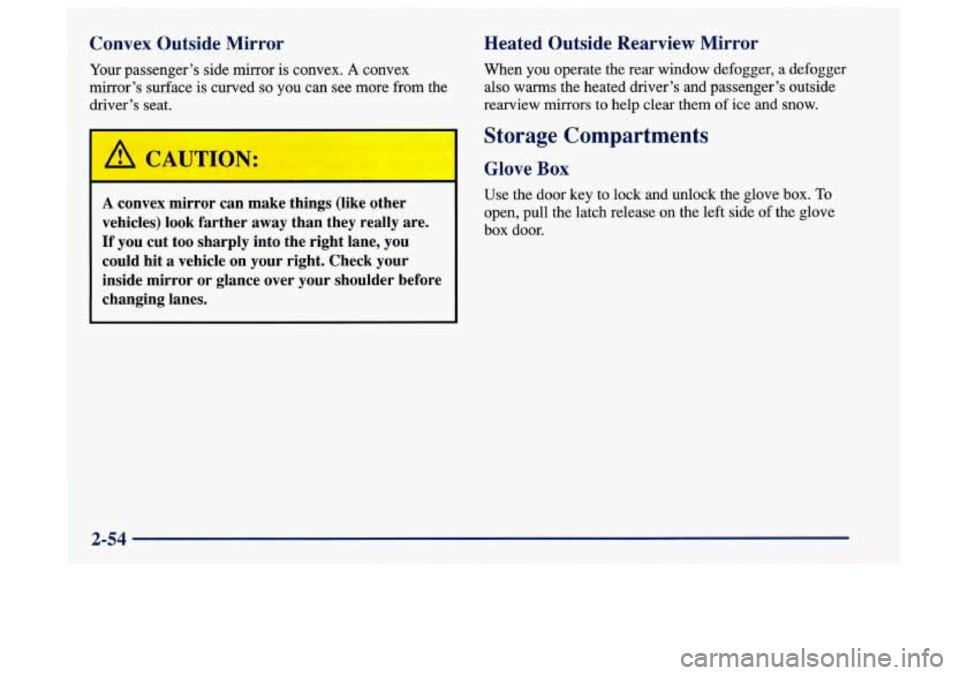
Convex Outside Mirror
Your passenger’s side mirror is convex. A convex
mirror’s surface is curved
so you can see more from the
driver’s seat.
I
A convex mirror can make things (like other
vehicles) look farther away than they really are.
If you cut too sharply into the right lane, you
could hit
a vehicle on your right. Check your
inside mirror or glance over your shoulder before
changing lanes.
Heated Outside Rearview Mirror
When you operate the rear window defogger, a defogger
also
warms the heated driver’s and passenger’s outside
rearview mirrors to help clear them
of ice and snow.
Storage Compartments
Glove Box
Use the door key to lock and unlock the glove box. To
open, pull the latch release on the left side of the glove
box door.
2-54
Page 111 of 404
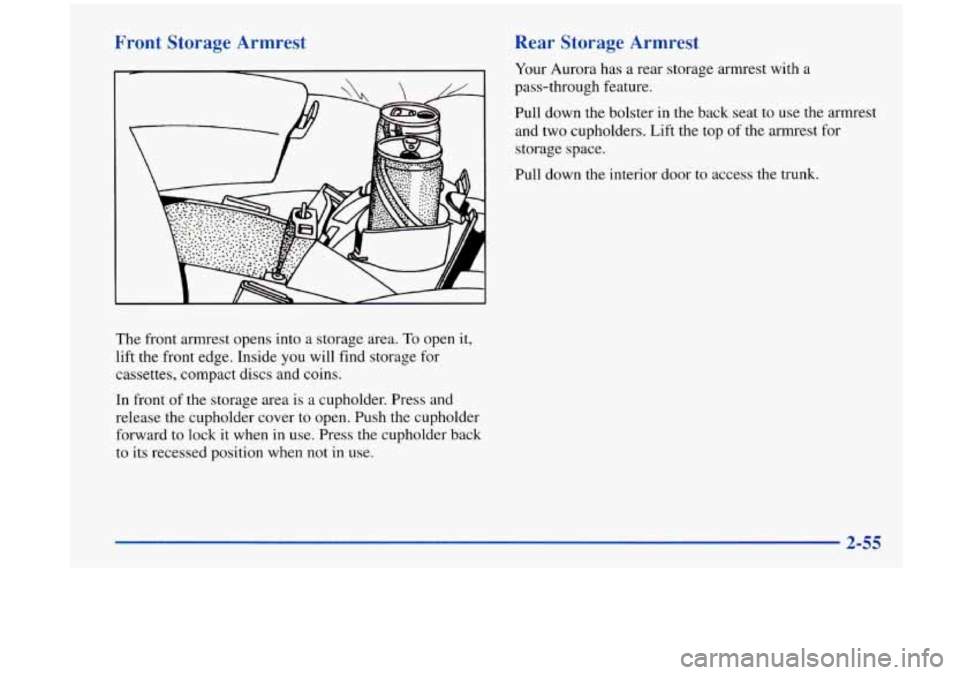
Front Storage Armrest Rear Storage Armrest
Your Aurora has a rear storage armrest with a
pass-through feature.
Pull down the bolster in the back seat to use the armrest
and two cupholders. Lift the top
of the armrest for
storage space.
Pull down the interior door to access the trunk.
The front armrest opens into a storage area. To open it,
lift the front edge. Inside
you will find storage for
cassettes, compact discs and coins.
In front
of the storage area is a cupholder. Press and
release the cupholder cover to open. Push the cupholder
forward to lock it when in use. Press the cupholder back
to its recessed position when not in use.
2-55
Page 114 of 404
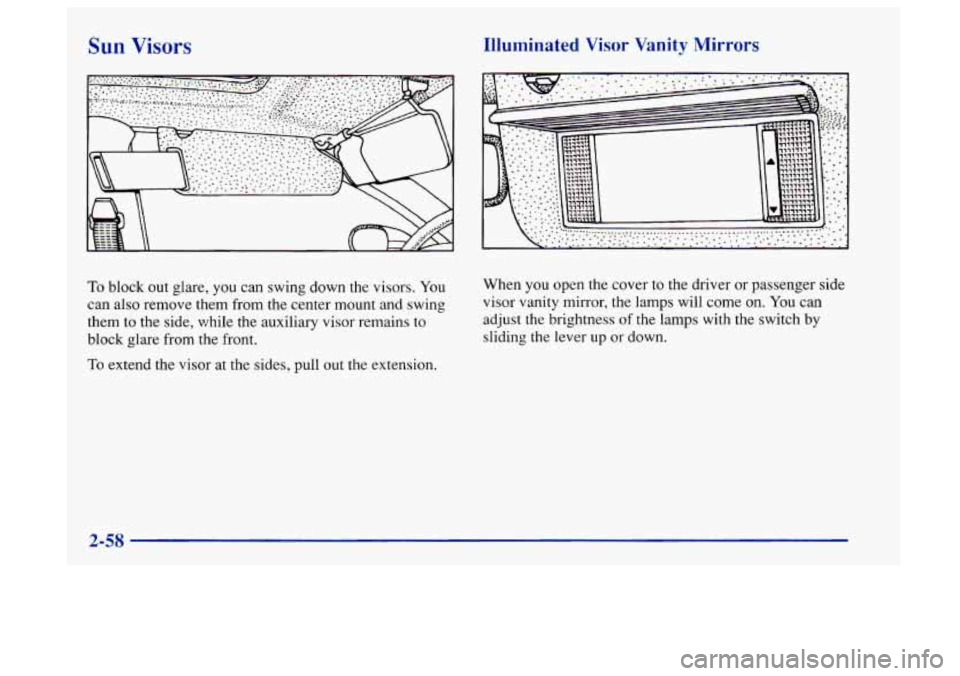
Sun Visors
To block out glare, you can swing down the visors. You
can also remove them from the center mount and swing
them to the side, while the auxiliary visor remains to
block glare from the front.
To extend the visor at the sides, pull out the extension.
Illuminated Visor Vanity Mirrors
When you open the cover to the driver or passenger side
visor vanity mirror, the lamps will come
on. You can
adjust the brightness of the lamps with the switch by
sliding the lever up or down.
2-58
Page 128 of 404
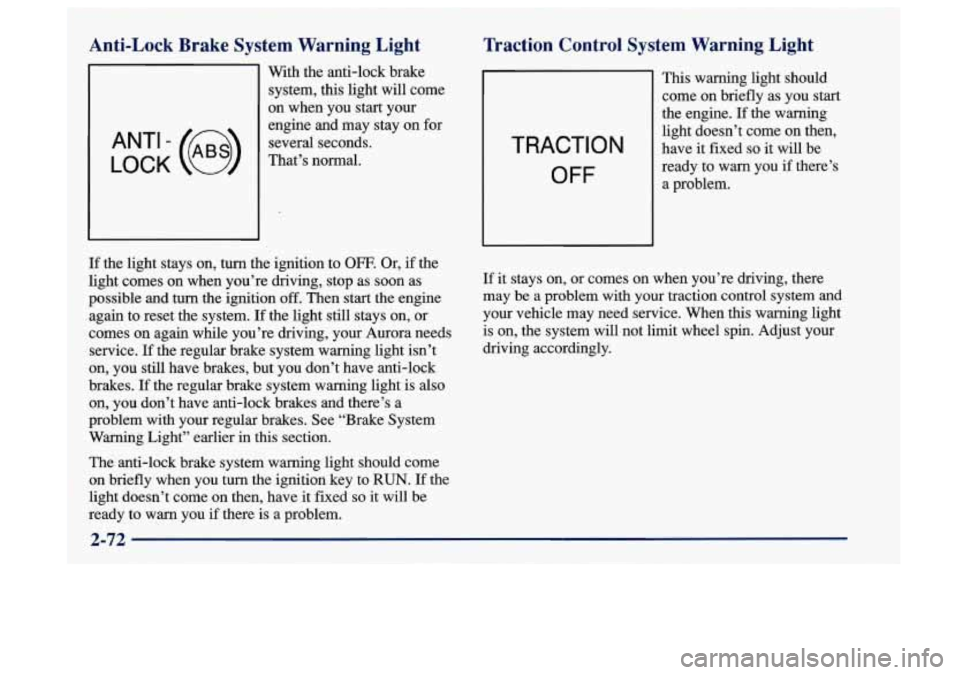
Anti-Lock Brake System Warning Light
LOCK
ANT‘- (e)
With the anti-lock brake
system, this light will come
on when you start your
engine and may stay on for
several seconds.
That’s normal.
Traction Control System Warning Light
TRACTION
OFF
This warning light should
come on briefly as you start
the engine. If the warning
light doesn’t come on then,
have it fixed
so it will be
ready to warn you
if there’s
a problem.
If the light stays on, turn the ignition to OFF. Or, if the
light comes on when you’re driving, stop as soon as
possible
and turn the ignition off. Then start the engine
again to reset the system.
If the light still stays on, or
comes on again while you’re driving, your Aurora needs
service.
If the regular brake system warning light isn’t
on, you still have brakes, but you don’t have anti-lock
brakes.
If the regular brake system warning light is also
on, you don’t have anti-lock brakes and there’s a
problem with your regular brakes. See “Brake System
Warning Light” earlier
in this section.
The anti-lock brake system warning light should
COITIC?
on briefly when you turn the ignition key to RUN. If the
light doesn’t come on then, have it fixed
so it will be
ready to warn you
if there is a problem.
If it stays on, or comes on when you’re driving, there
may be a problem with your traction control system
and
your vehicle may need service. When this warning light
is on, the system will not limit wheel spin. Adjust your
driving accordingly.
2-72
Page 141 of 404
Elapsed Time (ET)
When the ignition is on, the DIC can be used as a
stopwatch. The display will show hours and minutes.
The elapsed time indicator will record up to
100 hours,
then it will reset to zero and continue counting. Press
ET, and the display will show the amount
of time that
has elapsed since the elapsed time indicator was last
reset (not including time
the ignition is off), such as:
01:08 ELAPSED TIME
To reset elapsed time to zero, press RESET while the
elapsed time is displayed.
Date
Press DATE to display the date. To change the date,
press DATE then RESET. The following display
will appear:
MONTH? XX/DD/YY
MM, DD and YY represent
the month, date and year
you currently have in your system. Check to make sure
your clock is in the correct AM or PM mode. Notice that each
key has a number. Push the key to enter
the number. The first XX’s will flash until you enter the
first digit for the month. You don’t need to enter the
leading zero if the number is under
10. Press ENTER
after you’ve entered the month. The display will
change to:
DAY? MM/XX/YY
Set the day just as you set the month. After the day entry
is made, press ENTER and the display will change to:
YEAR? MM/DD/XX
Set the year just as you set the month and day.
If a valid
date is entered, the display will automatically exit to the
date mode and display the day of the week, the month
and the date. If an invalid date is entered, the display
will return to MONTH? XX/DD/YY and you’ll need
to
repeat the above steps.
After
a battery reconnect (loss of power), the display
will read CONFIRM TIME AND DATE.
2-85
Page 145 of 404
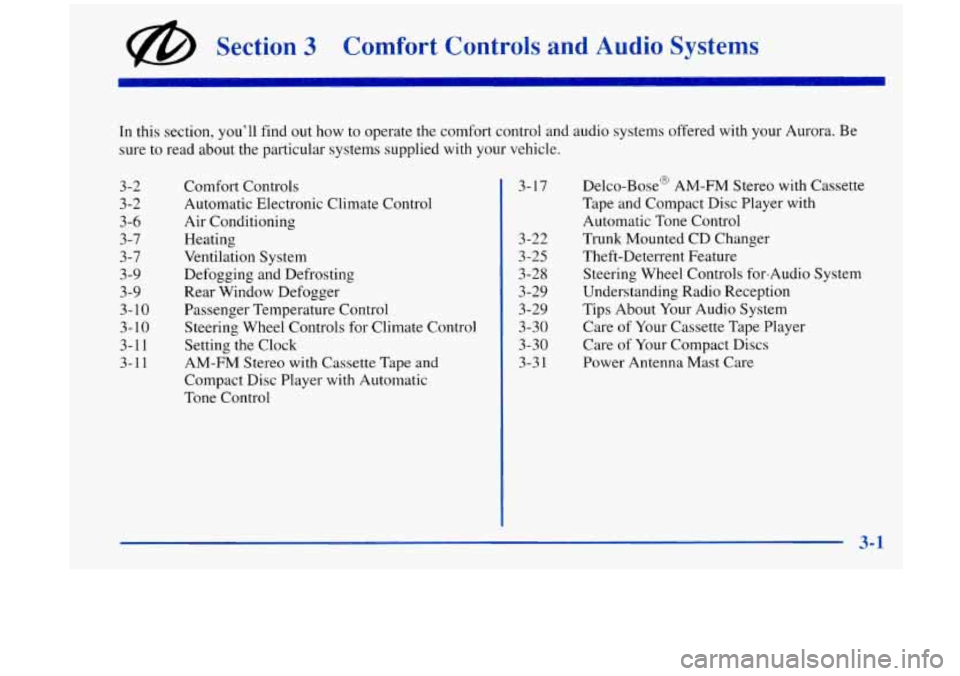
@ Section 3 Comfort Controls and Audio Systems
In this section, you’ll find out how to operate the comfort control and audio systems offered with your Aurora. Be
sure to read about the particular systems supplied with your vehicle.
3-2 3-2 3-6
3
-7
3-7
3-9
3 -9
3-10
3-10
3-1
1
3-1 1
Comfort Controls
Automatic Electronic Climate Control
Air Conditioning
Heating
Ventilation System
Defogging and Defrosting
Rear Window Defogger
Passenger Temperature Control
Steering Wheel Controls for Climate Control
Setting the Clock
AM-FM Stereo with Cassette
Tape and
Compact Disc Player with Automatic
Tone Control 3-
17
3-22
3-25
3-28
3-29
3-29
3-30
3-30
3-3 1
Delco-Bose@ AM-FM Stereo with Cassette
Tape and Compact Disc Player with
Automatic Tone Control
Trunk Mounted CD Changer
Theft-Deterrent Feature Steering Wheel Controls for-Audio System
Understanding Radio Reception
Tips About Your Audio System
Care of Your Cassette Tape Player
Care
of Your Compact Discs
Power Antenna Mast Care
3-1
Page 155 of 404
Audio Systems
Your Delco@ audio system has been designed to operate
easily and give years
of listening pleasure. You will get
the most enjoyment out
of it if you acquaint yourself
with it first. Find out what your Delco system can do
and how to operate all its controls, to be sure you’re
getting the most out of the advanced engineering that
went into
it.
Setting the Clock
Press and hold HR until the correct hour appears. The
letter
A or P may appear on the display for AM or PM.
Then, press and hold MN until the correct minute
appears. The clock may be set with the ignition
on or off.
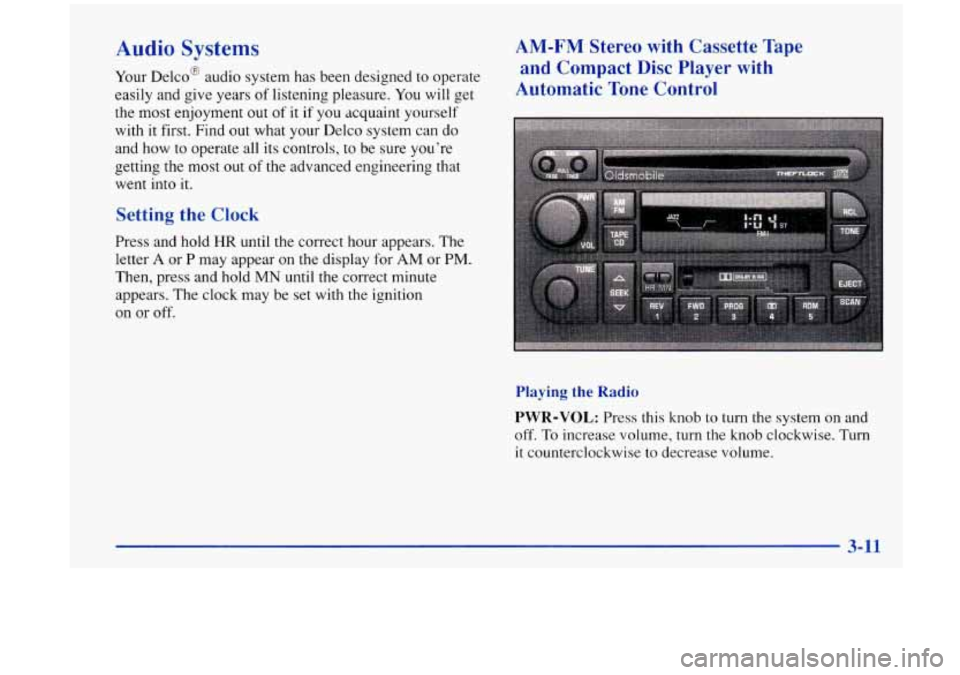
AM-FM Stereo with Cassette Tape
and Compact Disc Player with
Automatic Tone Control
Playing the Radio
PWR-VOL:
Press this knob to turn the system on and
off. To increase volume, turn the knob clockwise. Turn
it counterclockwise to decrease volume.
Page 156 of 404
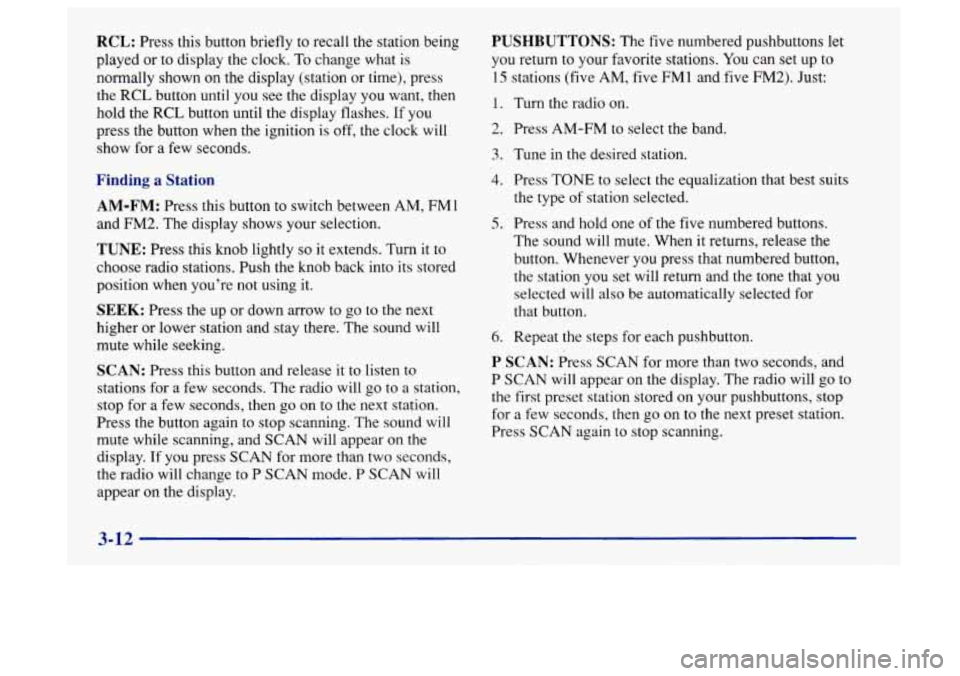
RCL: Press this button briefly to recall the station being
played or to display the clock.
To change what is
normally shown on the display (station or time), press
the
RCL button until you see the display you want, then
hold the RCL button until the display flashes. If you
press the button when the ignition is off,
the clock will
show for a few seconds.
Finding a Station
AM-FM: Press this button to switch between AM, FMl
and FM2. The display shows your selection.
TUNE: Press this knob lightly so it extends. Turn it to
choose radio stations. Push the knob back into its stored
position when you’re not using it.
SEEK: Press the up or down arrow to go to the next
higher or lower station and stay there. The sound will
mute while seeking.
SCAN: Press this button and release it to listen to
stations for a few seconds. The radio will go to a station,
stop for a few seconds, then
go on to the next station.
Press the button again to stop scanning. The sound will
mute while scanning, and SCAN will appear on the
display. If you press SCAN for more than two seconds,
the radio will change to P SCAN mode. P SCAN will
appear on the display.
PUSHBUTTONS: The five numbered pushbuttons let
you return
to your favorite stations. You can set up to
15 stations (five AM, five FM 1 and five FM2). Just:
1.
2.
3.
4.
5.
6.
Turn the radio on.
Press AM-FM to select the band.
Tune in the desired station. Press
TONE to select the equalization that best suits
the type
of station selected.
Press and hold one of the five numbered buttons.
The sound will mute, When
it returns, release the
button. Whenever you press that numbered button,
the station you set will return and the tone that you
selected
will also be automatically selected for
that button.
Repeat the steps for each pushbutton.
P SCAN: Press SCAN for more than two seconds, and
P SCAN will appear on the display. The radio will go to
the first preset station stored on your pushbuttons, stop
for a few seconds, then
go on to the next preset station.
Press SCAN again to stop scanning.
3-12
Page 158 of 404
Your tape bias is set automatically. When a metal or
chrome tape is inserted, HI-BIAS appears on the
display.
If you want to insert a tape when the ignition is
off, first press
EJECT or RCL.
If E and a number appear on the radio display and the
tape won’t play because of an error, it could be that:
ElO: The tape is tight and the player can’t turn the
tape hubs. Remove the tape. Hold the tape with the
open end down and try to turn the right hub
counterclockwise with a pencil. Turn the tape over
and repeat. If the hubs do not turn easily, your tape
may be damaged and should not be used in
the
player. Try a new tape to make sure your player is
working properly.
Ell: The tape is broken. Try a new tape.
If any error occurs repeatedly or
if an error can’t be
corrected, please contact your retailer. If your radio
displays an error number, write it down and provide it to
your retailer when reporting the problem.
REV (1): Press this button to reverse the tape rapidly.
Press
it again to return to playing speed. The radio will
play the last-selected station while the tape reverses. You may select stations during
REV operation by
using
TUNE.
FWD (2): Press this button to advance quickly to
another part of the tape. Press the button again
to return
to playing speed. The radio will play the last-selected
station while the tape advances.
You may select stations
during
FWD operation by using TUNE.
PROG (3): Press this button to play the other side of
the tape.
00 (4): Press this button to reduce background noise.
Note that the double-D symbol will appear on the display.
Dolby@ Noise Reduction is manufactured under a
license from Dolby Laboratories Licensing Corporation.
Dolby and the double-D symbol are trademarks
of
Dolby Laboratories Licensing Corporation.
TONE: Press this button to select a tone while playing a
cassette. The tone will be automatically set whenever
you play a cassette tape.
SEEK: Press the up or down arrow to search for the
next
or previous selection on the tape. Your tape must
have at least three seconds
of silence between each
selection for
SEEK to work.
SCAN: Press this button to listen to each selection for a
few seconds. The tape will go to the next selection, stop
for a few seconds, then go on to the next selection. Press
this button again
to stop scanning. The sound will mute
3-14 I