phone OPEL AMPERA E 2018 Manual user
[x] Cancel search | Manufacturer: OPEL, Model Year: 2018, Model line: AMPERA E, Model: OPEL AMPERA E 2018Pages: 267, PDF Size: 6.45 MB
Page 135 of 267

Infotainment system133As soon as a beep is heard, you can
say a command. For information on the commands supported, see the
operating instructions for your
smartphone.
Adjusting the volume of voice
prompts
Turn m on the control panel or press
the volume buttons behind the
steering wheel to increase or
decrease the volume of voice
prompts.
Deactivating speech recognition
Press n on the steering wheel. The
voice command message disappears
and the speech recognition session is
ended.Phone
General information
The phone portal provides you with
the possibility of having mobile phone
conversations via a vehicle
microphone and the vehicle
loudspeakers as well as operating the most important mobile phone
functions via the Infotainment system
in the vehicle. To be able to use the
phone portal, the mobile phone must
be connected to the Infotainment system via Bluetooth.
Not all phone functions are supported by every mobile phone. The usable
phone functions depend on the
relevant mobile phone and network
provider. You can find further
information on this in the operating
instructions for your mobile phone, or
you can enquire about them with your network provider.Important information for
operation and traffic safety9 Warning
Mobile phones have effects on
your environment. For this reason safety regulations and directions
have been prepared. You should
be familiar with the related
directions before you use the
telephone function.
9 Warning
Use of the hands-free facility while
driving can be dangerous because
your concentration is reduced
when telephoning. Park your
vehicle before you use the hands- free facility. Follow the stipulations
of the country in which you find
yourself at present.
Do not forget to follow the special
regulations that apply in specific
areas and always switch off the
mobile phone if the use of mobile
phones is prohibited, if
Page 136 of 267
134Infotainment systeminterference is caused by the
mobile phone or if dangerous
situations can occur.
Bluetooth
The phone portal is certified by the
Bluetooth Special Interest Group
(SIG).
You can find further information about the specification on the internet at
http://www.bluetooth.com
Bluetooth connection Bluetooth is a radio standard for the
wireless connection of e.g. mobile
phones, smartphones or other
devices.
The pairing (PIN code exchange
between Bluetooth device and
Infotainment system) and connecting
of the Bluetooth devices to the
Infotainment system are carried out
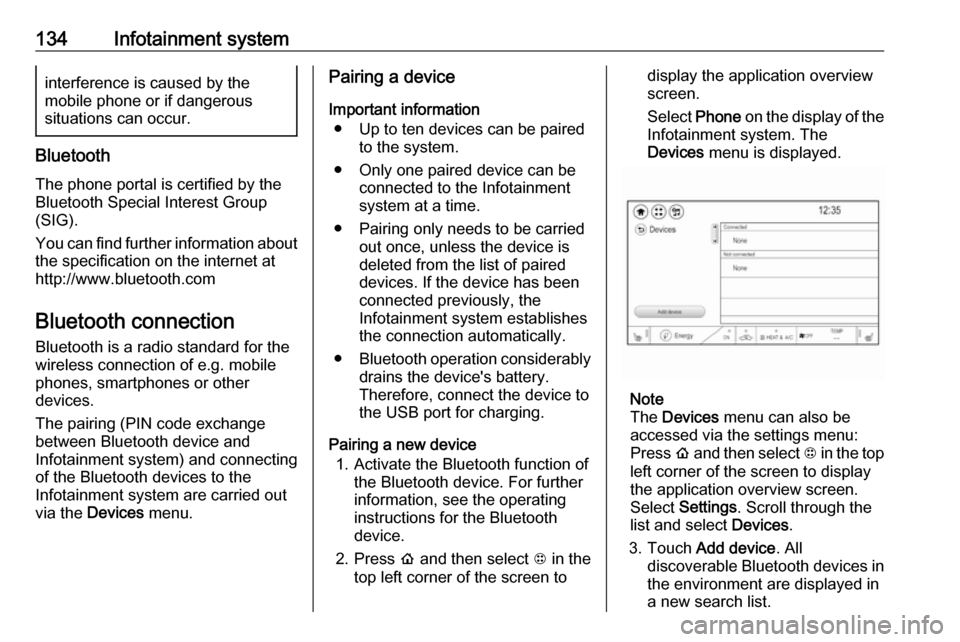
via the Devices menu.
Pairing a device
Important information ● Up to ten devices can be paired to the system.
● Only one paired device can be connected to the Infotainment
system at a time.
● Pairing only needs to be carried out once, unless the device is
deleted from the list of paired
devices. If the device has been connected previously, the
Infotainment system establishes
the connection automatically.
● Bluetooth operation considerably
drains the device's battery.
Therefore, connect the device to
the USB port for charging.
Pairing a new device 1. Activate the Bluetooth function of the Bluetooth device. For further
information, see the operating
instructions for the Bluetooth
device.
2. Press p and then select 1 in the
top left corner of the screen todisplay the application overview
screen.
Select Phone on the display of the
Infotainment system. The
Devices menu is displayed.
Note
The Devices menu can also be
accessed via the settings menu: Press p and then select 1 in the top
left corner of the screen to display
the application overview screen.
Select Settings . Scroll through the
list and select Devices.
3. Touch Add device . All
discoverable Bluetooth devices in
the environment are displayed in
a new search list.
Page 137 of 267
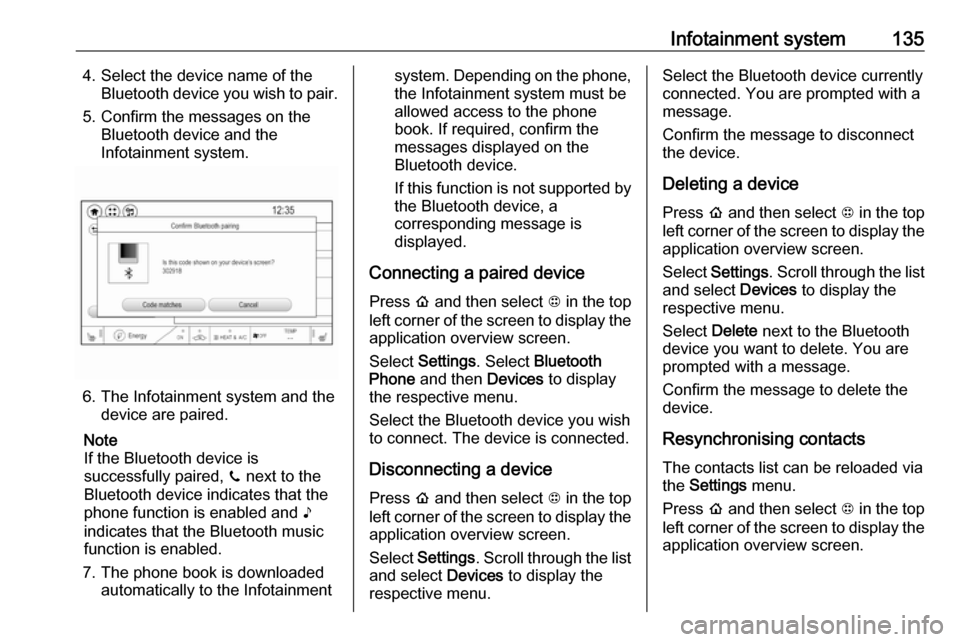
Infotainment system1354. Select the device name of theBluetooth device you wish to pair.
5. Confirm the messages on the Bluetooth device and the
Infotainment system.
6. The Infotainment system and the device are paired.
Note
If the Bluetooth device is
successfully paired, ? next to the
Bluetooth device indicates that the phone function is enabled and >
indicates that the Bluetooth music
function is enabled.
7. The phone book is downloaded automatically to the Infotainment
system. Depending on the phone,
the Infotainment system must be
allowed access to the phone
book. If required, confirm the
messages displayed on the
Bluetooth device.
If this function is not supported by the Bluetooth device, a
corresponding message is
displayed.
Connecting a paired device
Press p and then select 1 in the top
left corner of the screen to display the application overview screen.
Select Settings . Select Bluetooth
Phone and then Devices to display
the respective menu.
Select the Bluetooth device you wish
to connect. The device is connected.
Disconnecting a device
Press p and then select 1 in the top
left corner of the screen to display the application overview screen.
Select Settings . Scroll through the list
and select Devices to display the
respective menu.Select the Bluetooth device currently
connected. You are prompted with a
message.
Confirm the message to disconnect
the device.
Deleting a device Press p and then select 1 in the top
left corner of the screen to display the application overview screen.
Select Settings . Scroll through the list
and select Devices to display the
respective menu.
Select Delete next to the Bluetooth
device you want to delete. You are prompted with a message.
Confirm the message to delete the
device.
Resynchronising contacts
The contacts list can be reloaded via
the Settings menu.
Press p and then select 1 in the top
left corner of the screen to display the application overview screen.
Page 138 of 267

136Infotainment systemSelect Settings . Select Bluetooth
Phone and then select Resync
Device Contacts . The contacts list is
resynchronised.
Emergency call9 Warning
Connection setup cannot be
guaranteed in all situations. For
this reason you should not rely
exclusively on a mobile phone
when a vitally important
communication (e.g. a medical
emergency) is concerned.
In some networks it may be
necessary for a valid SIM card to
be properly inserted in the mobile
phone.
9 Warning
Bear in mind that you can make
and receive calls with the mobile
phone if it is in a service area with a sufficiently strong signal. Under
certain circumstances,
emergency calls cannot be made
in all mobile phone networks;
problems may occur when certain
network services and / or
telephone functions are active.
You can enquire about this with
the local network operators.
The emergency call number can
differ depending on the region and
country. Please enquire
beforehand about the correct
emergency call number for the
relevant region.
Making an emergency call
Dial the emergency call number (e.g.
112 ).
The telephone connection to the
emergency call centre is set up.
Answer when the service personnel
questions you about the emergency.
9 Warning
Do not end the call until you are
requested to do so by the
emergency call centre.
Operation
As soon as a connection via
Bluetooth has been set up between
your mobile phone and the
Infotainment system, you can operate many functions of your mobile phone
via the Infotainment system.
Note
In the hands-free mode, mobile
phone operation continues to be
possible, e.g. taking a call or
adjusting the volume.
After setup of a connection between
the mobile phone and the
Infotainment system, mobile phone
data is transmitted to the Infotainment
system. This can take some time
depending on the mobile phone and
the amount of data to be transferred.
During this period, operation of the
mobile phone via the Infotainment
system is possible only to a limited extent.
Page 139 of 267
Infotainment system137Note
Not every mobile phone supports all
functions of the phone portal.
Therefore, deviations from the range
of functions described below are
possible.
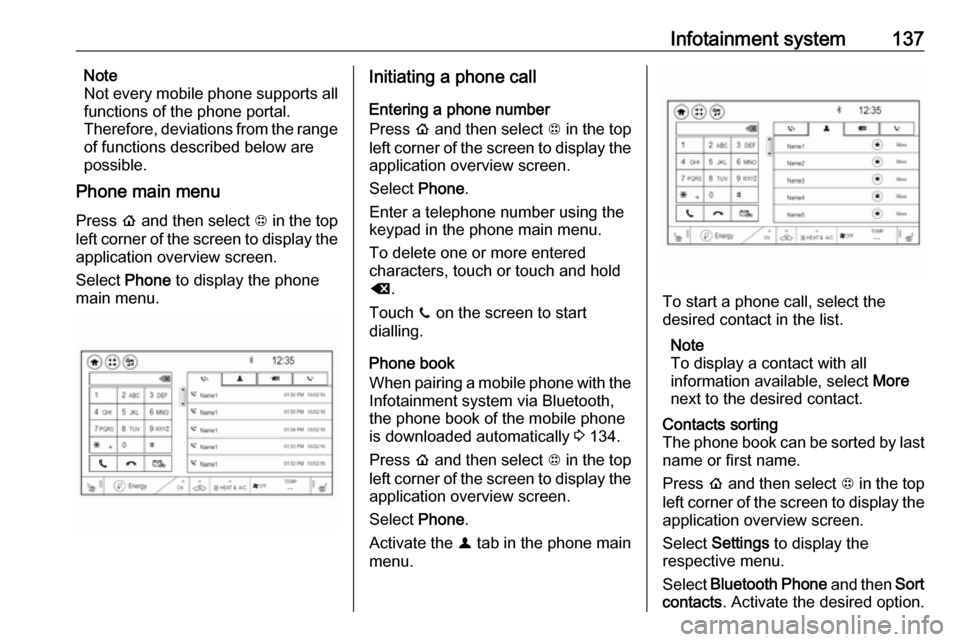
Phone main menu
Press p and then select 1 in the top
left corner of the screen to display the application overview screen.
Select Phone to display the phone
main menu.Initiating a phone call
Entering a phone number
Press p and then select 1 in the top
left corner of the screen to display the application overview screen.
Select Phone.
Enter a telephone number using the
keypad in the phone main menu.
To delete one or more entered
characters, touch or touch and hold
{ .
Touch ? on the screen to start
dialling.
Phone book
When pairing a mobile phone with the
Infotainment system via Bluetooth,
the phone book of the mobile phone
is downloaded automatically 3 134.
Press p and then select 1 in the top
left corner of the screen to display the application overview screen.
Select Phone.
Activate the ^ tab in the phone main
menu.
To start a phone call, select the
desired contact in the list.
Note
To display a contact with all
information available, select More
next to the desired contact.
Contacts sorting
The phone book can be sorted by last
name or first name.
Press p and then select 1 in the top
left corner of the screen to display the application overview screen.
Select Settings to display the
respective menu.
Select Bluetooth Phone and then Sort
contacts . Activate the desired option.
Page 140 of 267

138Infotainment systemCall history
All incoming, outgoing, or missed calls are registered.
Press p and then select 1 in the top
left corner of the screen to display the application overview screen.
Select Phone. Select the Y tab in the
phone main menu.
Outgoing calls are marked with ],
incoming calls are marked with [ and
missed calls are marked with \.
Select the desired list entry to initiate
a phone call.
Favourites
Contact favourites can be stored in
the phone favourites list.Storing favourites
Press p and then select 1 in the top
left corner of the screen to display the application overview screen.
Select Phone. Select the ^ tab in the
phone main menu.
Select t next to the contact you want
to store as favourite. The icon
changes to s and the contact
appears in the favourites list.
Select s again to delete the contact
from the favourites list. The icon
changes to t.
Note
The favourites list is not
synchronised with the phone
favourites. The favourites have to be added to the favourites list on the
Infotainment system.Retrieving favourites
Press p and then select 1 in the top
left corner of the screen to display the application overview screen.Select Phone. Select the < tab in the
phone main menu.
Select the desired favourite to initiate a phone call.
Redialling a number
The last dialled phone number can be
redialled.
Press p and then select 1 in the top
left corner of the screen to display the application overview screen.
Select Phone and then ? on the
screen.
Using speed dial numbers
Speed dial numbers that are stored
on the mobile phone can also be
dialled using the keypad of the phone
main menu.
Press p and then select 1 in the top
left corner of the screen to display the application overview screen.
Select Phone.
Touch and hold the respective digit on the keypad to initiate the call. For two-
digit speed dial numbers, select the
first digit and then touch and hold the second digit.
Page 141 of 267

Infotainment system139Incoming phone callTaking a call
If an audio mode, e.g. the radio or
USB mode, is active at the moment a call comes in the audio source is
muted and stays muted until the call
ends.
To answer the call, select v in the
message on top of the screen or
press w on the steering wheel.
The Z tab is activated displaying
information on the call.
Rejecting a call
To reject the call, select @ in the
message on top of the screen or press n on the steering wheel.
Privacy settings
When a call comes in, a message is
displayed on the Infotainment display
indicating the name and number of
the person calling (if available). If
Privacy is activated, information on
the caller is only shown in the cluster
display.Press p and then select 1 in the top
left corner of the screen to display the application overview screen.
Select Settings and then Bluetooth
Phone . Activate or deactivate
Privacy .
Functions during a call
During an ongoing phone call the
phone main menu is displayed.
Deactivating the hands-free mode
temporarily
To continue the conversation on the mobile phone, activate m.
To return to the hands-free mode,
deactivate m.
Deactivating the microphone
temporarily
To mute the microphone, activate n.
To reactivate the microphone,
deactivate n.
Setting a call on hold
During an active phone call, the t
screen button changes to Hold.
Select Hold to set the call on hold.Ending a phone call
Select @ to end the call.
Voice mail box
You may operate your voice mail box via the Infotainment system.
Voice mail number
To check the voice mail number of the
phone currently connected, press p
and then select 1 in the top left corner
of the screen.
Select Settings and then Bluetooth
Phone .
If available, the voice mail number is
displayed under My Number.
Calling the voice mail box
Press p and then select 1 in the top
left corner of the screen to display the application overview screen.
Select Phone to display the phone
main screen.
Select t on the keypad to call the
mailbox.
Alternatively, enter the voice mail
number via the phone keypad.
Page 142 of 267

140Infotainment systemMobile phones and CB radio
equipment
Installation instructions and
operating guidelines
The vehicle specific installation
instructions and the operating
guidelines of the mobile phone and
hands-free manufacturer must be
observed when installing and
operating a mobile telephone. Failure to do so could invalidate the vehicle
operating permit (EU directive 95/54/
EC).
Recommendations for fault-free
operation:
● Professionally installed exterior antenna to obtain the maximum
range possible
● Maximum transmission power 10 W
● Installation of the phone in a suitable spot, consider relevant
Note in the Owner's Manual
3 45Seek advice on predetermined
installation points for the external
antenna or equipment holder and
ways of using devices with a
transmission power exceeding 10 W.
Use of a hands-free attachment
without external antenna with mobile
telephone standards GSM
900/1800/1900 and UMTS is only
permitted if the maximum
transmission power of the mobile
telephone is 2 W for GSM 900 or
1 W for the other types.
For reasons of safety, do not use the
phone while driving. Even use of a hands-free set can be a distraction
while driving.9 Warning
Operation of radio equipment and
mobile telephones which fail to
meet above mentioned mobile
telephone standards is only
permitted using an antenna
located outside of the vehicle.
Caution
Mobile telephones and radio
equipment may lead to
malfunctions in the vehicle
electronics when operated inside
the vehicle with no exterior
antenna, unless the above
mentioned regulations are
observed.
Page 198 of 267

196Driving and operating5. Once charging, the DC vehicleplug will be locked to the DC
charge port and cannot be
disconnected while charging is
active.
6. Verify that the charging status indicator illuminates on top of the
instrument panel and a horn chirp occurs.
Charging status 3 203.Caution
Do not attempt to disconnect the
DC vehicle plug while charging is
active. This action may damage vehicle or charging station
hardware.
Stop charging
Controls on the charging station can
be used to stop the charge process at any time. Or press and hold 5 on the
electronic key. This will also unlock
the vehicle plug.
To stop charging when inside the
vehicle, you may use the Stop button
on the Charging screen.
Programmable charging 3 196.
There is also an available mobile app
with several charging functions.
Smartphone remote function 3 26.Automatic power supply cut-off
When the vehicle no longer needs to
use power from the charging station,
the charging process will be stopped.
Use the electronic key to unlock the
DC vehicle plug.
Energy can still be consumed from
the charging station when the
vehicle’s displays and indicators
show that the high voltage battery is
fully charged. This is to ensure the
high voltage battery is in optimal
temperature operating range to
maximise vehicle range.
Programmable charging 3 196.
End charging
1. Wait until the charging process has been fully stopped, the
vehicle plug is unlocked and the
charging status indicator is solid
green or off.
2. Unplug the DC vehicle plug from the DC charge port on the vehicle
and close the dust cover.
3. Close the charge port door by pressing firmly in the centre to
latch properly.
4. Manually disengage the electric parking brake before driving the
vehicle.
5. To start another DC charge, remove the DC vehicle plug and
reconnect.
Programmable charging
Programmable charge modes To view the current charge mode
status in the Infotainment display,
touch Energy and then Charging.
The charge start and charge
complete time estimations are also
displayed on the screen. These
estimations are most accurate when
the vehicle is plugged in and in
moderate temperature conditions.
Also, to get an accurate time
estimate, the vehicle uses an internal
clock for programmable charging, not the clock in the instrument panel.
Page 232 of 267
230Vehicle careNumberUsage48Electric steering column
lock49Auxiliary jack50Steering wheel controls51Steering wheel controls
backlighting52Smartphone remote func‐
tion module53Auxiliary power outlet54–55Logistic56–57–58Logistics relay59–60Accessory / Retained
accessory power relay
To reinstall the door, insert the bottom tab first, then push the door back into its original location.
Vehicle tools
Tools
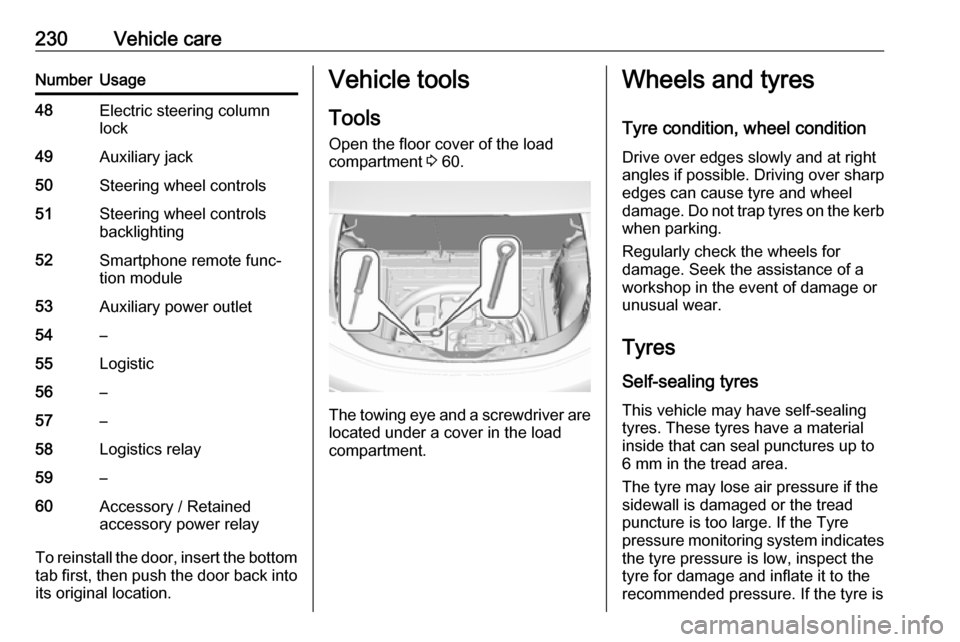
Open the floor cover of the load
compartment 3 60.
The towing eye and a screwdriver are
located under a cover in the load
compartment.
Wheels and tyres
Tyre condition, wheel condition Drive over edges slowly and at right
angles if possible. Driving over sharp
edges can cause tyre and wheel
damage. Do not trap tyres on the kerb when parking.
Regularly check the wheels for
damage. Seek the assistance of a
workshop in the event of damage or
unusual wear.
Tyres
Self-sealing tyres This vehicle may have self-sealing
tyres. These tyres have a material
inside that can seal punctures up to
6 mm in the tread area.
The tyre may lose air pressure if the
sidewall is damaged or the tread
puncture is too large. If the Tyre
pressure monitoring system indicates the tyre pressure is low, inspect thetyre for damage and inflate it to the
recommended pressure. If the tyre is