radio OPEL AMPERA E 2018 Owner's Guide
[x] Cancel search | Manufacturer: OPEL, Model Year: 2018, Model line: AMPERA E, Model: OPEL AMPERA E 2018Pages: 267, PDF Size: 6.45 MB
Page 123 of 267

Infotainment system121
Select the Browse audio tab and then
select the respective station list, e.g.
FM stations . All receivable stations of
the relevant waveband and in the
current reception area are displayed.
Alternatively, select the waveband
symbol tab, e.g. ~ to directly
display the stations.
Select the desired station.
Categories
Numerous radio stations broadcast a
PTY code, which specifies the type of programme transmitted (e.g. news).
Some stations also change the PTY
code depending on the content which is currently transmitted.
The Infotainment system stores these
stations, sorted by programme type in
the corresponding category list.
Note
The categories list item is only
available for the FM and the DAB
wavebands.
To search for a programme type
determined by the stations, select
Menu and then select the Browse
audio tab. Select FM categories or
DAB categories .
A list of programme types currently
available is displayed.
Select the desired programme type. A
list of stations is displayed
transmitting a programme of the
selected type.
Select the desired station.
Update station lists
If the stations stored in the waveband-
specific station list are no longer
received, the station lists must be
updated.Select Menu and then select the
Browse audio tab. Depending on the
waveband, select Update FM
stations , Update DAB stations or
Update AM stations .
Note
If a waveband-specific station list is
updated, the corresponding
category list is also updated.
A station search is started and a
corresponding message is displayed. Once the search is finished, the
respective station list is displayed.
Favourites
Favourites of all audio sources can be stored manually in the favourites list.The favourites list contains up to
15 favourites.
Page 124 of 267
122Infotainment system
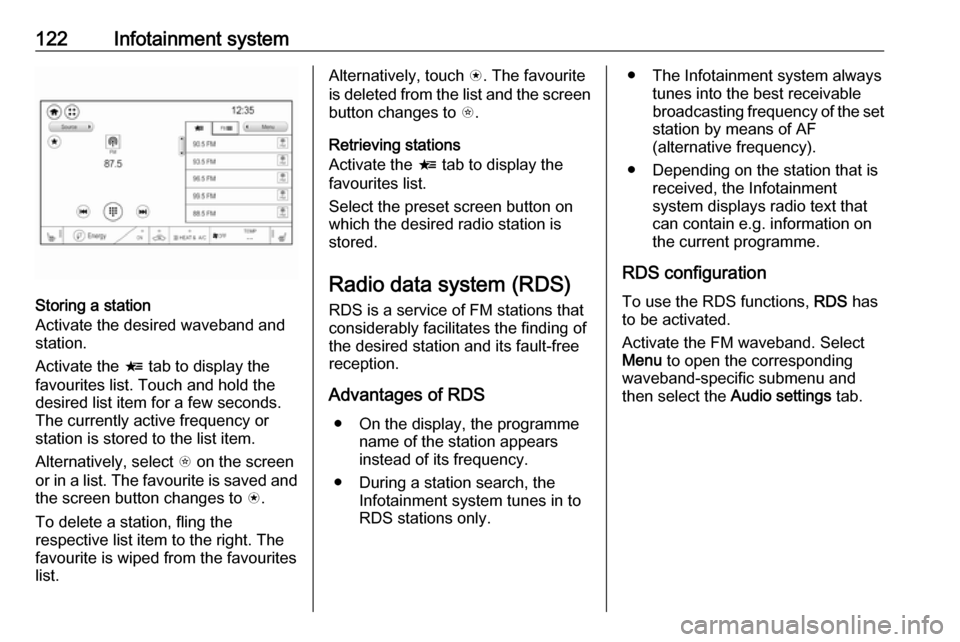
Storing a station
Activate the desired waveband and
station.
Activate the < tab to display the
favourites list. Touch and hold the
desired list item for a few seconds.
The currently active frequency or
station is stored to the list item.
Alternatively, select t on the screen
or in a list. The favourite is saved and
the screen button changes to s.
To delete a station, fling the
respective list item to the right. The
favourite is wiped from the favourites
list.
Alternatively, touch s. The favourite
is deleted from the list and the screen
button changes to t.
Retrieving stations
Activate the < tab to display the
favourites list.
Select the preset screen button on
which the desired radio station is
stored.
Radio data system (RDS) RDS is a service of FM stations that
considerably facilitates the finding of
the desired station and its fault-free
reception.
Advantages of RDS ● On the display, the programme name of the station appears
instead of its frequency.
● During a station search, the Infotainment system tunes in to
RDS stations only.● The Infotainment system always
tunes into the best receivable
broadcasting frequency of the set station by means of AF
(alternative frequency).
● Depending on the station that is received, the Infotainment
system displays radio text that
can contain e.g. information on
the current programme.
RDS configuration
To use the RDS functions, RDS has
to be activated.
Activate the FM waveband. Select
Menu to open the corresponding
waveband-specific submenu and
then select the Audio settings tab.
Page 125 of 267

Infotainment system123
Activate or deactivate RDS.
Traffic programme
Radio traffic service stations are RDS
stations that broadcast traffic news. If the traffic service is switched on, the
current audio source is interrupted for the duration of the traffic
announcement.
Activate the FM waveband. Select
Menu to open the corresponding
waveband-specific submenu.
Touch the screen button next to
Traffic programme to activate or
deactivate the function.
If a traffic announcement is
broadcasted on the respective
station, a message is displayed.
To interrupt the announcement and
return to the function previously
activated, touch the screen or press
m .
Regionalisation
Sometimes RDS stations broadcast
regionally different programmes on
different frequencies.
If regionalisation is activated,
alternative frequencies with the same regional programmes are selected
where necessary. If regionalisation is
switched off, alternative frequencies
of the stations are selected without
regard to regional programmes.
Activate the FM waveband. Select
Menu to open the corresponding
waveband-specific submenu and
then select the Audio settings tab.
Activate or deactivate Regional.
Digital audio broadcasting DAB broadcasts radio stations
digitally.DAB stations are indicated by the
programme name instead of the
broadcasting frequency.
General information ● With DAB, several radio programmes (services) can bebroadcast on a single ensemble.
● Besides high-quality digital audio
services, DAB is also able to
transmit programme-associated
data and a multitude of other data services including travel andtraffic information.
● As long as a given DAB receiver can pick up the signal sent out bya broadcasting station (even if
the signal is very weak), sound
reproduction is ensured.
● In the event of poor reception, the
volume is reduced automatically
to avoid the output of
disagreeable noises.
If the DAB signal is too weak to
be picked up by the receiver,
reception is interrupted
completely. This incident can be
avoided by activating DAB to
DAB linking and / or DAB to FM
Page 127 of 267
Infotainment system125Select Menu to open the
corresponding waveband-specific
submenu and then select the Audio
settings tab.
Activate or deactivate DAB to FM
linking .
L band
With this function, you may define which DAB wavebands are received
by the Infotainment system.
L band (earth and satellite radio) is an
additional radio band that can be
received.
Select Menu to open the
corresponding waveband-specific
submenu and then select the Audio
settings tab.
Activate or deactivate L band.External devices
General information
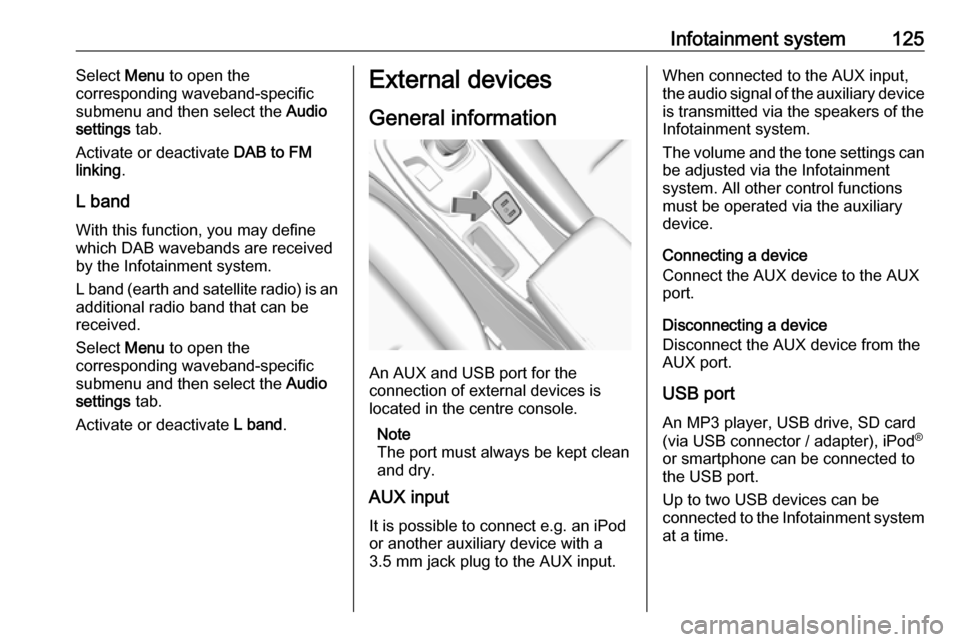
An AUX and USB port for the
connection of external devices is
located in the centre console.
Note
The port must always be kept clean
and dry.
AUX input
It is possible to connect e.g. an iPod
or another auxiliary device with a
3.5 mm jack plug to the AUX input.
When connected to the AUX input,
the audio signal of the auxiliary device is transmitted via the speakers of the
Infotainment system.
The volume and the tone settings can
be adjusted via the Infotainment
system. All other control functions
must be operated via the auxiliary
device.
Connecting a device
Connect the AUX device to the AUX
port.
Disconnecting a device
Disconnect the AUX device from the
AUX port.
USB port An MP3 player, USB drive, SD card
(via USB connector / adapter), iPod ®
or smartphone can be connected to
the USB port.
Up to two USB devices can be
connected to the Infotainment system at a time.
Page 136 of 267
134Infotainment systeminterference is caused by the
mobile phone or if dangerous
situations can occur.
Bluetooth
The phone portal is certified by the
Bluetooth Special Interest Group
(SIG).
You can find further information about the specification on the internet at
http://www.bluetooth.com
Bluetooth connection Bluetooth is a radio standard for the
wireless connection of e.g. mobile
phones, smartphones or other
devices.
The pairing (PIN code exchange
between Bluetooth device and
Infotainment system) and connecting
of the Bluetooth devices to the
Infotainment system are carried out
via the Devices menu.
Pairing a device
Important information ● Up to ten devices can be paired to the system.
● Only one paired device can be connected to the Infotainment
system at a time.
● Pairing only needs to be carried out once, unless the device is
deleted from the list of paired
devices. If the device has been connected previously, the
Infotainment system establishes
the connection automatically.
● Bluetooth operation considerably
drains the device's battery.
Therefore, connect the device to
the USB port for charging.
Pairing a new device 1. Activate the Bluetooth function of the Bluetooth device. For further
information, see the operating
instructions for the Bluetooth
device.
2. Press p and then select 1 in the
top left corner of the screen todisplay the application overview
screen.
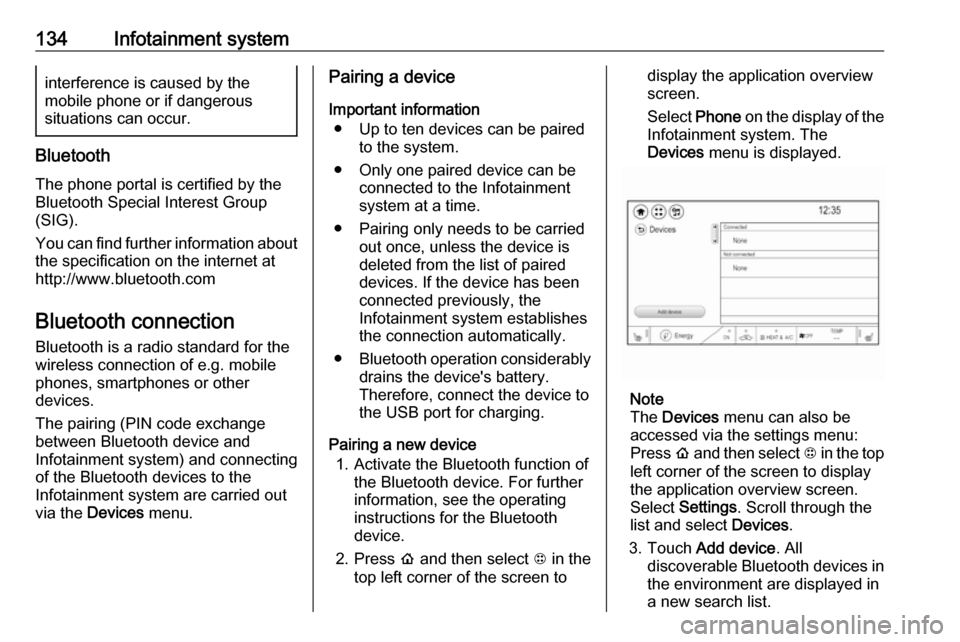
Select Phone on the display of the
Infotainment system. The
Devices menu is displayed.
Note
The Devices menu can also be
accessed via the settings menu: Press p and then select 1 in the top
left corner of the screen to display
the application overview screen.
Select Settings . Scroll through the
list and select Devices.
3. Touch Add device . All
discoverable Bluetooth devices in
the environment are displayed in
a new search list.
Page 141 of 267

Infotainment system139Incoming phone callTaking a call
If an audio mode, e.g. the radio or
USB mode, is active at the moment a call comes in the audio source is
muted and stays muted until the call
ends.
To answer the call, select v in the
message on top of the screen or
press w on the steering wheel.
The Z tab is activated displaying
information on the call.
Rejecting a call
To reject the call, select @ in the
message on top of the screen or press n on the steering wheel.
Privacy settings
When a call comes in, a message is
displayed on the Infotainment display
indicating the name and number of
the person calling (if available). If
Privacy is activated, information on
the caller is only shown in the cluster
display.Press p and then select 1 in the top
left corner of the screen to display the application overview screen.
Select Settings and then Bluetooth
Phone . Activate or deactivate
Privacy .
Functions during a call
During an ongoing phone call the
phone main menu is displayed.
Deactivating the hands-free mode
temporarily
To continue the conversation on the mobile phone, activate m.
To return to the hands-free mode,
deactivate m.
Deactivating the microphone
temporarily
To mute the microphone, activate n.
To reactivate the microphone,
deactivate n.
Setting a call on hold
During an active phone call, the t
screen button changes to Hold.
Select Hold to set the call on hold.Ending a phone call
Select @ to end the call.
Voice mail box
You may operate your voice mail box via the Infotainment system.
Voice mail number
To check the voice mail number of the
phone currently connected, press p
and then select 1 in the top left corner
of the screen.
Select Settings and then Bluetooth
Phone .
If available, the voice mail number is
displayed under My Number.
Calling the voice mail box
Press p and then select 1 in the top
left corner of the screen to display the application overview screen.
Select Phone to display the phone
main screen.
Select t on the keypad to call the
mailbox.
Alternatively, enter the voice mail
number via the phone keypad.
Page 142 of 267

140Infotainment systemMobile phones and CB radio
equipment
Installation instructions and
operating guidelines
The vehicle specific installation
instructions and the operating
guidelines of the mobile phone and
hands-free manufacturer must be
observed when installing and
operating a mobile telephone. Failure to do so could invalidate the vehicle
operating permit (EU directive 95/54/
EC).
Recommendations for fault-free
operation:
● Professionally installed exterior antenna to obtain the maximum
range possible
● Maximum transmission power 10 W
● Installation of the phone in a suitable spot, consider relevant
Note in the Owner's Manual
3 45Seek advice on predetermined
installation points for the external
antenna or equipment holder and
ways of using devices with a
transmission power exceeding 10 W.
Use of a hands-free attachment
without external antenna with mobile
telephone standards GSM
900/1800/1900 and UMTS is only
permitted if the maximum
transmission power of the mobile
telephone is 2 W for GSM 900 or
1 W for the other types.
For reasons of safety, do not use the
phone while driving. Even use of a hands-free set can be a distraction
while driving.9 Warning
Operation of radio equipment and
mobile telephones which fail to
meet above mentioned mobile
telephone standards is only
permitted using an antenna
located outside of the vehicle.
Caution
Mobile telephones and radio
equipment may lead to
malfunctions in the vehicle
electronics when operated inside
the vehicle with no exterior
antenna, unless the above
mentioned regulations are
observed.
Page 152 of 267
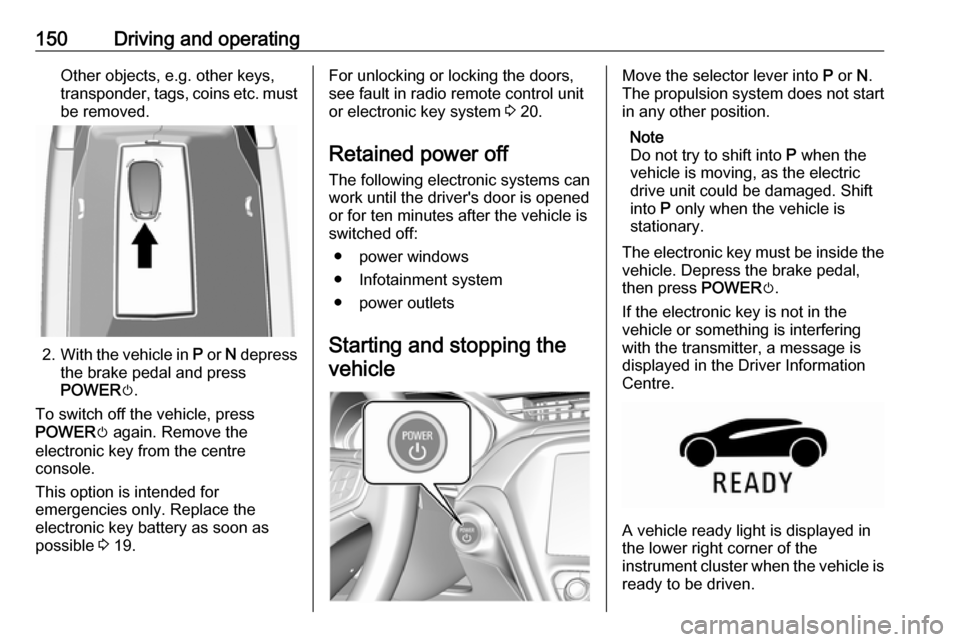
150Driving and operatingOther objects, e.g. other keys,
transponder, tags, coins etc. must
be removed.
2. With the vehicle in P or N depress
the brake pedal and press
POWER m.
To switch off the vehicle, press
POWER m again. Remove the
electronic key from the centre
console.
This option is intended for
emergencies only. Replace the
electronic key battery as soon as
possible 3 19.
For unlocking or locking the doors,
see fault in radio remote control unit
or electronic key system 3 20.
Retained power off
The following electronic systems can
work until the driver's door is opened
or for ten minutes after the vehicle is
switched off:
● power windows
● Infotainment system
● power outlets
Starting and stopping the
vehicleMove the selector lever into P or N.
The propulsion system does not start
in any other position.
Note
Do not try to shift into P when the
vehicle is moving, as the electric
drive unit could be damaged. Shift
into P only when the vehicle is
stationary.
The electronic key must be inside the
vehicle. Depress the brake pedal,
then press POWERm.
If the electronic key is not in the
vehicle or something is interfering
with the transmitter, a message is
displayed in the Driver Information
Centre.
A vehicle ready light is displayed in
the lower right corner of the
instrument cluster when the vehicle is ready to be driven.
Page 254 of 267

252Customer informationCustomer
informationCustomer information ................252
Declaration of conformity .........252
REACH .................................... 253
Collision damage repair ...........254
Software acknowledgement ....254
Software update ......................255
Registered trademarks ............256
Vehicle data recording and pri‐
vacy ........................................... 257
Event data recorders ...............257
Radio Frequency Identification (RFID) ..................................... 257Customer information
Declaration of conformity
Transmission systems
This vehicle has systems that
transmit and / or receive radio waves
subject to Directive 1999/5/EC or 2014/53/EU. The manufacturers ofthe systems listed below declare
conformity with Directive 1999/5/EC
or 2014/53/EU . The full text of the EU
declaration of conformity for each
system is available at the following
internet address: www.opel.com/
conformity
Importer is
Opel / Vauxhall, Bahnhofsplatz,
65423 Ruesselsheim am Main,
Germany.
Antenna module
Laird
8100 Industrial Park Drive, Grand
Blanc, MI 48439, USA
Operation frequency: N/A
Maximum output: N/A
Kathrein Automotive GmbHRoemerring 1, 31137 Hildesheim,
Germany
Operation frequency: N/A
Maximum output: N/A
Electronic key transmitter
Denso Corporation
Waldeckerstrasse 11, 64546
Moerfelden-Walldorf, Germany
Operation frequency: 433.92 MHz
Maximum output: -5.88 dBm
Electronic key receiver
Denso Corporation
Waldeckerstrasse 11, 64546
Moerfelden-Walldorf, Germany
Operation frequency: 125 kHz
Maximum output: -0.14 dBm
Immobiliser
Robert Bosch GmbH
Robert Bosch Platz 1, 70839
Gerlingen, Germany
Operation frequency: 125 kHz
Maximum output:
5.1 dBµA/m @ 10 m
Page 255 of 267

Customer information253Infotainment system IntelliLink-e
LG Electronics
European Shared Service Center
B.V., Krijgsman 1, 1186 DM
Amstelveen, The NetherlandsOperation
frequency (MHz)Maximum output
(dBm)2400.0 - 2483.54.02400.0 - 2483.513.05725.0 - 5850.013.0
OnStar module
LG Electronics
European Shared Service Center B.V., Krijgsman 1, 1186 DM
Amstelveen, The Netherlands
Operation
frequency (MHz)Maximum output
(dBm)2402 - 248042412 - 246218880 - 915331710 - 1785241850 - 1910241920 - 1980242500 - 257023
Radar unit
Hella KGaA Hueck & Co.
Rixbecker Strasse 75, 59552
Lippstadt, Germany
Operation frequency:
24.05 - 24.25 GHz
Maximum output: 20 EIRP dBm
Radio remote control receiver
Robert Bosch GmbH
Robert Bosch Platz 1, 70839
Gerlingen, Germany
Operation frequency: 433.92 MHz
Maximum output: N/A
Radio remote control transmitter
Robert Bosch GmbH
Robert Bosch Platz 1, 70839
Gerlingen, Germany
Operation frequency: 433.92 MHz
Maximum output: -4 dBm
Smartphone remote module
Denso Corporation
Waldeckerstrasse 11, 64546
Moerfelden-Walldorf, Germany
Operation frequency:
2400 - 2482 MHz
Maximum output: 3 dBm
Tyre pressure sensors
Schrader Electronics Ltd.
11 Technology Park, Belfast Road,
Antrim BT41 1QS, Northern Ireland,
United Kingdom
Operation frequency: 433.92 MHz
Maximum output: 10 dBm
REACH Registration, Evaluation,
Authorisation and Restriction of
Chemicals (REACH) is a European
Union regulation adopted to improve
the protection of human health and
the environment from the risks that
can be posed by chemicals. Visit
www.opel.com/reach for further
information and for access to the
Article 33 communication.