Fuel information menu OPEL ASTRA K 2019 Owner's Manual
[x] Cancel search | Manufacturer: OPEL, Model Year: 2019, Model line: ASTRA K, Model: OPEL ASTRA K 2019Pages: 317, PDF Size: 9.56 MB
Page 117 of 317

Instruments and controls115Door openh illuminates red.
A door or the tailgate is open.Displays
Driver Information Centre The Driver Information Centre is
located in the instrument cluster.
Depending on the version and the
instrument cluster, the Driver
Information Centre is available as
Midlevel display or Uplevel display.
Driver Information Centre indicates
depending on the equipment:
● overall and trip odometer
● vehicle information
● trip/fuel information
● driving economy information ● vehicle and warning messages
● audio and infotainment information
● phone information
● navigation information
● vehicle settingsMidlevel display
Selecting menus and functions
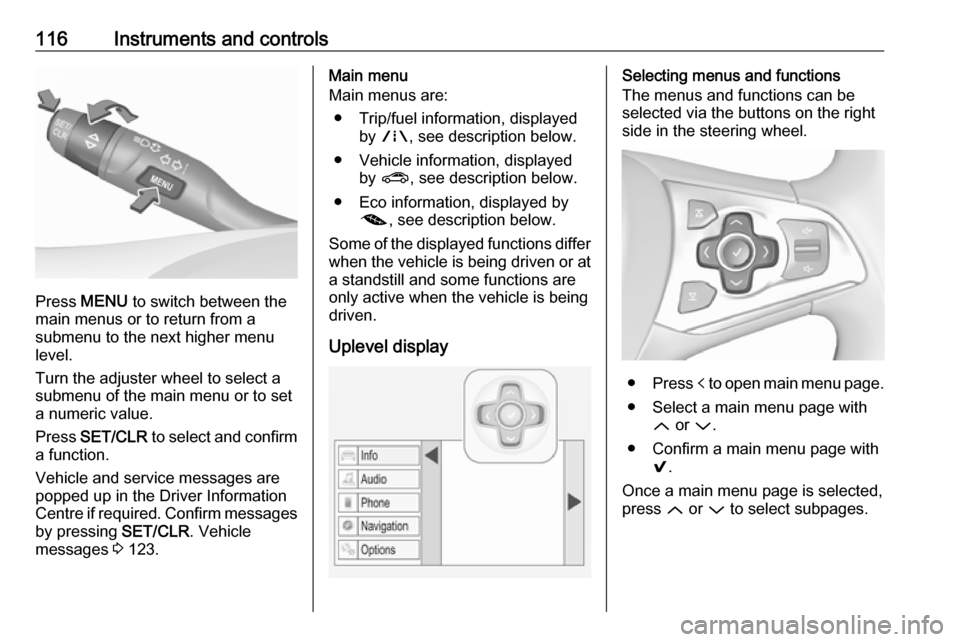
The menus and functions can be
selected via the buttons on the turn signal lever.
Page 118 of 317
116Instruments and controls
Press MENU to switch between the
main menus or to return from a
submenu to the next higher menu
level.
Turn the adjuster wheel to select a
submenu of the main menu or to set
a numeric value.
Press SET/CLR to select and confirm
a function.
Vehicle and service messages are
popped up in the Driver Information
Centre if required. Confirm messages
by pressing SET/CLR. Vehicle
messages 3 123.
Main menu
Main menus are:
● Trip/fuel information, displayed by ; , see description below.
● Vehicle information, displayed by ? , see description below.
● Eco information, displayed by @ , see description below.
Some of the displayed functions differ when the vehicle is being driven or at
a standstill and some functions are
only active when the vehicle is being
driven.
Uplevel displaySelecting menus and functions
The menus and functions can be
selected via the buttons on the right
side in the steering wheel.
● Press p to open main menu page.
● Select a main menu page with Q or P.
● Confirm a main menu page with 9.
Once a main menu page is selected,
press Q or P to select subpages.
Page 119 of 317

Instruments and controls117● Press q to open a next folder of
the selected subpage.
● Press Q or P to select functions
or to set a numeric value, if
required.
● Press 9 to select and confirm a
function.
Vehicle and service messages pop- up in the Driver Information Centre
when required.
Confirm messages by pressing 9.
Vehicle messages 3 123.
Main menu
Main menus are:
● Trip/fuel information, displayed by Info , see description below.
● Audio information, displayed by Audio , see description below.
● Phone information, displayed by Phone , see description below.
● Navigation information, displayed by Navigation, see
description below.
● Vehicle information, displayed by
Options , see description below.Some of the displayed functions differ
when the vehicle is being driven or at
a standstill and some functions are
only active when the vehicle is being
driven.
Trip / fuel information menu, ;
or Info
The following list contains all possible Info Menu pages. Some may not be
available for your particular vehicle. Depending on the display, some
functions are symbolised.
Turn the adjuster wheel or press Q
or P to select a page:
● Trip odometer 1/2 or A/B
● Average fuel consumption
● Average speed
● Digital speed
● Fuel range
● Instantaneous fuel consumption
● Remaining oil life
● Tyre pressure
● Traffic sign assistant
● Following distance
● Timer● Outside temperature
● AdBlue level
On Midlevel display the pages
Remaining Oil Life, Tyre Pressure,
Traffic Sign Assistant and Following
Distance are displayed in the Vehicle
information menu, select ?.
Trip odometer 1/2 or A/B
Trip odometer displays the current
distance since a certain reset.
Trip odometer counts up to a distance of 9,999 km then restarts at 0.
To reset on Midlevel display, press SET/CLR for a few seconds.
To reset on Uplevel display, press >
and confirm with 9.
The information of trip odometer page
1/A and 2/B can be reset separately
while the respective display is active.
Average Fuel Consumption
Display of average consumption. The measurement can be reset at any
time and starts with a default value.
Page 121 of 317

Instruments and controls119Remaining Oil Life
Indicates an estimate of the oil's
useful life. The number in percentage
means the remainder of current oil life 3 107.
Tyre Pressure
Checks tyre pressure of all wheels
during driving 3 257.
Traffic sign assistant
Displays the detected traffic signs for
the current route section 3 212.
Following Distance
Displays the distance in seconds to a preceding moving vehicle 3 197. If
Adaptive cruise control is active this
page shows the following distance
setting instead.
Timer
To start and stop, press 9. To reset,
press > and confirm reset.
Outside temperature
Display of current outside
temperature.AdBlue
Displays the AdBlue level.
Eco information menu, @
● Top consumers
● Economy trend
● Eco index
On Uplevel display the pages Top
Consumers, Economy Trend and Eco
index, are displayed in the Trip/fuel
information menu, select Info.
Top Consumers
List of top comfort consumers
currently switched on is displayed in
descending order. Fuel saving
potential is indicated.
During sporadic driving conditions,
the engine will activate the heated
rear window automatically to increase
the engine load. In this event, the
heated rear window is indicated as
one of the top consumers, without
activation by the driver.Economy Trend
Displays the average consumption
development over a distance of
50 km. Filled segments display the
consumption in 5 km steps and shows the effect of topography or driving
behaviour on fuel consumption.
Economy index
The average fuel consumption is indicated on an economic scale. For
economical driving, adapt driving
style to keep the indicator within the
green area. The more the indicator
moves towards red, the higher is the
Page 122 of 317
120Instruments and controlsfuel consumption. Simultaneously the
average consumption value is
indicated.
Depending on vehicle version, the Eco Index shows values referring to
trip odometer page A/1 or the current
driving cycle. In the last case, the
indicator is reset when ignition is switched on the next time.
Audio menu
Audio menu enables browsing for
music, selecting from favourites or
changing the audio source.
See Infotainment manual.
Phone menu
Phone menu enables managing and performing of phone calls, scrolling
through contacts or operating
handsfree phoning.
See Infotainment manual.
Navigation menu
Navigation menu enables route
guidance.
See Infotainment manual.Vehicle information menu, ? or
Options
The following list contains all possible Options Menu pages. Some may notbe available for your particular
vehicle. Depending on the display
some functions are symbolised.
Turn the adjuster wheel or press Q
or P to select a page and follow the
instructions given in the submenus:
● Units
● Info pages
● Speed warning
● Tyre loading
● Software information
Units
Press SET/CLR or > while units is
displayed. Select imperial or metric
units by turning adjuster wheel or
pressing P. Confirm by pressing
SET/CLR or 9.
Info pages
Press > while Info pages is displayed.
A list of all items in the Info Menu is
displayed. Select the functions to bedisplayed in the Info page by pressing
9 . Selected pages have a 9 in a
checkbox. Non-viewable functions
have a blank checkbox. See Info
Menu above.
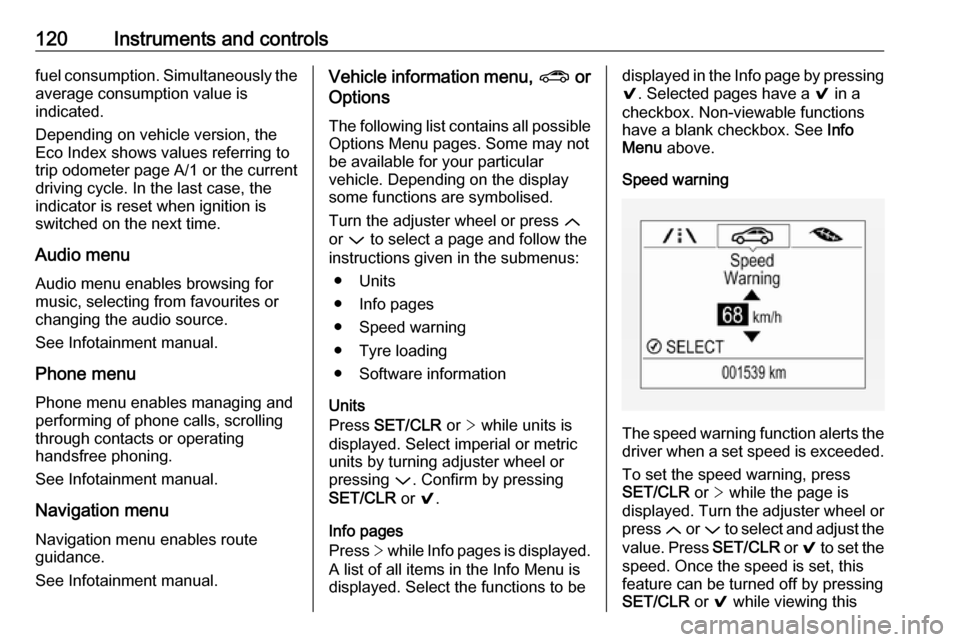
Speed warning
The speed warning function alerts the driver when a set speed is exceeded.
To set the speed warning, press
SET/CLR or > while the page is
displayed. Turn the adjuster wheel or
press Q or P to select and adjust the
value. Press SET/CLR or 9 to set the
speed. Once the speed is set, this
feature can be turned off by pressing
SET/CLR or 9 while viewing this