phone OPEL INSIGNIA BREAK 2019.5 Owner's Manual
[x] Cancel search | Manufacturer: OPEL, Model Year: 2019.5, Model line: INSIGNIA BREAK, Model: OPEL INSIGNIA BREAK 2019.5Pages: 323, PDF Size: 9.49 MB
Page 59 of 323

Seats, restraints57Three-point seat beltFasten
Withdraw the belt from the retractor,
guide it untwisted across the body
and insert the latch plate into the
buckle. Tighten the lap belt regularly
whilst driving by pulling the shoulder
belt.
Loose or bulky clothing prevents the
belt from fitting snugly. Do not place
objects such as handbags or mobile
phones between the belt and your body.
9 Warning
The belt must not rest against hard
or fragile objects in the pockets of
your clothing.
Seat belt reminder X, k 3 105.
Unfasten
To release belt, press red button on
belt buckle.
Page 114 of 323
112Instruments and controlsDisplaysDriver Information Centre
The Driver Information Centre is
located in the instrument cluster.
Depending on the version and the
instrument cluster, the Driver
Information Centre is available as
Baselevel display, Midlevel display or Uplevel display.
Driver Information Centre indicates
depending on the equipment:
● overall and trip odometer
● vehicle information
● trip/fuel information
● driving economy information ● vehicle and warning messages
● audio and infotainment information
● phone information
● navigation information
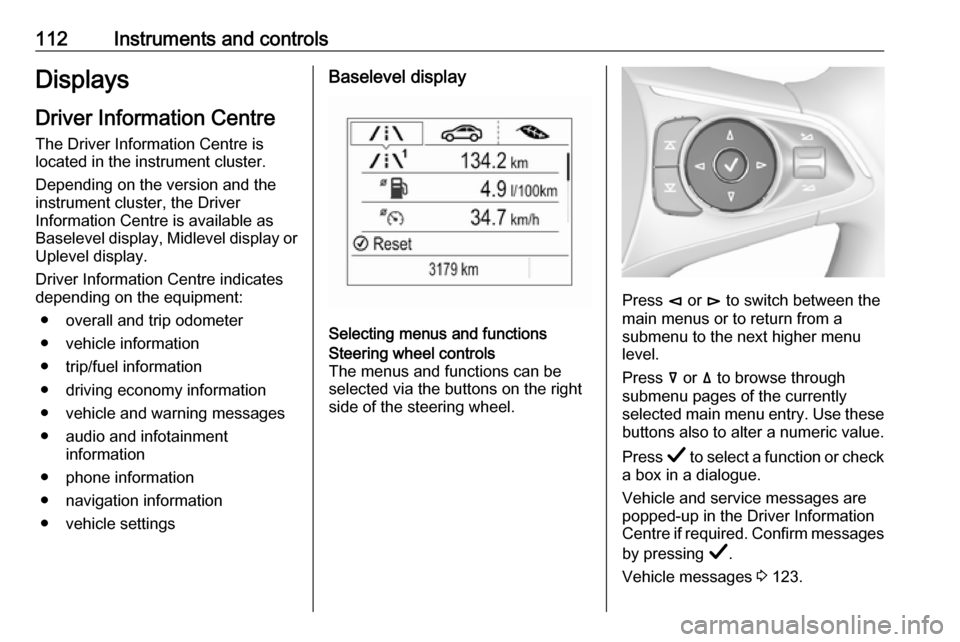
● vehicle settingsBaselevel display
Selecting menus and functions
Steering wheel controls
The menus and functions can be selected via the buttons on the right
side of the steering wheel.
Press è or é to switch between the
main menus or to return from a
submenu to the next higher menu
level.
Press å or ä to browse through
submenu pages of the currently
selected main menu entry. Use these
buttons also to alter a numeric value.
Press Å to select a function or check
a box in a dialogue.
Vehicle and service messages are
popped-up in the Driver Information
Centre if required. Confirm messages
by pressing Å.
Vehicle messages 3 123.
Page 115 of 323
Instruments and controls113Main menu
Main menus are:
● Trip/fuel information, displayed by ; .
● Vehicle information, displayed by ? .
● Eco information, displayed by @ .
Some of the displayed functions differ
when the vehicle is being driven or at
a standstill and some functions are
only active when the vehicle is being
driven.
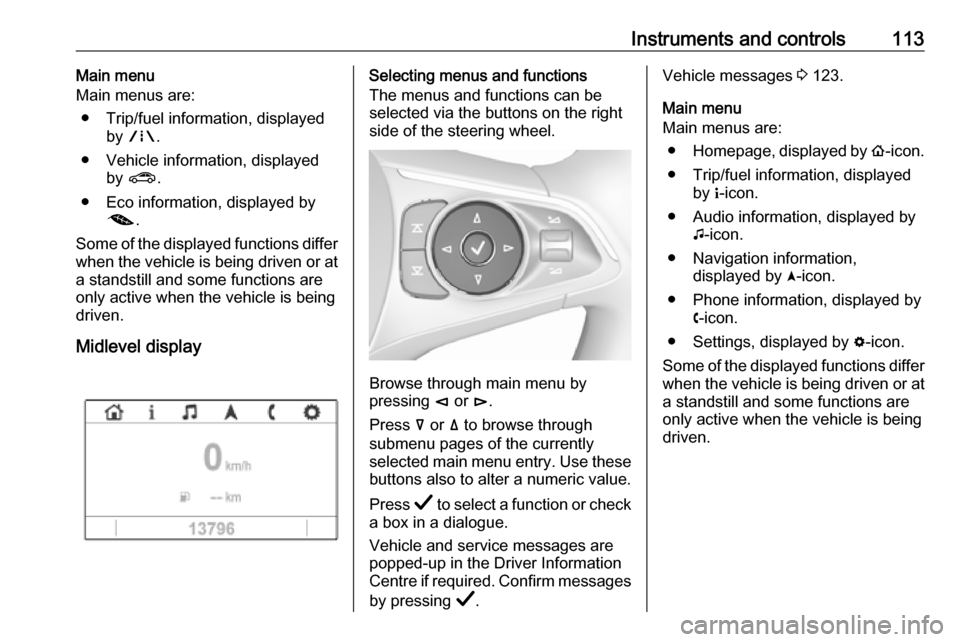
Midlevel displaySelecting menus and functions
The menus and functions can be
selected via the buttons on the right
side of the steering wheel.
Browse through main menu by
pressing è or é.
Press å or ä to browse through
submenu pages of the currently
selected main menu entry. Use these
buttons also to alter a numeric value.
Press Å to select a function or check
a box in a dialogue.
Vehicle and service messages are
popped-up in the Driver Information
Centre if required. Confirm messages
by pressing Å.
Vehicle messages 3 123.
Main menu
Main menus are:
● Homepage, displayed by !-icon.
● Trip/fuel information, displayed by "-icon.
● Audio information, displayed by G-icon.
● Navigation information, displayed by §-icon.
● Phone information, displayed by $-icon.
● Settings, displayed by %-icon.
Some of the displayed functions differ when the vehicle is being driven or at
a standstill and some functions are
only active when the vehicle is being
driven.
Page 116 of 323
114Instruments and controlsUplevel display
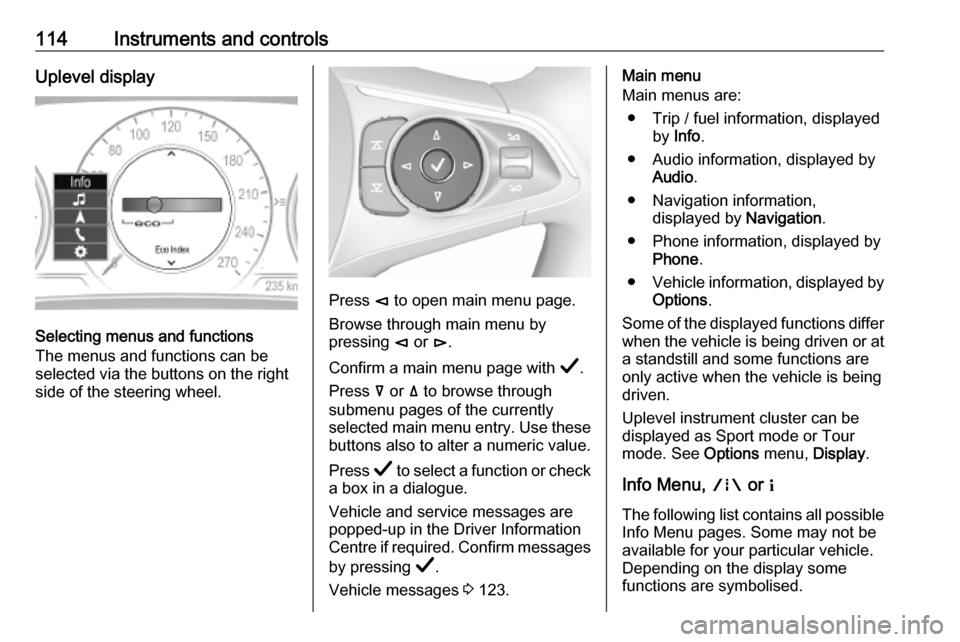
Selecting menus and functions
The menus and functions can be
selected via the buttons on the right
side of the steering wheel.
Press è to open main menu page.
Browse through main menu by
pressing è or é.
Confirm a main menu page with Å.
Press å or ä to browse through
submenu pages of the currently
selected main menu entry. Use these
buttons also to alter a numeric value.
Press Å to select a function or check
a box in a dialogue.
Vehicle and service messages are
popped-up in the Driver Information
Centre if required. Confirm messages
by pressing Å.
Vehicle messages 3 123.
Main menu
Main menus are:
● Trip / fuel information, displayed by Info .
● Audio information, displayed by Audio .
● Navigation information, displayed by Navigation.
● Phone information, displayed by Phone .
● Vehicle information, displayed by
Options .
Some of the displayed functions differ
when the vehicle is being driven or at
a standstill and some functions are
only active when the vehicle is being
driven.
Uplevel instrument cluster can be
displayed as Sport mode or Tour
mode. See Options menu, Display.
Info Menu, ; or "
The following list contains all possible
Info Menu pages. Some may not be
available for your particular vehicle.
Depending on the display some
functions are symbolised.
Page 119 of 323

Instruments and controls117fuel consumption. Simultaneously the
average consumption value is
indicated.
Depending on vehicle version, the
Eco Index shows values referring to
trip odometer page A/1 or the current
driving cycle. In the last case, the
indicator is reset when ignition is switched on the next time.
Audio menu G
Enables browsing for music, selecting
from favourites or changing the audio source.
For further information, see
Infotainment manual.
Phone menu $
Enables managing and performing of
phone calls, scrolling through
contacts or operating hands-free
phoning.
For further information, see
Infotainment manual.
Navigation menu §
Enables route guidance.For further information, see
Infotainment manual.
Vehicle information menu, ?,
Options or %
The following list contains all possible Options Menu pages. Some may notbe available for your particular
vehicle. Depending on the display
some functions are symbolised.
● Units
● Display
● Info Page Options
● Home Page Options
● Adaptive Cruise
● Speed Warning
● Tyre Load
● Gauges
● Software Information
● Head-up Display
● AdBlue Level
Units
Select display unit system: imperial or metric.Display
Press é and select Sport or Touring
mode. Sport mode includes more
vehicle information, Tour mode
includes more media information.
This setting is only available with
Uplevel display.
Info Page Options
A list of all pages in the Info Menu is
displayed, see above. Select the
pages to be displayed in the Info
Menu. Selected pages have a 0. Non
viewable functions have a blank
checkbox.
Home Page Options
Select, which values are shown on
the Driver Information Center home
page, e.g. speed or fuel range.
Adaptive Cruise
Activates or deactivates intelligent
adaptive cruise control 3 185.
Speed Warning
The speed warning page allows you
to set a speed that you do not want to
exceed.
Page 122 of 323

120Instruments and controlsConfirm a required function or
selection by touching.
Touch O to exit a menu with saving of
the changed setting.
Touch icon & to leave a menu without
saving.
Touch ; to return to the homepage.
For further information, see
Infotainment manual.Speech recognition
Description see Infotainment manual.
Vehicle personalisation 3 124.
Valet mode
If activated, some functions of the
Driver Information Centre and the Info Display are limited. The load
compartment is being locked and cannot be unlocked.
Head-up display The head-up display shows driver
information concerning the
instrument cluster onto the
windscreen on the driver's side.
The information appears as an image
projected from a lense in the
instrument panel onto the windscreen
directly ahead in driver's view. The
image appears focused out toward
the front of the vehicle.
Depending on the equipment head-
up display can indicate:
● general driving information
● alerts from driver assistance systems
● automatic transmission selector lever position
● gear shift indication
● audio / phone information
● turn-by-turn navigation information if equipped with
navigation Infotainment.
There are three controls above the
light switch to operate the head-up display.
Switching on
Lift up button & briefly.
Display views
Different views are selectable in the
head-up display by pressing /
button. Each press will change the
display view.
Page 131 of 323

Instruments and controls129Telematics service
OnStar
OnStar is a personal connectivity and
service assistant with integrated
Wi-Fi hotspot. The OnStar service is
available 24 hours a day, seven days
a week.
Note
OnStar is not available for all
markets. For further information,
contact your workshop.
Note
In order to be available and
operational, OnStar needs a valid
OnStar subscription, functioning
vehicle electrics, mobile service and GPS satellite link.
To activate the OnStar services and
set up an account, press Z and speak
with an advisor.Depending on the equipment of the
vehicle, the following services are available:
● Emergency services and support
in the case of a vehicle
breakdown
● Wi-Fi hotspot
● Smartphone application
● Remote control, e.g. location of the vehicle, activation of horn and
lights, control of central locking
system
● Stolen vehicle assistance
● Vehicle diagnostics
● Destination download
Note
The OnStar module of the vehicle is
deactivated after ten days without an
ignition cycle. Functions requiring a
data connection will be available
again after switching on the ignition.OnStar buttons
Privacy button
Press and hold j until a message is
heard to activate or deactivate the
transmission of the vehicle location.
Press j to answer a call or to end a
call to an advisor.
Press j to access the Wi-Fi settings.
Service button
Press Z to establish a connection to
an advisor.
Page 133 of 323

Instruments and controls1313. Select your vehicle hotspot(SSID) when listed.
4. When prompted, enter the password on your mobile device.
Note
To change the SSID or password,
press Z and talk to an advisor or log
in to your account.
To switch off the Wi-Fi hotspot
functionality, press Z to call an
advisor.
Smartphone app
With the myOpel smartphone app,
some vehicle functions can be
operated remotely.
The following functions are available: ● Lock or unlock vehicle.
● Honk horn or flash lights.
● Check fuel level, engine oil life and tyre pressure (only with tyre
pressure monitoring system).
● Send navigation destination to the vehicle, if equipped with a
built-in navigation system.
● Locate vehicle on a map.
● Manage Wi-Fi settings.To operate these functions, download the app from App Store ®
or
Google Play™ Store.
Remote control
If desired, use any phone to call an
advisor, who can remotely operate
specific vehicle functions. Find the
respective OnStar phone number on
our country-specific website.
The following functions are available: ● Lock or unlock vehicle.
● Provide information on the vehicle location.
● Honk horn or flash lights.
Stolen vehicle assistance
If the vehicle is stolen, report the theft
to the authorities and request OnStar
stolen vehicle assistance. Use any
phone to call an advisor. Find the
respective OnStar phone number on
our country-specific website.
OnStar can provide support in
locating and recovering the vehicle.Theft alert
When the anti-theft alarm system is
triggered, a notification is sent to
OnStar. You are then informed about
this event by text message or email.Restart prevention
By sending remote signals, OnStar can prevent the vehicle from
restarting once it has been turned off.
On-demand diagnostics
At any time e.g. if the vehicle displays a vehicle message, press Z to
contact an advisor and ask to
complete a real-time diagnostic check
to directly determine the issue.
Depending on the results, the advisor
will provide further support.
Diagnostic report
The vehicle automatically transmits
diagnostic data to OnStar which
sends a monthly email report to you
and your preferred workshop.
Note
The workshop notification function
can be disabled in your account.
Page 313 of 323

Customer information311use of the Zip-Bugs or Info-ZIP e-mail addresses or of the Info-ZIP
URL(s).
4. Info-ZIP retains the right to use the names “Info-ZIP,” “Zip,”
“UnZip,” “UnZipSFX,” “WiZ,”
“Pocket UnZip,” “Pocket Zip,” and
“MacZip” for its own source and
binary releases.
Software update
The Infotainment system can
download and install selected
software updates over a wireless
connection.
Note
The availability of these over-the-air
vehicle software updates varies by
vehicle and country. Find more
information on our home page.
Internet connection
Downloading over-the-air vehicle
software updates requires internet
connectivity, which can be accessed
through the vehicle’s built-in OnStarconnection or another password-
protected Wi-Fi hotspot, e.g. provided by a mobile phone.
To connect the Infotainment system
to a hotspot, select Settings on the
home screen, Wi-Fi and then Manage
Wi-Fi Networks . Select the desired
Wi-Fi network, and follow the on-
screen prompts.
Updates The system will prompt for certain
updates to be downloaded and
installed. There is also an option to
check for updates manually.
To manually check for updates, select
Settings on the home screen,
Software Information and then
System Update . Follow the on-screen
prompts.
Note
Steps for downloading and installing updates may vary by vehicle.
Note
During the installation process, the
vehicle may not be operational.Registered trademarksApple Inc.
Apple CarPlay™ is a trademark of
Apple Inc.
App Store ®
and iTunes Store ®
are
registered trademarks of Apple Inc.
iPhone ®
, iPod ®
, iPod touch ®
, iPod
nano ®
, iPad ®
and Siri ®
are registered
trademarks of Apple Inc.Bluetooth SIG, Inc.
Bluetooth ®
is a registered trademark
of Bluetooth SIG, Inc.DivX, LLC
DivX ®
and DivX Certified ®
are
registered trademarks of DivX, LLC.EnGIS Technologies, Inc.
BringGo ®
is a registered trademark of
EnGIS Technologies, Inc.Google Inc.
Android™ and Google Play™ Store are trademarks of Google Inc.Stitcher Inc.
Stitcher™ is a trademark of Stitcher,
Inc.
Page 316 of 323

314Customer information● input destinations
● data on the use of online services
This data for comfort and
infotainment functions can be stored
locally in the vehicle or be kept on a
device that you have connected to the vehicle ( e.g. a smartphone, USB stick
or MP3 player). Data that you have
input yourself can be deleted at any
time.
This data can only be transmitted out of the vehicle at your request,
particularly when using online
services in accordance with the
settings selected by you.
Smartphone integration, e.g.
Android Auto or Apple CarPlay
If your vehicle is equipped
accordingly, you can connect your
smartphone or another mobile device
to the vehicle so that you can control
it via the controls integrated in the
vehicle. The smartphone image and
sound can be output via the
multimedia system in this case. At the
same time, specific information is
transmitted to your smartphone.
Depending on the type of integration,this includes data such as position
data, day / night mode and other
general vehicle information. For more information, please see the operating
instructions for the vehicle /
infotainment system.
Integration allows selected
smartphone apps to be used, such as
navigation or music playback. No
further integration is possible
between smartphone and vehicle, in
particular active access to vehicle
data. The nature of further data
processing is determined by the
provider of the app used. Whether
you can define settings, and if so
which ones, is dependent on the app
in question and your smartphone's
operating system.Online services
If your vehicle has a radio networkconnection, this allows data to be exchanged between your vehicle and other systems. The radio network
connection is made possible by
means of a transmitter device in your
vehicle or a mobile device provided
by you (e.g. a smartphone). Online
functions can be used via this radio
network connection. These include
online services and applications /
apps provided to you by the
manufacturer or other providers.
Proprietary services
In the case of the manufacturer's
online services, the relevant functions are described by the manufacturer in
an appropriate location (e.g. Owner's
Manual, the manufacturer's website)
and the associated data protection
information is provided. Personal
data may be used to provide online
services. Data exchange for this
purpose takes place via a protected
connection, e.g. using the
manufacturer's IT systems provided
for the purpose. Collection,