display OPEL MOVANO_B 2020 Manual user
[x] Cancel search | Manufacturer: OPEL, Model Year: 2020, Model line: MOVANO_B, Model: OPEL MOVANO_B 2020Pages: 353, PDF Size: 9.4 MB
Page 202 of 353

200Infotainment systemSelect your device from the displayed
list. Depending on phone model,
confirm the pairing request or enter
the pairing code on the mobile phone keypad to pair it to the Infotainment
system.
To pair further devices, from the
Manage devices screen, touch < to
open a pop-up menu and select Add
to pair additional devices in the same
way.
If pairing fails, repeat procedure if
necessary.
Unpairing a mobile phone from
the handsfree phone system
If the list of paired phones is full, a new
phone can only be paired if an
existing phone is unpaired.
Note
Unpairing a phone erases all of its
downloaded contacts and its call
history from the handsfree phone
system phonebook.Radio 15 USB
To unpair, i.e. to delete a phone from
the handsfree phone system
memory, press TEL and select Delete
device .
Select the desired phone from the device list and press OK to confirm
deletion when prompted.
NAVI 50 IntelliLink
To unpair, i.e. to delete a phone from
the handsfree phone system
memory, touch 7 followed by
ÿ Settings .
Select Connectivity then View
Bluetooth device list .
Select the desired phone from the
device list, then touch ë to delete the
device. If required, delete all devices
in the list by selecting Options
followed by Delete all. Confirm by
touching OK.
NAVI 80 IntelliLink
To unpair, i.e. to delete a phone from
the handsfree phone system
memory, access the Manage
devices screen.From the Home page, touch MENU
then gPhone followed by Settings.
Select Manage devices , then touch
< to open a pop-up menu, select
Delete and remove the selected
device from the list.
Emergency call9 Warning
Do not end the call until you are
requested to do so by the
emergency call centre.
NAVI 50 IntelliLink
To view the emergency number for
the current location, touch 7 followed
by sMAP (available depending on
version).
Select Options then Where am I? .
When the Where am I? screen is
displayed, touch Options followed by
Country information : Emergency
number (e.g. 112) is shown on the
display.
Page 203 of 353

Infotainment system201OperationIntroduction
When a Bluetooth connection has
been set up between a mobile phone and the hands-free phone system,
certain functions of the mobile phone
can be operated via the Infotainment
system controls or display.
It is then possible, e.g., to import the
contacts and telephone numbers stored on the mobile phone into the
handsfree phone system.
Note
The Infotainment system memory is
restricted and some the contacts may not be downloaded from the
mobile phone.
The contacts saved on the SIM card
in the mobile phone are not visible.
Only contacts saved on the phone
are visible.
After connection, the mobile phone
data is transmitted to the handsfree
phone system. This can take some
time, depending on phone model.
During this period, operation of themobile phone is possible via the
Infotainment system only to a limited
extent.
Note
Not every mobile phone supports
the functions of the handsfree phone
system. Therefore, deviations from
the range of functions described are possible.
Phone menu
To display the Phone menu:
● press 6TEL
- or -
● press TEL
- or -
● touch 7 followed by yPhone
(NAVI 50 IntelliLink)
from the Home page, touch
MENU followed by gPhone
(NAVI 80 IntelliLink)
Volume control
Radio 15 USB
During a call, turn m or press ! or #
(on the steering column controls) to change the call volume.NAVI 50 IntelliLink
During a call, press ! or # with the
steering column controls to change the call volume.
NAVI 80 IntelliLink
During a call, turn X on the
Infotainment unit to change the call
volume.
Alternatively (with the steering
column controls), press ! or #.
Dialling a telephone number Several options are available for
dialling telephone numbers, including
calling a contact from the phonebook
or from a call log. Numbers can also
be dialled manually.
Entering a number manually
Radio 15 USB
With the Phone menu displayed,
select Dial from the list.
Enter the desired number using the
numerical keyboard ( 3 193) and
select 7 to start dialling.
To redial the last number, press and
hold TEL.
Page 204 of 353

202Infotainment systemNAVI 50 IntelliLink
With the yPhone menu displayed,
touch = in top left corner and select
Dial from the list.
Enter the desired number using the numerical keyboard and select y to
start dialling.
Refer to (NAVI 50 IntelliLink)
"Operating keyboards in the display"
in the "General information" section
3 193.
Entries can be corrected during input
with the k keyboard character.
Touch and hold k to delete all
numbers at once.
NAVI 80 IntelliLink
From the Home page, select MENU
then gPhone followed by Dial a
number .
Enter the desired number using the
numerical keyboard and touch Call to
start dialling.
Entries can be corrected during input
with the k keyboard character.Phonebook
The phonebook contains contact lists available only to the current vehicle
user. For reasons of confidentiality,
each downloaded contacts list can
only be viewed when the
corresponding phone is connected.
Radio 15 USB
After pairing the mobile phone to the
Infotainment system, the contact list
in the mobile phone is downloaded to the handsfree phone system.
To dial a number from the
phonebook, with the Phone menu
displayed, select Phonebook and
select the desired contact from the
alphabetical list. Press OK to start the
dialling process.
NAVI 50 IntelliLink
After pairing the mobile phone to the
Infotainment system, the contact list
in the mobile phone is downloaded to
the handsfree phone system.
With the yPhone menu displayed,
touch S in top left corner and select
Phone Book from the list.To dial a number from the
phonebook, select the desired
contact from the list.
Alternatively, select Search by Name,
then enter the name of the desired
contact using the keyboard.
Refer to (NAVI 50 IntelliLink)
"Operating keyboards in the display"
in the "General information" section 3 193.
NAVI 80 IntelliLink
After pairing the mobile phone to the
Infotainment system, the contact list
in the mobile phone is downloaded to the handsfree phone system.
Note
Data sharing must be authorised on
the phone. Refer to the operating
instructions for the mobile phone or
consult the network provider.
The feature "Automatically
download phone data" must also be
switched on in the Infotainment
phone settings menu. Refer to
(NAVI 80 IntelliLink) "Phone
settings" below.
Page 205 of 353

Infotainment system203From the Home page, touch MENU
then gPhone followed by Phone
book .
To dial a number from the
phonebook, select the desired
contact from the list. If a contact has more than one saved number, selectthe appropriate number when
prompted. The call will be started
automatically after the contact
number is selected.
Alternatively, select Find, then enter
the name of the desired contact using
the keyboard.
After the initial pairing of the phone
with the Infotainment system, the
system can be updated with the latest
contacts on the mobile phone. Touch
< to open a pop-up menu and select
Update phone data . If necessary,
select Help from the pop-up menu for
assistance.
To add a contact to your list of favourites, press < and select Add a
contact to the Favourites page .Note
Favourites can be accessed at any
time by pressing f on the Home
page.
For further information, refer to
(NAVI 80 IntelliLink) "Favourites" in the "Introduction" section 3 129.
Call lists
Radio 15 USB
To dial a number from the call history lists (e.g. dialled numbers, received
calls, missed calls), select the
relevant option, e.g. Dialled numbers
from the Call list menu. Select the
desired contact and press OK to start
the dialling process.
NAVI 50 IntelliLink
After connecting the mobile phone to
the Infotainment system, the list of
dialled numbers, received calls and
missed calls in the mobile phone are
transferred automatically to the
handsfree phone system.
With the yPhone menu displayed,
touch S in top left corner and select
Calling Lists from the list.To dial a number from the call history
lists, select from the following options on the display:
● yAll : Displays list of all calls in
the below lists.
● ú: Dialled numbers.
● ù: Received calls.
● û: Missed calls.
Note
The number of missed calls is shown
alongside the symbol.
The most recent calls are displayed at the top. Select the desired contact
from the chosen list to start the
dialling process.
NAVI 80 IntelliLink
After connecting the mobile phone to
the Infotainment system, the list of
dialled numbers, received calls and
missed calls in the mobile phone are
transferred automatically to the
handsfree phone system.
Page 206 of 353

204Infotainment systemNote
Data sharing must be authorised on
the phone. Refer to the operating
instructions for the mobile phone or
consult the network provider.
The feature "Automatically
download phone data" must also be
switched on in the Infotainment
phone settings menu. Refer to
(NAVI 80 IntelliLink) "Phone
settings" below.
From the Home page, touch MENU
then gPhone followed by Call logs.
To dial a number from the call history
lists, select from the following options
on the display:
● All: Displays list of all calls in the
below lists.
● ù: Received calls.
● þ: Missed calls.
● ú: Dialled numbers.
The most recent calls are displayed at the top. Alternatively, touch ↑ or ↓ to
move up/down in the display.
Select the desired contact from the
chosen call list to start the dialling
process.Note
If necessary, touch < (to open a
pop-up menu) and select Update
telephone data to update the call
lists.
Voicemail box
Radio 15 USB
To listen to mobile phone voicemail
messages via the Infotainment
system while the phone is connected, select the Voicemail box menu.
NAVI 80 IntelliLink
To listen to mobile phone voicemail
messages via the Infotainment
system while the phone is connected,
from the Home page, select MENU
then gPhone followed by Voice mail.
The system will call the configured
voicemail box.
The configuration screen will be
displayed if the voicemail box is not configured. Enter number on the
numerical keyboard and confirm.Receiving calls
Radio 15 USB
To accept the call, depending on
vehicle configuration:
● Briefly press 7 (on the steering
column controls).
● Select the 7 icon in the display
(by turning and pressing OK).
To reject the call, depending on
vehicle configuration:
● Press and hold 8 (on the steering
column controls).
● Select the } icon in the display
(by turning and pressing OK).
When receiving a call, the caller
number may be shown on the
Infotainment system display screen. If the number is stored in the system
memory, the name is displayed
instead. If the number cannot be
displayed, the message Private
number is shown.
Page 207 of 353

Infotainment system205NAVI 50 IntelliLink
To accept the call:
● Touch Accept/Agree .
● Briefly press 7 (on the steering
column controls).
To reject the call: ● Touch Refuse/Reject .
● Press and hold 8 (on the steering
column controls).
When receiving a call, the caller
number may be shown on the
Infotainment system display screen. If
the number is stored in the system
memory, the name is displayed
instead. If the number cannot be
displayed, the message Unknown/
Unknown number is shown.
NAVI 80 IntelliLink
To accept the call:
● Touch Pick up.
● Briefly press 7 (on the steering
column controls).
To reject the call: ● Touch Reject.
● Press and hold 8 (on the steering
column controls).When receiving a call, the caller
number may be shown on the
Infotainment system display screen. If the number is stored in the system
memory, the name is displayed
instead. If the number cannot be
displayed, the message No Caller ID
is shown.
Functions during a telephone call
Radio 15 USB
In addition to volume control, various
functions are available during a call,
including:
● Switch the call to the mobile phone.
● Access the keyboard.
● End call.
Turn and press OK to select and
confirm.
Switch the call from the handsfree
phone system to the mobile phone by selecting the mobile phone display
item. Some mobile phones may
become disconnected from the
handsfree phone system during the
switch to this mode.A number can also be entered on the
numerical keyboard ( 3 193) e.g. to
control a voice server such as the
voicemail box. Select the #123
display item to access the numerical keyboard. Refer to " Voicemail box"
for further information.
To end the call, depending on vehicle configuration:
● Briefly press 8.
● Press TEL.
● Select the } icon in the display.
NAVI 50 IntelliLink
In addition to volume control, various functions are available during a call,
including:
● }: End call.
● n: Switch vehicle microphone off.
● é: Switch vehicle microphone on.
● m/m 3 : Transfer conversation to
mobile phone.
● J3: Transfer conversation to
vehicle's microphone and
loudspeakers.
● 7: Return to previous screen
(e.g. navigation or Home page).
Page 208 of 353

206Infotainment systemNAVI 80 IntelliLink
In addition to volume control, various
functions are available during a call,
including:
● Place call on hold: Touch < (to
open pop-up menu) then select
On hold . Touch Continue to
resume the call.
● Transfer conversation to mobile phone: Touch < (to open pop-up
menu) then select Handset.
In some cases, the phone may be
disconnect from the Infotainment system during a call transfer.
● End call: Touch End call.
● Return to previous menu: Touch r.
Phone settings
NAVI 50 IntelliLinkRestore default phone settings
To access the settings menu at any time, touch 7 followed by
ÿ SETTING(S) .Select System followed by Factory
settings then Phone to restore phone
settings to their default values.
Confirm by touching OK.Display software version
To access the settings menu at any
time, touch 7 followed by
ÿ SETTING(S) .
Select System followed by System
version to display the software
version.
NAVI 80 IntelliLink
From the Home page, touch MENU
then gPhone followed by Settings.
Select from the following options: ● Manage devices :
Refer to (NAVI 80 IntelliLink)
"Pairing a mobile phone" in the
"Bluetooth connection" section
3 197.
● Sound levels :
To set the handsfree phone
system call volume and the
ringtone.
● Voice mail :
Refer to (NAVI 80 IntelliLink) "Voicemail box" above.
● Activate Bluetooth :
Refer to (NAVI 80 IntelliLink)
"Activating Bluetooth" in the
"Bluetooth connection" section
3 197.
● Automatically download phone
data :
Select this option to tick the box
☑ alongside it.
When pairing and/or connecting
the mobile phone to the
Infotainment system, the contact
list and call lists in the mobile
phone can now be downloaded
to the handsfree phone system.
Data sharing must also be
authorised on the phone. Refer to the operating instructions for the
mobile phone or consult the
network provider.
Page 213 of 353
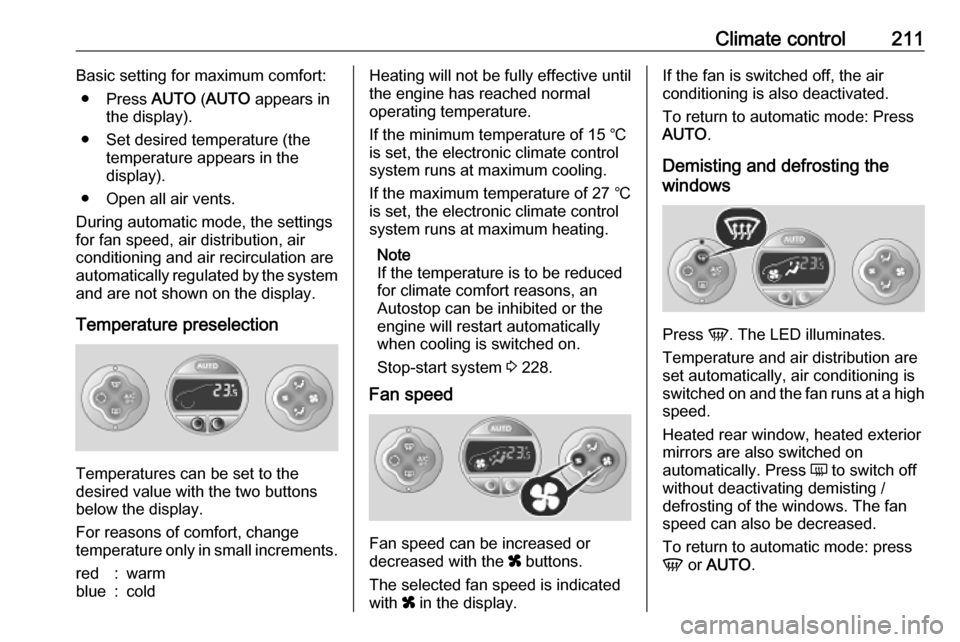
Climate control211Basic setting for maximum comfort:● Press AUTO (AUTO appears in
the display).
● Set desired temperature (the temperature appears in the
display).
● Open all air vents.
During automatic mode, the settings for fan speed, air distribution, air
conditioning and air recirculation are
automatically regulated by the system
and are not shown on the display.
Temperature preselection
Temperatures can be set to the
desired value with the two buttons
below the display.
For reasons of comfort, change
temperature only in small increments.
red:warmblue:coldHeating will not be fully effective until
the engine has reached normal
operating temperature.
If the minimum temperature of 15 ℃
is set, the electronic climate control
system runs at maximum cooling.
If the maximum temperature of 27 ℃
is set, the electronic climate control
system runs at maximum heating.
Note
If the temperature is to be reduced
for climate comfort reasons, an
Autostop can be inhibited or the
engine will restart automatically
when cooling is switched on.
Stop-start system 3 228.
Fan speed
Fan speed can be increased or
decreased with the x buttons.
The selected fan speed is indicated
with x in the display.
If the fan is switched off, the air
conditioning is also deactivated.
To return to automatic mode: Press AUTO .
Demisting and defrosting the
windows
Press V. The LED illuminates.
Temperature and air distribution are
set automatically, air conditioning is
switched on and the fan runs at a high
speed.
Heated rear window, heated exterior
mirrors are also switched on
automatically. Press Ü to switch off
without deactivating demisting /
defrosting of the windows. The fan speed can also be decreased.
To return to automatic mode: press
V or AUTO .
Page 214 of 353
212Climate controlNote
If V is pressed while the engine is
running, an Autostop will be inhibited
until V is pressed again.
If V is pressed while the engine is
in an Autostop, the engine will restart
automatically.
Stop-start system 3 228.
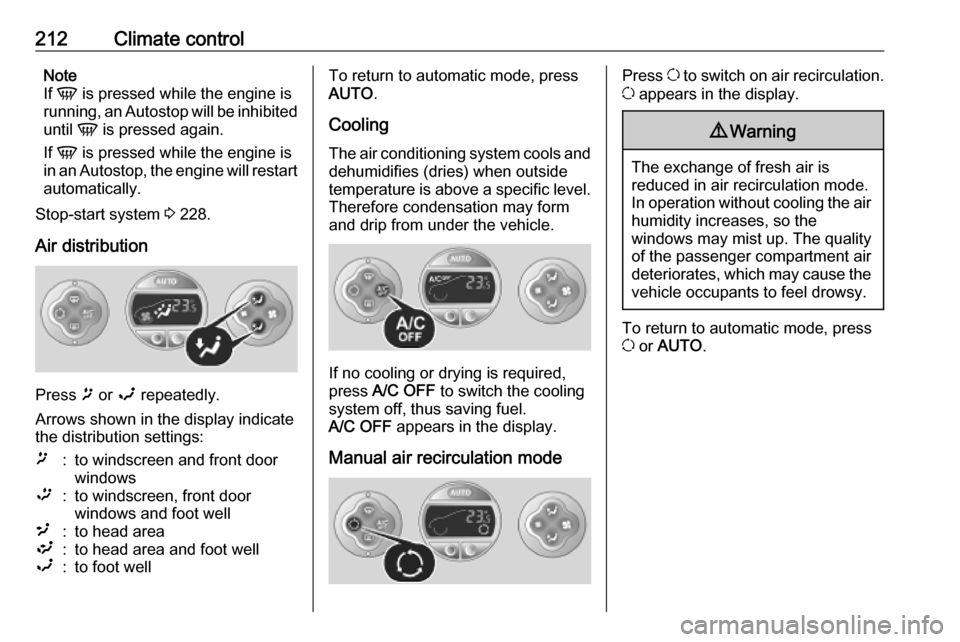
Air distribution
Press ï or î repeatedly.
Arrows shown in the display indicate
the distribution settings:
ï:to windscreen and front door
windows™:to windscreen, front door
windows and foot well²:to head area³:to head area and foot wellî:to foot wellTo return to automatic mode, press
AUTO .
Cooling
The air conditioning system cools and
dehumidifies (dries) when outside
temperature is above a specific level. Therefore condensation may form
and drip from under the vehicle.
If no cooling or drying is required,
press A/C OFF to switch the cooling
system off, thus saving fuel.
A/C OFF appears in the display.
Manual air recirculation mode
Press u to switch on air recirculation.
u appears in the display.9 Warning
The exchange of fresh air is
reduced in air recirculation mode.
In operation without cooling the air humidity increases, so the
windows may mist up. The quality
of the passenger compartment air
deteriorates, which may cause the vehicle occupants to feel drowsy.
To return to automatic mode, press
u or AUTO .
Page 216 of 353
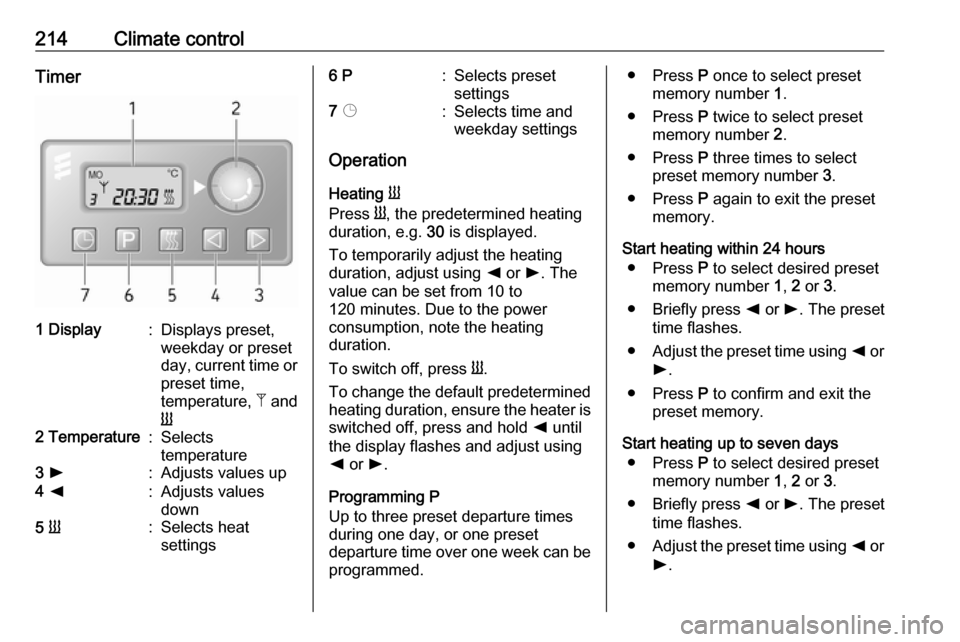
214Climate controlTimer1 Display:Displays preset,
weekday or preset
day, current time or preset time,
temperature, Z and
Y2 Temperature:Selects
temperature3 l:Adjusts values up4 k:Adjusts values
down5 Y:Selects heat
settings6 P:Selects preset
settings7 Þ:Selects time and
weekday settings
Operation
Heating Y
Press Y, the predetermined heating
duration, e.g. 30 is displayed.
To temporarily adjust the heating
duration, adjust using k or l. The
value can be set from 10 to
120 minutes. Due to the power
consumption, note the heating
duration.
To switch off, press Y.
To change the default predetermined heating duration, ensure the heater is switched off, press and hold k until
the display flashes and adjust using
k or l.
Programming P
Up to three preset departure times during one day, or one preset
departure time over one week can be programmed.
● Press P once to select preset
memory number 1.
● Press P twice to select preset
memory number 2.
● Press P three times to select
preset memory number 3.
● Press P again to exit the preset
memory.
Start heating within 24 hours ● Press P to select desired preset
memory number 1, 2 or 3.
● Briefly press k or l. The preset
time flashes.
● Adjust the preset time using k or
l .
● Press P to confirm and exit the
preset memory.
Start heating up to seven days ● Press P to select desired preset
memory number 1, 2 or 3.
● Briefly press k or l. The preset
time flashes.
● Adjust the preset time using k or
l .