ECO mode OPEL MOVANO_B 2020 Manual user
[x] Cancel search | Manufacturer: OPEL, Model Year: 2020, Model line: MOVANO_B, Model: OPEL MOVANO_B 2020Pages: 353, PDF Size: 9.4 MB
Page 134 of 353

132Infotainment system●g Phone
Refer to "Phone" 3 193.
● J Vehicle
Touch to open Eco Driving,
Onboard computer and Settings
menus.
Refer to (NAVI 80 IntelliLink)
"Modes of operation" below.
● ¯ Services
Touch to open Navigation
services and Settings menus.
Refer to (NAVI 80 IntelliLink)
"Modes of operation" below.
● ± System
Refer to (NAVI 80 IntelliLink) "System settings" 3 139.
Note
Depending on software version, the
menus on the display screen may
differ from the illustrations shown.
● I/←: Move to previous page
● j/→: Move to next page
● ↑: Display lists; Scroll up
● ↓: Display lists; Scroll down● <: Open pop-up menu
● r: Return to previous menu
The display screen can also be
operated using the controls on the
Infotainment system fascia.
Note
Depending on version, some
controls available on the
Infotainment system fascia do not
operate the features on the display
screen.
Note
Depending on vehicle, operation of
the touchscreen may be restricted
during driving.
Modes of operation
Radio 15 USB:
To change the audio source to radio,
press RADIO .NAVI 50 IntelliLink:
To access the radio menu at any time, touch 7 followed by ñRadio .NAVI 80 IntelliLink:
To access the radio menu from the
Home page, touch MENU then
Multimedia followed by Radio.Detailed description of the radio
functions 3 144.
Audio players
To change the audio source to USB,
AUX , Bluetooth or iPod (where
applicable), touch MEDIA.
NAVI 50 IntelliLink : To access the
menu for connected auxiliary devices
( USB , iPod , BT (Bluetooth), Video or
AUX ) at any time, touch 7 followed
by üMedia . Touch = in top left
corner and select auxiliary source.
NAVI 80 IntelliLink : To access the
menu for auxiliary devices (e.g. USB,
AUX input, Bluetooth) from the Home page, touch MENU then Multimedia
followed by Media. Select auxiliary
source from the display list.Radio 15 USB
Detailed descriptions of:
● AUX input functions 3 152
● USB port functions 3 153
● Bluetooth music operation 3 156
Page 142 of 353

140Infotainment system●Connectivity : See below.
● System : See below.Display
Select Display to display the following
options:
● Brightness (Low/Mid/High)
● Map mode (Auto/Day/Night)
● Auto : Day and night mode
are changed automatically.
● Day : The map screen is
always displayed with bright colours.
● Night : The map screen is
always displayed with dark
colours.
● Background (Dark/Light)
Available depending on version. Switch between a dark or light
display mode (available
depending on vehicle).
● Parking assistance
Touch l to open a submenu:
● Rear view camera (On/Off)
● Obstacle detection
Touch l to open a submenu
for activation or deactivationof the front parking sensors
and rear parking sensors.Connectivity
Select Connectivity to display the
following options:
● View Bluetooth device list
● Search for Bluetooth device
● External device authorization
● Change passkey (for pairing of
Bluetooth devices with the
Infotainment system)
● Smartphone
Available depending on version. For help with activating and
operating voice controls - refer to
"Voice recognition" 3 191.
For further information on Bluetooth
settings, refer to (NAVI 50 IntelliLink)
"Bluetooth music" 3 156 and
"Bluetooth connection" in the "Phone" section 3 197.System
Select System to display the following
options:
● Language
Change display language and voice instruction language for the navigation system. Press OK to
confirm selection.
● Clock/Units
The following settings can be
changed:
● Time Format (12H/24H)
● Nav Units (km/miles)
● Temperature (°C/°F)
● Time Setting
Press l to open the Time
set submenu containing the
following options:
Auto /Manual
If Auto time setting is
selected, the time is set
automatically by GPS.
If Manual time setting is
selected, adjust as
appropriate.
Page 150 of 353

148Infotainment systemNote
Due to signal strength, it is possible that less than six stations will be
stored.
Recalling a station
Radio 15 USB
Select the desired waveband, then
briefly press station button 1...6 to
recall a stored station.
To recall a station on the autostore list
(AST), while listening to the radio
briefly press SETUP to activate AST
mode. The station previously
selected will be received. Briefly
press station button 1...6 to recall
another stored station on the
autostore list.
Updating stations list manually Stations can also be stored manually
in the autostore list.
Note
Only available with
NAVI 50 IntelliLink,
NAVI 80 IntelliLink.To update the list of stations and
obtain the most recent ones, activate
the system update manually.
Depending on Infotainment system,
the sound may be muted during a
manual update.
NAVI 50 IntelliLink
Touch Options , scroll down to
Update List then select Start;
Updating ... appears on the display
until the update is complete.
Note
If DAB is available, it is
recommended to update the DAB
stations list manually when the
system is switched on.
NAVI 80 IntelliLink
From the Home page, touch MENU
then Multimedia , followed by
Settings . Select Radio and scroll
down to Update radio list .
Alternatively (depending on version),
select Multimedia followed by Radio,
and choose any the following modes:
● Preset
● List
● FrequencyThen touch < to open a pop-up menu,
and select Update radio list .
Radio data system (RDS) RDS is an FM station service thathelps to find the desired station and
ensures its fault-free reception.
Advantages of RDS ● The programme name of the chosen station appears on the
display screen instead of its
frequency.
● During an automatic station search, the Infotainment systemtunes into RDS stations only.
● The Infotainment system always tunes into the best receivable
broadcasting frequency of the chosen station, by means of AF
(Alternative Frequency).
Radio 15 USB
Configuring RDS
Press SETUP and turn OK to access
the RDS menu. Press knob to select.
Page 154 of 353

152Infotainment systemUsage
An audio source that is connected to the AUX input can only be operated
via the controls on the audio source,
i.e. not via the Infotainment system.
Only select a track directly on the
audio source when the vehicle is stationary.Caution
Before connecting or
disconnecting an auxiliary device,
e.g. a portable CD player, switch off the player and the Infotainment system, to avoid sound quality
issues and possible damage to the equipment.
Upon connection via the jack plug, thesystem detects the audio source
automatically. Depending on the
recording volume, there may be a
delay before the audio source is
heard.
The artist or track name are not
shown on the display screen.
Note
Ensure the auxiliary device is
securely stowed during driving.
Vehicle occupants could be injured
by objects being thrown around in
the event of hard braking, a sudden
change in direction or an accident.
Radio 15 USB
Press MEDIA to change the audio
source to AUX mode, then switch on
the auxiliary device. AUX appears on
the display screen.
AUX settings
Press SETUP to access the settings
menu.
Select AUX IN and turn OK until the
desired setting is selected from:
● HI (300 mV)
● MID (600 mV)
● LO (1200 mV)
NAVI 50 IntelliLink
To access the media menu at any
time, touch 7 followed by t/
ü MEDIA .To switch between auxiliary sources,
touch S in top left corner. The
following options are available:
● USB : Refer to
(NAVI 50 IntelliLink) "USB port"
3 153.
● iPod : Refer to
(NAVI 50 IntelliLink) "USB port" 3 153.
● BT: Refer to
(NAVI 50 IntelliLink) "Bluetooth music" 3 156.
● Video : Refer to
(NAVI 50 IntelliLink) "Video"
3 162.
● AUX : Select to change the audio
source to AUX mode, then switch
on the auxiliary device.
NAVI 80 IntelliLink
Change the audio source to AUX
mode to playback content from a
connected auxiliary device.
To access the media menu from the Home page, touch MENU then
Multimedia , followed by Media.
Page 156 of 353

154Infotainment systemMaximum folder structure depth:eleven levels.
Maximum number of files that
can be saved: 1000 files.
NAVI 50 IntelliLink : Minimum
recommended storage capacity
of USB drive is 4 GB.
Recommended maximum
storage capacity is 32 GB.
WMA files with Digital Rights
Management (DRM) from online music shops may not play
correctly or not at all.
Applicable playlist
extensions: .m3u, .pls.
Playlist entries must be in the
form of relative paths.
Playing saved audio files
Once connected, it is only possible to use the controls and menus of the
Infotainment system to operate the
audio device.Radio 15 USB
MP3 player / iPod / USB drives
The system detects the audio device when a USB device is connected and
the current track is displayed
automatically.
When a new audio device is
connected, the first track in the first
folder is played automatically. When
reconnecting the device, the
previously played track is resumed.
Depending on the audio device
connected, select a folder (MP3
player, USB drive) or a playlist
(portable digital music player).
Selecting a track
To select tracks directly (and change
folders), first access the audio device
menu structure by pressing OK
during playback. Select tracks and
change folders by turning and
pressing the knob.NAVI 50 IntelliLink
MP3 player / USB drives / iPod
The system detects the audio device when a USB device is connected and
the current track is displayed
automatically. The device type (MP3
player/USB drive or iPod) is also
recognised and the relevant audio
source mode (USB or iPod) is
selected automatically.
When the t/ü MEDIA menu is
active, the following submenus are
available:
● Main /Player
● List
● Options
To switch between audio sources,
touch S in top left corner. The
following options are available:
● USB : Select to change the audio
source to USB mode.
Note
During use, the battery of a
connected USB device is charged or maintained.
Page 179 of 353

Infotainment system177●Manage POIs :
Add, change or delete POIs or
POI categories.
● Voice (depending on version):
Select synthesised voice or a
male or female human voice (for
the voice instructions) from the
available list.
Human voices provide more
simplified voice guidance
instructions and are not available when using the Voice recognition
function 3 191.
● Set home location :
Change the home or most used
destination address.
● Manage saved locations :
Delete or rename saved destination addresses.
To rename, select an address
from the displayed list, select
Rename then enter a new name.
Touch Done to confirm. To delete
a selected address, touch
Delete and confirm when
prompted.● Switch map :
If more than one map is installed on the SD card, use this option to switch between the saved maps.
Select "Change map" then
choose the desired map from the options available.
● Change map colours :
Change day and night colours
used on navigation map.
For downloaded new colours;
choose a new colour, select
additional colour scheme, then
choose the desired colour from
the options available.
● Car symbol :
Change the vehicle icon used on
the 3D navigation map.
● Advanced :
Select from the following
advanced options:
● Map information :
Show/hide information
displayed on the map, e.g. address number before
street name, street names/current street name, name of street after current street.
● Map behaviour :
Change how the map
operates with the following
options:
Show lane images (e.g. at
motorway junctions), rotate
map with vehicle direction
(2D mode only), switch to 3D
mode automatically during
guidance, zoom
automatically (2D mode, 3D
mode).
● Traffic source :
Choose a traffic information
source from the available list.
Destination input
NAVI 50 IntelliLink Select a destination
Touch 7 followed by ýNav then
Destination .
Page 196 of 353

194Infotainment systemImportant information for
operation and traffic safety9 Warning
Use of the handsfree phone
system while driving can be
dangerous as your concentration
is reduced when telephoning. Park the vehicle before using the
handsfree phone system.
Follow the regulations of the
country in which you are driving.
Also follow the special regulations
that apply in specific areas and
always switch off the mobile
phone if the use of mobile phones is prohibited, if interference is
caused by the mobile phone or if
dangerous situations can occur.
9 Warning
Mobile phones have effects on
your environment. For this reason,
safety regulations have been
prepared which you should make
yourself familiar with before you use the telephone.
Bluetooth
The Phone portal is certified by the
Bluetooth Special Interest Group
(SIG).
Further information about the
specification will be found on the
Internet at http://www.bluetooth.com
Phone controls Controls on Infotainment system or
steering column:
● 6TEL
- or -
● TEL
- or -
● yPHONE on the 7 Home page
screen (NAVI 50 IntelliLink)
- or -
g PHONE in the Main menu
screen (NAVI 80 IntelliLink)
Select Phone to open the menu.
Controls on steering column:
● 7, 8 : Take call, end/reject call.
- or -
● MODE/OK : Take call, end/reject
call, confirm an action.
● 5: Activate/deactivate voice
recognition.
Depending on Infotainment system,
some features of the handsfree
phone system can also be operated via voice recognition 3 193.
Display screen operation
Radio 15 USB ● To move up/down in the display: Turn OK.
● To confirm actions: Press OK.
● To cancel actions (and return to previous menu): Press /.
NAVI 50 IntelliLink
To access the Phone menu screen,
select 7 followed by yPhone .
Page 207 of 353

Infotainment system205NAVI 50 IntelliLink
To accept the call:
● Touch Accept/Agree .
● Briefly press 7 (on the steering
column controls).
To reject the call: ● Touch Refuse/Reject .
● Press and hold 8 (on the steering
column controls).
When receiving a call, the caller
number may be shown on the
Infotainment system display screen. If
the number is stored in the system
memory, the name is displayed
instead. If the number cannot be
displayed, the message Unknown/
Unknown number is shown.
NAVI 80 IntelliLink
To accept the call:
● Touch Pick up.
● Briefly press 7 (on the steering
column controls).
To reject the call: ● Touch Reject.
● Press and hold 8 (on the steering
column controls).When receiving a call, the caller
number may be shown on the
Infotainment system display screen. If the number is stored in the system
memory, the name is displayed
instead. If the number cannot be
displayed, the message No Caller ID
is shown.
Functions during a telephone call
Radio 15 USB
In addition to volume control, various
functions are available during a call,
including:
● Switch the call to the mobile phone.
● Access the keyboard.
● End call.
Turn and press OK to select and
confirm.
Switch the call from the handsfree
phone system to the mobile phone by selecting the mobile phone display
item. Some mobile phones may
become disconnected from the
handsfree phone system during the
switch to this mode.A number can also be entered on the
numerical keyboard ( 3 193) e.g. to
control a voice server such as the
voicemail box. Select the #123
display item to access the numerical keyboard. Refer to " Voicemail box"
for further information.
To end the call, depending on vehicle configuration:
● Briefly press 8.
● Press TEL.
● Select the } icon in the display.
NAVI 50 IntelliLink
In addition to volume control, various functions are available during a call,
including:
● }: End call.
● n: Switch vehicle microphone off.
● é: Switch vehicle microphone on.
● m/m 3 : Transfer conversation to
mobile phone.
● J3: Transfer conversation to
vehicle's microphone and
loudspeakers.
● 7: Return to previous screen
(e.g. navigation or Home page).
Page 219 of 353
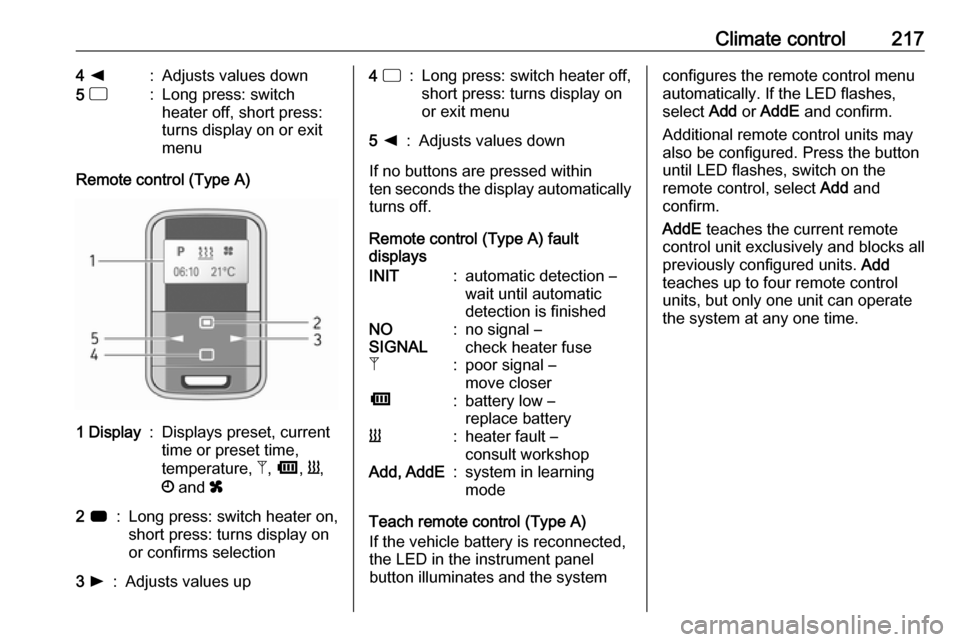
Climate control2174 k:Adjusts values down5 d:Long press: switch
heater off, short press:
turns display on or exit
menu
Remote control (Type A)
1 Display:Displays preset, current
time or preset time,
temperature, Z, Ü , Y ,
Ö and x2 7:Long press: switch heater on,
short press: turns display on
or confirms selection3 l:Adjusts values up4 d:Long press: switch heater off,
short press: turns display on
or exit menu5 k:Adjusts values down
If no buttons are pressed within
ten seconds the display automatically
turns off.
Remote control (Type A) fault
displays
INIT:automatic detection –
wait until automatic
detection is finishedNO
SIGNAL:no signal –
check heater fuseZ:poor signal –
move closerÜ:battery low –
replace batteryY:heater fault –
consult workshopAdd, AddE:system in learning
mode
Teach remote control (Type A)
If the vehicle battery is reconnected,
the LED in the instrument panel
button illuminates and the system
configures the remote control menu
automatically. If the LED flashes,
select Add or AddE and confirm.
Additional remote control units may
also be configured. Press the button
until LED flashes, switch on the
remote control, select Add and
confirm.
AddE teaches the current remote
control unit exclusively and blocks all
previously configured units. Add
teaches up to four remote control
units, but only one unit can operate
the system at any one time.
Page 222 of 353

220Climate controlTo activate a desired preset memory
number select P1, P2 or P3, then
select On and confirm.
When a program is activated P and
Y will be displayed together.
To deactivate a preset memory,
select P1, P2 or P3, then select Off
and confirm.
Heating stops automatically
5 minutes after the programmed
departure time.
Note
The remote control system features
a temperature sensor which
calculates the runtime according to
the ambient temperature and the
desired heating level (ECO or
HIGH). The system starts
automatically between
5 and 60 minutes prior to the
programmed departure time.
Set time and weekday Þ
If the vehicle battery is disconnected or its voltage is too low, the unit will
need to be reset.● Select F in the menu bar and
confirm.
● Select Þ in the menu bar and
confirm.
● Adjust using k or l to change
the hour and confirm.
● Adjust using k or l to change
the minutes and confirm.
● Press d to exit.
● Select F in the menu bar and
confirm.
● Select Mo in the menu bar and
confirm.
● Adjust using k or l to change
the weekday and confirm.
● Press d to exit.
Heating level
The preferred heating level for
programmed departure times can be
set to either ECO or HIGH.
● Select Y in the menu bar and
confirm.
● Select ECO or HIGH and confirm.
● Press d to exit.Operation (Type B)
Heating Y or Ventilation x
Select the operating mode Y or x, if
necessary.
● Press l three times.
● Press Y and OFF
simultaneously, Y or x flashes.
● Adjust using k or l to select Y
or x.
● Press Y and OFF simultaneously
to confirm.
To switch on, press Y for 1 second.
The predetermined heating duration,
e.g. 30, is displayed. The factory
setting is 30 minutes.
The heating duration can be set in
increments of 10 minutes. Due to the
power consumption, note the heating duration.
● Press l four times.
● Press Y and OFF
simultaneously, Y/x flashes.
● Adjust using k or l to select the
desired heating duration.
● Press Y and OFF simultaneously
to confirm.