audio OPEL MOVANO_B 2020 Manual user
[x] Cancel search | Manufacturer: OPEL, Model Year: 2020, Model line: MOVANO_B, Model: OPEL MOVANO_B 2020Pages: 353, PDF Size: 9.4 MB
Page 139 of 353

Infotainment system137Scrolling listsIf there are more items available than
presentable on the screen, the list
must be scrolled.
To scroll through a list of menu items, touch S or R at the top and at the
bottom of the scroll bar.
Touch and hold S or R to fast scroll
through a list.
Note
In subsequent chapters, the
operating steps for scrolling to a list
item via the touch screen will be described as "...scroll to
Scrolling within a map
Touch anywhere on the map. The
cursor indicates the current position.
To scroll within the map, drag the map in the required direction.
Note
Constant pressure must be applied
and the finger must be moved at
constant speed.Pop-up menus
To open pop-up menus with
additional options, touch <.
To exit a pop-up menu without
accessing any options or making any
changes, touch any part of the screen outside the pop-up menu.
Tone settings Radio 15 USB
In the audio settings menu, the tone
characteristics can be set.
Press SETUP to access the settings
menu.
Select Audio settings , then Sound
and turn OK until the desired setting
is selected from:
● BASS (bass)
● TREBLE (treble)
● FADER (front/rear balance)
● BALANCE (left/right balance)
The display indicates the type of
setting followed by the adjustment
value.Set the desired value by turning OK
and press the knob to confirm
selections.
To exit the audio settings menu,
press /.
Note
If there is no activity, the system will exit the audio settings menu
automatically.
Setting bass and treble
Select Bass or Treble .
Set the desired value by turning OK
and press the knob to confirm setting.
Depending on version,
BASS BOOST setting is also
available.
Setting the volume distribution
between right - left
Select Balance .
Set the desired value by turning OK
and press the knob to confirm setting.
Setting the volume distribution
between front - rear
Available depending on version.
Select Fader.
Page 140 of 353

138Infotainment systemSet the desired value by turning OK
and press the knob to confirm setting.
NAVI 50 IntelliLink To access the settings menu at any
time, touch 7 followed by ÿSettings .
The following settings submenus are
displayed at the bottom of the screen:
● Audio
See "Audio settings" below.
● Display
Refer to (NAVI 50 IntelliLink)
"System settings" 3 139.
● Connectivity
Refer to (NAVI 50 IntelliLink)
"System settings" 3 139.
● System
Refer to (NAVI 50 IntelliLink)
"System settings" 3 139.Audio settings
Select Audio to display the following
options:
● Vol/Speed (Off/1/2/3/4/5)
Speed dependent volume control
- refer to (NAVI 50 IntelliLink)
"Volume settings" 3 138.● Loudness (On/Off)
Switch loudness on to increase
bass and treble levels.
● BAL/FAD
Depending on version, touch l
to open the volume distribution
balance and tone settings
submenu.
On the left side of the display,
adjust the right/left balance with
k /l and the front/rear balance
with R/S (if available).
On the right side of the display,
adjust the Bass, Mid and Treble
tone characteristics (between
-5 to +5) with k/l .
Touch OK to confirm changes.
● Sound
Sound settings (where volumes can be set individually for a list of
audio types), refer to
(NAVI 50 IntelliLink) "Volume
settings" 3 138.
NAVI 80 IntelliLink Refer to (NAVI 80 IntelliLink) "System
settings" 3 139.Volume settings
Radio 15 USB
Press SETUP to access the settings
menu.
Select Audio settings , then Speed
vol. and turn OK until the desired
setting is selected.
NAVI 50 IntelliLink
To access the settings menu at any time, touch 7 followed by ÿSettings .
The following settings submenus are displayed:
● Audio
See "Audio settings" below.
● Display
Refer to (NAVI 50 IntelliLink)
"System settings" 3 139.
● Connectivity
Refer to (NAVI 50 IntelliLink)
"System settings" 3 139.
● System
Refer to (NAVI 50 IntelliLink)
"System settings" 3 139.
Page 141 of 353

Infotainment system139Audio settings
Select Audio to display the following
options:
● Vol/Speed (Off/1/2/3/4/5)
The volume increases when
vehicle speed increases, to
compensate for wind and road
noise.
Speed compensated volume can be switched off or the degree of
volume adaptation can be set.
● Loudness (On/Off)
Switch loudness on to increase
bass and treble levels.
● BAL/FAD
Refer to (NAVI 50 IntelliLink) "Tone settings" 3 137.
● Sound
Touch l to open the audio
preferences submenu.
Depending on version, the
volume of different audio types
can be set independently, e.g.
audio, traffic announcements
(TA), navigation instructions,
handsfree phone system andringtone levels. Touch ]/< to
adjust volume of each audio type.
If required, touch Reset to return
all volumes to the factory
settings.
For other versions of the sound
submenu, refer to
(NAVI 50 IntelliLink) "Tone settings" 3 137.
NAVI 80 IntelliLink
Refer to (NAVI 80 IntelliLink) "System settings" 3 139.
System settings
Radio 15 USB
Press SETUP and access the
settings menu by turning and
pressing OK.
When system setting adjustments
have been made, press SETUP to
exit the menu and save changes. The system also saves and exits
automatically after a delay.Set clock
To set the system clock and the time
display format, select Clock. Select
the required setting by turning and
pressing OK.Change system language
Change the display language by
accessing the Language menu.
Select a language from the list by
turning and pressing OK.Restore default system settings
To restore system settings to their
default values, select Default
settings by turning and pressing OK.
Confirm modification when prompted
by pressing OK again.
NAVI 50 IntelliLink
To access the settings menu at anytime, touch 7 followed by ÿSettings .
The following settings submenus are
displayed at the bottom of the screen:
● Audio :
Refer to (NAVI 50 IntelliLink)
"Tone settings" 3 137 and
"Volume settings" 3 138.
● Display : See below.
Page 143 of 353

Infotainment system141Note
Navigation maps for the current
country must be installed on the
system to ensure the local time is
correct.
● Factory settings
The following settings can be
reset to the factory default:
● All
● Phone - Smartphone
● Navigation
● Audio-Media-Radio-System
● Navigation (On/Off)
● System version (displays
Infotainment system software
version number)
When system setting adjustments
have been made, touch 7 (and select
another menu on the display) to exit
the settings menu and save changes.
The system also saves and exits
automatically after a delay.
NAVI 80 IntelliLink To access the system settings menufrom the Home page, touch MENU
followed by System.The following settings submenus are
displayed:
● Language
● Display
● Sound
● Clock
● Safety warnings
● Home screen
● Keyboards
● Set units
● Status & Information
● Remove SD-card
● Restore factory settings
● Android Auto Settings ™
After system settings are changed,
touch Done to confirm.Language
To change Infotainment system
language then voice type (depending on version).Display
The following settings are displayed:
● Daytime brightness : Change
screen brightness to suit external light levels (daylight).During low external light levels,
the display screen is easier to
view when the display is not too
bright.
● Nighttime brightness /Night
brightness : Change screen
brightness to suit external light
levels (night light).
During low external light levels,
the display screen is easier to
view when the display is not too
bright.
● Automatic day/night mode /
Change to night colours : To
activate automatic switching
between daytime/night
brightness.
Night mode is activated during
low external light levels and when
the headlights are switched on.
● Force night mode /Use night
colours : To activate night mode.
Page 145 of 353

Infotainment system143●Pictures
● Video
After settings have been changed,
touch Done to confirm.Sound
The following sound settings can be
updated:
● 'Spatialisation': Set the sound distribution in the
vehicle.
● 'Bass Treble': Set the sound option, e.g.
'Neutral' or 'Pop-rock', 'Classical', 'Jazz' (if available). Select
'Manual' to manually set the
treble and bass levels.
Press Done to save changes.
● 'AGC Arkamys': Equalise sound volume between
two audio tracks.
● 'Bass Boost Arkamys': Switch bass amplification on/off.Radio
The following radio settings can be
updated:
● switch searching for Alternative Frequencies (AF) on/off
● switch i-traffic (Traffic program information) on/off
● switch programme type (PTY) on/off
● switch simulcast on/off
● display i-announcement information (e.g. Area weather
information, Event information)
● update list of saved radio stations
For further information, refer to
(NAVI 80 IntelliLink) "Radio" 3 144.Media
The following media settings can be
updated:
● switch Repeat (a track) on/off
● switch Shuffle on/off
● switch Display album cover on/off
● configure Manage Bluetooth devicesFor further information, refer to
(NAVI 80 IntelliLink) "Bluetooth
music" 3 156.Pictures
The following photo settings can be
updated:
● set display time for photos during
a slideshow ("Slide show delay")
● switch from normal to full screen display ("Default view")
For further information, refer to
"Displaying pictures" 3 161.Video
The following video settings can be
updated:
● set display type for videos (if available)
● switch from normal to full screen display
For further information, refer to
"Playing movies" 3 162.
Page 146 of 353

144Infotainment systemRadioUsage
Radio reception Radio reception may be disrupted by
static, noise, distortion or loss of
reception due to:
● changes in distance from the transmitter
● multi-path reception due to reflection
● shadowing
Radio 15 USB - Controls The most important buttons for
control of the radio are:
● RADIO : Activate radio, change
waveband
● 2 3 : Station search
● OK: Change frequency
● Station buttons 1...6: Preset station buttons●SETUP : System settings,
automatic station storing
● TEXT : Display radio text
information
Activating the radio
Press RADIO to switch the audio
source to radio.
The station previously selected will be
received.
Selecting the waveband
Press RADIO repeatedly to switch
between the available wavebands (e.g. FM1, FM2, AM).
The station previously selected in that
waveband will be received.
NAVI 50 IntelliLink - Controls Use the touchscreen to operate the
radio.
The main controls are: ● FM/AM /DAB (depending on
version): Switch between FM and
AM wavebands.
● * /' : Start automatic
search for next/previous radio station.● ;/: : Change to next/previous
frequency in increments of 0.5.
● R/S : Scroll through a list of
stations.
Activating the radio
To activate the radio at any time,
touch 7 followed by ñRadio . The
station previously selected will be
received.
The following submenus are
displayed at the bottom of the screen:
● Main : Radio station/frequency is
displayed.
● List: Displays an alphabetical list
of available radio stations
(maximum 50 stations).
Note
Radio stations without RDS: Only
the frequency is displayed. These
stations appear at the end of the list.
● Presets : Displays stored
favourite radio stations.
● Options :
The following settings can be
changed, depending on selected
waveband:
Page 147 of 353

Infotainment system145●RDS (On/Off)
● TA (On/Off)
● Region (On/Off)
● News (On/Off)
● AM (On/Off)
● Update List (Start)
For further information, refer to
(NAVI 50 IntelliLink) "Radio data
system (RDS)" 3 148.
Selecting the waveband
Touch = alongside FM/AM /DAB (if
available) in the top left corner of the
display and select FM, AM or DAB
waveband.
The station previously selected in that
waveband will be received.
Note
AM waveband can be switched off
via the Options menu.
Refer to "Digital audio broadcasting"
3 151.
NAVI 80 IntelliLink - Controls Use the touchscreen to operate the
radio.The main controls are:
● FM/AM /DR : Switch between FM,
AM and DR (digital radio) wavebands.
● Y/Z : Start automatic search for
next/previous radio station.
● : Change to next/previous
frequency in increments.
● ↑/↓: Scroll through a list of stations.
Activating the radio
To access the Radio from the Home
page, touch MENU then Multimedia ,
followed by Radio.
The following modes are available: ● Preset :
Displays stored favourite radio
stations.
● List:
Displays an alphabetical list of
available radio stations
(maximum 50 stations).Note
Radio stations without RDS: Only
the frequency is displayed. These
stations appear at the end of the list.
● Frequency :
Search manually or automatically by scanning the selected range
of frequencies.
Selecting the waveband
Touch FM/AM /DR tab in top left
corner of the display to switch
between wavebands.
The station previously selected in that waveband will be received.
Station search Automatic station search
Radio 15 USB
Briefly press 2 or 3 to search for
the next receivable station in the current waveband.
If no station is found, automatic
searching continues until 2 or 3 is
pressed again.
Page 151 of 353

Infotainment system149Turn the rotary knob to select RDS
SETUP .
Switching RDS on and off
Press Options on the display screen.
The following settings can be changed:
Switch on/off RDS-AF by pressing
OK . AF is shown on the display
screen when RDS is active.
Text information (Radio text)
Certain FM radio stations issue text
information relating to the broadcast
program (e.g. song name).
Press SETUP and turn OK to access
the Radio texts menu.
Turn the rotary knob to select Radio
and press the knob to see this
information.NAVI 50 IntelliLink
Configuring RDS
Select Options . The following settings
can be changed:
● RDS (On/Off)
Switch off if not required.
● TA (On/Off)
See below.
● Region /AF (On/Off)
See below.
● News (On/Off)
See below.
● AM (On/Off)
Switch off if not required.
● Update List (Start)
Refer to (NAVI 50 IntelliLink)
"Autostore lists" 3 147.TA (Traffic announcements)
If TA is switched on:
● Traffic announcements from certain FM radio stations (and
DAB stations, if available) are
broadcast automatically.
● Radio and auxiliary audio source
playback is interrupted for the
duration of the traffic
announcement.
Note
Automatic broadcasting of traffic
announcements is deactivated if
waveband is set to AM.Region/AF
If the RDS function is activated and
Region /AF is switched on:
The frequency of certain FM radio
stations may change depending on
the geographical area.
Page 152 of 353

150Infotainment systemNews
If News is switched on:
● News announcements from certain FM radio stations (and
DAB stations, if available) are
broadcast automatically.
● Radio and auxiliary audio source
playback is interrupted for the
duration of the traffic
announcement.
Text information (Radio text)
Certain FM radio stations (and DAB
stations, if available) issue text
information relating to the broadcast
program (e.g. song name).
NAVI 80 IntelliLink
Configuring RDS
To access the Radio settings menu
from the Home page, select MENU
then Multimedia , followed by
Settings then Radio .
Depending on version, touch < to
open a pop-up menu, and access the 'Radio settings' option.The following radio settings can be
updated:
● switch searching for Alternative Frequencies (AF) on/off
● switch i-traffic (Traffic program information) on/off
● switch programme type (PTY) on/off
● switch simulcast on/off
● display i-announcement information (e.g. Area weather
information, Event information)
● update list of saved radio stationsAlternative Frequency (AF)
Switch on the RDS-AF function to
always tune into the best receivable
broadcasting frequency of the chosen station.i-traffic (Traffic program information)
Radio traffic service stations are FM
RDS stations that broadcast traffic
news.
Switch on I-Traffic to automatically
receive traffic bulletins when they are broadcast.Programme type search (PTY)
Switch on PTY to display the type of
programme (e.g. news, sport)
currently being broadcastUpdate radio list
Refer to (NAVI 80 IntelliLink)
"Autostore lists" 3 147.Simulcast
Switch on the simulcast function to
automatically change from a DR
(digital radio) station to the same
station on the FM waveband in the
event of a loss of reception.i-announcement
Select to display information such as
weather or events in the vicinity.
Text information (Radio text)
Certain FM radio stations issue text
information relating to the broadcast
program (e.g. song name).
To check for text information, from
any radio mode (e.g. Preset, List ,
Frequency ) touch < to open a pop-up
menu, and access the text
information option, by selecting e.g. "Show radio text".
Page 153 of 353
Infotainment system151Digital audio broadcasting
Digital audio broadcasting (DAB) is
an innovative and universal
broadcast system.
General information ● DAB stations are indicated by the
programme name instead of thebroadcasting frequency.
● With DAB, several radio programmes (services) can be
broadcast on a single frequency (ensemble).
● Besides high-quality digital audio
services, DAB is also able to
transmit programme-associated
data and a multitude of other data services including travel andtraffic information.
● As long as a given DAB receiver can pick up the signal sent out bya broadcasting station (even if
the signal is very weak), sound
reproduction is ensured.
● There is no fading (weakening of
the sound) that is typical of AM or
FM reception. The DAB signal is
reproduced at a constant volume.● Interference caused by stations that are on nearby frequencies (a
phenomenon that is typical of AM and FM reception) does not
occur with DAB.
If the DAB signal is too weak to
be picked up by the receiver, the
system switches over to the
same programme on another
DAB or FM station.
● If the DAB signal is reflected by natural obstacles or buildings,
the reception quality of DAB is
improved, whereas AM or FM
reception is considerably
impaired in such cases.
● When DAB reception is enabled, the FM tuner of the Infotainmentsystem remains active in the
background and continually
searches for the best receivable
FM stations.AUX input
General information
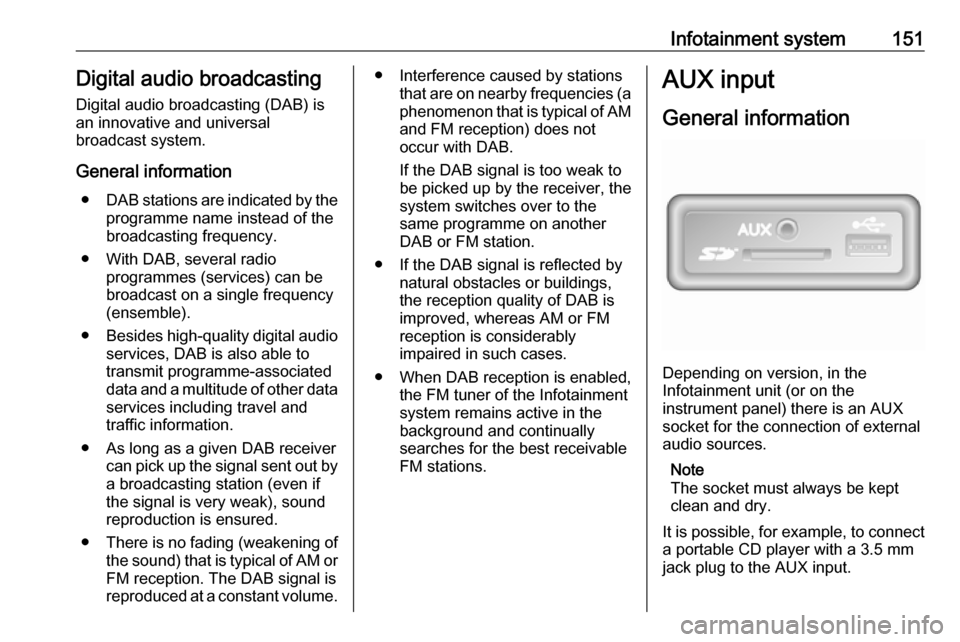
Depending on version, in the
Infotainment unit (or on the
instrument panel) there is an AUX
socket for the connection of external audio sources.
Note
The socket must always be kept
clean and dry.
It is possible, for example, to connect a portable CD player with a 3.5 mm
jack plug to the AUX input.