battery OPEL MOVANO_B 2020 Manual user
[x] Cancel search | Manufacturer: OPEL, Model Year: 2020, Model line: MOVANO_B, Model: OPEL MOVANO_B 2020Pages: 353, PDF Size: 9.4 MB
Page 119 of 353

Lighting117The headlights are turned off
immediately by turning the light switch
to any position and returning to 7 or
AUTO .
Battery discharge protection To prevent discharge of the vehicle
battery when the ignition is switched
off, some interior lights may be
switched off automatically after some
time.
Page 156 of 353

154Infotainment systemMaximum folder structure depth:eleven levels.
Maximum number of files that
can be saved: 1000 files.
NAVI 50 IntelliLink : Minimum
recommended storage capacity
of USB drive is 4 GB.
Recommended maximum
storage capacity is 32 GB.
WMA files with Digital Rights
Management (DRM) from online music shops may not play
correctly or not at all.
Applicable playlist
extensions: .m3u, .pls.
Playlist entries must be in the
form of relative paths.
Playing saved audio files
Once connected, it is only possible to use the controls and menus of the
Infotainment system to operate the
audio device.Radio 15 USB
MP3 player / iPod / USB drives
The system detects the audio device when a USB device is connected and
the current track is displayed
automatically.
When a new audio device is
connected, the first track in the first
folder is played automatically. When
reconnecting the device, the
previously played track is resumed.
Depending on the audio device
connected, select a folder (MP3
player, USB drive) or a playlist
(portable digital music player).
Selecting a track
To select tracks directly (and change
folders), first access the audio device
menu structure by pressing OK
during playback. Select tracks and
change folders by turning and
pressing the knob.NAVI 50 IntelliLink
MP3 player / USB drives / iPod
The system detects the audio device when a USB device is connected and
the current track is displayed
automatically. The device type (MP3
player/USB drive or iPod) is also
recognised and the relevant audio
source mode (USB or iPod) is
selected automatically.
When the t/ü MEDIA menu is
active, the following submenus are
available:
● Main /Player
● List
● Options
To switch between audio sources,
touch S in top left corner. The
following options are available:
● USB : Select to change the audio
source to USB mode.
Note
During use, the battery of a
connected USB device is charged or maintained.
Page 159 of 353

Infotainment system157Radio 15 USB
Bluetooth connection
A connection must be set up between the audio device and the Infotainment
system via Bluetooth, i.e. the device
must be paired to the vehicle before
using it.
Refer to "Bluetooth connection" in the "Phone" section 3 197.
● A maximum of five audio devices
can be paired and saved in the
device list, but only one can be connected at a time.
● If the device has both audio player and telephone functions,
both functions will be paired.
Pairing a mobile phone 3 195.
● Phone functions will remain active while the audio player is inuse, and audio playback will be
suspended during phone use.
Pairing an auxiliary audio device to the Infotainment system
To pair the audio device, press TEL
and select Pair device by turning and
pressing OK. The Ready to Pair
screen is displayed.Then, on the audio device, search for
Bluetooth equipment in the vicinity of
the device.
Select My Radio (i.e. the name of the
system) from the list on the audio
device, then, if applicable, on the
audio device keypad enter the pairing code shown on the Infotainment
system display screen.
Note
If the audio device does not have a
screen, enter the default pairing
code on the device, then on the
Infotainment system. Refer to the
operating instructions for this default
audio device pairing code, usually
0000 . Depending on the device, the
pairing code may need to be entered
in reverse order, i.e. on the
Infotainment system first.
If pairing fails, the system returns to
the previous menu and a
corresponding message is displayed. Repeat procedure if necessary.
When pairing is completed, a
confirmation message followed by the
name of the paired audio device is shown on the Infotainment system
display screen.Note
When a Bluetooth connection is
active, controlling the audio device
via the Infotainment system will
discharge the audio device battery more rapidly.
Connecting an audio device
Audio devices are automatically
connected to the Infotainment system after the pairing procedure is
completed.
To connect any audio device that has
been paired, or to connect to a
different paired audio device than the
current one, press TEL and select the
Select Device menu. The device list
shows the audio devices already
paired.
Select the desired device from the list and confirm by pressing OK. A
display message confirms
connection.
Disconnecting an audio device
To disconnect an audio device from the Infotainment system, press TEL
(or SETUP ) and select Bluetooth
connection . Select the desired device
from the device list then select
Page 161 of 353

Infotainment system159The default pairing code is 0000. To
change this pairing code before the pairing procedure is started, select
Change passkey to update.
Note
If the audio device does not have a
screen, enter the default pairing
code on the device, then on the
Infotainment system. Refer to the
operating instructions for this default
audio device pairing code, usually
0000 . Depending on the device, the
pairing code may need to be entered
in reverse order, i.e. on the
Infotainment system first.
If pairing fails, repeat procedure if
necessary.
Note
When a Bluetooth connection is
active, controlling the audio device
via the Infotainment system will
discharge the audio device battery
more rapidly.
Connecting an audio device
Audio devices are automatically
connected to the Infotainment system after the pairing procedure is
completed.To change the audio device
connected, touch 7 followed by
ÿ Settings .
Then select Connectivity followed by
View Bluetooth device list . The device
list shows the audio devices already paired.
Select the desired audio device from
the list and confirm by touching OK.
Disconnecting an audio device Switching off the audio device or
deactivating the Bluetooth function on
the audio device disconnects the
device from the Infotainment system.
Unpairing an auxiliary audio device
from the Infotainment system
If the list of paired audio devices is full, a new device can only be paired if an
existing device is unpaired.
To unpair, i.e. to delete an audio
device from the system memory,
touch 7 followed by ÿSettings .
Select Connectivity then View
Bluetooth device list .
Select the desired audio device from
the list, then touch ë to delete the
device. If required, delete all devicesin the list by selecting Options
followed by Delete all. Confirm with
OK .
Operation via Infotainment system
When paired and connected
wirelessly, audio playback begins
automatically.
The audio device can then be
operated via the Infotainment system
display options.
The range of accessible functions
that can be operated via the
Infotainment system depends on the
type of audio player.
The operation of the audio device when connected wirelessly is similarto the operations for playing saved
audio files via the USB socket. Refer
to (NAVI 50 IntelliLink) "Playing music
via USB socket" in the "USB port"
section 3 154.
Page 198 of 353

196Infotainment systemWhen the ignition is switched on, thehandsfree phone system searches for
paired phones in the vicinity.
Bluetooth must be activated on the
mobile phone for the phone to be
recognised by the handsfree phone
system. Searching continues until a
paired phone is found. A display
message indicates that the phone is
connected.
Note
When a Bluetooth connection is
active, using the handsfree phone
system will discharge the mobile
phone battery more rapidly.
Automatic connection
For your phone to connect
automatically when the system is
switched on, it may be necessary to
activate the automatic Bluetooth
connection function on your mobile
phone; refer to the mobile phone
operating instructions.
Note
Depending on Infotainment system,
when reconnecting to a paired
phone, or when two paired phones
are within range of the handsfreephone system, either the priority
phone (if defined) or the last
connected phone is connected
automatically, even if this phone is
outside the vehicle but still within
range of the handsfree phone
system.
During automatic connection, if a call
is already in progress, the
conversation will automatically switch to the vehicle's microphone and
loudspeakers.
If connection fails: ● check the phone is switched on
● check the phone battery is not flat
● check if the phone has already been paired
The Bluetooth function on the mobile
phone and on the handsfree phone
system must be active and the mobile
phone must be configured to accept
the system connection request.Manual connection
Radio 15 USB
To change the phone connected to
the handsfree phone system, press
TEL and select the Select Device
menu. The device list shows the
phones already paired.
Select the desired phone from the list and confirm by pressing OK. A
display message confirms phone
connection.
NAVI 50 IntelliLink
To change the phone connected to the handsfree phone system, touch
7 followed by ÿSettings then
Connectivity (or select Phone from
the Home page).
Then select View Bluetooth device
list . The device list shows the phones
already paired.
Select the desired phone from the list and confirm by touching OK.
Depending on version, J appears
alongside the selected phone, to
indicate connection.
Page 201 of 353

Infotainment system199maximum of five mobile phones can
be paired and stored in the device list,
but only one can be connected at a
time.
Note
Depending on version of
NAVI 50 IntelliLink, a maximum of
eight mobile phones can be paired.
When pairing is completed, a
message with the name of the paired phone is shown on the Infotainment
system display screen and the phone is automatically connected to the
handsfree phone system. The mobile
phone can then be operated via the
Infotainment system controls.
Note
When a Bluetooth connection is
active, using the handsfree phone
system will discharge the mobile
phone battery more rapidly.
Radio 15 USB
To pair a phone to the handsfree
phone system, press TEL and select
Pair device by turning and pressing
OK . The Ready to Pair screen is
displayed.On the mobile phone, search for
Bluetooth equipment in the vicinity of
the device.
Select My Radio (i.e. the name of the
handsfree phone system) from the list
on the mobile phone, then, on the
mobile phone keypad, enter the
pairing code shown on the
Infotainment system display screen.
If pairing fails, the system returns to
the previous menu and a
corresponding message is displayed. Repeat procedure if necessary.
NAVI 50 IntelliLink
Touch 7 followed by ÿSettings .
Select Connectivity then either
Search for Bluetooth device or
External device authorization .
Alternatively, when in the Phone
menu screen, touch y.
On the mobile phone, search for Bluetooth equipment in the vicinity ofthe device.
Select the name of the handsfree
phone system (e.g. MEDIA-NAV)
from the list on the mobile phone, then
(if required), on the mobile phonekeypad, enter the pairing code shown on the Infotainment system display
screen.
Note
The pairing code may only be shown
on the Infotainment system display
for a limited time.
The default pairing code is 0000. To
change this pairing code before the
pairing procedure is started, select
Change passkey to update.
If pairing fails, repeat procedure if
necessary.
NAVI 80 IntelliLink
To access the Phone settings menu
from the Home page, touch MENU
then gPhone followed by Settings.
Select Manage devices from the list of
options. A message appears on the
display asking if you wish to set up a
Bluetooth connection between your
device and the Infotainment system. Select Yes to continue. The
Infotainment system begins a search
for Bluetooth equipment in the vicinity
and displays a list of devices.
Page 215 of 353
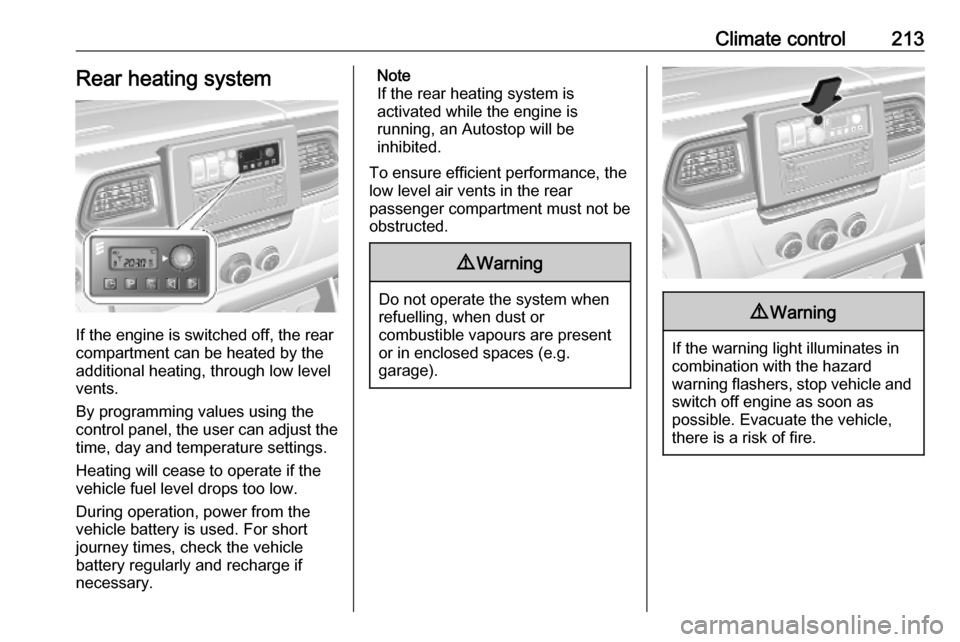
Climate control213Rear heating system
If the engine is switched off, the rear
compartment can be heated by the
additional heating, through low level
vents.
By programming values using the
control panel, the user can adjust the
time, day and temperature settings.
Heating will cease to operate if the
vehicle fuel level drops too low.
During operation, power from the
vehicle battery is used. For short
journey times, check the vehicle
battery regularly and recharge if
necessary.
Note
If the rear heating system is
activated while the engine is
running, an Autostop will be
inhibited.
To ensure efficient performance, the
low level air vents in the rear
passenger compartment must not be
obstructed.9 Warning
Do not operate the system when
refuelling, when dust or
combustible vapours are present
or in enclosed spaces (e.g.
garage).
9 Warning
If the warning light illuminates in
combination with the hazard
warning flashers, stop vehicle and switch off engine as soon as
possible. Evacuate the vehicle, there is a risk of fire.
Page 217 of 353

Climate control215● After 5 seconds the preset dayflashes.
● Adjust the preset day using k or
l .
● The preset time and day are set once the display changes to the
current time.
Set time and weekday Þ
If the vehicle battery is disconnected
or its voltage is too low, the unit will
need to be reset.
● Press Þ until the time flashes.
● Press k or l to change the
current time.
● Time is stored when the display stops flashing.
● Wait for weekday to flash.
● Press k or l to change the
weekday.
● Weekday is stored when the display stops flashing.
Heating level
The preferred heating level for
programmed departure times can be set between 10 to 30 ℃.To adjust the temperature of theheating, turn the rotary knob located
on the control panel.turn clockwise:increase
temperatureturn anticlock‐
wise:decrease
temperature
Rear air conditioning
system
The rear air conditioning system is
activated in conjunction with the front
passenger compartment air
conditioning system.
Bus
Fan speed
Adjust the air flow to select the
desired speed.
turn clockwise:increase air flowturn anticlock‐
wise:decrease air flow
Note
Rear air conditioning cannot be
switched on during an Autostop.
Stop-start system 3 228.
Page 218 of 353
216Climate controlCombi
Additional air conditioning is supplied to the rear passenger compartment
via the air vents located above the
driver and front passenger
compartment.
With the front passenger
compartment air conditioning system
switched on, adjust the air flow to
select the desired speed.
Ensure the air vents are open when in use, to prevent ice forming in the
system due to lack of air movement.
Auxiliary heater Coolant heater
The engine-independent, fuel-
powered coolant heater provides rapid heating of the engine coolant to
enable heating of the vehicle interior
without the engine running.
Note
Depending on version, an additional
coolant heater may be switched on
automatically to speed up heating
when the ignition is on and the
outside temperature is below 5 ℃.9 Warning
Do not operate the system when
refuelling, when dust or
combustible vapours are present
or in enclosed spaces (e.g.
garage).
Before starting or programming the
system to start, turn the vehicle's
climate control system to heat, set the
air distribution to V and turn the fan
on.
Switch off when not required. Heating stops automatically after the
programmed runtime. It will also
cease to operate if the vehicle fuel
level drops too low.
During operation, power from the
vehicle battery is used. The driving
time should therefore be at least as
long as the heating time. For short
journey times, check the vehicle
battery regularly and recharge if
necessary.
To ensure efficient performance,
briefly operate the auxiliary heater
once a month.
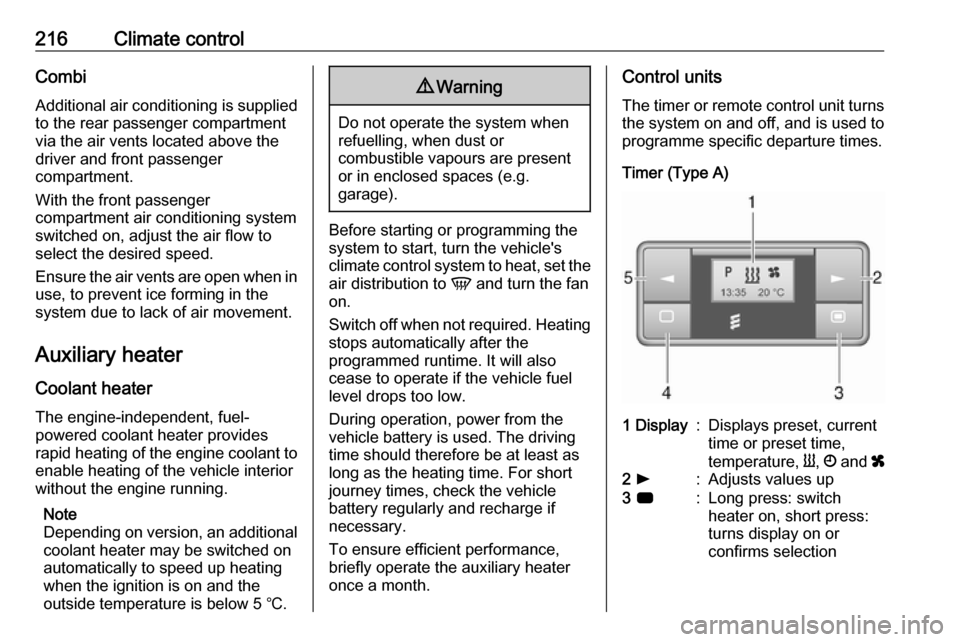
Control units
The timer or remote control unit turns the system on and off, and is used to
programme specific departure times.
Timer (Type A)1 Display:Displays preset, current
time or preset time,
temperature, Y, Ö and x2 l:Adjusts values up3 7:Long press: switch
heater on, short press:
turns display on or
confirms selection
Page 219 of 353
Climate control2174 k:Adjusts values down5 d:Long press: switch
heater off, short press:
turns display on or exit
menu
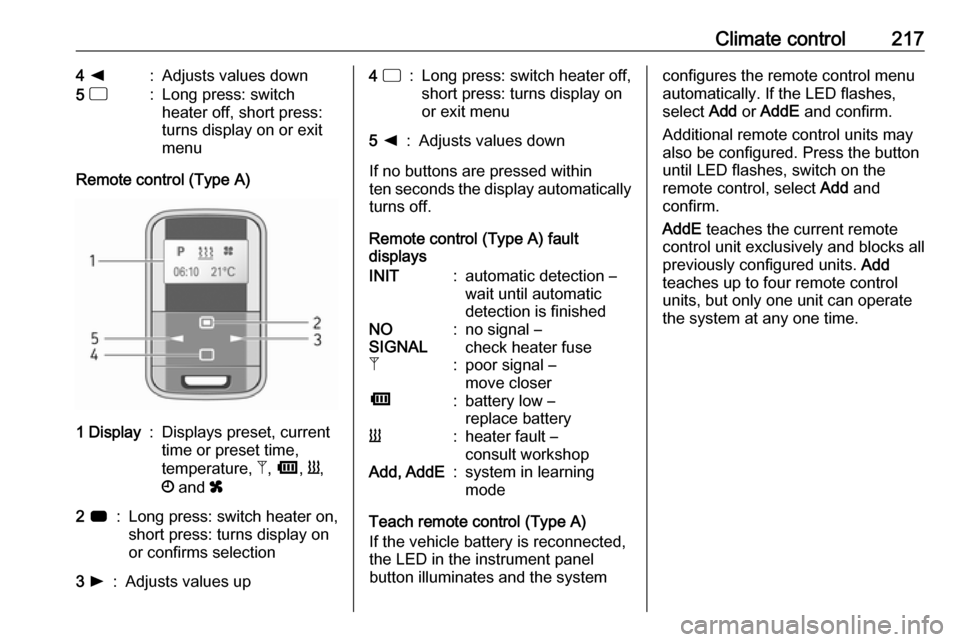
Remote control (Type A)
1 Display:Displays preset, current
time or preset time,
temperature, Z, Ü , Y ,
Ö and x2 7:Long press: switch heater on,
short press: turns display on
or confirms selection3 l:Adjusts values up4 d:Long press: switch heater off,
short press: turns display on
or exit menu5 k:Adjusts values down
If no buttons are pressed within
ten seconds the display automatically
turns off.
Remote control (Type A) fault
displays
INIT:automatic detection –
wait until automatic
detection is finishedNO
SIGNAL:no signal –
check heater fuseZ:poor signal –
move closerÜ:battery low –
replace batteryY:heater fault –
consult workshopAdd, AddE:system in learning
mode
Teach remote control (Type A)
If the vehicle battery is reconnected,
the LED in the instrument panel
button illuminates and the system
configures the remote control menu
automatically. If the LED flashes,
select Add or AddE and confirm.
Additional remote control units may
also be configured. Press the button
until LED flashes, switch on the
remote control, select Add and
confirm.
AddE teaches the current remote
control unit exclusively and blocks all
previously configured units. Add
teaches up to four remote control
units, but only one unit can operate
the system at any one time.