phone OPEL MOVANO_B 2020 Manual user
[x] Cancel search | Manufacturer: OPEL, Model Year: 2020, Model line: MOVANO_B, Model: OPEL MOVANO_B 2020Pages: 353, PDF Size: 9.4 MB
Page 134 of 353

132Infotainment system●g Phone
Refer to "Phone" 3 193.
● J Vehicle
Touch to open Eco Driving,
Onboard computer and Settings
menus.
Refer to (NAVI 80 IntelliLink)
"Modes of operation" below.
● ¯ Services
Touch to open Navigation
services and Settings menus.
Refer to (NAVI 80 IntelliLink)
"Modes of operation" below.
● ± System
Refer to (NAVI 80 IntelliLink) "System settings" 3 139.
Note
Depending on software version, the
menus on the display screen may
differ from the illustrations shown.
● I/←: Move to previous page
● j/→: Move to next page
● ↑: Display lists; Scroll up
● ↓: Display lists; Scroll down● <: Open pop-up menu
● r: Return to previous menu
The display screen can also be
operated using the controls on the
Infotainment system fascia.
Note
Depending on version, some
controls available on the
Infotainment system fascia do not
operate the features on the display
screen.
Note
Depending on vehicle, operation of
the touchscreen may be restricted
during driving.
Modes of operation
Radio 15 USB:
To change the audio source to radio,
press RADIO .NAVI 50 IntelliLink:
To access the radio menu at any time, touch 7 followed by ñRadio .NAVI 80 IntelliLink:
To access the radio menu from the
Home page, touch MENU then
Multimedia followed by Radio.Detailed description of the radio
functions 3 144.
Audio players
To change the audio source to USB,
AUX , Bluetooth or iPod (where
applicable), touch MEDIA.
NAVI 50 IntelliLink : To access the
menu for connected auxiliary devices
( USB , iPod , BT (Bluetooth), Video or
AUX ) at any time, touch 7 followed
by üMedia . Touch = in top left
corner and select auxiliary source.
NAVI 80 IntelliLink : To access the
menu for auxiliary devices (e.g. USB,
AUX input, Bluetooth) from the Home page, touch MENU then Multimedia
followed by Media. Select auxiliary
source from the display list.Radio 15 USB
Detailed descriptions of:
● AUX input functions 3 152
● USB port functions 3 153
● Bluetooth music operation 3 156
Page 135 of 353

Infotainment system133NAVI 50 IntelliLink
Detailed descriptions of:
● AUX input functions 3 152
● USB port (including iPod) functions 3 153
● Bluetooth music operation 3 156NAVI 80 IntelliLink
Detailed descriptions of:
● AUX input functions 3 152
● USB port functions 3 153
● Bluetooth music operation 3 156
Navigation, Map (NAVI 50 IntelliLink,
NAVI 80 IntelliLink)
Detailed description of the navigation
system 3 164, Browse map 3 183.
Phone
Use the display options in the
following menus to connect mobile
phones, make telephone calls, create
contacts lists and adjust various
settings.
Detailed description of the handsfree
phone system functions 3 193.
Radio 15 USB
To access the Phone menu: Press
6 or TEL .
To access the phone settings menu: Press TEL and select Phone settings .NAVI 50 IntelliLink
To access the Phone menu at any
time: Touch 7 followed by yPhone .NAVI 80 IntelliLink
To access the Phone menu from the
Home page, touch MENU followed by
Phone .
Vehicle information
To access the Vehicle menu from the Home page, touch MENU followed by
Vehicle .
Depending on vehicle, the following
menus are displayed:
● Eco Driving
● Onboard computer
● Settings
Eco Driving
The following features are available:
● Trip report
Displays the following data from the last journey:Average fuel consumption,
average speed, total fuel
consumption, total distance, etc.
Within the trip report, Eco
scoring provides an overall score
out of 100 for driving economy.
Higher figures indicate better
driving economy. Ratings are
also given for average
environmental driving
performance (Acceleration),
gearchanging efficiency
(Gearbox) and brake control
(Anticipation).
To save journey data: Touch
'Save' then select the journey
type from the following list:
Home/work, holiday/vacation,
weekend, trip/tour, personal.
To reset journey data: Touch
'Reset'. Confirm or cancel with
'Yes' or 'No'.
Touch < to open pop-up menu
where trip reports can be compared or to show/hide
reports after the completion of a
journey.
Page 137 of 353

Infotainment system135● Driving style indicator (fueleconomy gauge) (switch on/
off).
● Eco score (switch on/off).
● Show report after trip (switch on/off).
After the settings are changed, touch
Done to confirm.
Services (NAVI 80 IntelliLink)
To access the Services menu from
the Home page, touch MENU
followed by Services.
The following menus are displayed: ● Navigation services
● SettingsNavigation services
In addition to the navigation services
(e.g. traffic information, fixed speed
cameras), extra features can be
added by subscribing to LIVE
services.
Refer to (NAVI 80 IntelliLink) "LIVE
services" in the "Navigation" section
3 166.Settings
The following menus are displayed:
● Applications manager
Select to manage Bluetooth
auxiliary devices.
● Navigation services
Select to access navigation
related features, e.g. traffic,
speed cameras, local search,
My TomTom LIVE, weather.
Refer to (NAVI 80 IntelliLink)
"LIVE services" in the
"Navigation" section 3 166.
Note
A compatible SD card must be
inserted to access LIVE services.
● Update applications
Select to update current
applications.
● Data sharing settings
Select to switch data sharing on/
off.
Note
When data sharing is switched off, certain features may not operate
correctly.Favourites (NAVI 80 IntelliLink)
When the Home page is displayed,
touch f to view, add or delete
favourites for the following features:
● ⇑ Navigation 3 164.
● ª Multimedia - refer to "Radio"
3 144.
● g Phone 3 193.
● ¯ Services 3 166.Navigation favourites
Select an empty slot in the display or
touch < (to open a pop-up menu),
then select Add Favourite .
Choose from the displayed list to add a saved destination to the favourites.
For further information, refer to
(NAVI 80 IntelliLink) "Destination
input" in the "Navigation" section
3 177.Multimedia favourites
Select an empty slot in the display or
touch < (to open a pop-up menu),
then Add Favourite .
Choose from the displayed list to add
a preset FM radio station to the
favourites.
Page 138 of 353

136Infotainment systemPhone favourites
Select an empty slot in the display or
touch < (to open a pop-up menu),
then Add Favourite .
Choose from the displayed list to add
a phone contact to the favourites.
For further information, refer to
(NAVI 80 IntelliLink) "Phonebook" in
the "Phone" section 3 201.Services favourites
Select an empty slot in the display or
touch < (to open a pop-up menu),
then Add Favourite .
Choose from the displayed list to add a service item to the favourites.Delete favourites
Touch < and select Remove all
Favourites or Remove a Favourite .
Then select a favourite from the
displayed list. A confirmation
message is displayed. Touch Delete
and confirm if prompted.
Additional features
(NAVI 50 IntelliLink)
Depending on version, rear camera view settings are available.
Rear camera view settings
When the rear camera view is shown on the display, touch ÿ to open the
settings menu.
The following settings can be
updated:
● Switch the rear camera view display Off/On .
● Colours
Touch ]/< to adjust level.
● Brightness
Touch ]/< to adjust level.
● Contrast
Touch ]/< to adjust level.
For further information, refer to "Rear
view camera" section in the vehicle
Owner's Manual.
Touch operation overview
The Infotainment system display
(NAVI 50, NAVI 80 IntelliLink) has a
touch-sensitive surface that allows
direct interaction with the displayed
menu controls.Caution
Do not use pointed or hard items
like ballpoint pens, pencils or
similar for touchscreen operation.
Selecting or activating a screen
button or menu item
Touch a screen button or menu item. ● A short touch activates the selected item.
● Touch and hold to save a selected item.
The corresponding system function is activated, a message is shown, or a
submenu with further options is
displayed.
Note
In subsequent chapters, the
operating steps for selecting and
activating a screen button or menu
item via the touch screen will be
described as "...select
Page 141 of 353

Infotainment system139Audio settings
Select Audio to display the following
options:
● Vol/Speed (Off/1/2/3/4/5)
The volume increases when
vehicle speed increases, to
compensate for wind and road
noise.
Speed compensated volume can be switched off or the degree of
volume adaptation can be set.
● Loudness (On/Off)
Switch loudness on to increase
bass and treble levels.
● BAL/FAD
Refer to (NAVI 50 IntelliLink) "Tone settings" 3 137.
● Sound
Touch l to open the audio
preferences submenu.
Depending on version, the
volume of different audio types
can be set independently, e.g.
audio, traffic announcements
(TA), navigation instructions,
handsfree phone system andringtone levels. Touch ]/< to
adjust volume of each audio type.
If required, touch Reset to return
all volumes to the factory
settings.
For other versions of the sound
submenu, refer to
(NAVI 50 IntelliLink) "Tone settings" 3 137.
NAVI 80 IntelliLink
Refer to (NAVI 80 IntelliLink) "System settings" 3 139.
System settings
Radio 15 USB
Press SETUP and access the
settings menu by turning and
pressing OK.
When system setting adjustments
have been made, press SETUP to
exit the menu and save changes. The system also saves and exits
automatically after a delay.Set clock
To set the system clock and the time
display format, select Clock. Select
the required setting by turning and
pressing OK.Change system language
Change the display language by
accessing the Language menu.
Select a language from the list by
turning and pressing OK.Restore default system settings
To restore system settings to their
default values, select Default
settings by turning and pressing OK.
Confirm modification when prompted
by pressing OK again.
NAVI 50 IntelliLink
To access the settings menu at anytime, touch 7 followed by ÿSettings .
The following settings submenus are
displayed at the bottom of the screen:
● Audio :
Refer to (NAVI 50 IntelliLink)
"Tone settings" 3 137 and
"Volume settings" 3 138.
● Display : See below.
Page 142 of 353

140Infotainment system●Connectivity : See below.
● System : See below.Display
Select Display to display the following
options:
● Brightness (Low/Mid/High)
● Map mode (Auto/Day/Night)
● Auto : Day and night mode
are changed automatically.
● Day : The map screen is
always displayed with bright colours.
● Night : The map screen is
always displayed with dark
colours.
● Background (Dark/Light)
Available depending on version. Switch between a dark or light
display mode (available
depending on vehicle).
● Parking assistance
Touch l to open a submenu:
● Rear view camera (On/Off)
● Obstacle detection
Touch l to open a submenu
for activation or deactivationof the front parking sensors
and rear parking sensors.Connectivity
Select Connectivity to display the
following options:
● View Bluetooth device list
● Search for Bluetooth device
● External device authorization
● Change passkey (for pairing of
Bluetooth devices with the
Infotainment system)
● Smartphone
Available depending on version. For help with activating and
operating voice controls - refer to
"Voice recognition" 3 191.
For further information on Bluetooth
settings, refer to (NAVI 50 IntelliLink)
"Bluetooth music" 3 156 and
"Bluetooth connection" in the "Phone" section 3 197.System
Select System to display the following
options:
● Language
Change display language and voice instruction language for the navigation system. Press OK to
confirm selection.
● Clock/Units
The following settings can be
changed:
● Time Format (12H/24H)
● Nav Units (km/miles)
● Temperature (°C/°F)
● Time Setting
Press l to open the Time
set submenu containing the
following options:
Auto /Manual
If Auto time setting is
selected, the time is set
automatically by GPS.
If Manual time setting is
selected, adjust as
appropriate.
Page 143 of 353

Infotainment system141Note
Navigation maps for the current
country must be installed on the
system to ensure the local time is
correct.
● Factory settings
The following settings can be
reset to the factory default:
● All
● Phone - Smartphone
● Navigation
● Audio-Media-Radio-System
● Navigation (On/Off)
● System version (displays
Infotainment system software
version number)
When system setting adjustments
have been made, touch 7 (and select
another menu on the display) to exit
the settings menu and save changes.
The system also saves and exits
automatically after a delay.
NAVI 80 IntelliLink To access the system settings menufrom the Home page, touch MENU
followed by System.The following settings submenus are
displayed:
● Language
● Display
● Sound
● Clock
● Safety warnings
● Home screen
● Keyboards
● Set units
● Status & Information
● Remove SD-card
● Restore factory settings
● Android Auto Settings ™
After system settings are changed,
touch Done to confirm.Language
To change Infotainment system
language then voice type (depending on version).Display
The following settings are displayed:
● Daytime brightness : Change
screen brightness to suit external light levels (daylight).During low external light levels,
the display screen is easier to
view when the display is not too
bright.
● Nighttime brightness /Night
brightness : Change screen
brightness to suit external light
levels (night light).
During low external light levels,
the display screen is easier to
view when the display is not too
bright.
● Automatic day/night mode /
Change to night colours : To
activate automatic switching
between daytime/night
brightness.
Night mode is activated during
low external light levels and when
the headlights are switched on.
● Force night mode /Use night
colours : To activate night mode.
Page 144 of 353

142Infotainment systemSound
The following settings submenus are displayed:
● Sound levels : To change volume
and sounds for the main volume,
handsfree phone system, phone
ringtone, navigation instructions,
system/computer voice, traffic
information, and park assist
(depending on version).
● Alerts : To adjust alert volume,
and switch on/off alerts when
display screen is switched off.
● Speed sensitivity volume : To set
volume adjustment based on
vehicle speed.
● Voice output settings : Adjust
types of information to be given
by the Infotainment system voice
(e.g. "Read aloud motorway lane instructions").
● Voice : Change the voice used by
the Infotainment system (if
available).Clock
To set the system clock and the time
display format.Keeping the automatic time
adjustment setting switched on is recommended.Safety warnings
To switch on/off various alerts
provided by the Infotainment system
(e.g. "Warn when driving faster than
allowed"). Check appropriate boxes
to switch on.Home screen
To change the home page
configuration.
Select from list of options to see a
preview of each home page layout.Keyboards
To change first the alphabet type (e.g. Latin, Greek) then the keyboard type
(e.g. QWERTY, ABCD).Set units
To change the units of measurement,
for e.g. distance (km/miles), co-
ordinates (degrees, minutes,
seconds), temperature (℃, ℉) and
barometric units (if available).Status & Information
To display system information, e.g. version, GPS status, network status,
licences and copyright information.Remove SD-card
To eject the SD card safely.Restore factory settings
To delete all Infotainment system
information. Follow the instructions on the display.
Note
Afterwards, the Infotainment system
will restart in English by default. If
necessary, select Language in the
System menu to change language.Android Auto Settings ™
To set the preferences for the
“Android Auto™” application and
access the instruction tutorial for the
application on the Infotainment
system.
Multimedia settings
To access the Multimedia settings
menu from the Home page, touch
MENU then Multimedia , followed by
Settings .
The following settings submenus are displayed:
● Sound
● Radio
● Media
Page 155 of 353
Infotainment system153Touch < to open a pop-up menu
(depending on version). The following
options are available:
● Auxiliary socket : Change the
audio source to AUX mode, then
switch on the auxiliary device.
● USB : Refer to
(NAVI 80 IntelliLink) "USB port"
3 153.
● Bluetooth connection : Refer to
(NAVI 80 IntelliLink) "Bluetooth music" 3 156USB port
General information
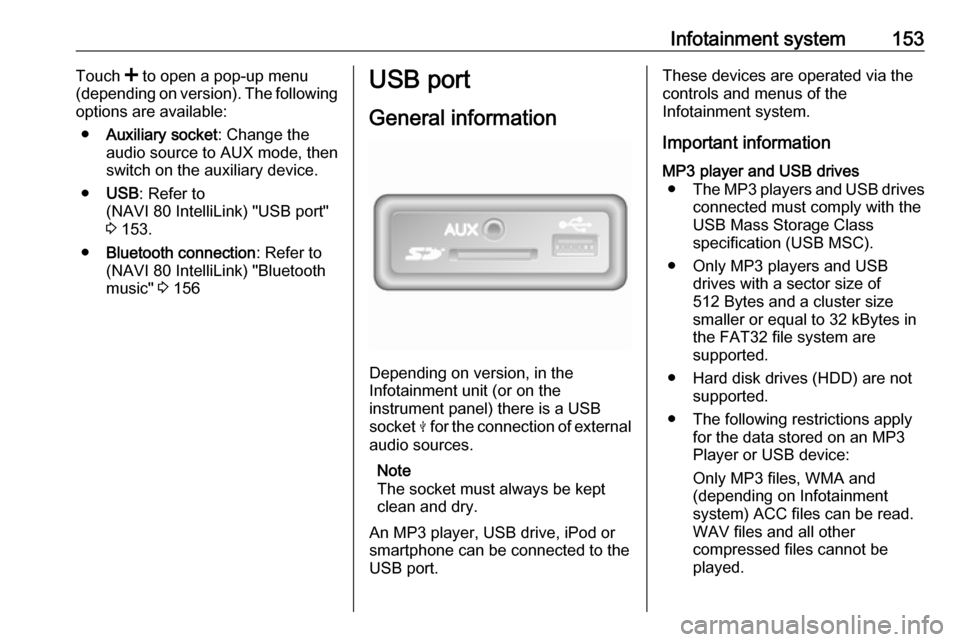
Depending on version, in the
Infotainment unit (or on the
instrument panel) there is a USB
socket M for the connection of external
audio sources.
Note
The socket must always be kept
clean and dry.
An MP3 player, USB drive, iPod or
smartphone can be connected to the
USB port.
These devices are operated via the
controls and menus of the
Infotainment system.
Important informationMP3 player and USB drives ● The MP3 players and USB drives
connected must comply with the
USB Mass Storage Class
specification (USB MSC).
● Only MP3 players and USB drives with a sector size of
512 Bytes and a cluster size smaller or equal to 32 kBytes in
the FAT32 file system are
supported.
● Hard disk drives (HDD) are not supported.
● The following restrictions apply for the data stored on an MP3
Player or USB device:
Only MP3 files, WMA and
(depending on Infotainment
system) ACC files can be read.
WAV files and all other
compressed files cannot be
played.
Page 158 of 353

156Infotainment systemDisconnecting from USB socketPlayback is stopped immediately
when the audio device is withdrawn
from the USB socket.Bluetooth music
General information
Bluetooth-enabled auxiliary audio sources (e.g. music mobile phones,
MP3 players etc.) can be connected
wirelessly to the Infotainment system.
Important information ● The Infotainment system only connects to Bluetooth devices
that support A2DP (Advanced
Audio Distribution Profile).
Connection issues may arise with early versions.
● The Bluetooth device must support AVRCP (Audio VideoRemote Control Profile)
version 1.0 or higher. If the
device does not support AVRCP, only the volume can be controlled via the Infotainment system.
● Before connecting the Bluetooth device to the Infotainment
system, become acquainted with
its operating instructions for
Bluetooth functions.Operation
Prerequisites The following prerequisites must be
met, in order to control a Bluetooth-
enabled audio device via the
Infotainment system:
● The Bluetooth function of the Infotainment system must be
activated.
Refer to "Bluetooth connection"
in the "Phone" section 3 197.
● The Bluetooth function of the Bluetooth-enabled auxiliary
audio source must be activated
(see audio device operating
instructions).
● Dependent upon the audio source, it may be required to set
that device to "visible" (see audio
device operating instructions).
● The audio source must be paired
and connected to the
Infotainment system.