phone OPEL MOVANO_B 2020 Manual user
[x] Cancel search | Manufacturer: OPEL, Model Year: 2020, Model line: MOVANO_B, Model: OPEL MOVANO_B 2020Pages: 353, PDF Size: 9.4 MB
Page 202 of 353

200Infotainment systemSelect your device from the displayed
list. Depending on phone model,
confirm the pairing request or enter
the pairing code on the mobile phone keypad to pair it to the Infotainment
system.
To pair further devices, from the
Manage devices screen, touch < to
open a pop-up menu and select Add
to pair additional devices in the same
way.
If pairing fails, repeat procedure if
necessary.
Unpairing a mobile phone from
the handsfree phone system
If the list of paired phones is full, a new
phone can only be paired if an
existing phone is unpaired.
Note
Unpairing a phone erases all of its
downloaded contacts and its call
history from the handsfree phone
system phonebook.Radio 15 USB
To unpair, i.e. to delete a phone from
the handsfree phone system
memory, press TEL and select Delete
device .
Select the desired phone from the device list and press OK to confirm
deletion when prompted.
NAVI 50 IntelliLink
To unpair, i.e. to delete a phone from
the handsfree phone system
memory, touch 7 followed by
ÿ Settings .
Select Connectivity then View
Bluetooth device list .
Select the desired phone from the
device list, then touch ë to delete the
device. If required, delete all devices
in the list by selecting Options
followed by Delete all. Confirm by
touching OK.
NAVI 80 IntelliLink
To unpair, i.e. to delete a phone from
the handsfree phone system
memory, access the Manage
devices screen.From the Home page, touch MENU
then gPhone followed by Settings.
Select Manage devices , then touch
< to open a pop-up menu, select
Delete and remove the selected
device from the list.
Emergency call9 Warning
Do not end the call until you are
requested to do so by the
emergency call centre.
NAVI 50 IntelliLink
To view the emergency number for
the current location, touch 7 followed
by sMAP (available depending on
version).
Select Options then Where am I? .
When the Where am I? screen is
displayed, touch Options followed by
Country information : Emergency
number (e.g. 112) is shown on the
display.
Page 203 of 353

Infotainment system201OperationIntroduction
When a Bluetooth connection has
been set up between a mobile phone and the hands-free phone system,
certain functions of the mobile phone
can be operated via the Infotainment
system controls or display.
It is then possible, e.g., to import the
contacts and telephone numbers stored on the mobile phone into the
handsfree phone system.
Note
The Infotainment system memory is
restricted and some the contacts may not be downloaded from the
mobile phone.
The contacts saved on the SIM card
in the mobile phone are not visible.
Only contacts saved on the phone
are visible.
After connection, the mobile phone
data is transmitted to the handsfree
phone system. This can take some
time, depending on phone model.
During this period, operation of themobile phone is possible via the
Infotainment system only to a limited
extent.
Note
Not every mobile phone supports
the functions of the handsfree phone
system. Therefore, deviations from
the range of functions described are possible.
Phone menu
To display the Phone menu:
● press 6TEL
- or -
● press TEL
- or -
● touch 7 followed by yPhone
(NAVI 50 IntelliLink)
from the Home page, touch
MENU followed by gPhone
(NAVI 80 IntelliLink)
Volume control
Radio 15 USB
During a call, turn m or press ! or #
(on the steering column controls) to change the call volume.NAVI 50 IntelliLink
During a call, press ! or # with the
steering column controls to change the call volume.
NAVI 80 IntelliLink
During a call, turn X on the
Infotainment unit to change the call
volume.
Alternatively (with the steering
column controls), press ! or #.
Dialling a telephone number Several options are available for
dialling telephone numbers, including
calling a contact from the phonebook
or from a call log. Numbers can also
be dialled manually.
Entering a number manually
Radio 15 USB
With the Phone menu displayed,
select Dial from the list.
Enter the desired number using the
numerical keyboard ( 3 193) and
select 7 to start dialling.
To redial the last number, press and
hold TEL.
Page 204 of 353

202Infotainment systemNAVI 50 IntelliLink
With the yPhone menu displayed,
touch = in top left corner and select
Dial from the list.
Enter the desired number using the numerical keyboard and select y to
start dialling.
Refer to (NAVI 50 IntelliLink)
"Operating keyboards in the display"
in the "General information" section
3 193.
Entries can be corrected during input
with the k keyboard character.
Touch and hold k to delete all
numbers at once.
NAVI 80 IntelliLink
From the Home page, select MENU
then gPhone followed by Dial a
number .
Enter the desired number using the
numerical keyboard and touch Call to
start dialling.
Entries can be corrected during input
with the k keyboard character.Phonebook
The phonebook contains contact lists available only to the current vehicle
user. For reasons of confidentiality,
each downloaded contacts list can
only be viewed when the
corresponding phone is connected.
Radio 15 USB
After pairing the mobile phone to the
Infotainment system, the contact list
in the mobile phone is downloaded to the handsfree phone system.
To dial a number from the
phonebook, with the Phone menu
displayed, select Phonebook and
select the desired contact from the
alphabetical list. Press OK to start the
dialling process.
NAVI 50 IntelliLink
After pairing the mobile phone to the
Infotainment system, the contact list
in the mobile phone is downloaded to
the handsfree phone system.
With the yPhone menu displayed,
touch S in top left corner and select
Phone Book from the list.To dial a number from the
phonebook, select the desired
contact from the list.
Alternatively, select Search by Name,
then enter the name of the desired
contact using the keyboard.
Refer to (NAVI 50 IntelliLink)
"Operating keyboards in the display"
in the "General information" section 3 193.
NAVI 80 IntelliLink
After pairing the mobile phone to the
Infotainment system, the contact list
in the mobile phone is downloaded to the handsfree phone system.
Note
Data sharing must be authorised on
the phone. Refer to the operating
instructions for the mobile phone or
consult the network provider.
The feature "Automatically
download phone data" must also be
switched on in the Infotainment
phone settings menu. Refer to
(NAVI 80 IntelliLink) "Phone
settings" below.
Page 205 of 353

Infotainment system203From the Home page, touch MENU
then gPhone followed by Phone
book .
To dial a number from the
phonebook, select the desired
contact from the list. If a contact has more than one saved number, selectthe appropriate number when
prompted. The call will be started
automatically after the contact
number is selected.
Alternatively, select Find, then enter
the name of the desired contact using
the keyboard.
After the initial pairing of the phone
with the Infotainment system, the
system can be updated with the latest
contacts on the mobile phone. Touch
< to open a pop-up menu and select
Update phone data . If necessary,
select Help from the pop-up menu for
assistance.
To add a contact to your list of favourites, press < and select Add a
contact to the Favourites page .Note
Favourites can be accessed at any
time by pressing f on the Home
page.
For further information, refer to
(NAVI 80 IntelliLink) "Favourites" in the "Introduction" section 3 129.
Call lists
Radio 15 USB
To dial a number from the call history lists (e.g. dialled numbers, received
calls, missed calls), select the
relevant option, e.g. Dialled numbers
from the Call list menu. Select the
desired contact and press OK to start
the dialling process.
NAVI 50 IntelliLink
After connecting the mobile phone to
the Infotainment system, the list of
dialled numbers, received calls and
missed calls in the mobile phone are
transferred automatically to the
handsfree phone system.
With the yPhone menu displayed,
touch S in top left corner and select
Calling Lists from the list.To dial a number from the call history
lists, select from the following options on the display:
● yAll : Displays list of all calls in
the below lists.
● ú: Dialled numbers.
● ù: Received calls.
● û: Missed calls.
Note
The number of missed calls is shown
alongside the symbol.
The most recent calls are displayed at the top. Select the desired contact
from the chosen list to start the
dialling process.
NAVI 80 IntelliLink
After connecting the mobile phone to
the Infotainment system, the list of
dialled numbers, received calls and
missed calls in the mobile phone are
transferred automatically to the
handsfree phone system.
Page 206 of 353

204Infotainment systemNote
Data sharing must be authorised on
the phone. Refer to the operating
instructions for the mobile phone or
consult the network provider.
The feature "Automatically
download phone data" must also be
switched on in the Infotainment
phone settings menu. Refer to
(NAVI 80 IntelliLink) "Phone
settings" below.
From the Home page, touch MENU
then gPhone followed by Call logs.
To dial a number from the call history
lists, select from the following options
on the display:
● All: Displays list of all calls in the
below lists.
● ù: Received calls.
● þ: Missed calls.
● ú: Dialled numbers.
The most recent calls are displayed at the top. Alternatively, touch ↑ or ↓ to
move up/down in the display.
Select the desired contact from the
chosen call list to start the dialling
process.Note
If necessary, touch < (to open a
pop-up menu) and select Update
telephone data to update the call
lists.
Voicemail box
Radio 15 USB
To listen to mobile phone voicemail
messages via the Infotainment
system while the phone is connected, select the Voicemail box menu.
NAVI 80 IntelliLink
To listen to mobile phone voicemail
messages via the Infotainment
system while the phone is connected,
from the Home page, select MENU
then gPhone followed by Voice mail.
The system will call the configured
voicemail box.
The configuration screen will be
displayed if the voicemail box is not configured. Enter number on the
numerical keyboard and confirm.Receiving calls
Radio 15 USB
To accept the call, depending on
vehicle configuration:
● Briefly press 7 (on the steering
column controls).
● Select the 7 icon in the display
(by turning and pressing OK).
To reject the call, depending on
vehicle configuration:
● Press and hold 8 (on the steering
column controls).
● Select the } icon in the display
(by turning and pressing OK).
When receiving a call, the caller
number may be shown on the
Infotainment system display screen. If the number is stored in the system
memory, the name is displayed
instead. If the number cannot be
displayed, the message Private
number is shown.
Page 207 of 353

Infotainment system205NAVI 50 IntelliLink
To accept the call:
● Touch Accept/Agree .
● Briefly press 7 (on the steering
column controls).
To reject the call: ● Touch Refuse/Reject .
● Press and hold 8 (on the steering
column controls).
When receiving a call, the caller
number may be shown on the
Infotainment system display screen. If
the number is stored in the system
memory, the name is displayed
instead. If the number cannot be
displayed, the message Unknown/
Unknown number is shown.
NAVI 80 IntelliLink
To accept the call:
● Touch Pick up.
● Briefly press 7 (on the steering
column controls).
To reject the call: ● Touch Reject.
● Press and hold 8 (on the steering
column controls).When receiving a call, the caller
number may be shown on the
Infotainment system display screen. If the number is stored in the system
memory, the name is displayed
instead. If the number cannot be
displayed, the message No Caller ID
is shown.
Functions during a telephone call
Radio 15 USB
In addition to volume control, various
functions are available during a call,
including:
● Switch the call to the mobile phone.
● Access the keyboard.
● End call.
Turn and press OK to select and
confirm.
Switch the call from the handsfree
phone system to the mobile phone by selecting the mobile phone display
item. Some mobile phones may
become disconnected from the
handsfree phone system during the
switch to this mode.A number can also be entered on the
numerical keyboard ( 3 193) e.g. to
control a voice server such as the
voicemail box. Select the #123
display item to access the numerical keyboard. Refer to " Voicemail box"
for further information.
To end the call, depending on vehicle configuration:
● Briefly press 8.
● Press TEL.
● Select the } icon in the display.
NAVI 50 IntelliLink
In addition to volume control, various functions are available during a call,
including:
● }: End call.
● n: Switch vehicle microphone off.
● é: Switch vehicle microphone on.
● m/m 3 : Transfer conversation to
mobile phone.
● J3: Transfer conversation to
vehicle's microphone and
loudspeakers.
● 7: Return to previous screen
(e.g. navigation or Home page).
Page 208 of 353

206Infotainment systemNAVI 80 IntelliLink
In addition to volume control, various
functions are available during a call,
including:
● Place call on hold: Touch < (to
open pop-up menu) then select
On hold . Touch Continue to
resume the call.
● Transfer conversation to mobile phone: Touch < (to open pop-up
menu) then select Handset.
In some cases, the phone may be
disconnect from the Infotainment system during a call transfer.
● End call: Touch End call.
● Return to previous menu: Touch r.
Phone settings
NAVI 50 IntelliLinkRestore default phone settings
To access the settings menu at any time, touch 7 followed by
ÿ SETTING(S) .Select System followed by Factory
settings then Phone to restore phone
settings to their default values.
Confirm by touching OK.Display software version
To access the settings menu at any
time, touch 7 followed by
ÿ SETTING(S) .
Select System followed by System
version to display the software
version.
NAVI 80 IntelliLink
From the Home page, touch MENU
then gPhone followed by Settings.
Select from the following options: ● Manage devices :
Refer to (NAVI 80 IntelliLink)
"Pairing a mobile phone" in the
"Bluetooth connection" section
3 197.
● Sound levels :
To set the handsfree phone
system call volume and the
ringtone.
● Voice mail :
Refer to (NAVI 80 IntelliLink) "Voicemail box" above.
● Activate Bluetooth :
Refer to (NAVI 80 IntelliLink)
"Activating Bluetooth" in the
"Bluetooth connection" section
3 197.
● Automatically download phone
data :
Select this option to tick the box
☑ alongside it.
When pairing and/or connecting
the mobile phone to the
Infotainment system, the contact
list and call lists in the mobile
phone can now be downloaded
to the handsfree phone system.
Data sharing must also be
authorised on the phone. Refer to the operating instructions for the
mobile phone or consult the
network provider.
Page 209 of 353

Infotainment system207Mobile phones and CB radio
equipment
Installation instructions and
operating guidelines
The vehicle specific installation
instructions and the operating
guidelines of the mobile phone and
handsfree manufacturer must be observed when installing and
operating a mobile telephone. Failure to do so could invalidate the vehicle
type approval (EU directive 95/54/
EC).
Recommendations for fault-free
operation:
● professionally installed exterior antenna to obtain the maximum
range possible
● maximum transmission power ten watts
● installation of the phone in a suitable spot, consider relevant
Note in the Owner's Manual
section Airbag system
Seek advice on predetermined
installation points for the external
antenna or equipment holder andways of using devices with a
transmission power exceeding
ten watts.
Use of a handsfree attachment
without external antenna with mobile
telephone standards GSM
900/1800/1900 and UMTS is only
permitted if the maximum
transmission power of the mobile
telephone is two watts for GSM 900
or one watt for the other types.
For reasons of safety, do not use the
phone while driving. Even use of a handsfree set can be a distractionwhile driving.9 Warning
Operation of radio equipment and
mobile telephones which fail to
meet above mentioned mobile
telephone standards is only
permitted using an antenna
located outside of the vehicle.
Caution
Mobile telephones and radio
equipment may lead to
malfunctions in the vehicle
electronics when operated inside
the vehicle with no exterior
antenna, unless the above
mentioned regulations are
observed.
Page 265 of 353
Driving and operating263Diesel fuel that meets standard
EN16734 mixed with a biofuel that
meets standard EN14214 (possibly
containing up to 10% Fatty Acid
Methyl Ester).
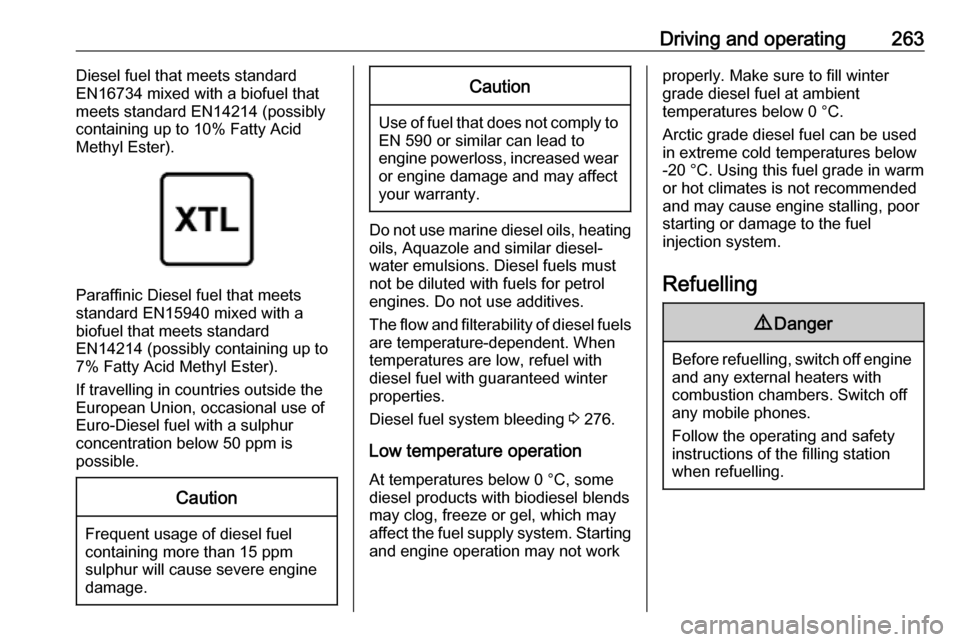
Paraffinic Diesel fuel that meets
standard EN15940 mixed with a
biofuel that meets standard
EN14214 (possibly containing up to
7% Fatty Acid Methyl Ester).
If travelling in countries outside the
European Union, occasional use of Euro-Diesel fuel with a sulphur
concentration below 50 ppm is
possible.
Caution
Frequent usage of diesel fuel containing more than 15 ppm
sulphur will cause severe engine
damage.
Caution
Use of fuel that does not comply to EN 590 or similar can lead to
engine powerloss, increased wear
or engine damage and may affect
your warranty.
Do not use marine diesel oils, heating
oils, Aquazole and similar diesel-
water emulsions. Diesel fuels must
not be diluted with fuels for petrol
engines. Do not use additives.
The flow and filterability of diesel fuels are temperature-dependent. When
temperatures are low, refuel with
diesel fuel with guaranteed winter
properties.
Diesel fuel system bleeding 3 276.
Low temperature operation
At temperatures below 0 °C, some
diesel products with biodiesel blends
may clog, freeze or gel, which may
affect the fuel supply system. Starting
and engine operation may not work
properly. Make sure to fill winter
grade diesel fuel at ambient
temperatures below 0 °C.
Arctic grade diesel fuel can be used
in extreme cold temperatures below
-20 °C. Using this fuel grade in warm
or hot climates is not recommended
and may cause engine stalling, poor starting or damage to the fuel
injection system.
Refuelling9 Danger
Before refuelling, switch off engine
and any external heaters with
combustion chambers. Switch off
any mobile phones.
Follow the operating and safety
instructions of the filling station
when refuelling.
Page 325 of 353

Customer information323REACH
Registration, Evaluation,
Authorisation and Restriction of
Chemicals (REACH) is a European
Union regulation adopted to improve
the protection of human health and
the environment from the risks that
can be posed by chemicals. Visit
www.opel.com/reach for further
information and for access to the
Article 33 communication.
Registered trademarksApple Inc.
Apple CarPlay™ is a trademark of Apple Inc.
App Store ®
and iTunes Store ®
are
registered trademarks of Apple Inc.
iPhone ®
, iPod ®
, iPod touch ®
, iPod
nano ®
, iPad ®
and Siri ®
are registered
trademarks of Apple Inc.Bluetooth SIG, Inc.
Bluetooth ®
is a registered trademark
of Bluetooth SIG, Inc.DivX, LLC
DivX ®
and DivX Certified ®
are
registered trademarks of DivX, LLC.EnGIS Technologies, Inc.
BringGo ®
is a registered trademark of
EnGIS Technologies, Inc.Google Inc.
Android™ and Google Play™ Store
are trademarks of Google Inc.Stitcher Inc.
Stitcher™ is a trademark of Stitcher,
Inc.Verband der Automobilindustrie e.V.
AdBlue ®
is a registered trademark of
the VDA.Vehicle data recording
and privacy
Event data recorders
Electronic control units are installed in
your vehicle. Control units process
data which is received by vehicle
sensors, for example, or which they
generate themselves or exchange
amongst themselves. Some control
units are necessary for the safe
functioning of your vehicle, others
assist you while you drive (driver
assistance systems), while others
provide comfort or infotainment
functions.
The following contains general
information about data processing in
the vehicle. You will find additional
information as to which specific data
is uploaded, stored and passed on to third parties and for what purpose in
your vehicle under the key word Data Protection closely linked to the
references for the affected functional
characteristics in the relevant owner's
manual or in the general terms of
sale. These are also available online.