service OPEL MOVANO_B 2020 Manual user
[x] Cancel search | Manufacturer: OPEL, Model Year: 2020, Model line: MOVANO_B, Model: OPEL MOVANO_B 2020Pages: 353, PDF Size: 9.4 MB
Page 137 of 353

Infotainment system135● Driving style indicator (fueleconomy gauge) (switch on/
off).
● Eco score (switch on/off).
● Show report after trip (switch on/off).
After the settings are changed, touch
Done to confirm.
Services (NAVI 80 IntelliLink)
To access the Services menu from
the Home page, touch MENU
followed by Services.
The following menus are displayed: ● Navigation services
● SettingsNavigation services
In addition to the navigation services
(e.g. traffic information, fixed speed
cameras), extra features can be
added by subscribing to LIVE
services.
Refer to (NAVI 80 IntelliLink) "LIVE
services" in the "Navigation" section
3 166.Settings
The following menus are displayed:
● Applications manager
Select to manage Bluetooth
auxiliary devices.
● Navigation services
Select to access navigation
related features, e.g. traffic,
speed cameras, local search,
My TomTom LIVE, weather.
Refer to (NAVI 80 IntelliLink)
"LIVE services" in the
"Navigation" section 3 166.
Note
A compatible SD card must be
inserted to access LIVE services.
● Update applications
Select to update current
applications.
● Data sharing settings
Select to switch data sharing on/
off.
Note
When data sharing is switched off, certain features may not operate
correctly.Favourites (NAVI 80 IntelliLink)
When the Home page is displayed,
touch f to view, add or delete
favourites for the following features:
● ⇑ Navigation 3 164.
● ª Multimedia - refer to "Radio"
3 144.
● g Phone 3 193.
● ¯ Services 3 166.Navigation favourites
Select an empty slot in the display or
touch < (to open a pop-up menu),
then select Add Favourite .
Choose from the displayed list to add a saved destination to the favourites.
For further information, refer to
(NAVI 80 IntelliLink) "Destination
input" in the "Navigation" section
3 177.Multimedia favourites
Select an empty slot in the display or
touch < (to open a pop-up menu),
then Add Favourite .
Choose from the displayed list to add
a preset FM radio station to the
favourites.
Page 138 of 353

136Infotainment systemPhone favourites
Select an empty slot in the display or
touch < (to open a pop-up menu),
then Add Favourite .
Choose from the displayed list to add
a phone contact to the favourites.
For further information, refer to
(NAVI 80 IntelliLink) "Phonebook" in
the "Phone" section 3 201.Services favourites
Select an empty slot in the display or
touch < (to open a pop-up menu),
then Add Favourite .
Choose from the displayed list to add a service item to the favourites.Delete favourites
Touch < and select Remove all
Favourites or Remove a Favourite .
Then select a favourite from the
displayed list. A confirmation
message is displayed. Touch Delete
and confirm if prompted.
Additional features
(NAVI 50 IntelliLink)
Depending on version, rear camera view settings are available.
Rear camera view settings
When the rear camera view is shown on the display, touch ÿ to open the
settings menu.
The following settings can be
updated:
● Switch the rear camera view display Off/On .
● Colours
Touch ]/< to adjust level.
● Brightness
Touch ]/< to adjust level.
● Contrast
Touch ]/< to adjust level.
For further information, refer to "Rear
view camera" section in the vehicle
Owner's Manual.
Touch operation overview
The Infotainment system display
(NAVI 50, NAVI 80 IntelliLink) has a
touch-sensitive surface that allows
direct interaction with the displayed
menu controls.Caution
Do not use pointed or hard items
like ballpoint pens, pencils or
similar for touchscreen operation.
Selecting or activating a screen
button or menu item
Touch a screen button or menu item. ● A short touch activates the selected item.
● Touch and hold to save a selected item.
The corresponding system function is activated, a message is shown, or a
submenu with further options is
displayed.
Note
In subsequent chapters, the
operating steps for selecting and
activating a screen button or menu
item via the touch screen will be
described as "...select
Page 150 of 353

148Infotainment systemNote
Due to signal strength, it is possible that less than six stations will be
stored.
Recalling a station
Radio 15 USB
Select the desired waveband, then
briefly press station button 1...6 to
recall a stored station.
To recall a station on the autostore list
(AST), while listening to the radio
briefly press SETUP to activate AST
mode. The station previously
selected will be received. Briefly
press station button 1...6 to recall
another stored station on the
autostore list.
Updating stations list manually Stations can also be stored manually
in the autostore list.
Note
Only available with
NAVI 50 IntelliLink,
NAVI 80 IntelliLink.To update the list of stations and
obtain the most recent ones, activate
the system update manually.
Depending on Infotainment system,
the sound may be muted during a
manual update.
NAVI 50 IntelliLink
Touch Options , scroll down to
Update List then select Start;
Updating ... appears on the display
until the update is complete.
Note
If DAB is available, it is
recommended to update the DAB
stations list manually when the
system is switched on.
NAVI 80 IntelliLink
From the Home page, touch MENU
then Multimedia , followed by
Settings . Select Radio and scroll
down to Update radio list .
Alternatively (depending on version),
select Multimedia followed by Radio,
and choose any the following modes:
● Preset
● List
● FrequencyThen touch < to open a pop-up menu,
and select Update radio list .
Radio data system (RDS) RDS is an FM station service thathelps to find the desired station and
ensures its fault-free reception.
Advantages of RDS ● The programme name of the chosen station appears on the
display screen instead of its
frequency.
● During an automatic station search, the Infotainment systemtunes into RDS stations only.
● The Infotainment system always tunes into the best receivable
broadcasting frequency of the chosen station, by means of AF
(Alternative Frequency).
Radio 15 USB
Configuring RDS
Press SETUP and turn OK to access
the RDS menu. Press knob to select.
Page 152 of 353

150Infotainment systemNews
If News is switched on:
● News announcements from certain FM radio stations (and
DAB stations, if available) are
broadcast automatically.
● Radio and auxiliary audio source
playback is interrupted for the
duration of the traffic
announcement.
Text information (Radio text)
Certain FM radio stations (and DAB
stations, if available) issue text
information relating to the broadcast
program (e.g. song name).
NAVI 80 IntelliLink
Configuring RDS
To access the Radio settings menu
from the Home page, select MENU
then Multimedia , followed by
Settings then Radio .
Depending on version, touch < to
open a pop-up menu, and access the 'Radio settings' option.The following radio settings can be
updated:
● switch searching for Alternative Frequencies (AF) on/off
● switch i-traffic (Traffic program information) on/off
● switch programme type (PTY) on/off
● switch simulcast on/off
● display i-announcement information (e.g. Area weather
information, Event information)
● update list of saved radio stationsAlternative Frequency (AF)
Switch on the RDS-AF function to
always tune into the best receivable
broadcasting frequency of the chosen station.i-traffic (Traffic program information)
Radio traffic service stations are FM
RDS stations that broadcast traffic
news.
Switch on I-Traffic to automatically
receive traffic bulletins when they are broadcast.Programme type search (PTY)
Switch on PTY to display the type of
programme (e.g. news, sport)
currently being broadcastUpdate radio list
Refer to (NAVI 80 IntelliLink)
"Autostore lists" 3 147.Simulcast
Switch on the simulcast function to
automatically change from a DR
(digital radio) station to the same
station on the FM waveband in the
event of a loss of reception.i-announcement
Select to display information such as
weather or events in the vicinity.
Text information (Radio text)
Certain FM radio stations issue text
information relating to the broadcast
program (e.g. song name).
To check for text information, from
any radio mode (e.g. Preset, List ,
Frequency ) touch < to open a pop-up
menu, and access the text
information option, by selecting e.g. "Show radio text".
Page 153 of 353

Infotainment system151Digital audio broadcasting
Digital audio broadcasting (DAB) is
an innovative and universal
broadcast system.
General information ● DAB stations are indicated by the
programme name instead of thebroadcasting frequency.
● With DAB, several radio programmes (services) can be
broadcast on a single frequency (ensemble).
● Besides high-quality digital audio
services, DAB is also able to
transmit programme-associated
data and a multitude of other data services including travel andtraffic information.
● As long as a given DAB receiver can pick up the signal sent out bya broadcasting station (even if
the signal is very weak), sound
reproduction is ensured.
● There is no fading (weakening of
the sound) that is typical of AM or
FM reception. The DAB signal is
reproduced at a constant volume.● Interference caused by stations that are on nearby frequencies (a
phenomenon that is typical of AM and FM reception) does not
occur with DAB.
If the DAB signal is too weak to
be picked up by the receiver, the
system switches over to the
same programme on another
DAB or FM station.
● If the DAB signal is reflected by natural obstacles or buildings,
the reception quality of DAB is
improved, whereas AM or FM
reception is considerably
impaired in such cases.
● When DAB reception is enabled, the FM tuner of the Infotainmentsystem remains active in the
background and continually
searches for the best receivable
FM stations.AUX input
General information
Depending on version, in the
Infotainment unit (or on the
instrument panel) there is an AUX
socket for the connection of external audio sources.
Note
The socket must always be kept
clean and dry.
It is possible, for example, to connect a portable CD player with a 3.5 mm
jack plug to the AUX input.
Page 166 of 353
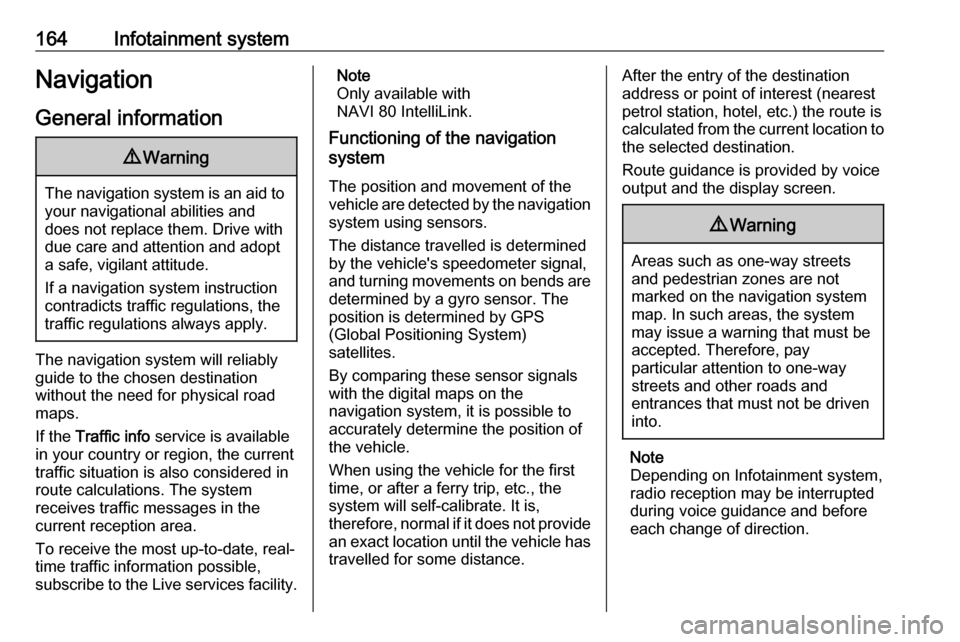
164Infotainment systemNavigationGeneral information9 Warning
The navigation system is an aid to
your navigational abilities and
does not replace them. Drive with
due care and attention and adopt
a safe, vigilant attitude.
If a navigation system instruction
contradicts traffic regulations, the
traffic regulations always apply.
The navigation system will reliably
guide to the chosen destination
without the need for physical road
maps.
If the Traffic info service is available
in your country or region, the current
traffic situation is also considered in
route calculations. The system
receives traffic messages in the
current reception area.
To receive the most up-to-date, real-
time traffic information possible,
subscribe to the Live services facility.
Note
Only available with
NAVI 80 IntelliLink.
Functioning of the navigation
system
The position and movement of the vehicle are detected by the navigation system using sensors.
The distance travelled is determined
by the vehicle's speedometer signal,
and turning movements on bends are
determined by a gyro sensor. The
position is determined by GPS
(Global Positioning System)
satellites.
By comparing these sensor signals
with the digital maps on the
navigation system, it is possible to
accurately determine the position of
the vehicle.
When using the vehicle for the first
time, or after a ferry trip, etc., the
system will self-calibrate. It is,
therefore, normal if it does not provide
an exact location until the vehicle has
travelled for some distance.After the entry of the destination
address or point of interest (nearest
petrol station, hotel, etc.) the route is
calculated from the current location to
the selected destination.
Route guidance is provided by voice
output and the display screen.9 Warning
Areas such as one-way streets
and pedestrian zones are not
marked on the navigation system map. In such areas, the system
may issue a warning that must be
accepted. Therefore, pay
particular attention to one-way
streets and other roads and
entrances that must not be driven
into.
Note
Depending on Infotainment system, radio reception may be interrupted
during voice guidance and before
each change of direction.
Page 167 of 353

Infotainment system165USB memory stick
(NAVI 50 IntelliLink)
A USB memory stick is required for the navigation system, to contain,
among other things, a digital map of
the towns and roads in your country.
Note
Use a USB memory stick, formatted to FAT32 format, with a minimum
4 GB and maximum 32 GB of
storage capacity.
After driving the first 100 km, it is
possible to check for free digital map
updates within a period of 90 days.
Note
To avoid possible technical issues,
only use a compatible USB memory
stick for operating and updating the
navigation system. Do not insert
USB memory stick in any other
device (e.g. digital camera, mobile
phone, etc.), or in another vehicle.
Software installation
To update the digital maps and to
benefit from exclusive downloadable
services, an account must be createdon the opel.naviextras.com website
and the free software must be
installed.Creating an account
Create your internet account via the
opel.naviextras.com website. Select
e.g., the "Register" option on the web
page and enter the appropriate
details.Installing the software
Install the software on your computer
by downloading from
opel.naviextras.com.
Follow the on-screen instructions to
install the software and launch the
online application.Registering the navigation system
The navigation system must be
registered with your new internet
account.
Insert an empty USB memory stick in the navigation system's USB slot.
Touch 7 then select ýNav , followed
by Options then Map update .To ensure all content is saved in the
navigation system's memory, select Options then Update . Wait for the
update to complete before ejecting the USB memory stick.
Then insert the USB memory stick in
your computer's USB slot while
connected to the Internet. When the
online application is launched and the
USB memory stick is recognised, the
system (or software) name appears in the application window. The
navigation system is registered into
your user profile.
After the initial set-up, the USB
memory stick is automatically
recognised by the navigation system
and by the online application.
Updating the USB memory stick and
navigation system
Updates are issued regularly, e.g. for
map and safety camera revisions.
Note
In certain countries it is illegal to
download and activate the camera
warning option and this could lead to prosecution.
Page 173 of 353
Infotainment system171●Change map colours
● Car symbol
● Advanced
6. NAVIGATION SERVICES
Refer to (NAVI 80 IntelliLink)
"LIVE services" below.
● Traffic
● Speed Cameras
● Local search /TomTom
places
● My TomTom live
● Weather
7. ITINERARIES
Refer to (NAVI 80 IntelliLink) "Edit Itinerary" in the "Guidance"
section 3 183.
8. r : Return to previous screenMap screen
To access the map screen without navigation, on the Home page touch
MENU , then Navigation followed by
View Map .Touch anywhere on the map. The
cursor indicates the current selected
position. To scroll within the map,
drag the cursor in the required
direction.
To access the map screen with
navigation, on the Home page touch
MENU followed by Navigation and
enter a destination. Refer to
(NAVI 80 IntelliLink) "Destination
input" 3 177.
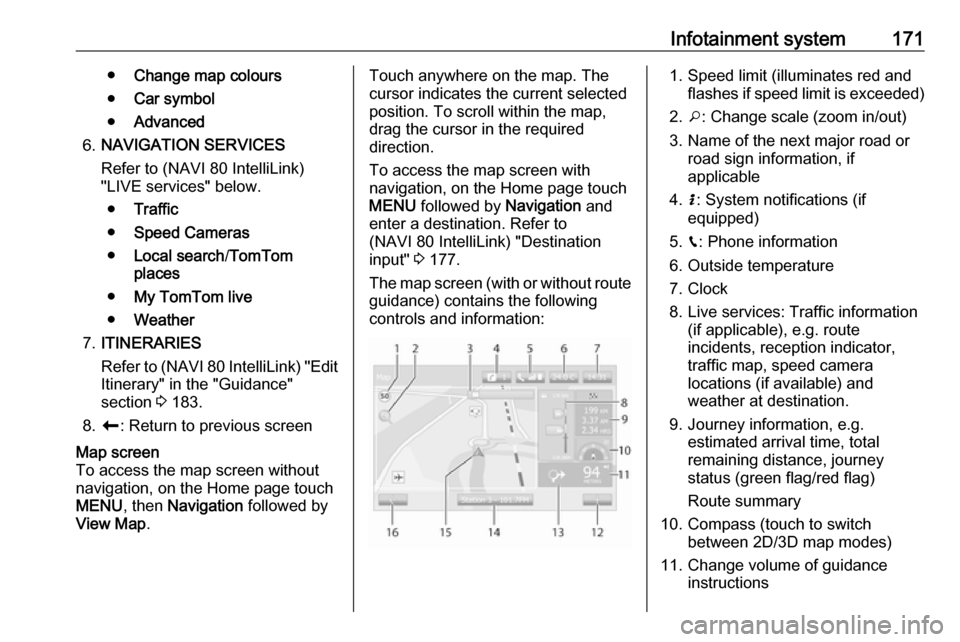
The map screen (with or without route
guidance) contains the following
controls and information:1. Speed limit (illuminates red and flashes if speed limit is exceeded)
2. o: Change scale (zoom in/out)
3. Name of the next major road or road sign information, if
applicable
4. H: System notifications (if
equipped)
5. g: Phone information
6. Outside temperature
7. Clock
8. Live services: Traffic information (if applicable), e.g. route
incidents, reception indicator,
traffic map, speed camera
locations (if available) and
weather at destination.
9. Journey information, e.g. estimated arrival time, total
remaining distance, journey
status (green flag/red flag)
Route summary
10. Compass (touch to switch between 2D/3D map modes)
11. Change volume of guidance instructions
Page 175 of 353

Infotainment system173Live servicesNAVI 80 IntelliLink
In addition to the navigation services
(e.g. traffic information, fixed speed
cameras), extra features can be
added by subscribing to LIVE
services.
LIVE services include up-to-date
traffic information with "HD Traffic™ ",
updates and locations of fixed and
mobile speed cameras, local search,
weather forecast and the "My
TomTom LIVE" subscription status.
Note
LIVE services are not available in
some countries or regions.
The first owner of the vehicle has to
activate this service within 14 days,
otherwise this service is disabled.
Touch Activate my services and then
accept the displayed terms and
conditions.
From the Home page, touch MENU
then Navigation , followed by
Navigation Services .The following menus are displayed:
● Traffic /HD Traffic
Select to receive up-to-date, real-
time traffic information.
Note
The HD Traffic service is named
Traffic if a subscription has not been
activated.
● Speed cameras
Displays alerts and location of
mobile speed cameras in real-
time, fixed speed cameras and accident blackspots.
Switch function off via the "Speed Cameras" menu in "LIVE
services", if required.
Report speed camera location, fixed or mobile.
Note
In certain countries it is illegal to
download and activate the camera warning option and this could lead to prosecution.
● Local search /TomTom places
This service allows you to use a keyword to quickly find any Pointof Interest (POI) and set it as a
destination.
● My TomTom LIVE
Displays expiry date of
subscribed services.
● Weather
The weather forecast service
provides up to five days of
weather reports for your current
location and your chosen
destination.
Setting up the navigation system
NAVI 50 IntelliLink
Touch 7 followed by yNAVI / ýNav
then Options . This menu screen
allows you to check and update the
following map and navigation
settings:
● Warnings
● Route settings
● Map settings
● Voice settings
● Coordinate format
● GPS
Page 178 of 353

176Infotainment systemCoordinate format
Select Coordinate format to change
the format of co-ordinate entries to one of the following options:
● DD.DDDDD
● DD MM.MMM
● DD MM SS.SGPS
Select GPS to view the GPS
information, e.g. available satellites,
their location and signal strength.Map update
Select Map update to display the
following digital map content and
latest update information:
● Alert Points
● Junction View
● Maps
● Places
● Traffic Service
● Address Points
Specific content or all map content
can be updated. Select one of the
options first or touch Options then
Update . Wait for the update to
complete.Refer to "USB memory stick"
(NAVI 50 IntelliLink), "Updating the
USB memory stick and navigation
system" in the "General information"
section 3 164.Traffic
Select Traffic to change the following
traffic information settings:
● Traffic info (On/Off)
● Detour
● Event types
Traffic info : Warnings are given for
incidents that occur along the route.
Detour : Save time by using an
alternative route when a traffic jam or
an incident occurs along the current
route. Select 'On'/'Off' alongside
"Confirm offered route?" as required.
If necessary, update the time value
for the option "Offer detour if the
calculated route saves more than:"
(e.g. five minutes) by touching k/l .
Event types : Select the type of events
to be displayed during route
guidance, e.g. all events, traffic flow
events, closures and blockages,
accidents.NAVI 80 IntelliLink
To access the navigation settings
menu from the Home page, touch
MENU then Navigation , followed by
Settings . The following settings
submenus are displayed:
● Turn off voice guidance :
Switch on/off voice guidance
during navigation.
● Route planning :
Settings for route type, toll roads,
ferries, route summary, carpool
lanes and unpaved roads.
Select a planning preference type; "Fastest route" is
recommended. The eco-route is
designed to save the most fuel.
Then switch on/off "iQ routes™" as required. iQ routes™ enables
routes to be calculated according to average traffic levels during aparticular day and time, and alsothe best route according to actual
traffic speeds.
● Show POI on map :
Show or hide categories of POI
markers on the map.