display OPEL MOVANO_B 2020 Manual user
[x] Cancel search | Manufacturer: OPEL, Model Year: 2020, Model line: MOVANO_B, Model: OPEL MOVANO_B 2020Pages: 353, PDF Size: 9.4 MB
Page 121 of 353

Infotainment system119In addition, the Infotainment system
can be equipped with a handsfree
phone system.
The well-thought-out design of the
controls and the clear displays enable
to control the system easily and
intuitively.
Note
This manual describes all options
and features available for the
various Infotainment systems.
Certain descriptions, including those for display and menu functions, may
not apply to your vehicle due to
model variant, country
specifications, special equipment or
accessories.
Important information on
operation and traffic safety9 Warning
Drive safely at all times when
using the Infotainment system.
If in doubt, stop the vehicle before operating the Infotainment
system.
Radio reception
Radio reception may be disrupted by static, noise, distortion or loss of
reception due to:
● changes in distance from the transmitter
● multi-path reception due to reflection
● shadowing
In case of poor radio reception the
volume will automatically drop as to
minimize the disturbance effect.
Using this manual ● This manual describes features that may or may not be on your
specific vehicle, either because
they are optional or due to
changes subsequent to the
printing of this manual. Please
refer to the purchase
documentation to confirm each of the features found on the vehicle.
● Certain controls and descriptions, including symbols,
displays and menu functions may not apply to your vehicle due tomodel variant, country
specifications, special equipment or accessories.
● The table of contents at the beginning of this manual and
within each section shows where
the information is located.
● The index will enable to search for specific information.
● The vehicle display screens may not support your specific
language.
● Display messages and interior labelling are written in bold
letters.
● The operations given within this manual refer to Infotainment
system controls. For equivalent
steering column controls, refer to the control elements overview
3 122.
Page 122 of 353

120Infotainment systemWarnings and cautions9Warning
Text marked 9 Warning provides
information on risk of accident or
injury. Disregarding this
information may lead to injury.
Caution
Text marked Caution provides
information on possible damage to
the vehicle. Disregarding this
information may lead to vehicle
damage.
Symbols
Page references are indicated with 3.
3 means "see page".
Theft-deterrent feature
Depending on Infotainment system,
an electronic security system is
included for the purpose of theft
deterrence. The Infotainment system
functions only in your vehicle and is
therefore worthless to a thief.
The security code (supplied
separately) must be entered upon
first use of the system and after
prolonged interruptions to the power
supply.
Entering the security code
When first switching on the
Infotainment system, an enter
security code message, e.g. Radio
code followed by 0000 appears on the
display screen. Depending on
Infotainment system, the message
may only appear after a brief delay.
To enter first digit of security code,
press numbered button 1 on the unit
repeatedly until desired number is
displayed. Enter second, third and
fourth digits using buttons 2, 3 and 4
in the same way.
When the full code is displayed, press and hold button 6 until an audible
signal sounds. The system is
unlocked when the correct code has
been entered.
NAVI 50 IntelliLink,
NAVI 80 IntelliLink : Enter the security
code using numbered buttons 0 to 9on the touchscreen display. The
system is unlocked when the correct
code has been entered.
Incorrect code entered
Depending on Infotainment system,
when the security code has been
entered incorrectly, an incorrect code message, e.g. Error code followed by
a countdown value, e.g. Wait 100 is
displayed.
Wait until the countdown has expired, then enter the correct code. Each
time the code is entered incorrectly,
the countdown time may be doubled,
depending on Infotainment system.
Changing the geographical area When the security code is entered,
depending on Infotainment system it
will be necessary to choose a
geographical area, for example:
● Europe
● Asia
● Arabia
● America
Page 123 of 353

Infotainment system121Switch off the Infotainment system,
then simultaneously press button 1
and 5 and m. Then press _ or 6 until
desired area is highlighted on the display screen and set with button 6.
Page 125 of 353

Infotainment system1231m - Press: Switch on/off ......129
Turn: Adjust volume ............129
2 Station buttons 1...6 ............145
Short press: Select station ..145
Long press: Save station ....145
3 RADIO - Change audio
source, waveband ...............144
4 MEDIA - Change audio
source ................................. 153
5 Rotary knob ......................... 129
Short press: Confirm an
action .................................. 129
Turn: Access display
menu options ...................... 129
6 / - Return to previous
menu, cancel an action .......129
7 3 - Radio, Short press:
Search for next radio
frequency ............................ 145
Long press: Automatic
station search ...................... 145
8 M USB port .......................... 153
9 SETUP - Short press:
Settings menu .....................12910 TEL - Telephone menu .......193
11 2 - Radio, Short press:
Search for previous radio
frequency ............................ 145
Long press: Automatic
station search ...................... 145
12 TEXT - Display radio text
information .......................... 148
13 AUX input ............................ 151
Page 127 of 353

Infotainment system1251æ: Darken screen (only
clock and audio system
information are displayed) ..129
2 ñRadio : Change audio
source to radio ....................144
3 üMedia : Change audio
source - USB, iPod .............153
BT (Bluetooth) .....................156
AUX ..................................... 151
4 Outside temperature
(depending on version) .......129
5 yPhone : Telephone menu . 193
6 Clock ................................... 129
7 X: Switch on/off ..................129
Increase / decrease volume 129
8 M USB port .......................... 153
9 AUX input ............................ 151
10 ÿSettings : Audio settings,
e.g. Tone settings ...............137
Volume settings ..................138
Connectivity settings ...........129
Display settings ...................129
System settings ................... 13911 ýNav : Navigation menu ......164
12 _Map : Display the map ....164
Page 129 of 353
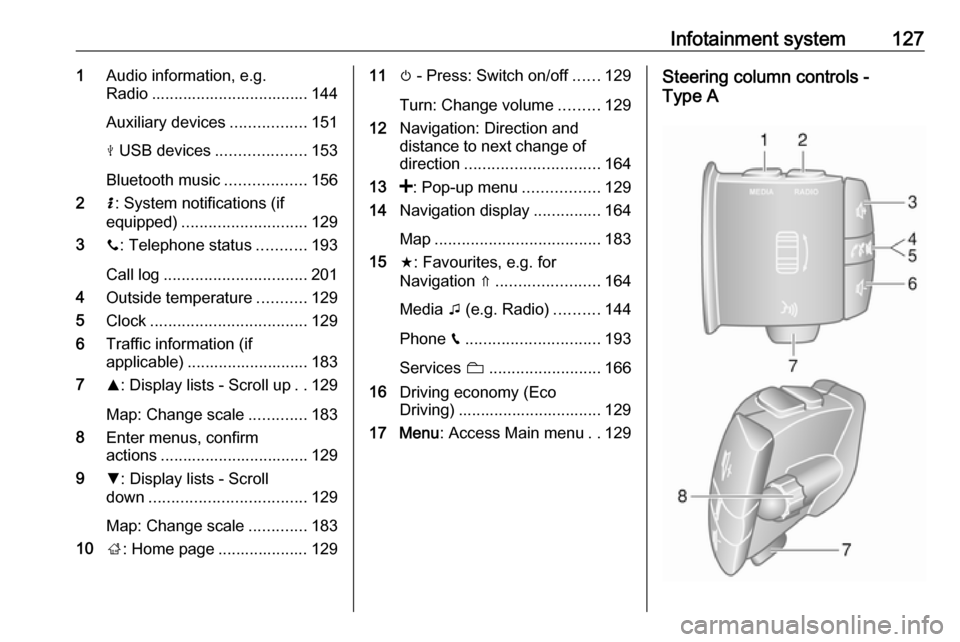
Infotainment system1271Audio information, e.g.
Radio ................................... 144
Auxiliary devices .................151
M USB devices ....................153
Bluetooth music ..................156
2 H: System notifications (if
equipped) ............................ 129
3 y: Telephone status ...........193
Call log ................................ 201
4 Outside temperature ...........129
5 Clock ................................... 129
6 Traffic information (if
applicable) ........................... 183
7 R: Display lists - Scroll up ..129
Map: Change scale .............183
8 Enter menus, confirm
actions ................................. 129
9 S: Display lists - Scroll
down ................................... 129
Map: Change scale .............183
10 ;: Home page .................... 12911 m - Press: Switch on/off ......129
Turn: Change volume .........129
12 Navigation: Direction and
distance to next change of
direction .............................. 164
13 <: Pop-up menu .................129
14 Navigation display ...............164
Map ..................................... 183
15 f: Favourites, e.g. for
Navigation ⇑ ....................... 164
Media t (e.g. Radio) ..........144
Phone g.............................. 193
Services N......................... 166
16 Driving economy (Eco
Driving) ................................ 129
17 Menu : Access Main menu ..129Steering column controls -
Type A
Page 130 of 353
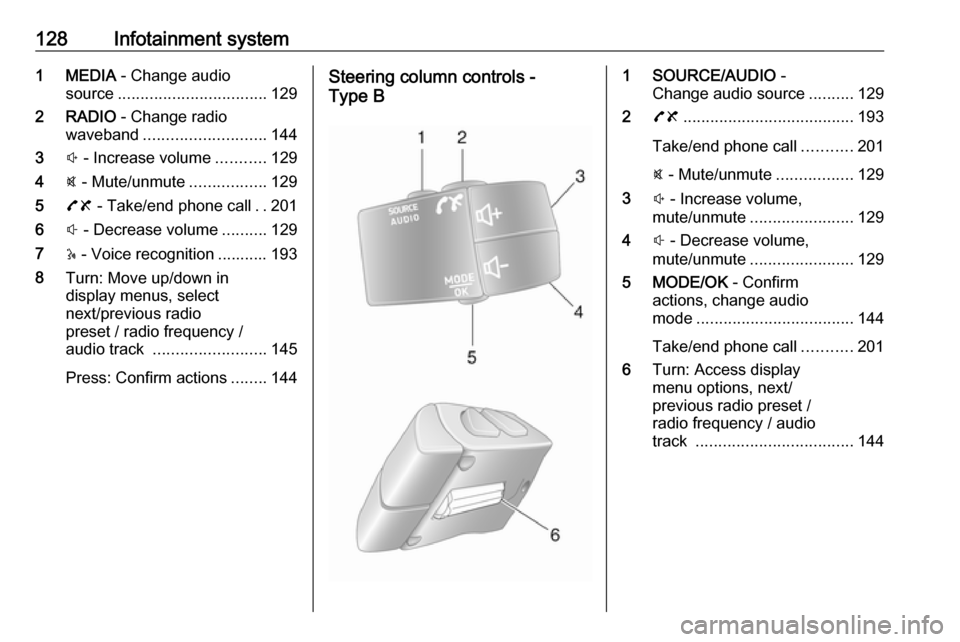
128Infotainment system1 MEDIA - Change audio
source ................................. 129
2 RADIO - Change radio
waveband ........................... 144
3 ! - Increase volume ...........129
4 @ - Mute/unmute .................129
5 78 - Take/end phone call ..201
6 # - Decrease volume ..........129
7 5 - Voice recognition ........... 193
8 Turn: Move up/down in
display menus, select
next/previous radio
preset / radio frequency /
audio track ......................... 145
Press: Confirm actions ........144Steering column controls -
Type B1 SOURCE/AUDIO -
Change audio source ..........129
2 78 ...................................... 193
Take/end phone call ...........201
@ - Mute/unmute .................129
3 ! - Increase volume,
mute/unmute ....................... 129
4 # - Decrease volume,
mute/unmute ....................... 129
5 MODE/OK - Confirm
actions, change audio
mode ................................... 144
Take/end phone call ...........201
6 Turn: Access display
menu options, next/
previous radio preset /
radio frequency / audio
track ................................... 144
Page 131 of 353

Infotainment system129Note
If equipped, the voice recognition
button 5 may be located on the
steering column controls.
Usage
Infotainment controls The Infotainment system is operated
via buttons, rotary knobs and/or
display menus.
Inputs are made via:
● the central control unit in the instrument panel 3 122, or
● the controls on the steering column 3 122
● the voice recognition system (if available) 3 191
● the touchscreen (NAVI 50 IntelliLink,
NAVI 80 IntelliLink) 3 136
Note
Only the most direct ways for menu
operation are described in the
subsequent chapters. In some
cases, there may be other options.Switching the Infotainment
system on or off
Press X to switch the Infotainment
system on.
The previously used audio source is
active.
Press X (or, depending on
Infotainment system, press and hold)
to switch the Infotainment system off.
Note
The clock and/or outside
temperature may be displayed when
the Infotainment system is switched
off (depending on version).NAVI 50 IntelliLink:
The Infotainment system
automatically switches on/off when
the ignition is switched on/off. Press
X instead, if required.
Press and hold X for 5 seconds to
restart the system.NAVI 80 IntelliLink:
The Infotainment system switches on automatically when the ignition is
switched on (depending on version).
Press X instead, if required.The following options may be
displayed (depending on version):
● Change settings (to authorise or
reject data sharing)
The system displays a screen to
confirm the authorisation of data
sharing after touching Change
settings .
Note
When data sharing is switched off,
certain features may not operate
correctly.
● Language (to change the system
language)
● Done (to continue to the Home
page)
● Help (to see more detailed
information)
The Infotainment system
automatically switches off when the
ignition is switched off and the driver's door is opened. Press X instead, if
required.
Automatic switch-off
With the ignition off, if the
Infotainment system is switched on
with X, it will switch-off automatically
Page 132 of 353

130Infotainment systema short period after the last user input.
Depending on Infotainment system,
automatic switch-off occurs after approx. 5 to 20 minutes.
Pressing X again will allow the
Infotainment system to remain on for
a further 5 to 20 minutes, depending
on Infotainment system.
Setting the volumeTurn X / volume rotary knob.
Alternatively (with the steering
column controls), press ! or #.NAVI 50 IntelliLink:
Depending on version, it is possible to
set various volume levels individually
(including audio players, traffic
announcements, navigation
instructions, phone calls and
ringtone).
From the Home page, touch
ÿ Settings then Audio followed by
Sound .
Refer to (NAVI 50 IntelliLink) "Volume
settings" 3 138.NAVI 80 IntelliLink:
To set various volume levels
individually (e.g. navigation
instructions, traffic announcements, phone calls) from the Home page,
touch MENU then System followed by
Sound .
Refer to (NAVI 80 IntelliLink) "System settings" 3 139.
Stored volume
When the Infotainment system is
switched off, the current volume is
stored.
Speed dependent volume
When speed dependent volume
( 3 139) is activated, the volume is
adapted automatically to compensate
for road and wind noise.
Mute
To mute the current audio source
(depending on Infotainment system),
press X briefly or turn knob fully
anticlockwise.
Alternatively (with the steering
column controls), press @ or 8 or
press ! and # simultaneously.Unmute
To unmute (depending on
Infotainment system), briefly press
X again or turn clockwise.
Alternatively (with the steering
column controls): Press @ again or
press ! and # simultaneously again.
Note
When a traffic announcement is
broadcast, the system is
automatically unmuted.
For further information, refer to
"Radio data system" 3 148.
Display screen operation
Radio 15 USB ● To move up/down in the display: Turn OK.
● To confirm actions: Press OK.
● To cancel actions (and return to previous menu): Press /.
Page 133 of 353
Infotainment system131NAVI 50 IntelliLink
Use the touchscreen for the following
displayed menus as described in
each section:
● ñ Radio
Refer to "Radio" section 3 144.
● üMedia
Refer to "USB port" section
3 153.
● yPhone
Refer to "Phone" section 3 193.
● _Map
Refer to "Navigation" section
3 164.
● ýNav
Refer to "Navigation" section
3 164.
● ÿSettings
Refer to (NAVI 50 IntelliLink)
"Tone settings" 3 137, "Volume
settings" 3 138 and "System
settings" 3 139.Note
Depending on software version, the menus available on the display
screen may differ from those listed
above.
When the Home page 7 is displayed,
it is possible to hide these menus from the display (only clock and audio
system information may be shown) by
touching æ. Touch anywhere on the
screen to display these menus again.
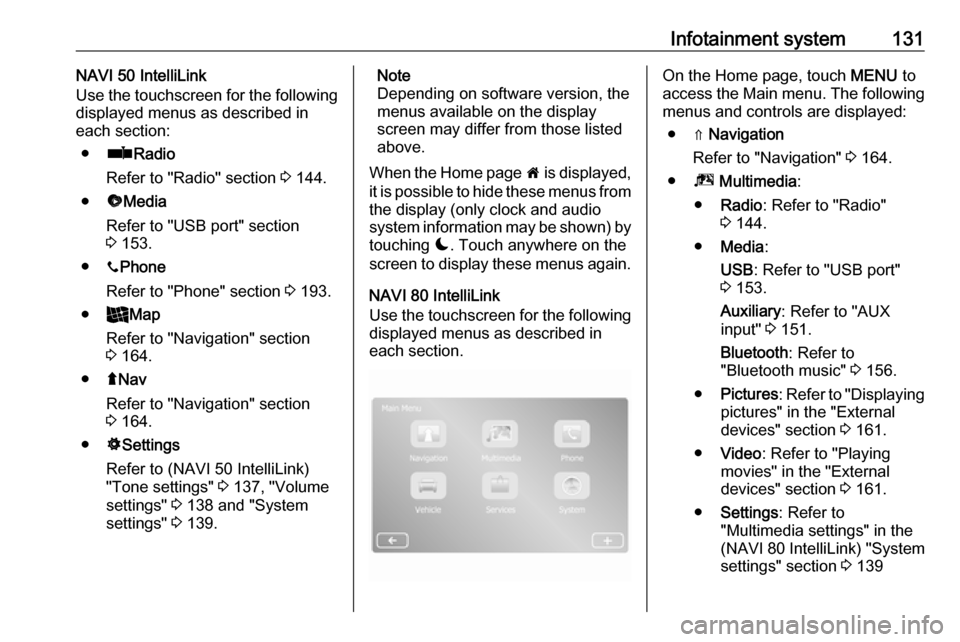
NAVI 80 IntelliLink
Use the touchscreen for the following displayed menus as described in
each section.On the Home page, touch MENU to
access the Main menu. The following menus and controls are displayed:
● ⇑ Navigation
Refer to "Navigation" 3 164.
● ª Multimedia :
● Radio : Refer to "Radio"
3 144.
● Media :
USB : Refer to "USB port"
3 153.
Auxiliary : Refer to "AUX
input" 3 151.
Bluetooth : Refer to
"Bluetooth music" 3 156.
● Pictures : Refer to "Displaying
pictures" in the "External
devices" section 3 161.
● Video : Refer to "Playing
movies" in the "External
devices" section 3 161.
● Settings : Refer to
"Multimedia settings" in the
(NAVI 80 IntelliLink) "System
settings" section 3 139