USB OPEL VIVARO B 2017 Infotainment system
[x] Cancel search | Manufacturer: OPEL, Model Year: 2017, Model line: VIVARO B, Model: OPEL VIVARO B 2017Pages: 129, PDF Size: 1.96 MB
Page 15 of 129
![OPEL VIVARO B 2017 Infotainment system Introduction151m: Switch on/off ....................30
2 ]: Decrease volume .............30
3 <: Increase volume ............... 30
4 M USB port ............................ 63
5 AUX input ...........](/img/37/18903/w960_18903-14.png "OPEL VIVARO B 2017 Infotainment system Introduction151m: Switch on/off ....................30
2 ]: Decrease volume .............30
3 <: Increase volume ............... 30
4 M USB port ............................ 63
5 AUX input ...........")
Introduction151m: Switch on/off ....................30
2 ]: Decrease volume .............30
3 <: Increase volume ............... 30
4 M USB port ............................ 63
5 AUX input .............................. 61
6 Clock ..................................... 30
7 yPHONE : Telephone
menu ................................... 107
8 ÿSETTINGS : Audio
settings, e.g. "Tone
settings" ................................ 40
"Volume settings" ..................42
Bluetooth settings .................30
Display settings .....................30
System settings ..................... 43
9 æDark : Darken screen
(only clock and audio
system information are
displayed) .............................. 30
10 yNAVI : Navigation menu ......75
11 sMAP : View map .................75
12 èRADIO : Change audio
source to radio ......................4813tMEDIA : Change audio
source - USB, iPod ...............63
BT (Bluetooth) ....................... 67
AUX ....................................... 61
Page 17 of 129
![OPEL VIVARO B 2017 Infotainment system Introduction171m: Switch on/off ....................30
2 ]: Decrease volume .............30
3 <: Increase volume ............... 30
4 M USB port ............................ 63
5 AUX input ...........](/img/37/18903/w960_18903-16.png "OPEL VIVARO B 2017 Infotainment system Introduction171m: Switch on/off ....................30
2 ]: Decrease volume .............30
3 <: Increase volume ............... 30
4 M USB port ............................ 63
5 AUX input ...........")
Introduction171m: Switch on/off ....................30
2 ]: Decrease volume .............30
3 <: Increase volume ............... 30
4 M USB port ............................ 63
5 AUX input .............................. 61
6 Clock ..................................... 30
7 Ý: Phone reception ...........107
Ü : Battery life .................... 107
8 yPhone : Telephone menu . 107
9 ÿSetting : Audio settings,
e.g. "Tone settings" ...............40
"Volume settings" ..................42
Bluetooth settings .................30
Display settings .....................30
System settings ..................... 43
10 ýNav : Navigation menu ........75
11 yMAP : View map .................. 75
12 ñRadio : Change audio
source to radio ......................48
13 üMedia : Change audio
source - USB, iPod ...............63
BT (Bluetooth) ....................... 67AUX ....................................... 61
AhaⓇ application ..................30
14 æ: Darken screen (only
clock and audio system
information are displayed) ....30
Page 19 of 129

Introduction191Audio information, e.g.
Radio ..................................... 48
Auxiliary devices ...................61
M USB devices ...................... 63
Bluetooth music ....................67
2 H: System notifications ..........30
3 y: Telephone status ...........107
Call log ................................ 115
4 Outside temperature .............30
5 Clock ..................................... 30
6 Traffic information .................96
7 R: Display lists - Scroll up ....30
Map: Change scale ...............96
8 Enter menus, confirm
actions ................................... 30
9 S: Display lists - Scroll
down ..................................... 30
Map: Change scale ...............96
10 ;: Home page ...................... 30
11 m - Press: Switch on/off ........30
Turn: Change volume ...........3012Navigation: Direction and
distance to next change of
direction ................................ 75
13 <: Pop-up menu ...................30
14 Navigation display .................75
Map ....................................... 96
15 f: Favourites, e.g. for
Navigation ............................ 75
Media (e.g. Radio) ................48
Phone .................................. 107
Services ................................ 78
16 Driving economy ...................30
17 Menu : Access Main menu ..... 30
Page 21 of 129

Introduction211Audio information, e.g.
Radio ..................................... 48
Auxiliary devices ...................61
M USB devices ...................... 63
Bluetooth music ....................67
2 H: System notifications ..........30
3 y: Telephone status ...........107
Call log ................................ 115
4 Outside temperature .............30
5 Clock ..................................... 30
6 Traffic information .................96
7 Navigation: Direction and
distance to next change of
direction ................................ 75
8 <: Pop-up menu ...................30
9 Navigation display .................75
Map ....................................... 96
10 f: Favourites, e.g. for
Navigation ............................ 75
Media (e.g. Radio) ................48
Phone .................................. 107
Services ................................ 7811Driving economy ...................30
12 Menu : Access Main menu ..... 30
Page 25 of 129

Introduction251Audio information, e.g.
Radio ..................................... 48
Auxiliary devices ...................61
M USB devices ...................... 63
Bluetooth music ....................67
2 H: System notifications ..........30
3 y: Telephone status ...........107
Call log ................................ 115
4 Outside temperature .............30
5 Clock ..................................... 30
6 Traffic information .................96
7 Navigation: Direction and
distance to next change of
direction ................................ 75
8 <: Pop-up menu ...................30
9 Navigation display .................75
Map ....................................... 96
10 f: Favourites, e.g. for
Navigation ............................ 75
Media (e.g. Radio) ................48
Phone .................................. 107
Services ................................ 7811Driving economy ...................30
12 Menu : Access Main menu ..... 30
Page 29 of 129
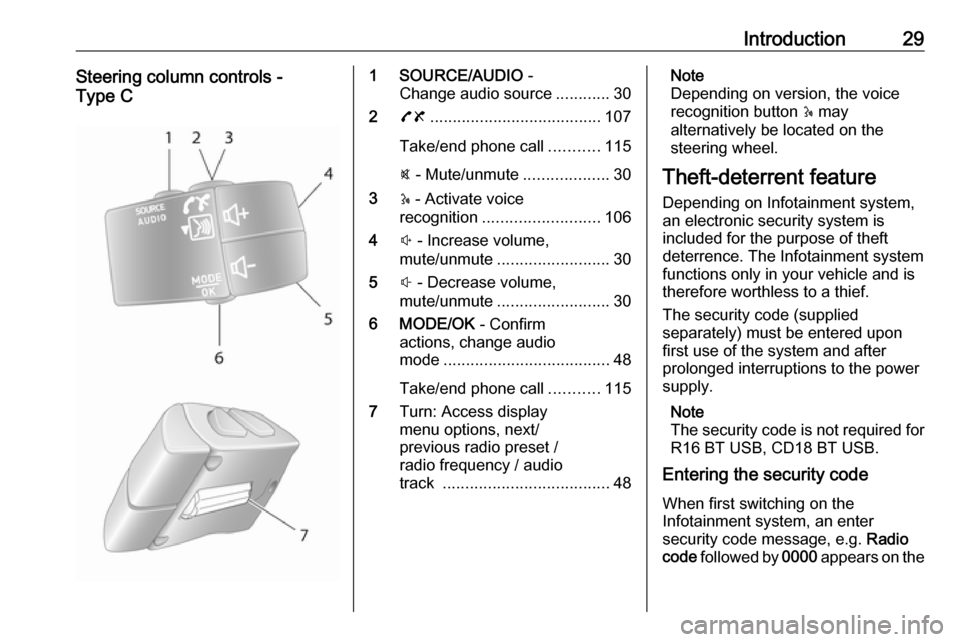
Introduction29Steering column controls -
Type C1 SOURCE/AUDIO -
Change audio source ............30
2 78 ...................................... 107
Take/end phone call ...........115
@ - Mute/unmute ...................30
3 5 - Activate voice
recognition .......................... 106
4 ! - Increase volume,
mute/unmute ......................... 30
5 # - Decrease volume,
mute/unmute ......................... 30
6 MODE/OK - Confirm
actions, change audio
mode ..................................... 48
Take/end phone call ...........115
7 Turn: Access display
menu options, next/
previous radio preset /
radio frequency / audio
track ..................................... 48Note
Depending on version, the voice
recognition button 5 may
alternatively be located on the
steering wheel.
Theft-deterrent feature
Depending on Infotainment system, an electronic security system is
included for the purpose of theft
deterrence. The Infotainment system
functions only in your vehicle and is
therefore worthless to a thief.
The security code (supplied
separately) must be entered upon
first use of the system and after
prolonged interruptions to the power
supply.
Note
The security code is not required for
R16 BT USB, CD18 BT USB.
Entering the security code
When first switching on the
Infotainment system, an enter
security code message, e.g. Radio
code followed by 0000 appears on the
Page 32 of 129

32IntroductionMute
To mute the current audio source (depending on Infotainment system),press X briefly or turn knob fully
anticlockwise.
Alternatively (with the steering
column controls), press @ or 8 or
press ! and # simultaneously.
Unmute
To unmute (depending on
Infotainment system), briefly press
X again or turn clockwise.
Alternatively (with the steering
column controls): Press @ again or
press ! and # simultaneously again.
Note
When a traffic announcement is
broadcast, the system is
automatically unmuted.
For further information, refer to
"Radio data system" 3 53.Display screen operation
R15 BT USB, R16 BT USB,
CD16 BT USB, CD18 BT USB -
Display screen operation
● To move up/down in the display: Turn OK.
● To confirm actions: Press OK.
● To cancel actions (and return to previous menu): Press /.
NAVI 50 IntelliLink - Display screen operation
Use the touchscreen for the following displayed menus as described in
each section:
● è/ñ RADIO
Refer to "Radio" section 3 48.
● t/ü MEDIA
Refer to "USB port" section
3 63.
● yPHONE
Refer to "Phone" section 3 107.
● sMAP / yMap
Refer to "Navigation" section
3 75.● yNAVI / ýNav
Refer to "Navigation" section
3 75.
● ÿSETTING(S)
Refer to (NAVI 50 IntelliLink)
"Tone settings" 3 40, "Volume
settings" 3 42 and "System
settings" 3 43.
Note
Depending on software version, the
menus available on the display
screen may differ from those listed
above.
When the Home page 7 is displayed,
it is possible to hide these menus from
the display (only clock and audio
system information may be shown) by
touching æ. Touch anywhere on the
screen to display these menus again.
NAVI 80 IntelliLink - Display screenoperation
Use the touchscreen for the following displayed menus as described in
each section.
Page 33 of 129
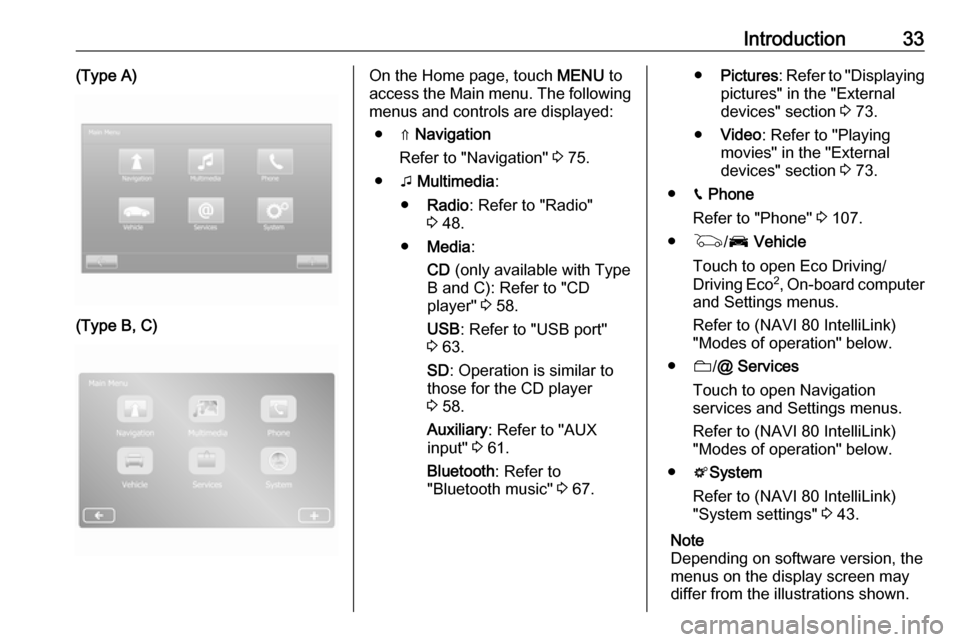
Introduction33(Type A)(Type B, C)On the Home page, touch MENU to
access the Main menu. The following menus and controls are displayed:
● ⇑ Navigation
Refer to "Navigation" 3 75.
● t Multimedia :
● Radio : Refer to "Radio"
3 48.
● Media :
CD (only available with Type
B and C): Refer to "CD player" 3 58.
USB : Refer to "USB port"
3 63.
SD : Operation is similar to
those for the CD player
3 58.
Auxiliary : Refer to "AUX
input" 3 61.
Bluetooth : Refer to
"Bluetooth music" 3 67.● Pictures : Refer to "Displaying
pictures" in the "External
devices" section 3 73.
● Video : Refer to "Playing
movies" in the "External
devices" section 3 73.
● g Phone
Refer to "Phone" 3 107.
● G /J Vehicle
Touch to open Eco Driving/ Driving Eco 2
, On-board computer
and Settings menus.
Refer to (NAVI 80 IntelliLink)
"Modes of operation" below.
● N/@ Services
Touch to open Navigation
services and Settings menus.
Refer to (NAVI 80 IntelliLink)
"Modes of operation" below.
● tSystem
Refer to (NAVI 80 IntelliLink)
"System settings" 3 43.
Note
Depending on software version, the
menus on the display screen may
differ from the illustrations shown.
Page 34 of 129

34Introduction●i/←: Move to previous page
● j/→: Move to next page
● ↑: Display lists; Scroll up
● ↓: Display lists; Scroll down
● <: Open pop-up menu
● r: Return to previous menu
The display screen can also be
operated using the controls on the
Infotainment system fascia.
Note
Depending on version, some
controls available on the
Infotainment system fascia do not
operate the features on the display
screen.
Note
Depending on vehicle, operation of
the touchscreen may be restricted
during driving.
Modes of operation
Radio
To change the audio source to radio:
Depending on Infotainment system, press RADIO , RADIO/CD or
AUDIO/SOURCE .NAVI 50 IntelliLink
To access the radio menu at any time,
touch 7 followed by è/ñ Radio .NAVI 80 IntelliLink
To access the radio menu from theHome page, touch MENU then
Multimedia followed by Radio.
Detailed description of the radio
functions 3 48.
Audio players
To change the audio source to CD,
USB , AUX , Bluetooth or iPod (where
applicable): Depending on
Infotainment system, touch MEDIA,
RADIO/CD or AUDIO/SOURCE .
NAVI 50 IntelliLink : To access the
menu for connected auxiliary devices ( USB , iPod , BT (Bluetooth) or AUX) at
any time, touch 7 followed by t/
ü Media . Touch S in top left corner
and select auxiliary source.
For Aha Ⓡ application (available
depending on version), refer to
"Additional features
(NAVI 50 IntelliLink)" below.
NAVI 80 IntelliLink : To access the
menu for auxiliary devices (e.g. Audio CD, USB, SD card, AUX input,
Bluetooth) from the Home page,
touch MENU then Multimedia
followed by Media. Select auxiliary
source from the display list.R15 BT USB, R16 BT USB
Detailed descriptions of:
● AUX input functions 3 61
● USB port functions 3 63
● Bluetooth music operation 3 67CD16 BT USB, CD18 BT USB
Detailed descriptions of:
● CD player functions 3 58
● AUX input functions 3 61
● USB port functions 3 63
● Bluetooth music operation 3 67
Page 35 of 129

Introduction35NAVI 50 IntelliLink
Detailed descriptions of:
● AUX input functions 3 61
● USB port (including iPod) functions 3 63
● Bluetooth music operation 3 67NAVI 80 IntelliLink
Detailed descriptions of:
● CD functions (Type B and C only)
3 58
● AUX input functions 3 61
● USB port functions 3 63
● Bluetooth music operation 3 67
Navigation, Map (NAVI 50 IntelliLink,
NAVI 80 IntelliLink)
Detailed description of the Navigation system 3 75, Browse map 3 96.
Phone
Use the display options in the
following menus to connect mobile
phones, make telephone calls, create
contacts lists and adjust various
settings.
Detailed description of the handsfree
phone system functions 3 107.R15 BT USB, R16 BT USB,
CD16 BT USB, CD18 BT USB -
Phone
To access the Phone menu: Press
6 or TEL .
To access the phone settings menu: Press TEL and select Phone settings .NAVI 50 IntelliLink - Phone
To access the Phone menu at any
time: Touch 7 followed by yPhone .NAVI 80 IntelliLink - Phone
To access the Phone menu from the
Home page, touch MENU followed by
Phone .
Vehicle information
(NAVI 80 IntelliLink)
To access the Vehicle menu from the Home page, touch MENU followed by
Vehicle .
Depending on vehicle, the following
menus are displayed:
● Eco Driving /Driving Eco 2
● On-board computer
● Settings
Eco Driving/Driving Eco 2
The following features are available: ● Trip report
Displays the following data from the last journey:
Average fuel consumption,
average speed, total fuel
consumption, total distance.
Within the trip report, Eco
scoring provides an overall score
out of 100 for driving economy.
Higher figures indicate better
driving economy. Ratings are
also given for average
environmental driving
performance (Acceleration), gearchanging efficiency
(Gearbox) and brake control
(Anticipation).
To save journey data: Touch
'Save' then select the journey
type from the following list:
Home/work, holiday/vacation,
weekend, trip/tour, personal.
To reset journey data: Touch
'Reset'. Confirm or cancel with
'Yes' or 'No'.