phone PEUGEOT 108 2014 Owners Manual
[x] Cancel search | Manufacturer: PEUGEOT, Model Year: 2014, Model line: 108, Model: PEUGEOT 108 2014Pages: 256, PDF Size: 5.88 MB
Page 170 of 256
168
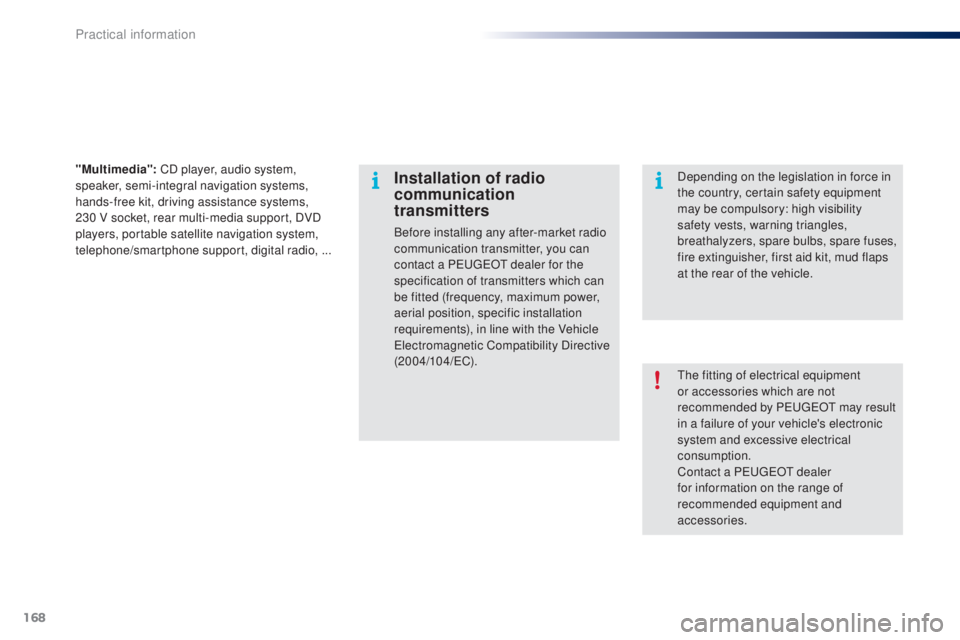
the fitting of electrical equipment
or accessories which are not
recommended by P
e
uge
Ot
may result
in a failure of your vehicle's electronic
system and excessive electrical
consumption.
Contact a P
e
uge
Ot
dealer
for information on the range of
recommended equipment and
accessories.
Installation of radio
communication
transmitters
Before installing any after-market radio
communication transmitter, you can
contact a P
e
uge
Ot
dealer for the
specification of transmitters which can
be fitted (frequency, maximum power,
aerial position, specific installation
requirements), in line with the Vehicle
el
ectromagnetic Compatibility Directive
(2004/104/
eC
). Depending on the legislation in force in
the country, certain safety equipment
may be compulsory: high visibility
safety vests, warning triangles,
breathalyzers, spare bulbs, spare fuses,
fire extinguisher, first aid kit, mud flaps
at the rear of the vehicle.
"Multimedia":
CD player, audio system,
speaker, semi-integral navigation systems,
hands-free kit, driving assistance systems,
230 V socket, rear multi-media support, DVD
players, portable satellite navigation system,
telephone/smartphone support, digital radio, ...
Practical information
Page 183 of 256
181
7-Inch touch screen
For safety reasons, the driver must carry out operations
which require prolonged attention while the vehicle is
stationary.
to prevent discharging of the battery
, the system cuts off
following activation of energy economy mode, 20 minutes
after switching off the engine on vehicles fitted with the
"Keyless
e ntry and Starting" system.
Multimedia system
Bluetooth
® telephone
Mirror Screen
®
CONTENTS
182
01
General
operation p.
184
02
First steps - Control
panelp.
198
05
Telephone p. 186
04
Media p.
206
06
Connections p.
206
p.
210
06-1
iPhone
® connection
06-2
MirrorLink
® connection p.
214
07
Configuration p.
218
Frequently asked questions
p. 185
03
Steering mounted
controls
p.
B3_en_Chap12a_Autoradio-t oyota-tactile-1_ed01-2014
Page 184 of 256
01
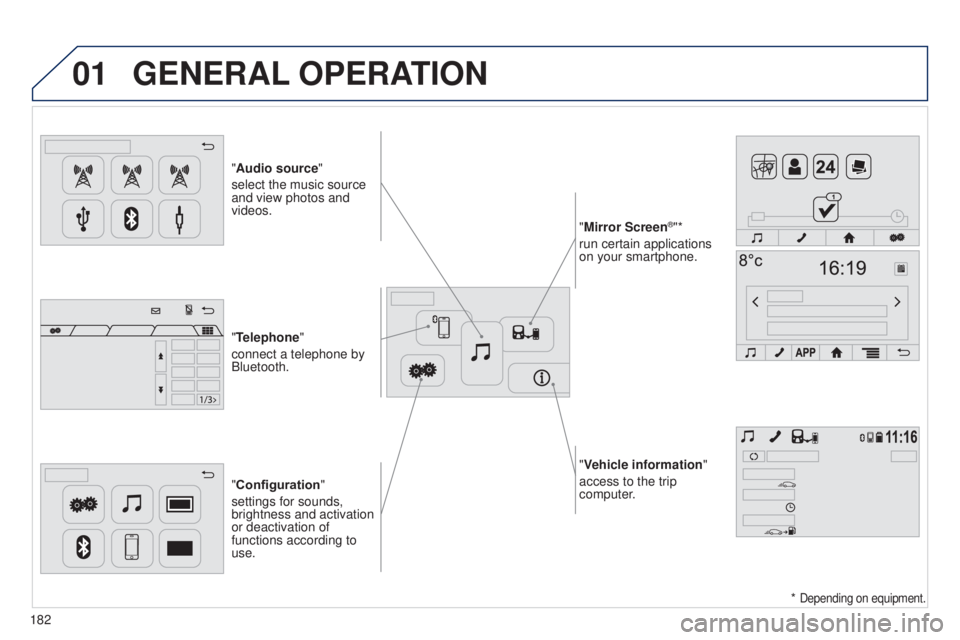
"Vehicle information"
access to the trip
computer.
"Audio source"
select the music source
and view photos and
videos.
"Configuration
"
settings for sounds,
brightness and activation
or deactivation of
functions according to
use. "Mirror Screen
®"*
run certain applications
on your smartphone.
"Telephone"
connect a telephone by
Bluetooth.
GENERAL OPERATION
182 *
Depending on equipment.
Page 186 of 256
02
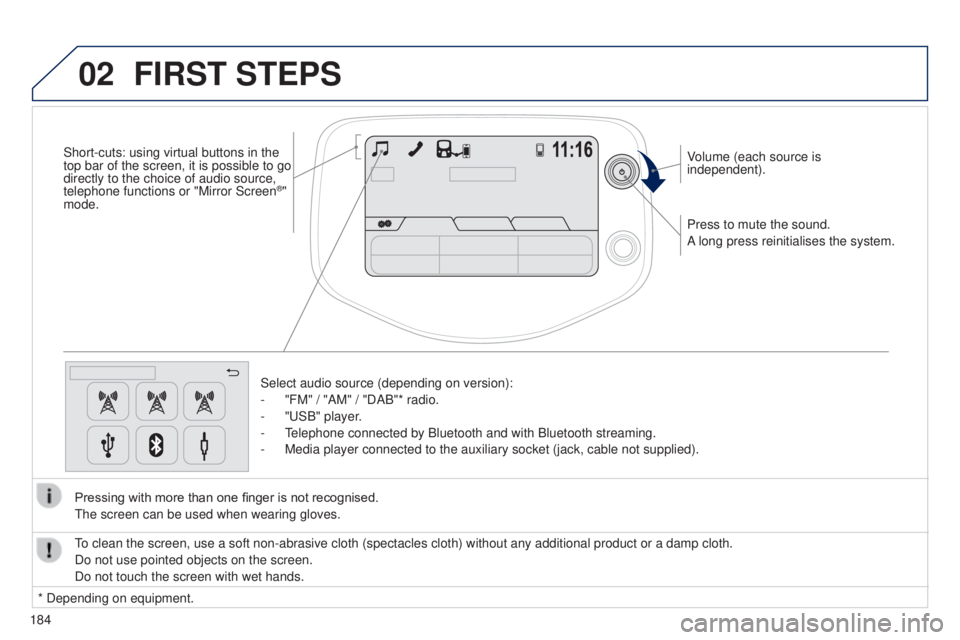
184Press to mute the sound.
A long press reinitialises the system. Volume (each source is
independent).
Select audio source (depending on version):
-
"FM" / "AM" / "DAB"* radio.
-
"
u SB" player.
- t
elephone connected by Bluetooth and with Bluetooth streaming.
-
Media player connected to the auxiliary socket (jack, cable not supplie\
d).
Pressing with more than one finger is not recognised.
t
he screen can be used when wearing gloves.
FIRST STEPS
* Depending on equipment.
to clean the screen, use a soft non-abrasive cloth (spectacles cloth) w\
ithout any additional product or a damp cloth.
Do not use pointed objects on the screen.
Do not touch the screen with wet hands.
Short-cuts: using virtual buttons in the
top bar of the screen, it is possible to go
directly to the choice of audio source,
telephone functions or "Mirror Screen
®"
mode.
Page 191 of 256
189
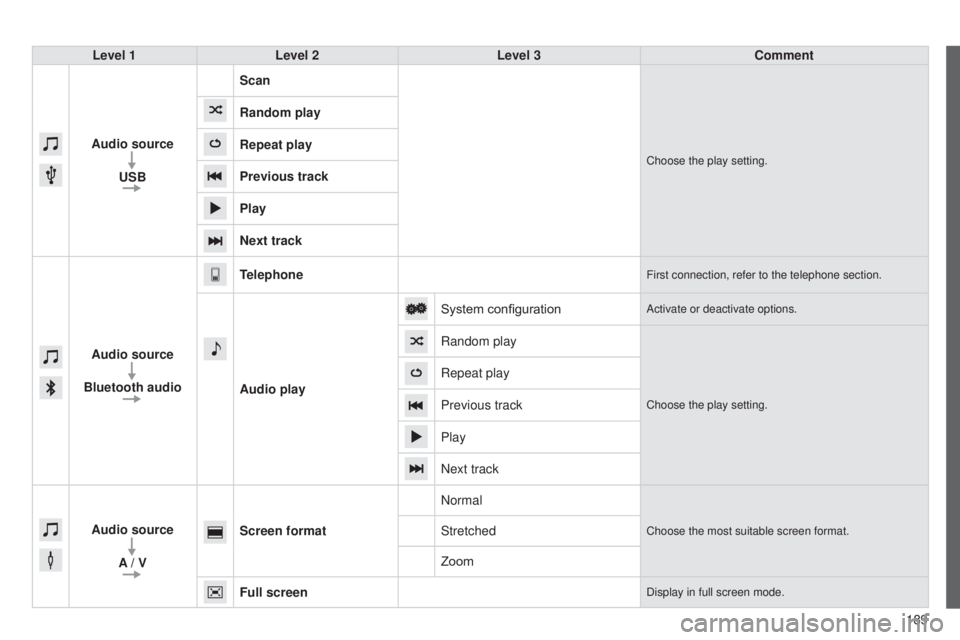
Level 1
Level 2 Level 3 Comment
Audio source USB Scan
Choose the play setting.
Random play
Repeat play
Previous track
Play
Next track
Audio source
Bluetooth audio Telephone
First connection, refer to the telephone section.
Audio play
System configuration
Activate or deactivate options.
Random play
Choose the play setting.
Repeat play
Previous track
Play
Next track
Audio source A / V Screen format
Normal
Choose the most suitable screen format.Stretched
Zoom
Full screen
Display in full screen mode.
B3_en_Chap12a_Autoradio-t oyota-tactile-1_ed01-2014
Page 194 of 256
04
192
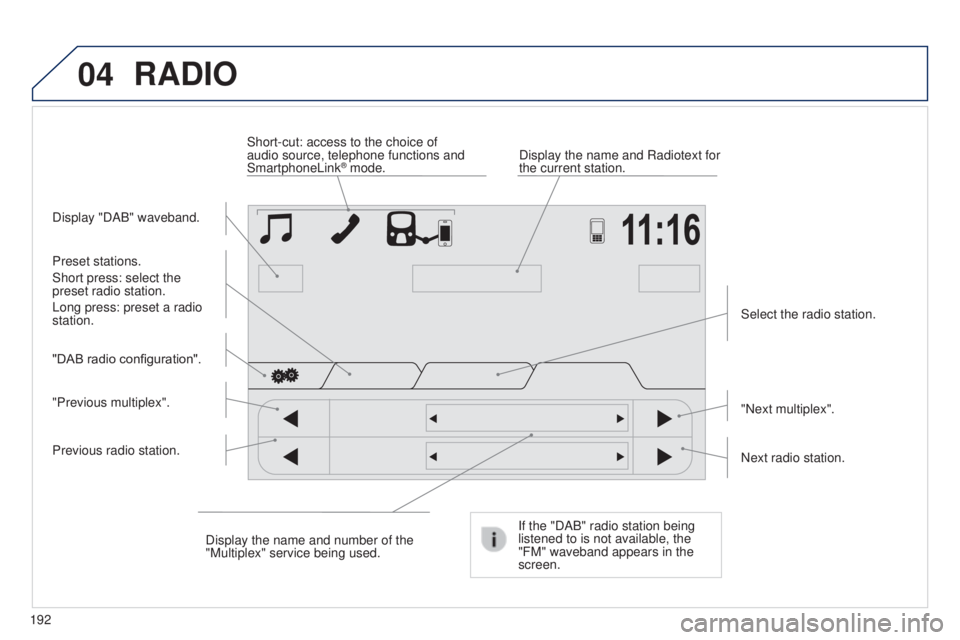
RADIO
Display "DAB" waveband.Display the name and Radiotext for
the current station.
Short-cut: access to the choice of
audio source, telephone functions and
SmartphoneLink
® mode.
Select the radio station.
If the "DAB" radio station being
listened to is not available, the
"FM" waveband appears in the
screen.
Preset stations.
Short press: select the
preset radio station.
Long press: preset a radio
station.
"Next multiplex".
Next radio station.
Display the name and number of the
"Multiplex" service being used.
"Previous multiplex". "DAB radio configuration".
Previous radio station.
Page 199 of 256
04
197
Audio streaming
Streaming allows audio files on your telephone to be played via the
vehicle's speakers.
Connect the telephone : see the "Telephone" section, then
Bluetooth.
Choose either " Connect all" or "Connect as audio player" profile.
If play does not start automatically, it may be necessary to start
audio play from the telephone.
Control is from the peripheral device or by using the audio system
controls.
Once connected for streaming, the telephone is considered as a
media source.
It is recommended that "Repeat" mode be activated in the Bluetooth
device.
Connecting Apple® players
Connect the Apple® player to the uSB port
using a suitable cable (not supplied).
Play starts automatically
.
Control is via the audio system.
The classifications available are those of the portable device
connected (artists / albums / genres / tracks / playlists / audio
books
/ podcasts).
The default classification used is by artist. To modify the
classification used, return to the first level of the menu then select
the desired classification (playlists for example) and confirm to go
down through the menu to the desired track.
MUSIC
the version of software in the audio system may not be compatible
with the generation of your Apple® player.
B3_en_Chap12a_Autoradio-t oyota-tactile-1_ed01-2014
Page 200 of 256
05
198
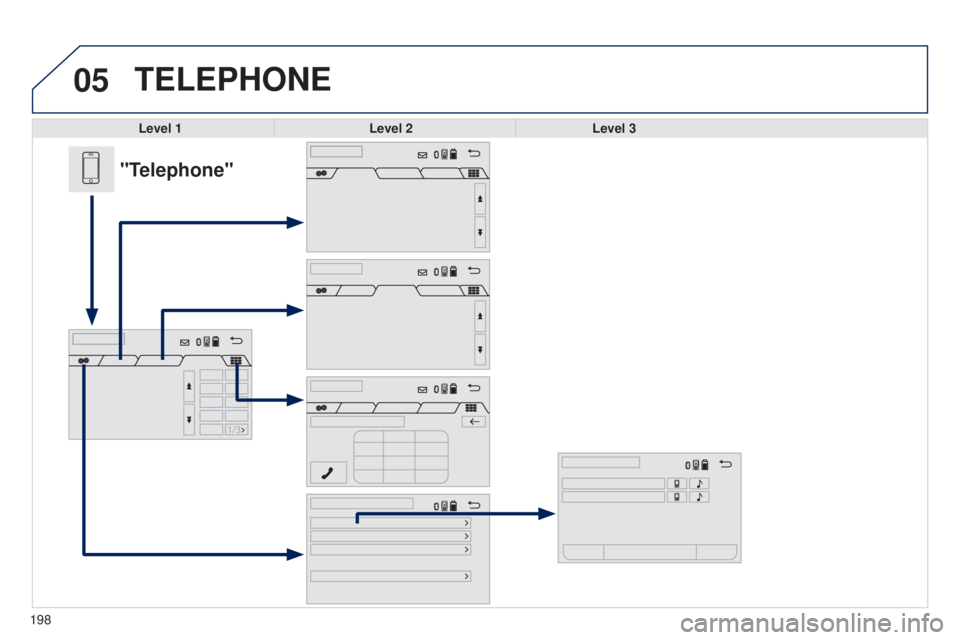
TELEPHONE
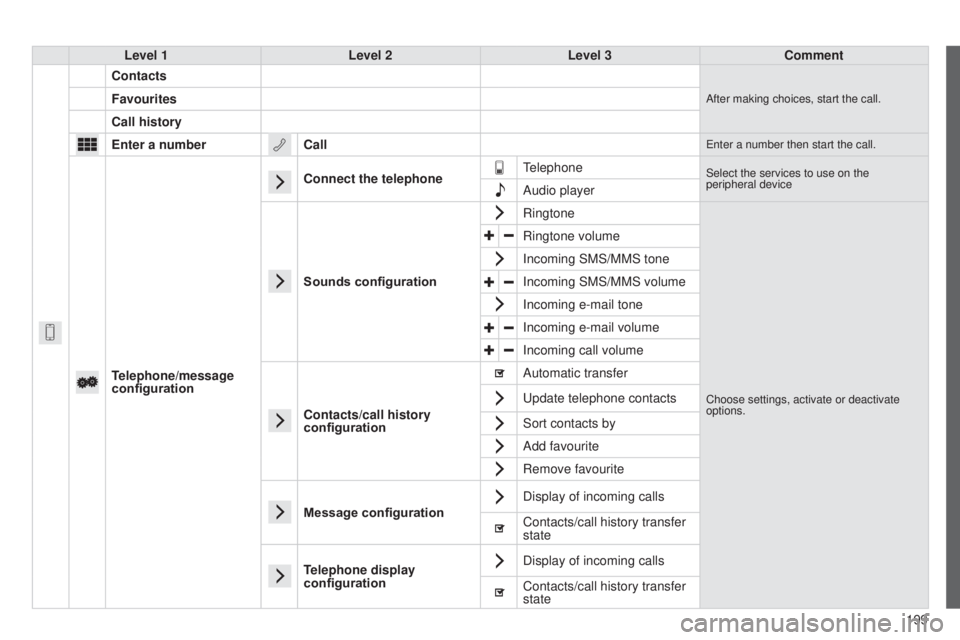
Level 1Level 2Level 3
"Telephone"
Page 201 of 256
199
Level 1
Level 2Level 3Comment
Contacts
After making choices, start the call.Favourites
Call history
Enter a number Call
enter a number then start the call.
Telephone/message
configurationConnect the telephone
telephoneSelect the services to use on the
peripheral device
Audio player
Sounds configuration Ringtone
Choose settings, activate or deactivate
options.
Ringtone volume
Incoming SMS/MMS tone
Incoming SMS/MMS volume
Incoming e-mail tone
Incoming e-mail volume
Incoming call volume
Contacts/call history
configuration Automatic transfer
u
pdate telephone contacts
Sort contacts by
Add favourite
Remove favourite
Message configuration Display of incoming calls
Contacts/call history transfer
state
Telephone display
configuration Display of incoming calls
Contacts/call history transfer
state
B3_en_Chap12a_Autoradio-t
oyota-tactile-1_ed01-2014
Page 202 of 256
05
200
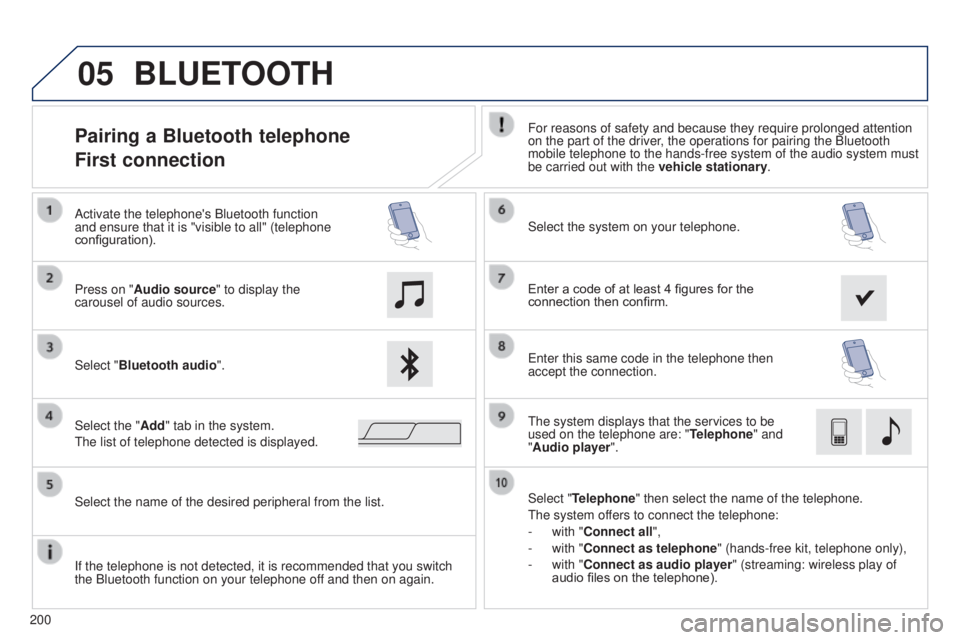
Pairing a Bluetooth telephone
First connectionFor reasons of safety and because they require prolonged attention
on the part of the driver, the operations for pairing the Bluetooth
mobile telephone to the hands-free system of the audio system must
be carried out with the vehicle stationary.
Select "Bluetooth audio ". Select the system on your telephone.
Select the "Add" tab in the system.
t
he list of telephone detected is displayed.
Press on "Audio source" to display the
carousel of audio sources. Activate the telephone's Bluetooth function
and ensure that it is "visible to all" (telephone
configuration).
Select "Telephone" then select the name of the telephone.
t
he system offers to connect the telephone:
-
with "
Connect all",
-
with "
Connect as telephone" (hands-free kit, telephone only),
-
with "
Connect as audio player" (streaming: wireless play of
audio files on the telephone).
Select the name of the desired peripheral from the list.
BLUETOOTH
If the telephone is not detected, it is recommended that you switch
the Bluetooth function on your telephone off and then on again. Enter a code of at least 4 figures for the
connection then confirm.
e
nter this same code in the telephone then
accept the connection.
t
he system displays that the services to be
used on the telephone are: " Telephone" and
"Audio player".