USB PEUGEOT 108 2018 User Guide
[x] Cancel search | Manufacturer: PEUGEOT, Model Year: 2018, Model line: 108, Model: PEUGEOT 108 2018Pages: 180, PDF Size: 7.14 MB
Page 153 of 180
5
The synchronisation of the smartphone
allows users to display smartphone
applications, which are compatible with
the CarPlay
® technology, on the vehicle's
screen when the smartphone's CarPlay®
function has been previously activated.
As the processes and standards are
constantly changing, it is recommended
that you keep your smar tphone's
operating system updated .
For the list of eligible smartphones, go
to the Brand's internet website in your
c o u nt r y.
Connect the USB cable. The
smartphone charges when
connected by the USB cable.
Press " CarPlay " to display the
CarPlay
® inter face.
When the CarPlay
® inter face is displayed on
the system screen, the menu bar is displayed
by default on the left-hand side of the screen.
Depending on the driver's side, you can change
the position of the menu bar, to the left-hand or
right-hand side.
Press "Configuration ".
Select " Connection ". Select "
Steering wheel position ", then select
the desired position.
For this modification to be taken into account,
disconnect and then reconnect the smartphone.
On connecting the USB cable, the
CarPlay® function deactivates the
system's Bluetooth® mode.
MirrorLinkTM smartphone
connection
Available depending on country of sale.
As a safety measure and because it
requires sustained attention by the driver,
using a
smartphone when driving is
prohibited.
All operations must be done with the
vehicle stationary . The synchronisation of the smartphone
allows users to display smartphone
applications, which are compatible with
the MirrorLink
TM technology, on the
vehicle's screen.
As the processes and standards
are constantly changing, for the
communication process between the
smartphone and the system to operate,
it is essential that the smartphone be
unlocked; update the operating system
of the smar tphone as well as the date
and time of the smar tphone and the
system .
For the list of eligible smartphones, go
to the Brand's internet website in your
c o u nt r y.
As a
safety measure, applications can
only be viewed with the vehicle stationary;
display is interrupted once the vehicle is
moving.
The " MirrorLink
TM" function requires
the use of a
compatible smartphone and
compatible applications.
You have two connection options in
MirrorLink
TM mode.
.
7-inch touch screen tablet
Page 154 of 180
6
When connecting a smartphone
t o the system, it is recommended
that Bluetooth
® be started on the
smartphone.
Connect the USB cable. The
smartphone charges when
connected by the USB cable.
2
nd option:
Have a telephone compatible with the
MirrorLinkTM Wi-Fi connection.
Activate the " Connect MirrorLink
TM Wi-Fi"
option in the system.
Activate Wi-Fi connection sharing on the
smartphone.
Press "MirrorLink
TM" to start the
system's application.
Depending on the smartphone, it may be
necessary to activate the " MirrorLinkTM" function.
During the procedure, several
screen pages relating to the
association of certain functions are
displayed.
Accept to start and complete the
connection. Once the connection is established, a page
is displayed with the applications already
downloaded to your smartphone and
compatible with the MirrorLink
TM technology.
Access to the different audio sources remains
accessible in the margin of the MirrorLink
TM
display, using the touch buttons located in the
u p p e r b a r.
Access to the menus for the system is possible
at any time using the dedicated buttons.
There may be a
wait for the availability of
applications, depending on the quality of
your network.
Android Auto smartphone
connection
As a safety measure and because it
r equires sustained attention by the driver,
using a
smartphone when driving is
prohibited.
All operations must be done with the
vehicle stationary . The synchronisation of a
personal
smartphone allows users to display
applications adapted for the smartphone's
Android Auto technology on the vehicle
screen.
The processes and standards
are constantly changing. For the
communication process between the
smartphone and the system to operate,
it is essential that the smartphone be
unlocked; update the operating system
of the smar tphone as well as the date
and time of the smar tphone and the
system .
For the list of eligible smartphones, go
to the Brand's internet website in your
c o u nt r y.
1
st option:
As a safety measure, applications can
only be viewed with the vehicle stationary;
display is interrupted once the vehicle is
moving.
The " Android Auto " function requires the
use of a
compatible smartphone and
compatible applications.
Connect a
USB cable. The
smartphone charges when
connected by a
USB cable.
7-inch touch screen tablet
Page 157 of 180
9
DAB/FM tracking
Digital radio does not cover 100% of the
c o u nt r y.
When the quality of the digital signal is
poor, the "Alternative DAB frequency "
option allows you to continue listening
to the same station by automatically
switching to the corresponding FM
analogue radio station (if it exists).
Press " Audio source " to show the
rolling display of audio sources.
Select " DAB".
Select the " DAB radio configuration "
tab.
Activate " Alternative DAB
frequency ".
If " Alternative DAB frequency " tracking
is enabled, there is a
lag of a few seconds
while the system switches to analogue
radio, sometimes with a
change in volume.
Once the digital signal quality becomes
good again, the system automatically
changes back to "DAB". If the "DAB" station being listened to is not
available, or if "
L- Band" is not enabled,
the sound cuts out when the quality of the
digital signal becomes too weak.
Media
USB port
Insert the USB memory stick in the USB port or
connect the USB device to the USB port using
a
suitable cable (not supplied). The system builds playlists (in temporary
memory), an operation which can take
from a
few seconds to several minutes at
the first connection.
Reduce the number of non-music files
and the number of folders to reduce the
waiting time.
The playlists are updated every time the
ignition is switched off or a USB stick is
connected. However, the audio system
saves these lists and loading time will be
reduced if they have not been changed.
Auxiliary socket (A/V),
audio and video
Audio player
Connect the portable device (MP3 player, etc.)
to the JACK socket using an audio cable.
Video player
.
7-inch touch screen tablet
Page 158 of 180
10
Select the "A/V" auxiliary source.
The next time the ignition is switched on,
the system remembers the last audio or
media source used. The steering mounted "
MODE" button can
be used to go directly to the next media
source, available if the source is active.
Watching a video
For safety reasons and because of the
required sustained attention of the driver,
viewing a
video is only possible when the
vehicle is stationary and the ignition
is switched on; as soon as movement
resumes, the video stops.
The " Miracast " function requires
a
compatible smartphone and compatible
applications.
Activate the " MiracastWi-Fi" option in the
system.
Activate sharing of the Wi-Fi connection
on the smartphone.
It is recommended to prioritise the USB
connection when using the " Miracast"
video function.
Insert a peripheral device into the USB port or
an audio/video cable into the auxiliary socket,
suitable for playing back files recorded in the
PAL or NTSC standard. Press "Configuration ". Select "
Connection " in the system.
Select " Connect Miracast "
During the procedure, several screen pages
relating to certain functions are displayed.
Accept to start and complete the connection.
To remove the peripheral device,
press the pause button to stop the
video, then remove the peripheral
device from the USB port or the
auxiliary socket.
Information and advice
The audio system reads files with the following
extensions:
".wma," Ver7 and Ver8 types with a flow rate
between 48
and 192 Kbps and Ver9 with a rate
between 48
and 320 Kbps.
".aac," with a
flow rate between 16 Kbps and
320
Kbps.
".mp3 - MPEG1" with a
flow rate between
32
and 320 Kbps and ".mp3 - MPEG2" with
a
rate between 8 to 160 Kbps.
Sampling frequencies supported are 11, 22,
44
and 48 kHz.
Use only USB memory sticks in FAT32
format
(File Allocation Table).
Selecting the source
Press " Audio source " to show the
rolling display of audio sources (FM,
AM, DAB, USB, Bluetooth, A / V.
Select the " USB" source.
OR
Then use the play settings at the bottom of the
screen. Connect the portable device using an audio/
video cable suitable for playing back files
recorded in PAL or NTSC standard.
7-inch touch screen tablet
Page 159 of 180
11
To avoid any playback or display issues, it is
advisable to create file names that have less
than 20
characters and without using any
special characters ((e.g. : " " ?.; ù).
The system supports mobile USB Mass
Storage players or Apple
® players at
the USB ports. An adapter cable is not
supplied.
Device management is done by the audio
system controls.
Other devices not recognised by the
system during connection must be
connected to the auxiliary socket using
a
Jack cable (not supplied).
The system can play audio files alternately
via the Bluetooth
® system and the USB
port.
It is recommended that the USB cable for
the mobile device is used.
Audio streaming
Streaming allows music files on the
telephone to be played via the vehicle's
loudspeakers. Connect the telephone: see the "
Telephone"
section, then " Bluetooth".
Choose the profile " Connect all" or "Connect
as audio player ".
If playback does not start automatically, it may
be necessary to start the audio playback from
the telephone.
Control is from the portable device or by using
the audio system's buttons.
Once connected in streaming mode, the
telephone is considered to be a media
source.
It is recommended that you activate
" Repeat " on the Bluetooth portable device.
Connecting Apple® players
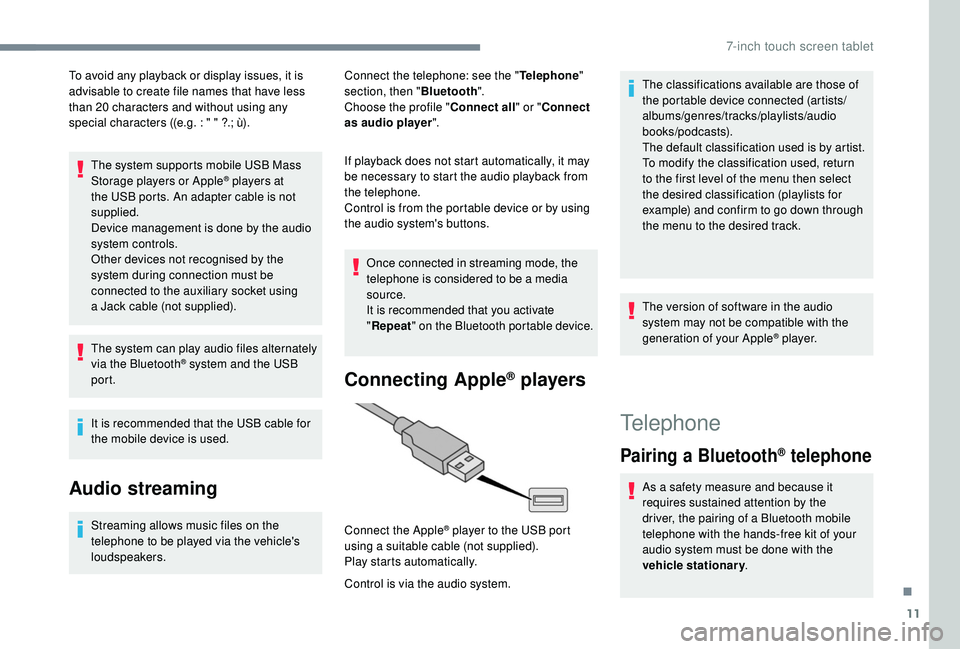
Control is via the audio system. Connect the Apple
® player to the USB port
using a
suitable cable (not supplied).
Play starts automatically. The classifications available are those of
the portable device connected (artists/
albums/genres/tracks/playlists/audio
books/podcasts).
The default classification used is by artist.
To modify the classification used, return
to the first level of the menu then select
the desired classification (playlists for
example) and confirm to go down through
the menu to the desired track.
The version of software in the audio
system may not be compatible with the
generation of your Apple
® p l aye r.
Telephone
Pairing a
Bluetooth® telephone
As a safety measure and because it
r equires sustained attention by the
driver, the pairing of a
Bluetooth mobile
telephone with the hands-free kit of your
audio system must be done with the
vehicle stationary .
.
7-inch touch screen tablet
Page 161 of 180
13
Select "Telephone/message
configuration ".
Select " Connect the telephone "
to display a
list of the paired
peripherals.
Select " Remove " then select the peripheral
device in the list and confirm.
Receiving a call
An incoming call is announced by a ring and
a superimposed display in the screen.
Make a
short press on this steering
mounted button to accept an
incoming call.
Make a
short press on this steering
mounted button to reject the call or
to end the conversation.
Making a call
Calling a new number
You are strongly advised NOT to use the
telephone while driving. We recommend
that you park safely or make use of the
steering mounted controls. Press "
Telephone ".
Press the keypad tab.
Enter the telephone number
using the keypad, then press the
telephone button to make the call.
Calling a contact
Press "Telephone ".
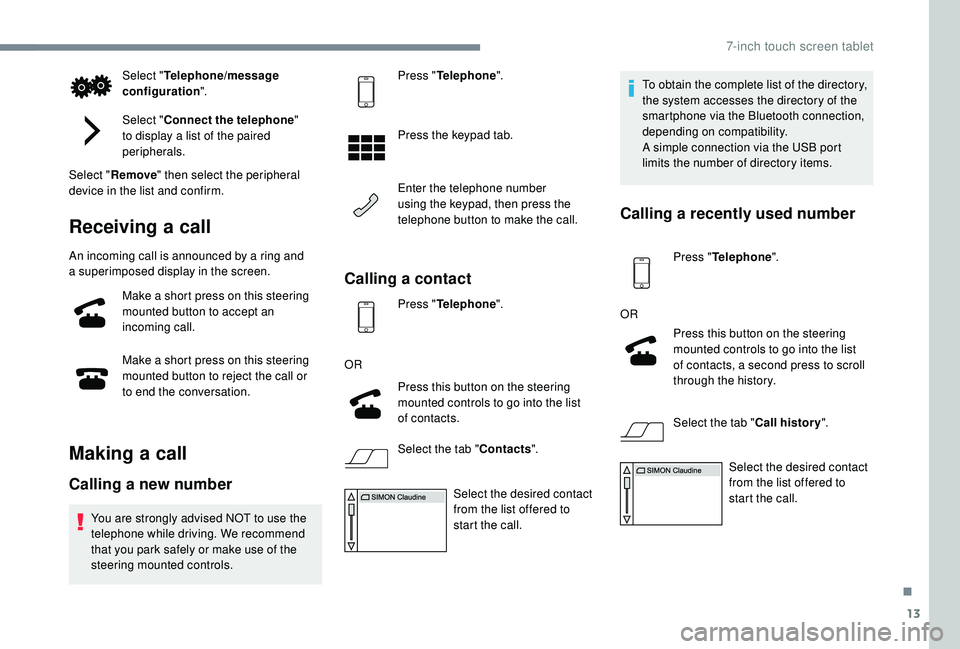
OR Press this button on the steering
mounted controls to go into the list
of contacts.
Select the tab " Contacts".
Select the desired contact
from the list offered to
start the call. To obtain the complete list of the directory,
the system accesses the directory of the
smartphone via the Bluetooth connection,
depending on compatibility.
A simple connection via the USB port
limits the number of directory items.
Calling a
recently used number
Press "Telephone ".
OR Press this button on the steering
mounted controls to go into the list
of contacts, a second press to scroll
through the history.
Select the tab " Call history".
Select the desired contact
from the list offered to
start the call.
.
7-inch touch screen tablet
Page 163 of 180
15
On Apple players, you must enable the
"Notifications " option to display the
messages in the system.
Press the " Settings" application, then
" Bluetooth ".
Managing email
Press "Telephone ".
Press the envelope in the upper bar
to display the list of emails.
Select the desired email to read it.
Select " Previous " or "Next " to move for wards
or backwards in the list. Next, in the list of your
connections, press the
"Information" button
corresponding to the name of
your vehicle's system, then
activate "
Notifications ".
Select " Quick Message " to read and send the
quick messages or to edit them.
Press " By default " to access the messages to
be modified. Press this button to edit and modify
the quick message text and confirm
with "
OK".
On receipt of an email (with the smartphone
connected), a window appears on the screen,
letting you " Read" or "Ignore ".
Access to " Email" depends on the
compatibility of the smartphone and the
installed system.
Depending on the smartphone, access to
your email may be slow.
Configuration
System update.
To obtain a system update, you can proceed
a s follows:
Download the system updates from the
Brand's website.
You will find:
-
A
n update specifically for the system with
DAB (Digital Audio Broadcasting) radio.
-
A
n update specifically for the system
without DAB (Digital Audio Broadcasting)
radio.
Follow these three steps to install a system
u pdate:
-
P
repare a USB device.
-
D
ownload the new update.
-
I
nstall the new update.
Preparing a USB device
Use a USB device, not a mass storage
d evice (telephone or media player).
To protect the system, do not use a
USB
hub.
To update the system, you must have a
USB
device meeting the conditions below:
-
T
he USB device must be empty.
-
T
he USB device has 8 GB of space
available.
-
U
se only USB devices in the FAT32 (File
Allocation Table) format.
-
D
o not lock the USB device and check that
it can save files.
You are now ready to download an update onto
your USB device.
Downloading an update
F Download the desired update.
F S elect the desired update and copy it to
your USB device.
.
7-inch touch screen tablet
Page 164 of 180
16
Installing the update
The download of the update must be
carried out with the engine running,
the vehicle stationary, and the parking
brake applied.
Insert a
USB device in the USB port.Press " Configuration ".
Press " General ".
Press " Software update ".
Press " Update ".
A page is displayed with the old and the new
version of the software for your reference.
Press " Update software ".
Do not remove the USB device or turn off
the system until the update is complete. If
the update is interrupted, start the system
update over again.
Once the update is done, the system restarts
automatically.
Customising the homepage
image
It is advisable to restrict file names to
32 characters, without using special characters
(e.g. : " ?; ù) so as to avoid any reading or
display problems.
Use a
USB device, not a mass storage
device (telephone or media player).
To protect the system, do not use a
USB
hub.
To update the system, you must have a
USB
device meeting the conditions below:
-
T
he USB device must be empty.
-
U
se only USB devices in the FAT32 (File
Allocation Table) format.
-
D
o not lock the USB device and check that
it can save files.
On the USB device create a
folder named
" Startupimage " (with the upper-case letter
" S ").
Copy the photo(s) into the " Startupimage"
f o l d e r.
Insert a
USB device in the USB port.Press " Configuration ". Press "
General ".
Check that the " Animation" option is activated.
Press " Customise startup image" .
A page is displayed with a
menu in which
thumbnails will be added.
Press " Transfer ", then accept over writing the
current images because the system does not
allow adding to old images.
Do not remove the USB device nor turn off
the system until the copying is complete. If
the copying is interrupted, start over.
The system returns to the presentation menu
page with the thumbnails added.
Choose an image and press " OK".
To take this into account, turn the system off
and back on. The image is not displayed in full screen
mode.
7-inch touch screen tablet
Page 168 of 180
20
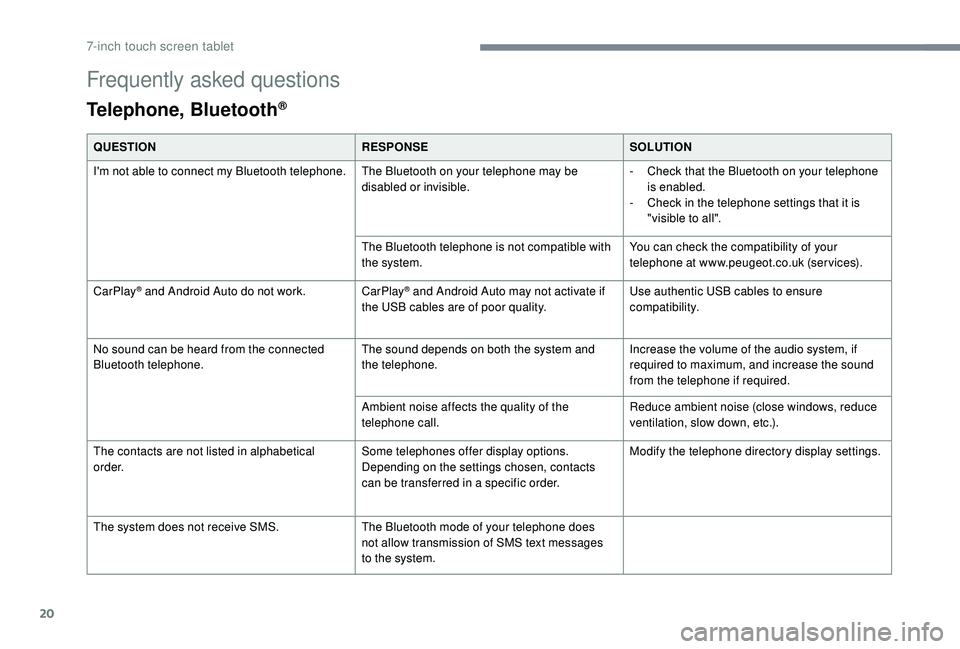
Frequently asked questions
Telephone, Bluetooth®
QUESTIONRESPONSESOLUTION
I'm not able to connect my Bluetooth telephone. The Bluetooth on your telephone may be
disabled or invisible.-
C
heck that the Bluetooth on your telephone
is enabled.
-
C
heck in the telephone settings that it is
"visible to all".
The Bluetooth telephone is not compatible with
the system. You can check the compatibility of your
telephone at www.peugeot.co.uk (services).
CarPlay
® and Android Auto do not work. CarPlay® and Android Auto may not activate if
the USB cables are of poor quality. Use authentic USB cables to ensure
compatibility.
No sound can be heard from the connected
Bluetooth telephone. The sound depends on both the system and
the telephone.Increase the volume of the audio system, if
required to maximum, and increase the sound
from the telephone if required.
Ambient noise affects the quality of the
telephone call. Reduce ambient noise (close windows, reduce
ventilation, slow down, etc.).
The contacts are not listed in alphabetical
o r d e r. Some telephones offer display options.
Depending on the settings chosen, contacts
can be transferred in a
specific order. Modify the telephone directory display settings.
The system does not receive SMS. The Bluetooth mode of your telephone does
not allow transmission of SMS text messages
to the system.
7-inch touch screen tablet
Page 169 of 180
21
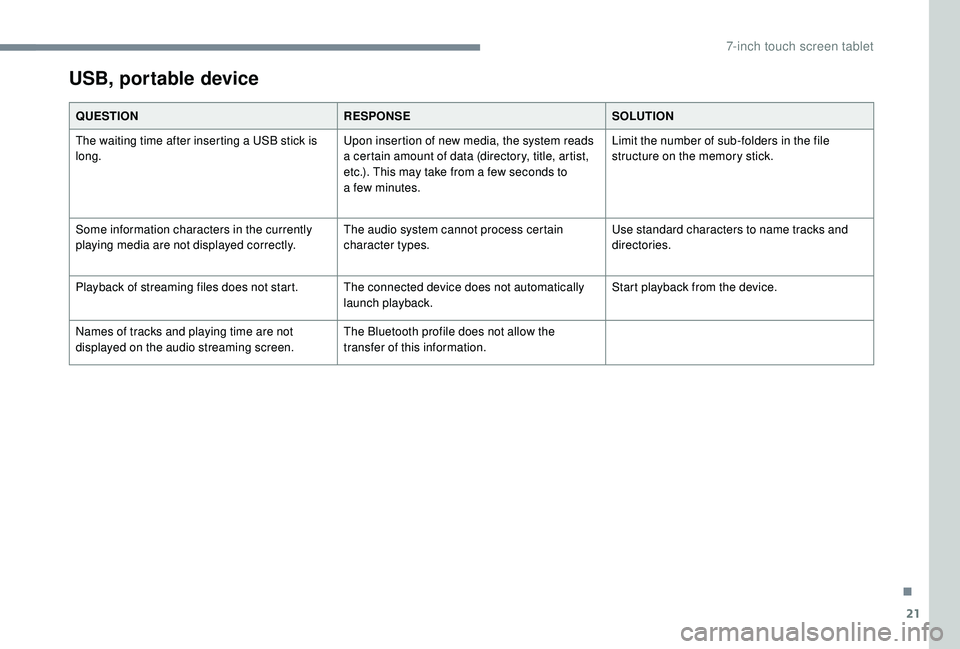
USB, portable device
QUESTIONRESPONSESOLUTION
The waiting time after inserting a USB stick is
long. Upon insertion of new media, the system reads
a
certain amount of data (directory, title, artist,
etc.). This may take from a
few seconds to
a
few minutes.Limit the number of sub-folders in the file
structure on the memory stick.
Some information characters in the currently
playing media are not displayed correctly. The audio system cannot process certain
character types.Use standard characters to name tracks and
directories.
Playback of streaming files does not start. The connected device does not automatically launch playback.Start playback from the device.
Names of tracks and playing time are not
displayed on the audio streaming screen. The Bluetooth profile does not allow the
transfer of this information.
.
7-inch touch screen tablet