display PEUGEOT 108 2018 Workshop Manual
[x] Cancel search | Manufacturer: PEUGEOT, Model Year: 2018, Model line: 108, Model: PEUGEOT 108 2018Pages: 180, PDF Size: 7.14 MB
Page 160 of 180
12
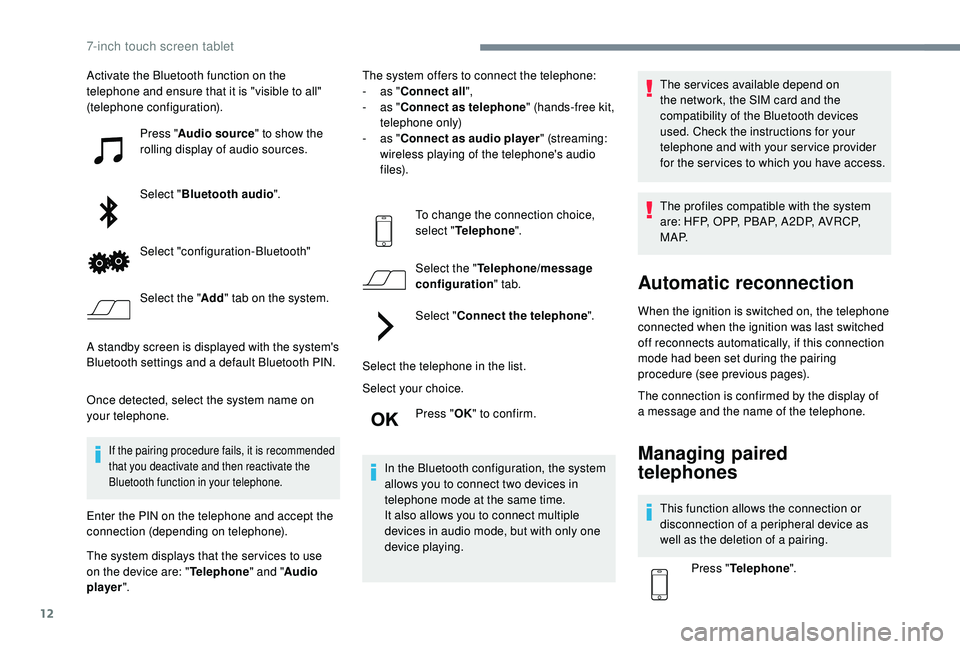
Activate the Bluetooth function on the
telephone and ensure that it is "visible to all"
(telephone configuration).Press "Audio source " to show the
rolling display of audio sources.
Select " Bluetooth audio ".
Select "configuration-Bluetooth"
Select the " Add" tab on the system.
A standby screen is displayed with the system's
Bluetooth settings and a
default Bluetooth PIN.
Once detected, select the system name on
your telephone.
If the pairing procedure fails, it is recommended
that you deactivate and then reactivate the
Bluetooth function in your telephone.
Enter the PIN on the telephone and accept the
connection (depending on telephone).
The system displays that the ser vices to use
on the device are: " Telephone" and "Audio
player ". The system offers to connect the telephone:
-
a
s "
Connect all",
-
a
s "
Connect as telephone " (hands-free kit,
telephone only)
-
a
s "
Connect as audio player " (streaming:
wireless playing of the telephone's audio
f i l e s).
To change the connection choice,
select " Telephone ".
Select the " Telephone/message
configuration " tab.
Select " Connect the telephone ".
Select the telephone in the list.
Select your choice. Press "OK" to confirm.
In the Bluetooth configuration, the system
allows you to connect two devices in
telephone mode at the same time.
It also allows you to connect multiple
devices in audio mode, but with only one
device playing. The services available depend on
the network, the SIM card and the
compatibility of the Bluetooth devices
used. Check the instructions for your
telephone and with your service provider
for the ser vices to which you have access.
The profiles compatible with the system
are: HFP, OPP, PBAP, A 2DP, AVRCP,
M A P.
Automatic reconnection
When the ignition is switched on, the telephone
connected when the ignition was last switched
off reconnects automatically, if this connection
mode had been set during the pairing
procedure (see previous pages).
The connection is confirmed by the display of
a
message and the name of the telephone.
Managing paired
telephones
This function allows the connection or
disconnection of a peripheral device as
well as the deletion of a
pairing.
Press " Telephone ".
7-inch touch screen tablet
Page 161 of 180
13
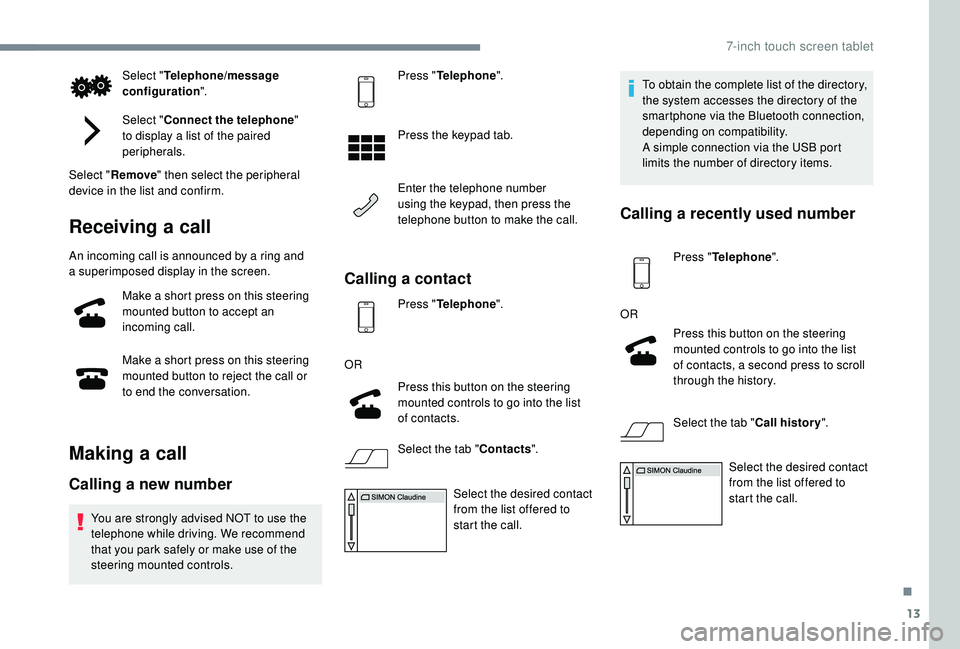
Select "Telephone/message
configuration ".
Select " Connect the telephone "
to display a
list of the paired
peripherals.
Select " Remove " then select the peripheral
device in the list and confirm.
Receiving a call
An incoming call is announced by a ring and
a superimposed display in the screen.
Make a
short press on this steering
mounted button to accept an
incoming call.
Make a
short press on this steering
mounted button to reject the call or
to end the conversation.
Making a call
Calling a new number
You are strongly advised NOT to use the
telephone while driving. We recommend
that you park safely or make use of the
steering mounted controls. Press "
Telephone ".
Press the keypad tab.
Enter the telephone number
using the keypad, then press the
telephone button to make the call.
Calling a contact
Press "Telephone ".
OR Press this button on the steering
mounted controls to go into the list
of contacts.
Select the tab " Contacts".
Select the desired contact
from the list offered to
start the call. To obtain the complete list of the directory,
the system accesses the directory of the
smartphone via the Bluetooth connection,
depending on compatibility.
A simple connection via the USB port
limits the number of directory items.
Calling a
recently used number
Press "Telephone ".
OR Press this button on the steering
mounted controls to go into the list
of contacts, a second press to scroll
through the history.
Select the tab " Call history".
Select the desired contact
from the list offered to
start the call.
.
7-inch touch screen tablet
Page 162 of 180
14
Managing contacts/entries
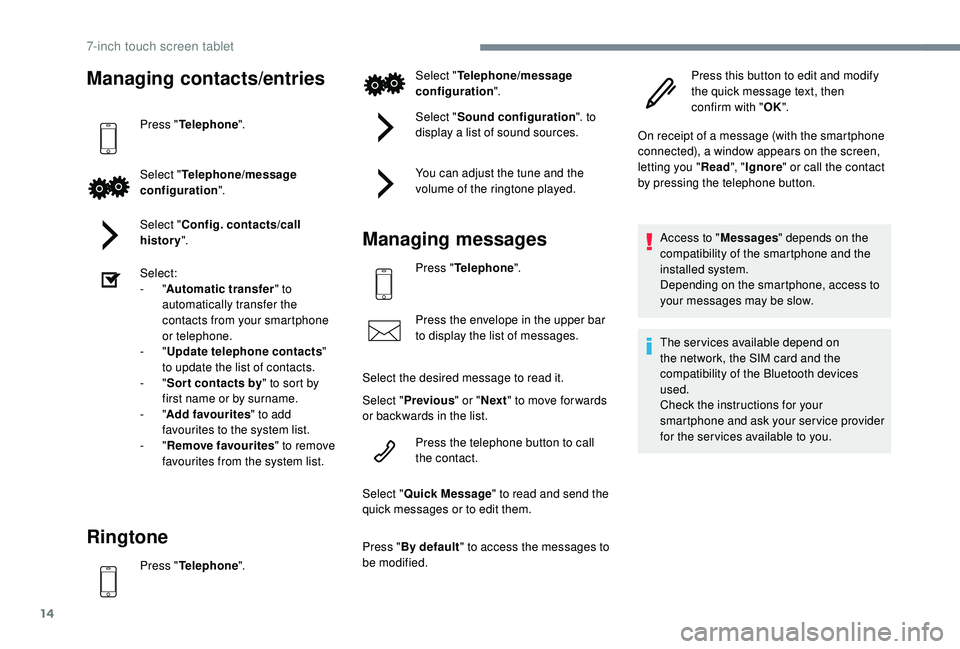
Press "Telephone ".
Select " Telephone/message
configuration ".
Select " Config. contacts/call
history ".
Select:
-
"Automatic transfer " to
automatically transfer the
contacts from your smartphone
or telephone.
-
"Update telephone contacts "
to update the list of contacts.
-
"Sor t contacts by " to sort by
first name or by surname.
-
"Add favourites " to add
favourites to the system list.
-
"Remove favourites " to remove
favourites from the system list.
Ringtone
Press " Telephone ". Select "
Telephone/message
configuration ".
Select " Sound configuration ". to
display a list of sound sources.
You can adjust the tune and the
volume of the ringtone played.
Managing messages
Press " Telephone ".
Press the envelope in the upper bar
to display the list of messages.
Select the desired message to read it.
Select " Previous " or "Next " to move for wards
or backwards in the list.
Press the telephone button to call
the contact.
Select " Quick Message " to read and send the
quick messages or to edit them.
Press " By default " to access the messages to
be modified. Press this button to edit and modify
the quick message text, then
confirm with "
OK".
On receipt of a message (with the smartphone
connected), a window appears on the screen,
letting you " Read", "Ignore " or call the contact
by pressing the telephone button.
Access to " Messages" depends on the
compatibility of the smartphone and the
installed system.
Depending on the smartphone, access to
your messages may be slow.
The services available depend on
the network, the SIM card and the
compatibility of the Bluetooth devices
used.
Check the instructions for your
smartphone and ask your ser vice provider
for the ser vices available to you.
7-inch touch screen tablet
Page 163 of 180
15
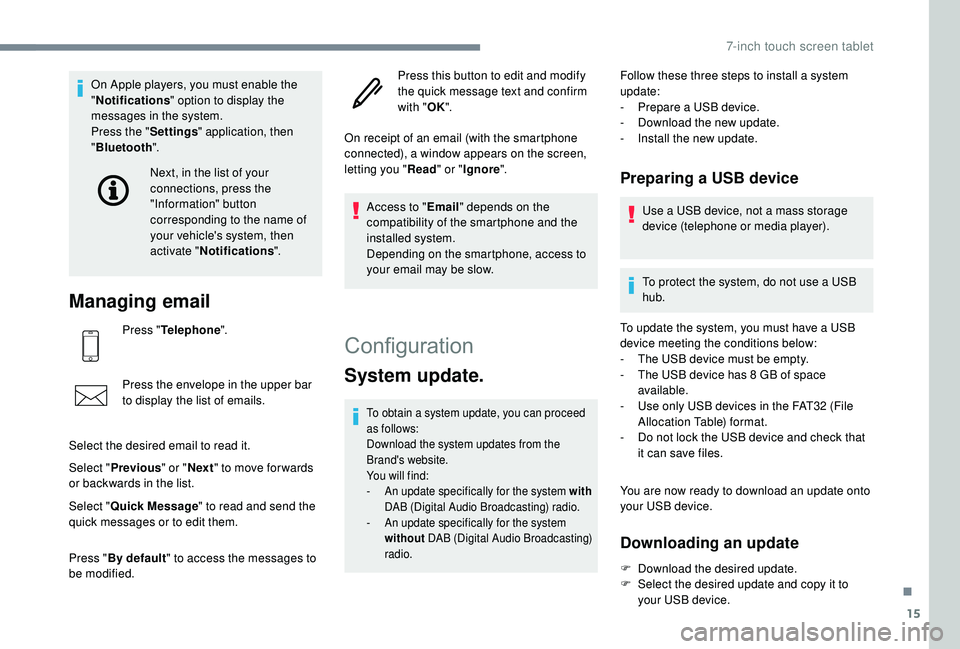
On Apple players, you must enable the
"Notifications " option to display the
messages in the system.
Press the " Settings" application, then
" Bluetooth ".
Managing email
Press "Telephone ".
Press the envelope in the upper bar
to display the list of emails.
Select the desired email to read it.
Select " Previous " or "Next " to move for wards
or backwards in the list. Next, in the list of your
connections, press the
"Information" button
corresponding to the name of
your vehicle's system, then
activate "
Notifications ".
Select " Quick Message " to read and send the
quick messages or to edit them.
Press " By default " to access the messages to
be modified. Press this button to edit and modify
the quick message text and confirm
with "
OK".
On receipt of an email (with the smartphone
connected), a window appears on the screen,
letting you " Read" or "Ignore ".
Access to " Email" depends on the
compatibility of the smartphone and the
installed system.
Depending on the smartphone, access to
your email may be slow.
Configuration
System update.
To obtain a system update, you can proceed
a s follows:
Download the system updates from the
Brand's website.
You will find:
-
A
n update specifically for the system with
DAB (Digital Audio Broadcasting) radio.
-
A
n update specifically for the system
without DAB (Digital Audio Broadcasting)
radio.
Follow these three steps to install a system
u pdate:
-
P
repare a USB device.
-
D
ownload the new update.
-
I
nstall the new update.
Preparing a USB device
Use a USB device, not a mass storage
d evice (telephone or media player).
To protect the system, do not use a
USB
hub.
To update the system, you must have a
USB
device meeting the conditions below:
-
T
he USB device must be empty.
-
T
he USB device has 8 GB of space
available.
-
U
se only USB devices in the FAT32 (File
Allocation Table) format.
-
D
o not lock the USB device and check that
it can save files.
You are now ready to download an update onto
your USB device.
Downloading an update
F Download the desired update.
F S elect the desired update and copy it to
your USB device.
.
7-inch touch screen tablet
Page 164 of 180
16
Installing the update
The download of the update must be
carried out with the engine running,
the vehicle stationary, and the parking
brake applied.
Insert a
USB device in the USB port.Press " Configuration ".
Press " General ".
Press " Software update ".
Press " Update ".
A page is displayed with the old and the new
version of the software for your reference.
Press " Update software ".
Do not remove the USB device or turn off
the system until the update is complete. If
the update is interrupted, start the system
update over again.
Once the update is done, the system restarts
automatically.
Customising the homepage
image
It is advisable to restrict file names to
32 characters, without using special characters
(e.g. : " ?; ù) so as to avoid any reading or
display problems.
Use a
USB device, not a mass storage
device (telephone or media player).
To protect the system, do not use a
USB
hub.
To update the system, you must have a
USB
device meeting the conditions below:
-
T
he USB device must be empty.
-
U
se only USB devices in the FAT32 (File
Allocation Table) format.
-
D
o not lock the USB device and check that
it can save files.
On the USB device create a
folder named
" Startupimage " (with the upper-case letter
" S ").
Copy the photo(s) into the " Startupimage"
f o l d e r.
Insert a
USB device in the USB port.Press " Configuration ". Press "
General ".
Check that the " Animation" option is activated.
Press " Customise startup image" .
A page is displayed with a
menu in which
thumbnails will be added.
Press " Transfer ", then accept over writing the
current images because the system does not
allow adding to old images.
Do not remove the USB device nor turn off
the system until the copying is complete. If
the copying is interrupted, start over.
The system returns to the presentation menu
page with the thumbnails added.
Choose an image and press " OK".
To take this into account, turn the system off
and back on. The image is not displayed in full screen
mode.
7-inch touch screen tablet
Page 167 of 180
19
98765
43210
S
N
N
E
44
009
23
21
21
32
EW
To GPS coordinates
Press "N AV I".
Select " Navigation ".
Select " Go to".
Press the secondary page.
Select " Coordinates ".
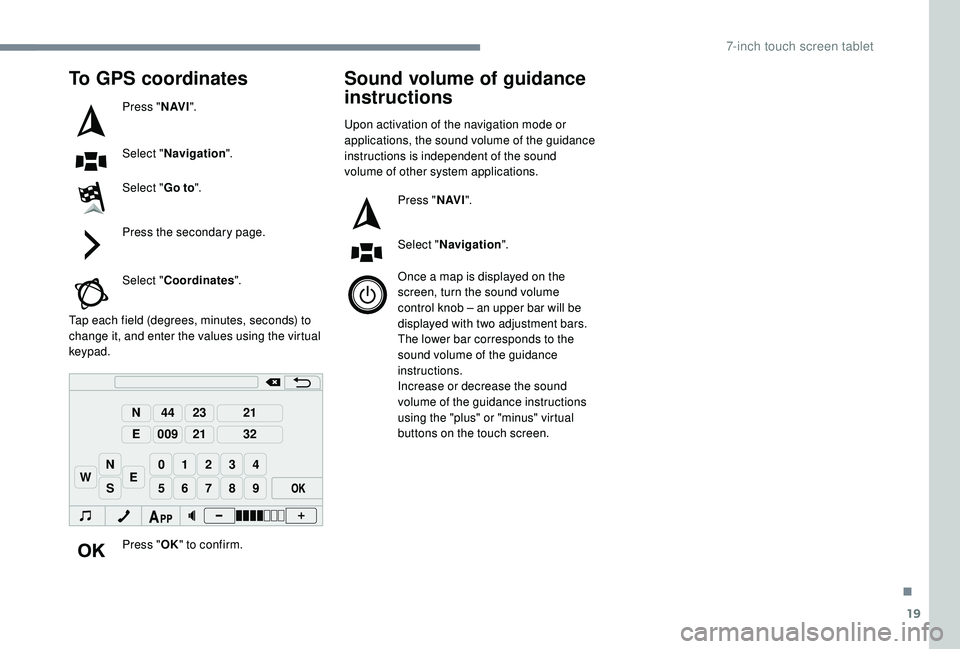
Tap each field (degrees, minutes, seconds) to
change it, and enter the values using the virtual
keypad.
Press "OK" to confirm.
Sound volume of guidance
instructions
Upon activation of the navigation mode or
applications, the sound volume of the guidance
instructions is independent of the sound
volume of other system applications.
Press "N AV I".
Select " Navigation ".
Once a
map is displayed on the
screen, turn the sound volume
control knob – an upper bar will be
displayed with two adjustment bars.
The lower bar corresponds to the
sound volume of the guidance
instructions.
Increase or decrease the sound
volume of the guidance instructions
using the "plus" or "minus" virtual
buttons on the touch screen.
.
7-inch touch screen tablet
Page 168 of 180
20
Frequently asked questions
Telephone, Bluetooth®
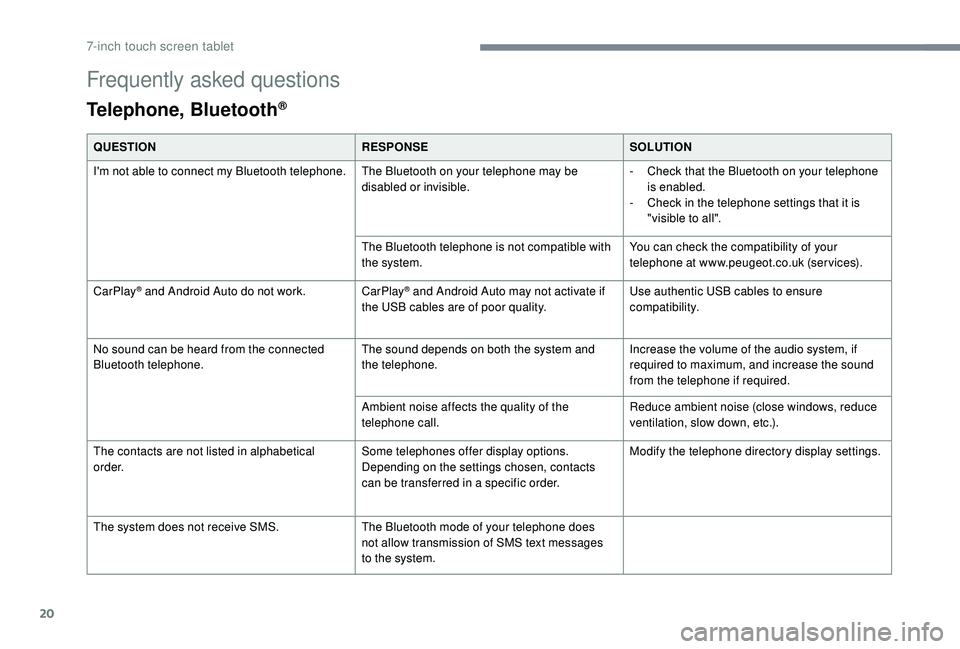
QUESTIONRESPONSESOLUTION
I'm not able to connect my Bluetooth telephone. The Bluetooth on your telephone may be
disabled or invisible.-
C
heck that the Bluetooth on your telephone
is enabled.
-
C
heck in the telephone settings that it is
"visible to all".
The Bluetooth telephone is not compatible with
the system. You can check the compatibility of your
telephone at www.peugeot.co.uk (services).
CarPlay
® and Android Auto do not work. CarPlay® and Android Auto may not activate if
the USB cables are of poor quality. Use authentic USB cables to ensure
compatibility.
No sound can be heard from the connected
Bluetooth telephone. The sound depends on both the system and
the telephone.Increase the volume of the audio system, if
required to maximum, and increase the sound
from the telephone if required.
Ambient noise affects the quality of the
telephone call. Reduce ambient noise (close windows, reduce
ventilation, slow down, etc.).
The contacts are not listed in alphabetical
o r d e r. Some telephones offer display options.
Depending on the settings chosen, contacts
can be transferred in a
specific order. Modify the telephone directory display settings.
The system does not receive SMS. The Bluetooth mode of your telephone does
not allow transmission of SMS text messages
to the system.
7-inch touch screen tablet
Page 169 of 180
21
USB, portable device
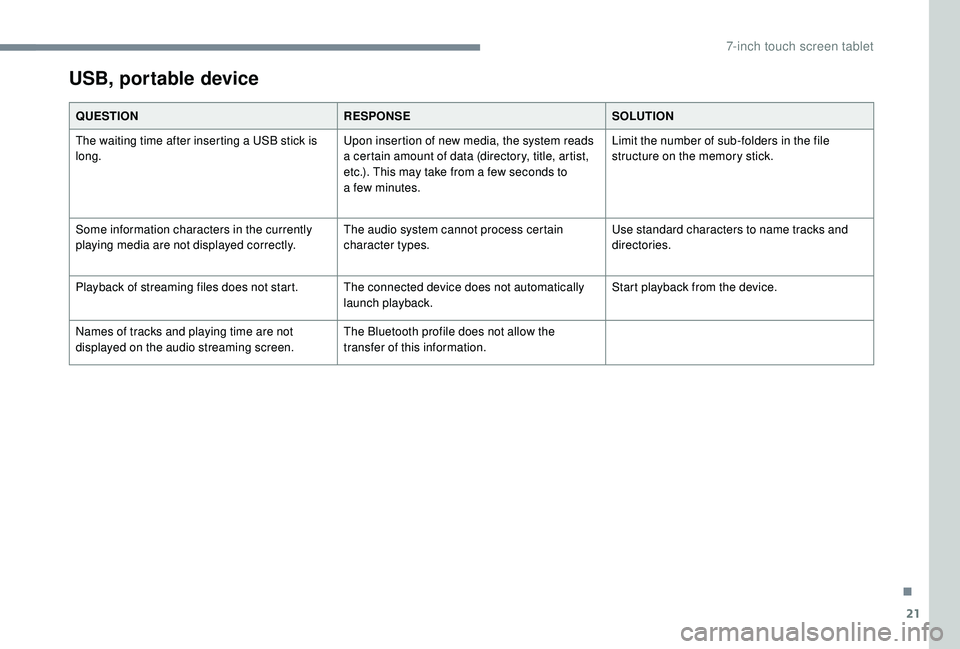
QUESTIONRESPONSESOLUTION
The waiting time after inserting a USB stick is
long. Upon insertion of new media, the system reads
a
certain amount of data (directory, title, artist,
etc.). This may take from a
few seconds to
a
few minutes.Limit the number of sub-folders in the file
structure on the memory stick.
Some information characters in the currently
playing media are not displayed correctly. The audio system cannot process certain
character types.Use standard characters to name tracks and
directories.
Playback of streaming files does not start. The connected device does not automatically launch playback.Start playback from the device.
Names of tracks and playing time are not
displayed on the audio streaming screen. The Bluetooth profile does not allow the
transfer of this information.
.
7-inch touch screen tablet
Page 170 of 180
22
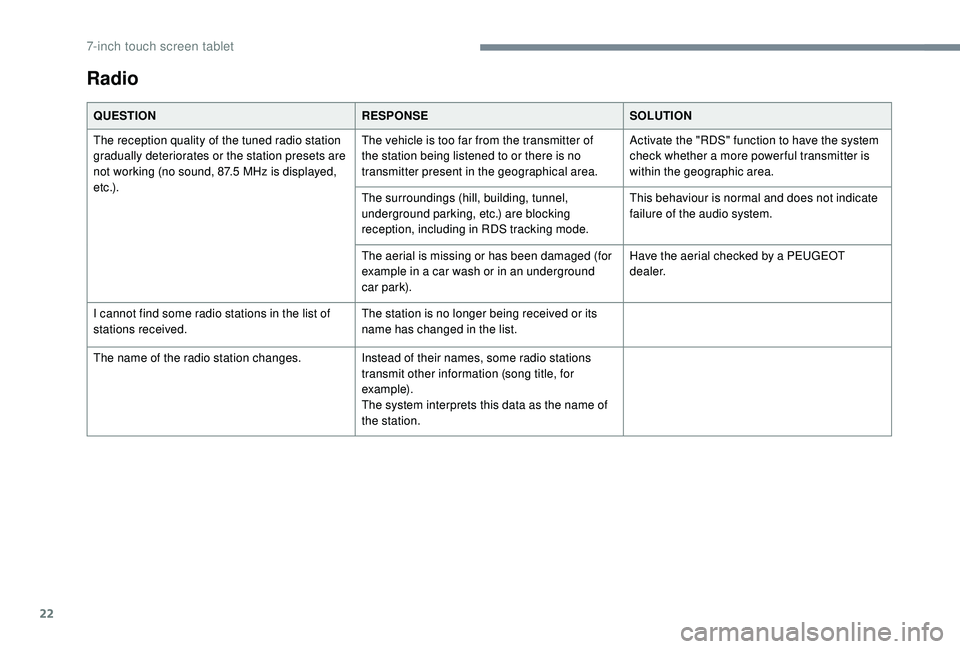
Radio
QUESTIONRESPONSESOLUTION
The reception quality of the tuned radio station
gradually deteriorates or the station presets are
not working (no sound, 87.5
MHz is displayed,
e t c .) . The vehicle is too far from the transmitter of
the station being listened to or there is no
transmitter present in the geographical area.
Activate the "RDS" function to have the system
check whether a
more power ful transmitter is
within the geographic area.
The surroundings (hill, building, tunnel,
underground parking, etc.) are blocking
reception, including in RDS tracking mode. This behaviour is normal and does not indicate
failure of the audio system.
The aerial is missing or has been damaged (for
example in a
car wash or in an underground
car park). Have the aerial checked by a
PEUGEOT
dealer.
I cannot find some radio stations in the list of
stations received. The station is no longer being received or its
name has changed in the list.
The name of the radio station changes. Instead of their names, some radio stations
transmit other information (song title, for
example).
The system interprets this data as the name of
the station.
7-inch touch screen tablet
Page 172 of 180
170
ABS .................................................................52
Accessories .................................................... 51
Access to rear seats (3 -door)
.........................33
Active City Brake
...............................
..15, 8 6 - 89
Adjusting seat
........................................... 32, 34
Adjusting the air distribution
...........................37
Adjusting the air flow
....................................... 37
A
djusting the temperature
........................37- 4 0
Adjusting the time
..................................... 20 -21
Advice on care and maintenance
...................99
Advice on driving
............................................ 72
Airbags
...............................
...........14, 56 -58, 60
Airbags, curtain
............................................... 58
Airbags, front ....................................... 57- 5 8 , 61
Airbags, lateral
.......................................... 57- 5 8
Air conditioning
........................................... 6, 38
Air conditioning, automatic
.......................38-40
Air conditioning, manual
........................... 3
7, 4 0
Air intake
................................................... 38-40
Air vents
.......................................................... 36
Anti-lock braking system (ABS)
......................52
Apple CarPlay connection
................................4
Audible warning
.............................................. 51
A
udio streaming (Bluetooth)
................10, 10 -11
Audio system
..................................................... 1Boot
.................................................................27
Brake discs
....................................................103
Brake lamps
...............................
...................113
Brakes
.....................................................11, 1 0 3
Bulbs (changing)
.....................................111 -112
Battery
............................................ 102, 121-123
Battery, charging
........................................... 123
Battery, electronic key
....................................26
Battery, remote control
...................................23
Bluetooth (hands-free)
......................... 1
0 , 11 -12
Bluetooth (telephone)
........................... 1
0 , 11 -12
Bonnet
....................................................... 98-99 Control stalk, lighting
......................................46
Control stalk, wipers
.......................................49
C
ourtesy lamp .................................................41
Cup holder
.......................................................42
DAB (Digital Audio Broadcasting) – Digital radio
..................8, 8 -9
Daytime running lamps
...................................46
Deactivating the passenger airbag
.....5 7, 6 0 - 6 1
Defrosting
.......................................36-37, 40-41
Defrosting, front
..............................................40
Demisting
..................................................36-40
Demisting, front
............................................... 40
D
emisting, rear
................................................41
Demisting, rear screen
...................................41
Dimensions
..............................
.....................126
Dipstick
................
...................................10 0 -101
Direction indicators
..........................4 8 , 112 -113
Display screen
................................................18
Display screen, instrument panel
.................8-9
Door pockets
...............................
....................42
Doors
.........................................................26-27
Driving economically ......................................... 6
DSC
.................................................................14
Dynamic stability control (DSC)
.....13 -14, 52- 5 3
Cable, audio
......................................................9
Cable, Jack
.......................................................9
Capacity, fuel tank
..........................................96
CD
...................................................................10
CD, MP3
..........................................................10
Central locking
.......................................... 2
2-24
Changing a
bulb
......................................111
-112
Changing a
fuse
..............................11
4 -11 6 , 11 9
Changing a
wheel
...................1
0 7-1 0 8 , 11 0 -111
Changing a
wiper blade
..................................50
C
hanging the electronic key battery
...............26
C
hanging the remote control battery
..............23
Checking the levels
.................................9 9 -10 2
Checking tyre pressures (using the kit) ...104, 10 6
Checks
............................................. 99, 102-103
Checks, routine
...................................... 102-103
Children
.......................................... 66-68, 70-71
Children (safety)
.............................................. 71
Child seats
................. 5
5 -56, 59 - 60, 64- 65, 70
Child seats, conventional
................................ 64
Child seats, i-Size
........................................... 70
Child seats, ISOFIX
.................................. 66 -70
Closing the boot
.............................................. 27
Closing the doors
............................................ 24
Clutch
...................................................... 12, 102
Connection, MirrorLink
..................................... 5
Control, emergency boot release
................... 28
Control, heated seats
...................................... 33
A
B
DC
Alphabetical index