ad blue PEUGEOT 2008 2013.5 User Guide
[x] Cancel search | Manufacturer: PEUGEOT, Model Year: 2013.5, Model line: 2008, Model: PEUGEOT 2008 2013.5Pages: 336, PDF Size: 9.23 MB
Page 235 of 336
05
233
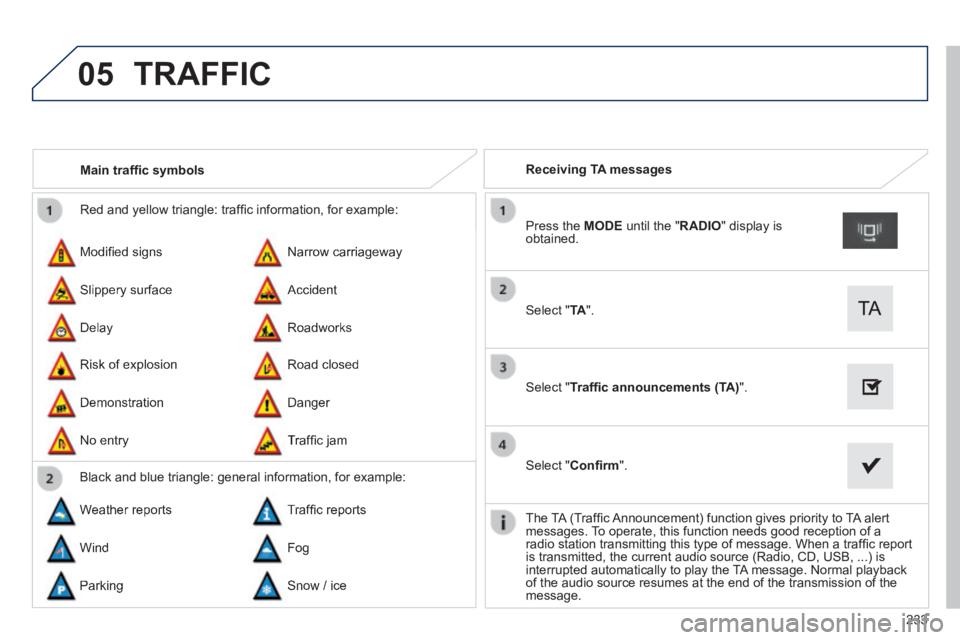
Red and yellow triangle: traffi c information, for example:
Modifi ed signs
Risk of explosion
Narrow carriageway
Road closed
Slippery surface
Demonstration
Accident
Danger
Delay
No entry
Roadworks
Traffi c jam
Main traffi c symbols
Black and blue triangle: general information, for example:
Weather reports Traffi c reports
Wind Fog
Parking Snow / ice
Receiving TA messages
Select " TA ".
Press the MODE until the " RADIO " display is obtained.
Select " Traffi c announcements (TA) ".
Select " Confi rm ".
The TA (Traffi c Announcement) function gives priority to TA alert messages. To operate, this function needs good reception of a radio station transmitting this type of message. When a traffi c report is transmitted, the current audio source (Radio, CD, USB, ...) is interrupted automatically to play the TA message. Normal playback of the audio source resumes at the end of the transmission of the message.
TRAFFIC
Page 250 of 336
06
248
CD, MP3 CD, USB player, auxiliary input
Insert the CD in the player, insert the USB memory stick in the USB player or connect the USB peripheral to the USB port using a suitable cable (not supplied)
The system builds playlists (in temporary memory), an operation which can take from a few seconds to several minutes at the fi rst connection.
Reduce the number of non-music fi les and the number of folders to reduce the waiting time.
The playlists are updated every time the ignition is switched off or connection of a USB memory stick. However, the system memorises these lists and if they are not modifi ed, the loading time will be shorter.
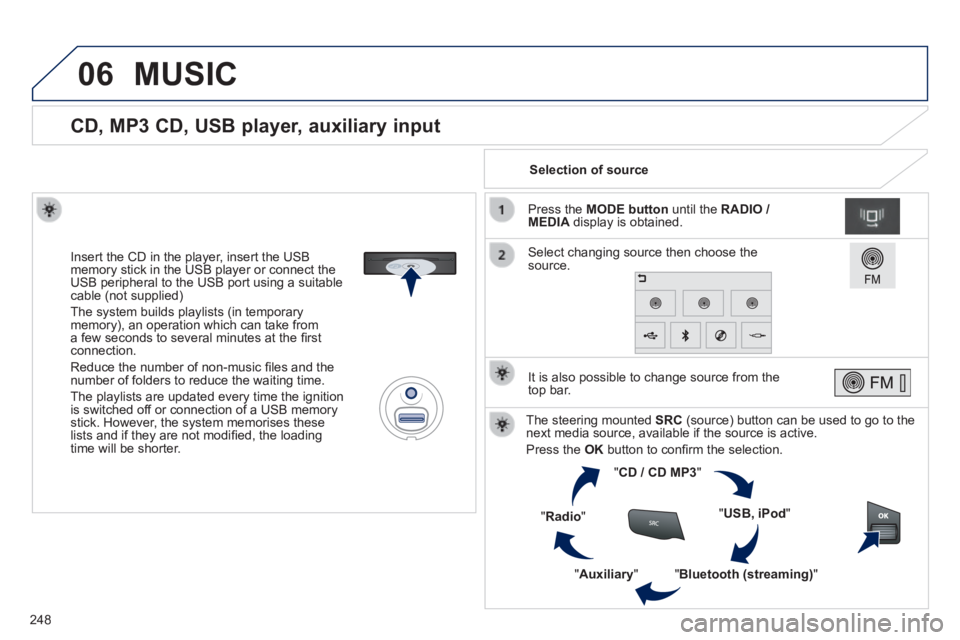
Selection of source
The steering mounted SRC (source) button can be used to go to the next media source, available if the source is active.
Press the OK button to confi rm the selection.
" CD / CD MP3 "
" USB, iPod "
" Bluetooth (streaming) " " Auxiliary "
" Radio "
Select changing source then choose the source.
Press the MODE button until the RADIO / MEDIA display is obtained.
It is also possible to change source from the top bar.
MUSIC
Page 253 of 336
06
251
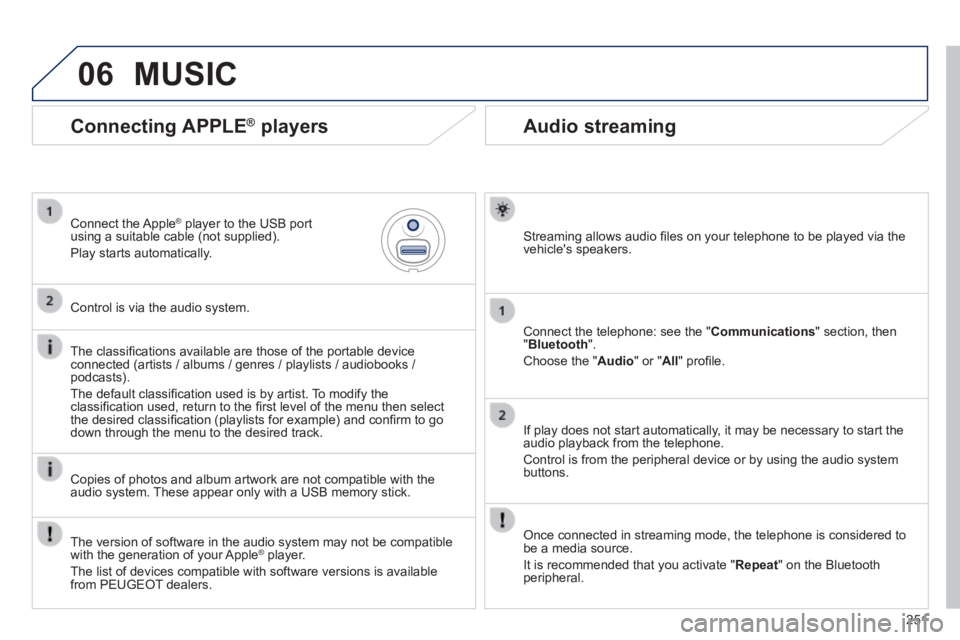
Audio streaming
Streaming allows audio fi les on your telephone to be played via the vehicle's speakers.
Connect the telephone: see the " Communications " section, then " Bluetooth ".
Choose the " Audio " or " All " profi le.
If play does not start automatically, it may be necessary to start the audio playback from the telephone.
Control is from the peripheral device or by using the audio system buttons.
Once connected in streaming mode, the telephone is considered to be a media source.
It is recommended that you activate " Repeat " on the Bluetooth peripheral.
Connecting APPLE ® players
Connect the Apple ® player to the USB port ® player to the USB port ®
using a suitable cable (not supplied).
Play starts automatically.
Control is via the audio system.
The classifi cations available are those of the portable device connected (artists / albums / genres / playlists / audiobooks / podcasts).
The default classifi cation used is by artist. To modify the classifi cation used, return to the fi rst level of the menu then select the desired classifi cation (playlists for example) and confi rm to go down through the menu to the desired track.
Copies of photos and album artwork are not compatible with the audio system. These appear only with a USB memory stick.
MUSIC
The version of software in the audio system may not be compatible with the generation of your Apple ® player. ® player. ®
The list of devices compatible with software versions is available from PEUGEOT dealers.
Page 257 of 336
255
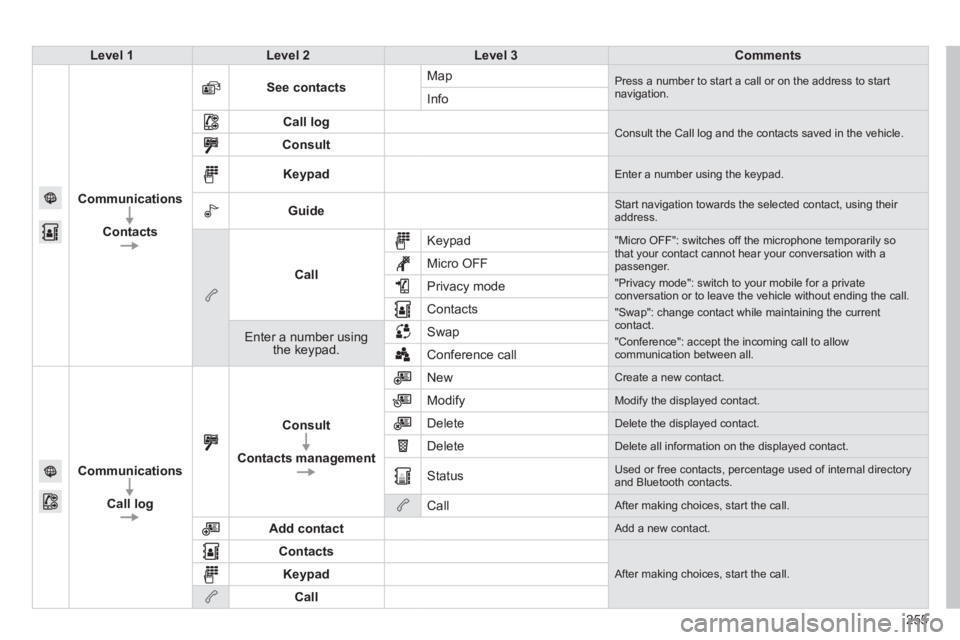
Level 1Level 2Level 3Comments
Communications
Contacts
See contacts Map Press a number to start a call or on the address to start navigation. Info
Call log Consult the Call log and the contacts saved in the vehicle. Consult
Keypad Enter a number using the keypad.
Guide Start navigation towards the selected contact, using their address.
Call
Keypad "Micro OFF": switches off the microphone temporarily so that your contact cannot hear your conversation with a passenger.
"Privacy mode": switch to your mobile for a private conversation or to leave the vehicle without ending the call.
"Swap": change contact while maintaining the current contact.
"Conference": accept the incoming call to allow communication between all.
Micro OFF
Privacy mode
Contacts
Enter a number using the keypad.
Swap
Conference call
Communications
Call log
Consult
Contacts management
New Create a new contact.
Modify Modify the displayed contact.
Delete Delete the displayed contact.
Delete Delete all information on the displayed contact.
Status Used or free contacts, percentage used of internal directory and Bluetooth contacts.
Call After making choices, start the call.
Add contact Add a new contact.
Contacts
After making choices, start the call. Keypad
Call
Page 258 of 336
07
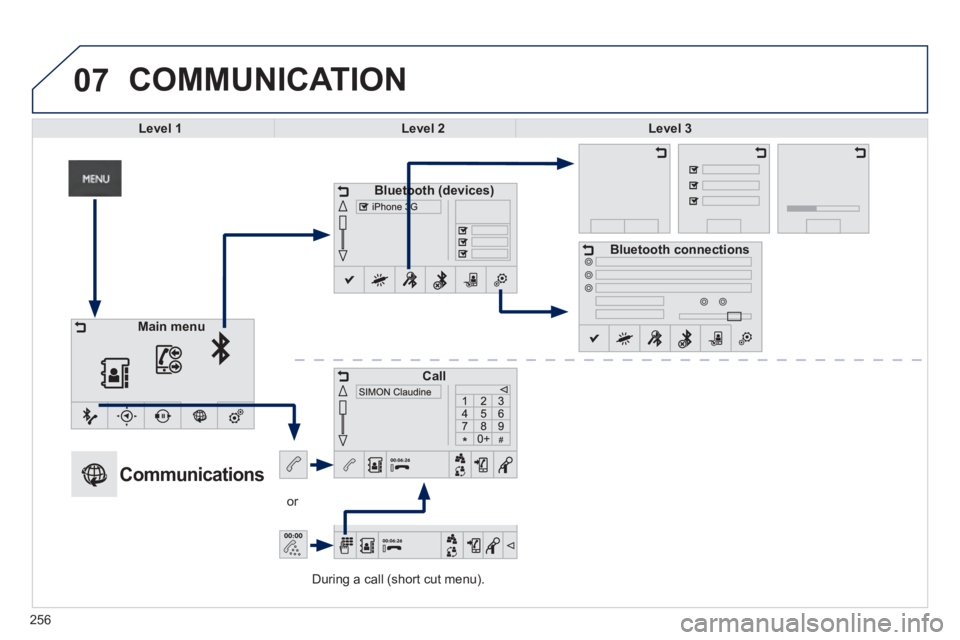
During a call (short cut menu).
or
COMMUNICATION
Level 1Level 2Level 3
Bluetooth (devices)Bluetooth (devices)
Call
Bluetooth connections
Main menu
Communications
256
Page 259 of 336
257
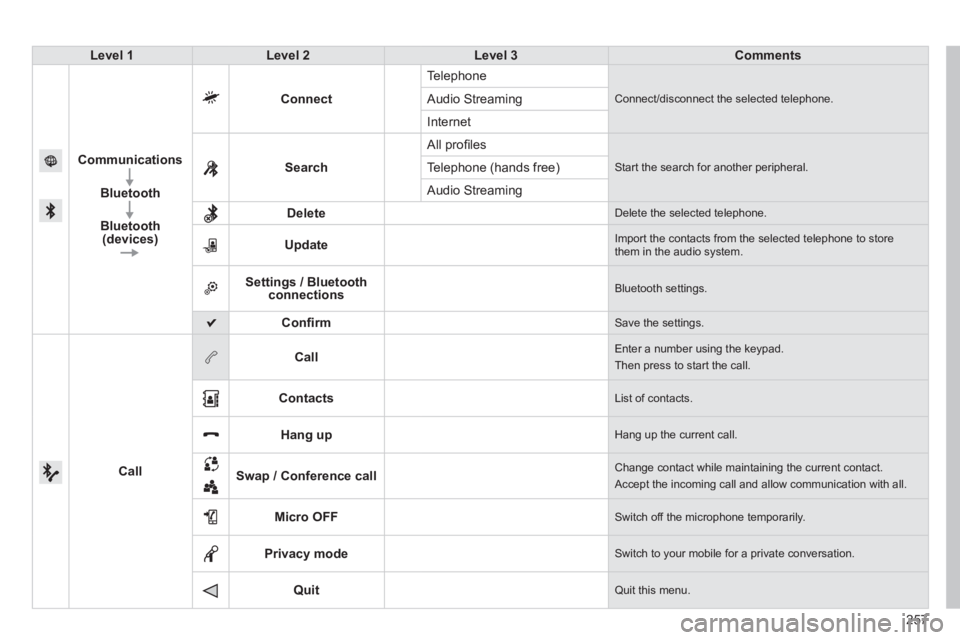
Level 1Level 2Level 3Comments
Communications
Bluetooth
Bluetooth (devices)
Connect
Telephone
Connect/disconnect the selected telephone. Audio Streaming
Internet
Search
All profi les
Start the search for another peripheral . Telephone (hands free)
Audio Streaming
Delete Delete the selected telephone.
Update Import the contacts from the selected telephone to store them in the audio system.
Settings / Bluetooth connections Bluetooth settings.
Confi rm Save the settings.
Call
Call Enter a number using the keypad.
Then press to start the call.
Contacts List of contacts.
Hang up Hang up the current call.
Swap / Conference call Change contact while maintaining the current contact.
Accept the incoming call and allow communication with all.
Micro OFF Switch off the microphone temporarily.
Privacy mode Switch to your mobile for a private conversation.
Quit Quit this menu.
Page 260 of 336
07
258
The " Hands-free " profi le should be used in preference if "Streaming" is not desired.
The ability of the system to connect with only one profi le depends on the telephone. The two profi les may both connect by default.
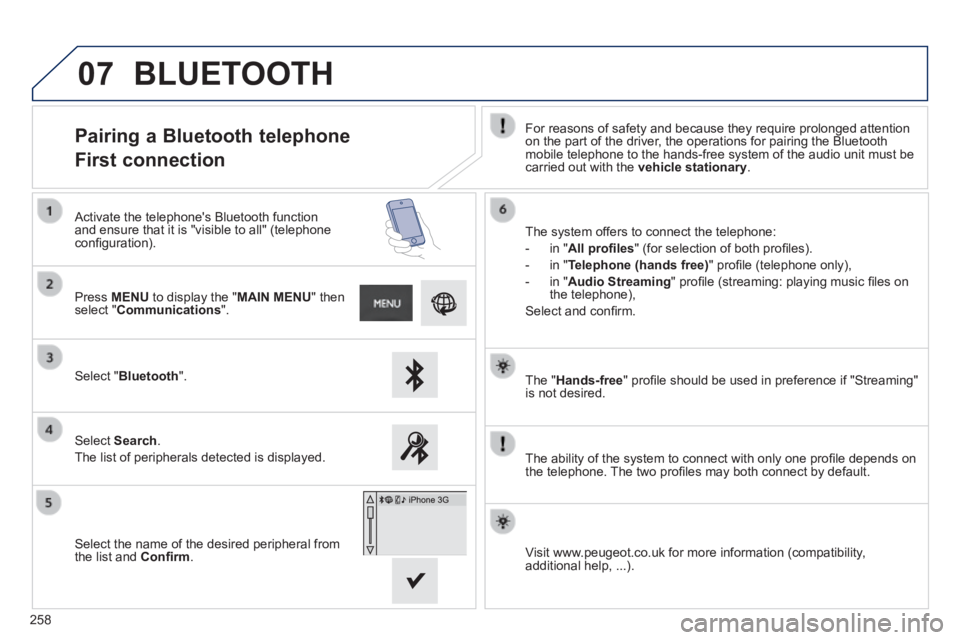
Pairing a Bluetooth telephone
First connection For reasons of safety and because they require prolonged attention on the part of the driver, the operations for pairing the Bluetooth mobile telephone to the hands-free system of the audio unit must be carried out with the vehicle stationary .
Select " Bluetooth ".
Press MENU to display the " MAIN MENU " then select " Communications ".
Select Search .
The list of peripherals detected is displayed.
Activate the telephone's Bluetooth function and ensure that it is "visible to all" (telephone confi guration). The system offers to connect the telephone:
- in " All profi les " (for selection of both profi les).
- in " Telephone (hands free) " profi le (telephone only),
- in " Audio Streaming " profi le (streaming: playing music fi les on the telephone),
Select and confi rm.
Select the name of the desired peripheral from the list and Confi rm . Visit www.peugeot.co.uk for more information (compatibility, additional help, ...).
BLUETOOTH
Page 261 of 336
07
259
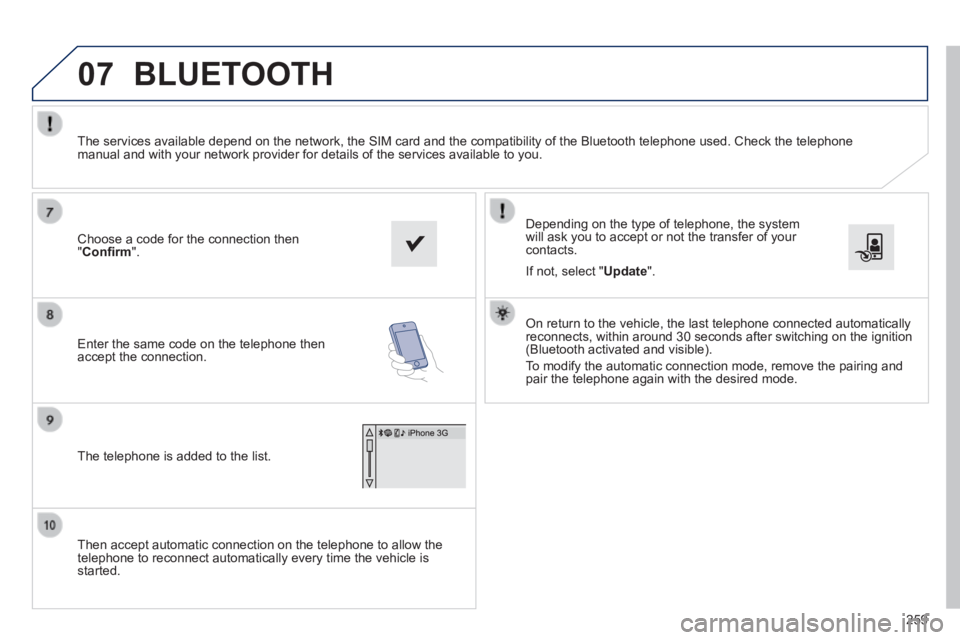
Then accept automatic connection on the telephone to allow the telephone to reconnect automatically every time the vehicle is started.
Depending on the type of telephone, the system will ask you to accept or not the transfer of your contacts.
The services available depend on the network, the SIM card and the compa\
tibility of the Bluetooth telephone used. Check the telephone manual and with your network provider for details of the services availa\
ble to you.
On return to the vehicle, the last telephone connected automatically reconnects, within around 30 seconds after switching on the ignition (Bluetooth activated and visible).
To modify the automatic connection mode, remove the pairing and pair the telephone again with the desired mode.
Choose a code for the connection then " Confi rm ".
Enter the same code on the telephone then accept the connection.
The telephone is added to the list.
BLUETOOTH
If not, select " Update ".
Page 262 of 336
07
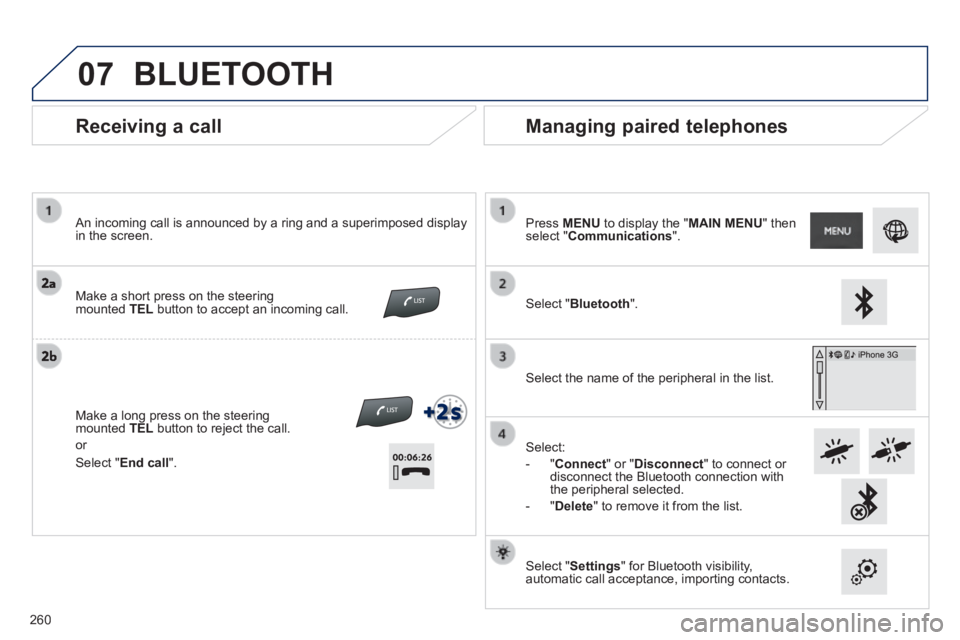
Receiving a call
An incoming call is announced by a ring and a superimposed display in the screen.
Make a short press on the steering mounted TEL button to accept an incoming call.
Make a long press on the steering mounted TEL button to reject the call.
or
Managing paired telephones
Press MENU to display the " MAIN MENU " then select " Communications ".
Select " Bluetooth ".
Select the name of the peripheral in the list.
Select:
- " Connect " or " Disconnect " to connect or disconnect the Bluetooth connection with the peripheral selected.
- " Delete " to remove it from the list.
Select " Settings " for Bluetooth visibility, automatic call acceptance, importing contacts.
BLUETOOTH
Select " End call ".
260
Page 273 of 336
FREQUENTLY ASKED QUESTIONS
271
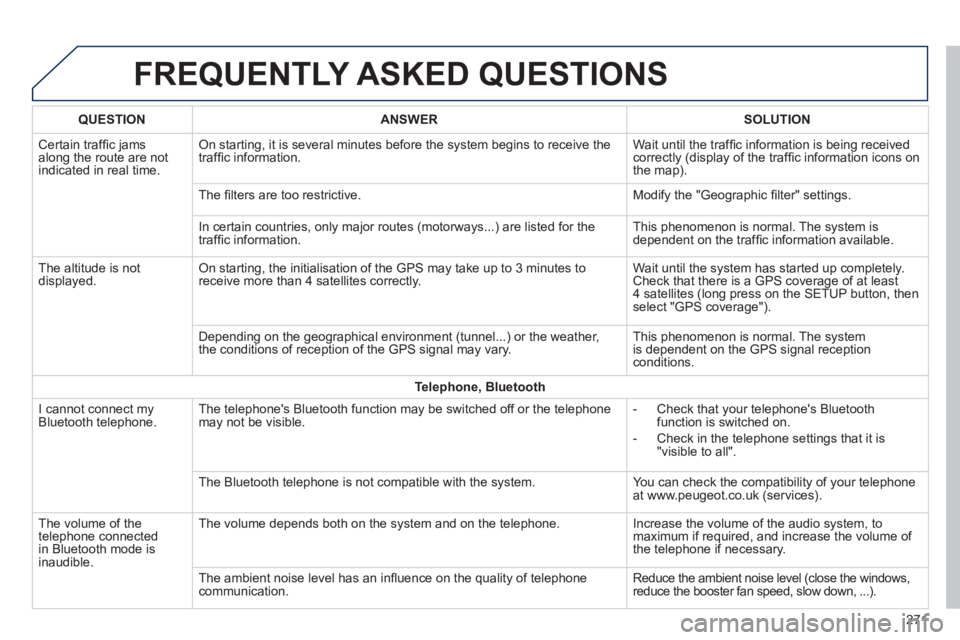
QUESTIONANSWERSOLUTION
Certain traffi c jams along the route are not indicated in real time.
On starting, it is several minutes before the system begins to receive t\
he traffi c information. Wait until the traffi c information is being received correctly (display of the traffi c information icons on the map).
The fi lters are too restrictive. Modify the "Geographic fi lter" settings.
In certain countries, only major routes (motorways...) are listed for \
the traffi c information. This phenomenon is normal. The system is dependent on the traffi c information available.
The altitude is not displayed. On starting, the initialisation of the GPS may take up to 3 minutes to receive more than 4 satellites correctly. Wait until the system has started up completely. Check that there is a GPS coverage of at least 4 satellites (long press on the SETUP button, then select "GPS coverage").
Depending on the geographical environment (tunnel...) or the weather, the conditions of reception of the GPS signal may vary. This phenomenon is normal. The system is dependent on the GPS signal reception conditions.
Telephone, Bluetooth
I cannot connect my Bluetooth telephone. The telephone's Bluetooth function may be switched off or the telephone may not be visible. - Check that your telephone's Bluetooth function is switched on.
- Check in the telephone settings that it is "visible to all".
The Bluetooth telephone is not compatible with the system. You can check the compatibility of your telephone at www.peugeot.co.uk (services).
The volume of the telephone connected in Bluetooth mode is inaudible.
The volume depends both on the system and on the telephone. Increase the volume of the audio system, to maximum if required, and increase the volume of the telephone if necessary.
The ambient noise level has an infl uence on the quality of telephone communication. Reduce the ambient noise level (close the windows, reduce the booster fan speed, slow down, ...).