navigation PEUGEOT 2008 2014 User Guide
[x] Cancel search | Manufacturer: PEUGEOT, Model Year: 2014, Model line: 2008, Model: PEUGEOT 2008 2014Pages: 336, PDF Size: 9.35 MB
Page 226 of 336
05
224
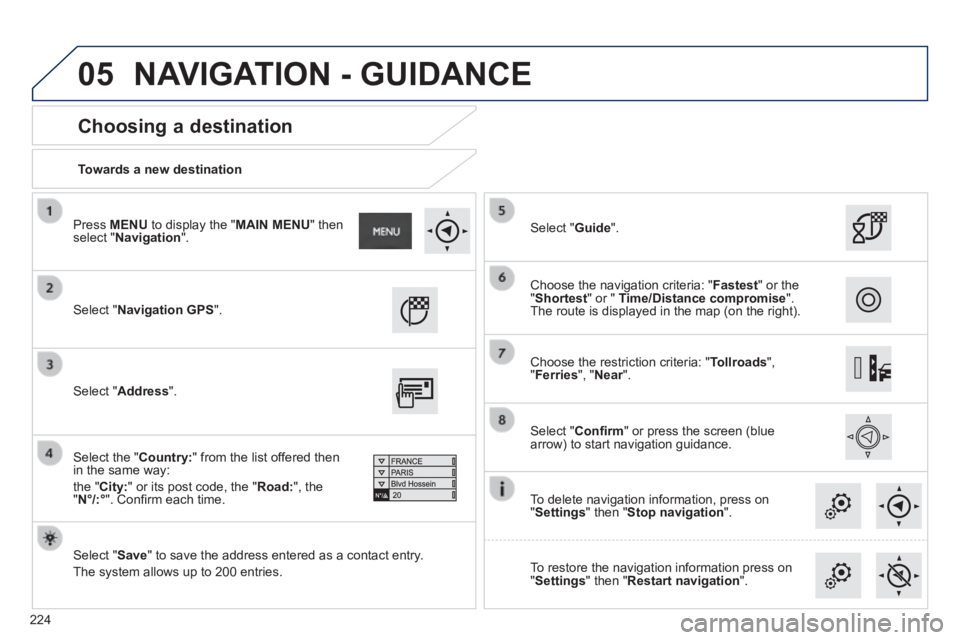
Towards a new destination
Choosing a destination
Select " Navigation GPS ".
Select " Save " to save the address entered as a contact entry.
The system allows up to 200 entries.
Select " Confi rm " or press the screen (blue arrow) to start navigation guidance.
Select " Address ".
Select the " Country: " from the list offered then in the same way:
the " City: " or its post code, the " Road: ", the " N°/:° ". Confi rm each time.
Select " Guide ".
Choose the restriction criteria: " Tollroads ", " Ferries ", " Near ". Near ". Near
Choose the navigation criteria: " Fastest " or the " Shortest " or " Time/Distance compromise ". The route is displayed in the map (on the right).
To delete navigation information, press on " Settings " then " Stop navigation ".
To restore the navigation information press on " Settings " then " Restart navigation ".
Press MENU to display the " MAIN MENU " then select " Navigation ".
NAVIGATION - GUIDANCE
Page 227 of 336
05
225
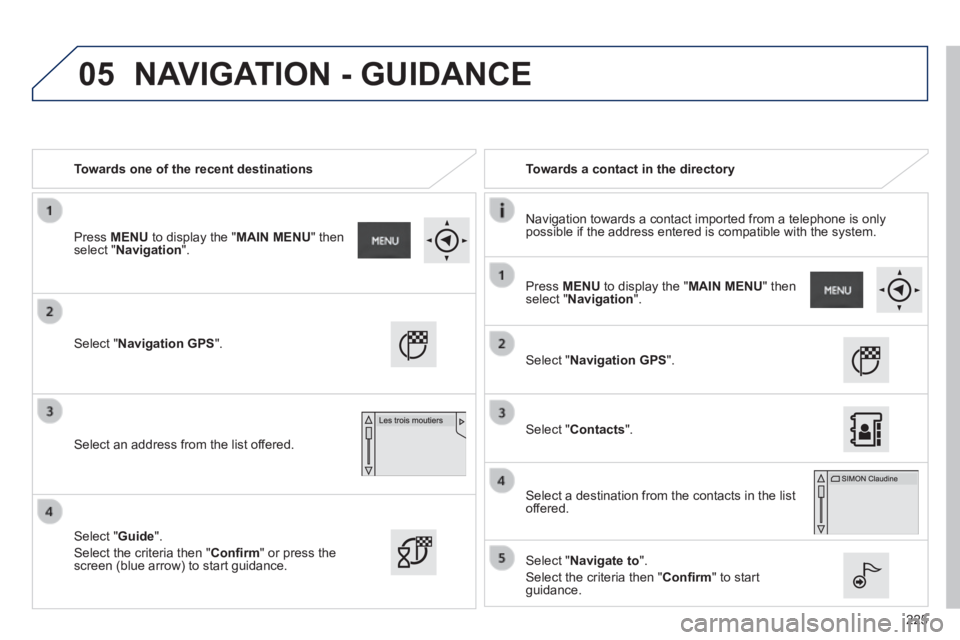
Towards one of the recent destinations Towards a contact in the directory
Navigation towards a contact imported from a telephone is only possible if the address entered is compatible with the system.
Select " Navigation GPS ".
Select an address from the list offered.
Select " Navigation GPS ".
Select " Contacts ".
Select a destination from the contacts in the list offered.
Select " Navigate to ".
Select the criteria then " Confi rm " to start guidance.
Select " Guide ".
Select the criteria then " Confi rm " or press the screen (blue arrow) to start guidance.
Press MENU to display the " MAIN MENU " then select " Navigation ".
Press MENU to display the " MAIN MENU " then select " Navigation ".
NAVIGATION - GUIDANCE
Page 228 of 336
05
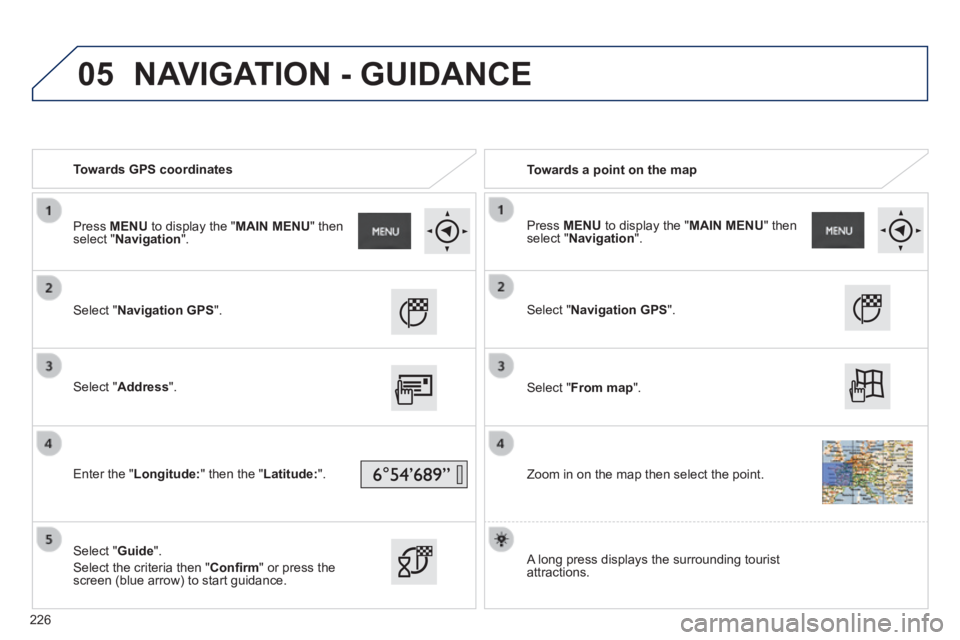
Towards GPS coordinates Towards a point on the map
Select " Navigation GPS ".
Select " Address ".
Enter the " Longitude: " then the " Latitude: ".
Select " Guide ".
Select the criteria then " Confi rm " or press the screen (blue arrow) to start guidance.
Select " Navigation GPS ".
Select " From map ".
Zoom in on the map then select the point.
Press MENU to display the " MAIN MENU " then select " Navigation ". Press MENU to display the " MAIN MENU " then select " Navigation ".
A long press displays the surrounding tourist attractions.
NAVIGATION - GUIDANCE
226
Page 229 of 336
 Points of Interest (POI) show all of the locations of services nearby \
(hotels, retail outlet, airports, ...).
Select \" GPS Navigation \".
Select")
05
227
Towards points of interest (POI) Points of Interest (POI) show all of the locations of services nearby \
(hotels, retail outlet, airports, ...).
Select " GPS Navigation ".
Select " Address ".
Select " Pts of Interest ".
Select a category from the list offered (the categories are presented on following pages).
Select " Along the route " or " Near " or " Near " or " NearAt a destination " or " At an address " to fi lter the points of interest.
Select a point of interest from the list offered.
Select " Guide ".
Select the criteria then " Confi rm " to start guidance.
Select " Search ".
or
Select a point of interest from the list offered.
Press MENU to display the " MAIN MENU " then select " Navigation ".
NAVIGATION - GUIDANCE
Page 230 of 336

An annual mapping update allows new points of interest to be presented t\
o you.
You can also update the Risk areas / Danger areas every mont")
05
228
List of main points of interest (POI)
An annual mapping update allows new points of interest to be presented t\
o you.
You can also update the Risk areas / Danger areas every month.
The detailed procedure is available on:
http://peugeot.navigation.com.
Public transport
Rest areas
Shopping centres
Business centres
Service stations
Hotels
Restaurants
NAVIGATION - GUIDANCE
Page 231 of 336
05
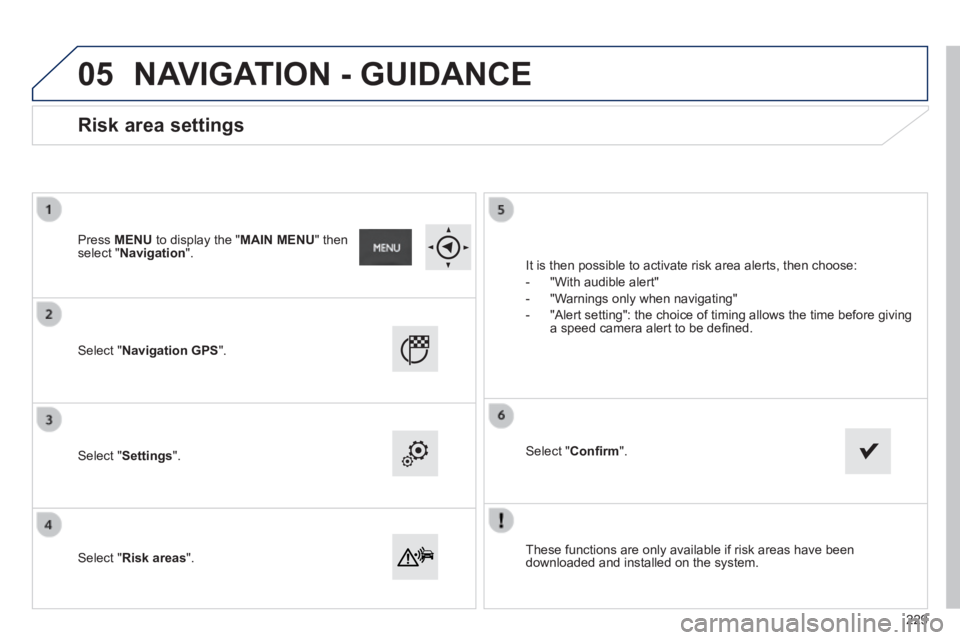
These functions are only available if risk areas have been downloaded and installed on the system.
Select " Navigation GPS ".
Select " Settings ".
Select " Risk areas ".
Risk area settings
It is then possible to activate risk area alerts, then choose:
- "With audible alert"
- "Warnings only when navigating"
- "Alert setting": the choice of timing allows the time before giving a speed camera alert to be defi ned.
Select " Confi rm ".
Press MENU to display the " MAIN MENU " then select " Navigation ".
NAVIGATION - GUIDANCE
229
Page 232 of 336
05
230
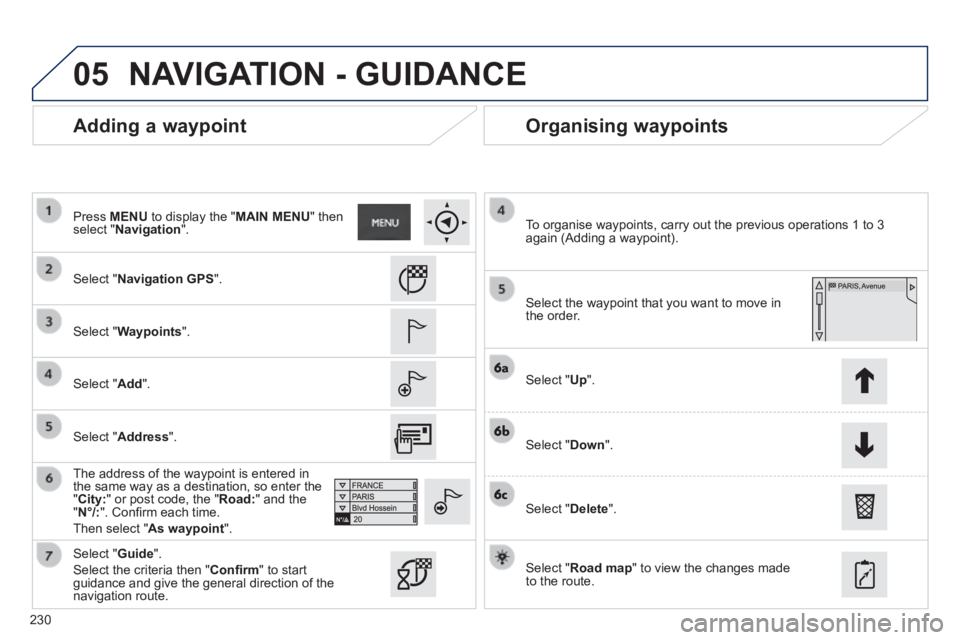
Adding a waypoint Organising waypoints
Select " Navigation GPS ".
Select " Waypoints ".
Select " Add ".
The address of the waypoint is entered in the same way as a destination, so enter the " City: " or post code, the " Road: " and the " N°/: ". Confi rm each time.
Then select " As waypoint ".
Select the waypoint that you want to move in the order.
To organise waypoints, carry out the previous operations 1 to 3 again (Adding a waypoint).
Select " Up ".
Select " Down ".
Select " Delete ".
Select " Road map " to view the changes made to the route.
Select " Guide ".
Select the criteria then " Confi rm " to start guidance and give the general direction of the navigation route.
Press MENU to display the " MAIN MENU " then select " Navigation ".
NAVIGATION - GUIDANCE
Select " Address ".
Page 233 of 336
05
231
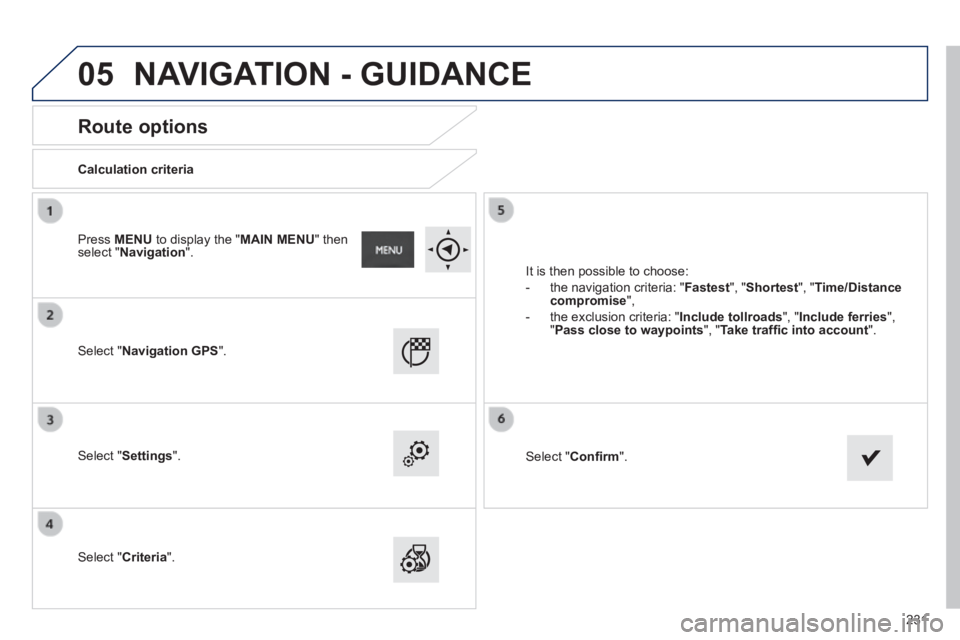
Route options
Calculation criteria
Select " Navigation GPS ".
Select " Settings ".
Select " Criteria ".
It is then possible to choose:
- the navigation criteria: " Fastest ", " Shortest ", " Time/Distance compromise ",
- the exclusion criteria: " Include tollroads ", " Include ferries ", " Pass close to waypoints ", " Take traffi c into account ".
Select " Confi rm ".
Press MENU to display the " MAIN MENU " then select " Navigation ".
NAVIGATION - GUIDANCE
Page 234 of 336
05
232
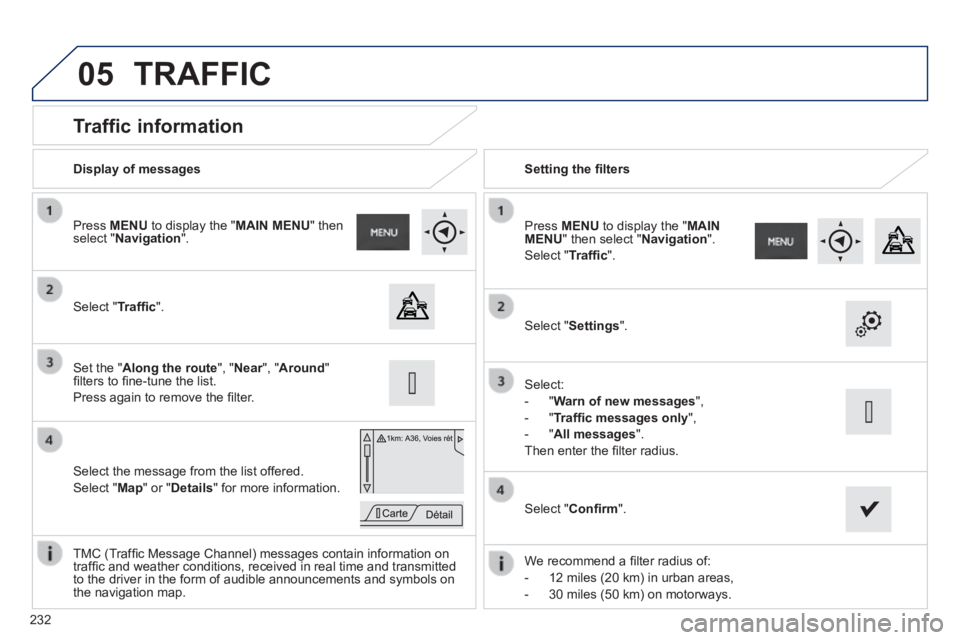
Traffic information
Select " Traffi c ".
Press MENU to display the " MAIN MENU " then select " Navigation ".
Select the message from the list offered.
Select " Map " or " Details " for more information.
Set the " Along the route ", " Near ", " Near ", " NearAround " fi lters to fi ne-tune the list.
Press again to remove the fi lter.
Select " Settings ".
Select:
- " Warn of new messages ",
- " Traffi c messages only ",
- " All messages ".
Then enter the fi lter radius.
Press MENU to display the " MAIN MENU " then select " Navigation ".
Select " Traffi c ".
Display of messages Setting the fi lters
We recommend a fi lter radius of:
- 12 miles (20 km) in urban areas,
- 30 miles (50 km) on motorways.
TMC (Traffi c Message Channel) messages contain information on traffi c and weather conditions, received in real time and transmitted to the driver in the form of audible announcements and symbols on the navigation map.
Select " Confi rm ".
TRAFFIC
Page 236 of 336
05
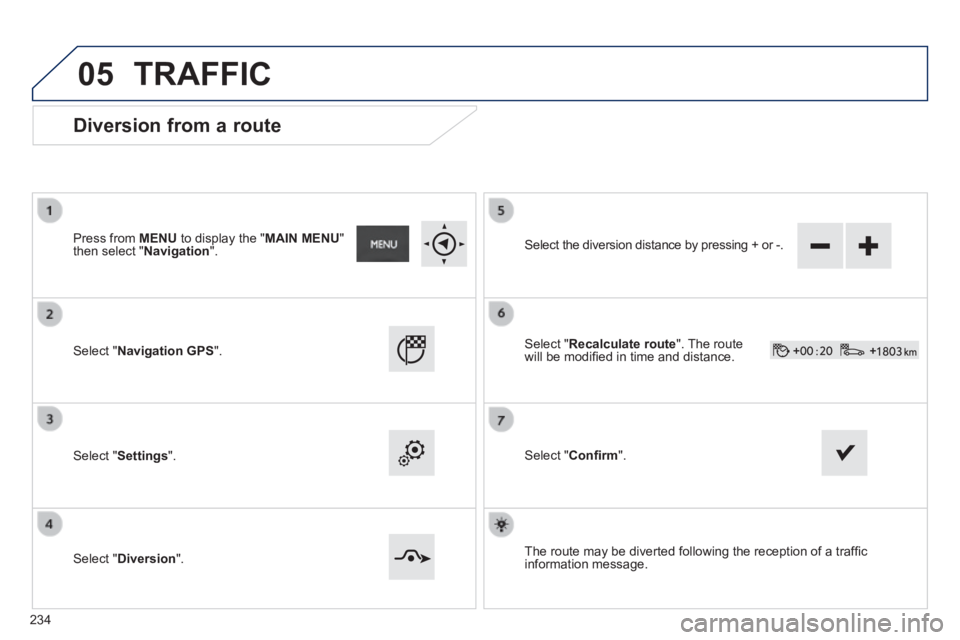
Diversion from a route
Press from MENU to display the " MAIN MENU " then select " Navigation ".
Select " Navigation GPS ".
Select " Settings ".
Select " Diversion ".
Select the diversion distance by pressing + or -.
Select " Recalculate route ". The route will be modifi ed in time and distance.
Select " Confi rm ".
The route may be diverted following the reception of a traffi c information message.
TRAFFIC
234