navigation PEUGEOT 2008 2014 Owner's Manual
[x] Cancel search | Manufacturer: PEUGEOT, Model Year: 2014, Model line: 2008, Model: PEUGEOT 2008 2014Pages: 336, PDF Size: 9.35 MB
Page 237 of 336
05
235
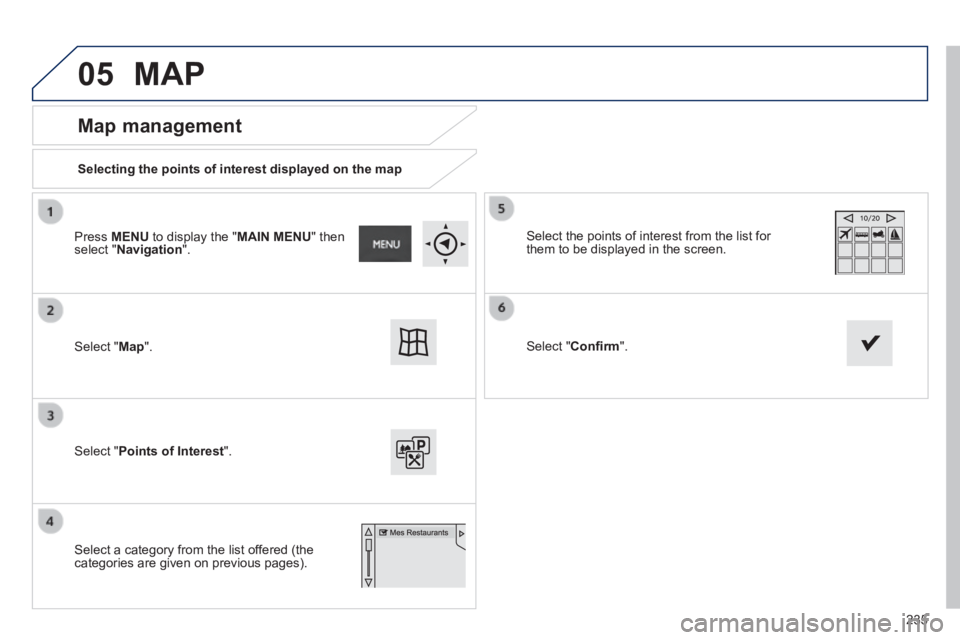
Map management
Selecting the points of interest displayed on the map
Select " Map ".
Select " Points of Interest ".
Select the points of interest from the list for them to be displayed in the screen.
Select a category from the list offered (the categories are given on previous pages).
Select " Confi rm ".
Press MENU to display the " MAIN MENU " then select " Navigation ".
MAP
Page 238 of 336

05
Map orientation
Select " Map ".
Select " Map heading ".
Select:
- " Flat map view " to display the map in 2D,
- " Perspective map view " to display a perspective view.
With " Flat map view ":
- " North heading " to keep the map always North up,
- " Vehicle heading " to have the map follow the direction of travel,
Street names are visible on the map from the 100 m scale.
Map colour
Select " Map colour ". Map colour ". Map colour
Select:
- " Automatic day/night mode " to have the brightness of the map adjusted automatically according to the ambient light level, using the vehicle's sunshine sensor,
- " Map in day mode " to have the map always in day mode,
- " Map in night mode " to have the map always in night mode.
Then " Confi rm " to save the modifi cations.
Press MENU to display the " MAIN MENU " then select " Navigation ".
Select " Map ".
Press MENU to display the " MAIN MENU " then select " Navigation ".
MAP
Then " Confi rm " to save the modifi cations.
236
Page 239 of 336
05
237
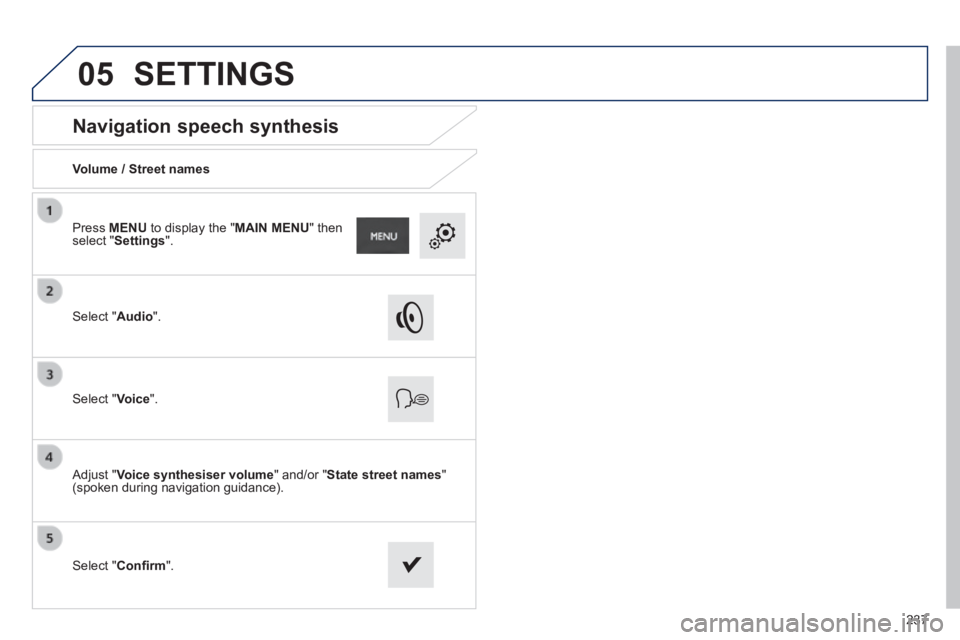
Navigation speech synthesis
Volume / Street names
Select " Audio ".
Select " Voice ".
Adjust " Voice synthesiser volume " and/or " State street names " (spoken during navigation guidance).
Select " Confi rm ".
Press MENU to display the " MAIN MENU " then select " Settings ".
SETTINGS
Page 257 of 336
255
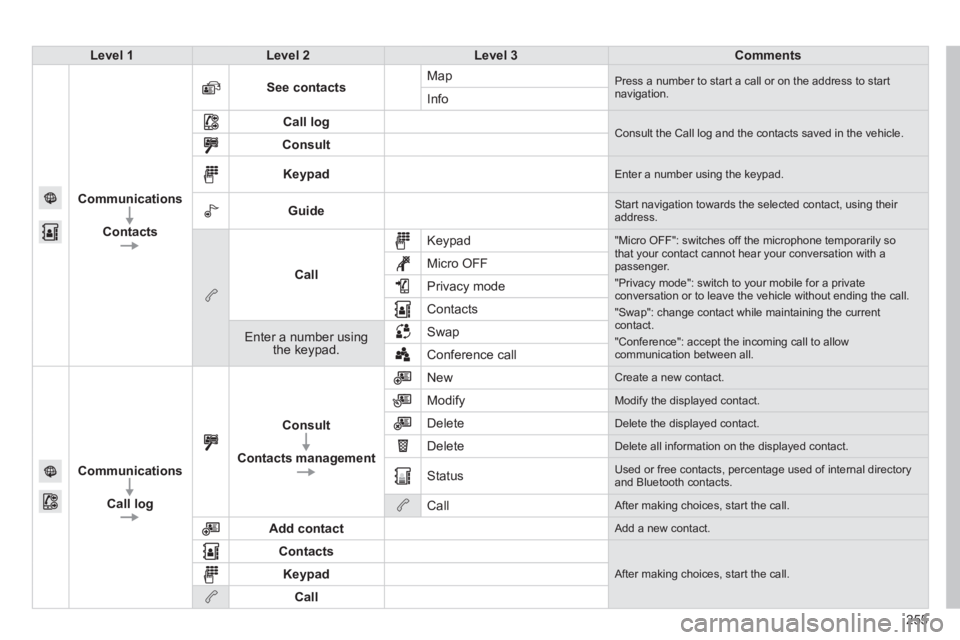
Level 1Level 2Level 3Comments
Communications
Contacts
See contacts Map Press a number to start a call or on the address to start navigation. Info
Call log Consult the Call log and the contacts saved in the vehicle. Consult
Keypad Enter a number using the keypad.
Guide Start navigation towards the selected contact, using their address.
Call
Keypad "Micro OFF": switches off the microphone temporarily so that your contact cannot hear your conversation with a passenger.
"Privacy mode": switch to your mobile for a private conversation or to leave the vehicle without ending the call.
"Swap": change contact while maintaining the current contact.
"Conference": accept the incoming call to allow communication between all.
Micro OFF
Privacy mode
Contacts
Enter a number using the keypad.
Swap
Conference call
Communications
Call log
Consult
Contacts management
New Create a new contact.
Modify Modify the displayed contact.
Delete Delete the displayed contact.
Delete Delete all information on the displayed contact.
Status Used or free contacts, percentage used of internal directory and Bluetooth contacts.
Call After making choices, start the call.
Add contact Add a new contact.
Contacts
After making choices, start the call. Keypad
Call
Page 272 of 336

The following table groups together the answers to the most frequently a\
sked questions concerning your audio system.
FREQUENTLY ASKED QUESTIONS
270
QUESTIONANSWERSOLUTION
Navigation, guidance
The route calculation is not successful. The guidance criteria may confl ict with the current location (exclusion of toll roads on a toll motorway). Check the guidance criteria on the Navigation Menu, "Guidance options"\ "Defi ne calculation criteria".
I am unable to enter my post code. The system only accepts post codes of up to 5 characters.
The POIs do not appear. The POIs have not been selected. Select the POIs in the list of POIs.
The risk areas audible warning does not work. The audible warning is not active. Activate audible warnings in the Guidance options menu, "Navigation - guidance", "Set parameters for risk areas".
The system does not suggest a detour around an incident on the route.
The guidance criteria do not take account of TMC messages. Select the "Traffi c info" function in the list of guidance criteria.
I receive a Risk area alert which is not on my route. Other than guidance, the system announces all Risk areas positioned in a\
cone located in front of the vehicle. It may provide an alert for a Risk\
area located on nearby or parallel roads.
Zoom in on the map to view the exact position of the Risk area. Select "On the route" to no longer receive alerts other than guidance or to reduce the time for the announcement.
Page 280 of 336
01
278
FIRST STEPS
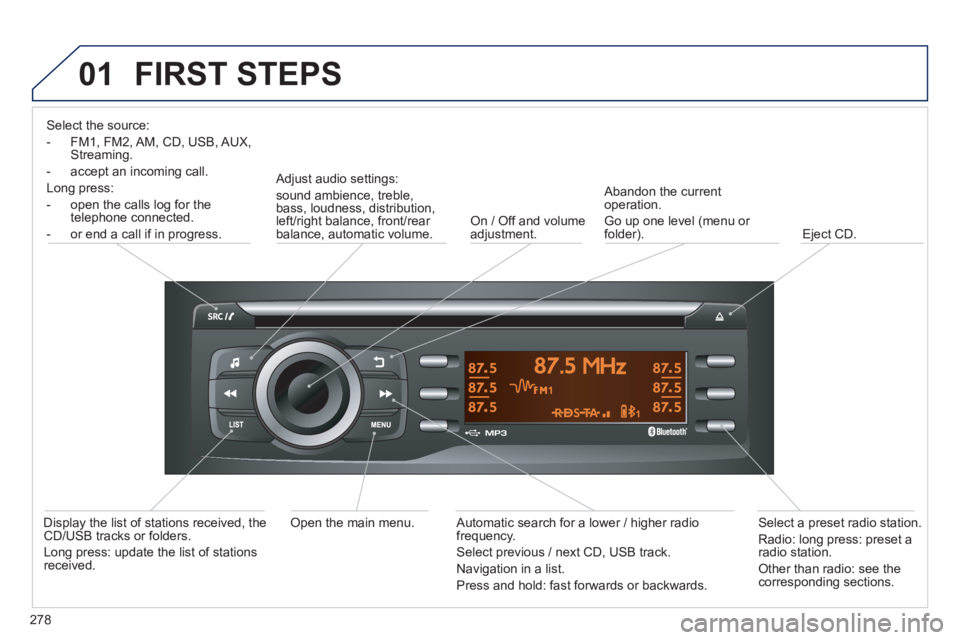
Select the source:
- FM1, FM2, AM, CD, USB, AUX, Streaming.
- accept an incoming call.
Long press:
- open the calls log for the telephone connected.
- or end a call if in progress.
Adjust audio settings:
sound ambience, treble, bass, loudness, distribution, left/right balance, front/rear balance, automatic volume. On / Off and volume adjustment.
Abandon the current operation.
Go up one level (menu or folder). Eject CD.
Select a preset radio station.
Radio: long press: preset a radio station.
Other than radio: see the corresponding sections.
Automatic search for a lower / higher radio frequency.
Select previous / next CD, USB track.
Navigation in a list.
Press and hold: fast forwards or backwards.
Open the main menu. Display the list of stations received, the CD/USB tracks or folders.
Long press: update the list of stations received.
Page 294 of 336
05
292
USING THE TELEPHONE
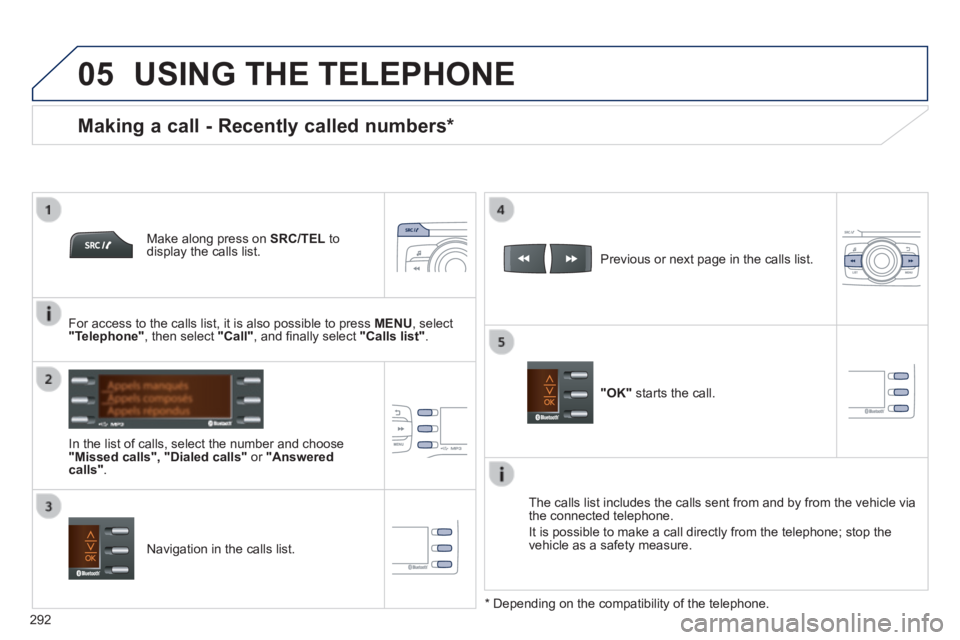
Make along press on SRC/TEL to display the calls list.
In the list of calls, select the number and choose "Missed calls", "Dialed calls" or "Answered calls" .
Previous or next page in the calls list.
"OK" starts the call.
Making a call - Recently called numbers *
Navigation in the calls list.
The calls list includes the calls sent from and by from the vehicle via \
the connected telephone.
It is possible to make a call directly from the telephone; stop the vehicle as a safety measure.
* Depending on the compatibility of the telephone.
For access to the calls list, it is also possible to press MENU , select "Telephone" , then select "Call" , and fi nally select "Calls list".
Page 306 of 336
01 FIRST STEPS
304
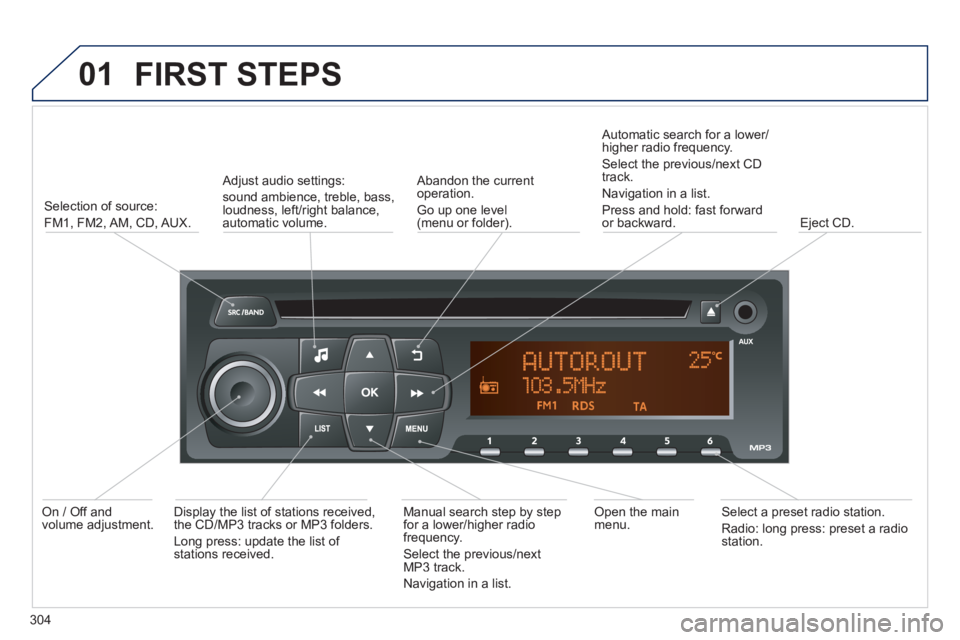
Selection of source:
FM1, FM2, AM, CD, AUX.
Adjust audio settings:
sound ambience, treble, bass, loudness, left/right balance, automatic volume.
Abandon the current operation.
Go up one level(menu or folder).
Automatic search for a lower/higher radio frequency.
Select the previous/next CD track.
Navigation in a list.
Press and hold: fast forward or backward. Eject CD.
Manual search step by step for a lower/higher radio frequency.
Select the previous/next MP3 track.
Navigation in a list.
Open the main menu. Select a preset radio station.
Radio: long press: preset a radio station.
Display the list of stations received, the CD/MP3 tracks or MP3 folders.
Long press: update the list of stations received.
On / Off and volume adjustment.