audio PEUGEOT 2008 2014 Owner's Manual
[x] Cancel search | Manufacturer: PEUGEOT, Model Year: 2014, Model line: 2008, Model: PEUGEOT 2008 2014Pages: 336, PDF Size: 9.35 MB
Page 249 of 336
06
247
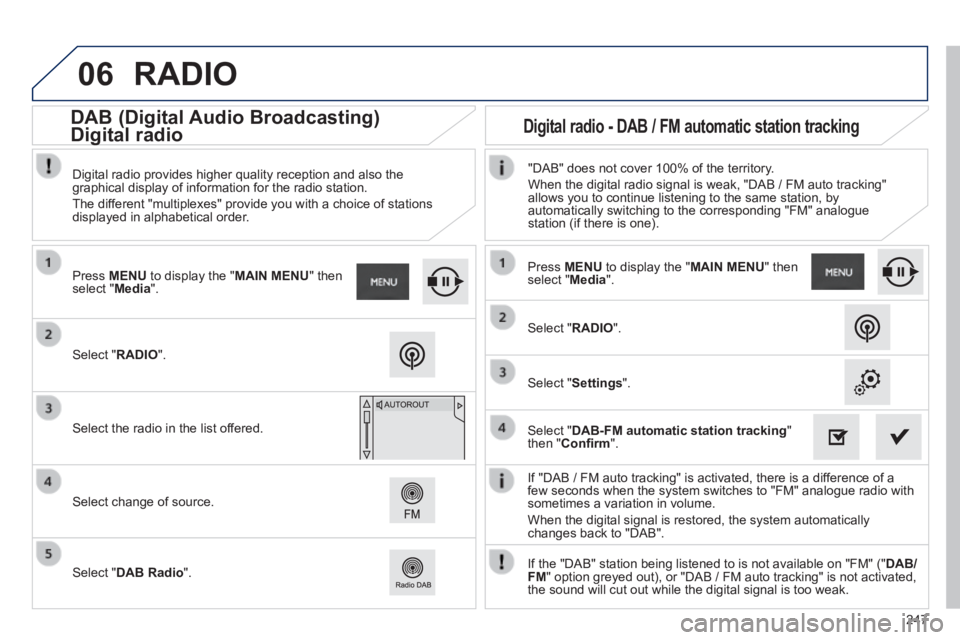
If "DAB / FM auto tracking" is activated, there is a difference of a few seconds when the system switches to "FM" analogue radio with sometimes a variation in volume.
When the digital signal is restored, the system automatically changes back to "DAB".
Select " RADIO ".
Press MENU to display the " MAIN MENU " then select " Media ".
Select the radio in the list offered.
Select change of source.
Select " DAB Radio ".
Digital radio provides higher quality reception and also the graphical display of information for the radio station.
The different "multiplexes" provide you with a choice of stations displayed in alphabetical order.
Press MENU to display the " MAIN MENU " then select " Media ".
Select " RADIO ".
Select " Settings ".
Select " DAB-FM automatic station tracking " then " Confi rm ".
"DAB" does not cover 100% of the territory.
When the digital radio signal is weak, "DAB / FM auto tracking" allows you to continue listening to the same station, by automatically switching to the corresponding "FM" analogue station (if there is one).
If the "DAB" station being listened to is not available on "FM" (" DAB/FM " option greyed out), or "DAB / FM auto tracking" is not activated, the sound will cut out while the digital signal is too weak.
RADIO
Digital radio - DAB / FM automatic station tracking DAB (Digital Audio Broadcasting)
Digital radio
Page 251 of 336
06
249
CD, MP3 CD / USB player
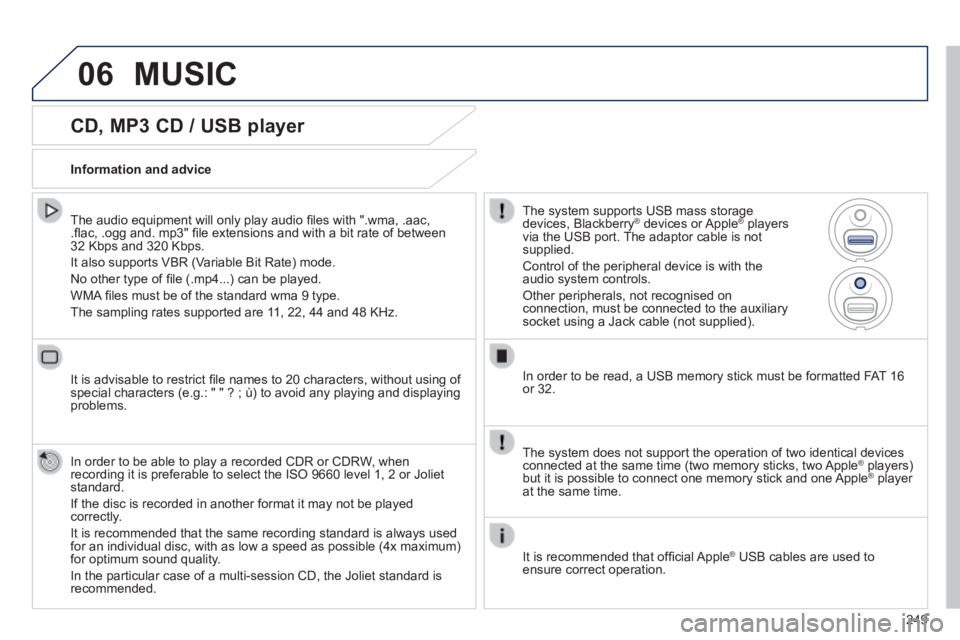
The audio equipment will only play audio fi les with ".wma, .aac, .fl ac, .ogg and. mp3" fi le extensions and with a bit rate of between 32 Kbps and 320 Kbps.
It also supports VBR (Variable Bit Rate) mode.
No other type of fi le (.mp4...) can be played.
WMA fi les must be of the standard wma 9 type.
The sampling rates supported are 11, 22, 44 and 48 KHz.
It is advisable to restrict fi le names to 20 characters, without using of special characters (e.g.: " " ? ; ù) to avoid any playing and displ\
aying problems.
In order to be able to play a recorded CDR or CDRW, when recording it is preferable to select the ISO 9660 level 1, 2 or Joliet standard.
If the disc is recorded in another format it may not be played correctly.
It is recommended that the same recording standard is always used for an individual disc, with as low a speed as possible (4x maximum) for optimum sound quality.
In the particular case of a multi-session CD, the Joliet standard is recommended.
Information and advice
The system supports USB mass storage devices, Blackberry ® devices or Apple ® devices or Apple ®® players ® players ®
via the USB port. The adaptor cable is not supplied.
Control of the peripheral device is with the audio system controls.
Other peripherals, not recognised on connection, must be connected to the auxiliary socket using a Jack cable (not supplied).
In order to be read, a USB memory stick must be formatted FAT 16 or 32.
MUSIC
The system does not support the operation of two identical devices connected at the same time (two memory sticks, two Apple ® players) ® players) ®
but it is possible to connect one memory stick and one Apple ® player ® player ®
at the same time.
It is recommended that offi cial Apple ® USB cables are used to ® USB cables are used to ®
ensure correct operation.
Page 253 of 336
06
251
Audio streaming
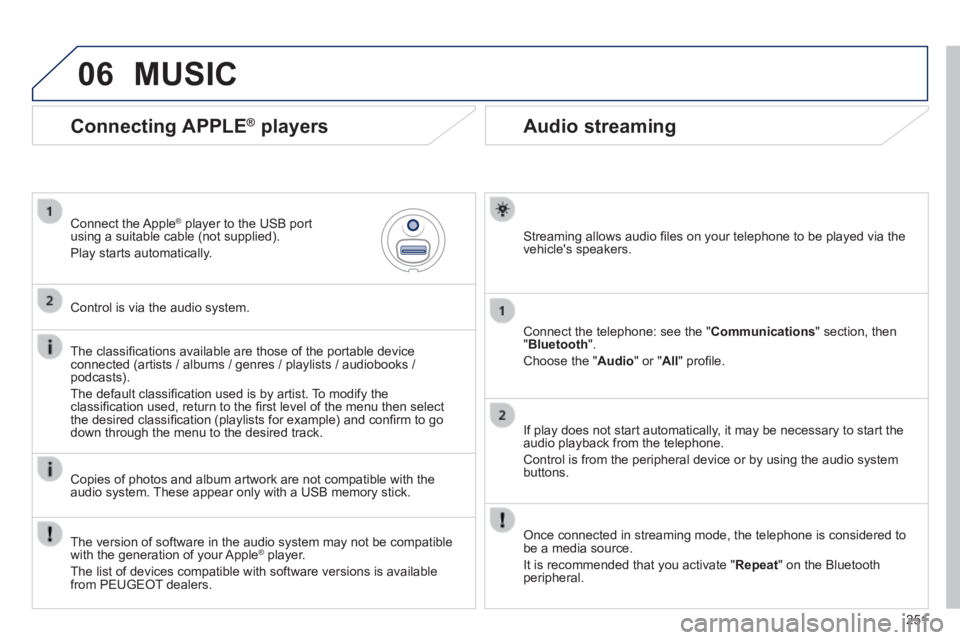
Streaming allows audio fi les on your telephone to be played via the vehicle's speakers.
Connect the telephone: see the " Communications " section, then " Bluetooth ".
Choose the " Audio " or " All " profi le.
If play does not start automatically, it may be necessary to start the audio playback from the telephone.
Control is from the peripheral device or by using the audio system buttons.
Once connected in streaming mode, the telephone is considered to be a media source.
It is recommended that you activate " Repeat " on the Bluetooth peripheral.
Connecting APPLE ® players
Connect the Apple ® player to the USB port ® player to the USB port ®
using a suitable cable (not supplied).
Play starts automatically.
Control is via the audio system.
The classifi cations available are those of the portable device connected (artists / albums / genres / playlists / audiobooks / podcasts).
The default classifi cation used is by artist. To modify the classifi cation used, return to the fi rst level of the menu then select the desired classifi cation (playlists for example) and confi rm to go down through the menu to the desired track.
Copies of photos and album artwork are not compatible with the audio system. These appear only with a USB memory stick.
MUSIC
The version of software in the audio system may not be compatible with the generation of your Apple ® player. ® player. ®
The list of devices compatible with software versions is available from PEUGEOT dealers.
Page 254 of 336
06
Using the auxiliary input (AUX)
(cable not supplied)
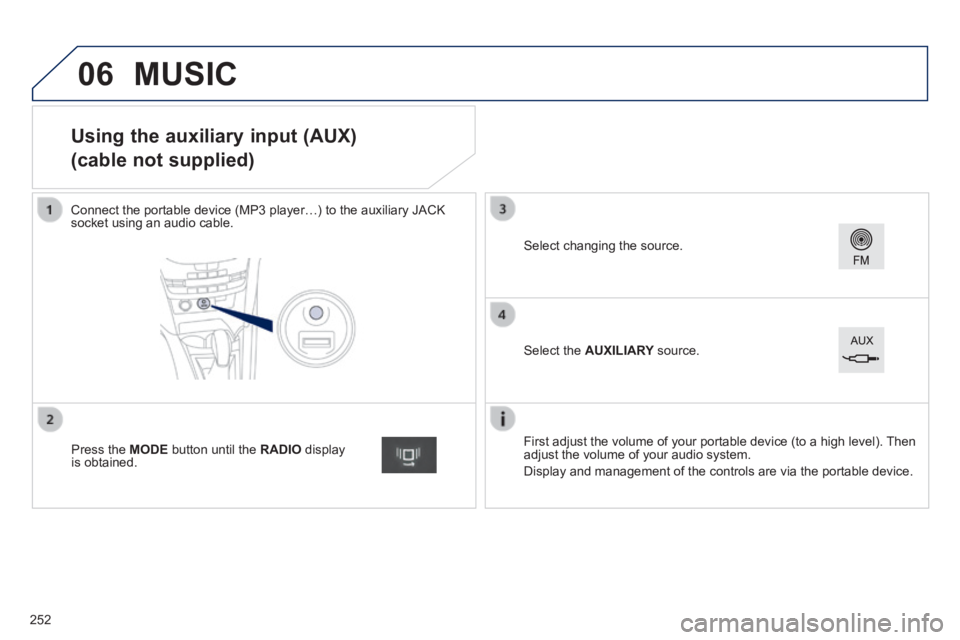
Connect the portable device (MP3 player…) to the auxiliary JACK socket using an audio cable.
First adjust the volume of your portable device (to a high level). Then adjust the volume of your audio system.
Display and management of the controls are via the portable device.
Select changing the source.
Press the MODE button until the RADIO display is obtained.
Select the AUXILIARY source. AUXILIARY source. AUXILIARY
MUSIC
252
Page 255 of 336
06
253
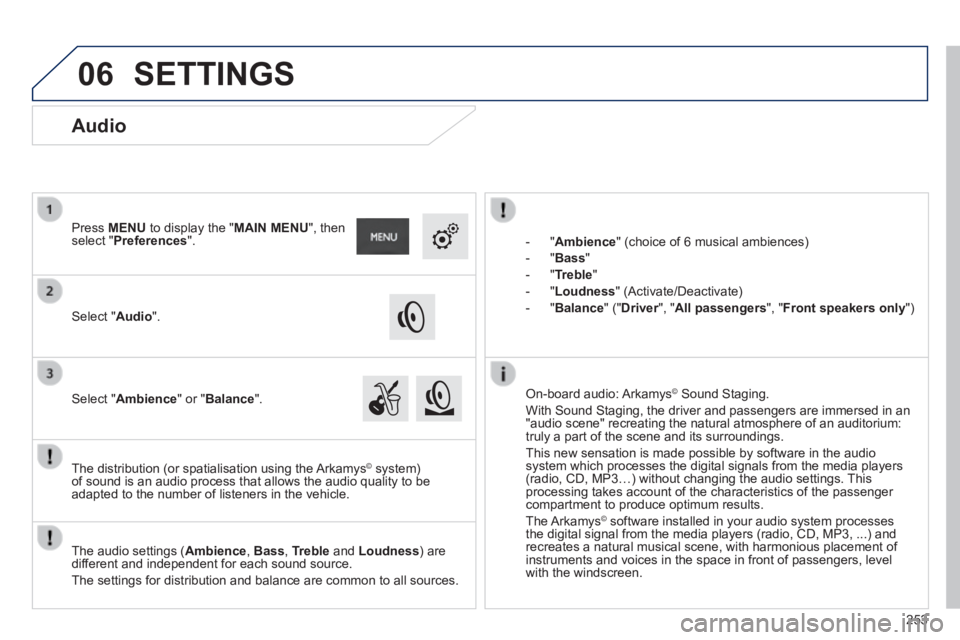
- " Ambience " (choice of 6 musical ambiences)
- " Bass "
- " Treble "
- " Loudness " (Activate/Deactivate)
- " Balance " (" Driver ", " Driver ", " DriverAll passengers ", " Front speakers only ")
The audio settings ( Ambience , Bass , Treble and Loudness ) are different and independent for each sound source.
The settings for distribution and balance are common to all sources.
The distribution (or spatialisation using the Arkamys© system) © system) ©
of sound is an audio process that allows the audio quality to be adapted to the number of listeners in the vehicle.
On-board audio: Arkamys © Sound Staging. © Sound Staging. ©
With Sound Staging, the driver and passengers are immersed in an "audio scene" recreating the natural atmosphere of an auditorium: truly a part of the scene and its surroundings.
This new sensation is made possible by software in the audio system which processes the digital signals from the media players (radio, CD, MP3…) without changing the audio settings. This processing takes account of the characteristics of the passenger compartment to produce optimum results.
The Arkamys© software installed in your audio system processes © software installed in your audio system processes ©
the digital signal from the media players (radio, CD, MP3, ...) and recreates a natural musical scene, with harmonious placement of instruments and voices in the space in front of passengers, level with the windscreen.
Audio
Select " Audio ".
Press MENU to display the " MAIN MENU ", then select " Preferences ".
Select " Ambience " or " Balance ".
SETTINGS
Page 259 of 336
257
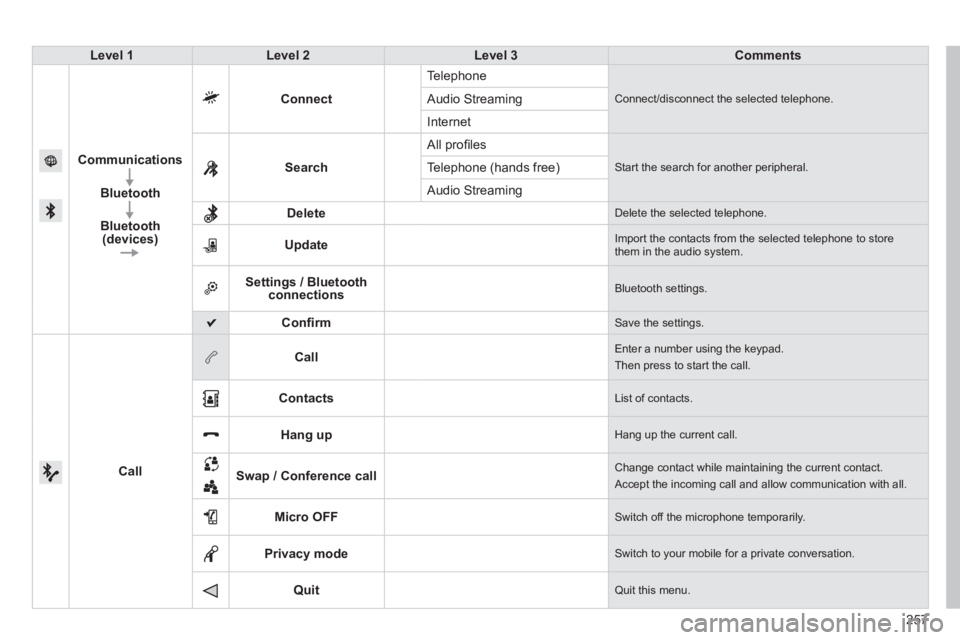
Level 1Level 2Level 3Comments
Communications
Bluetooth
Bluetooth (devices)
Connect
Telephone
Connect/disconnect the selected telephone. Audio Streaming
Internet
Search
All profi les
Start the search for another peripheral . Telephone (hands free)
Audio Streaming
Delete Delete the selected telephone.
Update Import the contacts from the selected telephone to store them in the audio system.
Settings / Bluetooth connections Bluetooth settings.
Confi rm Save the settings.
Call
Call Enter a number using the keypad.
Then press to start the call.
Contacts List of contacts.
Hang up Hang up the current call.
Swap / Conference call Change contact while maintaining the current contact.
Accept the incoming call and allow communication with all.
Micro OFF Switch off the microphone temporarily.
Privacy mode Switch to your mobile for a private conversation.
Quit Quit this menu.
Page 260 of 336
07
258
The " Hands-free " profi le should be used in preference if "Streaming" is not desired.
The ability of the system to connect with only one profi le depends on the telephone. The two profi les may both connect by default.
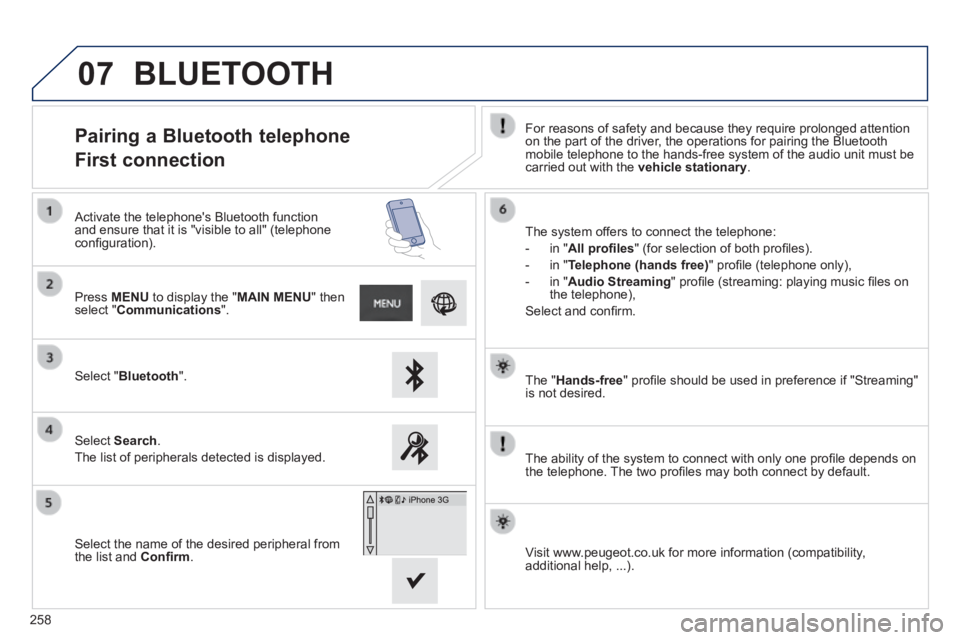
Pairing a Bluetooth telephone
First connection For reasons of safety and because they require prolonged attention on the part of the driver, the operations for pairing the Bluetooth mobile telephone to the hands-free system of the audio unit must be carried out with the vehicle stationary .
Select " Bluetooth ".
Press MENU to display the " MAIN MENU " then select " Communications ".
Select Search .
The list of peripherals detected is displayed.
Activate the telephone's Bluetooth function and ensure that it is "visible to all" (telephone confi guration). The system offers to connect the telephone:
- in " All profi les " (for selection of both profi les).
- in " Telephone (hands free) " profi le (telephone only),
- in " Audio Streaming " profi le (streaming: playing music fi les on the telephone),
Select and confi rm.
Select the name of the desired peripheral from the list and Confi rm . Visit www.peugeot.co.uk for more information (compatibility, additional help, ...).
BLUETOOTH
Page 265 of 336
07
263
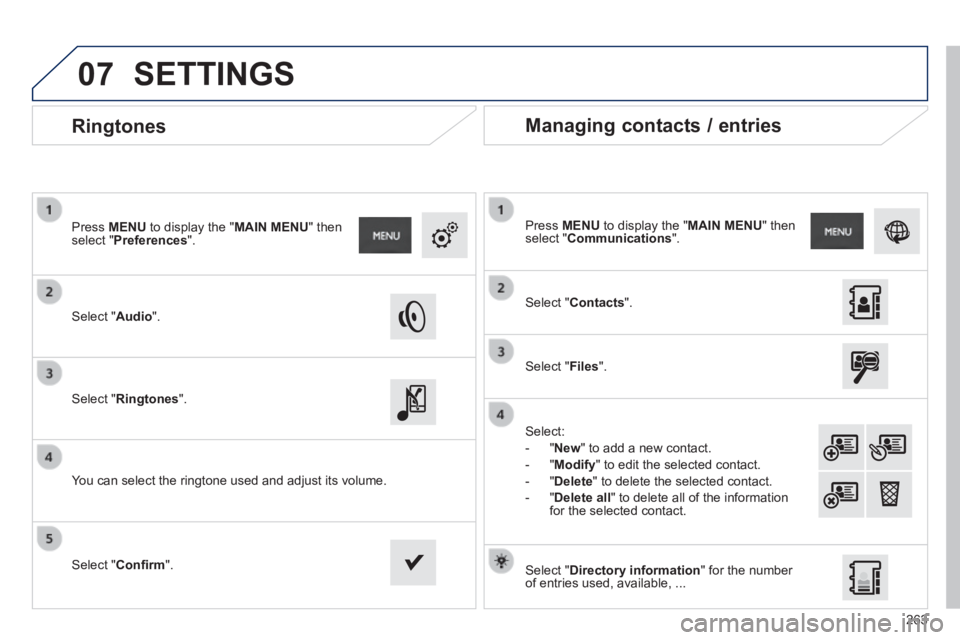
Ringtones
Select " Audio ".
Press MENU to display the " MAIN MENU " then select " Preferences ".
Select " Ringtones ".
You can select the ringtone used and adjust its volume.
Select " Contacts ".
Press MENU to display the " MAIN MENU " then select " Communications ".
Select " Files ".
Select:
- " New " to add a new contact.
- " Modify " to edit the selected contact.
- " Delete " to delete the selected contact.
- " Delete all " to delete all of the information for the selected contact.
Select " Confi rm ". Select " Directory information " for the number of entries used, available, ...
Managing contacts / entries
SETTINGS
Page 268 of 336
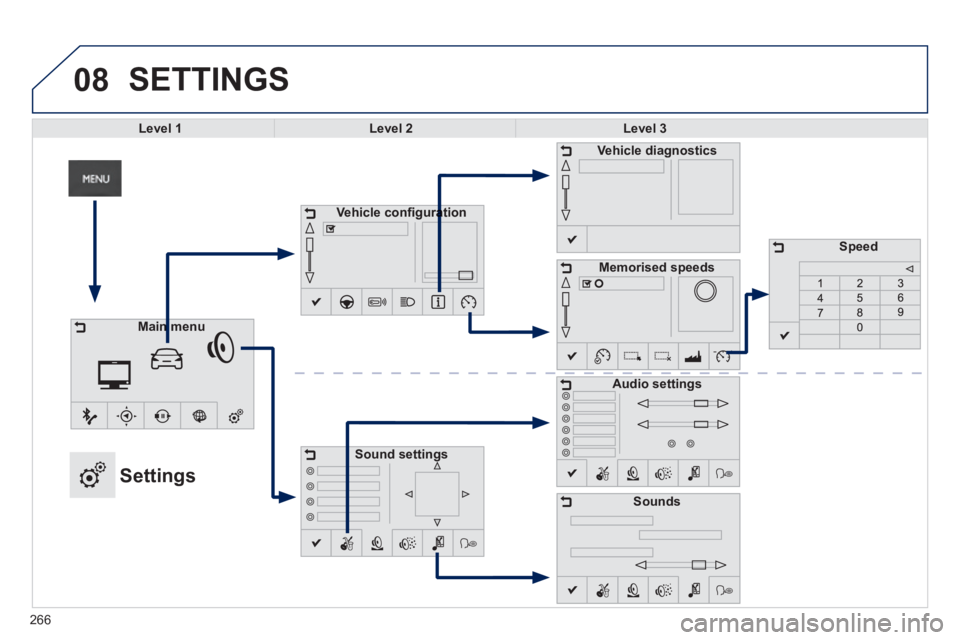
08 SETTINGS
Level 1Level 2Level 3
Vehicle confi gurationVehicle confi guration
Sound settings
Vehicle diagnostics
Memorised speeds
Sounds
Main menuMain menu
Settings
Speed
Audio settings
266
Page 269 of 336
267
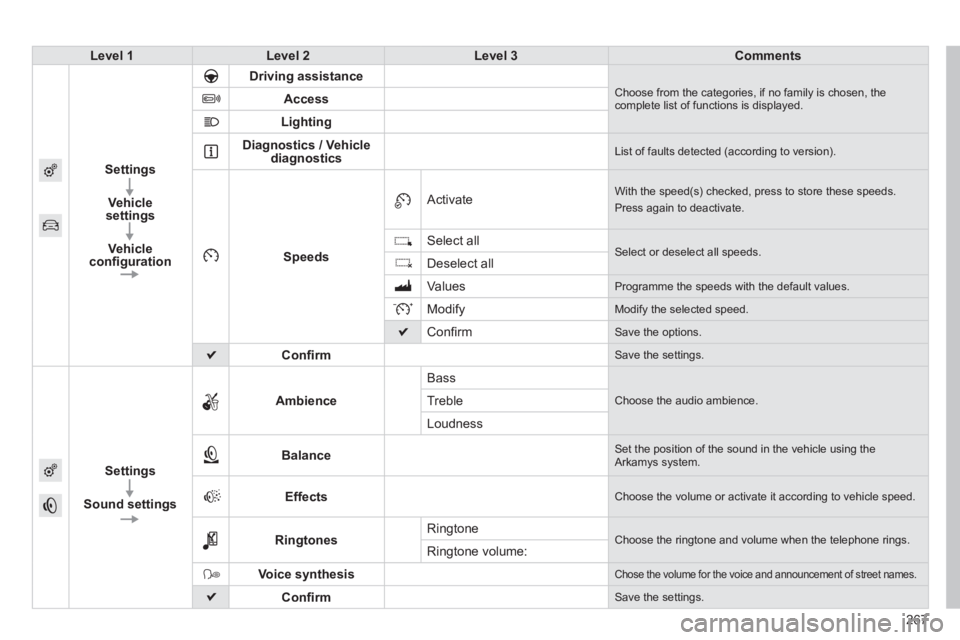
Level 1Level 2Level 3Comments
Settings
Vehicle settings
Vehicle confi guration
Driving assistance Choose from the categories, if no family is chosen, the complete list of functions is displayed. Access
Lighting
Diagnostics / Vehicle diagnostics List of faults detected (according to version).
Speeds
Activate With the speed(s) checked, press to store these speeds.
Press again to deactivate.
Select all Select or deselect all speeds. Deselect all
Values Programme the speeds with the default values.
Modify Modify the selected speed.
Confi rm Save the options.
Confi rm Save the settings.
Settings
Sound settings
Ambience
Bass
Choose the audio ambience. Treble
Loudness
Balance Set the position of the sound in the vehicle using the Arkamys system.
Effects Choose the volume or activate it according to vehicle speed.
Ringtones Ringtone Choose the ringtone and volume when the telephone rings. Ringtone volume:
Voice synthesis Chose the volume for the voice and announcement of street names.
Confi rm Save the settings.