USB PEUGEOT 2008 2016 Owner's Guide
[x] Cancel search | Manufacturer: PEUGEOT, Model Year: 2016, Model line: 2008, Model: PEUGEOT 2008 2016Pages: 450, PDF Size: 14.16 MB
Page 429 of 450
55
2008-additif_en_Chap12b_SMEGplus_ed01-2016
As a safety measure and because it
requires sustained attention by the
driver, using a smartphone when
driving is prohibited.
All operations must be done with the
vehicle stationary.
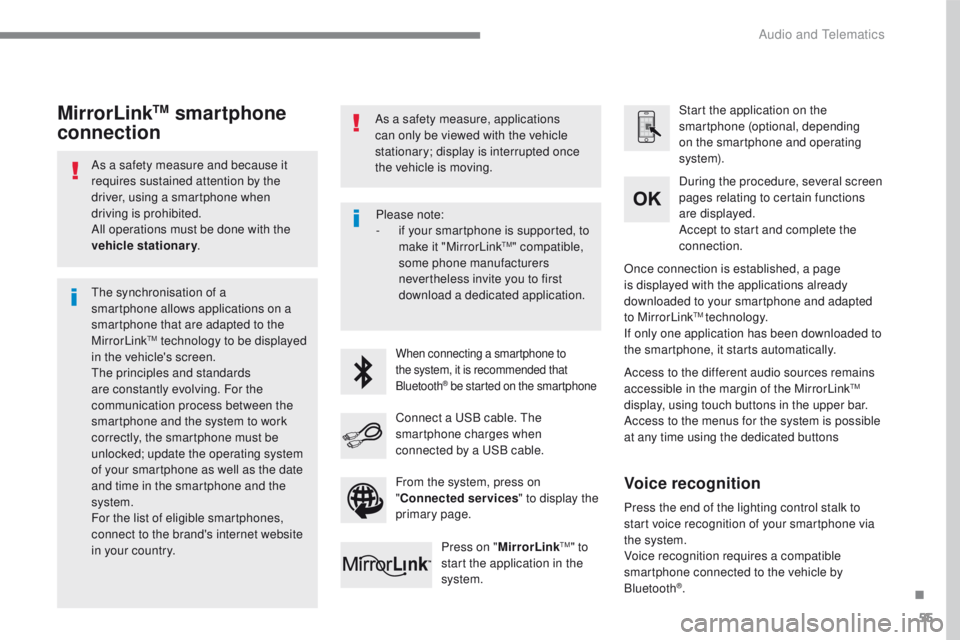
The synchronisation of a
smartphone allows applications on a
smartphone that are adapted to the
MirrorLink
TM technology to be displayed
in t
he vehicle's screen.
The principles and standards
are constantly evolving. For the
communication process between the
smartphone and the system to work
correctly, the smartphone must be
unlocked; update the operating system
of your smartphone as well as the date
and time in the smartphone and the
system.
For the list of eligible smartphones,
connect to the brand's internet website
in your country. As a safety measure, applications
can only be viewed with the vehicle
stationary; display is interrupted once
the vehicle is moving.When connecting a smartphone to
the system, it is recommended that
Bluetooth
® be started on the smartphone
Start the application on the
smartphone (optional, depending
on the smartphone and operating
syste m).
Access to the different audio sources remains
accessible in the margin of the MirrorLink
TM
display, using touch buttons in the upper bar.
Access to the menus for the system is possible
at any time using the dedicated buttons During the procedure, several screen
pages relating to certain functions
are displayed.
Accept to start and complete the
connection.
Connect a USB cable. The
smartphone charges when
connected by a USB cable. Press on " MirrorLink
TM" to
start the application in the
system. Once connection is established, a page
is displayed with the applications already
downloaded to your smartphone and adapted
to MirrorLink
TM technology.
If only one application has been downloaded to
the smartphone, it starts automatically.
MirrorLinkTM smartphone
connection
Press the end of the lighting control stalk to
start voice recognition of your smartphone via
the system.
Voice recognition requires a compatible
smartphone connected to the vehicle by
Bluetooth
®.
Voice recognition
Please note:
- if y
our smartphone is supported, to
make it "MirrorLink
TM" compatible,
some phone manufacturers
nevertheless invite you to first
download a dedicated application.
From the system, press on
" Connected services " to display the
primary page.
.
Audio and Telematics
Page 433 of 450
59
2008-additif_en_Chap12b_SMEGplus_ed01-2016
As a safety measure and because it
requires sustained attention by the
driver, using a smartphone when
driving is prohibited.
All operations must be done with the
vehicle stationary.
As a safety measure, applications
can only be viewed with the vehicle
stationary; display is interrupted once
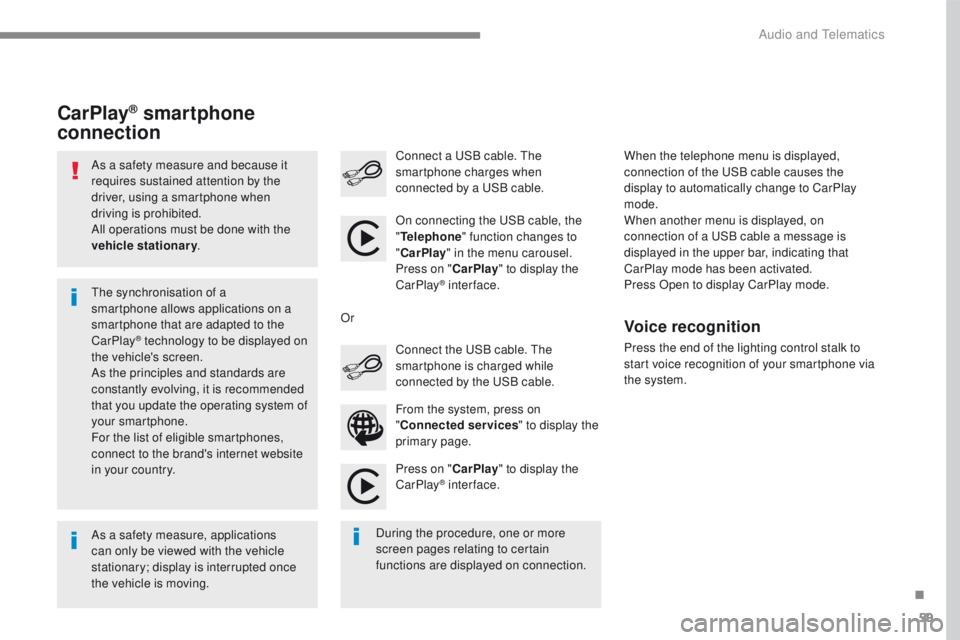
the vehicle is moving. The synchronisation of a
smartphone allows applications on a
smartphone that are adapted to the
CarPlay
® technology to be displayed on
the
vehicle's screen.
As the principles and standards are
constantly evolving, it is recommended
that you update the operating system of
your smartphone.
For the list of eligible smartphones,
connect to the brand's internet website
in your country. On connecting the USB cable, the
"
Telephone " function changes to
" CarPlay " in the menu carousel.
Press on " CarPlay" to display the
CarPlay
® inter face.
Press on " CarPlay" to display the
CarPlay
® inter face.
Connect a USB cable. The
smartphone charges when
connected by a USB cable.
Press the end of the lighting control stalk to
start voice recognition of your smartphone via
the system.
CarPlay® smartphone
connection
During the procedure, one or more
screen pages relating to certain
functions are displayed on connection. From the system, press on
"
Connected services " to display the
primary page. Connect the USB cable. The
smartphone is charged while
connected by the USB cable.
Or
Voice recognition
When the telephone menu is displayed,
connection of the USB cable causes the
display to automatically change to CarPlay
mode.
When another menu is displayed, on
connection of a USB cable a message is
displayed in the upper bar, indicating that
CarPlay
m
ode has been activated.
Press Open to display CarPlay mode.
.
Audio and Telematics
Page 445 of 450
71
2008-additif_en_Chap12b_SMEGplus_ed01-2016
Media
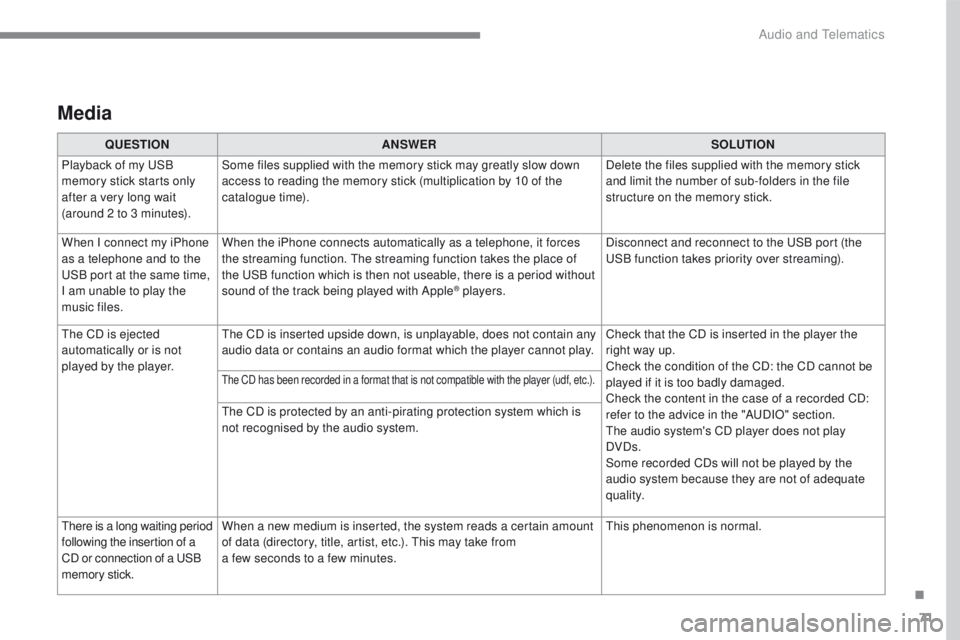
QUESTIONANSWER SOLUTION
Playback of my USB
memory stick starts only
after a very long wait
(around 2 to 3 minutes). Some files supplied with the memory stick may greatly slow down
access to reading the memory stick (multiplication by 10 of the
catalogue time).
Delete the files supplied with the memory stick
and limit the number of sub-folders in the file
structure on the memory stick.
When I connect my iPhone
as a telephone and to the
USB port at the same time,
I am unable to play the
music files. When the iPhone connects automatically as a telephone, it forces
the streaming function. The streaming function takes the place of
the USB function which is then not useable, there is a period without
sound of the track being played with Apple
® players.
Disconnect and reconnect to the USB port (the
USB function takes priority over streaming).
The CD is ejected
automatically or is not
played by the player. The CD is inserted upside down, is unplayable, does not contain any
audio data or contains an audio format which the player cannot play.
Check that the CD is inserted in the player the
right way up.
Check the condition of the CD: the CD cannot be
played if it is too badly damaged.
Check the content in the case of a recorded CD:
refer to the advice in the "AUDIO" section.
The audio system's CD player does not play
DVDs.
Some recorded CDs will not be played by the
audio system because they are not of adequate
quality.
The CD has been recorded in a format that is not compatible with the player (udf, etc.).
The CD is protected by an anti-pirating protection system which is
not recognised by the audio system.
There is a long waiting period
following the insertion of a
CD or connection of a USB
memory stick. When a new medium is inserted, the system reads a certain amount
of data (directory, title, artist, etc.). This may take from
a few seconds to a few minutes.
This phenomenon is normal.
.
Audio and Telematics