AUX PEUGEOT 2008 2016 Owners Manual
[x] Cancel search | Manufacturer: PEUGEOT, Model Year: 2016, Model line: 2008, Model: PEUGEOT 2008 2016Pages: 450, PDF Size: 14.16 MB
Page 7 of 450
5
2008_en_Chap00b_vue-ensemble_ed01-2016
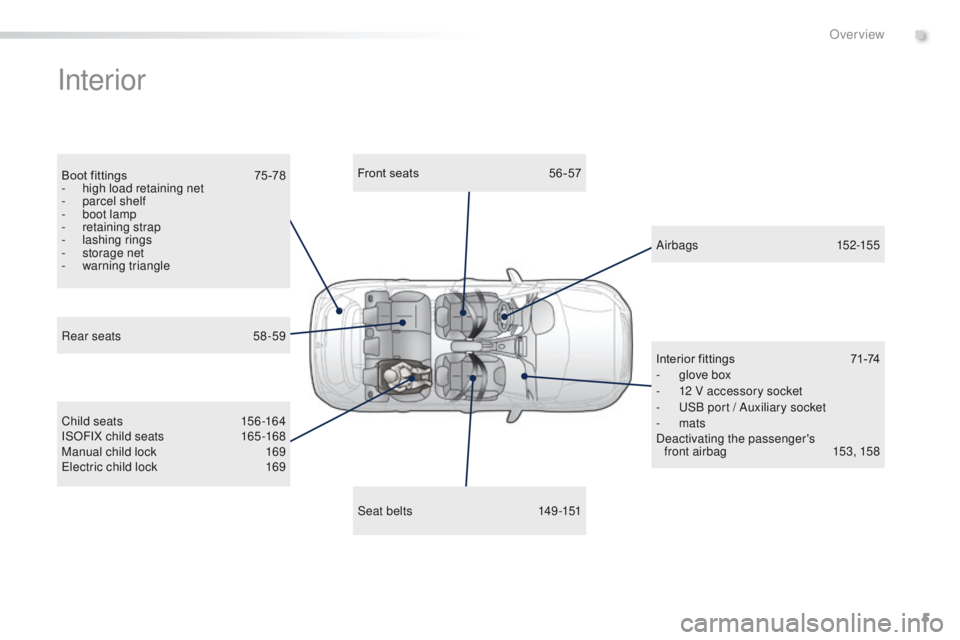
Interior
Boot fittings 75 -78
- h igh load retaining net
-
par
cel shelf
-
b
oot lamp
-
r
etaining strap
-
la
shing rings
-
s
torage net
-
w
arning triangle Front seats
5 6 -57
Child seats
1
56 -164
ISOFIX child seats
1
65 -168
Manual child lock
1
69
Electric child lock
1
69 A ir bags
15
2-155
Interior fittings
7
1-74
-
g
love box
-
1
2 V accessory socket
-
U
SB port / Auxiliary socket
-
mats
Deactivating the passenger's front airbag
1
53, 158
Seat belts
1
49-151
Rear seats
5
8-59
.
Over view
Page 8 of 450
6
2008_en_Chap00b_vue-ensemble_ed01-2016
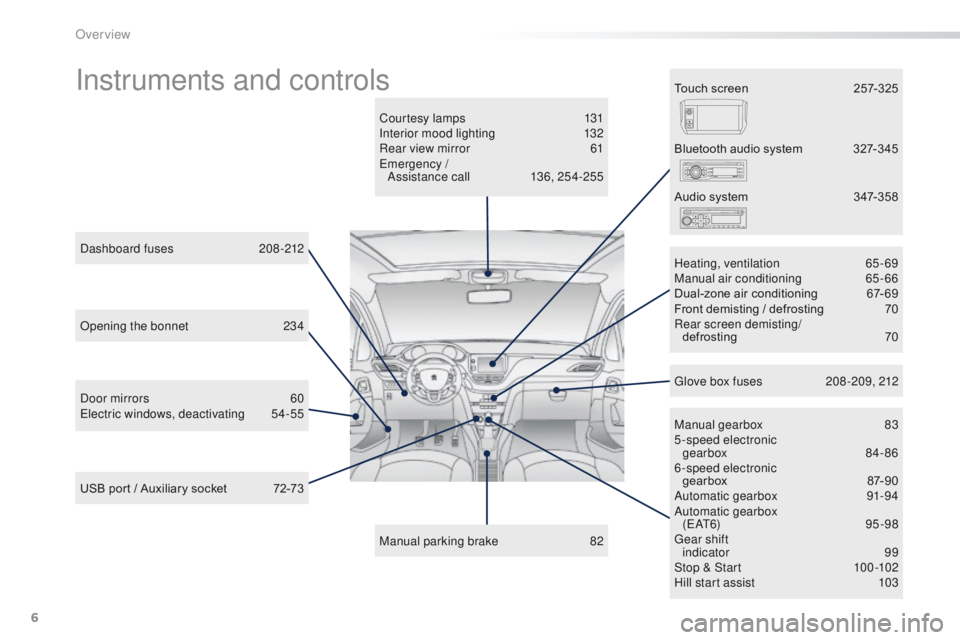
Instruments and controls
Courtesy lamps 131
Interior mood lighting 1 32
Rear view mirror
6
1
Emergency / Assistance call
1
36, 254-255
Manual parking brake
8
2Manual gearbox
8
3
5-speed electronic gearbox
8
4- 86
6-speed electronic gearbox
87
-90
Automatic gearbox
9
1-94
Automatic gearbox ( E AT 6)
9 5 - 9 8
Gear shift indicator
99
Stop & Start
1
00 -102
Hill start assist
1
03
Dashboard fuses
2
08-212
USB port / Auxiliary socket
7
2-73 Heating, ventilation
6
5-69
Manual air conditioning
6
5-66
Dual-zone air conditioning
6
7- 69
Front demisting / defrosting
7
0
Rear screen demisting/
defrosting
70
B
luetooth audio system
3
27-345
Door mirrors
6
0
Electric windows, deactivating
5
4-55 Audio system
3
47-358
Glove box fuses
2
08 -209, 212
Touch screen
2
57-325
Opening the bonnet
2
34
Over view
Page 11 of 450
9
2008_en_Chap00b_vue-ensemble_ed01-2016
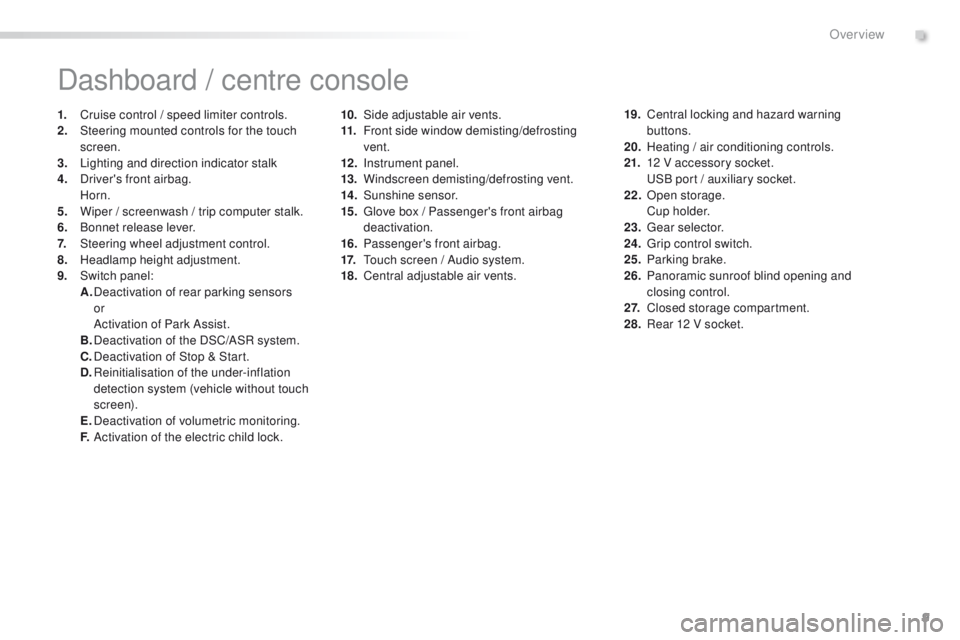
10. Side adjustable air vents.
11. Front side window demisting/defrosting
vent.
12 .
I
nstrument panel.
13.
W
indscreen demisting/defrosting vent.
14 .
S
unshine sensor.
15.
G
love box / Passenger's front airbag
deactivation.
16.
P
assenger's front airbag.
17.
T
ouch screen / Audio system.
18.
C
entral adjustable air vents.
Dashboard / centre console
1. Cruise control / speed limiter controls.
2. Steering mounted controls for the touch
screen.
3.
L
ighting and direction indicator stalk
4.
D
river's front airbag.
Horn.
5.
W
iper / screenwash / trip computer stalk.
6.
B
onnet release lever.
7.
S
teering wheel adjustment control.
8.
H
eadlamp height adjustment.
9.
S
witch panel:
A.
D
eactivation of rear parking sensors
or
A
ctivation of Park Assist.
B.
D
eactivation of the DSC/ASR system.
C.
D
eactivation of Stop & Start.
D.
R
einitialisation of the under-inflation
detection system (vehicle without touch
screen).
E.
D
eactivation of volumetric monitoring.
F.
A
ctivation of the electric child lock. 19. C
entral locking and hazard warning
buttons.
20.
H
eating / air conditioning controls.
21.
1
2 V accessory socket.
U
SB port / auxiliary socket.
22.
O
pen storage.
C
u p h o l d e r.
23.
G
ear selector.
24.
G
rip control switch.
25.
P
arking brake.
26.
P
anoramic sunroof blind opening and
closing control.
2 7.
C
losed storage compartment.
28.
R
ear 12 V socket.
.
Over view
Page 73 of 450
71
2008_en_Chap04_amenagements_ed01-2016
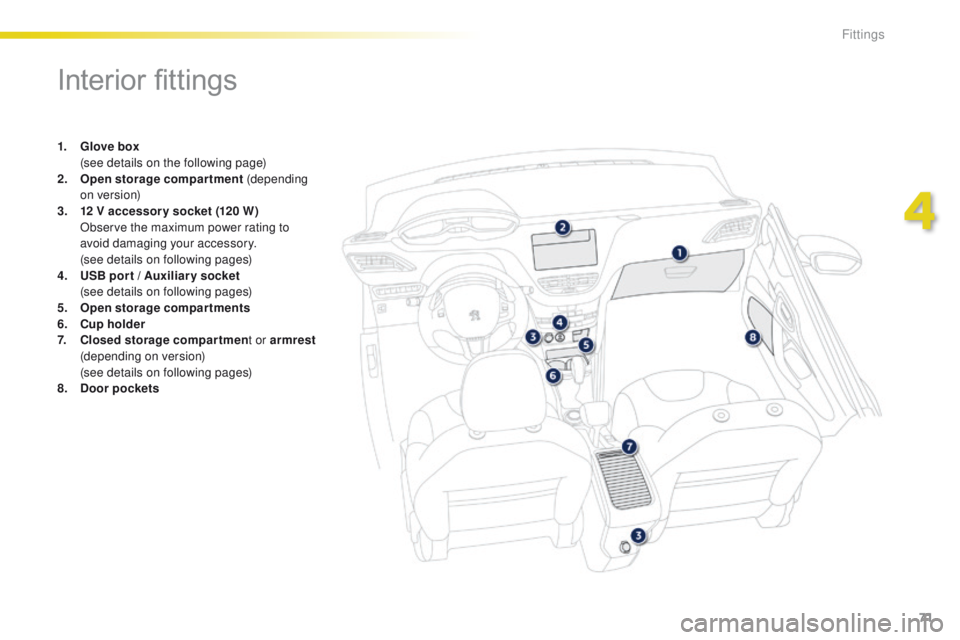
Interior fittings
1. Glove box (
see details on the following page)
2.
O
pen storage compartment (depending
on version)
3.
1
2 V accessory socket (120 W )
O
bserve the maximum power rating to
avoid damaging your accessory.
(
see details on following pages)
4.
U
SB por t / Auxiliar y socket
(
see details on following pages)
5.
O
pen storage compartments
6.
C
up holder
7.
C
losed storage compartmen t or armrest
(depending on version)
(
see details on following pages)
8.
Doo
r pockets
4
Fittings
Page 75 of 450
73
2008_en_Chap04_amenagements_ed01-2016
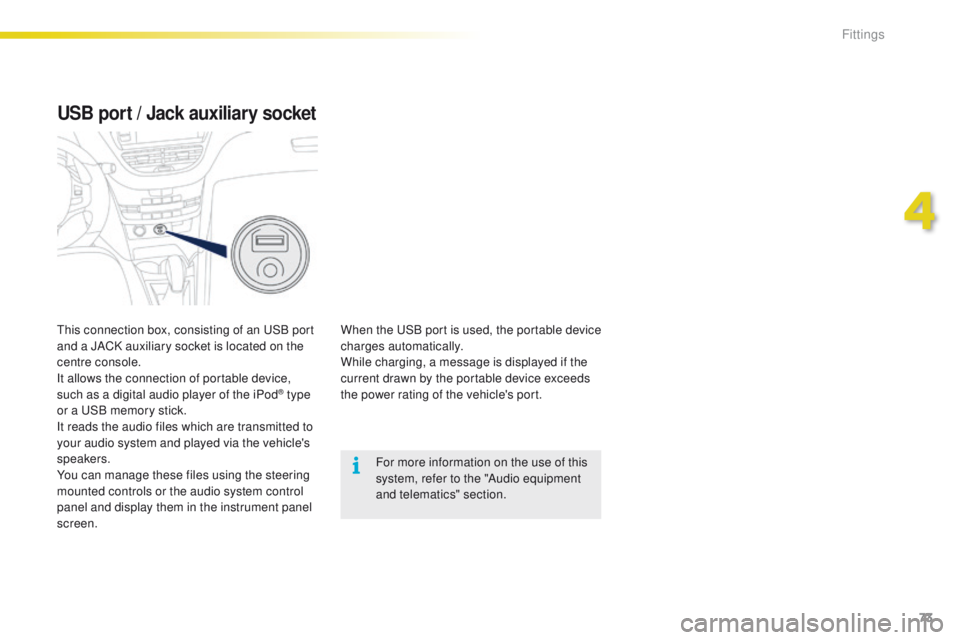
USB port / Jack auxiliary socket
When the USB port is used, the portable device
charges automatically.
While charging, a message is displayed if the
current drawn by the portable device exceeds
the power rating of the vehicle's port.For more information on the use of this
system, refer to the "Audio equipment
and telematics" section.
This connection box, consisting of an USB port
and a JACK auxiliary socket is located on the
centre console.
It allows the connection of portable device,
such as a digital audio player of the iPod
® type
or a USB memory stick.
It reads the audio files which are transmitted to
your audio system and played via the vehicle's
speakers.
You can manage these files using the steering
mounted controls or the audio system control
panel and display them in the instrument panel
screen.
4
Fittings
Page 261 of 450
259
2008_en_Chap12b_SMEGplus_ed01-2016
Volume adjustment (each source is independent,
including traffic announcements (TA) and
navigation instructions). Press on Menu
to display the menu
carrousel.
Press on SRC to display the audio
sources carrousel.
With the engine running, press to
mute the sound.
With the ignition off, press to switch
the system on.
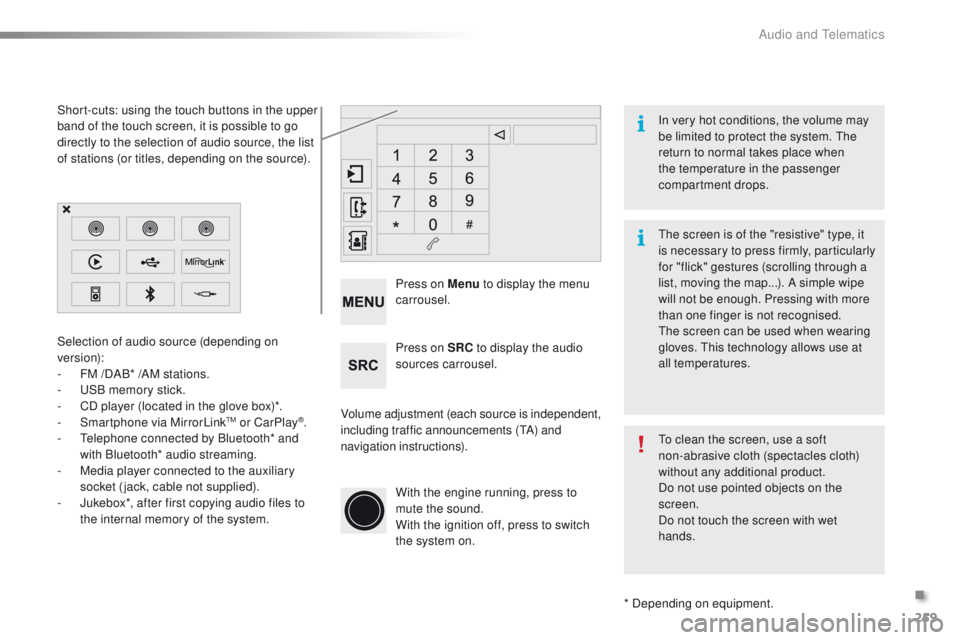
Selection of audio source (depending on
version):
-
F
M /DAB* /AM stations.
-
U
SB memory stick.
-
C
D player (located in the glove box)*.
- S
martphone via MirrorLinkTM or CarPlay®.
-
T
elephone connected by Bluetooth* and
with Bluetooth* audio streaming.
-
M
edia player connected to the auxiliary
socket (jack, cable not supplied).
-
J
ukebox*, after first copying audio files to
the internal memory of the system.
* Depending on equipment.
Short-cuts: using the touch buttons in the upper
band of the touch screen, it is possible to go
directly to the selection of audio source, the list
of stations (or titles, depending on the source).
The screen is of the "resistive" type, it
is necessary to press firmly, particularly
for "flick" gestures (scrolling through a
list, moving the map...). A simple wipe
will not be enough. Pressing with more
than one finger is not recognised.
The screen can be used when wearing
gloves. This technology allows use at
all temperatures. In very hot conditions, the volume may
be limited to protect the system. The
return to normal takes place when
the temperature in the passenger
compartment drops.
To clean the screen, use a soft
non-abrasive cloth (spectacles cloth)
without any additional product.
Do not use pointed objects on the
screen.
Do not touch the screen with wet
hands.
.
Audio and Telematics
Page 279 of 450
277
2008_en_Chap12b_SMEGplus_ed01-2016
Level 1Level 2 Comments
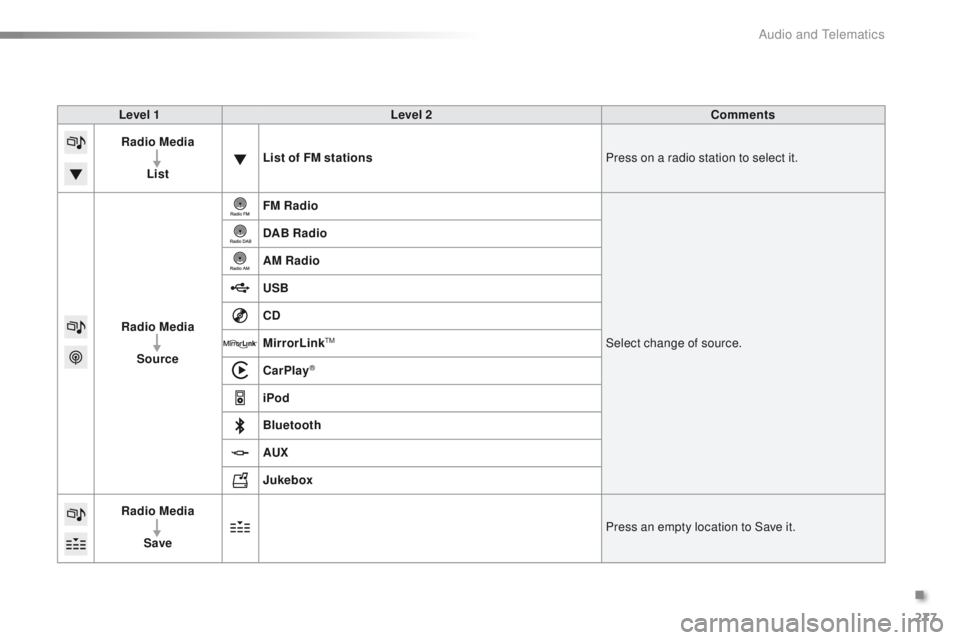
Radio Media
List List of FM stations
Press on a radio station to select it.
Radio Media Source FM Radio
Select change of source.
DAB Radio
AM Radio
USB
CD
MirrorLink
TM
CarPlay®
iPod
Bluetooth
AUX
Jukebox
Radio Media
Save Press an empty location to Save it.
.
Audio and Telematics
Page 283 of 450
281
2008_en_Chap12b_SMEGplus_ed01-2016
Level 1Level 2 Level 3 Comments
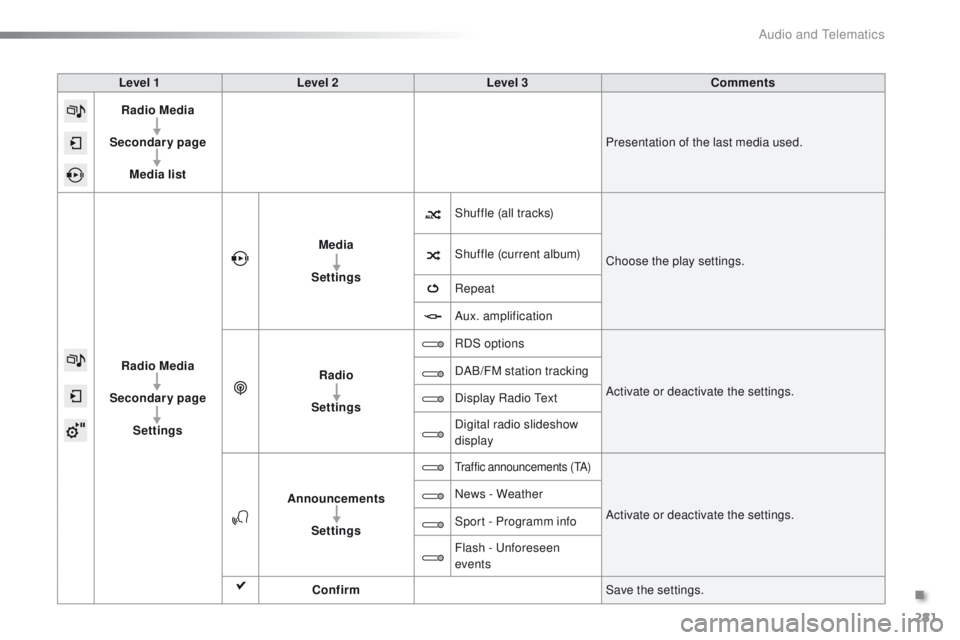
Radio Media
Secondary page Media list Presentation of the last media used.
Radio Media
Secondary page Settings Media
Settings Shuffle (all tracks)
Choose the play settings.
Shuffle (current album)
Repeat
Aux. amplification
Radio
Settings RDS options
Activate or deactivate the settings.
DAB/FM station tracking
Display Radio Text
Digital radio slideshow
display
Announcements Settings
Traffic announcements (TA)
Activate or deactivate the settings.
News - Weather
Sport - Programm info
Flash - Unforeseen
events
Confirm Save the settings.
.
Audio and Telematics
Page 288 of 450
286
2008_en_Chap12b_SMEGplus_ed01-2016
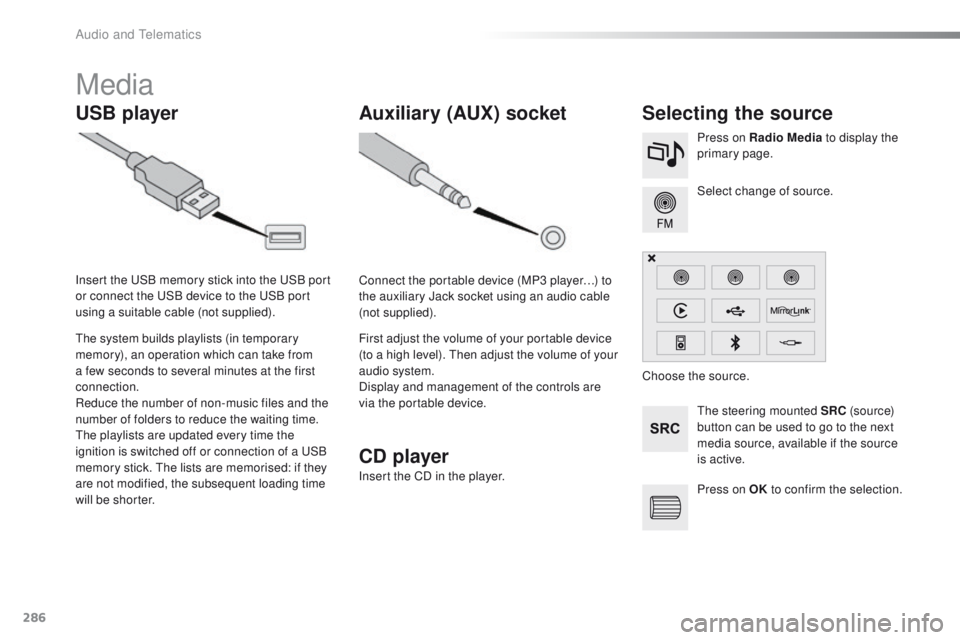
Media
USB playerSelecting the source
The steering mounted SRC (s o u r c e)
button can be used to go to the next
media source, available if the source
is active. Select change of source. Press on Radio Media to display the
primary page.
The system builds playlists (in temporary
memory), an operation which can take from
a few seconds to several minutes at the first
connection.
Reduce the number of non-music files and the
number of folders to reduce the waiting time.
The playlists are updated every time the
ignition is switched off or connection of a USB
memory stick. The lists are memorised: if they
are not modified, the subsequent loading time
will be shorter. Insert the USB memory stick into the USB port
or connect the USB device to the USB port
using a suitable cable (not supplied).
Auxiliary (AUX) socket
Connect the portable device (MP3 player…) to
the auxiliary Jack socket using an audio cable
(not supplied).
First adjust the volume of your portable device
(to a high level). Then adjust the volume of your
audio system.
Display and management of the controls are
via the portable device. Choose the source.
CD player
Insert the CD in the player.
Press on OK to confirm the selection.
Audio and Telematics
Page 289 of 450
287
2008_en_Chap12b_SMEGplus_ed01-2016
The audio equipment will only play audio
files with".wma, .aac, .flac, .ogg and. mp3"
file extensions and with a bit rate of between
32 Kbps and 320 Kbps.
It also supports VBR (Variable Bit Rate) mode.
No other type of file (.mp4,...) can be played.
".wma" files must be of the standard
wma 9 type.
The sampling rates supported are 32, 44 and
48 KHz.
It is advisable to restrict file names to
20
characters, without using of special
characters (e.g.: " " ? ; ù) to avoid any playing
and displaying problems.
Information and advice
Use only USB memory sticks formatted FAT 32
(file allocation table).
The system supports USB mass
storage devices, BlackBerry
® devices
or Apple® players via USB ports. The
adaptor cable is not supplied.
Control of the peripheral device is with
the audio system controls.
Other peripherals, not recognised on
connection, must be connected to the
auxiliary socket using a Jack cable (not
supplied). It is recommended that the USB cable
for the portable device is used. The system does not support the
simultaneous connection of two
identical devices (two memory sticks,
two Apple
® players) but it is possible
t
o connect one memory stick and one
Apple
® player at the same time.
In order to be able to play a recorded CDR or
CDRW, when recording it is preferable to select
the ISO 9660 level 1, 2 or Joliet standard.
If the disc is recorded in another format it may
not be played correctly.
It is recommended that the same recording
standard is always used for an individual disc,
with as low a speed as possible (4x maximum)
for optimum sound quality.
In the particular case of a multi-session CD, the
Joliet standard is recommended.
.
Audio and Telematics