USB port PEUGEOT 2008 2016 Owners Manual
[x] Cancel search | Manufacturer: PEUGEOT, Model Year: 2016, Model line: 2008, Model: PEUGEOT 2008 2016Pages: 450, PDF Size: 14.16 MB
Page 8 of 450
6
2008_en_Chap00b_vue-ensemble_ed01-2016
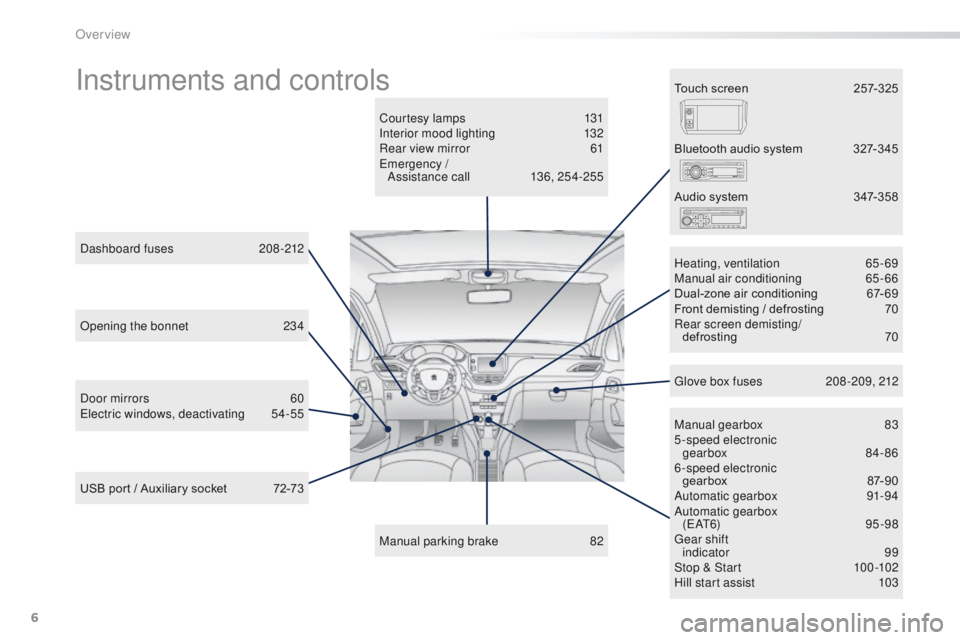
Instruments and controls
Courtesy lamps 131
Interior mood lighting 1 32
Rear view mirror
6
1
Emergency / Assistance call
1
36, 254-255
Manual parking brake
8
2Manual gearbox
8
3
5-speed electronic gearbox
8
4- 86
6-speed electronic gearbox
87
-90
Automatic gearbox
9
1-94
Automatic gearbox ( E AT 6)
9 5 - 9 8
Gear shift indicator
99
Stop & Start
1
00 -102
Hill start assist
1
03
Dashboard fuses
2
08-212
USB port / Auxiliary socket
7
2-73 Heating, ventilation
6
5-69
Manual air conditioning
6
5-66
Dual-zone air conditioning
6
7- 69
Front demisting / defrosting
7
0
Rear screen demisting/
defrosting
70
B
luetooth audio system
3
27-345
Door mirrors
6
0
Electric windows, deactivating
5
4-55 Audio system
3
47-358
Glove box fuses
2
08 -209, 212
Touch screen
2
57-325
Opening the bonnet
2
34
Over view
Page 74 of 450
72
2008_en_Chap04_amenagements_ed01-2016
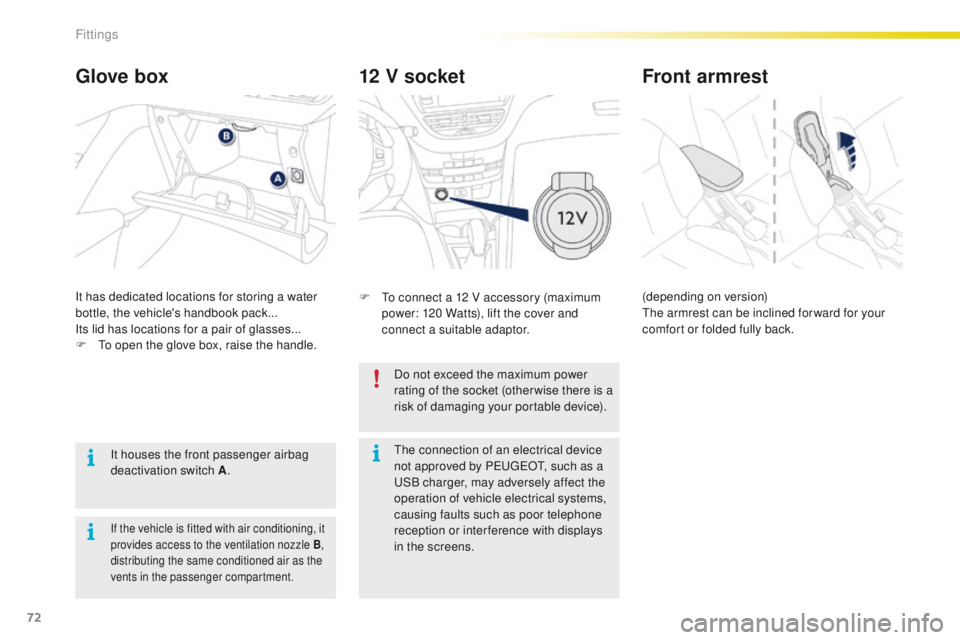
12 V socket
F To connect a 12 V accessory (maximum power: 120 Watts), lift the cover and
connect a suitable adaptor.
Glove box
It has dedicated locations for storing a water
bottle, the vehicle's handbook pack...
Its lid has locations for a pair of glasses...
F
T
o open the glove box, raise the handle.
It houses the front passenger airbag
deactivation switch A .
If the vehicle is fitted with air conditioning, it
provides access to the ventilation nozzle
B,
distributing the same conditioned air as the
vents in the passenger compartment.
Do not exceed the maximum power
rating of the socket (otherwise there is a
risk of damaging your portable device).
Front armrest
(depending on version)
The armrest can be inclined for ward for your
comfort or folded fully back.
The connection of an electrical device
not approved by PEUGEOT, such as a
USB charger, may adversely affect the
operation of vehicle electrical systems,
causing faults such as poor telephone
reception or inter ference with displays
in the screens.
Fittings
Page 75 of 450
73
2008_en_Chap04_amenagements_ed01-2016
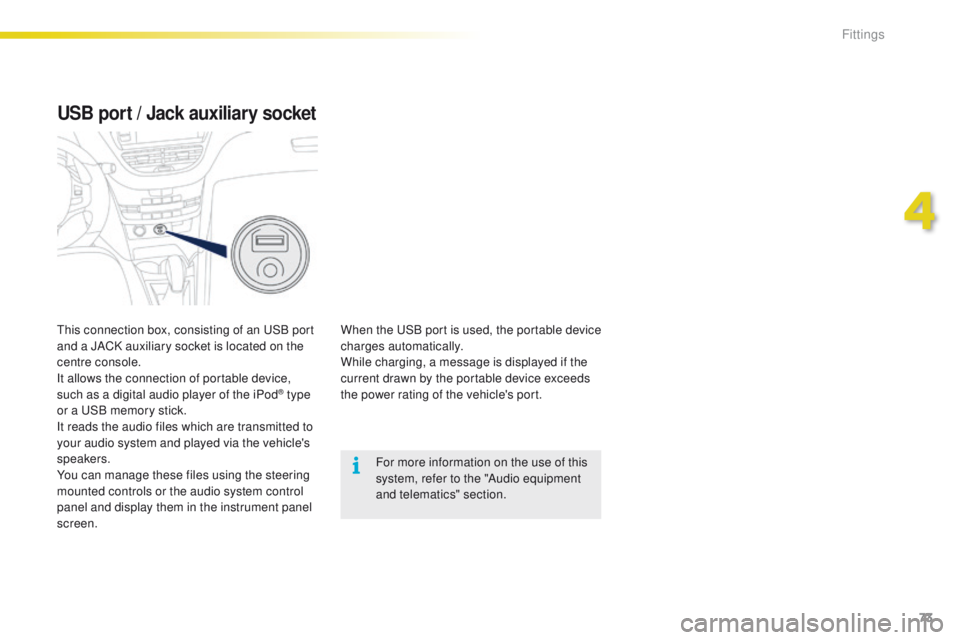
USB port / Jack auxiliary socket
When the USB port is used, the portable device
charges automatically.
While charging, a message is displayed if the
current drawn by the portable device exceeds
the power rating of the vehicle's port.For more information on the use of this
system, refer to the "Audio equipment
and telematics" section.
This connection box, consisting of an USB port
and a JACK auxiliary socket is located on the
centre console.
It allows the connection of portable device,
such as a digital audio player of the iPod
® type
or a USB memory stick.
It reads the audio files which are transmitted to
your audio system and played via the vehicle's
speakers.
You can manage these files using the steering
mounted controls or the audio system control
panel and display them in the instrument panel
screen.
4
Fittings
Page 288 of 450
286
2008_en_Chap12b_SMEGplus_ed01-2016
Media
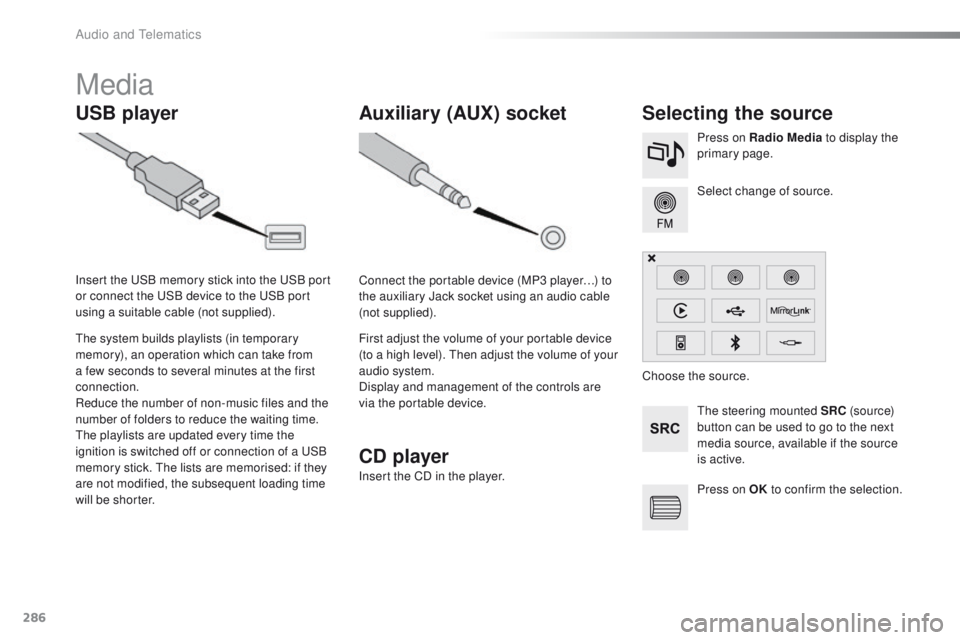
USB playerSelecting the source
The steering mounted SRC (s o u r c e)
button can be used to go to the next
media source, available if the source
is active. Select change of source. Press on Radio Media to display the
primary page.
The system builds playlists (in temporary
memory), an operation which can take from
a few seconds to several minutes at the first
connection.
Reduce the number of non-music files and the
number of folders to reduce the waiting time.
The playlists are updated every time the
ignition is switched off or connection of a USB
memory stick. The lists are memorised: if they
are not modified, the subsequent loading time
will be shorter. Insert the USB memory stick into the USB port
or connect the USB device to the USB port
using a suitable cable (not supplied).
Auxiliary (AUX) socket
Connect the portable device (MP3 player…) to
the auxiliary Jack socket using an audio cable
(not supplied).
First adjust the volume of your portable device
(to a high level). Then adjust the volume of your
audio system.
Display and management of the controls are
via the portable device. Choose the source.
CD player
Insert the CD in the player.
Press on OK to confirm the selection.
Audio and Telematics
Page 289 of 450
287
2008_en_Chap12b_SMEGplus_ed01-2016
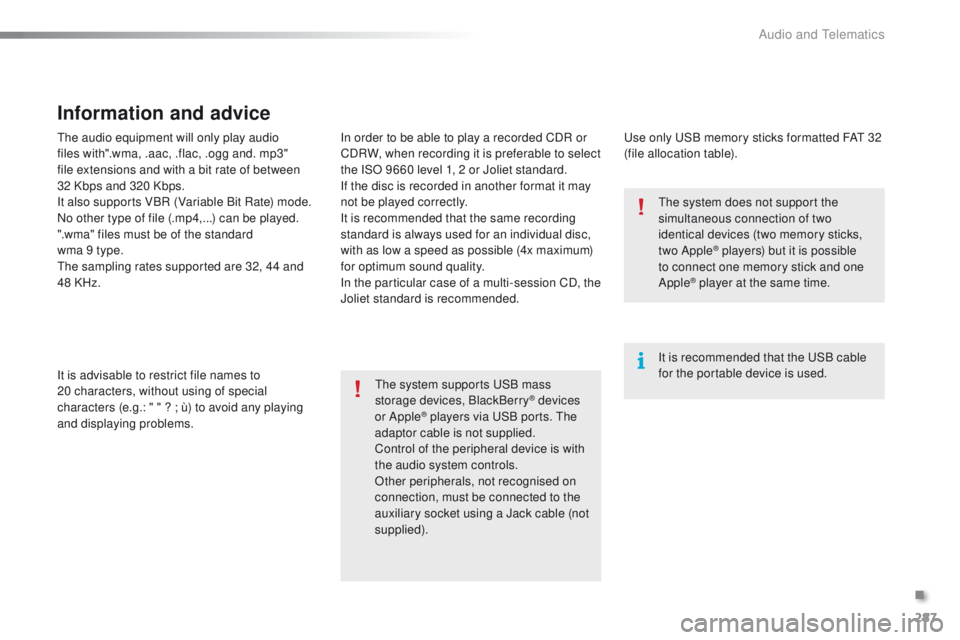
The audio equipment will only play audio
files with".wma, .aac, .flac, .ogg and. mp3"
file extensions and with a bit rate of between
32 Kbps and 320 Kbps.
It also supports VBR (Variable Bit Rate) mode.
No other type of file (.mp4,...) can be played.
".wma" files must be of the standard
wma 9 type.
The sampling rates supported are 32, 44 and
48 KHz.
It is advisable to restrict file names to
20
characters, without using of special
characters (e.g.: " " ? ; ù) to avoid any playing
and displaying problems.
Information and advice
Use only USB memory sticks formatted FAT 32
(file allocation table).
The system supports USB mass
storage devices, BlackBerry
® devices
or Apple® players via USB ports. The
adaptor cable is not supplied.
Control of the peripheral device is with
the audio system controls.
Other peripherals, not recognised on
connection, must be connected to the
auxiliary socket using a Jack cable (not
supplied). It is recommended that the USB cable
for the portable device is used. The system does not support the
simultaneous connection of two
identical devices (two memory sticks,
two Apple
® players) but it is possible
t
o connect one memory stick and one
Apple
® player at the same time.
In order to be able to play a recorded CDR or
CDRW, when recording it is preferable to select
the ISO 9660 level 1, 2 or Joliet standard.
If the disc is recorded in another format it may
not be played correctly.
It is recommended that the same recording
standard is always used for an individual disc,
with as low a speed as possible (4x maximum)
for optimum sound quality.
In the particular case of a multi-session CD, the
Joliet standard is recommended.
.
Audio and Telematics
Page 290 of 450
288
2008_en_Chap12b_SMEGplus_ed01-2016
Bluetooth® audio streaming
Streaming allows audio files on your telephone
to be played through the vehicle's speakers.
Connect the telephone: see the "Telephone"
section, then " Bluetooth".
Choose the " Audio" or "All" profile.
If play does not start automatically, it may be
necessary to start the audio playback from the
telephone.
Control is from the peripheral device or by
using the audio system buttons.
Once connected in streaming mode,
the telephone is considered to be a
media source.
It is recommended that you activate
"Repeat " on the Bluetooth peripheral.
Connecting Apple® players
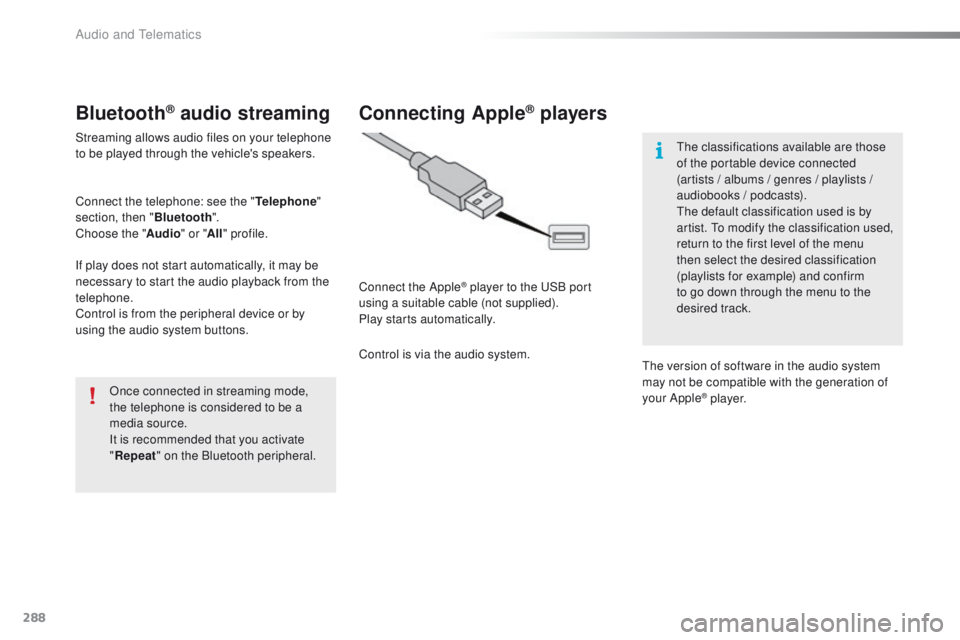
Connect the Apple® player to the USB port
using a suitable cable (not supplied).
Play starts automatically.
Control is via the audio system. The classifications available are those
of the portable device connected
(artists / albums / genres / playlists /
audiobooks / podcasts).
The default classification used is by
artist. To modify the classification used,
return to the first level of the menu
then select the desired classification
(playlists for example) and confirm
to go down through the menu to the
desired track.
The version of software in the audio system
may not be compatible with the generation of
your Apple
® p l aye r.
Audio and Telematics
Page 291 of 450
289
2008_en_Chap12b_SMEGplus_ed01-2016
Managing the Jukebox
Connect the device (MP3 player...) to the USB
port or auxiliary Jack socket using a suitable
audio cable.When no audio file is copied to the
system, which has a capacity of 8 GB,
all of the Jukebox function symbols are
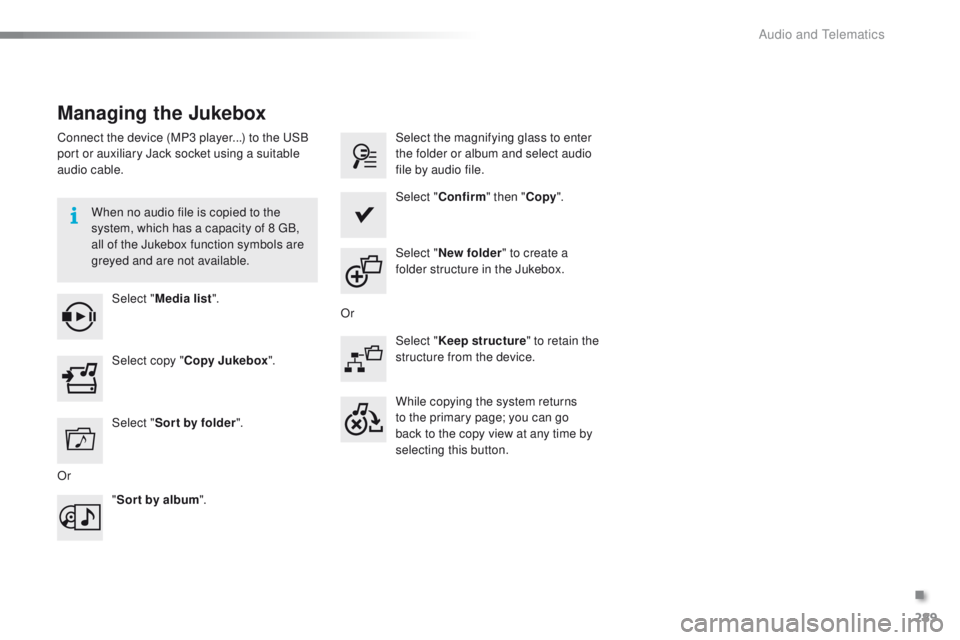
greyed and are not available.Select " Media list ". Select the magnifying glass to enter
the folder or album and select audio
file by audio file.
Select copy " Copy Jukebox ". Select "
Confirm " then "Copy".
Select " Sor t by folder ". Select "
New folder " to create a
folder structure in the Jukebox.
" Sor t by album ". Select "
Keep structure " to retain the
structure from the device.
While copying the system returns
to the primary page; you can go
back to the copy view at any time by
selecting this button.
Or Or
.
Audio and Telematics
Page 305 of 450
303
2008_en_Chap12b_SMEGplus_ed01-2016
As a safety measure and because it
requires sustained attention by the
driver, using a smartphone when
driving is prohibited.
All operations must be done with the
vehicle stationary.
The synchronisation of a
smartphone allows applications on a
smartphone that are adapted to the
MirrorLink
TM technology to be displayed
i
n the vehicle's screen.
The principles and standards
are constantly evolving. For the
communication process between the
smartphone and the system to work
correctly, the smartphone must be
unlocked; update the operating system
of your smartphone as well as the date
and time in the smartphone and the
system.
For the list of eligible smartphones,
connect to the brand's internet website
in your country. As a safety measure, applications
can only be viewed with the vehicle
stationary; display is interrupted once
the vehicle is moving.When connecting a smartphone to
the system, it is recommended that
Bluetooth
® be started on the smartphone.
Start the application on the
smartphone (optional, depending
on the smartphone and operating
syste m).
Access to the different audio sources remains
accessible in the margin of the MirrorLink
TM
display, using touch buttons in the upper bar.
Access to the menus for the system is possible
at any time using the dedicated buttons. During the procedure, several screen
pages relating to certain functions
are displayed.
Accept to start and end the
connection.
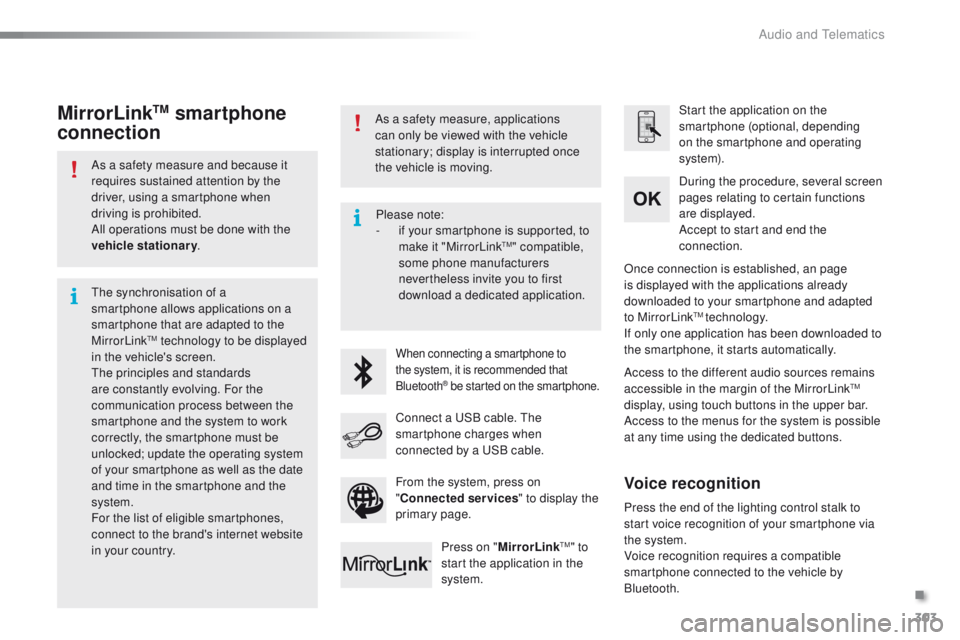
Connect a USB cable. The
smartphone charges when
connected by a USB cable. Press on " MirrorLink
TM" to
start the application in the
system. Once connection is established, an page
is displayed with the applications already
downloaded to your smartphone and adapted
to MirrorLink
TM technology.
If only one application has been downloaded to
the smartphone, it starts automatically.
MirrorLinkTM smartphone
connection
Press the end of the lighting control stalk to
start voice recognition of your smartphone via
the system.
Voice recognition requires a compatible
smartphone connected to the vehicle by
Bluetooth.
Voice recognition
Please note:
-
i f your smartphone is supported, to
make it "MirrorLink
TM" compatible,
some phone manufacturers
nevertheless invite you to first
download a dedicated application.
From the system, press on
" Connected services " to display the
primary page.
.
Audio and Telematics
Page 323 of 450
321
2008_en_Chap12b_SMEGplus_ed01-2016
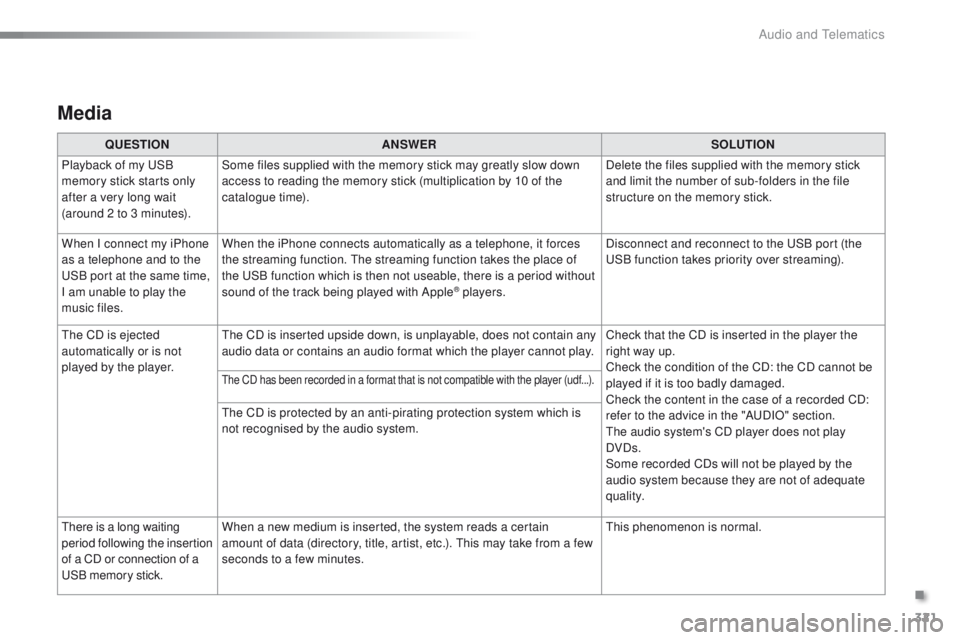
Media
QUESTIONANSWER SOLUTION
Playback of my USB
memory stick starts only
after a very long wait
(around 2 to 3 minutes). Some files supplied with the memory stick may greatly slow down
access to reading the memory stick (multiplication by 10 of the
catalogue time).
Delete the files supplied with the memory stick
and limit the number of sub-folders in the file
structure on the memory stick.
When I connect my iPhone
as a telephone and to the
USB port at the same time,
I am unable to play the
music files. When the iPhone connects automatically as a telephone, it forces
the streaming function. The streaming function takes the place of
the USB function which is then not useable, there is a period without
sound of the track being played with Apple
® players.
Disconnect and reconnect to the USB port (the
USB function takes priority over streaming).
The CD is ejected
automatically or is not
played by the player. The CD is inserted upside down, is unplayable, does not contain any
audio data or contains an audio format which the player cannot play.
Check that the CD is inserted in the player the
right way up.
Check the condition of the CD: the CD cannot be
played if it is too badly damaged.
Check the content in the case of a recorded CD:
refer to the advice in the "AUDIO" section.
The audio system's CD player does not play
DVDs.
Some recorded CDs will not be played by the
audio system because they are not of adequate
quality.
The CD has been recorded in a format that is not compatible with the player (udf...).
The CD is protected by an anti-pirating protection system which is
not recognised by the audio system.
There is a long waiting
period following the insertion
of a CD or connection of a
USB memory stick. When a new medium is inserted, the system reads a certain
amount of data (directory, title, artist, etc.). This may take from a few
seconds to a few minutes.
This phenomenon is normal.
.
Audio and Telematics
Page 333 of 450
331
2008_en_Chap12c_RDE2_ed01-2016
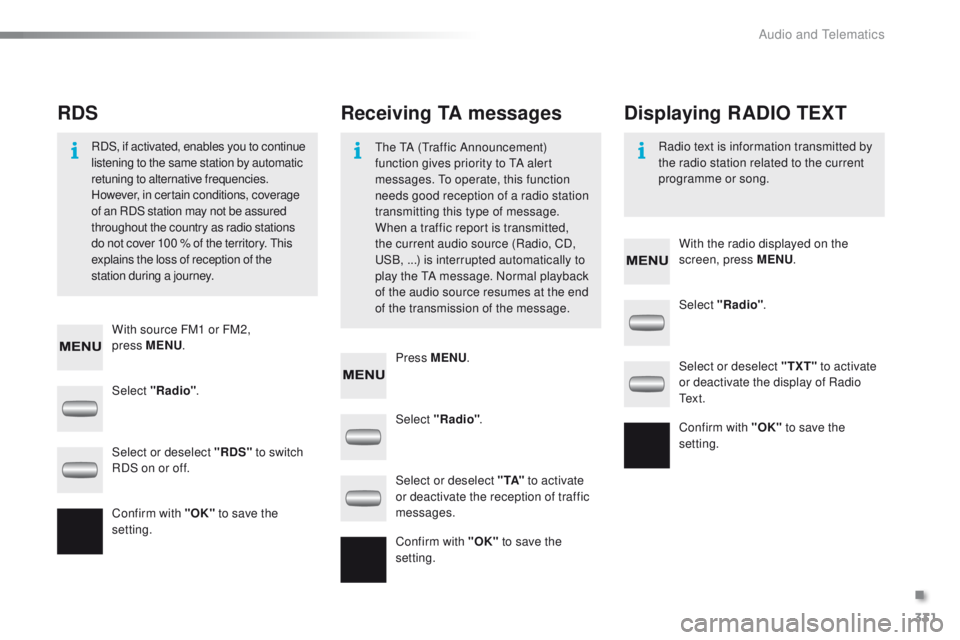
Select "Radio". Select "Radio"
.
Select "Radio" .
Select or deselect "RDS" to switch
RDS on or off. Select or deselect "
TXT" to activate
or deactivate the display of Radio
Te x t .
Select or deselect " TA" to activate
or deactivate the reception of traffic
messages.
Confirm with "OK" to save the
setting. Confirm with "OK"
to save the
setting.
Confirm with "OK" to save the
setting.
Receiving TA messages
RDS Displaying RADIO TEXT
The TA (Traffic Announcement)
function gives priority to TA alert
messages. To operate, this function
needs good reception of a radio station
transmitting this type of message.
When a traffic report is transmitted,
the current audio source (Radio, CD,
USB,
...) is interrupted automatically to
play the TA message. Normal playback
of the audio source resumes at the end
of the transmission of the message.
RDS, if activated, enables you to continue
listening to the same station by automatic
retuning to alternative frequencies.
However, in certain conditions, coverage
of an RDS station may not be assured
throughout the country as radio stations
do not cover 100
% of the territory. This
explains the loss of reception of the
station during a journey. Radio text is information transmitted by
the radio station related to the current
programme or song.
With source FM1 or FM2,
press
MENU . With the radio displayed on the
screen, press MENU
.
Press MENU .
.
Audio and Telematics