buttons PEUGEOT 3008 2012 Owner's Manual
[x] Cancel search | Manufacturer: PEUGEOT, Model Year: 2012, Model line: 3008, Model: PEUGEOT 3008 2012Pages: 328, PDF Size: 62.62 MB
Page 264 of 328
262
01 FIRST STEPS
Peugeot Connect Navigation (RNEG) CONTROL PANEL
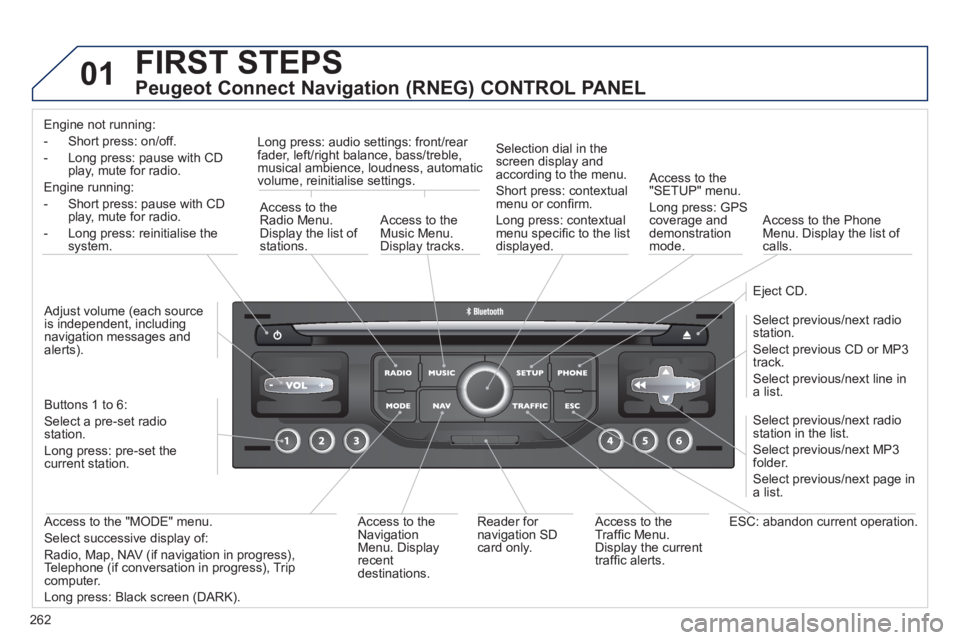
Engine not running:
- Short press: on/off.
- Long press: pause with CD
play, mute for radio.
Engine running:
- Short press: pause with CD
play, mute for radio.
- Long press: reinitialise the
system.
Access to the
Radio Menu.
Display the list of
stations.
Access to the
Music Menu.
Display tracks.
Long press: audio settings: front/rear
fader, left/right balance, bass/treble,
musical ambience, loudness, automatic
volume, reinitialise settings.
Selection dial in the
screen display and
according to the menu.
Short press: contextual
menu or confi rm.
Long press: contextual
menu specifi c to the list
displayed.
Access to the
"SETUP" menu.
Long press: GPS
coverage and
demonstration
mode.
Access to the Phone
Menu. Display the list of
calls.
Eject CD.
Select previous/next radio
station.
Select previous CD or MP3
track.
Select previous/next line in
a list.
Select previous/next radio
station in the list.
Select previous/next MP3
folder.
Select previous/next page in
a list.
ESC: abandon current operation.
Access to the
Traffi c Menu.
Display the current
traffi c alerts.
Reader for
navigation SD
card only.
Access to the
Navigation
Menu. Display
recent
destinations.
Access to the "MODE" menu.
Select successive display of:
Radio, Map, NAV (if navigation in progress),
Telephone (if conversation in progress), Trip
computer.
Long press: Black screen (DARK).
Buttons 1 to 6:
Select a pre-set radio
station.
Long press: pre-set the
current station.
Adjust volume (each source
is independent, including
navigation messages and
alerts).
Page 265 of 328
263
02 STEERING MOUNTED CONTROLS
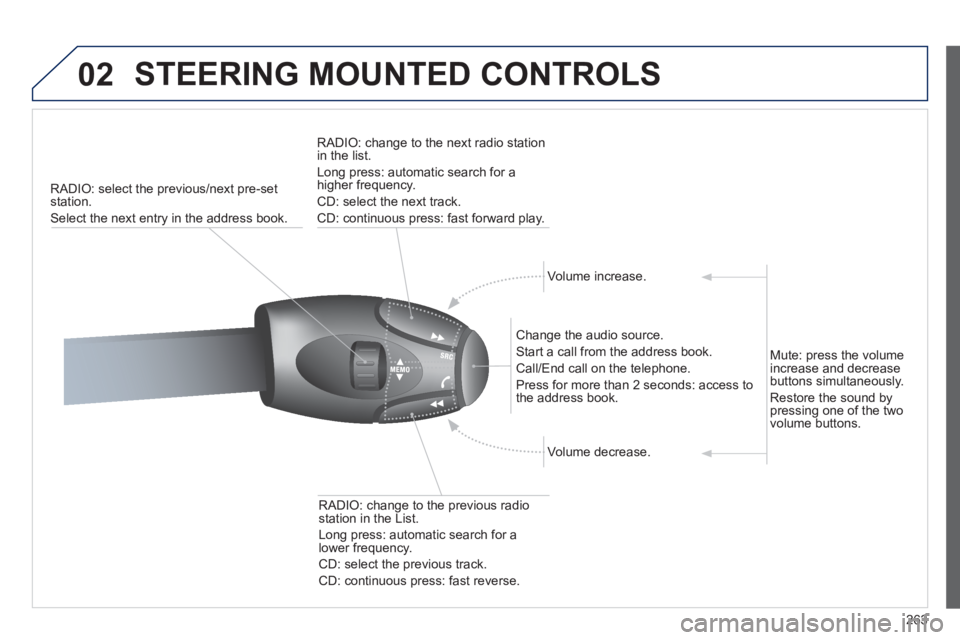
RADIO: select the previous/next pre-set
station.
Select the next entry in the address book.
RADIO: change to the next radio station
in the list.
Long press: automatic search for a
higher frequency.
CD: select the next track.
CD: continuous press: fast forward play.
Volume increase.
Change the audio source.
Start a call from the address book.
Call/End call on the telephone.
Press for more than 2 seconds: access to
the address book.
Volume decrease.
RADIO: change to the previous radio
station in the List.
Long press: automatic search for a
lower frequency.
CD: select the previous track.
CD: continuous press: fast reverse.
Mute: press the volume
increase and decrease
buttons simultaneously.
Restore the sound by
pressing one of the two
volume buttons.
Page 279 of 328
277
06
3 2 1 1
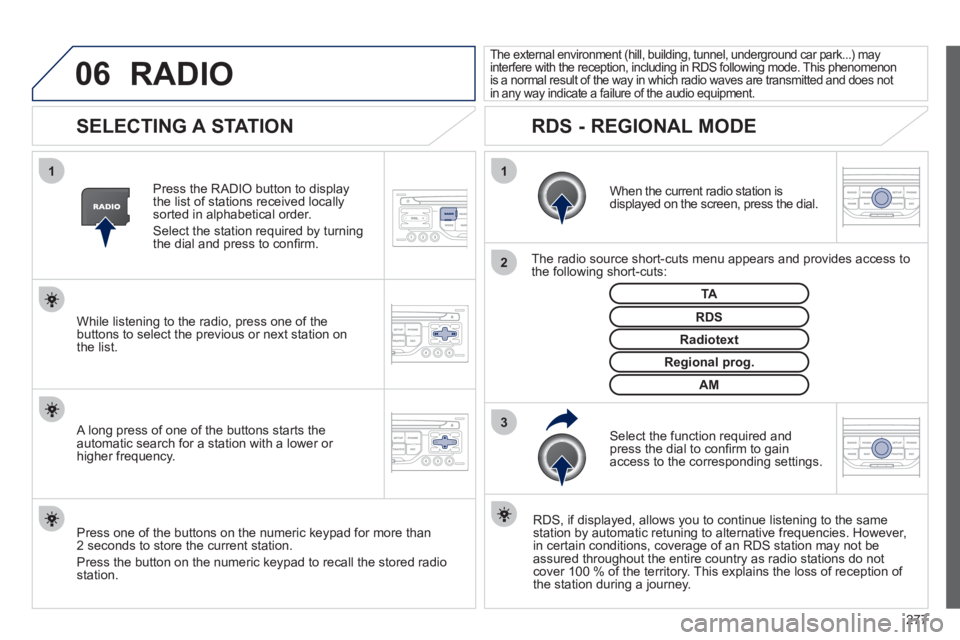
SELECTING A STATION
When the current radio station is
displayed on the screen, press the dial.
The radio source short-cuts menu appears and provides access to
the following short-cuts:
Select the function required and
press the dial to confi rm to gain
access to the corresponding settings.
TA
RDS, if displayed, allows you to continue listening to the same
station by automatic retuning to alternative frequencies. However,
in certain conditions, coverage of an RDS station may not be
assured throughout the entire country as radio stations do not
cover 100 % of the territory. This explains the loss of reception of
the station during a journey.
The external environment (hill, building, tunnel, underground car park...) may
interfere with the reception, including in RDS following mode. This phenomenon
is a normal result of the way in which radio waves are transmitted and does not
in any way indicate a failure of the audio equipment.
RDS - REGIONAL MODE
Press the RADIO button to display
the list of stations received locally
sorted in alphabetical order.
Select the station required by turning
the dial and press to confi rm.
Regional prog.
Radiotext
RDS
While listening to the radio, press one of the
buttons to select the previous or next station on
the list.
Press one of the buttons on the numeric keypad for more than
2 seconds to store the current station.
Press the button on the numeric keypad to recall the stored radio
station.
AM
A long press of one of the buttons starts the
automatic search for a station with a lower or
higher frequency.
RADIO
Page 281 of 328
279
07
3 2 1
6
4
5
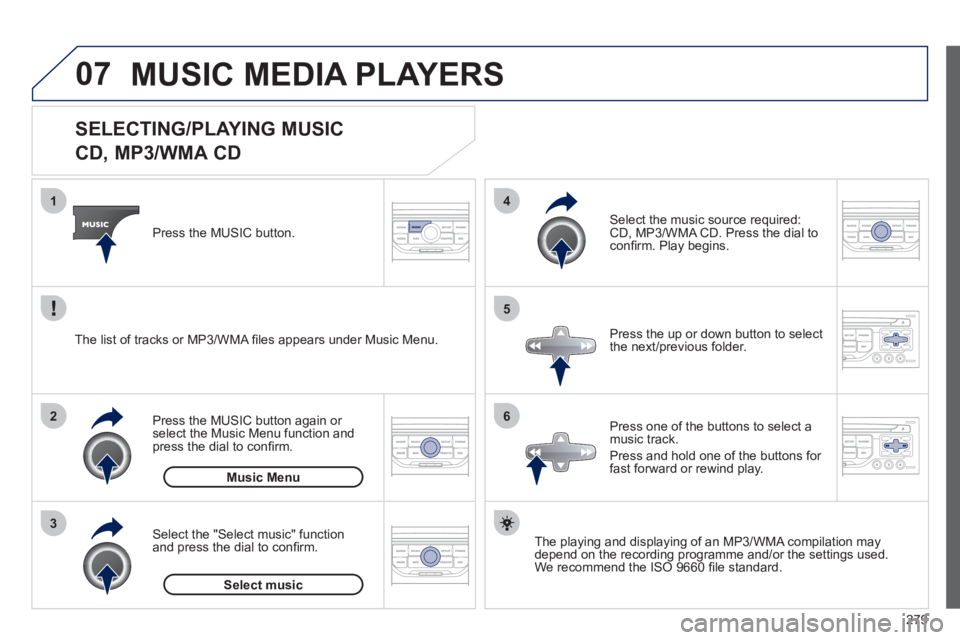
SELECTING/PLAYING MUSIC
CD, MP3/WMA CD
The playing and displaying of an MP3/WMA compilation may
depend on the recording programme and/or the settings used.
We recommend the ISO 9660 fi le standard.
Press the MUSIC button.
Select the "Select music" function
and press the dial to confi rm.
Press the up or down button to select
the next/previous folder.
Select the music source required:
CD, MP3/WMA CD. Press the dial to
confi rm. Play begins.
Select music
Press the MUSIC button again or
select the Music Menu function and
press the dial to confi rm.
Press one of the buttons to select a
music track.
Press and hold one of the buttons for
fast forward or rewind play.
Music Menu
The list of tracks or MP3/WMA fi les appears under Music Menu.
MUSIC MEDIA PLAYERS
Page 296 of 328
294
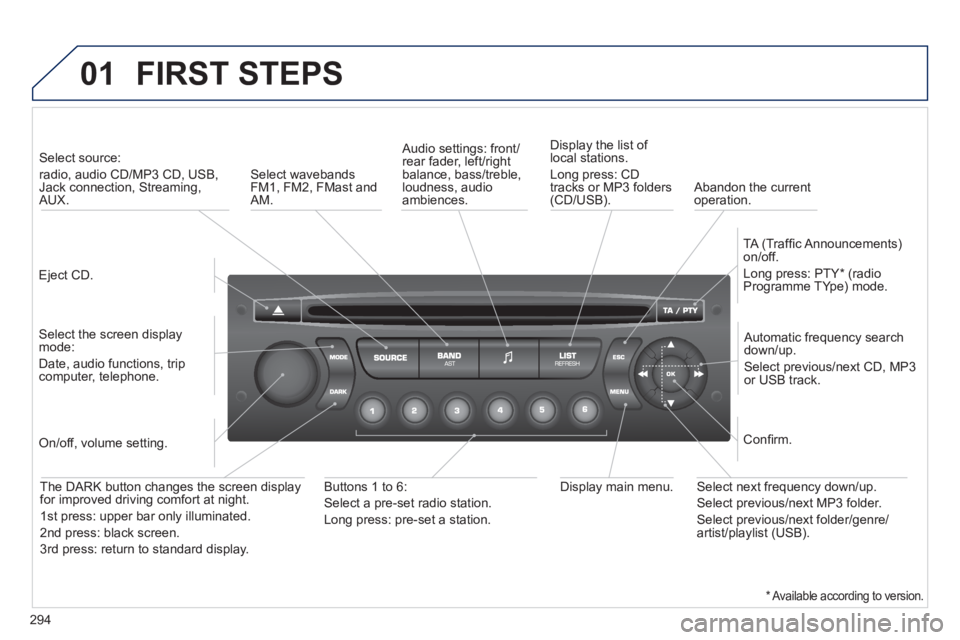
01 FIRST STEPS
Eject CD.
Select source:
radio, audio CD/MP3 CD, USB,
Jack connection, Streaming,
AUX.
Select the screen display
mode:
Date, audio functions, trip
computer, telephone.
Automatic frequency search
down/up.
Select previous/next CD, MP3
or USB track.
Audio settings: front/
rear fader, left/right
balance, bass/treble,
loudness, audio
ambiences.
Display the list of
local stations.
Long press: CD
tracks or MP3 folders
(CD/USB).
TA (Traffi c Announcements)
on/off.
Long press: PTY * (radio
Programme TYpe) mode.
Display main menu.
The DARK button changes the screen display
for improved driving comfort at night.
1 st press: upper bar only illuminated.
2 nd press: black screen.
3 rd press: return to standard display.
On/off, volume setting.
Buttons 1 to 6:
Select a pre-set radio station.
Long press: pre-set a station.
Select next frequency down/up.
Select previous/next MP3 folder.
Select previous/next folder/genre/
artist/playlist (USB).
Confi rm.
Select wavebands
FM1, FM2, FMast and
AM.
Abandon the current
operation.
*
Available according to version.
Page 297 of 328
295
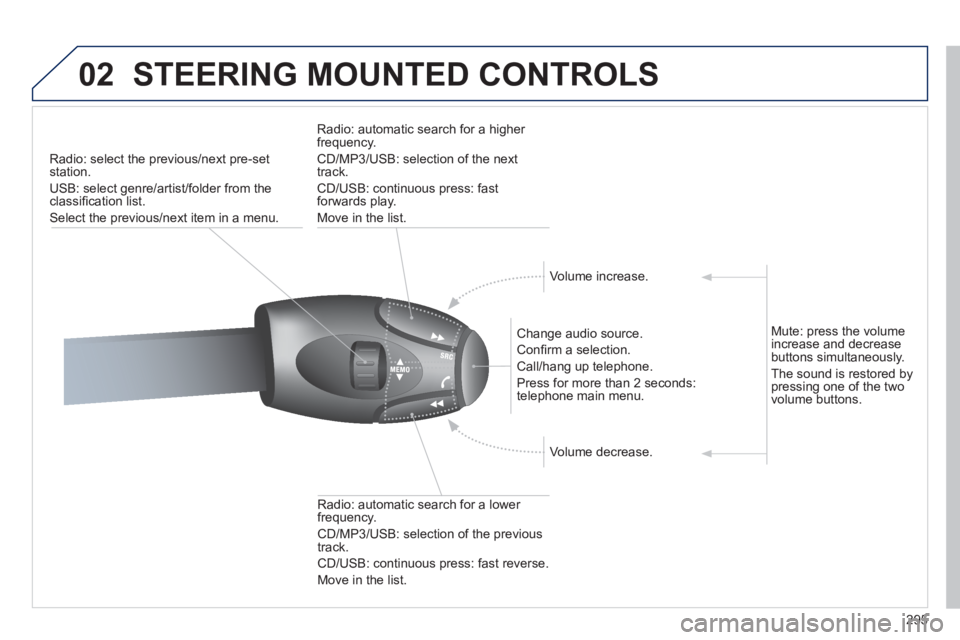
02 STEERING MOUNTED CONTROLS
Radio: select the previous/next pre-set
station.
USB: select genre/artist/folder from the
classifi cation list.
Select the previous/next item in a menu.
Change audio source.
Confi rm a selection.
Call/hang up telephone.
Press for more than 2 seconds:
telephone main menu.
Radio: automatic search for a lower
frequency.
CD/MP3/USB: selection of the previous
track.
CD/USB: continuous press: fast reverse.
Move in the list.
Radio: automatic search for a higher
frequency.
CD/MP3/USB: selection of the next
track.
CD/USB: continuous press: fast
forwards play.
Move in the list.
Volume increase.
Volume decrease.
Mute: press the volume
increase and decrease
buttons simultaneously.
The sound is restored by
pressing one of the two
volume buttons.
Page 299 of 328
297
04
1
2
3
4
1
2
3
4
SOURCE
BANDAST
LISTREFRESH
MENU
AUDIO
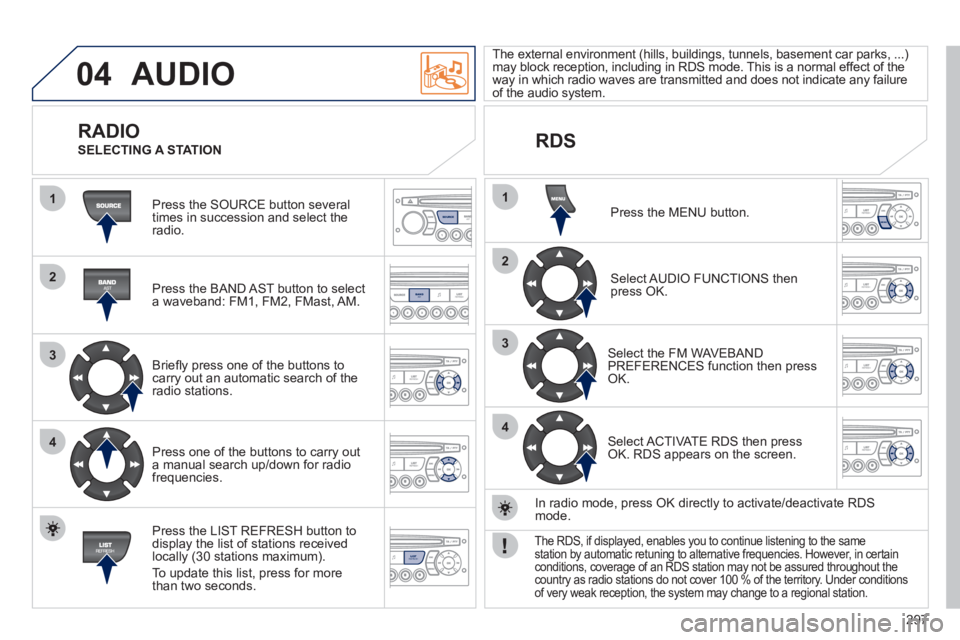
Press the SOURCE button several
times in succession and select the
radio.
Press the BAND AST button to select
a waveband: FM1, FM2, FMast, AM.
Briefl y press one of the buttons to
carry out an automatic search of the
radio stations.
Press one of the buttons to carry out
a manual search up/down for radio
frequencies.
Press the LIST REFRESH button to
display the list of stations received
locally (30 stations maximum).
To update this list, press for more
than two seconds.
The external environment (hills, buildings, tunnels, basement car parks, ...)
may block reception, including in RDS mode. This is a normal effect of the
way in which radio waves are transmitted and does not indicate any failure
of the audio system.
RDS
RADIO
SELECTING A STATION
Press the MENU button.
Select AUDIO FUNCTIONS then
press OK.
Select the FM WAVEBAND
PREFERENCES function then press
OK.
Select ACTIVATE RDS then press
OK. RDS appears on the screen.
In radio mode, press OK directly to activate/deactivate RDS
mode.
The RDS, if displayed, enables you to continue listening to the same
station by automatic retuning to alternative frequencies. However, in certain
conditions, coverage of an RDS station may not be assured throughout the
country as radio stations do not cover 100 % of the territory. Under conditions
of very weak reception, the system may change to a regional station.
Page 300 of 328
298
04
1
2
3
1
SOURCE
AUDIO
Insert circular compact discs only.
Some anti-pirating systems, on original discs or CDs copied using a
personal recorder, may cause faults which are no refl ection on the
quality of the original player.
Without pressing the EJECT button, insert a CD in the player, play
begins automatically.
CD
PLAYING A CD
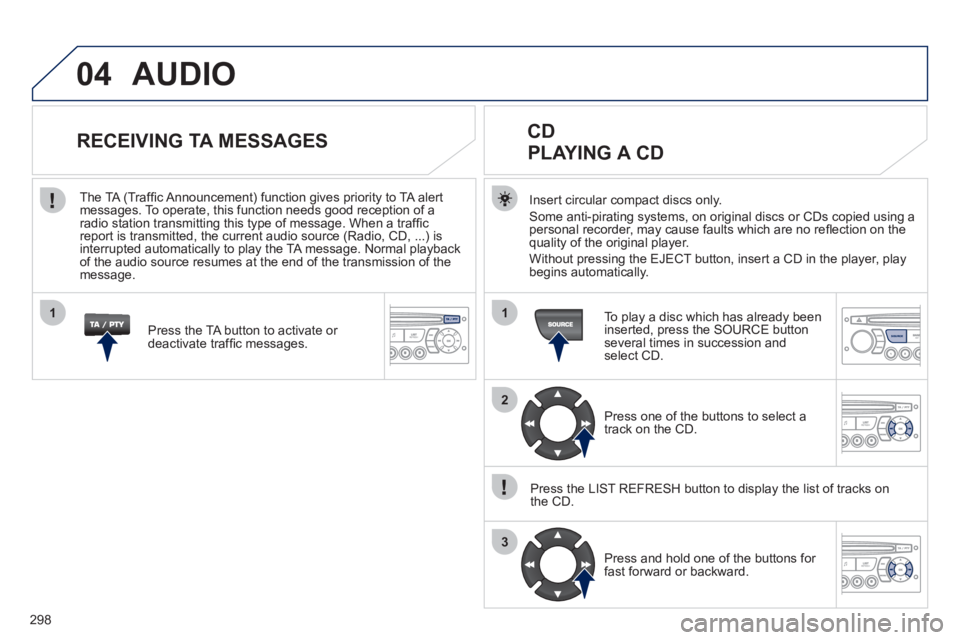
To play a disc which has already been
inserted, press the SOURCE button
several times in succession and
select CD.
Press one of the buttons to select a
track on the CD.
Press the LIST REFRESH button to display the list of tracks on
the CD.
Press and hold one of the buttons for
fast forward or backward.
RECEIVING TA MESSAGES
Press the TA button to activate or
deactivate traffi c messages.
The TA (Traffi c Announcement) function gives priority to TA alert
messages. To operate, this function needs good reception of a
radio station transmitting this type of message. When a traffi c
report is transmitted, the current audio source (Radio, CD, ...) is
interrupted automatically to play the TA message. Normal playback
of the audio source resumes at the end of the transmission of the
message.
Page 301 of 328
299
04
1
2
3
SOURCE
The MP3 format, an abbreviation of MPEG 1.2 & 2.5 Audio Layer 3,
is an audio compression standard which permits the recording of
several tens of music fi les on a single disc.
In order to be able to play a recorded CDR or CDRW, when
recording, the ISO 9660 level 1.2 or Joliet fi le format is
recommended.
If the disc is recorded in another format, it may not be played
correctly.
It is recommended that the same recording format is always used
for an individual disc, with as low a speed as possible
(4x maximum) for optimum sound quality.
In the particular case of a multi-session CD, the Joliet format is
recommended.
The audio system will only play fi les with the extension ".mp3" with
a sampling rate of 22.05 KHz or 44.1 KHz. No other type of fi le
(.wma, .mp4, .m3u...) can be played.
It is advisable to restrict fi le names to 20 characters without using
special characters (e.g. " ? ; ù) to avoid any playing or displaying
problems.
MP3 CD
INFORMATION AND ADVICE
AUDIO
Empty CDs are not recognised and may damage the system.
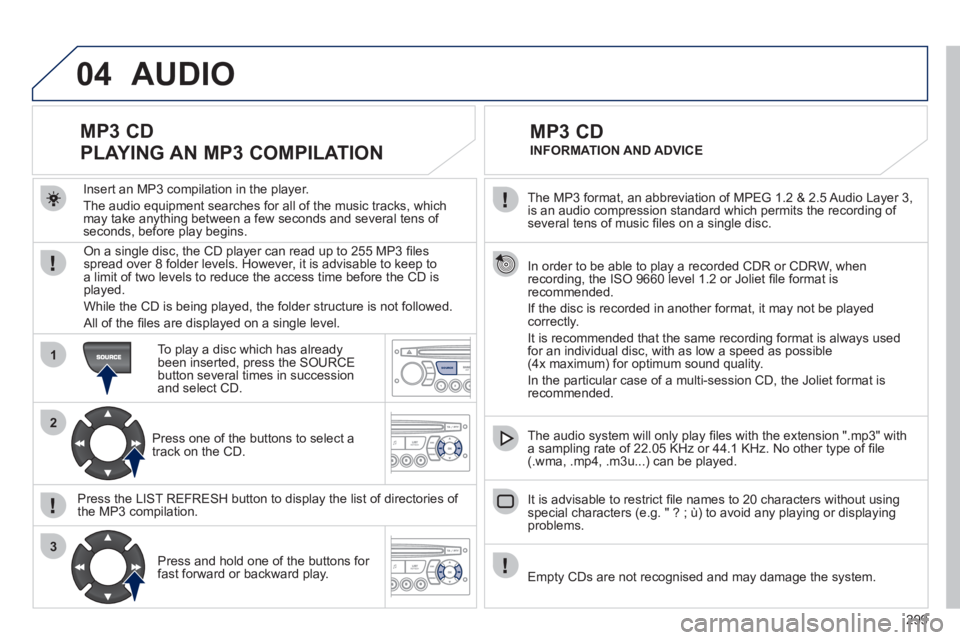
Insert an MP3 compilation in the player.
The audio equipment searches for all of the music tracks, which
may take anything between a few seconds and several tens of
seconds, before play begins.
MP3 CD
PLAYING AN MP3 COMPILATION
On a single disc, the CD player can read up to 255 MP3 fi les
spread over 8 folder levels. However, it is advisable to keep to
a limit of two levels to reduce the access time before the CD is
played.
While the CD is being played, the folder structure is not followed.
All of the fi les are displayed on a single level.
To play a disc which has already
been inserted, press the SOURCE
button several times in succession
and select CD.
Press one of the buttons to select a
track on the CD.
Press the LIST REFRESH button to display the list of directories of
the MP3 compilation.
Press and hold one of the buttons for
fast forward or backward play.
Page 303 of 328
301
3
4
05
2
1
LISTREFRESH
LISTREFRESH
USING THE PEUGEOT CONNECT USB
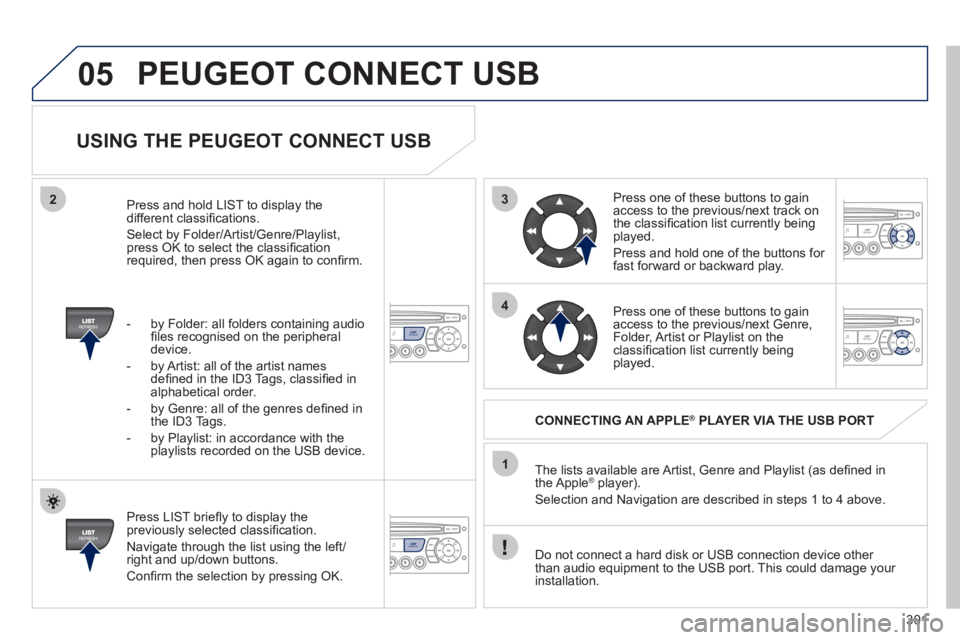
Press LIST briefl y to display the
previously selected classifi cation.
Navigate through the list using the left/
right and up/down buttons.
Confi rm the selection by pressing OK. The lists available are Artist, Genre and Playlist (as defi ned in
the Apple
® player).
Selection and Navigation are described in steps 1 to 4 above.
Do not connect a hard disk or USB connection device other
than audio equipment to the USB port. This could damage your
installation.
CONNECTING AN APPLE
®
PLAYER VIA THE USB PORT
Press one of these buttons to gain
access to the previous/next track on
the classifi cation list currently being
played.
Press and hold one of the buttons for
fast forward or backward play.
Press one of these buttons to gain
access to the previous/next Genre,
Folder, Artist or Playlist on the
classifi cation list currently being
played.
Press and hold LIST to display the
different classifi cations.
Select by Folder/Artist/Genre/Playlist,
press OK to select the classifi cation
required, then press OK again to confi rm.
- by Folder: all folders containing audio
fi les recognised on the peripheral
device.
- by Artist: all of the artist names
defi ned in the ID3 Tags, classifi ed in
alphabetical order.
- by Genre: all of the genres defi ned in
the ID3 Tags.
- by Playlist: in accordance with the
playlists recorded on the USB device.
PEUGEOT CONNECT USB