automatic PEUGEOT 3008 2016 Owners Manual
[x] Cancel search | Manufacturer: PEUGEOT, Model Year: 2016, Model line: 3008, Model: PEUGEOT 3008 2016Pages: 344, PDF Size: 12.23 MB
Page 258 of 344
01
256
3008_en_Chap12b_RT6-2-8_ed01-2015
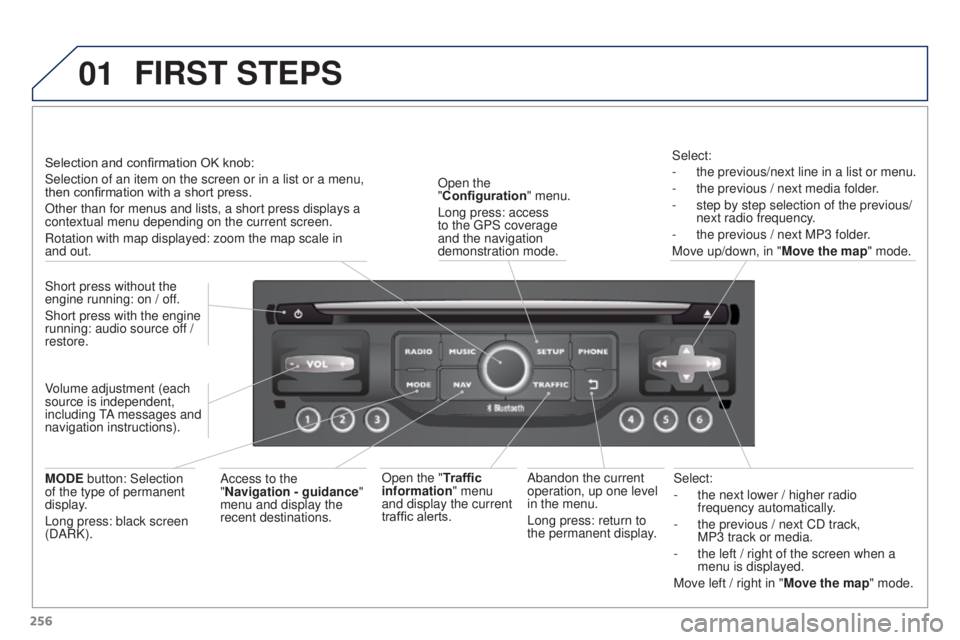
Select:
-
the next lower / higher radio
frequency automatically
.
-
the previous / next CD track,
MP3
track or media.
-
the left / right of the screen when a
menu is displayed.
Move left / right in "
Move the map" mode.
Abandon the current
operation, up one level
in the menu.
Long press: return to
the permanent display.
Open the
"Configuration
" menu.
Long press: access
to the GPS coverage
and the navigation
demonstration mode.
Open the "Traffic
information" menu
and display the current
traffic alerts. Select:
-
the previous/next line in a list or menu.
-
the previous / next media folder
.
-
step by step selection of the previous/
next radio frequency
.
-
the previous / next MP3 folder
.
Move up/down, in " Move the map" mode.
FIRST STEPS
Access to the
"Navigation - guidance "
menu and display the
recent destinations.
Short press without the
engine running: on / off.
Short press with the engine
running: audio source off /
restore.
MODE button: Selection
of the type of permanent
display.
Long press: black screen
(DARK). Selection and confirmation OK knob:
Selection of an item on the screen or in a list or a menu,
then confirmation with a short press.
Other than for menus and lists, a short press displays a
contextual menu depending on the current screen.
Rotation with map displayed: zoom the map scale in
and
out.
Volume adjustment (each
source is independent,
including TA messages and
navigation instructions).
Page 260 of 344
02
258
3008_en_Chap12b_RT6-2-8_ed01-2015
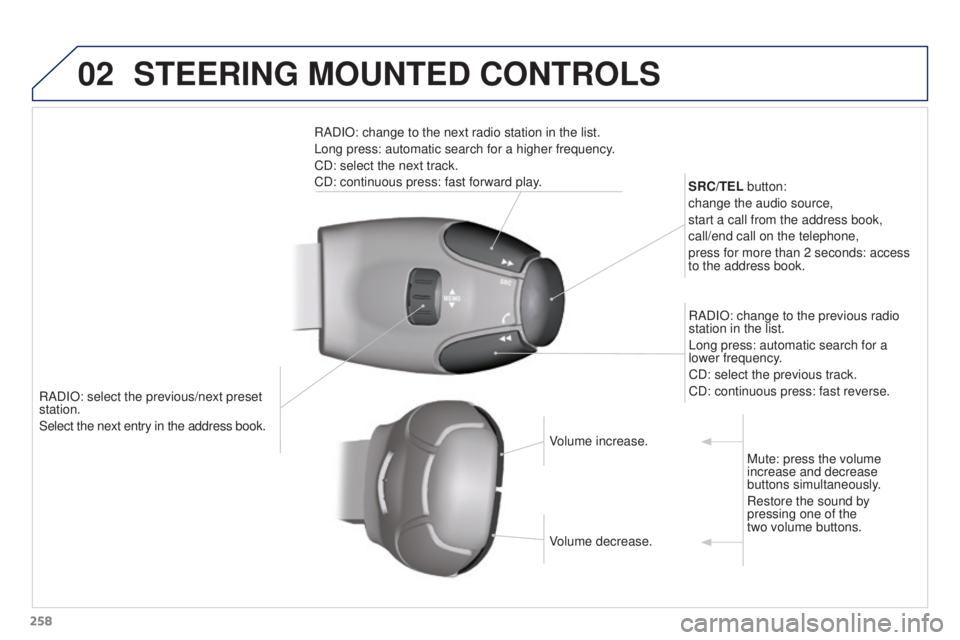
RADIO: select the previous/next preset
station.
Select the next entry in the address book.SRC/TEL button:
change the audio source,
start a call from the address book,
call/end call on the telephone,
press for more than 2 seconds: access
to the address book.
RADIO: change to the previous radio
station in the list.
Long press: automatic search for a
lower frequency.
CD: select the previous track.
CD: continuous press: fast reverse.
RADIO: change to the next radio station in the list.
Long press: automatic search for a higher frequency.
CD: select the next track.
CD: continuous press: fast forward play.
Volume increase.
Volume decrease.Mute: press the volume
increase and decrease
buttons simultaneously.
Restore the sound by
pressing one of the
two volume buttons.
STEERING MOUNTED CONTROLS
Page 276 of 344
05
274
3008_en_Chap12b_RT6-2-8_ed01-2015
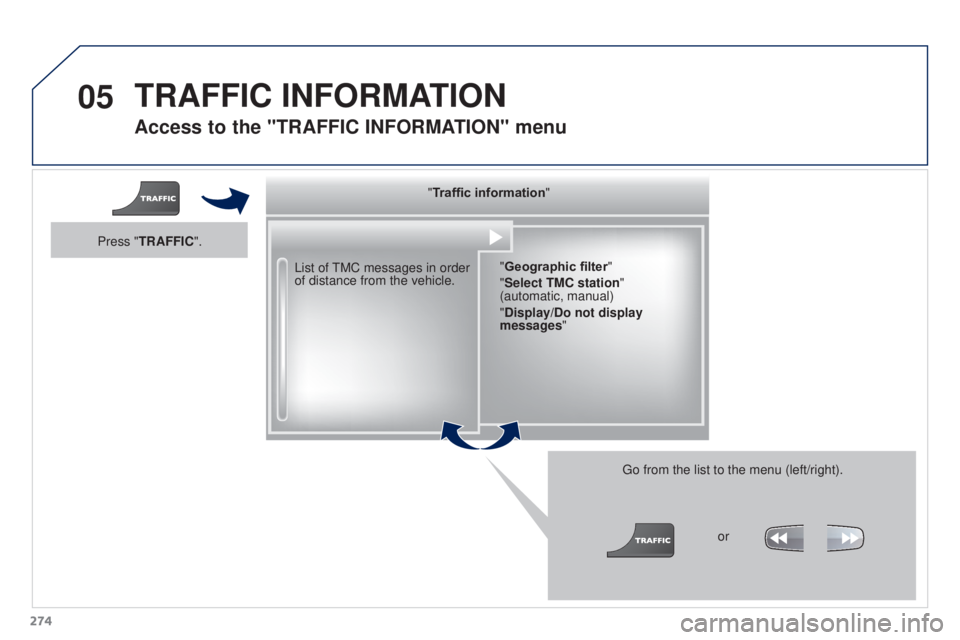
Access to the "TRAFFIC INFORMATION " menu
List of TMC messages in order
of distance from the vehicle.
Go from the list to the menu (left/right).
"Traffic information"
"Geographic filter "
"Select TMC station"
(automatic, manual)
"Display/Do not display
messages "
or
Press "TRAFFIC".
TRAFFIC INFORMATION
Page 278 of 344
05
276
3008_en_Chap12b_RT6-2-8_ed01-2015
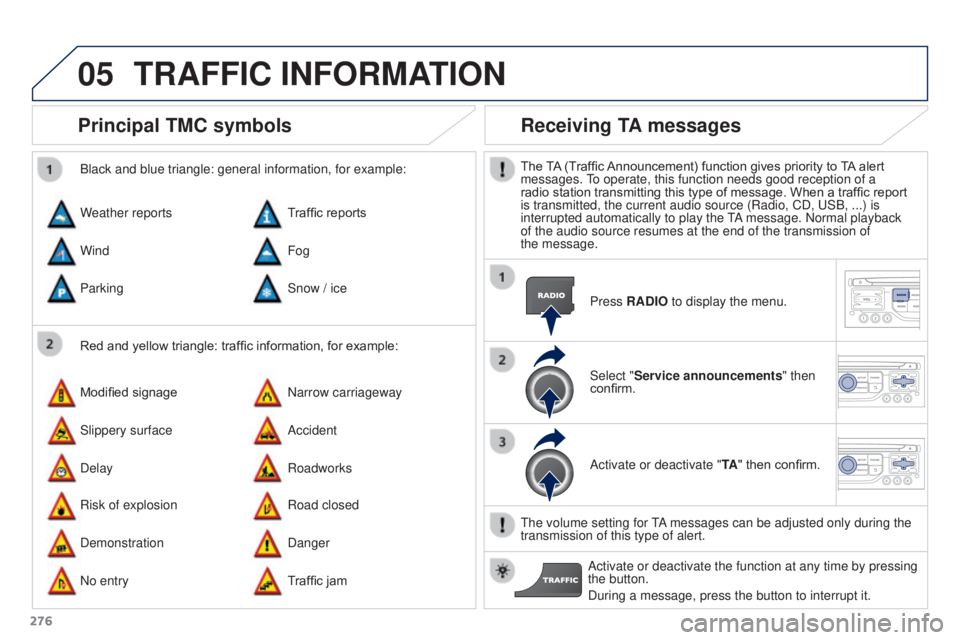
Principal TMC symbols
Red and yellow triangle: traffic information, for example:
Black and blue triangle: general information, for example:
Weather reports
Modified signage
Risk of explosion Traffic reports
Narrow carriageway
Road closed
Wind
Slippery surface
Demonstration Fog
Accident
Danger
Parking
Delay
No entry Snow / ice
Roadworks
Traffic jam
Receiving TA messages
The TA (Traffic Announcement) function gives priority to TA alert
messages. To operate, this function needs good reception of a
radio station transmitting this type of message. When a traffic report
is transmitted, the current audio source (Radio, CD, USB, ...) is
interrupted automatically to play the TA message. Normal playback
of the audio source resumes at the end of the transmission of
the
message. Press RADIO to display the menu.
Select "Service announcements" then
confirm.
Activate or deactivate "TA " then confirm.
The volume setting for TA messages can be adjusted only during the
transmission of this type of alert. Activate or deactivate the function at any time by pressing
the button.
During a message, press the button to interrupt it.
TRAFFIC INFORMATION
Page 281 of 344
06
279
3008_en_Chap12b_RT6-2-8_ed01-2015
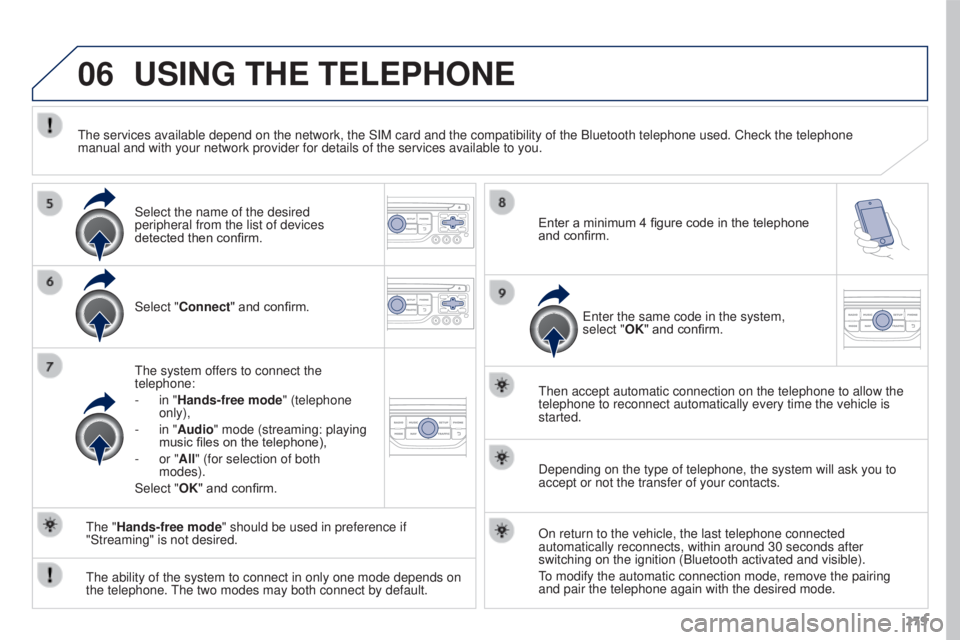
USING THE TELEPHONE
Select "Connect" and confirm.
The system offers to connect the
telephone:
-
in "
Hands-free mode" (telephone
only),
-
in "
Audio" mode (streaming: playing
music files on the telephone),
-
or "
All" (for selection of both
modes).
Select "OK" and confirm. Then accept automatic connection on the telephone to allow the
telephone to reconnect automatically every time the vehicle is
started.
The ability of the system to connect in only one mode depends on
the telephone. The two modes may both connect by default. The "Hands-free mode" should be used in preference if
"Streaming" is not desired.
The services available depend on the network, the SIM card and the compa\
tibility of the Bluetooth telephone used. Check the telephone
manual and with your network provider for details of the services availa\
ble to you.
Depending on the type of telephone, the system will ask you to
accept or not the transfer of your contacts.
On return to the vehicle, the last telephone connected
automatically reconnects, within around 30 seconds after
switching on the ignition (Bluetooth activated and visible).
To modify the automatic connection mode, remove the pairing
and pair the telephone again with the desired mode.
Enter a minimum 4 figure code in the telephone
and confirm.
Enter the same code in the system,
select "OK" and confirm.
Select the name of the desired
peripheral from the list of devices
detected then confirm.
Page 290 of 344
07
288
3008_en_Chap12b_RT6-2-8_ed01-2015
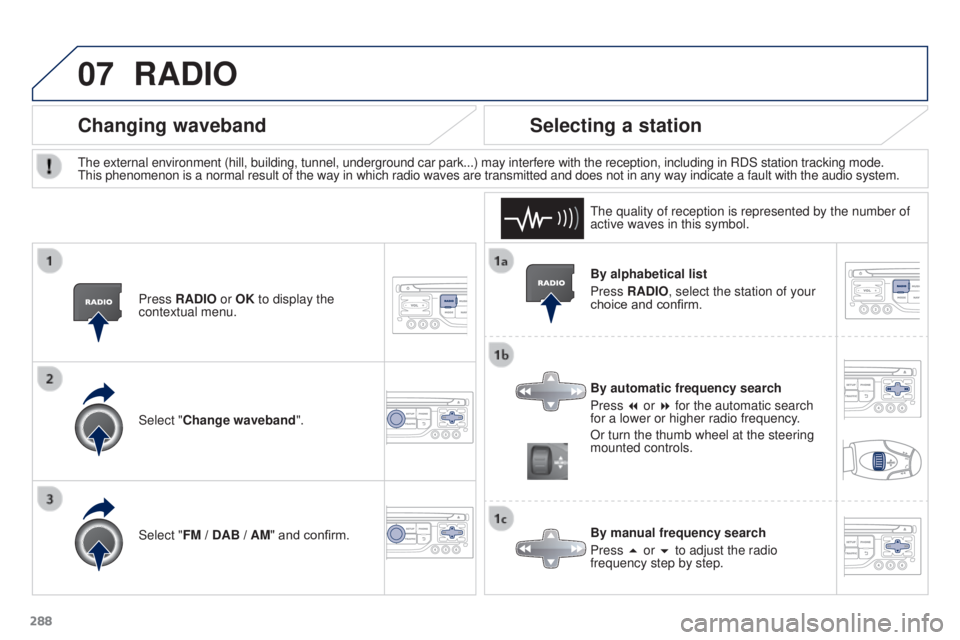
By alphabetical list
Press RADIO, select the station of your
choice and confirm.
By automatic frequency search
Press 7 or 8 for the automatic search
for a lower or higher radio frequency.
Or turn the thumb wheel at the steering
mounted controls.
By manual frequency search
Press 5 or 6 to adjust the radio
frequency step by step.
Selecting a station
The external environment (hill, building, tunnel, underground car park.\
..) may interfere with the reception, including in RDS station tracking mode.
This phenomenon is a normal result of the way in which radio waves are transm\
itted and does not in any way indicate a fault with the audio system.
The quality of reception is represented by the number of
active waves in this symbol.
Press RADIO or OK to display the
contextual menu.
Changing waveband
Select "Change waveband".
Select "FM / DAB / AM" and confirm.
RADIO
Page 291 of 344
07
289
3008_en_Chap12b_RT6-2-8_ed01-2015
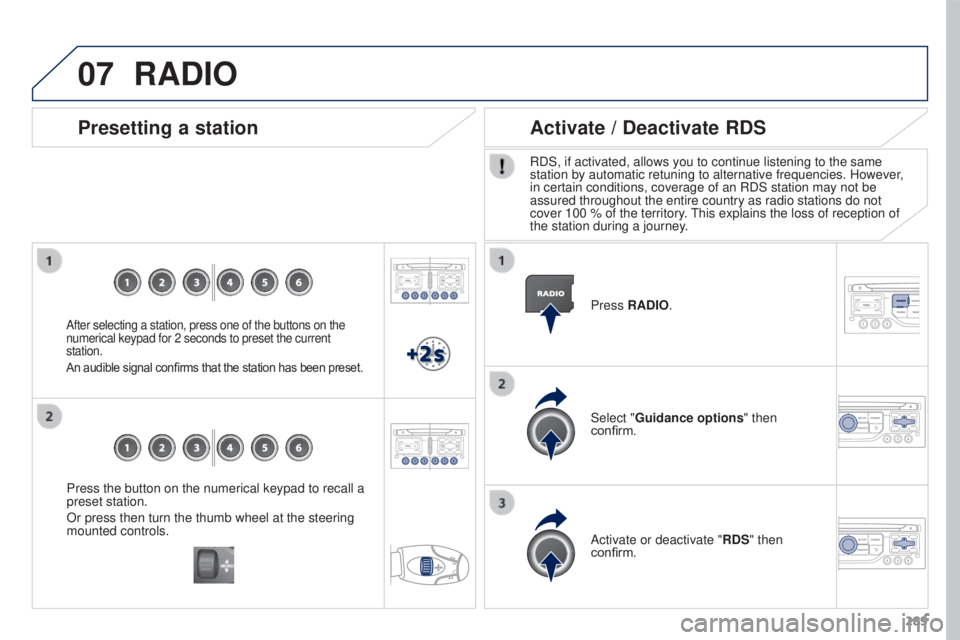
Press the button on the numerical keypad to recall a
preset station.
Or press then turn the thumb wheel at the steering
mounted controls.
Presetting a station
After selecting a station, press one of the buttons on the
numerical keypad for 2 seconds to preset the current
station.
An audible signal confirms that the station has been preset.
Press RADIO.
Activate / Deactivate RDS
RDS, if activated, allows you to continue listening to the same
station by automatic retuning to alternative frequencies. However,
in certain conditions, coverage of an RDS station may not be
assured throughout the entire country as radio stations do not
cover 100 % of the territory. This explains the loss of reception of
the station during a journey.Select "Guidance options " then
confirm.
Activate or deactivate "RDS" then
confirm.
RADIO
Page 293 of 344
07
291
3008_en_Chap12b_RT6-2-8_ed01-2015
RADIO
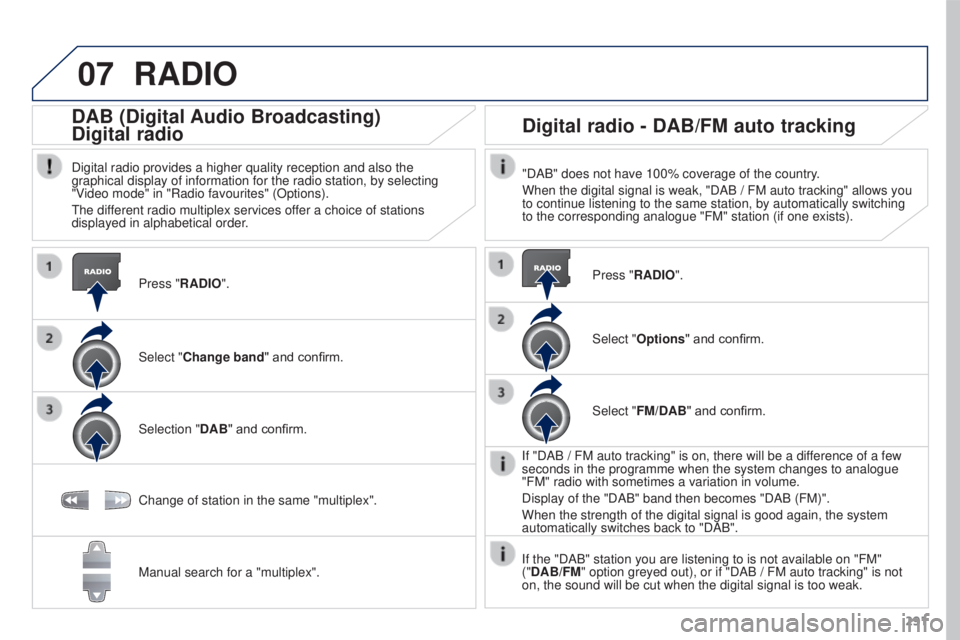
Press "RADIO".
DAB (Digital Audio Broadcasting)
Digital radio
Digital radio provides a higher quality reception and also the
graphical display of information for the radio station, by selecting
"Video mode" in "Radio favourites" (Options).
The different radio multiplex services offer a choice of stations
displayed in alphabetical order.Select "Change band" and confirm.
Selection "DAB" and confirm.
Digital radio - DAB/FM auto tracking
"DAB" does not have 100% coverage of the country.
When the digital signal is weak, "DAB
/ FM auto tracking" allows you
to continue listening to the same station, by automatically switching
to the corresponding analogue "FM" station (if one exists).
Change of station in the same "multiplex".
Manual search for a "multiplex". Press "RADIO".
Select "Options
" and confirm.
Select "FM/DAB" and confirm.
If "DAB
/ FM auto tracking" is on, there will be a difference of a few
seconds in the programme when the system changes to analogue
"FM" radio with sometimes a variation in volume.
Display of the "DAB" band then becomes "DAB (FM)".
When the strength of the digital signal is good again, the system
automatically switches back to "DAB".
If the "DAB" station you are listening to is not available on "FM"
("DAB/FM" option greyed out), or if "DAB / FM auto tracking" is not
on, the sound will be cut when the digital signal is too weak.
Page 296 of 344
08
294
3008_en_Chap12b_RT6-2-8_ed01-2015
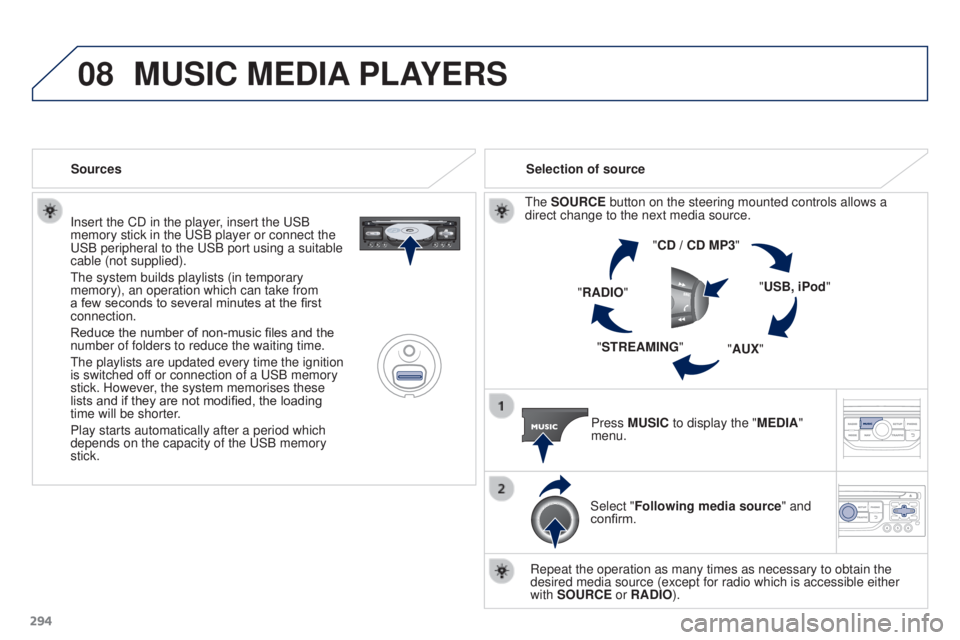
Insert the CD in the player, insert the USB
memory stick in the USB player or connect the
USB peripheral to the USB port using a suitable
cable (not supplied).
The system builds playlists (in temporary
memory), an operation which can take from
a few seconds to several minutes at the first
connection.
Reduce the number of non-music files and the
number of folders to reduce the waiting time.
The playlists are updated every time the ignition
is switched off or connection of a USB memory
stick. However, the system memorises these
lists and if they are not modified, the loading
time will be shorter.
Play starts automatically after a period which
depends on the capacity of the USB memory
stick.Selection of source
The SOURCE button on the steering mounted controls allows a
direct change to the next media source. "CD / CD MP3"
"USB, iPod"
"AUX"
"STREAMING"
"RADIO"
Press MUSIC to display the "MEDIA"
menu.
Select "Following media source " and
confirm.
Repeat the operation as many times as necessary to obtain the
desired media source (except for radio which is accessible either
with SOURCE or RADIO).
Sources
MUSIC MEDIA
PLAYERS
Page 298 of 344
08
296
3008_en_Chap12b_RT6-2-8_ed01-2015
Audio streaming
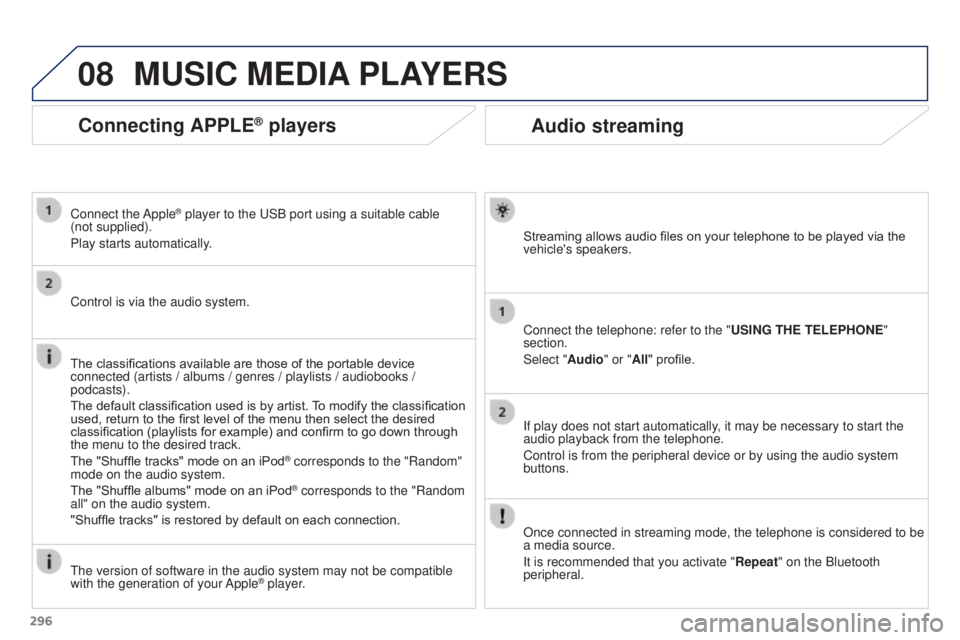
Streaming allows audio files on your telephone to be played via the
vehicle's speakers.
Connect the telephone: refer to the "USING THE TELEPHONE"
section.
Select "Audio" or "All" profile.
If play does not start automatically, it may be necessary to start the
audio playback from the telephone.
Control is from the peripheral device or by using the audio system
buttons.
Once connected in streaming mode, the telephone is considered to be
a media source.
It is recommended that you activate "Repeat" on the Bluetooth
peripheral.
MUSIC MEDIA PLAYERS
Connecting APPLE® players
Connect the Apple® player to the USB port using a suitable cable
(not supplied).
Play starts automatically.
Control is via the audio system.
The classifications available are those of the portable device
connected (artists / albums / genres / playlists / audiobooks /
podcasts).
The default classification used is by artist. To modify the classification
used, return to the first level of the menu then select the desired
classification (playlists for example) and confirm to go down through
the menu to the desired track.
The "Shuffle tracks" mode on an iPod
® corresponds to the "Random"
mode on the audio system.
The "Shuffle albums" mode on an iPod
® corresponds to the "Random
all" on the audio system.
"Shuffle tracks" is restored by default on each connection.
The version of software in the audio system may not be compatible
with the generation of your Apple
® player.