automatic PEUGEOT 3008 2016 Owners Manual
[x] Cancel search | Manufacturer: PEUGEOT, Model Year: 2016, Model line: 3008, Model: PEUGEOT 3008 2016Pages: 344, PDF Size: 12.23 MB
Page 301 of 344
10
299
3008_en_Chap12b_RT6-2-8_ed01-2015
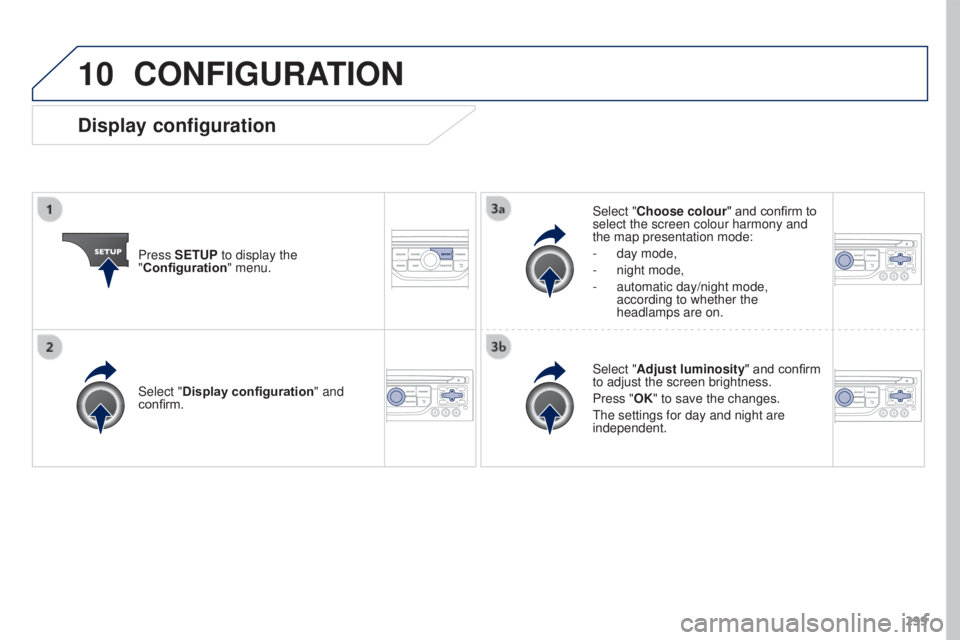
CONFIGURATION
Press SETUP to display the
"Configuration" menu. Select "Choose colour" and confirm to
select the screen colour harmony and
the map presentation mode:
-
day mode,
- night mode,
-
automatic day/night mode,
according to whether the
headlamps are on.
Select "
Adjust luminosity" and confirm
to adjust the screen brightness.
Press "OK" to save the changes.
The settings for day and night are
independent.
Select "Display configuration
" and
confirm.
Display configuration
Page 303 of 344
11
301
3008_en_Chap12b_RT6-2-8_ed01-2015
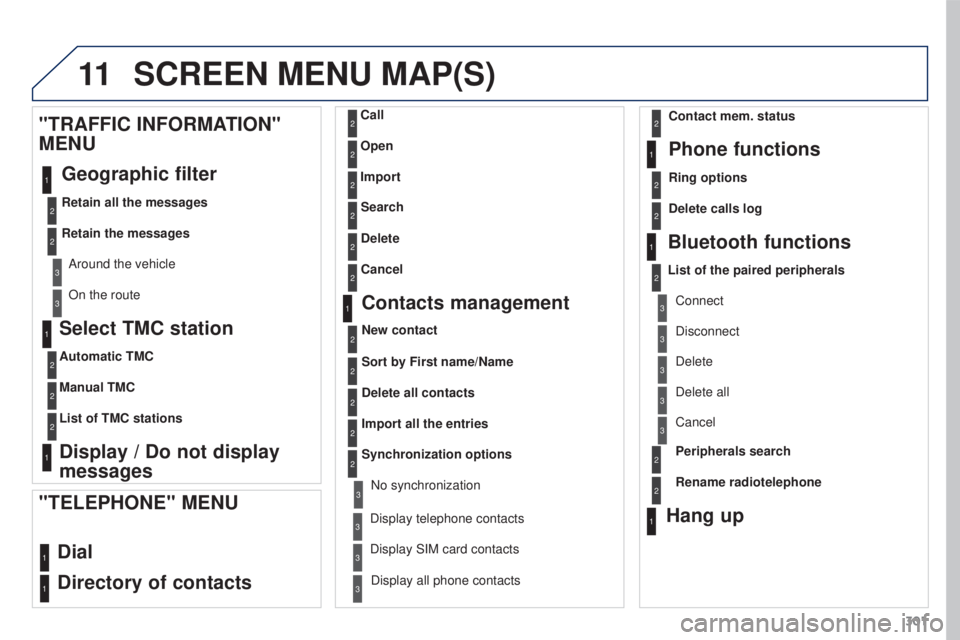
Select TMC station
Automatic TMC
Manual TMC
List of TMC stations
Display / Do not display
messages
"TRAFFIC INFORMATION"
MENU
Geographic filter
Retain all the messages
Retain the messages
Around the vehicle
On the route
1
2
2
2
1
2
2
3
3
1
SCREEN MENU MAP(S)
Dial
Directory of contacts
Call
Open
Import
"TELEPHONE" MENU
1
2
2
2
1
2
2
2
2
2
1
2
3
3
3
2
2
2
1
1
1
3
3
3
2
3
2
2
3
List of the paired peripherals Connect
Disconnect
Delete
Delete all
Phone functions
Ring options Contact mem. status
Delete calls log
Bluetooth functions
Peripherals search
Rename radiotelephone
Hang up
Display all phone contacts
Delete Search
Contacts management
New contact
Delete all contacts
Import all the entries
Synchronization options
Display telephone contactsNo synchronization
Display SIM card contacts
2Cancel
2Sort by First name/Name
3Cancel
Page 308 of 344
306
3008_en_Chap12b_RT6-2-8_ed01-2015
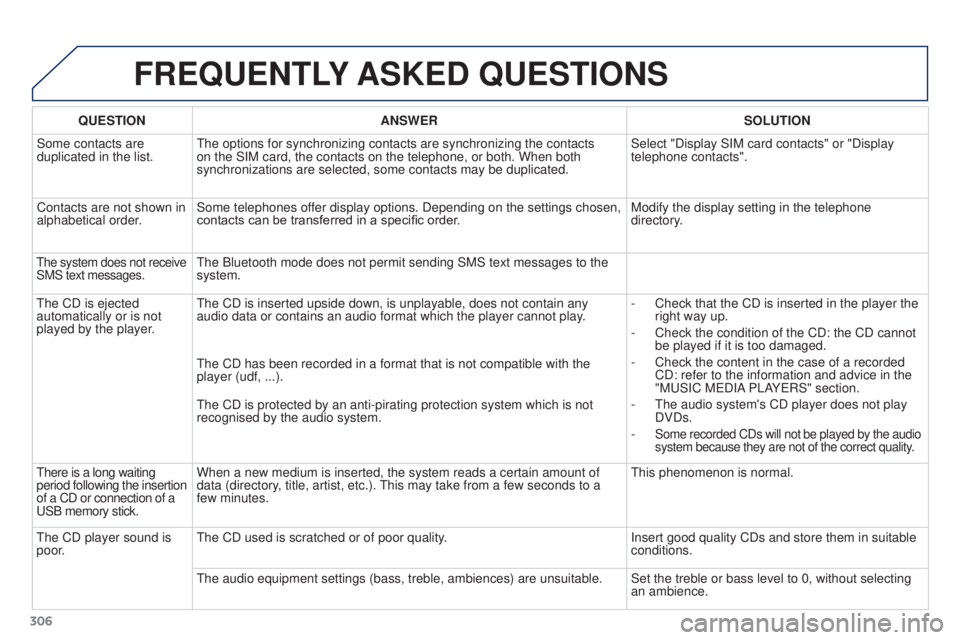
FREQUENTLY ASKED QUESTIONS
QUESTION ANSWER SOLUTION
Some contacts are
duplicated in the list. The options for synchronizing contacts are synchronizing the contacts
on the SIM card, the contacts on the telephone, or both. When both
synchronizations are selected, some contacts may be duplicated. Select "Display SIM card contacts" or "Display
telephone contacts".
Contacts are not shown in
alphabetical order. Some telephones offer display options. Depending on the settings chosen,
contacts can be transferred in a specific order. Modify the display setting in the telephone
directory.
The system does not receive
SMS text messages.The Bluetooth mode does not permit sending SMS text messages to the
system.
The CD is ejected
automatically or is not
played by the player. The CD is inserted upside down, is unplayable, does not contain any
audio data or contains an audio format which the player cannot play.
-
Check that the CD is inserted in the player the
right way up.
-
Check the condition of the CD: the CD cannot
be played if it is too damaged.
-
Check the content in the case of a recorded
CD: refer to the information and advice in the
"MUSIC MEDIA
PLAYERS" section.
-
The audio system's CD player does not play
DVDs.
-
Some recorded CDs will not be played by the audio
system because they are not of the correct quality.
The CD has been recorded in a format that is not compatible with the
player (udf, ...).
The CD is protected by an anti-pirating protection system which is not
recognised by the audio system.
There is a long waiting
period following the insertion
of a CD or connection of a
USB memory stick. When a new medium is inserted, the system reads a certain amount of
data (directory, title, artist, etc.). This may take from a few seconds to a
few minutes.
This phenomenon is normal.
The CD player sound is
poor. The CD used is scratched or of poor quality.
Insert good quality CDs and store them in suitable
conditions.
The audio equipment settings (bass, treble, ambiences) are unsuitable.\
Set the treble or bass level to 0, without selecting an ambience.
Page 309 of 344
307
3008_en_Chap12b_RT6-2-8_ed01-2015
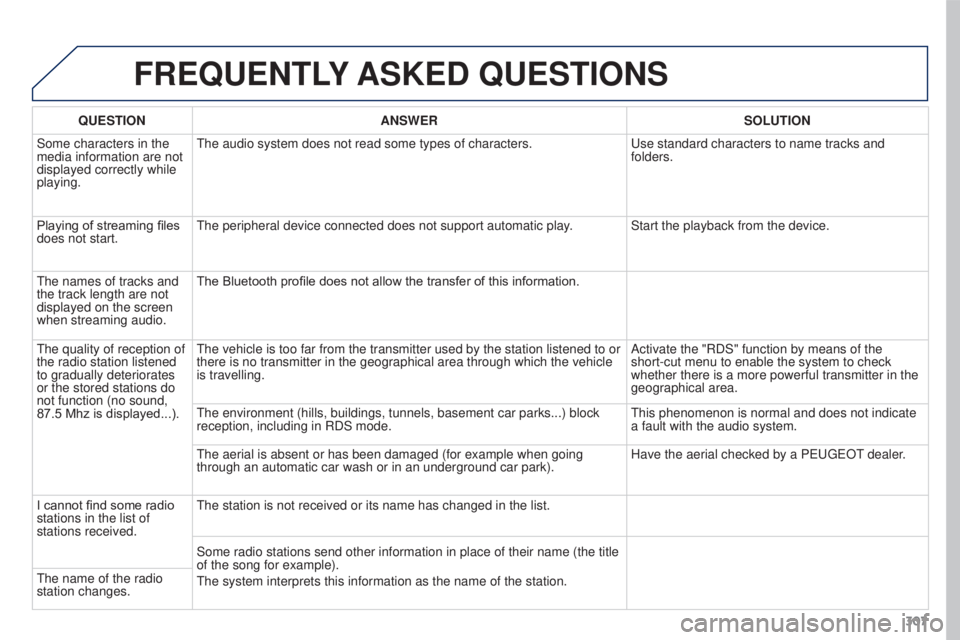
FREQUENTLY ASKED QUESTIONS
QUESTION ANSWER SOLUTION
Some characters in the
media information are not
displayed correctly while
playing. The audio system does not read some types of characters.
Use standard characters to name tracks and
folders.
Playing of streaming files
does not start. The peripheral device connected does not support automatic play. Start the playback from the device.
The names of tracks and
the track length are not
displayed on the screen
when streaming audio. The Bluetooth profile does not allow the transfer of this information.
The quality of reception of
the radio station listened
to gradually deteriorates
or the stored stations do
not function (no sound,
87.5
Mhz is displayed...). The vehicle is too far from the transmitter used by the station listened\
to or
there is no transmitter in the geographical area through which the vehic\
le
is travelling.
Activate the "RDS" function by means of the
short-cut menu to enable the system to check
whether there is a more powerful transmitter in the
geographical area.
The environment (hills, buildings, tunnels, basement car parks...) blo\
ck
reception, including in RDS mode. This phenomenon is normal and does not indicate
a fault with the audio system.
The aerial is absent or has been damaged (for example when going
through an automatic car wash or in an underground car park). Have the aerial checked by a PEUGEOT dealer.
I cannot find some radio
stations in the list of
stations received. The station is not received or its name has changed in the list.
Some radio stations send other information in place of their name (the \
title
of the song for example).
The system interprets this information as the name of the station.
The name of the radio
station changes.
Page 311 of 344
309
3008_en_Chap12b_RT6-2-8_ed01-2015
FREQUENTLY ASKED QUESTIONS
QUESTION ANSWER SOLUTION
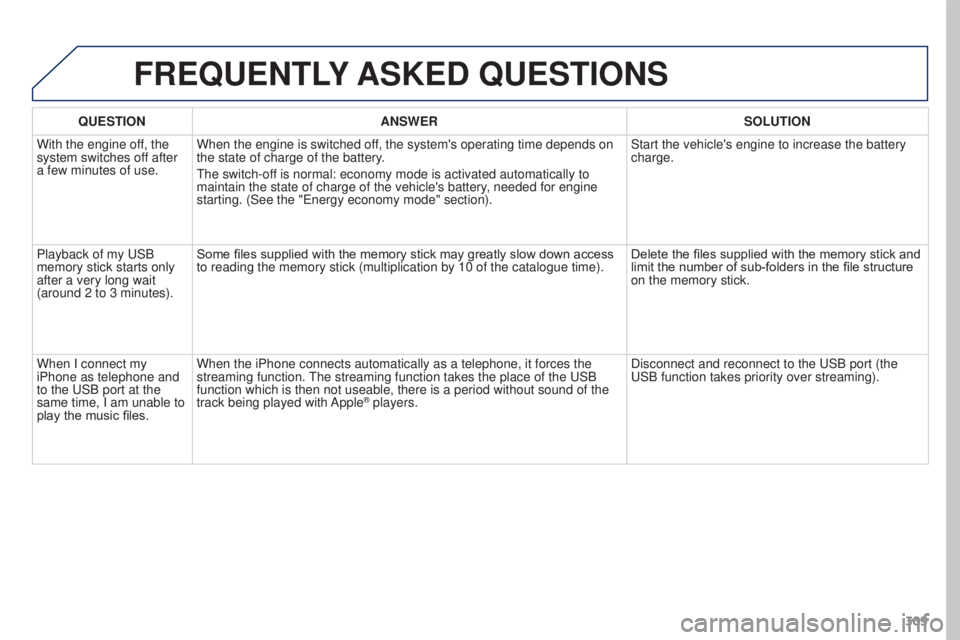
With the engine off, the
system switches off after
a few minutes of use. When the engine is switched off, the system's operating time depends on
the state of charge of the battery.
The switch-off is normal: economy mode is activated automatically to
maintain the state of charge of the vehicle's battery, needed for engine
starting. (See the "Energy economy mode" section). Start the vehicle's engine to increase the battery
charge.
Playback of my USB
memory stick starts only
after a very long wait
(around 2 to 3 minutes). Some files supplied with the memory stick may greatly slow down access
to reading the memory stick (multiplication by 10 of the catalogue time\
).
Delete the files supplied with the memory stick and
limit the number of sub-folders in the file structure
on the memory stick.
When I connect my
iPhone as telephone and
to the USB port at the
same time, I am unable to
play the music files. When the iPhone connects automatically as a telephone, it forces the
streaming function. The streaming function takes the place of the USB
function which is then not useable, there is a period without sound of t\
he
track being played with Apple
® players.
Disconnect and reconnect to the USB port (the
USB function takes priority over streaming).
Page 314 of 344
01
312
3008_en_Chap12c_RD45_ed01_2015
FIRST STEPS
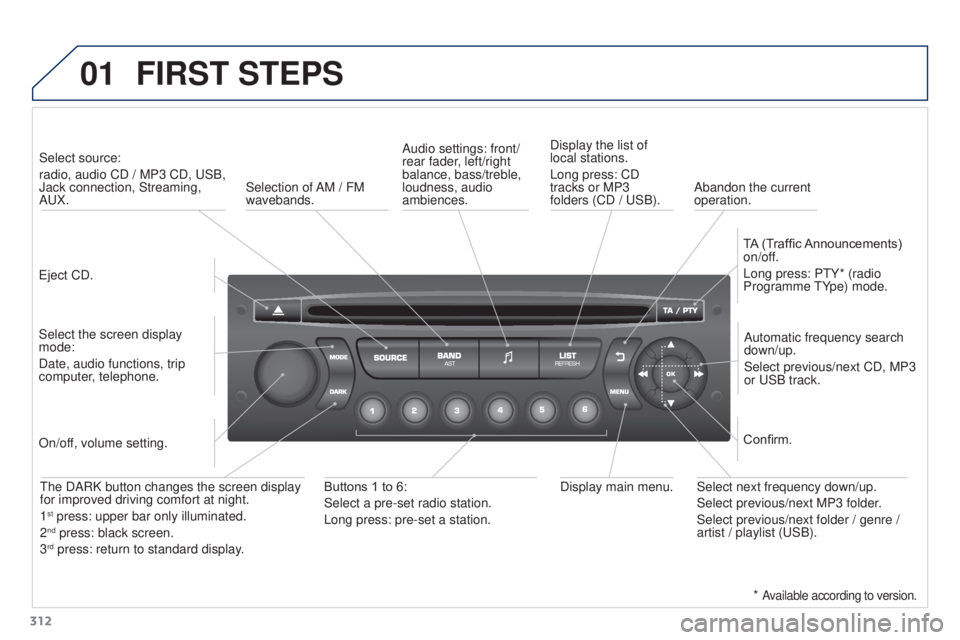
Eject CD.Select source:
radio, audio CD
/ MP3 CD, USB,
Jack connection, Streaming,
AUX.
Select the screen display
mode:
Date, audio functions, trip
computer, telephone. Automatic frequency search
down/up.
Select previous/next CD, MP3
or USB track.
Audio settings: front/
rear fader, left/right
balance, bass/treble,
loudness, audio
ambiences.
Display the list of
local stations.
Long press: CD
tracks or MP3
folders (CD / USB).
TA (Traffic Announcements)
on/off.
Long press: PTY* (radio
Programme TYpe) mode.
Display main menu.
The DARK button changes the screen display
for improved driving comfort at night.
1
st press: upper bar only illuminated.
2nd press: black screen.
3rd press: return to standard display.
On/off, volume setting.
Buttons 1 to 6:
Select a pre-set radio station.
Long press: pre-set a station. Select next frequency down/up.
Select previous/next MP3 folder.
Select previous/next folder
/ genre /
artist / playlist (USB).Confirm.
Selection of AM / FM
wavebands. Abandon the current
operation.
*
Available according to version.
Page 315 of 344
02
313
3008_en_Chap12c_RD45_ed01_2015
STEERING MOUNTED CONTROLS
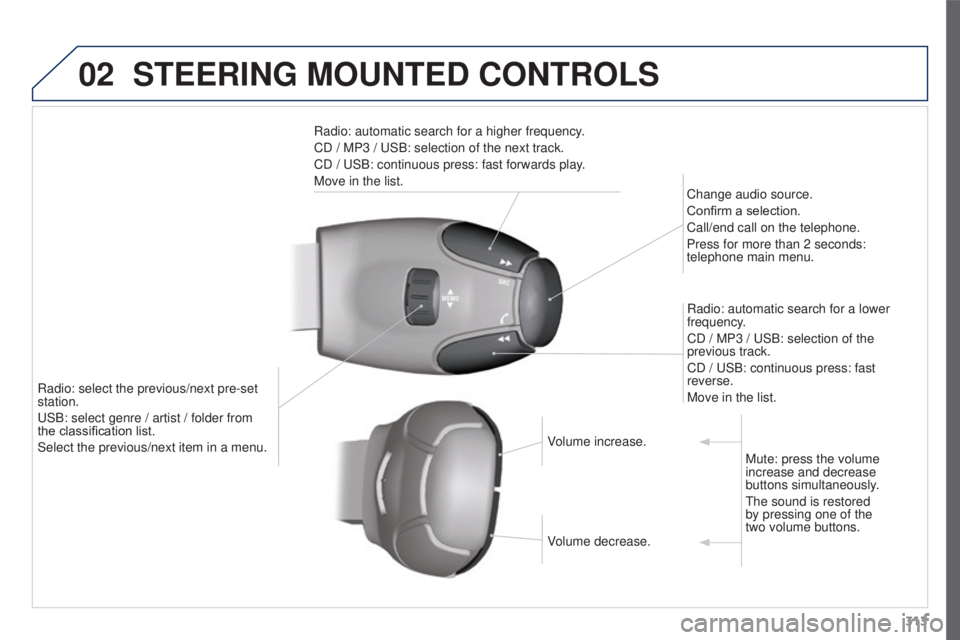
Radio: automatic search for a higher frequency.
CD / MP3 / USB: selection of the next track.
CD
/ USB: continuous press: fast forwards play.
Move in the list. Change audio source.
Confirm a selection.
Call/end call on the telephone.
Press for more than 2 seconds:
telephone main menu.
Radio: automatic search for a lower
frequency.
CD
/ MP3 / USB: selection of the
previous track.
CD
/ USB: continuous press: fast
reverse.
Move in the list.
Radio: select the previous/next pre-set
station.
USB: select genre
/ artist
/ folder from
the
classification list.
Select the previous/next item in a menu. Volume increase.
Volume decrease.Mute: press the volume
increase and decrease
buttons simultaneously.
The sound is restored
by pressing one of the
two
volume buttons.
Page 317 of 344
04
315
3008_en_Chap12c_RD45_ed01_2015
AUDIO
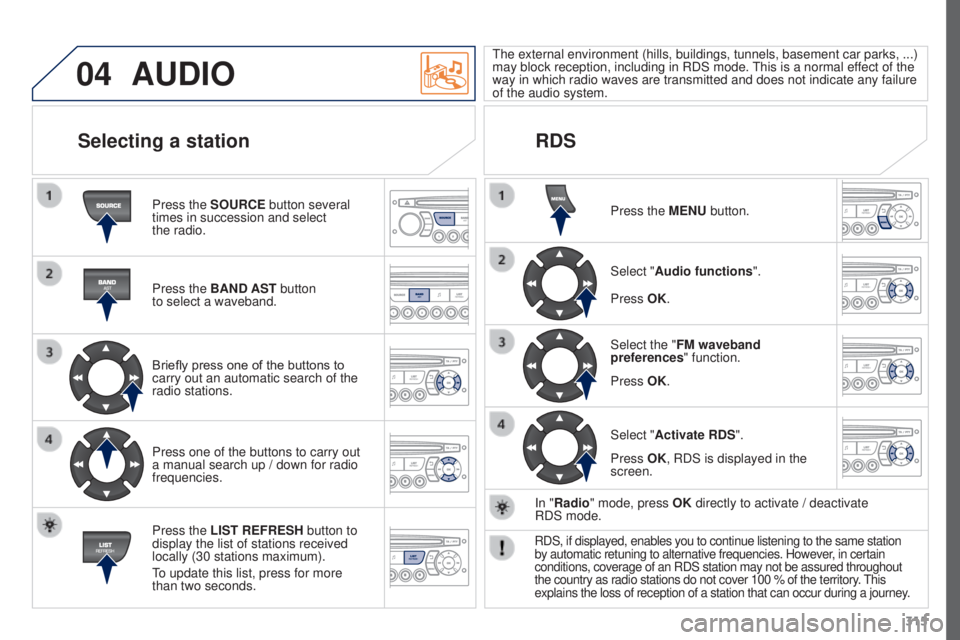
Press the SOURCE button several
times in succession and select
the radio.
Press the BAND AST button
to
select a waveband.
Briefly press one of the buttons to
carry out an automatic search of the
radio stations.
Press one of the buttons to carry out
a manual search up
/ down for radio
frequencies.
Press the LIST REFRESH button to
display the list of stations received
locally (30 stations maximum).
To update this list, press for more
than two seconds. The external environment (hills, buildings, tunnels, basement car parks,
...)
may block reception, including in RDS mode. This is a normal effect of the
way in which radio waves are transmitted and does not indicate any failu\
re
of the audio system.
RDS
Selecting a station
Press the MENU button.
Select "Audio functions ".
Select the "FM waveband
preferences " function.
Select "Activate RDS ".
Press OK.
Press OK.
Press OK, RDS is displayed in the
screen.
In "Radio" mode, press OK directly to activate
/ deactivate
RDS
mode.
RDS, if displayed, enables you to continue listening to the same station\
by automatic retuning to alternative frequencies. However, in certain
conditions, coverage of an RDS station may not be assured throughout
the country as radio stations do not cover 100 % of the territory. This
explains the loss of reception of a station that can occur during a jour\
ney.
Page 318 of 344
04
316
3008_en_Chap12c_RD45_ed01_2015
AUDIO
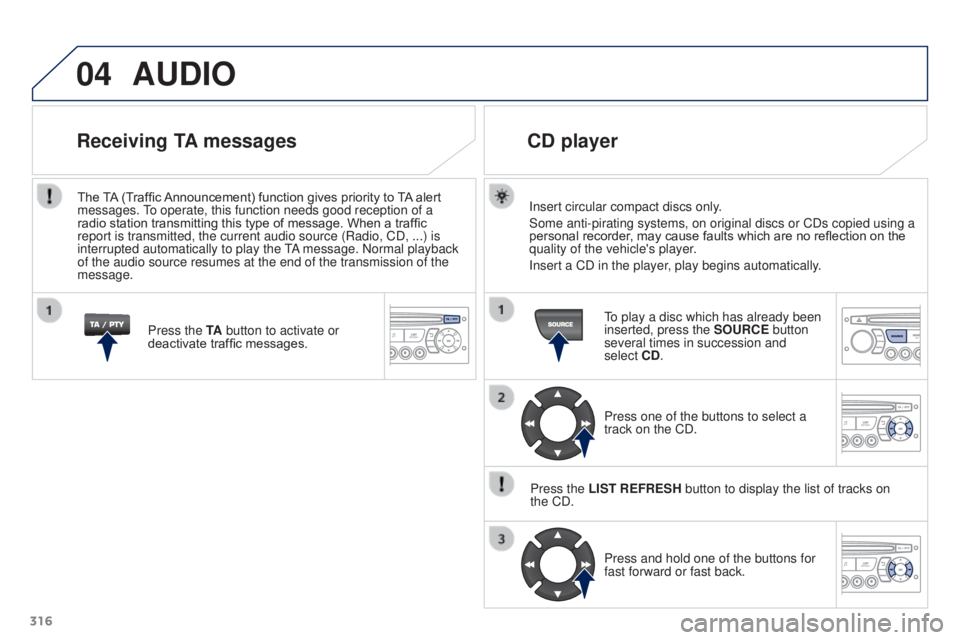
Insert circular compact discs only.
Some anti-pirating systems, on original discs or CDs copied using a
personal recorder, may cause faults which are no reflection on the
quality of the vehicle's player.
Insert a CD in the player, play begins automatically.
CD player
To play a disc which has already been
inserted, press the SOURCE button
several times in succession and
select CD.
Press one of the buttons to select a
track on the CD.
Press the LIST REFRESH button to display the list of tracks on
the
CD. Press and hold one of the buttons for
fast forward or fast back.
Receiving TA messages
Press the TA button to activate or
deactivate traffic messages.
The TA (Traffic Announcement) function gives priority to TA alert
messages. To operate, this function needs good reception of a
radio station transmitting this type of message. When a traffic
report is transmitted, the current audio source (Radio, CD, ...) is
interrupted automatically to play the TA message. Normal playback
of the audio source resumes at the end of the transmission of the
message.
Page 320 of 344
05
318
3008_en_Chap12c_RD45_ed01_2015
PEUGEOT CONNECT USB
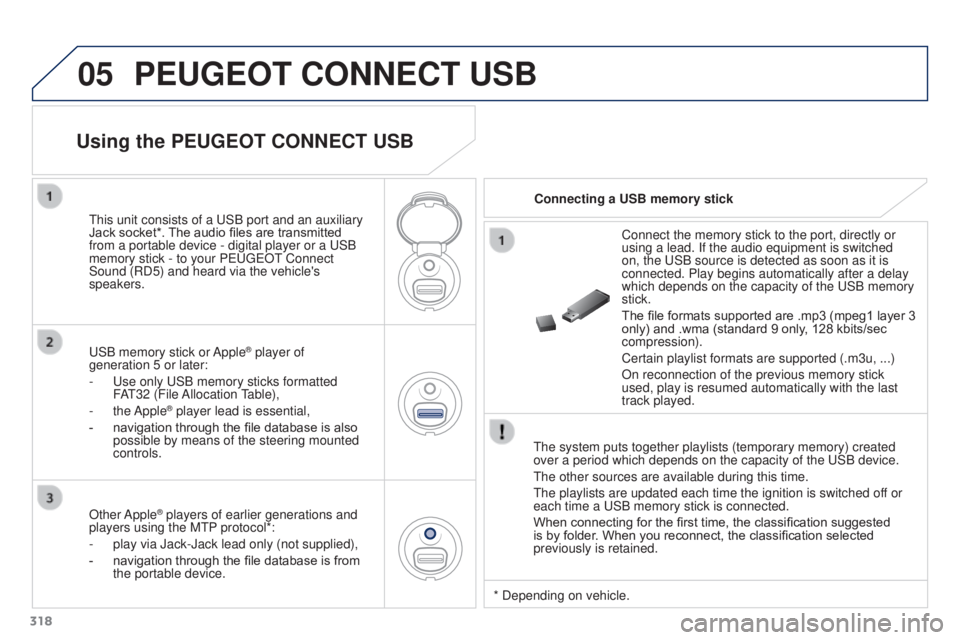
The system puts together playlists (temporary memory) created
over a period which depends on the capacity of the USB device.
The other sources are available during this time.
The playlists are updated each time the ignition is switched off or
each time a USB memory stick is connected.
When connecting for the first time, the classification suggested
is by folder. When you reconnect, the classification selected
previously is retained.Connect the memory stick to the port, directly or
using a lead. If the audio equipment is switched
on, the USB source is detected as soon as it is
connected. Play begins automatically after a delay
which depends on the capacity of the USB memory
stick.
The file formats supported are .mp3 (mpeg1 layer
3
only) and .wma (standard 9 only, 128 kbits/sec
compression).
Certain playlist formats are supported (.m3u, ...)
On reconnection of the previous memory stick
used, play is resumed automatically with the last
track played.
This unit consists of a USB port and an auxiliary
Jack socket*. The audio files are transmitted
from a portable device - digital player or a USB
memory stick - to your PEUGEOT Connect
Sound (RD5) and heard via the vehicle's
speakers.
USB memory stick or Apple
® player of
generation 5 or later:
-
Use only USB memory sticks formatted
F
AT32 (File Allocation Table),
-
the Apple® player lead is essential,
-
navigation through the file database is also
possible by means of the steering mounted
controls.
Using the PEUGEOT CONNECT USB
Connecting a USB memory stick
Other Apple
® players of earlier generations and
players using the MTP protocol*:
-
play via Jack-Jack lead only (not supplied),
-
navigation through the file database is from
the portable device. * Depending on vehicle.