CD player PEUGEOT 3008 2020 User Guide
[x] Cancel search | Manufacturer: PEUGEOT, Model Year: 2020, Model line: 3008, Model: PEUGEOT 3008 2020Pages: 308, PDF Size: 10.1 MB
Page 240 of 308
238
Bluetooth® audio system
balance and Le-Ri balance) to the middle
position, setting the musical ambience to "None",
setting loudness correction to "Active" in CD
mode and "Inactive" in Radio mode.
The preset stations do not function (no
sound, 87.5 MHz is displayed, etc.).
The wrong waveband is selected.
►
Press the BAND button to return to the
waveband (FM, FM2, DAB,
AM) on which the
stations are preset.
Traffic announcement (TA) is shown but I
receive no traffic information.
The radio station is not part of the regional traffic
information network.
►
T
une to a radio station that broadcasts traffic
information.
The reception quality of the tuned radio
station gradually deteriorates or the station
presets are inoperative (no sound, 87.5 MHz
is displayed, etc.).
The vehicle is too far from the selected station’s
transmitter, or no transmitter is present in the
geographical area.
►
Activate the RDS function to allow the system
to check for a more powerful transmitter in the
area.
The environment (hills, buildings, tunnels,
basement car parks, etc.) may block reception,
including in RDS mode.
This is a perfectly normal phenomenon, and is
not indicative of an audio system malfunction. The aerial is absent or has been damaged (for
example when going through an automatic car
wash or in an underground car park).
►
Have the aerial checked by a dealer
.
The sound intermittently cuts out for 1 or 2
seconds in radio mode.
During this brief sound cut-out, the RDS
searches for another frequency giving better
reception of the station.
►
Switch off the RDS function if the
phenomenon occurs too frequently and always
on the same route.
Media
The Bluetooth connection is cut.
The battery in the peripheral device may not be
sufficiently charged.
►
Charge the battery in the peripheral device.
The message "USB device error" is displayed
in the screen.
The USB stick has not been recognised, or may
be corrupted.
►
Reformat the USB memory stick.
The CD is systematically ejected or is not
played.
The CD is upside down, cannot be read, does
not contain audio files or contains audio files of a
format not recognised by the audio system.
The CD is protected by an anti-pirating system
not recognised by the audio system.
►
Check that the CD is inserted in the player
the right way up. ►
Check the condition of the CD: the CD cannot
be played if it is too badly damaged.
►
Check the content in the case of a burned
CD: read the recommendations in the "Audio"
section.
Due to poor quality
, certain burned CDs will not
be played by the audio system.
The CD audio quality is is poor.
The CD is scratched or of poor quality.
►
Insert good quality CDs and store them in
suitable conditions.
The audio settings (bass, treble, ambience) are
unsuitable.
►
Return bass and treble settings to 0, without
selecting an ambience.
I am unable to play the music files on my
smartphone via the USB port.
Depending on the smartphone, access by the
audio system to music on the smartphone may
have to be approved on the latter
.
►
Manually activate the MTP
profile on the
smartphone (USB settings menu).
Telephone
I am unable to access my voicemail.
Few telephones or service providers allow the
use of this function.
►
Call your voicemail, via the telephone menu,
using the number provided by your operator
.
I am unable to access my directory of
contacts.
►
Check the compatibility of your telephone.
Page 243 of 308
241
PEUGEOT Connect Radio
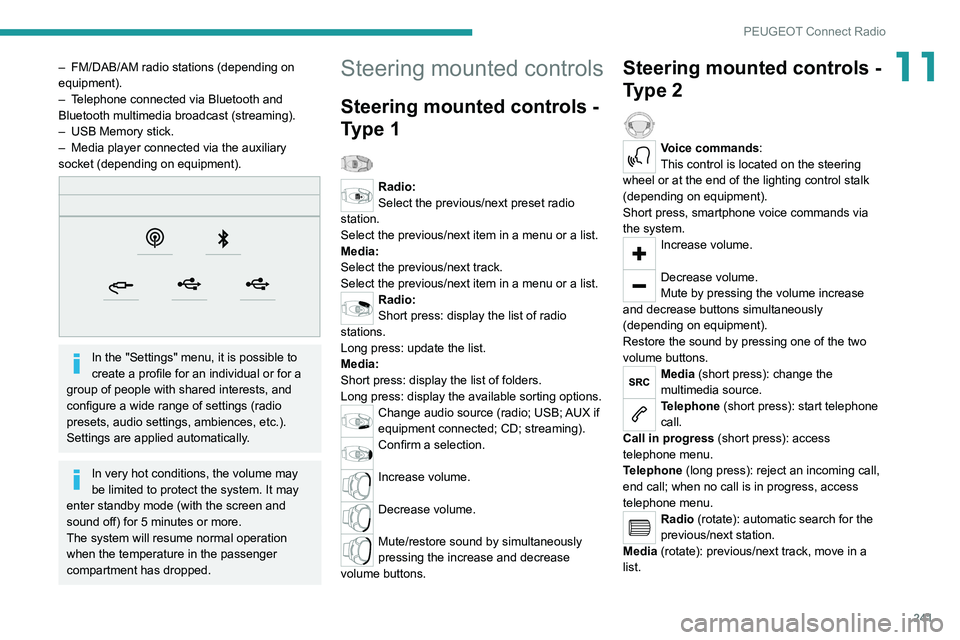
11– FM/DAB/AM radio stations (depending on
equipment).
–
T
elephone connected via Bluetooth and
Bluetooth multimedia broadcast (streaming).
–
USB Memory stick.
–
Media player connected via the auxiliary
socket (depending on equipment).
In the "Settings" menu, it is possible to
create a profile for an individual or for a
group of people with shared interests, and
configure a wide range of settings (radio
presets, audio settings, ambiences, etc.).
Settings are applied automatically.
In very hot conditions, the volume may
be limited to protect the system. It may
enter standby mode (with the screen and
sound off) for 5 minutes or more.
The system will resume normal operation
when the temperature in the passenger
compartment has dropped.
Steering mounted controls
Steering mounted controls -
Type 1
Radio:
Select the previous/next preset radio
station.
Select the previous/next item in a menu or a list.
Media:
Select the previous/next track.
Select the previous/next item in a menu or a list.
Radio:
Short press: display the list of radio
stations.
Long press: update the list.
Media:
Short press: display the list of folders.
Long press: display the available sorting options.
Change audio source (radio; USB; AUX if
equipment connected; CD; streaming).
Confirm a selection.
Increase volume.
Decrease volume.
Mute/restore sound by simultaneously
pressing the increase and decrease
volume buttons.
Steering mounted controls -
Type 2
Voice commands:
This control is located on the steering
wheel or at the end of the lighting control stalk
(depending on equipment).
Short press, smartphone voice commands via
the system.
Increase volume.
Decrease volume.
Mute by pressing the volume increase
and decrease buttons simultaneously
(depending on equipment).
Restore the sound by pressing one of the two
volume buttons.
Media (short press): change the
multimedia source.
Telephone (short press): start telephone
call.
Call in progress (short press): access
telephone menu.
Telephone (long press): reject an incoming call,
end call; when no call is in progress, access
telephone menu.
Radio (rotate): automatic search for the
previous/next station.
Media (rotate): previous/next track, move in a
list.
Page 248 of 308
246
PEUGEOT Connect Radio
Playlists are updated whenever the ignition
is switched off or a USB memory stick is
connected. The audio system memorises these
lists, which will subsequently load faster if they
have not been changed.
Auxiliary (AUX) jack socket
Depending on equipmentConnect a portable device (MP3 player,
etc.) to the auxiliary jack socket using an
audio cable (not supplied).
This source is only available if "Auxiliary input"
has been selected in the audio settings.
First adjust the volume on the portable device
(to a high level). Then adjust the volume of the
audio system.
Controls are managed via the portable device.
Selecting the source
Press Radio Media to display the main
page.
Press the "SOURCES" button.
Select the source.
BluetoothStreaming®
Streaming allows you to listen to the audio feed
from your smartphone.
The Bluetooth profile must be activated.
First adjust the volume on the portable device
(to a high level). Then adjust the volume of the
system.
If play does not start automatically, it may be
necessary to start the audio playback from the
smartphone.
Control is from the portable device or by using
the system's touch buttons.
Once connected in Streaming mode, the
smartphone is considered to be a media
source.
Connecting Apple® players
Connect the Apple® player to the USB socket
using a suitable cable (not supplied).
Play starts automatically.
Control is via the audio system.
The classifications available are those of the portable device connected (artists/
albums/genres/playlists/audio books/
podcasts). It is also possible to use a
classification structured in the form of a
library.
The default classification used is by artist. To
modify the classification used, return to the
first level of the menu then select the desired
classification (playlists for example) and
confirm to go down through the menu to the
desired track.
The version of software in the audio system may
not be compatible with the generation of the
Apple
® player.
Information and advice
The system supports USB mass storage
devices, BlackBerry® devices or Apple® players
via the USB ports. The adapter cable is not
supplied.
Devices are managed using the audio system
controls.
Other devices, not recognised on connection,
must be connected to the auxiliary socket using
a jack cable (not supplied) or via Bluetooth
streaming, if compatible.
To protect the system, do not use a USB hub.
The audio system will only play audio files with
".wav", ".wma", ".aac", ".ogg" and ".mp3" file
extensions, at bit rates between 32 Kbps and
320 Kbps.
It also supports VBR (Variable Bit Rate) mode.
No other file types (".mp4", etc.) can be read.
All ".wma" files must be standard WMA 9 files.
The supported sampling rates are 11, 22, 44 and
48 KHz.
To avoid reading and display problems, we
recommend choosing file names less than 20
characters long that do not contain any special
characters (e.g. “ ? .
; ù).
Use only USB memory sticks in FAT32 format
(File Allocation Table).
We recommend using the original USB
cable for the portable device.
Telephone
USB sockets
Depending on equipment, for more information
on the USB sockets compatible with the
CarPlay
®, MirrorLinkTM or Android Auto
applications, refer to the "Ease of use and
comfort" section.
The synchronisation of a smartphone allows users to display applications
adapted to the CarPlay
®, MirrorLinkTM or
Android Auto technology of the smartphone
on the vehicle screen. For the CarPlay
®
technology, the CarPlay® function must be
activated on the smartphone beforehand.
For the communication process between
the smartphone and the system to work, it is
essential in all cases that the smartphone is
unlocked.
As the principles and standards are
constantly changing, it is recommended
that you keep the smartphone's operating
system up-to-date, as well as the date and
time of the smartphone and of the system .
For the list of eligible smartphones, go to the
Brand's national website.
Page 257 of 308
255
PEUGEOT Connect Nav
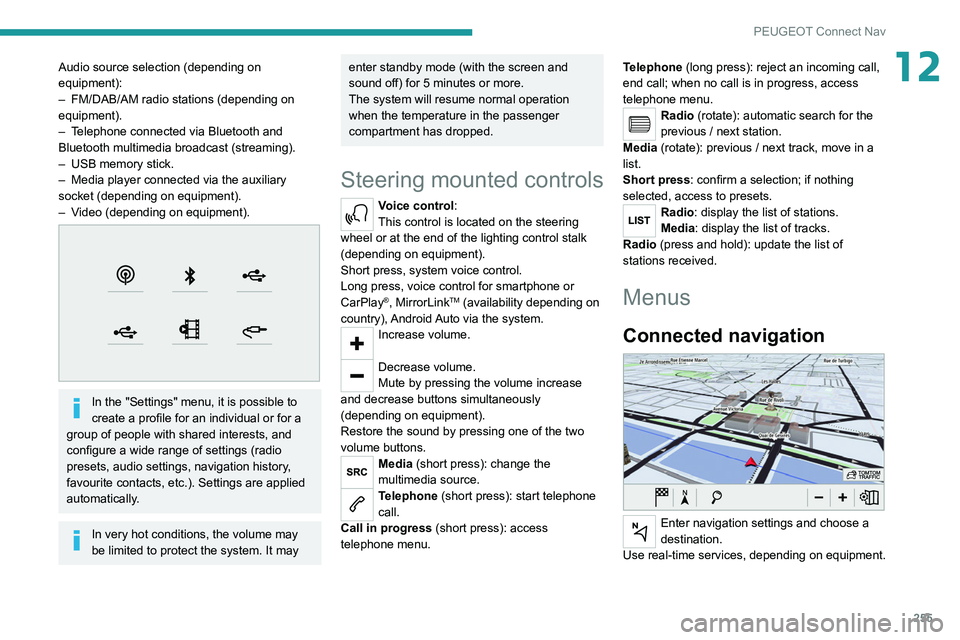
12Audio source selection (depending on
equipment):
–
FM/DAB/AM radio stations (depending on
equipment).
–
T
elephone connected via Bluetooth and
Bluetooth multimedia broadcast (streaming).
–
USB memory stick.
–
Media player connected via the auxiliary
socket (depending on equipment).
–
V
ideo (depending on equipment).
In the "Settings" menu, it is possible to
create a profile for an individual or for a
group of people with shared interests, and
configure a wide range of settings (radio
presets, audio settings, navigation history,
favourite contacts, etc.). Settings are applied
automatically.
In very hot conditions, the volume may
be limited to protect the system. It may
enter standby mode (with the screen and
sound off) for 5 minutes or more.
The system will resume normal operation
when the temperature in the passenger
compartment has dropped.
Steering mounted controls
Voice control:
This control is located on the steering
wheel or at the end of the lighting control stalk
(depending on equipment).
Short press, system voice control.
Long press, voice control for smartphone or
CarPlay
®, MirrorLinkTM (availability depending on
country), Android Auto via the system.
Increase volume.
Decrease volume.
Mute by pressing the volume increase
and decrease buttons simultaneously
(depending on equipment).
Restore the sound by pressing one of the two
volume buttons.
Media (short press): change the
multimedia source.
Telephone (short press): start telephone
call.
Call in progress (short press): access
telephone menu. Telephone (long press): reject an incoming call,
end call; when no call is in progress, access
telephone menu.
Radio (rotate): automatic search for the
previous / next station.
Media (rotate): previous / next track, move in a
list.
Short press: confirm a selection; if nothing
selected, access to presets.
Radio: display the list of stations.
Media: display the list of tracks.
Radio (press and hold): update the list of
stations received.
Menus
Connected navigation
Enter navigation settings and choose a
destination.
Use real-time services, depending on equipment.
Page 272 of 308
270
PEUGEOT Connect Nav
Media
USB port
Insert the USB memory stick into the USB
port or connect the USB device to the
USB port using a suitable cable (not supplied).
To protect the system, do not use a USB hub.
The system builds playlists (in temporary
memory); this operation can take from a
few seconds to several minutes at the first
connection.
Reduce the number of non-music files and the
number of folders to reduce the waiting time.
Playlists are updated whenever the ignition
is switched off or a USB memory stick is
connected. The audio system memorises these
lists, which will subsequently load faster if they
have not been changed.
Auxiliary socket (AUX)
Depending on equipmentConnect a portable device (MP3 player,
etc.) to the auxiliary jack socket using an
audio cable (not supplied).
This source is only available if "Auxiliary input"
has been selected in the audio settings.
First adjust the volume on the portable device
(to a high level). Then adjust the volume of the
audio system.
Controls are managed via the portable device.
Selecting the source
Press Radio Media to display the main
page.
Select "SOURCES".
Select the source.
Watching a video
Depending on equipment/Depending on version/
Depending on country.
Insert a USB memory stick in the USB port.
Video control commands are accessible
only through the touch screen.
Press Radio Media to display the main
page.
Select "SOURCES".
Select Video to start the video.
To remove the USB memory stick, press the pause button to stop the video, then
remove the memory stick.
The system can play video files in the MPEG-4
Part 2, MPEG-2, MPEG-1, H.264, H.263, VP8,
WMV and RealVideo formats.
Streaming Bluetooth®
Streaming allows you to listen to the audio feed
from your smartphone.
The Bluetooth profile must be activated.
First adjust the volume on the portable device (to
a high level).
Then adjust the volume of the audio system.
If play does not start automatically, it may be
necessary to start the audio playback from the
smartphone.
Control is from the portable device or by using
the system's touch buttons.
Once connected in streaming mode, the
smartphone is considered to be a media
source.
Connecting Apple® players
Connect the Apple® player to the USB port using
a suitable cable (not supplied).
Play starts automatically.
Control is via the audio system.
The classifications available are those of the portable device connected (artists/
albums/genres/playlists/audio books/
podcasts).
The default classification used is by artist. To
modify the classification used, return to the
first level of the menu then select the desired
classification (playlists for example) and
confirm to go down through the menu to the
desired track.
The version of software in the audio system may
not be compatible with the generation of the
Apple
® player.
Information and advice
The system supports USB mass storage
devices, BlackBerry® devices and Apple® players
via the USB ports. The adapter cable is not
supplied.
Devices are managed using the audio system
controls.
Other devices, not recognised on connection,
must be connected to the auxiliary socket using
a jack cable (not supplied) or via Bluetooth
streaming, if compatible.
The audio system will only play audio files with
".wma", ".aac", ".flac", ".ogg" and ".mp3" file
extensions, at bit rates between 32 Kbps and
320 Kbps.
It also supports VBR (Variable Bit Rate) mode.
No other file types (".mp4", etc.) can be read.
All ".wma" files must be standard WMA 9 files.
The supported sampling rates are 32, 44 and
48 KHz.
To avoid reading and display problems, we
recommend choosing file names less than 20
characters long that do not contain any special
characters (e.g. “ ? . ; ù).
Use only USB memory sticks in FAT32 format
(File Allocation Table).
We recommend using the original USB
cable for the portable device.
Page 273 of 308
271
PEUGEOT Connect Nav
12Information and advice
The system supports USB mass storage
devices, BlackBerry® devices and Apple® players
via the USB ports. The adapter cable is not
supplied.
Devices are managed using the audio system
controls.
Other devices, not recognised on connection,
must be connected to the auxiliary socket using
a jack cable (not supplied) or via Bluetooth
streaming, if compatible.
The audio system will only play audio files with
".wma", ".aac", ".flac", ".ogg" and ".mp3" file
extensions, at bit rates between 32 Kbps and
320 Kbps.
It also supports VBR (Variable Bit Rate) mode.
No other file types (".mp4", etc.) can be read.
All ".wma" files must be standard WMA 9 files.
The supported sampling rates are 32, 44 and
48 KHz.
To avoid reading and display problems, we
recommend choosing file names less than 20
characters long that do not contain any special
characters (e.g. “ ? .
; ù).
Use only USB memory sticks in FAT32 format
(File Allocation Table).
We recommend using the original USB
cable for the portable device.
Telephone
Pairing a Bluetooth®
telephone
The services available depend on the
network, the SIM card and the
compatibility of the Bluetooth devices used.
Consult the telephone user guide and the
service provider to check which services are
available.
The Bluetooth function must be activated and the telephone configured as "Visible
to all” (in the telphone settings).
To complete the pairing, whichever procedure is
used (from the telephone or from the system),
ensure that the code is the same in the system
and in the telephone.
If the pairing procedure fails, we
recommend deactivating and then
reactivating the Bluetooth function on the
telephone.
Procedure from the telephone
Select the system name in the list of
detected devices.
In the system, accept the connection request
from the telephone.
Procedure from the system
Press Telephone to display the main
page.
Press "Bluetooth search".
Or
Select "Search".
The list of detected telephones is
displayed.
Select the name of the chosen telephone
in the list.
Connection sharing
The system offers to connect the telephone with
3 profiles:
–
"Telephone" (hands-free kit, telephone only),
–
“Streaming" (streaming: wireless playing of
audio files on the telephone),
–
"Mobile internet data ".
The "Mobile internet data " profile must
be activated for connected navigation,
after first activating smartphone connection
sharing.
Select one or more profiles.
Press "OK" to confirm.
Depending on the type of telephone, you may by
prompted to accept the transfer of contacts and
messages.
Page 285 of 308
283
Alphabetical index
Mirrors, door 49–50, 65, 154
Mirror, vanity
66
Misfuel prevention
167
Modularity, seats
57
Motor, electric
126, 167, 225
Motorised tailgate
37–38, 40
Mountings, ISOFIX
105
MP3 CD
233
N
Navigation 260–262
Navigation, connected
263–265
Net
73–74
Net, high load retaining
75–76
Number plate lamps
205
O
Obstacle detection 155
Oil change
181
Oil consumption
181
OIl, engine
181
On-board tools
76, 191–193
Opening the bonnet
179–180
Opening the boot
30, 36
Opening the doors
30, 36
Opening the windows
28
P
Pads, brake 184
Paint
188, 227
Paint colour code
227
Paint, matt
188
Parcel shelf, rear
71, 73
Park Assist
161–162
Parking brake, electric
118–120, 184
Parking sensors, audible and visual
155
Parking sensors, front
156
Parking sensors, rear
155
Personalisation
10
Plates, identification
227
Player, Apple®
234, 246, 270
Player, MP3 CD
233
Player, USB
232, 245, 270
Port, USB
67, 232, 245, 265, 270
Power
20
Power indicator
20
Pressures, tyres
184, 196, 227
Pre-tensioning seat belts
97
Priming pump
191
Priming the fuel system
190
Profiles
250, 274
Protecting children
98, 100–103,
105, 107, 110–111
Puncture
193–194, 196
Q
Quiet vehicle warning sound 88
R
Radar (warnings) 131
Radio
230–231, 243–244, 246, 268
Radio, digital (Digital Audio
Broadcasting - DAB)
231, 245, 269
Range, AdBlue®
18, 182
RDS
244, 268–269
READY lamp
179
Rear air blower
63
Rear screen, demisting
65
Rechargeable hybrid system
5, 26, 116, 126,
167
Recharging the battery
211, 214
Recirculation, air
62, 64
Recorder, total distance
20
Recovery
215–218
Recovery of the vehicle
216
Reduction of electrical load
179
Regeneration of the particle filter
183
Regenerative braking (deceleration
by engine braking)
125
Reinitialisation of the under-inflation
detection system
130
Reinitialising the remote control
34
Reminder, key in ignition
11 6
Reminder, lighting on
79