phone PEUGEOT 3008 2020 Owners Manual
[x] Cancel search | Manufacturer: PEUGEOT, Model Year: 2020, Model line: 3008, Model: PEUGEOT 3008 2020Pages: 308, PDF Size: 10.1 MB
Page 5 of 308
3
Contents
bit.ly/helpPSA
Lane positioning assist 143
Active Safety Brake with Distance Alert and
Intelligent emergency braking assistance
146
Distraction detection 149
Lane Departure Warning System 150
Active Lane Keeping Assistance 150
Blind Spot Monitoring System 154
Active Blind Spot Monitoring System 155
Parking sensors 155
Visiopark 1 - Visiopark 2 157
Park Assist 161
7Practical information
Compatibility of fuels 166
Refuelling 166
Misfuel prevention (Diesel) 167
Hybrid system 167
Charging the traction battery (Hybrid) 171
Towing device 173
Towing device with quickly detachable
towball
174
Roof bars 176
Snow chains 177
Very cold climate screen 178
Energy economy mode 179
Bonnet 179
Engine compartment 180
Checking levels 181
Checks 183
AdBlue® (BlueHDi) 185
Free-wheeling 187
Advice on care and maintenance 187
8In the event of a breakdown
Warning triangle 190
Running out of fuel (Diesel) 190
Tool kit 191
Temporary puncture repair kit 193
Spare wheel 196
Changing a bulb 201
Changing a fuse 205
12
V battery 210
Accessory batteries (Hybrid) 213
Towing the vehicle 215
9Technical data
Engine technical data and towed loads 219
Petrol engines 220
Diesel engines 222
Hybrid engines 225
Dimensions 226
Identification markings 227
10Bluetooth® audio system
First steps 228
Steering mounted controls 229
Menus 229
Radio 230
DAB (Digital Audio Broadcasting) radio 231
Media 232
Telephone 234
Frequently asked questions 237
11PEUGEOT Connect Radio
First steps 240
Steering mounted controls 241
Menus 242
Applications 243
Radio 243
DAB (Digital Audio Broadcasting) radio 245
Media 245
Telephone 247
Settings 250
Frequently asked questions 252
12PEUGEOT Connect Nav
First steps 254
Steering mounted controls 255
Menus 255
Voice commands 257
Navigation 260
Connected navigation 263
Applications 265
Radio 268
DAB (Digital Audio Broadcasting) radio 269
Media 270
Telephone 271
Settings 274
Frequently asked questions 275
■
Alphabetical index
Access to additional videos
Page 6 of 308
4
Overview
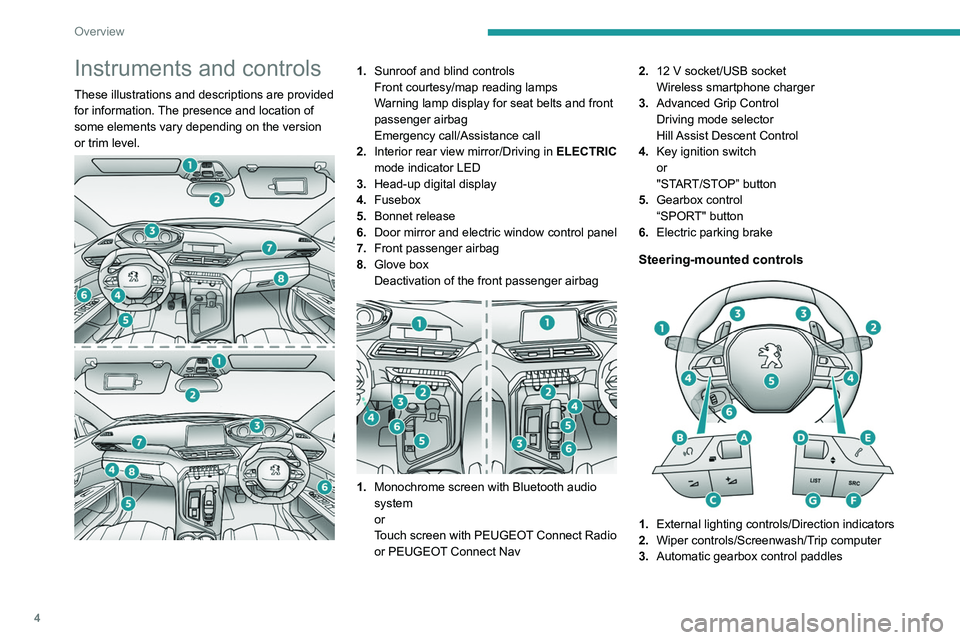
Instruments and controls
These illustrations and descriptions are provided
for information. The presence and location of
some elements vary depending on the version
or trim level.
1.Sunroof and blind controls
Front courtesy/map reading lamps
Warning lamp display for seat belts and front
passenger airbag
Emergency call/Assistance call
2. Interior rear view mirror/Driving in ELECTRIC
mode indicator LED
3. Head-up digital display
4. Fusebox
5. Bonnet release
6. Door mirror and electric window control panel
7. Front passenger airbag
8. Glove box
Deactivation of the front passenger airbag
1.Monochrome screen with Bluetooth audio
system
or
Touch screen with PEUGEOT Connect Radio
or PEUGEOT Connect Nav 2.
12 V socket/USB socket
Wireless smartphone charger
3. Advanced Grip Control
Driving mode selector
Hill Assist Descent Control
4. Key ignition switch
or
"START/STOP” button
5. Gearbox control
“SPORT" button
6. Electric parking brake
Steering-mounted controls
1.External lighting controls/Direction indicators
2. Wiper controls/Screenwash/Trip computer
3. Automatic gearbox control paddles
Page 7 of 308
5
Overview
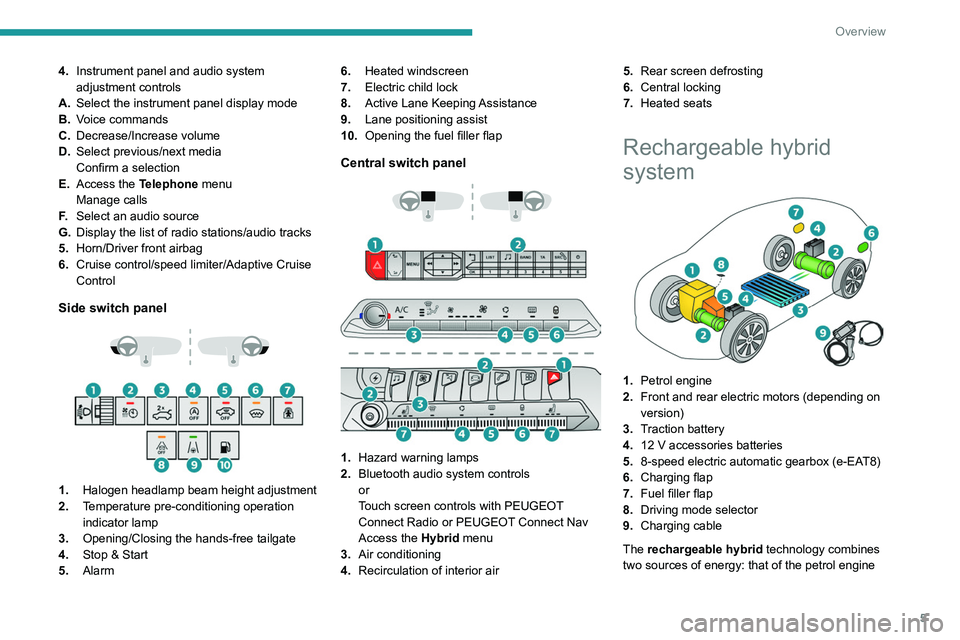
4.Instrument panel and audio system
adjustment controls
A. Select the instrument panel display mode
B. Voice commands
C. Decrease/Increase volume
D. Select previous/next media
Confirm a selection
E. Access the Telephone menu
Manage calls
F. Select an audio source
G. Display the list of radio stations/audio tracks
5. Horn/Driver front airbag
6. Cruise control/speed limiter/Adaptive Cruise
Control
Side switch panel
1. Halogen headlamp beam height adjustment
2. Temperature pre-conditioning operation
indicator lamp
3. Opening/Closing the hands-free tailgate
4. Stop & Start
5. Alarm 6.
Heated windscreen
7. Electric child lock
8. Active Lane Keeping Assistance
9. Lane positioning assist
10. Opening the fuel filler flap
Central switch panel
1. Hazard warning lamps
2. Bluetooth audio system controls
or
Touch screen controls with PEUGEOT
Connect Radio or PEUGEOT Connect Nav
Access the Hybrid menu
3. Air conditioning
4. Recirculation of interior air 5.
Rear screen defrosting
6. Central locking
7. Heated seats
Rechargeable hybrid
system
1.Petrol engine
2. Front and rear electric motors (depending on
version)
3. Traction battery
4. 12 V accessories batteries
5. 8-speed electric automatic gearbox (e-EAT8)
6. Charging flap
7. Fuel filler flap
8. Driving mode selector
9. Charging cable
The rechargeable hybrid technology combines
two sources of energy: that of the petrol engine
Page 25 of 308
23
Instruments
1Average speed
(mph or km/h)Calculated since the last trip computer
reset.
Distance travelled
(miles or km)Calculated since the last trip computer
reset.
Stop & Start time counter
(minutes/seconds or hours/minutes)
If your vehicle is equipped with Stop & Start, a
time counter calculates the time spent in STOP
mode during a journey.
It resets to zero every time the ignition is
switched on.
Monochrome screen C
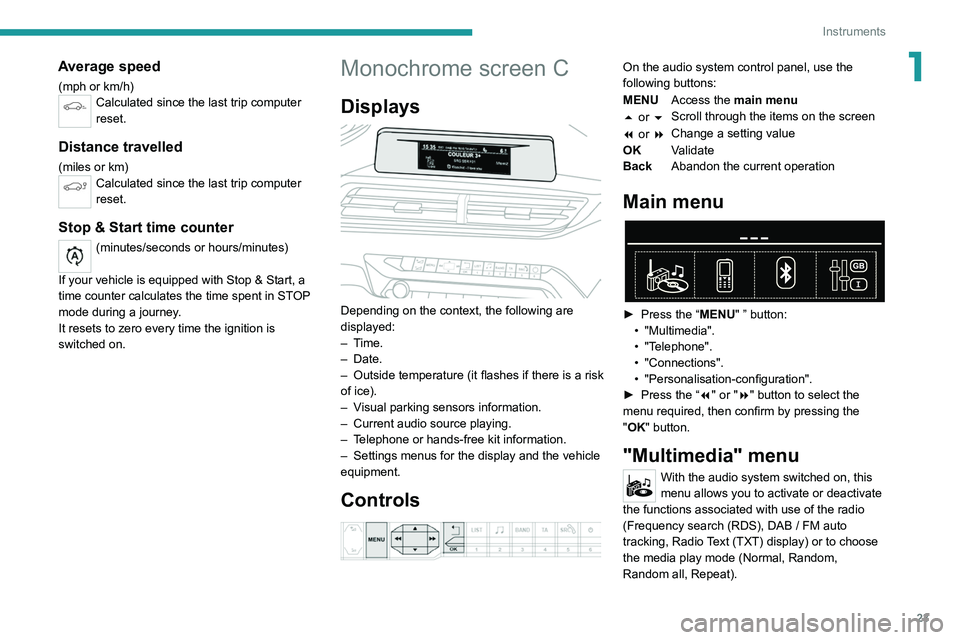
Displays
Depending on the context, the following are
displayed:
– Time.
–
Date.
– Outside
temperature (it flashes if there is a risk
of ice).
–
V
isual parking sensors information.
–
Current audio source playing.
–
T
elephone or hands-free kit information.
–
Settings menus for the display and the vehicle
equipment.
Controls
On the audio system control panel, use the
following buttons:
MENU Access the main menu
5 or 6 Scroll through the items on the screen
7 or 8 Change a setting value
OK Validate
Back Abandon the current operation
Main menu
► Press the “MENU" ” button:
• "Multimedia".
•
"Telephone".
•
"Connections".
• "Personalisation-configuration".
► Press
the “7" or "8" button to select the
menu
required, then confirm by pressing the
"
OK" button.
"Multimedia" menu
With the audio system switched on, this
menu allows you to activate or deactivate
the functions associated with use of the radio
(Frequency search (RDS), DAB
/ FM auto
tracking, Radio Text (TXT) display) or to choose
the media play mode (Normal, Random,
Random all, Repeat).
Page 26 of 308
24
Instruments
For more information on the "Multimedia"
application, refer to the "Audio equipment and
telematics" section.
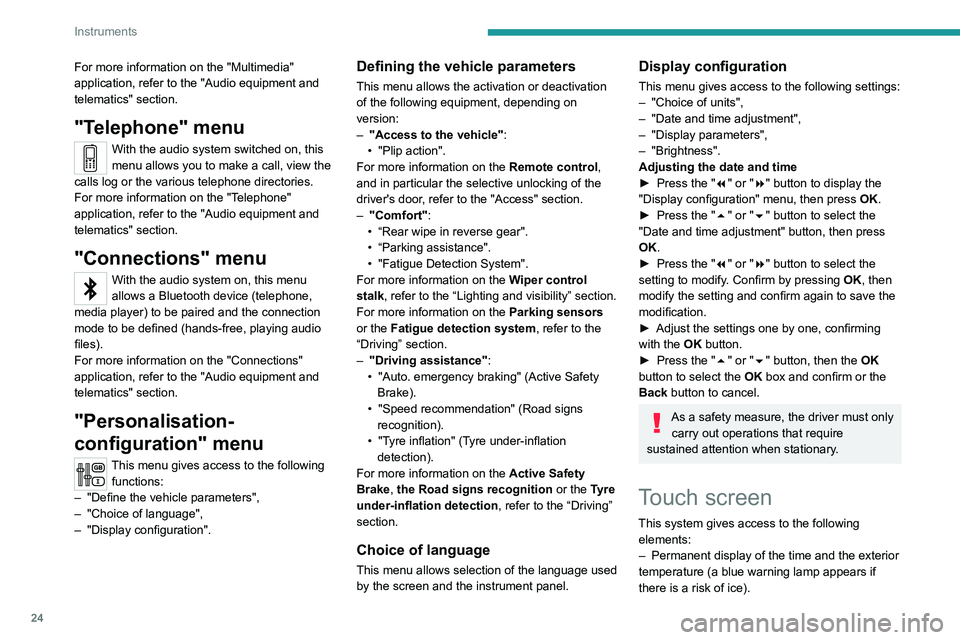
"Telephone" menu
With the audio system switched on, this
menu allows you to make a call, view the
calls log or the various telephone directories.
For more information on the "Telephone"
application, refer to the "Audio equipment and
telematics" section.
"Connections" menu
With the audio system on, this menu
allows a Bluetooth device (telephone,
media player) to be paired and the connection
mode
to be defined (hands-free, playing audio
files).
For more information on the "Connections"
application, refer to the "Audio equipment and
telematics" section.
"Personalisation-
configuration" menu
This menu gives access to the following functions:
– "Define
the vehicle parameters",
–
"Choice of language",
–
"Display configuration".
Defining the vehicle parameters
This menu allows the activation or deactivation
of the following equipment, depending on
version:
–
"Access to the vehicle" :
•
"Plip action".
For more information on the Remote control
,
and in particular the selective unlocking of the
driver's door, refer to the "Access" section.
–
"Comfort"
:
• “Rear
wipe in reverse gear".
• “Parking
assistance".
•
"Fatigue Detection System".
For more information on the
W
iper control
stalk,
refer to the “Lighting and visibility” section.
For more information on the
Parking sensors
or the Fatigue detection system, refer to the
“Driving”
section.
–
"Driving assistance" :
•
"Auto. emergency braking" (Active Safety
Brake).
•
"Speed recommendation" (Road signs
recognition).
•
"Tyre inflation" (Tyre under-inflation
detection).
For more information on the
Active Safety
Brake ,
the Road signs recognition or the
Tyre
under-inflation detection ,
refer to the “Driving”
section.
Choice of language
This menu allows selection of the language used
by the screen and the instrument panel.
Display configuration
This menu gives access to the following settings:
– "Choice of units",
–
"Date and time adjustment",
–
"Display parameters",
–
"Brightness".
Adjusting the date and time
► Press
the "7" or "8" button to display the
"Display
configuration" menu, then press
OK
.
► Press
the "5" or "6" button to select the
"Date and time adjustment" button, then press
OK.
► Press
the "7" or "8" button to select the
setting
to modify. Confirm by pressing
OK
, then
modify
the setting and confirm again to save the
modification.
►
Adjust the settings one by one, confirming
with the
OK button.
► Press
the "5" or "6" button, then the OK
button to select the OK
box and confirm or the
Back button to cancel.
As a safety measure, the driver must only
carry out operations that require
sustained attention when stationary.
Touch screen
This system gives access to the following elements:
–
Permanent display of the time and the exterior
temperature (a blue warning lamp appears if
there is a risk of ice).
Page 27 of 308
25
Instruments
1– Vehicle functions and equipment setting
menus.
–
Audio system and telephone controls and
display of related information.
–
Display of visual manoeuvring aid functions
(visual parking sensor information, Park
Assist,
etc.).
–
Internet services and display of
related
information.
–
Navigation system controls and
display
of related information (depending on
version).
For safety reasons, always stop the
vehicle before performing operations
that require sustained attention.
Some functions are not accessible while
driving.
Recommendations
This screen is of the capacitive type.
Do not use pointed objects on the touch screen.
Do not touch the touch screen with wet hands.
Use a soft, clean cloth to clean the touch screen.
* The TomTom Traffic logo displayed on the map confirms the availability of connected navigation services. For more information, refer to the connected
navigation section.
**
Depend
ing on equipment.
Principles
► Use the buttons arranged below the touch
screen for access to the menus, then press the
virtual buttons on the touch screen.
Some menus may display across two pages:
press the "
OPTIONS" button to access the
second page.
After a few moments with no action on the second page, the first page is
displayed automatically.
To deactivate/activate a function, select " OFF"
or "ON".
Settings for a function
Access to additional information on the function
Confirm
Return to the previous page or confirm
Menus
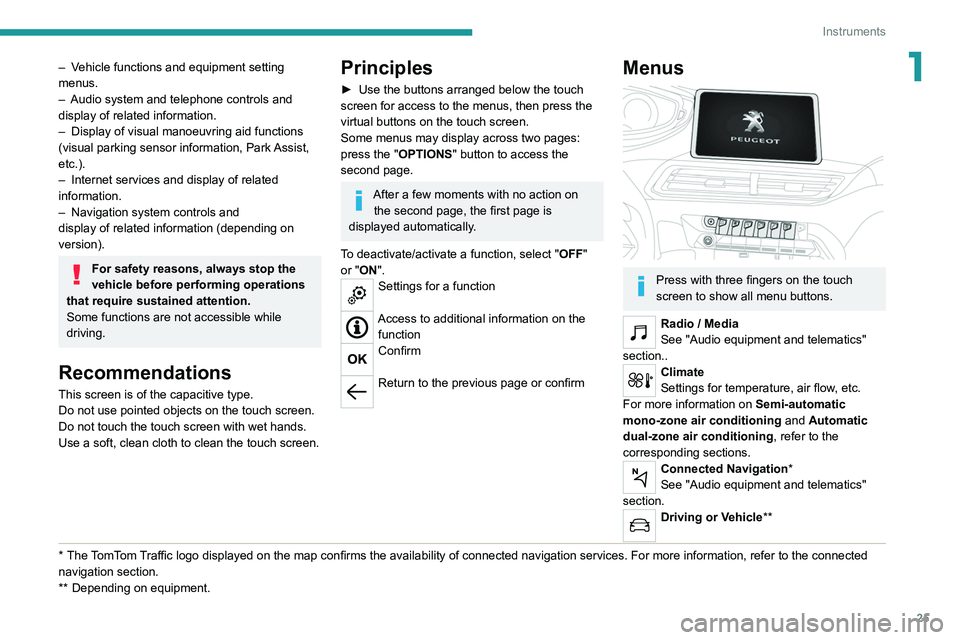
Press with three fingers on the touch
screen to show all menu buttons.
Radio / Media
See "Audio equipment and telematics"
section..
Climate
Settings for temperature, air flow, etc.
For more information on Semi-automatic
mono-zone air conditioning and Automatic
dual-zone air conditioning , refer to the
corresponding sections.
Connected Navigation*
See "Audio equipment and telematics"
section.
Driving or Vehicle**
Page 28 of 308
26
Instruments
Activation, deactivation and settings for certain
functions.
The functions are organised in 2 tabs : "Driving
functions" and "Vehicle settings".
Telephone
See "Audio equipment and telematics"
section..
Applications
For the other functions, refer to the "Audio
equipment and telematics" section.
Hybrid
Access to the hybrid system features
(energy flow, consumption statistics, deferred
charge, eSave function).
For more information on Charging the battery
(Hybrid), refer to the corresponding section.
Volume adjustment/mute.
See "Audio equipment and telematics"
section.
Hybrid menu
Energy flow
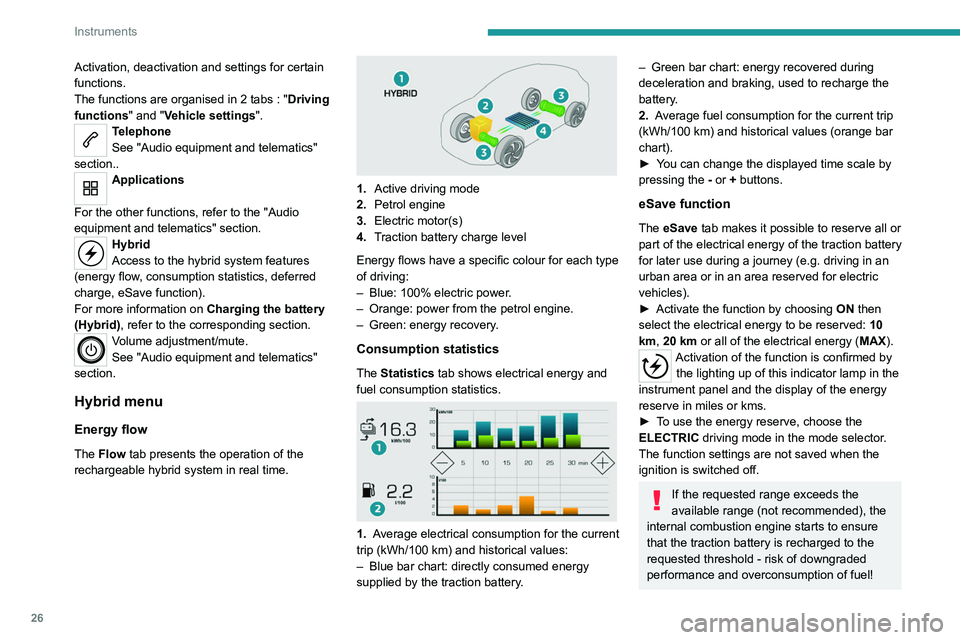
The Flow tab presents the operation of the
rechargeable hybrid system in real time.
1. Active driving mode
2. Petrol engine
3. Electric motor(s)
4. Traction battery charge level
Energy flows have a specific colour for each type
of driving:
–
Blue: 100% electric power
.
–
Orange: power from the petrol engine.
–
Green: energy recovery
.
Consumption statistics
The Statistics tab shows electrical energy and
fuel consumption statistics.
1. Average electrical consumption for the current
trip (kWh/100 km) and historical values:
–
Blue bar chart: directly consumed energy
supplied by the traction battery
.
– Green bar chart: energy recovered during
deceleration and braking, used to recharge the
battery
.
2. Average fuel consumption for the current trip
(kWh/100
km) and historical values (orange bar
chart).
►
Y
ou can change the displayed time scale by
pressing the
-
or + buttons.
eSave function
The eSave tab makes it possible to reserve all or
part of the electrical energy of the traction battery
for later use during a journey (e.g. driving in an
urban area or in an area reserved for electric
vehicles).
►
Activate the function by choosing ON
then
select the electrical energy to be reserved: 10
km, 20 km or all of the electrical energy ( MAX).
Activation of the function is confirmed by
the lighting up of this indicator lamp in the
instrument panel and the display of the energy
reserve in miles or kms.
►
T
o use the energy reserve, choose the
ELECTRIC driving mode in the mode selector.
The function settings are not saved when the
ignition is switched off.
If the requested range exceeds the
available range (not recommended), the
internal combustion engine starts to ensure
that the traction battery is recharged to the
requested threshold - risk of downgraded
performance and overconsumption of fuel!
Page 29 of 308
27
Instruments
1Upper bar
Certain information is displayed permanently in
the upper bar of the touch screen:
–
T
ime and exterior temperature (a blue warning
lamp appears when there is a risk of ice).
–
Reminder of the air conditioning information,
and direct access to the corresponding menu.
–
Reminder of information from the
RadioMedia
and Telephone menus and
navigation instructions (depending on
equipment).
–
Notifications.
–
Access to the
Settings for the touch screen
and the digital instrument panel (date/time,
languages, units, etc.).
Remote features (Hybrid)
These features are accessible
using a smartphone, via the
MyPeugeot
application:
–
Battery charge
management.
–
T
emperature pre-conditioning management.
–
Consumption, charge status and driving range
statistics.
Installation procedure
► Download the MyPeugeot app from the
appropriate online store for your smartphone.
► Create an account.
► Enter the vehicle’ s VIN (code beginning with
"VF" on the vehicle registration document).
For more information on Identification
markings, refer to the corresponding section.
Network coverage
In order to be able to use the various
remotely operable features, ensure that your
vehicle is located in an area covered by the
mobile network.
A lack of network coverage may prevent
communication with the vehicle (for example,
if it is in an underground car park). In such
cases, the application will display a message
indicating that the connection with the vehicle
could not be established.
Page 34 of 308
32
Access
To restore these functions, press one of the
remote control buttons or start the engine with
the electronic key in the reader.
For more information on starting with the
Keyless Entry and Starting system, refer to
the corresponding section.
Electrical interference
The electronic key may not operate if
close to certain electronic devices: telephone
(switched on or on standby), laptop computer,
strong magnetic fields, etc.
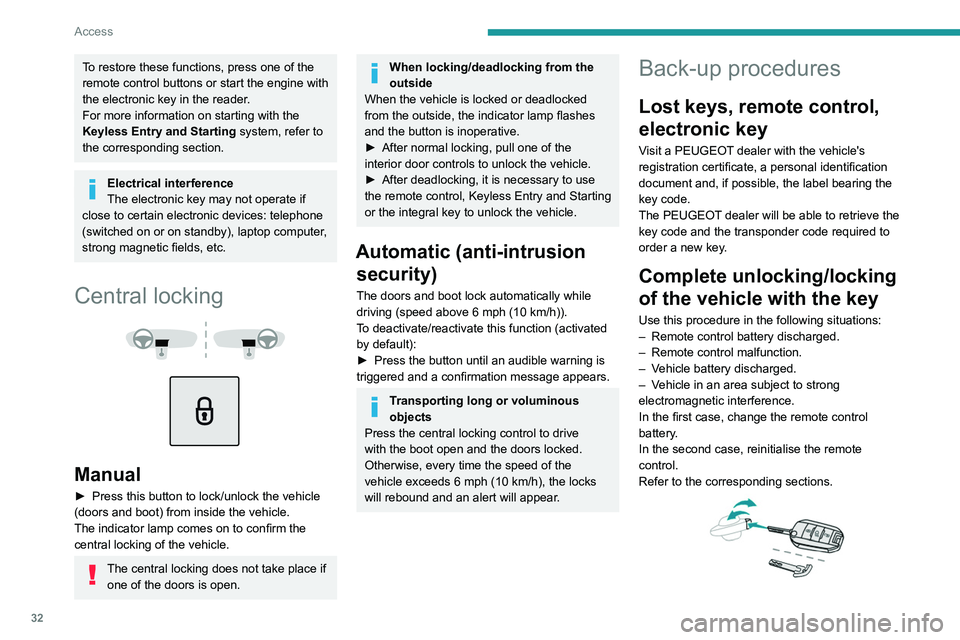
Central locking
Manual
► Press this button to lock/unlock the vehicle
(doors and boot) from inside the vehicle.
The indicator lamp comes on to confirm the
central locking of the vehicle.
The central locking does not take place if one of the doors is open.
When locking/deadlocking from the
outside
When the vehicle is locked or deadlocked
from the outside, the indicator lamp flashes
and the button is inoperative.
►
After normal locking, pull one of the
interior door controls to unlock the vehicle.
►
After deadlocking, it is necessary to use
the remote control, Keyless Entry and Starting
or the integral key to unlock the vehicle.
Automatic (anti-intrusion security)
The doors and boot lock automatically while
driving (speed above 6 mph (10
km/h)).
To deactivate/reactivate this function (activated
by default):
►
Press the button until an audible warning is
triggered and a confirmation message appears.
Transporting long or voluminous
objects
Press the central locking control to drive
with the boot open and the doors locked.
Otherwise, every time the speed of the
vehicle exceeds 6 mph (10 km/h), the locks
will rebound and an alert will appear.
Back-up procedures
Lost keys, remote control,
electronic key
Visit a PEUGEOT dealer with the vehicle's
registration certificate, a personal identification
document and, if possible, the label bearing the
key code.
The PEUGEOT dealer will be able to retrieve the
key code and the transponder code required to
order a new key.
Complete unlocking/locking
of the vehicle with the key
Use this procedure in the following situations:
– Remote control battery discharged.
–
Remote control malfunction.
–
V
ehicle battery discharged.
–
V
ehicle in an area subject to strong
electromagnetic interference.
In the first case, change the remote control
battery.
In the second case, reinitialise
the remote
control.
Refer to the corresponding sections.
► Insert the key in the door lock.
► Turn the key towards the front/rear to unlock/
lock the vehicle.
► Turn the key rearwards again within
5 seconds to deadlock the vehicle.
If the vehicle is fitted with an alarm, it will
not be activated when locking with the
key.
If the alarm is activated, the siren sounds
when the door is opened; switch on the
ignition to stop it.
Central locking not
functioning
Use these procedures in the following cases:
– Central locking malfunction.
– Battery disconnected or discharged.
In the event of a malfunction of the
central locking system, the battery must
be disconnected to ensure that the vehicle is
locked fully.
Driver's door
► Turn the key towards the rear of the vehicle
to lock it, or towards the front to unlock it.
Passenger doors
Unlocking
► Pull the interior door opening control.
Locking
Page 42 of 308
40
Access
Recommendations on the hands-free
function ("Hands-Free Tailgate Access")
If it does not work, check that the electronic key
is not exposed to a source of electromagnetic
interference (e.g. smartphone).
The function may be deactivated or affected if
there is rain or snow.
The function may not work correctly with a
prosthetic leg.
In some circumstances, the tailgate may open or
close by itself, particularly when:
–
hitching up or removing a trailer;
–
fitting or removing a bicycle carrier;
–
loading or unloading bicycles on / from a
bicycle carrier;
–
depositing or lifting something behind the
vehicle;
–
an animal approaches the rear bumper;
–
washing the vehicle;
–
maintenance is performed on the vehicle;
–
accessing the spare wheel.
T
o avoid such operating problems, keep the
electronic key away from the recognition zone or
deactivate the hands-free function.
The installation of a towing device may disturb the detection system.
Memorising an opening
position
To memorise a position, in order to limit the
motorised tailgate opening angle:
► move the tailgate to the desired position
manually or by pressing the button.
►
press button
C or the exterior control B for
more than 3 seconds (memorisation is confirmed
by a brief audible signal).
Memorising is not available until the
height of opening is more than or equal
to 1 metre between the low position and the
high position of the tailgate.
To delete the memorised position:
►
open the tailgate to any position.
►
press button
C or the exterior control B for
more than 3 seconds (deletion is confirmed by a
long audible signal).
Manual operation
The tailgate can be manoeuvred by hand, even
with motorised operation activated.
The tailgate must be stationary.
When opening and closing the motorised tailgate
manually, there is no assistance from gas struts.
Resistance to opening and closing is therefore
entirely normal.
Repeatedly opening and closing the
motorised tailgate can cause overheating
of its electric motor, after which opening and
closing will not be possible.
Allow at least 10 minutes for the electric
motor to cool down before operating the
tailgate again.
If you are unable to wait, operate it manually.
Manual closing of the
motorised tailgate in case of
failure
This operation is only necessary in the case of
failure of the tailgate motor .
If the failure originates from the battery, it is
recommended to recharge it or change it with the
tailgate closed.
In this situation, a significant force may be
needed to close the tailgate.
►
Close it gently without slamming, as slowly as
possible, by pushing at the centre of the tailgate.
Do not lower the tailgate by pushing at
one of its sides - risk of damage!
Precautions in use
To avoid unintentionally opening the tailgate while operating the towing
device:
–
Deactivate the “Hands-Free
Tailgate
Access” function in advance in the vehicle
configuration menu.
–
Or remove the electronic key from the
recognition zone, with the tailgate closed.
For more information on the T
owing device
with quickly detachable towball , refer to the
corresponding section.
In wintry conditions
To avoid any operating problems, remove
the snow or wait until the ice melts before
requesting motorised opening of the tailgate.
When washing
When washing the vehicle in an
automatic car wash, do not forget to lock
the vehicle to prevent any risk of unwanted
opening.
Electric windows
1. Left-hand front
2. Right-hand front
3. Right-hand rear
4. Left-hand rear
5. Deactivation of the electric window controls
located by the rear seats
Manual operation
► To open/close the window, press/pull the
switch without passing the point of resistance;
the window stops as soon as the switch is
released.