navigation Peugeot 3008 Hybrid 4 2013 User Guide
[x] Cancel search | Manufacturer: PEUGEOT, Model Year: 2013, Model line: 3008 Hybrid 4, Model: Peugeot 3008 Hybrid 4 2013Pages: 340, PDF Size: 16.54 MB
Page 213 of 340
211
The system is protected in such a way that it will onlyoperate in your vehicle.
Peugeot Connect Media Navigation
(NG4 3D)
For safety reasons, it is imperative that the driver carries out operations which require prolonged attention
while the vehicle is stationary.
When the en
gine is switched off and to prevent
discharging of the battery, the system switches off
following the activation of the energy economy mode.
01 First steps
02 Voice commands and
steerin
g mounted controls
03 General operation
04 Navi
gation - Guidance
05 Traffic information
06 Radio
07 Music media pla
yers
08 Usin
g the telephone
09 Screen menu map
Frequentl
y asked questions
p.
p.
p.
p.
p.
p.
p.
p.
p.
p.
212
214
217
222
231
233
234
239
244
249
CONTENTS
MULTIMEDIA AUDIO SYSTEM / BLUETOOTH TELEPHONE
GPS EUROPE
Page 214 of 340
212
01FIRST STEPS
Peugeot Connect Media Navigation (NG4 3D) CONTROL PANEL
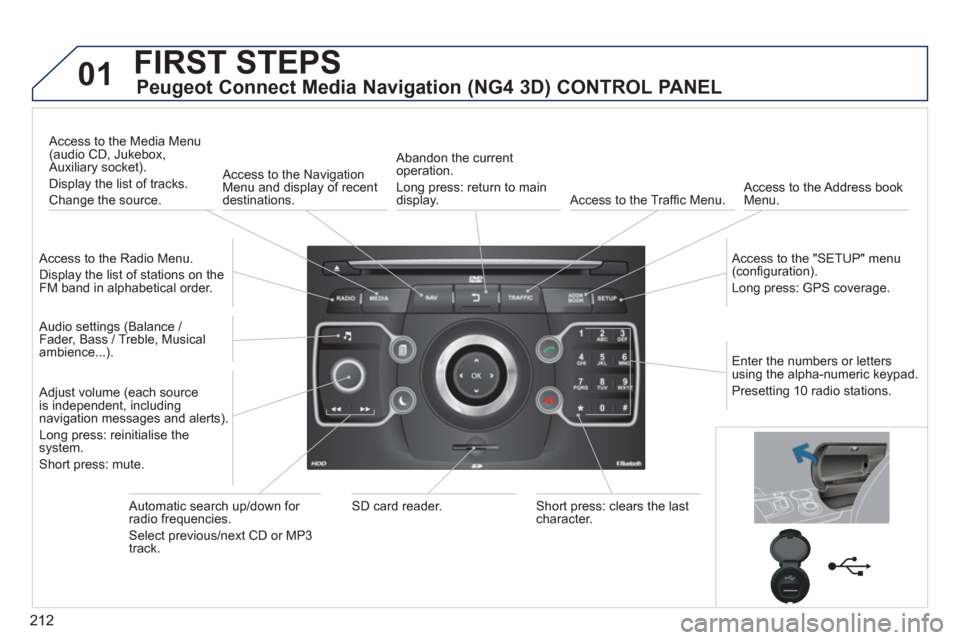
Access to the Radio Menu.
Displa
y the list of stations on the
FM band in alphabetical order.
Access to the Media Menu(audio CD, Jukebox,
Auxiliary socket).
Display the list o
f tracks.
Change the source.
Access to the NavigationMenu and display of recentdestinations.
Abandon the current
operation.
Long press: return to main
displa
y. Access to the Traffi c Menu.
Access to the Address book Menu.
A
ccess to the "SETUP" menu (confi guration).
Lon
g press: GPS coverage.
Audio settings (Balance /
Fader, Bass / Treble, Musical
ambience...
).
Adjust volume (each source
is independent, including
navigation messages and alerts).
Lon
g press: reinitialise thesystem.
Short press: mute.
Automatic search up/down for radio frequencies.
Select
previous/next CD or MP3
track.
SD card reader.Short press: clears the last character.
Enter the numbers or lettersusing the alpha-numeric keypad.
Presettin
g 10 radio stations.
Page 215 of 340
213
01FIRST STEPS
Peugeot Connect Media Navigation (NG4 3D) NAVIGATOR
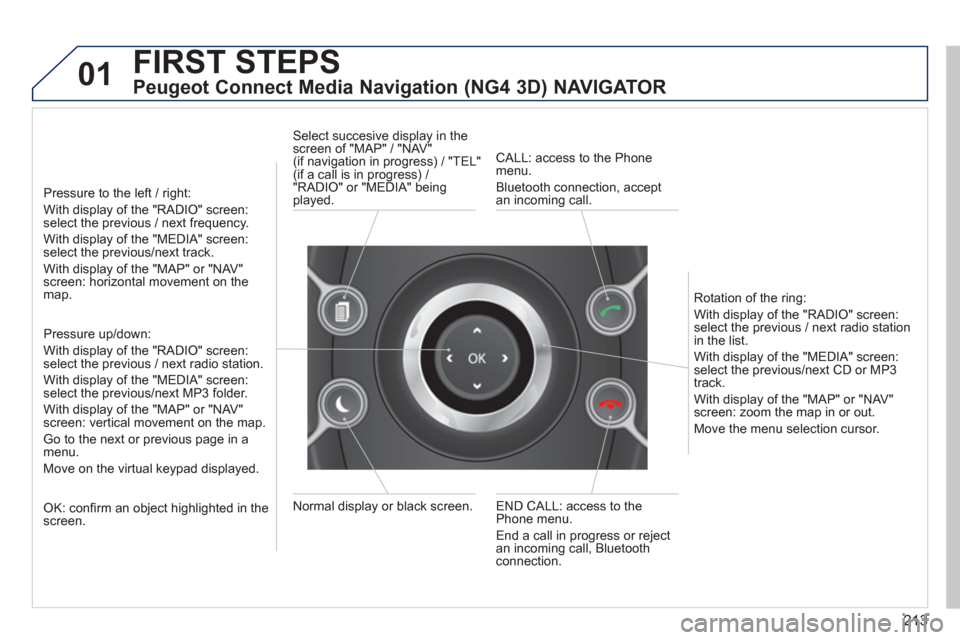
Pressure to the left / right:
With display of the "RADIO" screen: select the previous / next frequency.
With display of the "MEDIA" screen: select the previous/next track.
With display of the "MAP" or "NAV"screen: horizontal movement on themap.
Pressure up/down:
With display of the "RADIO" screen: select the previous / next radio station.
With display of the "MEDIA" screen: select the previous/next MP3 folder.
With display of the "MAP" or "NAV"screen: vertical movement on the map.
Go to the next or previous pa
ge in a menu.
Move on the virtual keypad displayed.
OK: confi rm an object highlighted in thescreen.
END CALL: access to the Phone menu.
End a call in pro
gress or reject
an incoming call, Bluetooth connection. Normal displa
y or black screen. Select succesive displa
y in thescreen of "MAP" / "NAV" (if navigation in progress) / "TEL"(if a call is in progress) /
"RADIO" or "MEDIA" being
played.
CALL: access to the Phonemenu.
Bluetooth connection, accept
an incomin
g call.
Rotation o
f the ring:
With displa
y of the "RADIO" screen: select the previous / next radio station
in the list.
With displa
y of the "MEDIA" screen: select the previous/next CD or MP3
track.
With displa
y of the "MAP" or "NAV"screen: zoom the map in or out.
M
ove the menu selection cursor.
Page 216 of 340
214
02
SETUP2ABC3DEF5JKL4GHI6MNO8TUV7PQRS9WXYZ0*#
1NAV TRAFFICADDR
BOOKSETUP
Before using the system for the fi rst time, you are advised to listen
to, say and practice the tutorial.
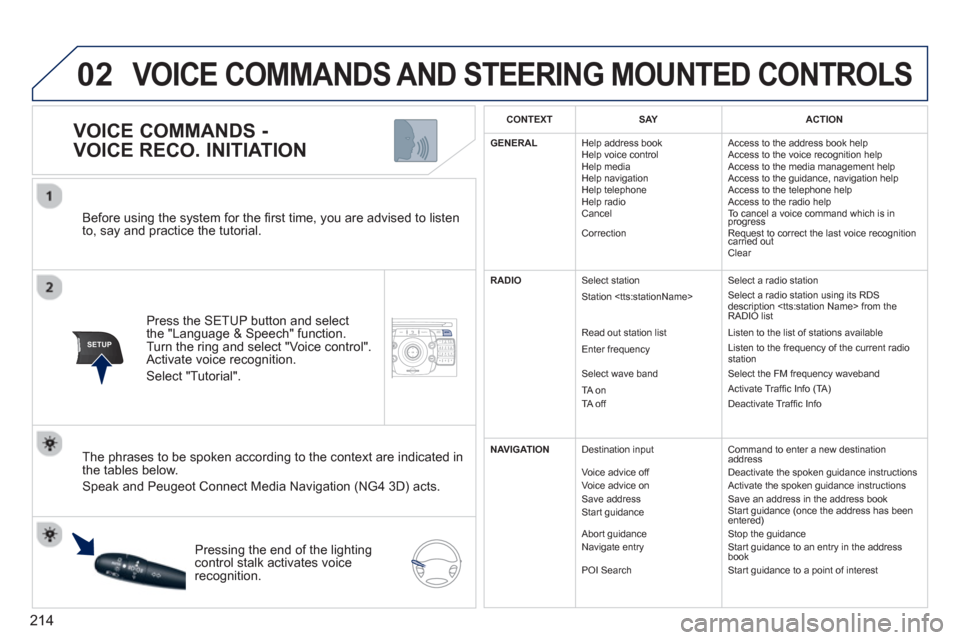
Press the
SETUP button and select
the "Language & Speech" function.Turn the ring and select "Voice control". Activate voice recognition.
Select "Tutorial".
VOICE COMMANDS -
VOICE RECO. INITIATION
The phrases to be spoken according to the context are indicated in
the tables below.
Speak and Peugeot Connect Media Navigation (NG4 3D) acts.
Pressing the end o
f the lightingcontrol stalk activates voice
recognition.
CONTEXTSAYACTION
GENERAL
Help address book
Hel
p voice control
Help media
Help navi
gation
Help telephone
Help radio
Cancel
Correction Access to the address book help
Access to the voice reco
gnition help
Access to the media management help
Access to the guidance, navigation help
Access to the telephone help
Access to the radio help
To cancel a voice command which is in progress
Request to correct the last voice recognition carried out q
Clear
RADIO
Select station
Station
Read out station list
Enter
frequency
Select wave band
TA on
TA off A
Select a radio station
Select a radio station using its RDS
description
Li
sten to the list of stations available
Listen to the frequency of the current radiostation
Select the FM frequency waveband
Activate Traffi c Info (TA)
Deactivate Traffi c Info
NAVIGATION
Destination input
V
oice advice off
Voice advice on
Save address
Start guidance
Abort guidance
Navigate entry
P
OI Search Command to enter a new destination
address
Deactivate the spoken guidance instructions
Activate the spoken guidance instructions
Save an address in the address book
Start guidance (once the address has been
entered) Stop the guidance
Start guidance to an entry in the address
book
Start guidance to a point of interest
VOICE COMMANDS AND STEERING MOUNTED CONTROLS
Page 218 of 340
216
02 VOICE COMMANDS AND STEERING MOUNTED CONTROLS
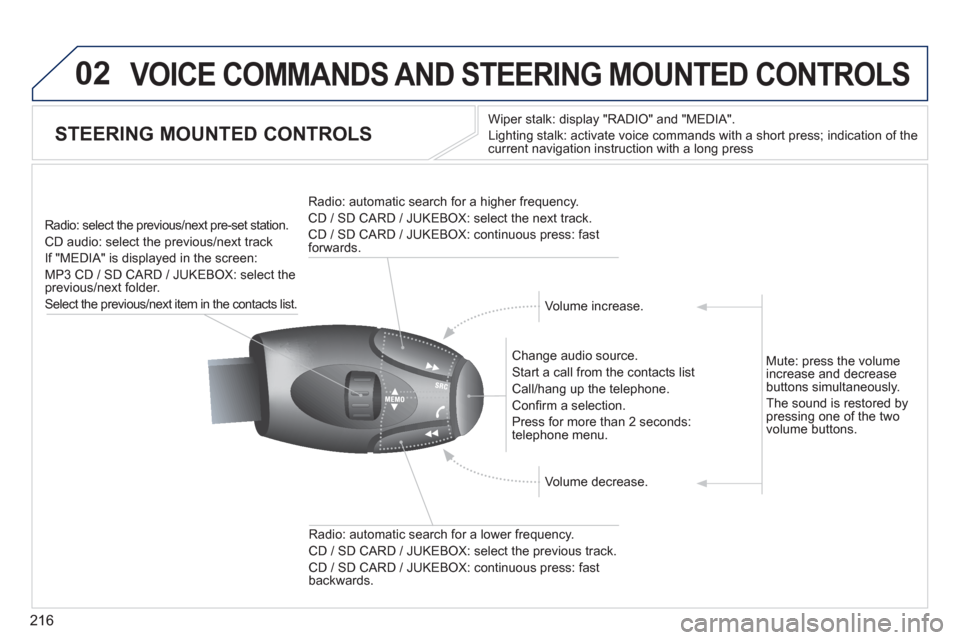
STEERING MOUNTED CONTROLS
Wiper stalk: display "RADIO" and "MEDIA".
Li
ghting stalk: activate voice commands with a short press; indication of the current navigation instruction with a long press
Change audio source.
Start a call from the contacts list
Call/han
g up the telephone.
Confi rm a selection.
Pr
ess for more than 2 seconds:
telephone menu.
Radio: automatic search for a lower frequenc
y.
CD / SD CARD / JUKEBOX: select the previous track.
CD / SD CARD / JUKEBOX: continuous press: fast backwards. Radio: select the previous
/next pre-set station.
CD audio: select the
previous/next track
If "MEDIA" is displa
yed in the screen:
MP
3 CD / SD CARD / JUKEBOX: select the
previous/next folder.
Select the previous/next item in the contacts list.
Radio: automatic search
for a higher frequency.
CD / SD CARD / JUKEBOX: select the next track.
CD / SD CARD / JUKEBOX: continuous press: fast
forwards.
Volume increase.
Volume decrease. Mute: press the volume
increase and decreasebuttons simultaneously.
The sound is restored b
y pressing one of the two
volume buttons.
Page 219 of 340
217
03
SETUP
TRAFFIC
MEDIA
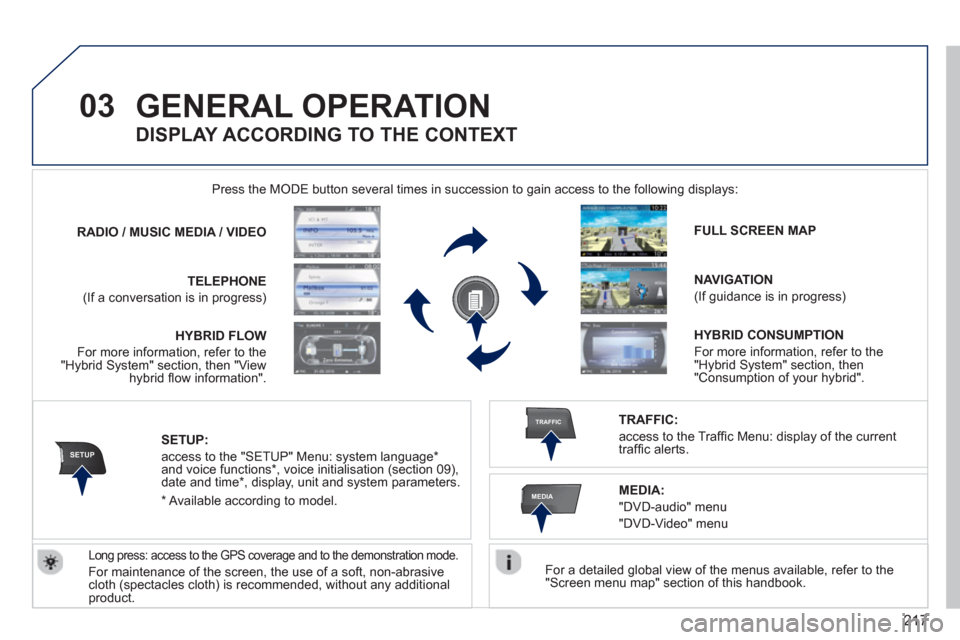
GENERAL OPERATION
For a detailed global view of the menus available, refer to the "Screen menu map" section of this handbook.
Press the M
ODE button several times in succession to gain access to the following displays:
Long press: access to the GPS coverage and to the demonstration mode.
For maintenance of the screen, the use of a soft, non-abrasivecloth (spectacles cloth) is recommended, without any additional
product. RADIO
/ /MUSICMEDIA / VIDEO
TELEPHONE
(If a conversation is in progress)
FULL SCREEN MAP
NAVIGATION
(If guidance is in progress)
SETUP:
access to the "SETUP" Menu: system language *
and voice functions * , voice initialisation (section 09),
date and time * , display, unit and system parameters.
TRAFFIC:
access to the Traffi c Menu: display of the current
traffi c alerts.
DISPLAY ACCORDING TO THE CONTEXT
MEDIA:
"DVD-audio" menu
"DVD-Video" menu
*
Available accordin
g to model. HYBRID FLO
W
For more information, refer to the"Hybrid System" section, then "Viewhybrid fl ow information".HYBRID CONSUMPTIO
N
For more information, refer to the"Hybrid System" section, then "Consumption of your hybrid".
Page 220 of 340
218
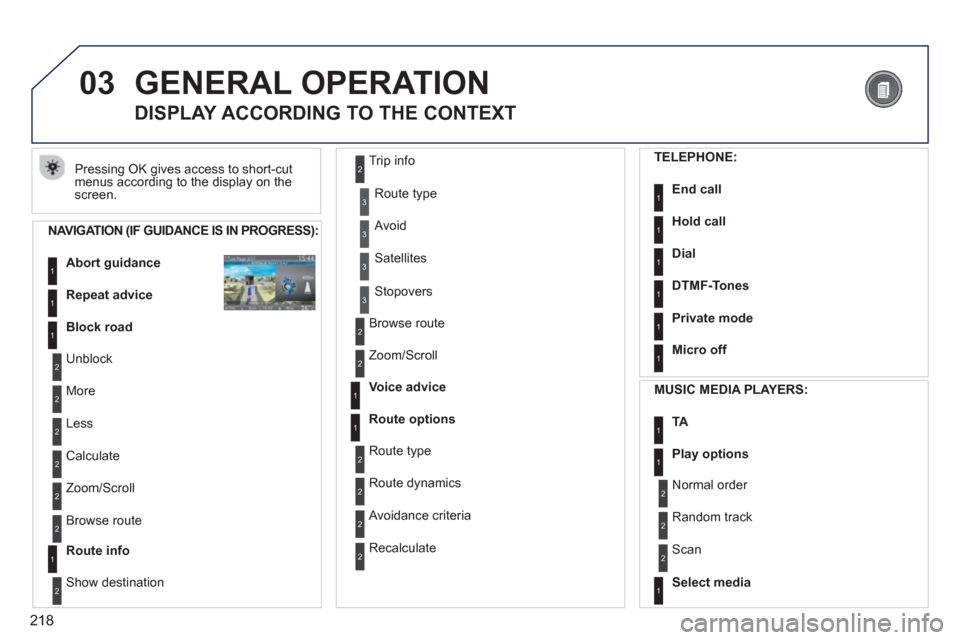
03 GENERAL OPERATION
Pressing OK gives access to short-cut
menus according to the display on the screen.
DISPLAY ACCORDING TO THE CONTEXT
NAVIGATION (IF GUIDANCE IS IN PROGRESS):
Abort guidanc
e1
1
1
Repeat advice
Block road
2
2
Unblock
M
ore
2
Less
3
3
Route type
Avoid
3 Satellites
2
2
Calculate
Z
oom/Scroll
2
Browse route
1Route info
2
2
Show destination Trip in
fo
3
Stopovers
2
2
Browse route
Zoom/Scroll
1
1
Voice advice
Route options
2
2
Route type
Route dynamics
2 Avoidance criteria
2
Recalculate
TELEPHONE:
End call1
1
1
1
Hold call
Dial
DTMF-Tones
1Private mode
1Micro off
MU
SIC MEDIA PLAYERS:
TA1
1Play options
1Select media
2
2
Normal order
R
andom track
2 Scan
Page 224 of 340
222
04
NAV2ABC3DEF5JKL4GHI6MNO8TUV7PQRS9WXYZ0*#
1RADIO MEDIANAV TRAFFIC
SETUPADDR
BOOK
2ABC3DEF5JKL4GHI6MNO8TUV7PQRS9WXYZ0*#
1RADIO MEDIANAV TRAFFIC
SETUPADDR
BOOK
2ABC3DEF5JKL4GHI6MNO8TUV7PQRS9WXYZ0*#
1RADIO MEDIANAV TRAFFIC
SETUPADDR
BOOK
2ABC3DEF5JKL4GHI6MNO8TUV7PQRS9WXYZ0*#
1RADIO MEDIANAV TRAFFIC
SETUPADDR
BOOK
2ABC3DEF5JKL4GHI6MNO8TUV7PQRS9WXYZ0*#
1RADIO MEDIANAV TRAFFIC
SETUPADDR
BOOK
2ABC3DEF5JKL4GHI6MNO8TUV7PQRS9WXYZ0*#
1RADIO MEDIANAV TRAFFIC
SETUPADDR
BOOK
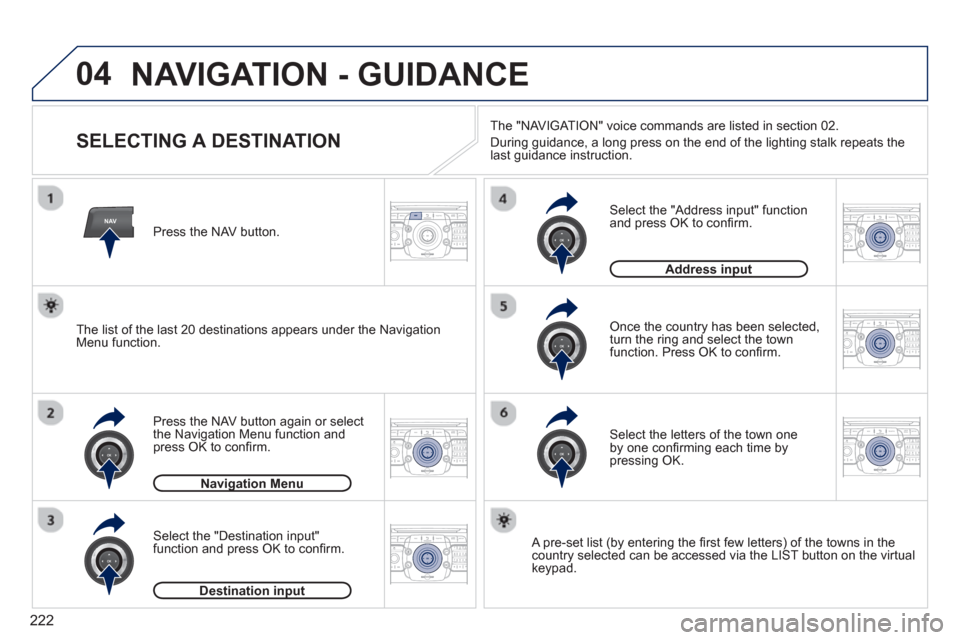
NAVIGATION - GUIDANCE
SELECTING A DESTINATION
Press the NAV button again or select
the Navigation Menu function and
press OK to confi rm.
Select the "Destination input" function and press OK to confi rm. Pr
ess the NAV button.
Select the letters of the town oneby one confi rming each time by pressing OK.
Once the country has been selected,
turn the ring and select the town
function. Press OK to confi rm.
Navigation Menug
Destination inputp
A pre-set list (by entering the fi rst few letters) of the towns in thecountry selected can be accessed via the LIST button on the virtual
keypad.
Select the "Address input" function
and press OK to confi rm.
Address inputp
The list of the last 20 destinations appears under the NavigationMenu function.The "NAVI
GAT ION" voice commands are listed in section 02.
Durin
g guidance, a long press on the end of the lighting stalk repeats the last guidance instruction.
Page 225 of 340
223
04
2ABC3DEF5JKL4GHI6MNO8TUV7PQRS9WXYZ0*#
1RADIO MEDIANAV TRAFFIC
SETUPADDR
BOOK
2ABC3DEF5JKL4GHI6MNO8TUV7PQRS9WXYZ0*#
1RADIO MEDIANAV TRAFFIC
SETUPADDR
BOOK
2ABC3DEF5JKL4GHI6MNO8TUV7PQRS9WXYZ0*#
1RADIO MEDIANAV TRAFFIC
SETUPADDR
BOOK
2ABC3DEF5JKL4GHI6MNO8TUV7PQRS9WXYZ0*#
1RADIO MEDIANAV TRAFFIC
SETUPADDR
BOOK
2ABC3DEF5JKL4GHI6MNO8TUV7PQRS9WXYZ0*#
1RADIO MEDIANAV TRAFFIC
SETUPADDR
BOOK
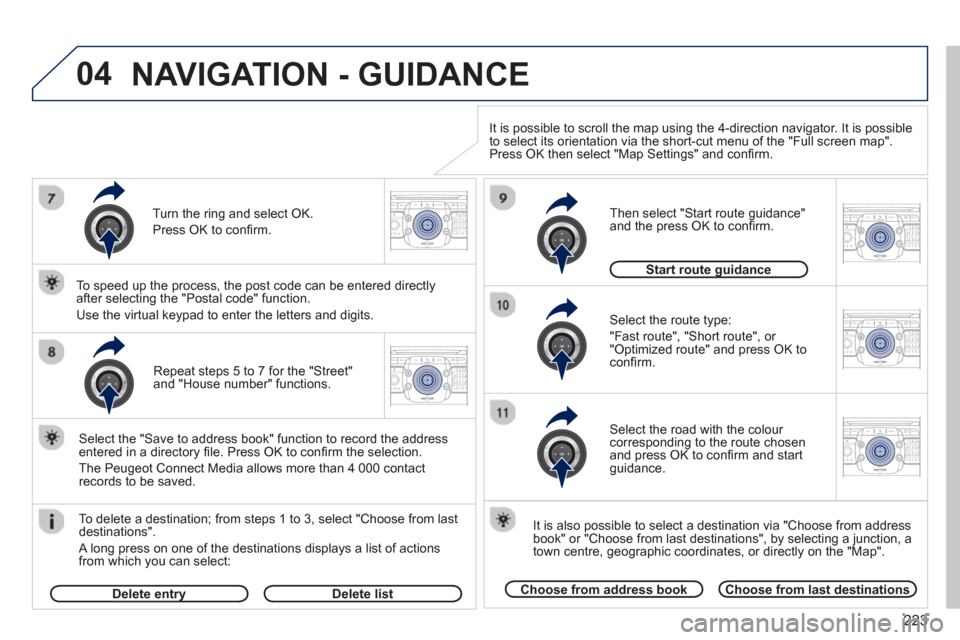
Repeat steps 5 to 7 for the "Street" and "House number" functions.
To delete a destination; from ste
ps 1 to 3, select "Choose from last destinations".
A long press on one of the destinations displays a list of actions
from which you can select:
Select the "Save to address book" function to record the address
entered in a directory fi le. Press OK to confi rm the selection.
The Peu
geot Connect Media allows more than 4 000 contact
records to be saved.
To speed up the process, the post code can be entered directl
y
after selecting the "Postal code" function.
Use the virtual keypad to enter the letters and digits.
Select the route type:
"Fast route"
, "Short route", or "Optimized route" and press OK to confi rm.
Then select "Start route
guidance"
and the press OK to confi rm.
It is also
possible to select a destination via "Choose from address
book" or "Choose from last destinations", by selecting a junction, a
town centre, geographic coordinates, or directly on the "Map".
Choose from address bookChoose from last destinations
Start route guidanceg
It is possible to scroll the map using the 4-direction navigator. It is possible
to select its orientation via the short-cut menu of the "Full screen map".
Press OK then select "Map Settings" and confi rm.
Select the road with the colour corresponding to the route chosen
and press OK to confi rm and start guidance.
Turn the rin
g and select OK.
Press
OK to confi rm.
Delete entryyDelete list
NAVIGATION - GUIDANCE
Page 226 of 340
224
04
NAV2ABC3DEF5JKL4GHI6MNO8TUV7PQRS9WXYZ0*#
1RADIO MEDIANAV TRAFFIC
SETUPADDR
BOOK
2ABC3DEF5JKL4GHI6MNO8TUV7PQRS9WXYZ0*#
1RADIO MEDIANAV TRAFFIC
SETUPADDR
BOOK
2ABC3DEF5JKL4GHI6MNO8TUV7PQRS9WXYZ0*#
1RADIO MEDIANAV TRAFFIC
SETUPADDR
BOOK
2ABC3DEF5JKL4GHI6MNO8TUV7PQRS9WXYZ0*#
1RADIO MEDIANAV TRAFFIC
SETUPADDR
BOOK
NAVIGATION - GUIDANCE
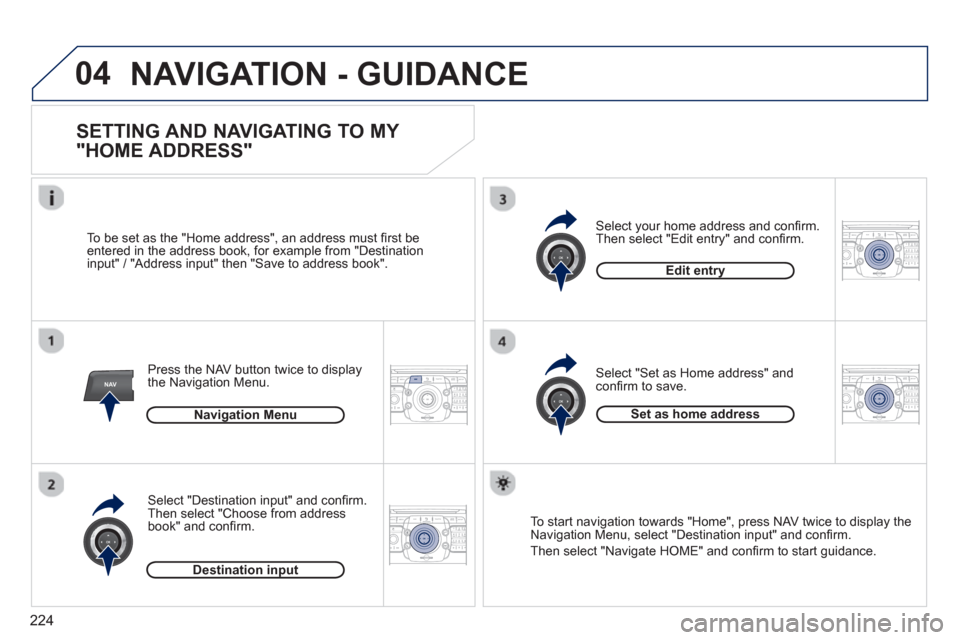
SETTING AND NAVIGATING TO MY
"HOME ADDRESS"
Press the NAV button twice to display
the Navigation Menu.
To be set as the "Home address", an address must
fi rst be entered in the address book, for example from "Destination
input" / "Address input" then "Save to address book".
Select "Destination input" and confi rm.
Then select "
Choose from address book" and confi rm.
Select "Set as Home address" and confi rm to save. Select
your home address and confi rm.
Then select "Edit entry" and confi rm.
To start navi
gation towards "Home", press NAV twice to display the
Navigation Menu, select "Destination input" and confi rm.
Then select "Navi
gate HOME" and confi rm to start guidance. Navi
gation Menu
Destination input
Edit entry
Set as home address