phone Peugeot 301 2017 Owner's Guide
[x] Cancel search | Manufacturer: PEUGEOT, Model Year: 2017, Model line: 301, Model: Peugeot 301 2017Pages: 306, PDF Size: 9.87 MB
Page 237 of 306
5
12:13
18,5 21,5
23 °C
12:13
18,5 21,5
23 °C
12:13
18,5 21,5
23 °C
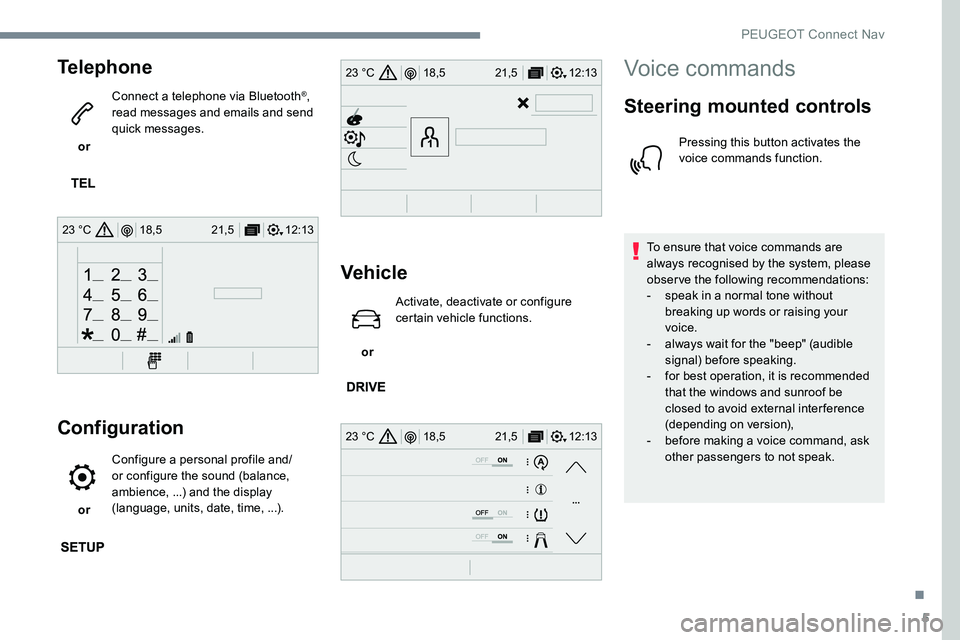
Telephone
or Connect a telephone via Bluetooth
®,
read messages and emails and send
quick messages.
Configuration
or Configure a personal profile and/
or configure the sound (balance,
ambience, ...) and the display
(language, units, date, time, ...).
Vehicle
or Activate, deactivate or configure
certain vehicle functions.
Voice commands
Steering mounted controls
Pressing this button activates the
voice commands function.
To ensure that voice commands are
always recognised by the system, please
observe the following recommendations:
-
s
peak in a normal tone without
breaking up words or raising your
voice.
-
a
lways wait for the "beep" (audible
signal) before speaking.
-
f
or best operation, it is recommended
that the windows and sunroof be
closed to avoid external inter ference
(depending on version),
-
b
efore making a voice command, ask
other passengers to not speak.
.
PEUGEOT Connect Nav
Page 238 of 306
6
First steps
Example of a "voice command" for
navigation:
"Navigate to address" "11 Regent
Street, London".
Example of a "voice command" for
the radio and media:
"Play ar tist" "Madonna" .
Example of a "voice command" for
the telephone:
"Call David Miller" .
The voice commands, with a choice of
12 languages (English, French, Italian,
Spanish, German, Dutch, Portuguese,
Polish, Turkish, Russian, Arabic,
Brazilian), are made using the language
previously chosen and set in the system.
For some voice commands, there are
alternative synonyms.
Example: Guide to / Navigate to /
Go to / ...
The voice commands in Arabic for:
"Navigate to address" and "Display POI in
the city", are not available.
Information - Using the
system
Press the voice commands
button and say your
command after the audible
signal. Don’t forget that you
can interrupt me at any time
by pressing this button.
You can press this button
again while I listen to you
if you would like to end the
conversation. If you are lost
and would like to start again,
say "cancel". If you would like
to go back, say "back". To
get some help or advice, say
"help". If you say a command
and I need more information,
I will give you examples in
order to help you provide
me with the information I
need or I will guide you. You
will find more information in
"beginner" mode. If you feel
more comfortable, you can
set the voice interaction to
"expert" mode.
Global voice commands
These commands can be made from any
screen page after pressing the " Voice
command" or "Telephone" button located
on the steering wheel, as long as there is
no telephone call in progress.
PEUGEOT Connect Nav
Page 239 of 306
7
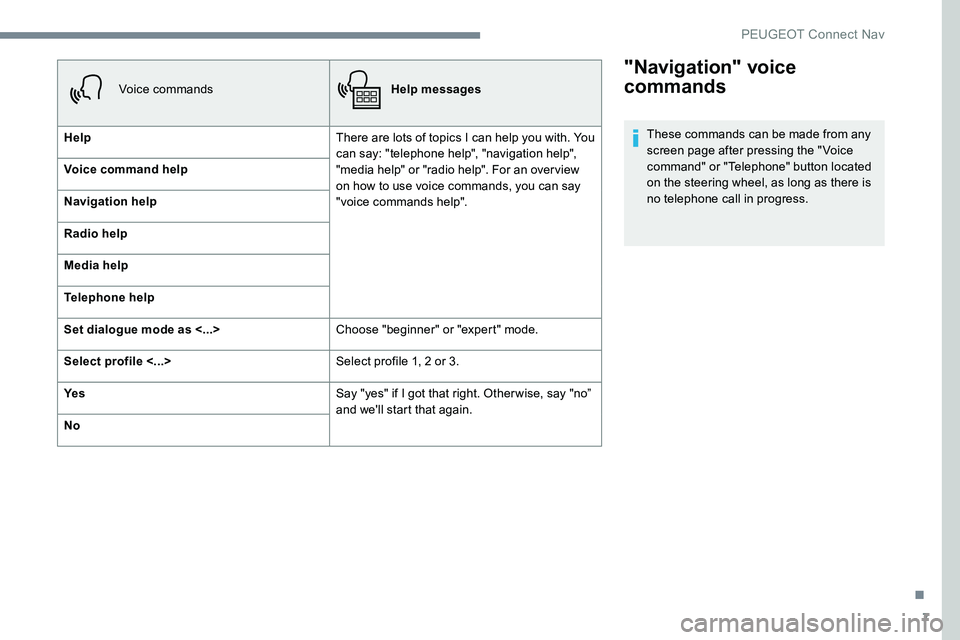
"Navigation" voice
commands
These commands can be made from any
screen page after pressing the " Voice
command" or "Telephone" button located
on the steering wheel, as long as there is
no telephone call in progress.
Voice commands
Help messages
Help There are lots of topics I can help you with. You
can say: "telephone help", "navigation help",
"media help" or "radio help". For an overview
on how to use voice commands, you can say
"voice commands help".
Voice command help
Navigation help
Radio help
Media help
Telephone help
Set dialogue mode as <...>
Choose "beginner" or "expert" mode.
Select profile <...> Select profile 1, 2 or 3.
Ye s Say "yes" if I got that right. Other wise, say "no”
and we'll start that again.
No
.
PEUGEOT Connect Nav
Page 240 of 306
8
Voice commandsHelp messages
Navigate home To start guidance or add a stopover, say
"navigate to" and then the address or contact
name. For example, "navigate to address
11 Regent Street, London" or "navigate to
contact, John Miller". You can also specify if it's
a preferred or recent destination. For example,
say "navigate to recent destination, 11 Regent
Street, London", or "navigate to preferred
destination, tennis club", or even "navigate
home". To display the points of interest on a
map, you can say "show hotels in Banbury"
or "show nearby petrol stations". For more
information, say "help with route guidance"
Navigate to work
Navigate to preferred address <...>
Navigate to contact <...>
Navigate to address <...>
Show nearby POI <...>
Remaining distance
To get information about your current route,
say "remaining time", "remaining distance" or
"arrival time". To know the other commands
that can be used, say "help with navigation".
Remaining time
Arrival time
Stop route guidance
Depending on the country, give the
destination instructions (address) in the
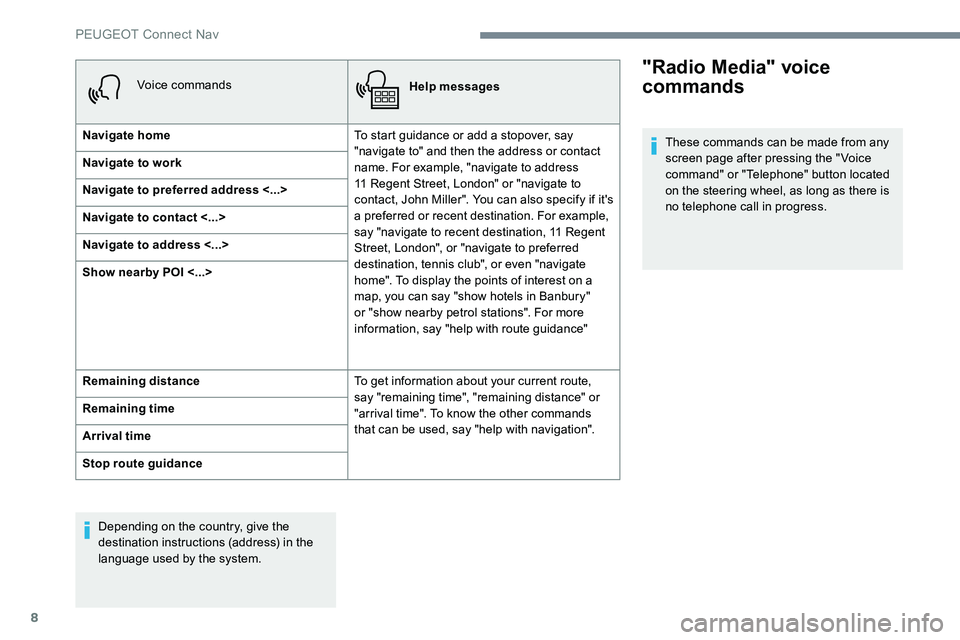
language used by the system."Radio Media" voice
commands
These commands can be made from any
screen page after pressing the " Voice
command" or "Telephone" button located
on the steering wheel, as long as there is
no telephone call in progress.
PEUGEOT Connect Nav
Page 241 of 306
9
Voice commandsHelp messages
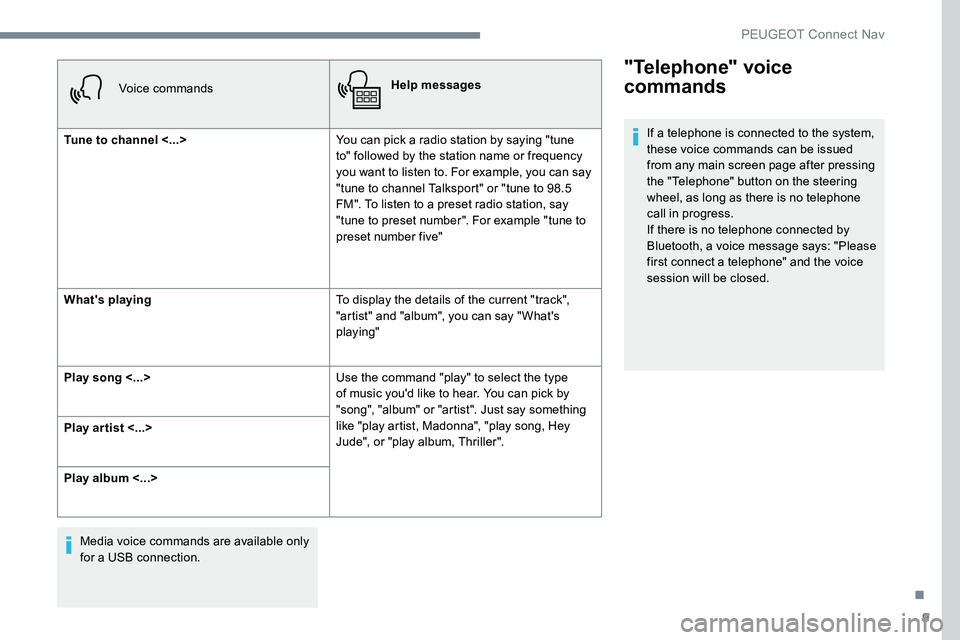
Tune to channel <...> You can pick a radio station by saying "tune
to" followed by the station name or frequency
you want to listen to. For example, you can say
"tune to channel Talksport" or "tune to 98.5
FM". To listen to a preset radio station, say
"tune to preset number". For example "tune to
preset number five"
What's playing To display the details of the current "track",
"artist" and "album", you can say " What's
playing"
Play song <...> Use the command "play" to select the type
of music you'd like to hear. You can pick by
"song", "album" or "artist". Just say something
like "play artist, Madonna", "play song, Hey
Jude", or "play album, Thriller".
Play ar tist <...>
Play album <...>
Media voice commands are available only
for a USB connection.
"Telephone" voice
commands
If a telephone is connected to the system,
these voice commands can be issued
from any main screen page after pressing
the "Telephone" button on the steering
wheel, as long as there is no telephone
call in progress.
If there is no telephone connected by
Bluetooth, a voice message says: "Please
first connect a telephone" and the voice
session will be closed.
.
PEUGEOT Connect Nav
Page 242 of 306
10
Voice commandsHelp messages
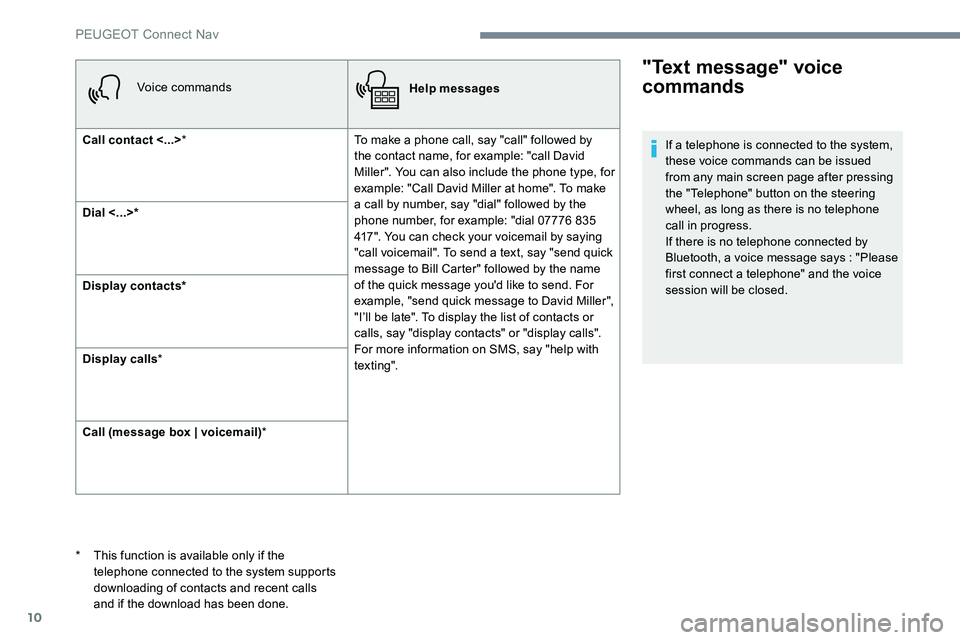
Call contact <...> * To make a phone call, say "call" followed by
the contact name, for example: "call David
Miller". You can also include the phone type, for
example: "Call David Miller at home". To make
a call by number, say "dial" followed by the
phone number, for example: "dial 07776 835
417". You can check your voicemail by saying
"call voicemail". To send a text, say "send quick
message to Bill Carter" followed by the name
of the quick message you'd like to send. For
example, "send quick message to David Miller",
"I’ll be late". To display the list of contacts or
calls, say "display contacts" or "display calls".
For more information on SMS, say "help with
tex t ing".
Dial <...>*
Display contacts*
Display calls
*
Call (message box | voicemail) *
"Text message" voice
commands
* This function is available only if the
telephone connected to the system supports
downloading of contacts and recent calls
and if the download has been done. If a telephone is connected to the system,
these voice commands can be issued
from any main screen page after pressing
the "Telephone" button on the steering
wheel, as long as there is no telephone
call in progress.
If there is no telephone connected by
Bluetooth, a voice message says : "Please
first connect a telephone" and the voice
session will be closed.
PEUGEOT Connect Nav
Page 243 of 306
11
Voice commandsHelp messages
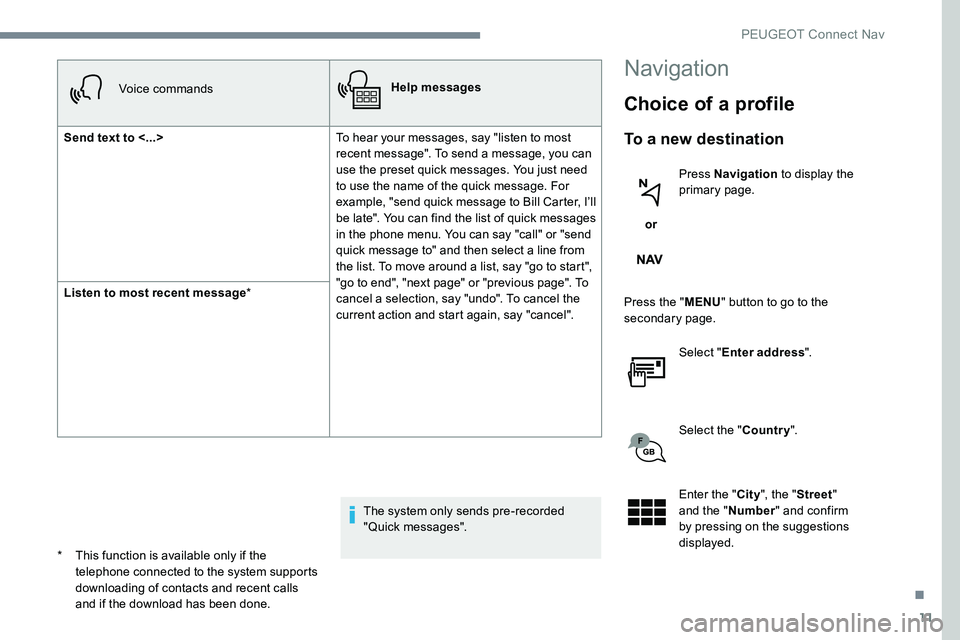
Send text to <...> To hear your messages, say "listen to most
recent message". To send a message, you can
use the preset quick messages. You just need
to use the name of the quick message. For
example, "send quick message to Bill Carter, I’ll
be late". You can find the list of quick messages
in the phone menu. You can say "call" or "send
quick message to" and then select a line from
the list. To move around a list, say "go to start",
"go to end", "next page" or "previous page". To
cancel a selection, say "undo". To cancel the
current action and start again, say "cancel".
Listen to most recent message
*
The system only sends pre-recorded
"Quick messages".
Navigation
Choice of a profile
To a new destination
or Press Navigation
to display the
primary page.
Press the " MENU" button to go to the
secondary page.
Select "Enter address ".
Select the " Country".
Enter the " City", the " Street "
and the " Number" and confirm
by pressing on the suggestions
displayed.
*
T
his function is available only if the
telephone connected to the system supports
downloading of contacts and recent calls
and if the download has been done.
.
PEUGEOT Connect Nav
Page 247 of 306
15
Connected navigation
Depending on version
Depending on the equipment level of the
vehicle
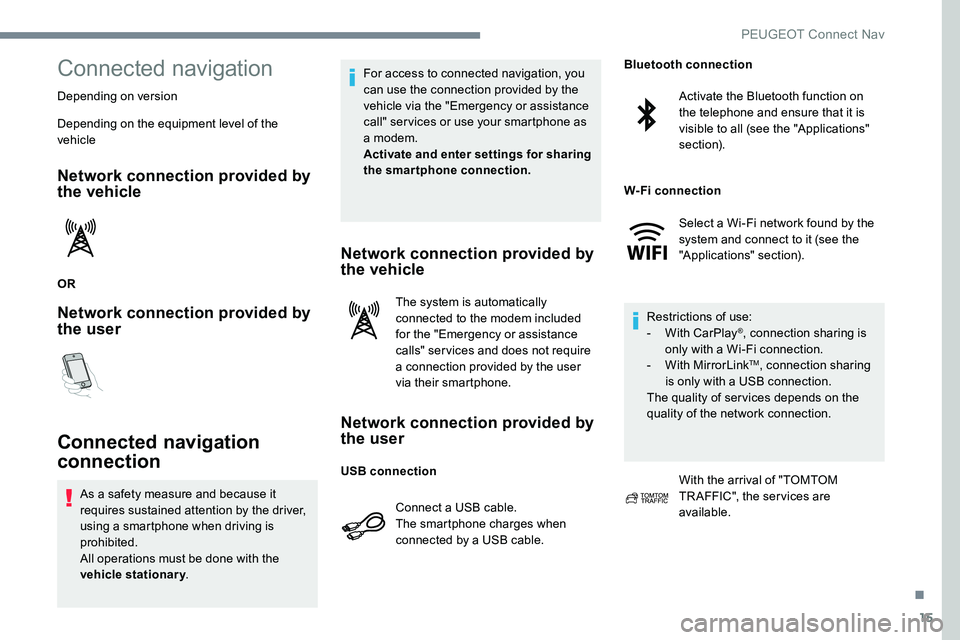
Network connection provided by
the vehicle
OR
Network connection provided by
the user
Connected navigation
connection
As a safety measure and because it
requires sustained attention by the driver,
using a smartphone when driving is
prohibited.
All operations must be done with the
vehicle stationary. For access to connected navigation, you
can use the connection provided by the
vehicle via the "Emergency or assistance
call" services or use your smartphone as
a modem.
Activate and enter settings for sharing
the smartphone connection.
Network connection provided by
the vehicle
The system is automatically
connected to the modem included
for the "Emergency or assistance
calls" services and does not require
a connection provided by the user
via their smartphone.
Network connection provided by
the user
Connect a USB cable.
The smartphone charges when
connected by a USB cable.
Activate the Bluetooth function on
the telephone and ensure that it is
visible to all (see the "Applications"
section).
Select a Wi-Fi network found by the
system and connect to it (see the
"Applications" section).
Restrictions of use:
-
W
ith CarPlay
®, connection sharing is
only with a Wi-Fi connection.
-
W
ith MirrorLink
TM, connection sharing
is only with a USB connection.
The quality of services depends on the
quality of the network connection.
With the arrival of "TOMTOM
TR AFFIC", the services are
available.
USB connection Bluetooth connection
W-Fi connection
.
PEUGEOT Connect Nav
Page 248 of 306
16
The services offered with connected
navigation are as follows.
A Connected Services pack:
-
Weather,
-
F
illing stations,
-
C
ar parks,
-
Tr a f f i c ,
-
P
OI local search.
A Danger zones pack (option).
The principles and standards
are constantly changing; for the
communication process between the
smartphone and the system to work
correctly, we recommend that you
update the operating system of the
smar tphone as well as the date and
time of the smar tphone and the
system.Settings specific to
connected navigation
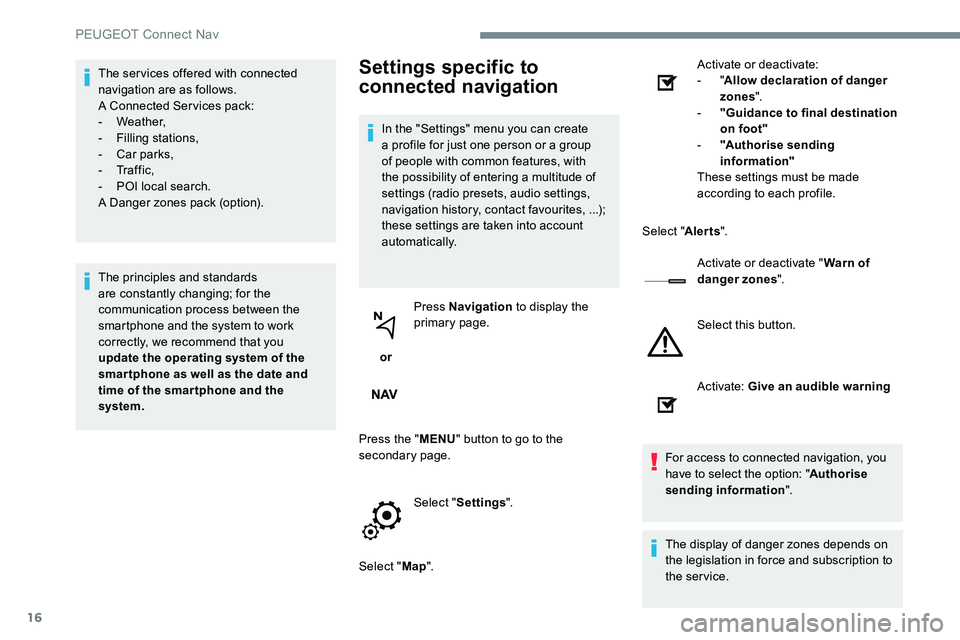
In the "Settings" menu you can create
a profile for just one person or a group
of people with common features, with
the possibility of entering a multitude of
settings (radio presets, audio settings,
navigation history, contact favourites, ...);
these settings are taken into account
automatically.
or Press Navigation
to display the
primary page.
Press the " MENU" button to go to the
secondary page.
Select "Settings ".
Select " Map". Activate or deactivate:
-
"
Allow declaration of danger
zones ".
- " Guidance to final destination
on foot"
- " Authorise sending
information"
These settings must be made
according to each profile.
Select " Alerts".
Activate or deactivate " Warn of
danger zones ".
Select this button.
Activate: Give an audible warning
For access to connected navigation, you
have to select the option: " Authorise
sending information ".
The display of danger zones depends on
the legislation in force and subscription to
the service.
PEUGEOT Connect Nav
Page 250 of 306
18
Applications
Internet Browser
or Press Applications
to display the
primary page.
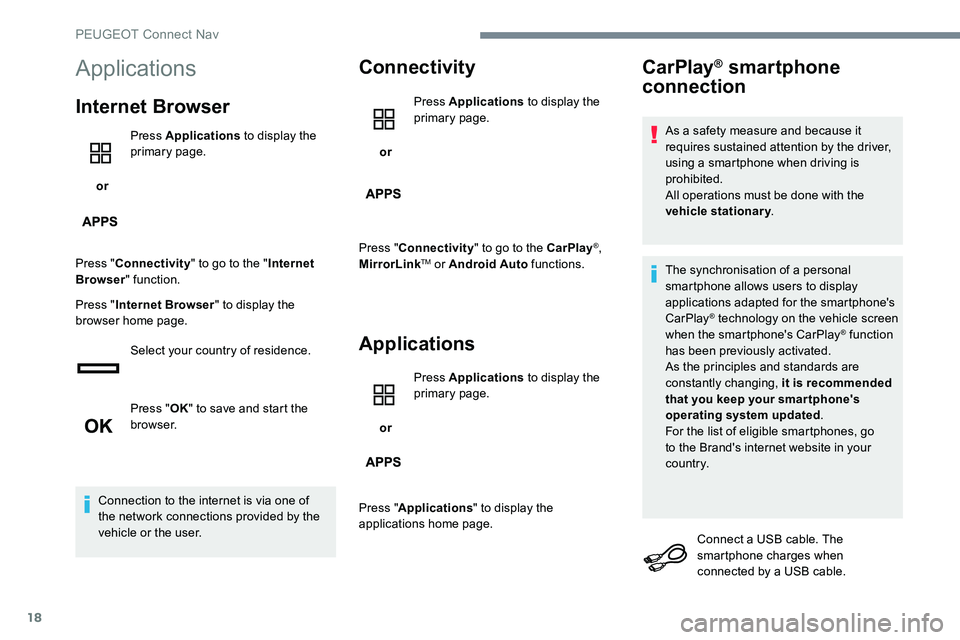
Press " Connectivity " to go to the " Internet
Browser " function.
Press " Internet Browser " to display the
browser home page.
Select your country of residence.
Press "OK" to save and start the
browser.
Connection to the internet is via one of
the network connections provided by the
vehicle or the user.
Connectivity
or Press Applications
to display the
primary page.
Press " Connectivity " to go to the CarPlay
®,
MirrorLinkTM or Android Auto functions.
Applications
or Press Applications
to display the
primary page.
Press " Applications " to display the
applications home page.
CarPlay® smartphone
connection
As a safety measure and because it
requires sustained attention by the driver,
using a smartphone when driving is
prohibited.
All operations must be done with the
vehicle stationary .
The synchronisation of a personal
smartphone allows users to display
applications adapted for the smartphone's
CarPlay
® technology on the vehicle screen
when the smartphone's CarPlay® function
has been previously activated.
As the principles and standards are
constantly changing, it is recommended
that you keep your smar tphone's
operating system updated .
For the list of eligible smartphones, go
to the Brand's internet website in your
c o unt r y.
Connect a USB cable. The
smartphone charges when
connected by a USB cable.
PEUGEOT Connect Nav