display PEUGEOT 308 2012 Owners Manual
[x] Cancel search | Manufacturer: PEUGEOT, Model Year: 2012, Model line: 308, Model: PEUGEOT 308 2012Pages: 328, PDF Size: 62.62 MB
Page 285 of 328
283
08
1
3 2
2 1
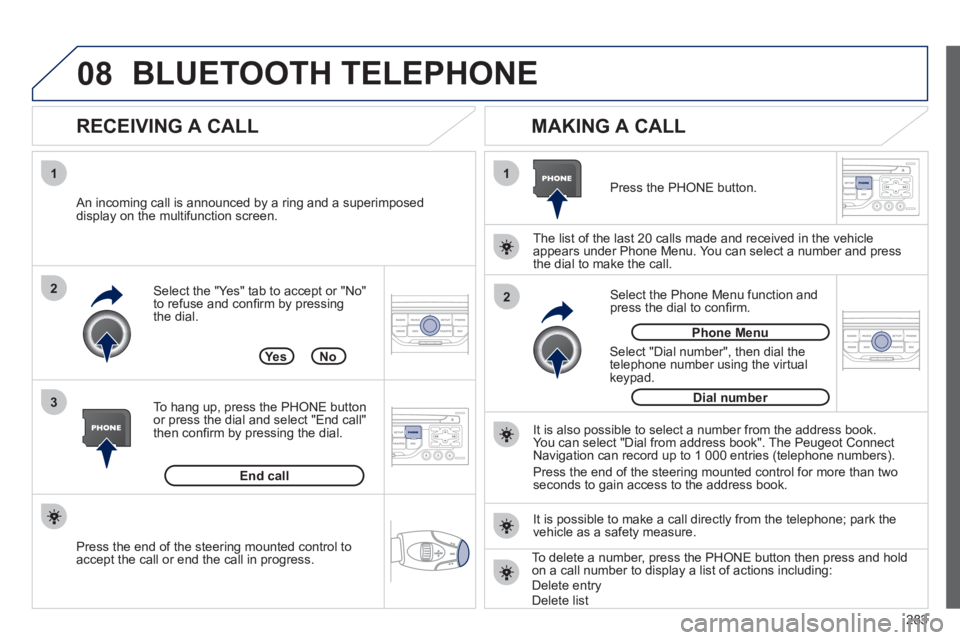
Select the "Yes" tab to accept or "No"
to refuse and confi rm by pressing
the dial.
RECEIVING A CALL
MAKING A CALL
An incoming call is announced by a ring and a superimposed
display on the multifunction screen.
Ye s
To hang up, press the PHONE button
or press the dial and select "End call"
then confi rm by pressing the dial.
End call
Press the PHONE button.
Select "Dial number", then dial the
telephone number using the virtual
keypad.
Select the Phone Menu function and
press the dial to confi rm.
The list of the last 20 calls made and received in the vehicle
appears under Phone Menu. You can select a number and press
the dial to make the call.
No
It is also possible to select a number from the address book.
You can select "Dial from address book". The Peugeot Connect
Navigation can record up to 1 000 entries (telephone numbers).
Press the end of the steering mounted control for more than two
seconds to gain access to the address book.
Phone Menu
Dial number
It is possible to make a call directly from the telephone; park the
vehicle as a safety measure.
BLUETOOTH TELEPHONE
Press the end of the steering mounted control to
accept the call or end the call in progress.
To delete a number, press the PHONE button then press and hold
on a call number to display a list of actions including:
Delete entry
Delete list
Page 286 of 328
284
09
4 3 2 1
65
CONFIGURATION
SETTING THE DATE AND TIME
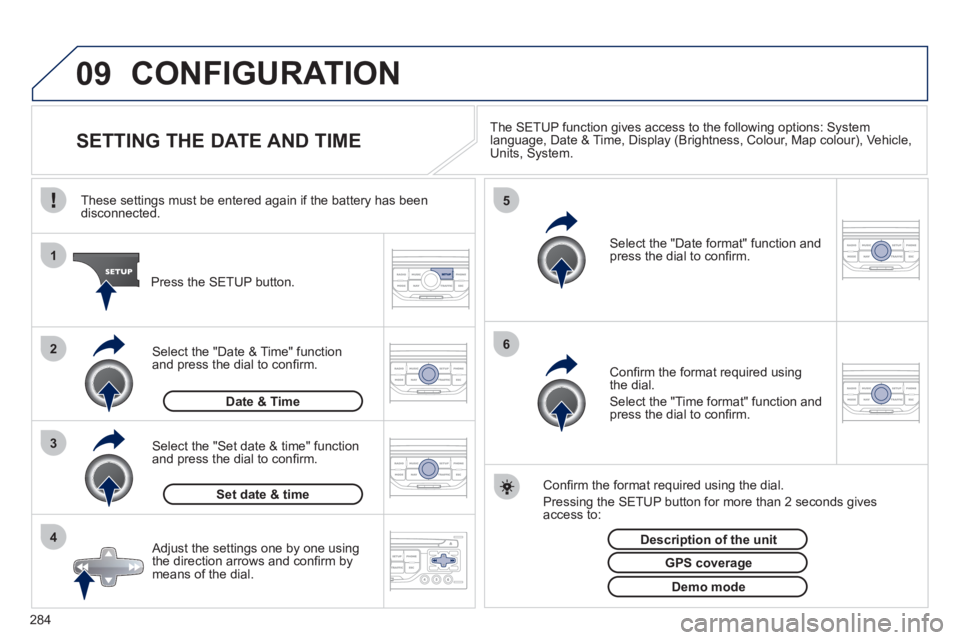
The SETUP function gives access to the following options: System
language, Date & Time, Display (Brightness, Colour, Map colour), Vehicle,
Units, System.
Adjust the settings one by one using
the direction arrows and confi rm by
means of the dial.
Select the "Date format" function and
press the dial to confi rm.
Select the "Set date & time" function
and press the dial to confi rm.
Confi rm the format required using the dial.
Pressing the SETUP button for more than 2 seconds gives
access to:
These settings must be entered again if the battery has been
disconnected.
Press the SETUP button.
Confi rm the format required using
the dial.
Select the "Time format" function and
press the dial to confi rm.
Set date & time
Select the "Date & Time" function
and press the dial to confi rm.
Demo mode
GPS coverage
Description of the unit
Date & Time
Page 289 of 328
287
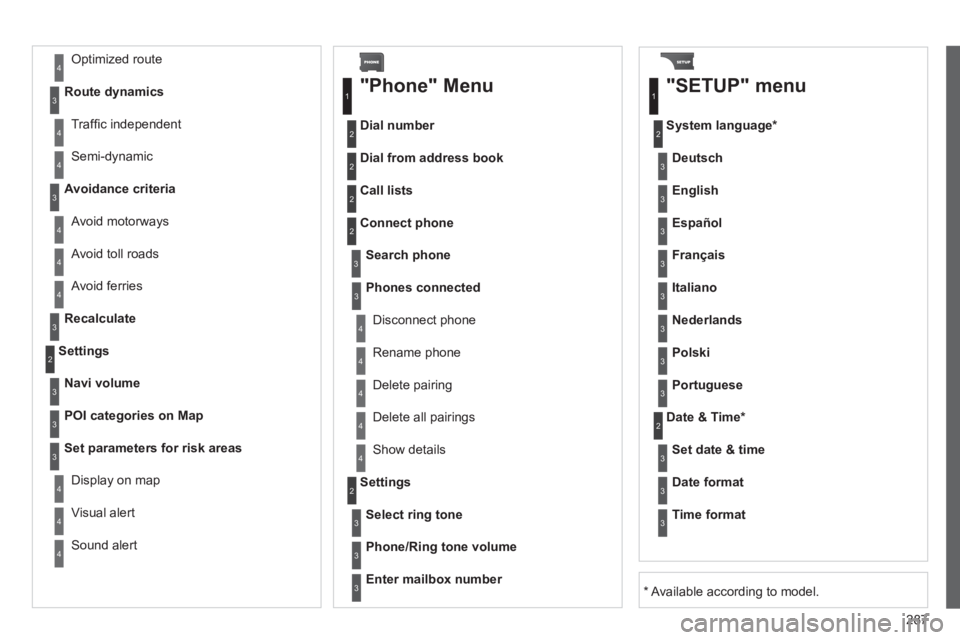
Avoid ferries
Recalculate
Settings
Navi volume
POI categories on Map
Set parameters for risk areas
Display on map
Visual alert
Sound alert
3
2
4
3
3
3
4
4
4
Dial number
Dial from address book
"Phone" Menu
Search phone
Call lists
Connect phone
Select ring tone
Phone/Ring tone volume
Phones connected
Enter mailbox number
Settings Disconnect phone
Rename phone
Delete pairing
Delete all pairings
Show details
"SETUP" menu
System language *
English
Español
Deutsch
Italiano
Français
Nederlands
Polski
Portuguese
Date & Time *
Set date & time
Date format
Time format
1
2
2
2
2
3
3
4
4
4
4
4
2
3
3
3
1
2
3
3
3
3
3
3
3
3
3
3
3
2
Avoid motorways
Route dynamics
Traffi c independent
Semi-dynamic
Avoidance criteria
Avoid toll roads Optimized route
3
3
4
4
4
4
4
*
Available according to model.
Page 290 of 328
288
**
The parameter settings vary according to vehicle.
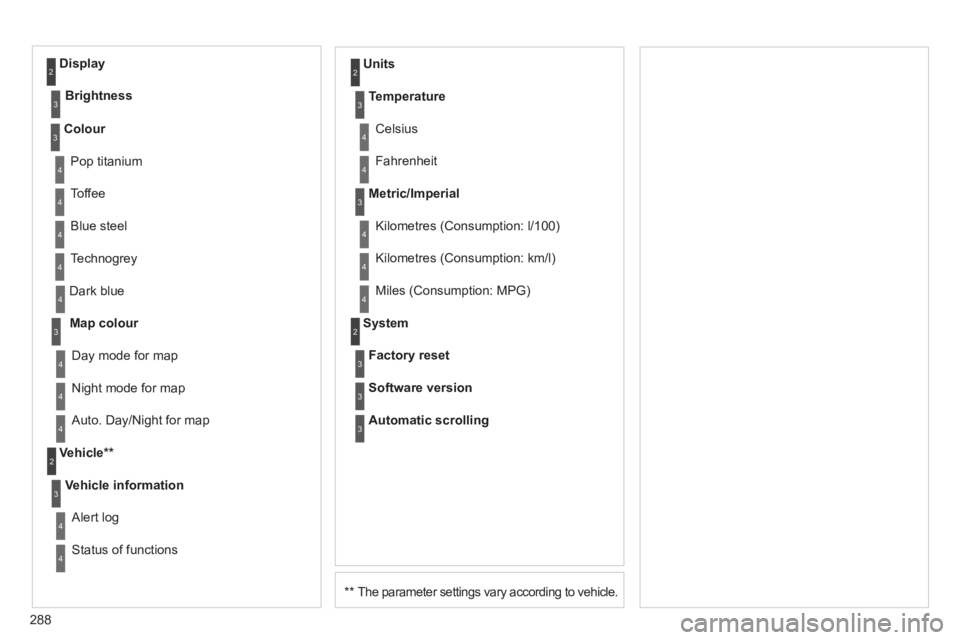
Dark blue
Map colour
Night mode for map
Units
Day mode for map
Vehicle **
Vehicle information
Alert log
Status of functions
Temperature
Celsius
Fahrenheit
Metric/Imperial
Kilometres (Consumption: l/100)
Kilometres (Consumption: km/l)
Miles (Consumption: MPG)
System
Auto. Day/Night for map
Factory reset
Software version
Automatic scrolling
3
4
4
2
4
3
4
4
2
3
4
4
3
4
4
4
2
4
3
3
3
Colour
Pop titanium
Toffee
Blue steel
Technogrey 3
4
4
4
4
Display
Brightness
2
3
Page 292 of 328
290
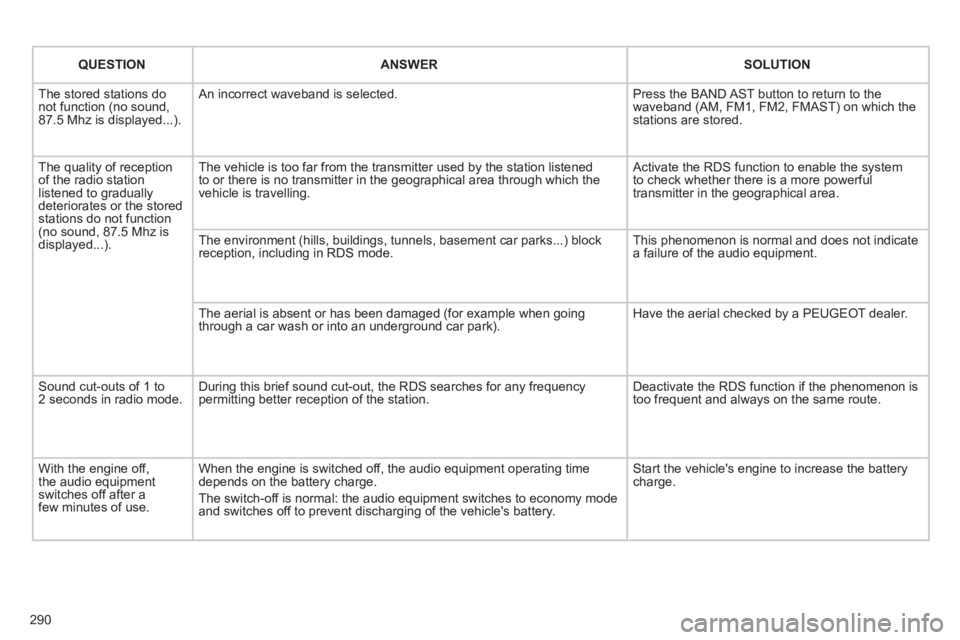
QUESTION
ANSWER
SOLUTION
The stored stations do
not function (no sound,
87.5 Mhz is displayed...). An incorrect waveband is selected. Press the BAND AST button to return to the
waveband (AM, FM1, FM2, FMAST) on which the
stations are stored.
The quality of reception
of the radio station
listened to gradually
deteriorates or the stored
stations do not function
(no sound, 87.5 Mhz is
displayed...). The vehicle is too far from the transmitter used by the station listened
to or there is no transmitter in the geographical area through which the
vehicle is travelling. Activate the RDS function to enable the system
to check whether there is a more powerful
transmitter in the geographical area.
The environment (hills, buildings, tunnels, basement car parks...) block
reception, including in RDS mode. This phenomenon is normal and does not indicate
a failure of the audio equipment.
The aerial is absent or has been damaged (for example when going
through a car wash or into an underground car park). Have the aerial checked by a PEUGEOT dealer.
Sound cut-outs of 1 to
2 seconds in radio mode. During this brief sound cut-out, the RDS searches for any frequency
permitting better reception of the station. Deactivate the RDS function if the phenomenon is
too frequent and always on the same route.
With the engine off,
the audio equipment
switches off after a
few minutes of use. When the engine is switched off, the audio equipment operating time
depends on the battery charge.
The switch-off is normal: the audio equipment switches to economy mode
and switches off to prevent discharging of the vehicle's battery. Start the vehicle's engine to increase the battery
charge.
Page 293 of 328
291
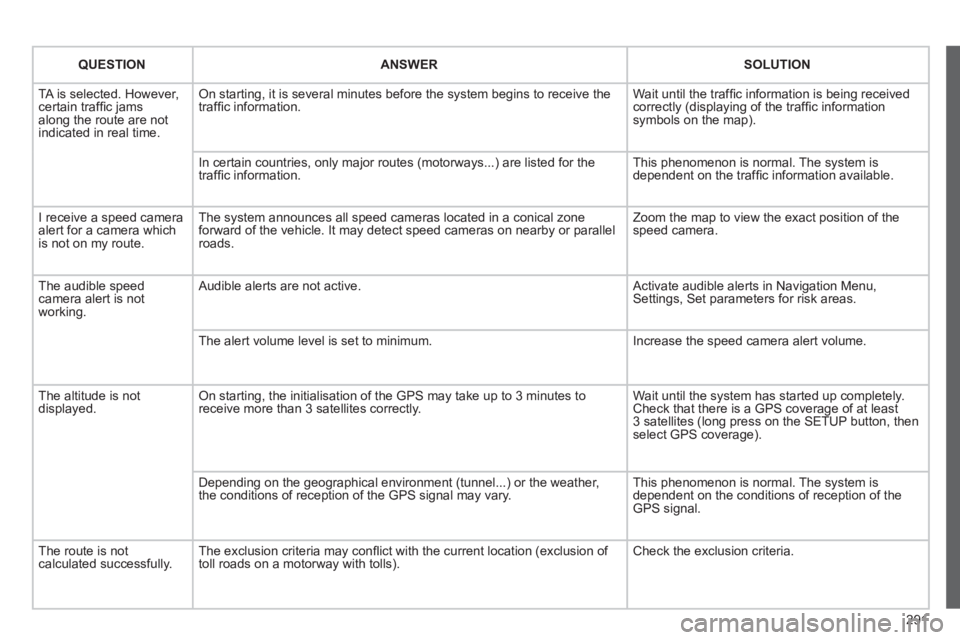
QUESTION
ANSWER
SOLUTION
TA is selected. However,
certain traffi c jams
along the route are not
indicated in real time. On starting, it is several minutes before the system begins to receive the
traffi c information. Wait until the traffi c information is being received
correctly (displaying of the traffi c information
symbols on the map).
In certain countries, only major routes (motorways...) are listed for the
traffi c information. This phenomenon is normal. The system is
dependent on the traffi c information available.
I receive a speed camera
alert for a camera which
is not on my route. The system announces all speed cameras located in a conical zone
forward of the vehicle. It may detect speed cameras on nearby or parallel
roads. Zoom the map to view the exact position of the
speed camera.
The audible speed
camera alert is not
working. Audible alerts are not active. Activate audible alerts in Navigation Menu,
Settings, Set parameters for risk areas.
The alert volume level is set to minimum. Increase the speed camera alert volume.
The altitude is not
displayed. On starting, the initialisation of the GPS may take up to 3 minutes to
receive more than 3 satellites correctly. Wait until the system has started up completely.
Check that there is a GPS coverage of at least
3 satellites (long press on the SETUP button, then
select GPS coverage).
Depending on the geographical environment (tunnel...) or the weather,
the conditions of reception of the GPS signal may vary. This phenomenon is normal. The system is
dependent on the conditions of reception of the
GPS signal.
The route is not
calculated successfully. The exclusion criteria may confl ict with the current location (exclusion of
toll roads on a motorway with tolls). Check the exclusion criteria.
Page 296 of 328
294
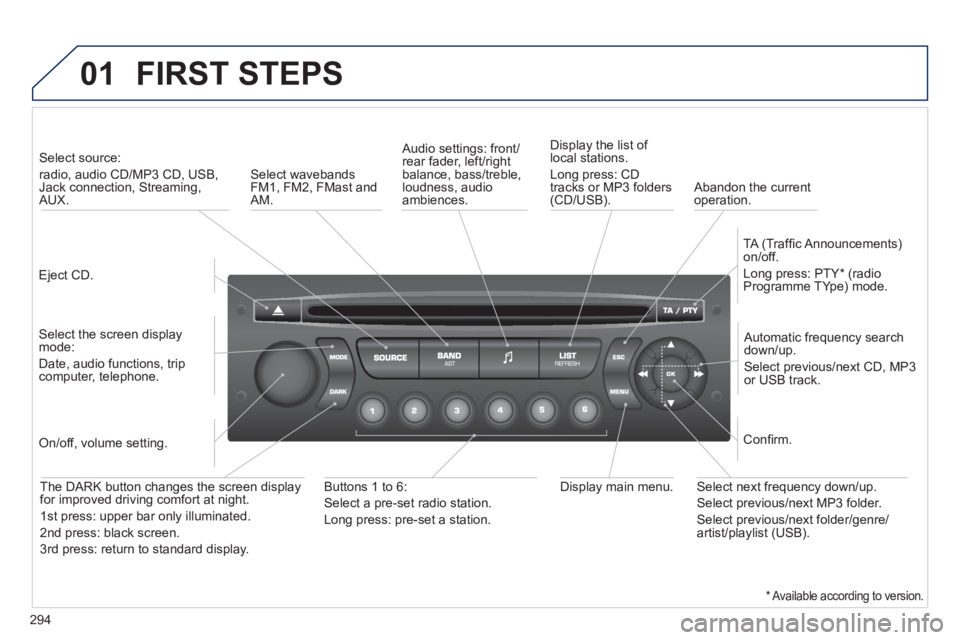
01 FIRST STEPS
Eject CD.
Select source:
radio, audio CD/MP3 CD, USB,
Jack connection, Streaming,
AUX.
Select the screen display
mode:
Date, audio functions, trip
computer, telephone.
Automatic frequency search
down/up.
Select previous/next CD, MP3
or USB track.
Audio settings: front/
rear fader, left/right
balance, bass/treble,
loudness, audio
ambiences.
Display the list of
local stations.
Long press: CD
tracks or MP3 folders
(CD/USB).
TA (Traffi c Announcements)
on/off.
Long press: PTY * (radio
Programme TYpe) mode.
Display main menu.
The DARK button changes the screen display
for improved driving comfort at night.
1 st press: upper bar only illuminated.
2 nd press: black screen.
3 rd press: return to standard display.
On/off, volume setting.
Buttons 1 to 6:
Select a pre-set radio station.
Long press: pre-set a station.
Select next frequency down/up.
Select previous/next MP3 folder.
Select previous/next folder/genre/
artist/playlist (USB).
Confi rm.
Select wavebands
FM1, FM2, FMast and
AM.
Abandon the current
operation.
*
Available according to version.
Page 298 of 328
296
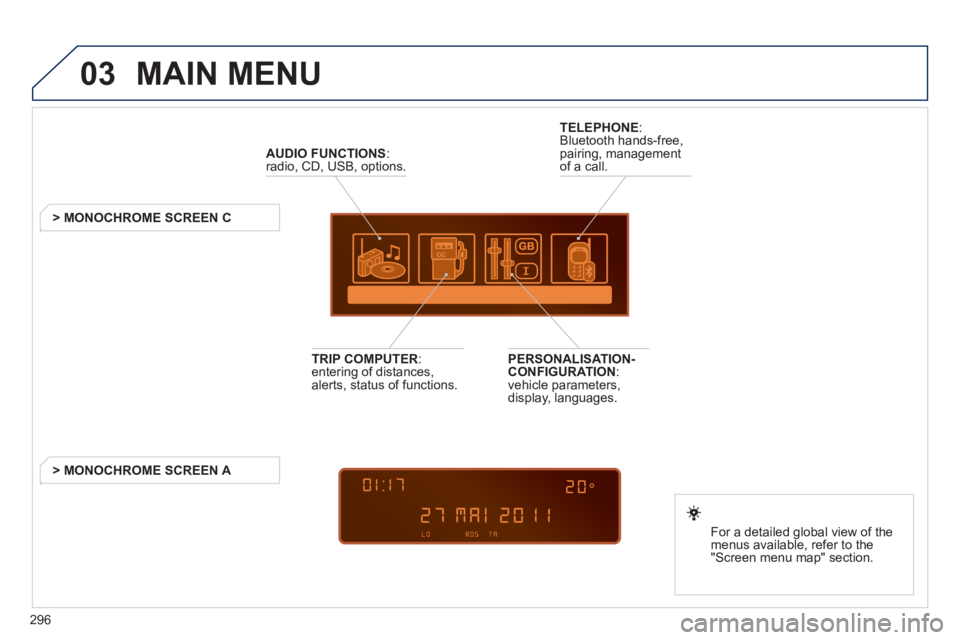
03 MAIN MENU
AUDIO FUNCTIONS
:
radio, CD, USB, options.
> MONOCHROME SCREEN C
For a detailed global view of the
menus available, refer to the
"Screen menu map" section.
TELEPHONE
:
Bluetooth hands-free,
pairing, management
of a call.
PERSONALISATION-
CONFIGURATION
:
vehicle parameters,
display, languages.
TRIP COMPUTER
:
entering of distances,
alerts, status of functions.
> MONOCHROME SCREEN A
Page 299 of 328
297
04
1
2
3
4
1
2
3
4
SOURCE
BANDAST
LISTREFRESH
MENU
AUDIO
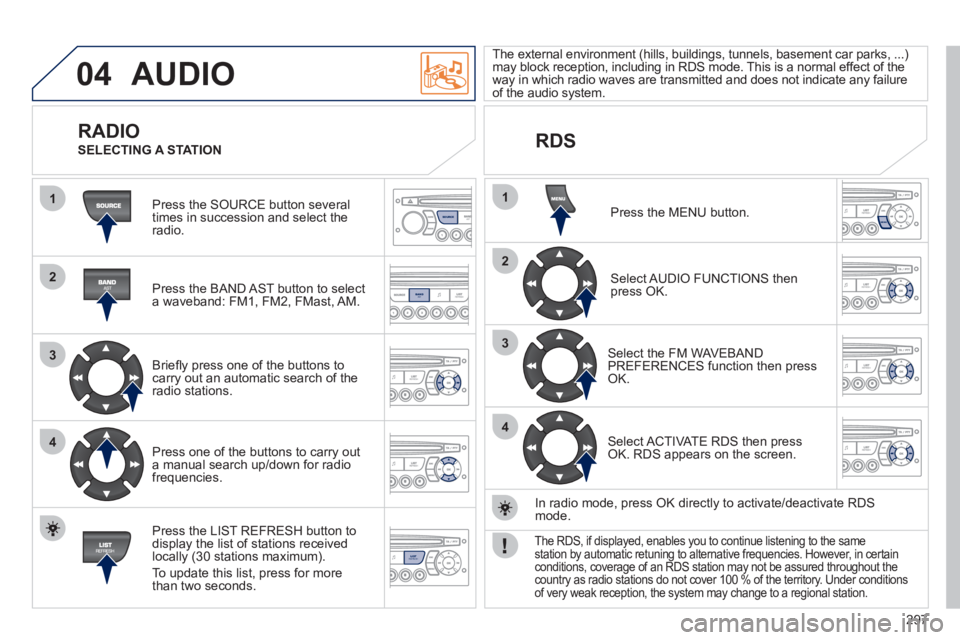
Press the SOURCE button several
times in succession and select the
radio.
Press the BAND AST button to select
a waveband: FM1, FM2, FMast, AM.
Briefl y press one of the buttons to
carry out an automatic search of the
radio stations.
Press one of the buttons to carry out
a manual search up/down for radio
frequencies.
Press the LIST REFRESH button to
display the list of stations received
locally (30 stations maximum).
To update this list, press for more
than two seconds.
The external environment (hills, buildings, tunnels, basement car parks, ...)
may block reception, including in RDS mode. This is a normal effect of the
way in which radio waves are transmitted and does not indicate any failure
of the audio system.
RDS
RADIO
SELECTING A STATION
Press the MENU button.
Select AUDIO FUNCTIONS then
press OK.
Select the FM WAVEBAND
PREFERENCES function then press
OK.
Select ACTIVATE RDS then press
OK. RDS appears on the screen.
In radio mode, press OK directly to activate/deactivate RDS
mode.
The RDS, if displayed, enables you to continue listening to the same
station by automatic retuning to alternative frequencies. However, in certain
conditions, coverage of an RDS station may not be assured throughout the
country as radio stations do not cover 100 % of the territory. Under conditions
of very weak reception, the system may change to a regional station.
Page 300 of 328
298
04
1
2
3
1
SOURCE
AUDIO
Insert circular compact discs only.
Some anti-pirating systems, on original discs or CDs copied using a
personal recorder, may cause faults which are no refl ection on the
quality of the original player.
Without pressing the EJECT button, insert a CD in the player, play
begins automatically.
CD
PLAYING A CD
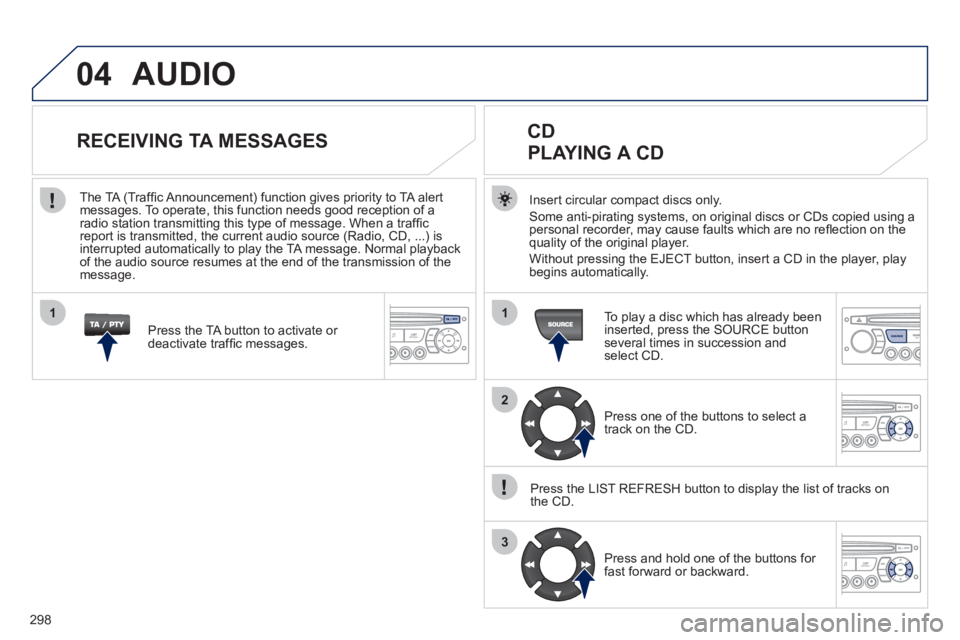
To play a disc which has already been
inserted, press the SOURCE button
several times in succession and
select CD.
Press one of the buttons to select a
track on the CD.
Press the LIST REFRESH button to display the list of tracks on
the CD.
Press and hold one of the buttons for
fast forward or backward.
RECEIVING TA MESSAGES
Press the TA button to activate or
deactivate traffi c messages.
The TA (Traffi c Announcement) function gives priority to TA alert
messages. To operate, this function needs good reception of a
radio station transmitting this type of message. When a traffi c
report is transmitted, the current audio source (Radio, CD, ...) is
interrupted automatically to play the TA message. Normal playback
of the audio source resumes at the end of the transmission of the
message.