audio Peugeot 308 2015 User Guide
[x] Cancel search | Manufacturer: PEUGEOT, Model Year: 2015, Model line: 308, Model: Peugeot 308 2015Pages: 416, PDF Size: 11.81 MB
Page 258 of 416
256
308_en_Chap07_info-pratiques_ed01-2015
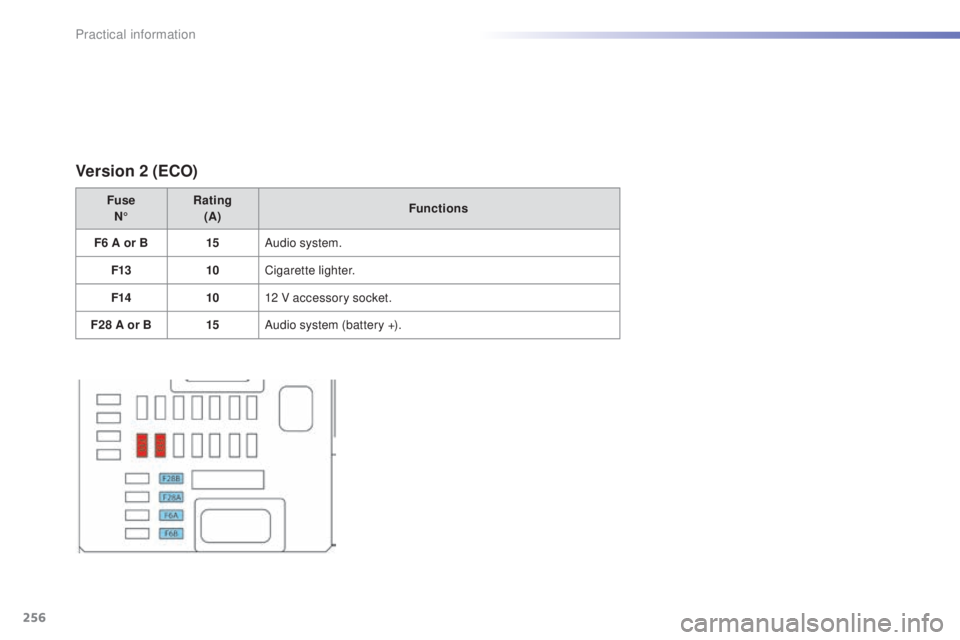
Version 2 (ECO)
FuseN° Rating
(A) Functions
F6 A or B 15Audio system.
F13 10Cigarette lighter.
F14 1012 V accessory socket.
F28 A or B 15Audio system (battery +).
Practical information
Page 265 of 416
263
308_en_Chap07_info-pratiques_ed01-2015
System which manages the duration of use of certain functions to conserve a sufficient level of
charge in the battery.
After the engine has stopped, you can still use functions such as the audio and telematics
system, windscreen wipers, dipped beam headlamps, courtesy lamps, etc. for a maximum
combined duration of about forty minutes.
energy economy mode
Switching to economy
mode
A message then appears in the instrument
panel screen indicating that the vehicle has
switched to economy mode and the active
functions are put on standby.
If a telephone call is being made at this time,
it
will be maintained for around 10 minutes with
the Bluetooth hands-free system of your audio
system.
Exiting economy mode
these functions are reactivated automatically
next time the vehicle is driven.
In order to restore the use of these functions
immediately, start the engine and let it run:
-
f
or less than ten minutes, to use the
equipment for approximately five minutes,
-
f
or more than ten minutes, to use the
equipment for up to approximately
thirty
minutes.
Let the engine run for the duration specified to
ensure that the battery charge is sufficient.
Do not repeatedly and continuously restart the
engine in order to charge the battery.
A flat battery prevents the engine from starting
(refer to the "Battery" section).
Load reduction mode
System which manages the use of certain
functions according to the level of charge
remaining in the battery.
When the vehicle is being driven, the load
reduction function temporarily deactivates
certain functions, such as the air conditioning,
the heated rear screen...
th
e deactivated functions are reactivated
automatically as soon as conditions permit.
7
Practical information
Page 301 of 416
299
DENON EqUIPMENT
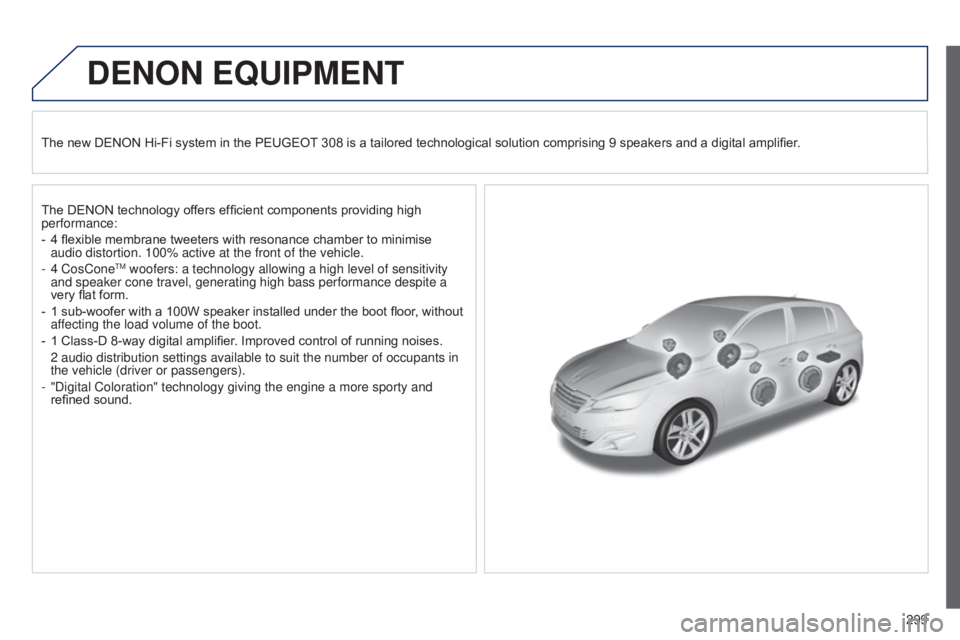
The new DENON Hi-Fi system in the PEUGEOT 308 is a tailored technological solution comprising 9 speakers and a digital amplifier.
The DENON technology offers efficient components providing high
performance:
-
4 flexibl
e membrane tweeters with resonance chamber to minimise
audio distortion. 100% active at the front of the vehicle.
-
4 CosConetM woofers: a technology allowing a high level of sensitivity
and speaker cone travel, generating high bass performance despite a
very flat form.
-
1 sub-woofer with a 100W speaker
installed under the boot floor, without
affecting the load volume of the boot.
-
1 Class-D 8-way digital amplifier
. Improved control of running noises.
2 audio distributio
n settings available to suit the number of occupants in
the vehicle (driver or passengers).
-
"Digital Coloratio
n" technology giving the engine a more sporty and
refined sound.
Page 303 of 416
301
308_en_Chap10c_SMegplus_ed01-2015
the system is protected in such a way that it will only
operate in your vehicle.
7-inch touch screen
01 General operation
For safety reasons, the driver must carry out operations
which require prolonged attention while the vehicle is
stationary.
When the engine is switched off and to prevent
discharging of the battery, the system switches off
following the activation of the energy economy mode.
CONTENTS
02
First steps - Control
panel
04
Media
05
Navigation
06
Configuration
07
Connected service
s
08
Telephone p.
p.
p.
p.
p.
p.
p.
Frequently asked questions p.
GPS satellite navigation system
Multimedia audio system
Bluetooth
® telephone
302
304
324 306
344
354
356
366
03
Steering mounted
controls p. 305
Page 306 of 416
02
304
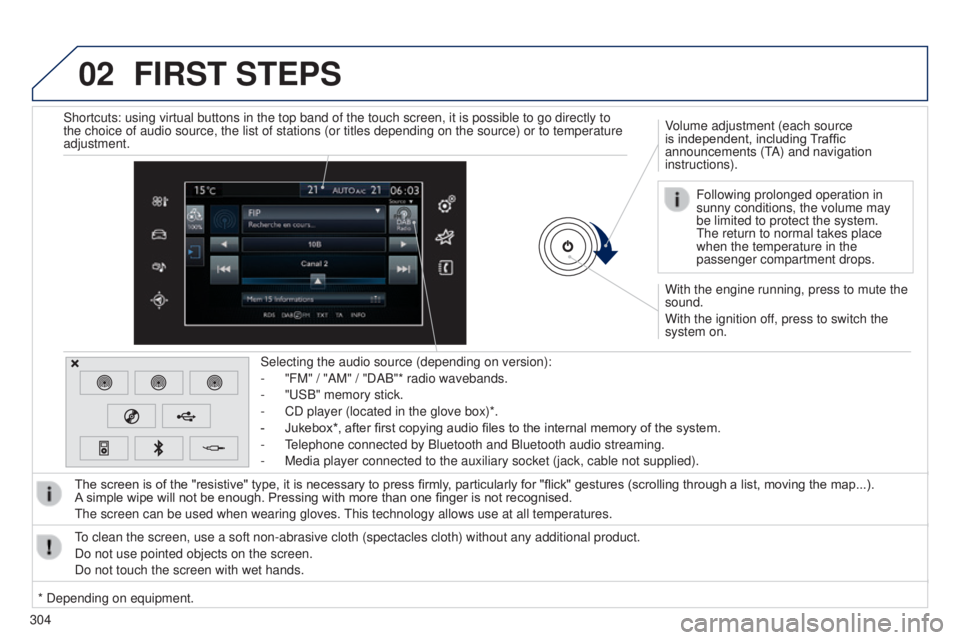
FIRST STEPS
With the engine running, press to mute the
sound.
With the ignition off, press to switch the
system on. Volume adjustment (each source
is independent, including Traffic
announcements (t
A) and navigation
instructions).
Selecting the audio source (depending on version):
-
"FM" / "AM" / "DAB"* radio wavebands.
-
"
u
SB" memory stick.
-
CD player (located in the glove box)*.
-
Jukebox*, after first copying audio files to the internal memory of the system.
-
t
elephone connected by Bluetooth and Bluetooth audio streaming.
-
Media player connected to the auxiliary socket (jack, cable not supplie\
d).
The screen is of the "resistive" type, it is necessary to press firmly , particularly for "flick" gestures (scrolling through a list, moving the map...).
A
simple wipe will not be enough. Pressing with more than one finger is not recognised.
t
he screen can be used when wearing gloves.
t
his technology allows use at all temperatures.
to clean the screen, use a soft non-abrasive cloth (spectacles cloth) w\
ithout any additional product.
Do not use pointed objects on the screen.
Do not touch the screen with wet hands. Following prolonged operation in
sunny conditions, the volume may
be limited to protect the system.
t
he return to normal takes place
when the temperature in the
passenger compartment drops.
Shortcuts: using virtual buttons in the top band of the touch screen, it\
is possible to go directly to
the choice of audio source, the list of stations (or titles depending o\
n the source) or to temperature
adjustment.
* Depending on equipment.
Page 307 of 416
03
305
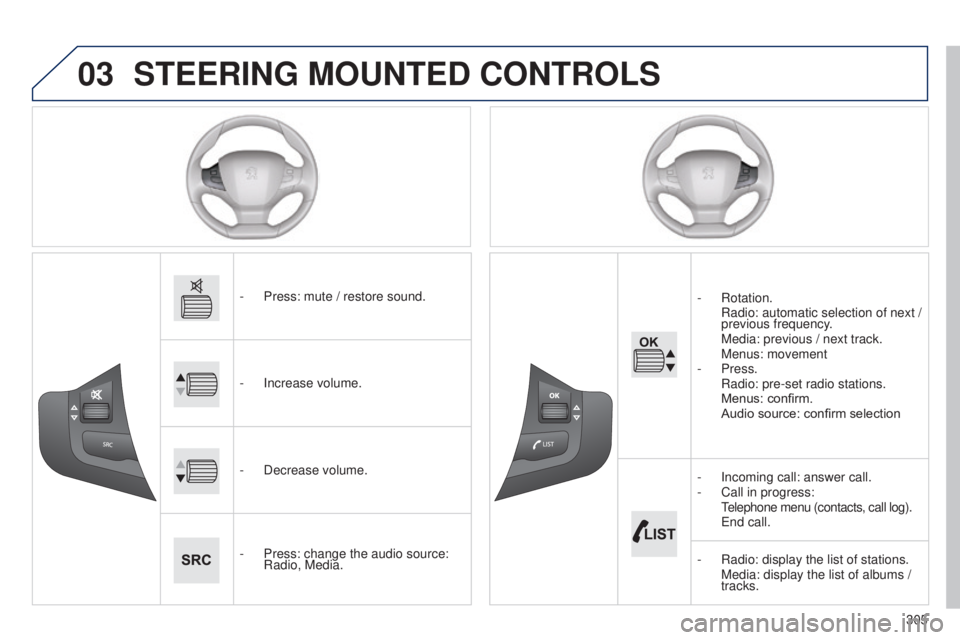
STEERING MOUNTED CONTROLS
- Press: mute / restore sound.
-
Increase volume.
-
Decrease volume.
-
Press: change the audio source:
Radio, Media. -
Rotation.
Radio:
automatic selection of next /
previous frequency.
Media: previous / next track. Menus: movement
-
Press.
Radio: pre-set radio stations. Menus: confirm. Audio source: confirm selection
-
Incoming call: answer call.
-
Call in progress:
t
elephone menu (contacts, call log).
e nd call.
-
Radio: display the list of stations. Media: display the list of albums /
tracks.
Page 314 of 416
 may prevent reception, even in RDS station tracking mode. this phenomenon is normal in the propa")
04
Selecting a station
the exterior environment (hills, buildings, tunnel, car park, below grou\
nd...) may prevent reception, even in RDS station tracking mode. this phenomenon is normal in the propagation of radio waves and is in no \
way indicative of a fault with the audio system.
Select "List" in the primary page.
or
Select "Radio list" in the secondary page. Press on Media to display the primary page.
or
Press on Media to display the primary page
then go to the secondary page.
Select a radio station from the list offered.
If necessary, select change of source.Press Media to display the primary
page then select "
Preset".
Select "FM Radio" or "AM Radio".
OR
Select "Update list" to refresh the list.
RADIO
Select a preset radio station in the list.
312
Page 318 of 416
04
316
RADIO
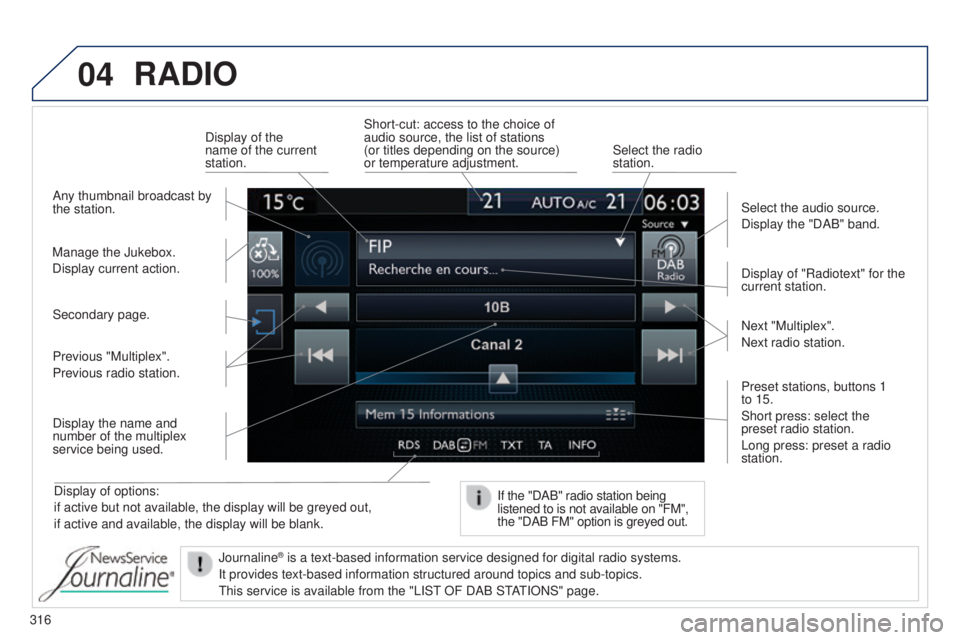
Display of options:
if active but not available, the display will be greyed out,
if active and available, the display will be blank.Display of "Radiotext" for the
current station.
Manage the Jukebox.
Display current action. Select the audio source.
Display the "DAB" band.
Display of the
name of the current
station.
Short-cut: access to the choice of
audio source, the list of stations
(or titles depending on the source)
or temperature adjustment.
Select the radio
station.
If the "DAB" radio station being
listened to is not available on "FM",
the "DAB FM" option is greyed out.
Any thumbnail broadcast by
the station.
Preset stations, buttons 1
to 15.
Short press: select the
preset radio station.
Long press: preset a radio
station. Next "Multiplex".
Next radio station.
Secondary page.
Display the name and
number of the multiplex
service being used. Previous "Multiplex".
Previous radio station.
Journaline
® is a text-based information service designed for digital radio systems.
It provides text-based information structured around topics and sub-topi\
cs.
t
his service is available from the "LIS t
OF DAB S
t
At
IONS" page.
Page 319 of 416
04
317
RADIO
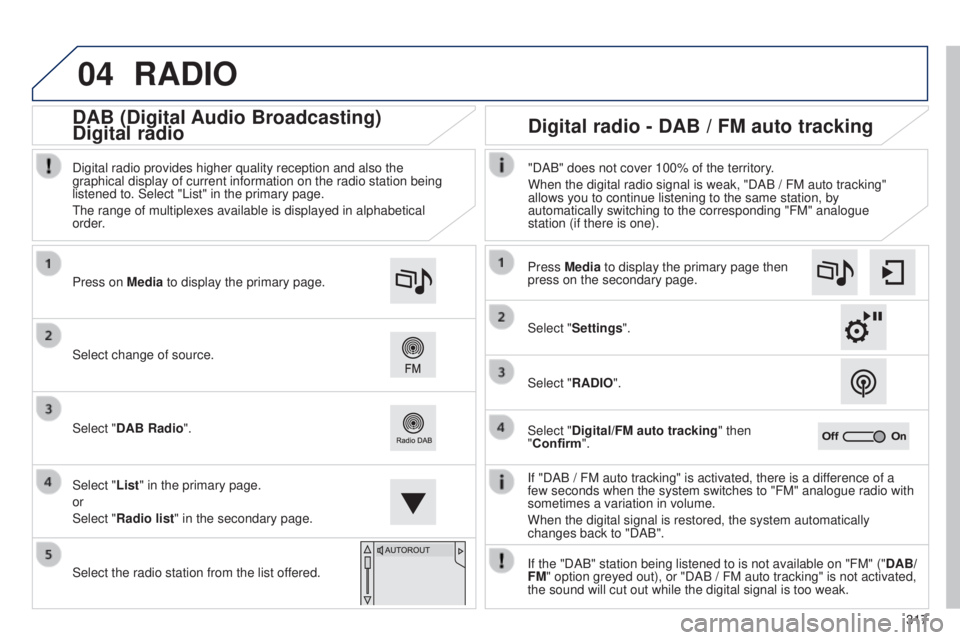
If "DAB / FM auto tracking" is activated, there is a difference of a
few seconds when the system switches to "FM" analogue radio with
sometimes a variation in volume.
When the digital signal is restored, the system automatically
changes back to "DAB".
Select change of source. Press on
Media to display the primary page.
Select "DAB Radio".
Select "List" in the primary page.
or
Select "Radio list" in the secondary page.
Select the radio station from the list offered. Digital radio provides higher quality reception and also the
graphical display of current information on the radio station being
listened to. Select "List" in the primary page.
t
he range of multiplexes available is displayed in alphabetical
order.
Press Media to display the primary page then
press on the secondary page.
Select "Settings".
Select "RADIO".
Select "Digital/FM auto tracking" then
"Confirm". "DAB" does not cover 100% of the territory.
When the digital radio signal is weak, "DAB / FM auto tracking"
allows you to continue listening to the same station, by
automatically switching to the corresponding "FM" analogue
station (if there is one).
If the "DAB" station being listened to is not available on "FM" (" DAB/
FM" option greyed out), or "DAB / FM auto tracking" is not activated,
the sound will cut out while the digital signal is too weak.
Digital radio - DAB / FM auto tracking
DAB (Digital Audio Broadcasting)
Digital radio
Page 321 of 416
04
319
CD, MP3 CD / USB player
The audio equipment will only play audio files with ".wma, .aac,
.flac, .ogg and. mp3" file extensions and with a bit rate of between
32 Kbps and 320 Kbps.
It also supports VBR (Variable Bit Rate) mode.
No other type of file (.mp4, ...) can be played.
WMA files must be of the standard wma 9 type.
t
he sampling rates supported are 11, 22, 44 and 48 KHz.
It is advisable to restrict file names to 20 characters, without using of
special characters (e.g.: " " ? ; ù) to avoid any playing and displ\
aying
problems.
In order to be able to play a recorded CDR or CDRW, when
recording it is preferable to select the ISO 9660 level 1, 2 or Joliet
standard.
If the disc is recorded in another format it may not be played
correctly.
It is recommended that the same recording standard is always used
for an individual disc, with as low a speed as possible (4x maximum)
for optimum sound quality.
In the particular case of a multi-session CD, the Joliet standard is
recommended. Information and advicet he system supports u SB mass storage devices, BlackBerry®
devices or Apple® players via uSB ports. t he adaptor cable not
supplied.
Control of the peripheral device is with the audio system controls.
Other peripherals, not recognised on connection, must be connected
to the auxiliary socket using a Jack cable (not supplied).
Use only USB memory sticks formatted FAT 32 (28-bit file allocation
table).
MUSIC
the system does not support two identical devices connected at the
same time (two memory sticks, two Apple® players) but it is possible
to connect one memory stick and one
Apple® player at the same
time.
It is recommended that genuine Apple
® uSB cables are used to
ensure correct operation.