audio Peugeot 308 2015 Owner's Guide
[x] Cancel search | Manufacturer: PEUGEOT, Model Year: 2015, Model line: 308, Model: Peugeot 308 2015Pages: 416, PDF Size: 11.81 MB
Page 323 of 416
04
321
Audio streaming
Streaming allows audio files on your telephone to be played via the
vehicle's speakers.
Connect the telephone: see the "Telephone" section, then
"Bluetooth".
Choose the " Audio" or "All" profile.
If play does not start automatically, it may be necessary to start the
audio playback from the telephone.
Control is from the peripheral device or by using the audio system
buttons.
Once connected in streaming mode, the telephone is considered to
be a media source.
It is recommended that you activate "Repeat" on the Bluetooth
peripheral.
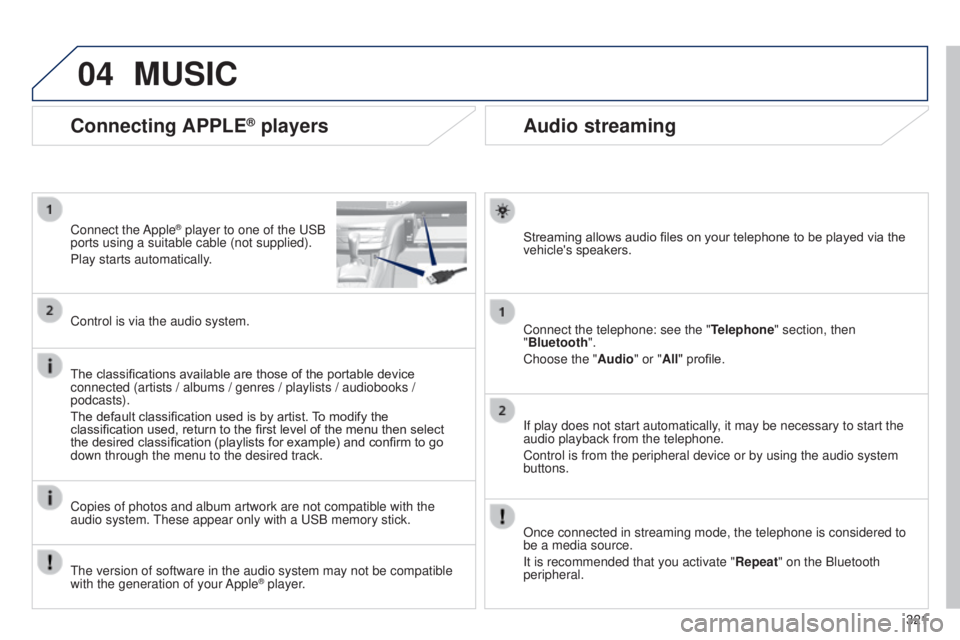
Connecting APPLE® players
Connect the Apple® player to one of the uSB
ports using a suitable cable (not supplied).
Play starts automatically
.
Control is via the audio system.
The classifications available are those of the portable device
connected (artists / albums / genres / playlists / audiobooks /
podcasts).
The default classification used is by artist. To modify the
classification used, return to the first level of the menu then select
the desired classification (playlists for example) and confirm to go
down through the menu to the desired track.
Copies of photos and album artwork are not compatible with the
audio system.
t
hese appear only with a u SB memory stick.
MUSIC
the version of software in the audio system may not be compatible
with the generation of your Apple® player.
Page 324 of 416
04
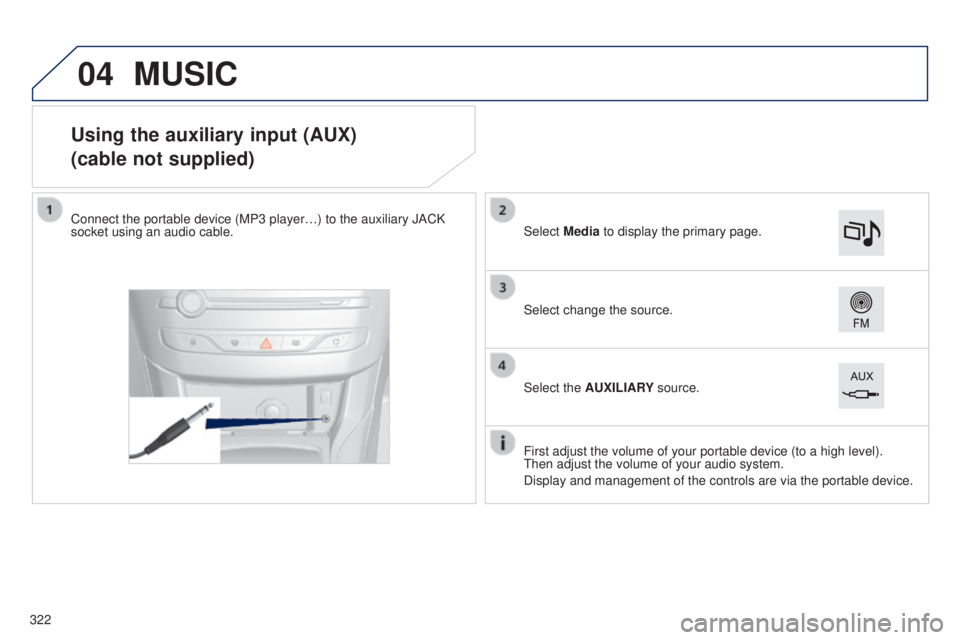
Using the auxiliary input (AUX)
(cable not supplied)
Connect the portable device (MP3 player…) to the auxiliary JACK
socket using an audio cable.
First adjust the volume of your portable device (to a high level).
t
hen adjust the volume of your audio system.
Display and management of the controls are via the portable device. Select change the source. Select Media to display the primary page.
Select the AUXILIARY source.
MUSIC
322
Page 325 of 416
04
323
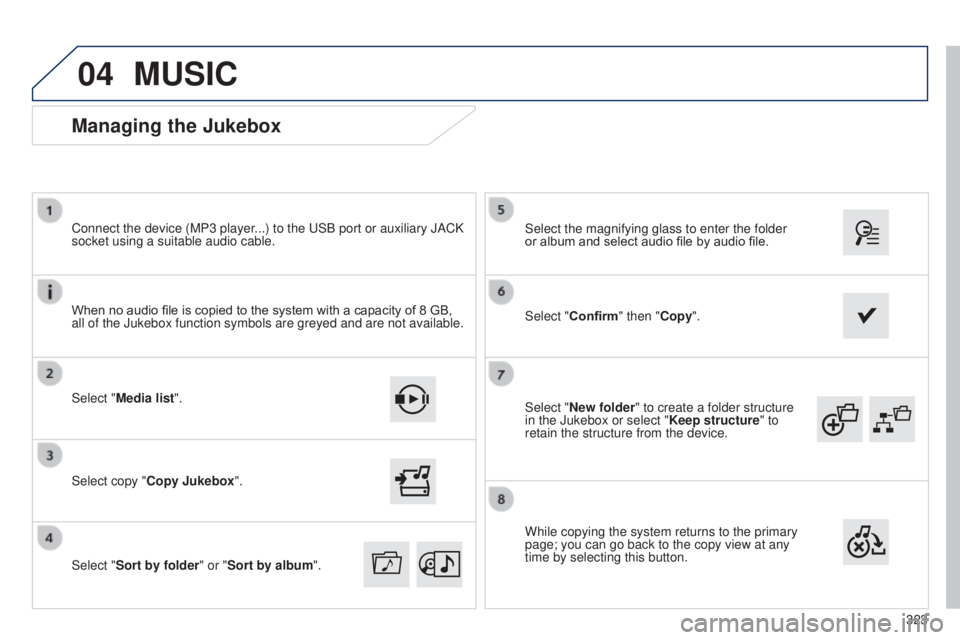
Select "New folder" to create a folder structure
in the Jukebox or select "
Keep structure" to
retain the structure from the device. Select the magnifying glass to enter the folder
or album and select audio file by audio file.
Managing the Jukebox
Select "Media list". Connect the device (MP3 player...) to the u SB port or auxiliary JACK
socket using a suitable audio cable.
Select copy "Copy Jukebox".
MUSIC
When no audio file is copied to the system with a capacity of 8 GB,
all of the Jukebox function symbols are greyed and are not available.
Select "
Sort by folder" or "Sort by album ". Select "Confirm" then "Copy".
While copying the system returns to the primary
page; you can go back to the copy view at any
time by selecting this button.
Page 341 of 416
05
339
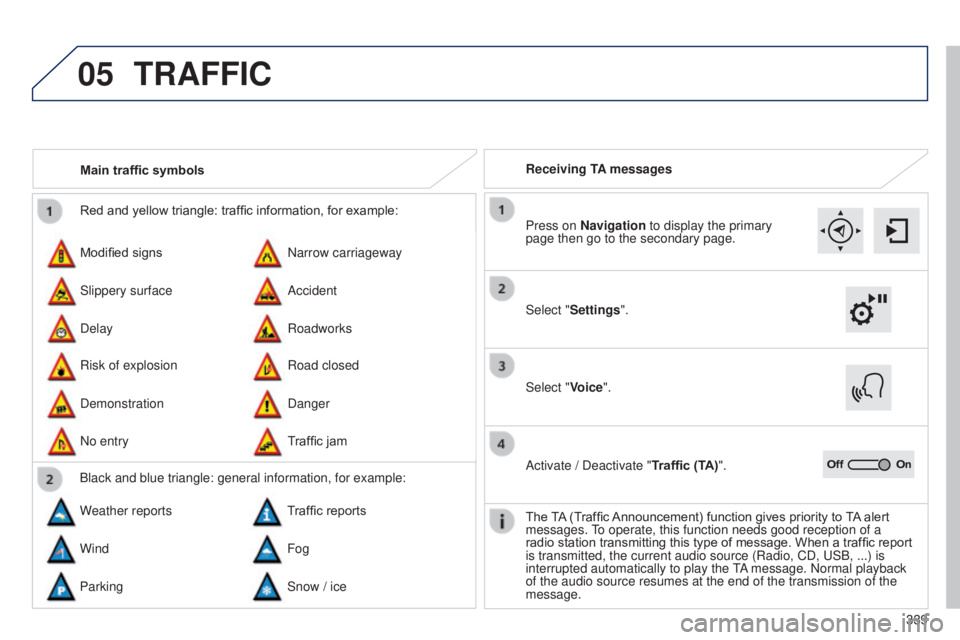
Red and yellow triangle: traffic information, for example:
Modified signs
Risk of explosion Narrow carriageway
Road closed
Slippery surface
Demonstration Accident
Danger
Delay
No entry Roadworks
Traffic jam
Main traffic symbols
Black and blue triangle: general information, for example:
Weather reports Traffic reports
Wind Fog
Parking Snow / ice Receiving TA messages
TRAFFIC
Select "Settings". Press on Navigation to display the primary
page then go to the secondary page.
Select "Voice".
Activate / Deactivate "Traffic (TA)".
The TA (Traffic Announcement) function gives priority to TA alert
messages.
to operate, this function needs good reception of a
radio station transmitting this type of message. When a traffic report
is transmitted, the current audio source (Radio, CD,
u SB, ...) is
interrupted automatically to play the
tA
message. Normal playback
of the audio source resumes at the end of the transmission of the
message.
Page 346 of 416
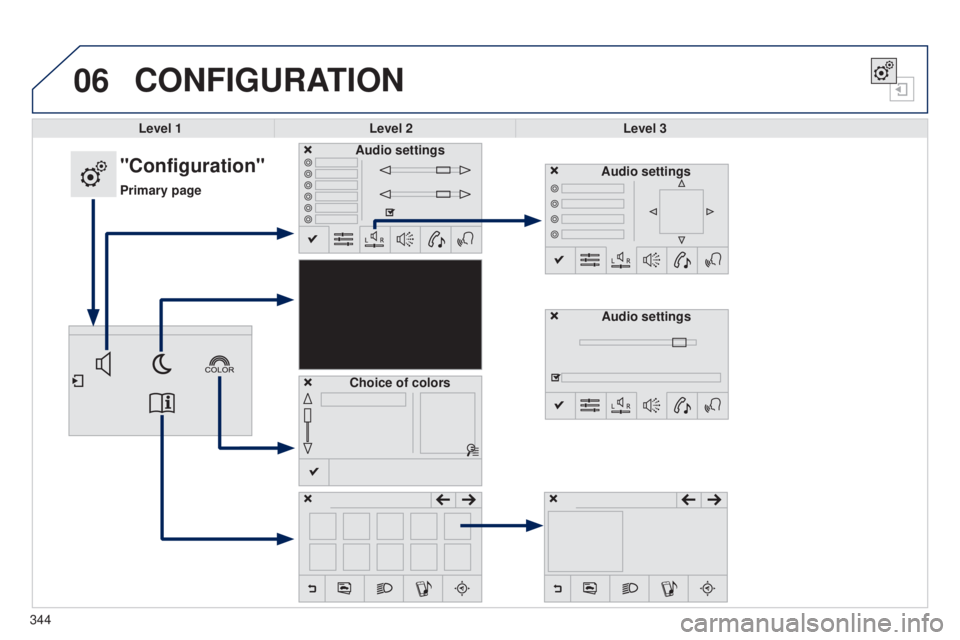
06CONFIGURATION
Level 1Level 2 Level 3
"Configuration"
Primary pageAudio settings
Choice of colors Audio settings
Audio settings
344
Page 347 of 416
345
308_en_Chap10c_SMegplus_ed01-2015
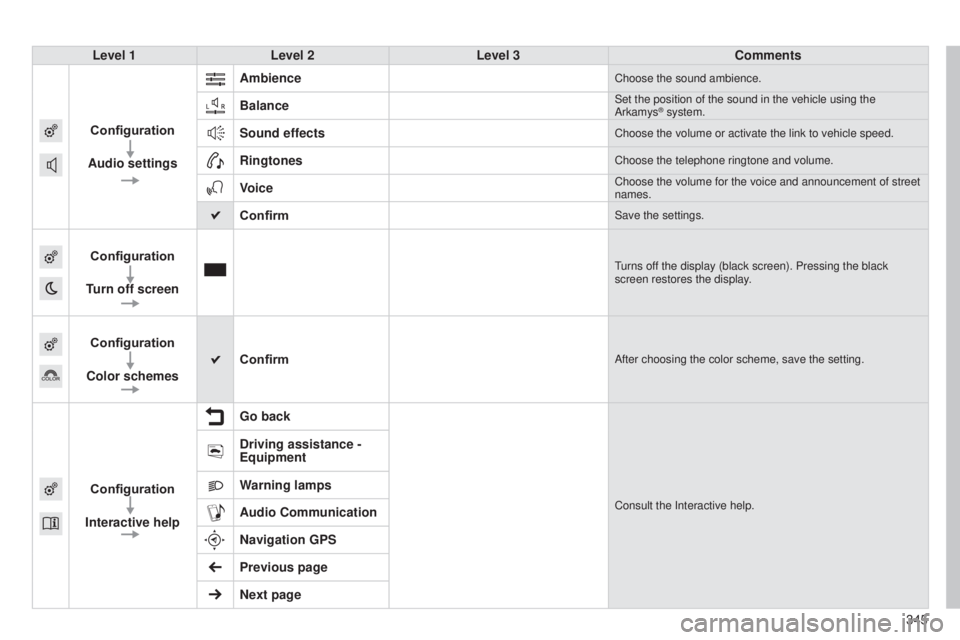
Level 1Level 2 Level 3 Comments
Configuration
Audio settings Ambience
Choose the sound ambience.
BalanceSet the position of the sound in the vehicle using the
Arkamys® system.
Sound effectsChoose the volume or activate the link to vehicle speed.
RingtonesChoose the telephone ringtone and volume.
VoiceChoose the volume for the voice and announcement of street
names.
ConfirmSave the settings.
Configuration
Turn off screenturns off the display (black screen). Pressing the black
screen restores the display.
Configuration
Color schemes ConfirmAfter choosing the color scheme, save the setting.
Configuration
Interactive help Go backConsult the Interactive help.
Driving assistance -
Equipment
Warning lamps
Audio Communication
Navigation GPS
Previous page
Next page
Page 352 of 416
06CONFIGURATION
- "Ambience" (choice of 6 musical ambiences)
- "Bass "
-
"Treble"
-
"Loudness" (Activate/Deactivate)
-
"Balance" ("Driver ", "All passengers", "Front only ")
-
"Audio setting on touch screen "
-
"Volume linked to vehicle speed: " (Activate/Deactivate)
t
he audio settings ( Ambience, Bass, Treble and Loudness) are
different and independent for each sound source.
t
he settings for distribution and balance are common to all
sources.
t
he distribution (or spatialisation using the Arkamys
© system)
of sound is an audio process that allows the audio quality to be
adapted to the number of listeners in the vehicle.
Available only with the 6-speaker configuration. On-board audio: Arkamys
© Sound Staging.
With Sound Staging, the driver and passengers are immersed in an
"audio scene" recreating the natural atmosphere of an auditorium:
truly a part of the scene and its surroundings.
t
his new sensation is made possible by software in the audio
system which processes the digital signals from the media players
(radio, CD, MP3…) without changing the audio settings.
t
his
processing takes account of the characteristics of the passenger
compartment to produce optimum results.
t
he Arkamys
© software installed in your audio system processes
the digital signal from the media players (radio, CD, MP3, ...) and
recreates a natural musical scene, with harmonious placement of
instruments and voices in the space in front of passengers, level with
the windscreen.
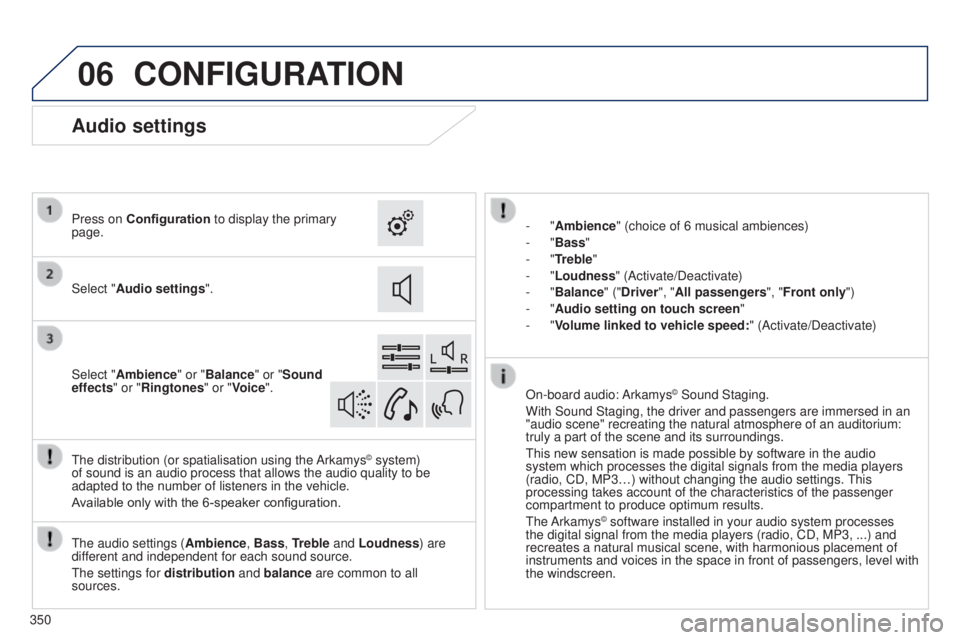
Audio settings
Select "Audio settings ".
Press on Configuration
to display the primary
page.
Select "Ambience" or "Balance" or "Sound
effects " or "Ringtones" or "Voice".
350
Page 361 of 416
359
308_en_Chap10c_SMegplus_ed01-2015
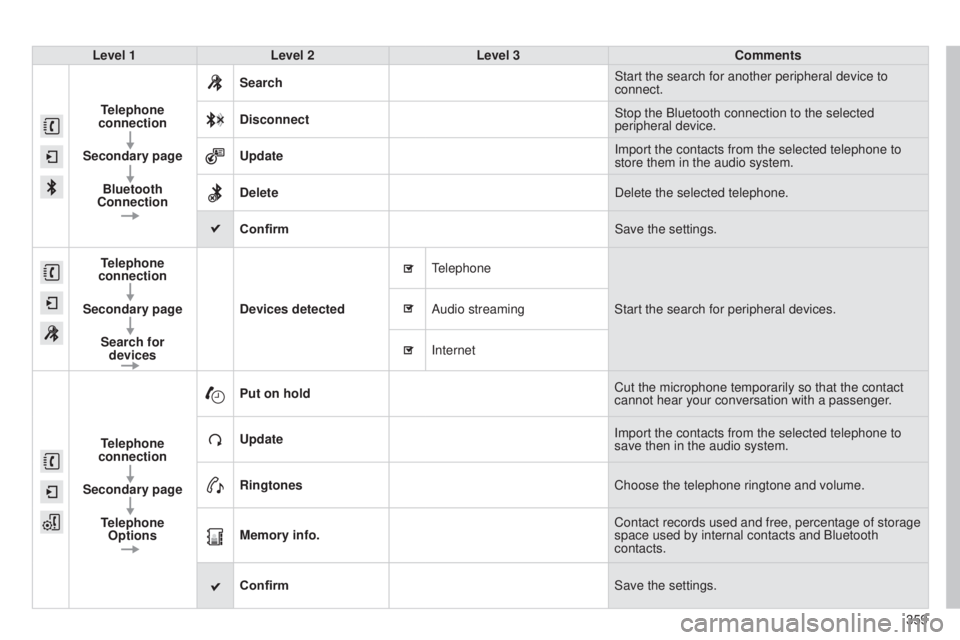
Level 1Level 2 Level 3 Comments
Telephone
connection
Secondary page Bluetooth
Connection Search
Start the search for another peripheral device to
connect.
Disconnect Stop the Bluetooth connection to the selected
peripheral device.
Update Import the contacts from the selected telephone to
store them in the audio system.
Delete Delete the selected telephone.
Confirm Save the settings.
Telephone
connection
Secondary page Search for devices Devices detected
telephone
Start the search for peripheral devices.
Audio streaming
Internet
T
elephone
connection
Secondary page Telephone Options Put on hold
Cut the microphone temporarily so that the contact
cannot hear your conversation with a passenger.
Update Import the contacts from the selected telephone to
save then in the audio system.
Ringtones Choose the telephone ringtone and volume.
Memory info. Contact records used and free, percentage of storage
space used by internal contacts and Bluetooth
contacts.
Confirm Save the settings.
Page 362 of 416
08
360
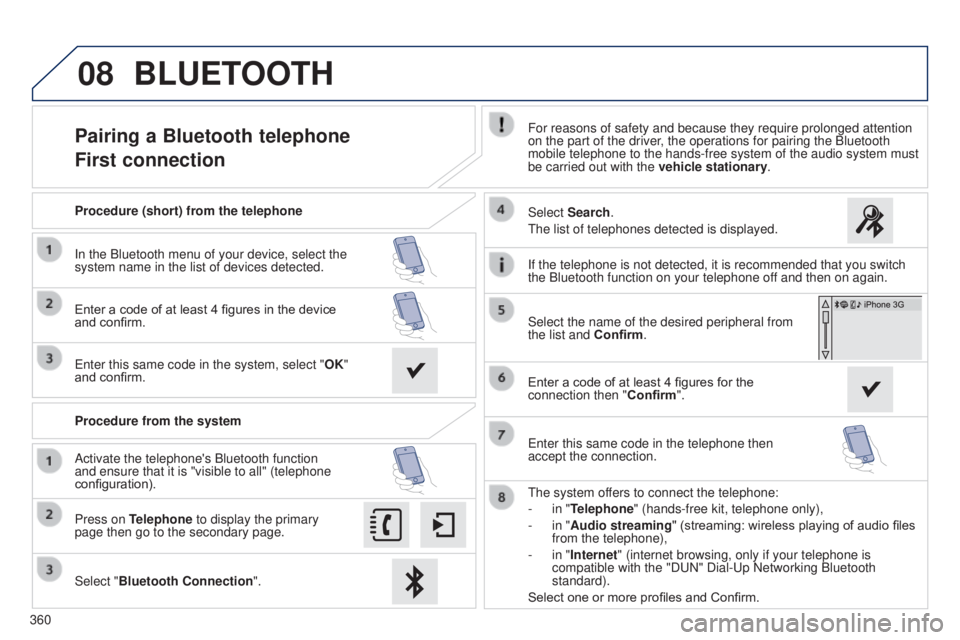
Pairing a Bluetooth telephone
First connectionFor reasons of safety and because they require prolonged attention
on the part of the driver, the operations for pairing the Bluetooth
mobile telephone to the hands-free system of the audio system must
be carried out with the vehicle stationary.
Select "Bluetooth Connection ".
Press on Telephone to display the primary
page then go to the secondary page. Select Search.
t
he list of telephones detected is displayed.
Activate the telephone's Bluetooth function
and ensure that it is "visible to all" (telephone
configuration). Procedure (short) from the telephone
In the Bluetooth menu of your device, select the
system name in the list of devices detected.
Enter a code of at least 4 figures in the device
and confirm.
e
nter this same code in the system, select "OK"
and confirm.
Procedure from the system
t
he system offers to connect the telephone:
-
in "
Telephone" (hands-free kit, telephone only),
-
in "
Audio streaming" (streaming: wireless playing of audio files
from the telephone),
-
in "
Internet" (internet browsing, only if your telephone is
compatible with the "D
u N" Dial- u p Networking Bluetooth
standard).
Select one or more profiles and Confirm. Select the name of the desired peripheral from
the list and Confirm.
BLUETOOTH
If the telephone is not detected, it is recommended that you switch
the Bluetooth function on your telephone off and then on again.
Enter a code of at least 4 figures for the
connection then " Confirm".
e
nter this same code in the telephone then
accept the connection.
Page 368 of 416

the following table groups together the answers to the most frequently as\
ked questions concerning your audio system.
FREqUENTLY ASKED q UESTIONS
qUESTION ANSWER SOLUTION
Navigation, guidance
t
he route calculation is
not successful. The guidance criteria may conflict with the current location (exclusion of
toll roads on a toll motorway). Check the guidance criteria on the Navigation
Menu, "Guidance options"\ "Define calculation
criteria".
I am unable to enter my
post code.
t
he system only accepts post codes of up to 5 characters.
t
he POIs do not appear.
t
he POIs have not been selected. Select the POIs in the list of POIs.
t
he risk areas audible
warning does not work.
t
he audible warning is not active. Activate audible warnings in the
g uidance options
menu, "Navigation - guidance", "Set parameters
for risk areas".
t
he system does not
suggest a detour around
an incident on the route.
t
he guidance criteria do not take account of
t
MC messages.Select the "Traffic info" function in the list of
guidance criteria.
I receive a Risk area alert
which is not on my route. Other than guidance, the system announces all Risk areas positioned in a\
cone located in front of the vehicle. It may provide an alert for a Risk\
area
located on nearby or parallel roads. Zoom in on the map to view the exact position of
the Risk area. Select "On the route" to no longer
receive alerts other than guidance or to reduce the
time for the announcement.
366