phone Peugeot 308 2015 User Guide
[x] Cancel search | Manufacturer: PEUGEOT, Model Year: 2015, Model line: 308, Model: Peugeot 308 2015Pages: 416, PDF Size: 11.81 MB
Page 328 of 416
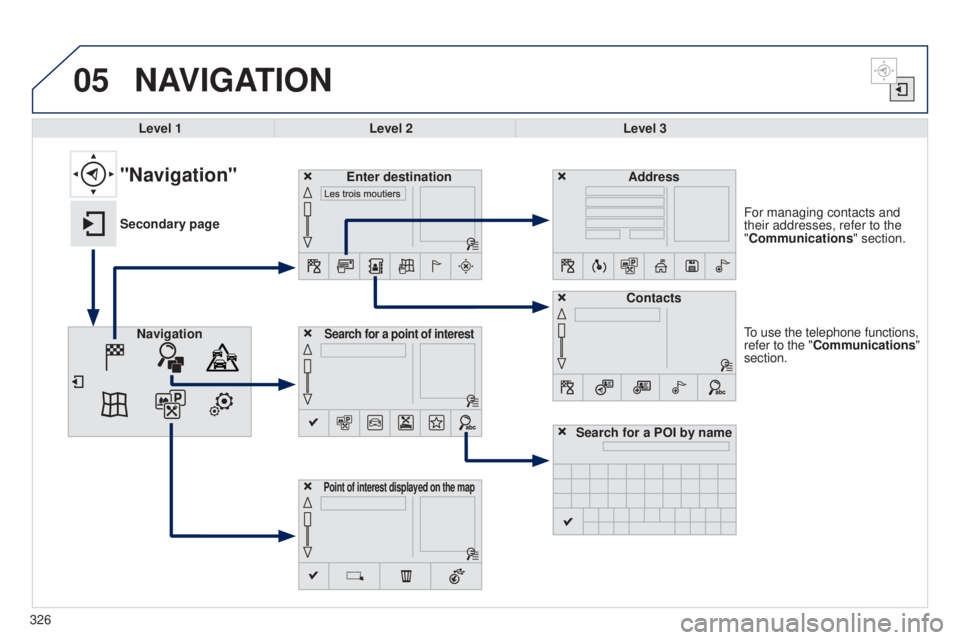
05
326
to use the telephone functions,
refer to the "Communications"
section. For managing contacts and
their addresses, refer to the
"Communications" section.
NAVIGATION
Search for a point of interestNavigation Address
Enter destination
Contacts
Point of interest displayed on the map
Level 1Level 2 Level 3
"Navigation"
Secondary page
Search for a POI by name
Page 333 of 416
05
331
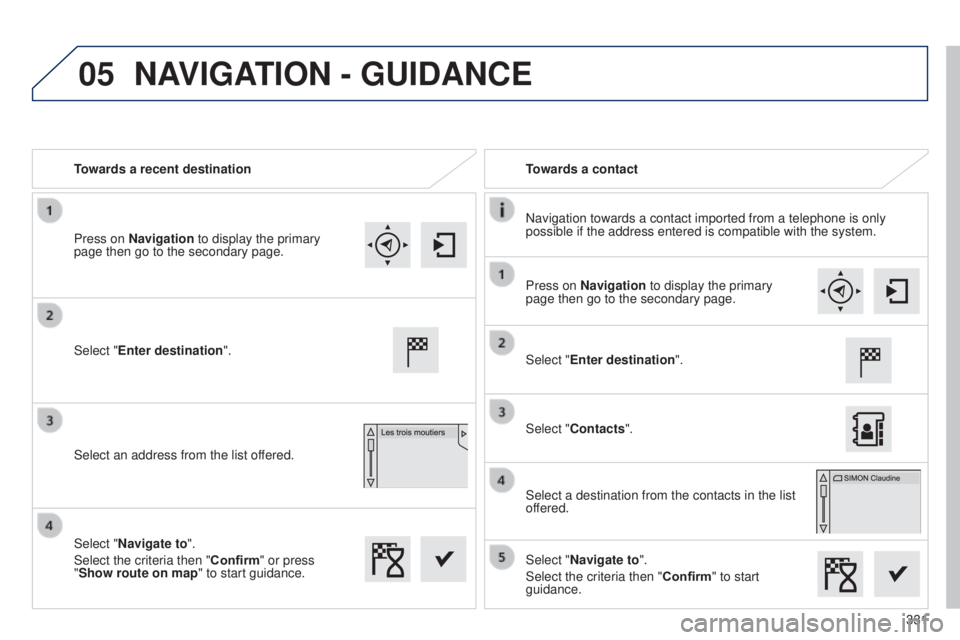
Towards a recent destination
Towards a contact
Navigation towards a contact imported from a telephone is only
possible if the address entered is compatible with the system.
Select "Enter destination".
Select an address from the list offered. Select "Enter destination".
Select "Contacts".
Select a destination from the contacts in the list
offered.
Select "Navigate to".
Select the criteria then "Confirm" to start
guidance.
Select "Navigate to".
Select the criteria then "Confirm" or press
"Show route on map
" to start guidance.
Press on Navigation to display the primary
page then go to the secondary page.
Press on Navigation to display the primary
page then go to the secondary page.
NAVIGATION - GUIDANCE
Page 347 of 416
345
308_en_Chap10c_SMegplus_ed01-2015
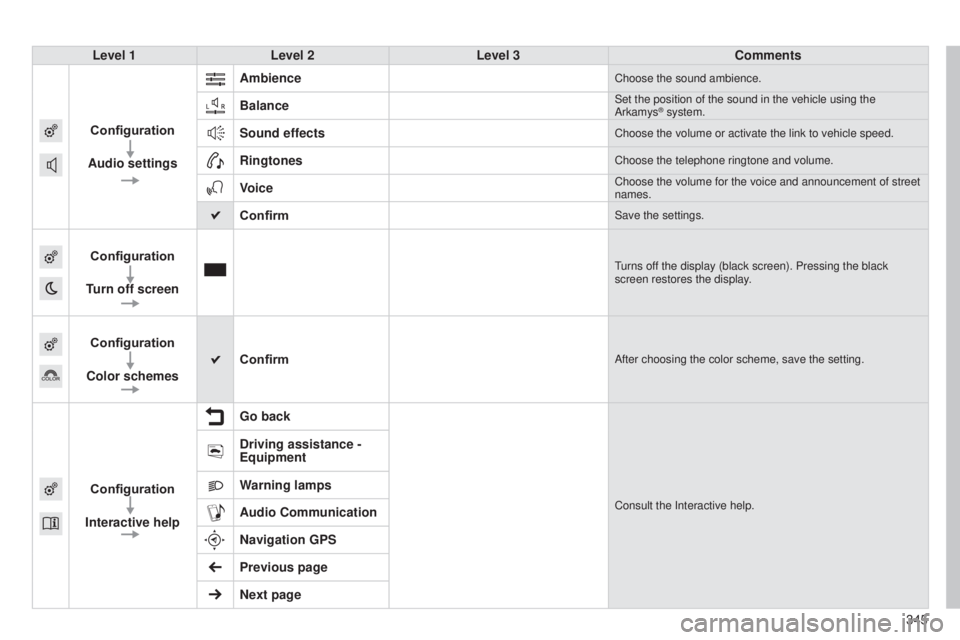
Level 1Level 2 Level 3 Comments
Configuration
Audio settings Ambience
Choose the sound ambience.
BalanceSet the position of the sound in the vehicle using the
Arkamys® system.
Sound effectsChoose the volume or activate the link to vehicle speed.
RingtonesChoose the telephone ringtone and volume.
VoiceChoose the volume for the voice and announcement of street
names.
ConfirmSave the settings.
Configuration
Turn off screenturns off the display (black screen). Pressing the black
screen restores the display.
Configuration
Color schemes ConfirmAfter choosing the color scheme, save the setting.
Configuration
Interactive help Go backConsult the Interactive help.
Driving assistance -
Equipment
Warning lamps
Audio Communication
Navigation GPS
Previous page
Next page
Page 356 of 416
07
354
CONNECTED SERVICES
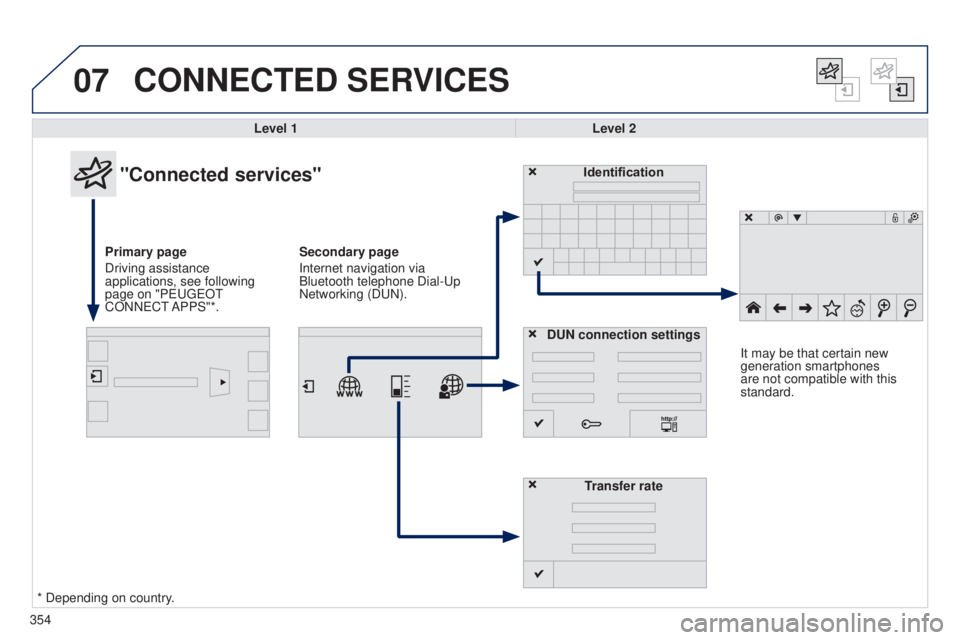
Level 1Level 2
"Connected services"
Primary page
Driving assistance
applications, see following
page on "P
euge O t
CONN
e C t
APPS"*. Identification
DUN connection settings T
ransfer rateIt may be that certain new
generation smartphones
are not compatible with this
standard.
Secondary page
Internet navigation via
Bluetooth telephone Dial-
u p
Networking (D
u N).
* Depending on country.
Page 358 of 416
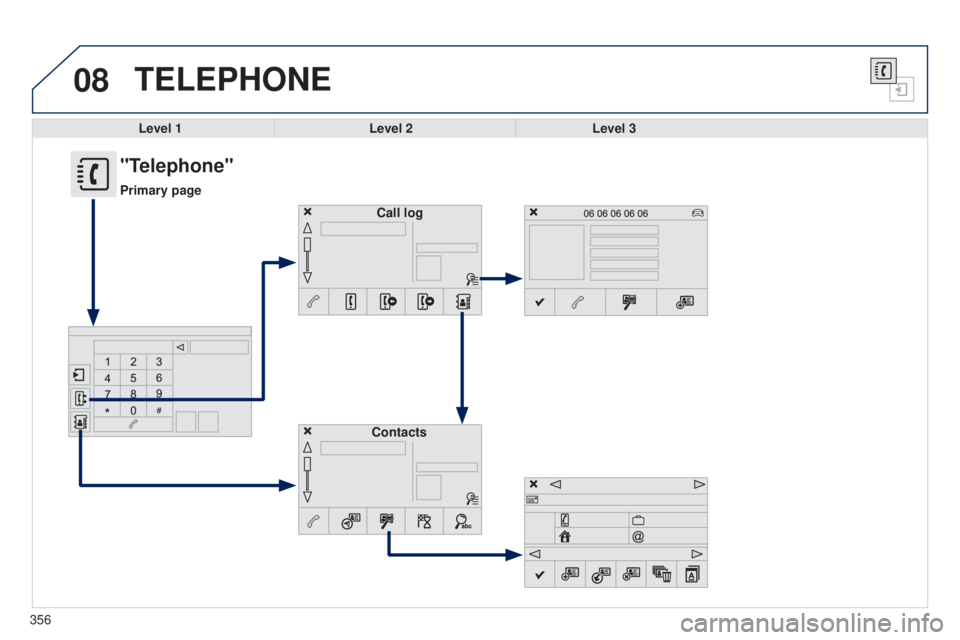
08TELEPHONE
Level 1Level 2Level 3
Contacts Call log
"Telephone"
Primary page
356
Page 359 of 416
357
308_en_Chap10c_SMegplus_ed01-2015
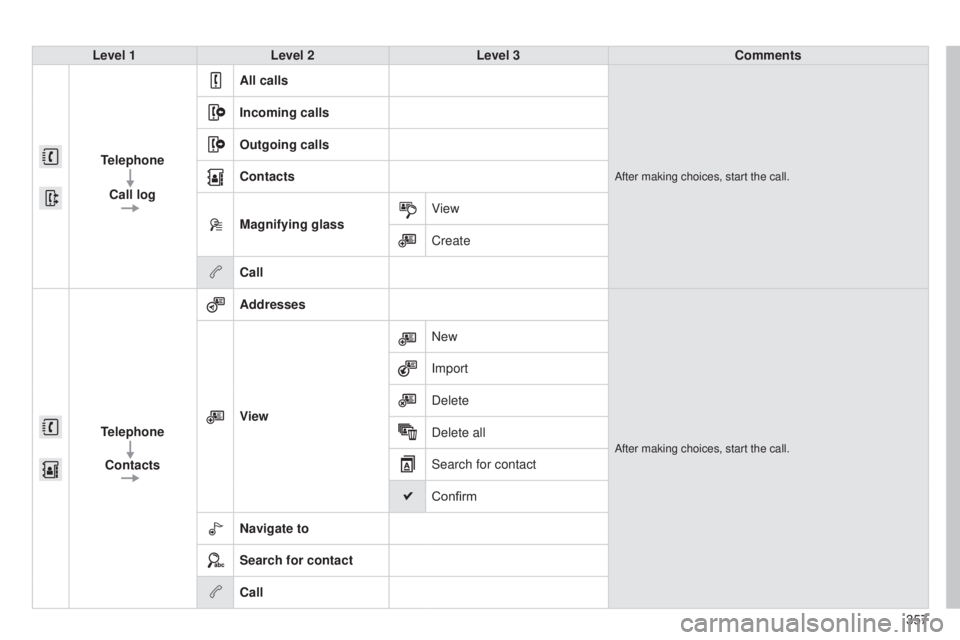
Level 1Level 2 Level 3 Comments
Telephone Call log All calls
After making choices, start the call.
Incoming calls
Outgoing calls
Contacts
Magnifying glass
View
Create
Call
Telephone Contacts Addresses
After making choices, start the call.
View
New
Import
Delete
Delete all
Search for contact
Confirm
Navigate to
Search for contact
Call
Page 360 of 416
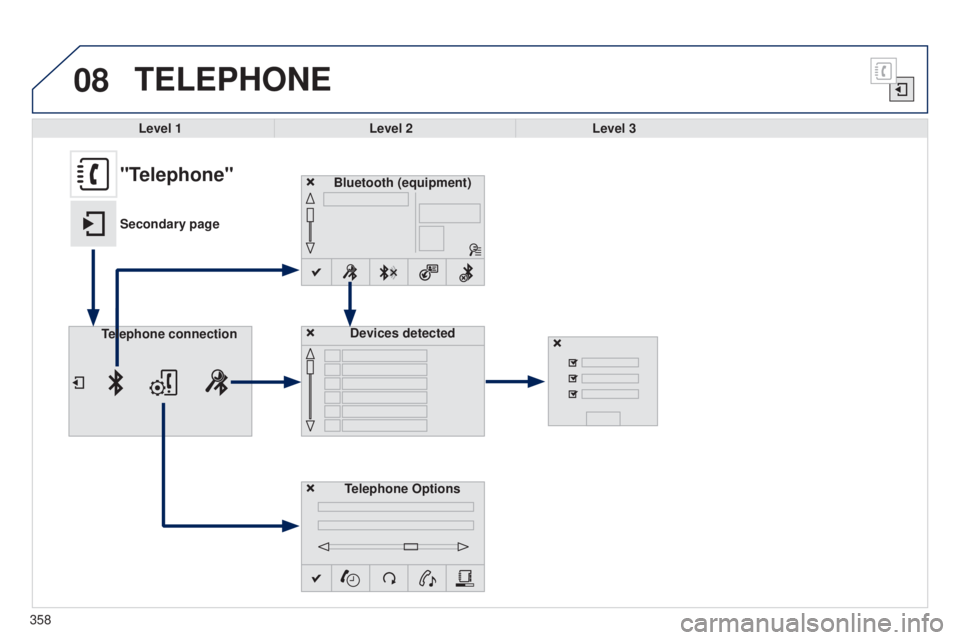
08
358
TELEPHONE
Level 1Level 2Level 3
Bluetooth (equipment)
Telephone OptionsDevices detected
Telephone connection
"Telephone"
Secondary page
Page 361 of 416
359
308_en_Chap10c_SMegplus_ed01-2015
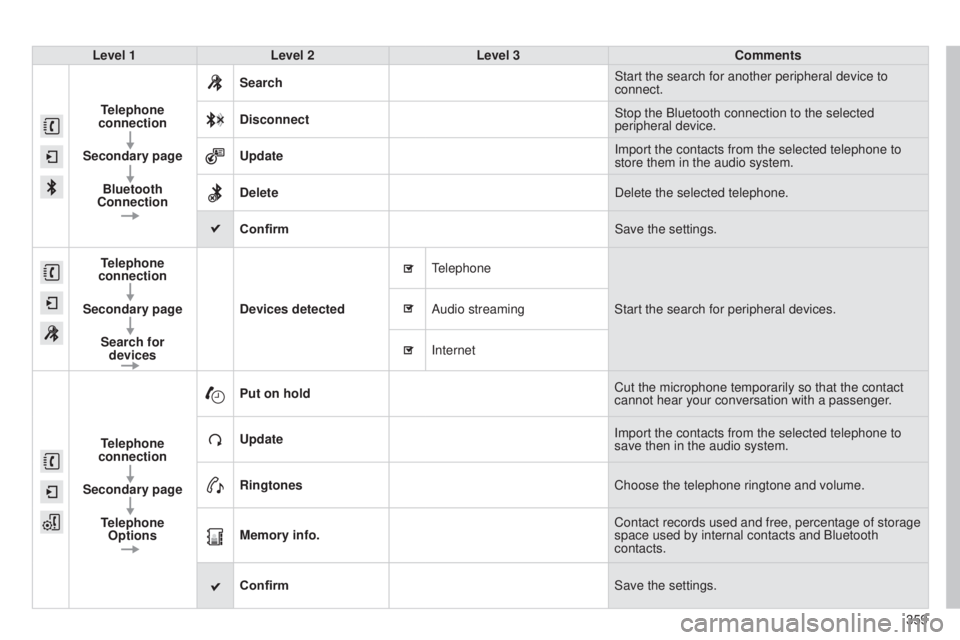
Level 1Level 2 Level 3 Comments
Telephone
connection
Secondary page Bluetooth
Connection Search
Start the search for another peripheral device to
connect.
Disconnect Stop the Bluetooth connection to the selected
peripheral device.
Update Import the contacts from the selected telephone to
store them in the audio system.
Delete Delete the selected telephone.
Confirm Save the settings.
Telephone
connection
Secondary page Search for devices Devices detected
telephone
Start the search for peripheral devices.
Audio streaming
Internet
T
elephone
connection
Secondary page Telephone Options Put on hold
Cut the microphone temporarily so that the contact
cannot hear your conversation with a passenger.
Update Import the contacts from the selected telephone to
save then in the audio system.
Ringtones Choose the telephone ringtone and volume.
Memory info. Contact records used and free, percentage of storage
space used by internal contacts and Bluetooth
contacts.
Confirm Save the settings.
Page 362 of 416
08
360
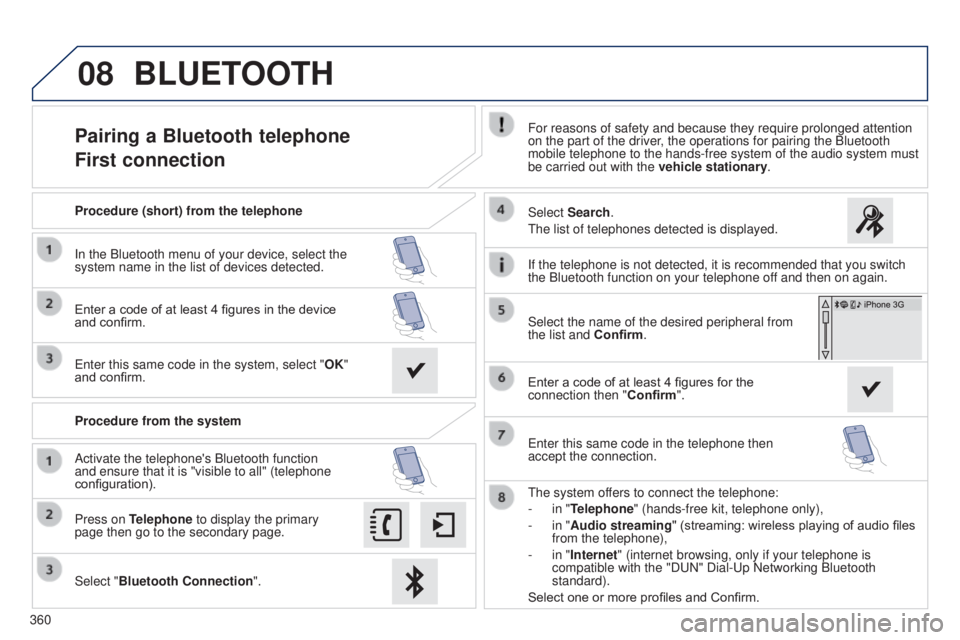
Pairing a Bluetooth telephone
First connectionFor reasons of safety and because they require prolonged attention
on the part of the driver, the operations for pairing the Bluetooth
mobile telephone to the hands-free system of the audio system must
be carried out with the vehicle stationary.
Select "Bluetooth Connection ".
Press on Telephone to display the primary
page then go to the secondary page. Select Search.
t
he list of telephones detected is displayed.
Activate the telephone's Bluetooth function
and ensure that it is "visible to all" (telephone
configuration). Procedure (short) from the telephone
In the Bluetooth menu of your device, select the
system name in the list of devices detected.
Enter a code of at least 4 figures in the device
and confirm.
e
nter this same code in the system, select "OK"
and confirm.
Procedure from the system
t
he system offers to connect the telephone:
-
in "
Telephone" (hands-free kit, telephone only),
-
in "
Audio streaming" (streaming: wireless playing of audio files
from the telephone),
-
in "
Internet" (internet browsing, only if your telephone is
compatible with the "D
u N" Dial- u p Networking Bluetooth
standard).
Select one or more profiles and Confirm. Select the name of the desired peripheral from
the list and Confirm.
BLUETOOTH
If the telephone is not detected, it is recommended that you switch
the Bluetooth function on your telephone off and then on again.
Enter a code of at least 4 figures for the
connection then " Confirm".
e
nter this same code in the telephone then
accept the connection.
Page 363 of 416
08
361
Depending on your telephone, you may be asked to accept
automatic connection every time the ignition is switched on.
Depending on the type of telephone, the system
will ask you to accept or not the transfer of your
contacts.
t
he services available depend on the network, the SIM card and the
compatibility of the Bluetooth telephone used. Check the telephone
manual and with your network provider for details of the services
available to you.
On return to the vehicle, the last telephone connected automatically
reconnects, within around 30 seconds after switching on the ignition
(Bluetooth activated).
to modify the automatic connection mode, select the telephone in
the list then select the desired profile.
t
he telephone is added to the list.
BLUETOOTH
If not, select "
Update".
The ability of the system to connect with only one profile depends on
the telephone. The two profiles may both connect by default.
Visit www.peugeot.co.uk for more information (compatibility,
additional help, ...).
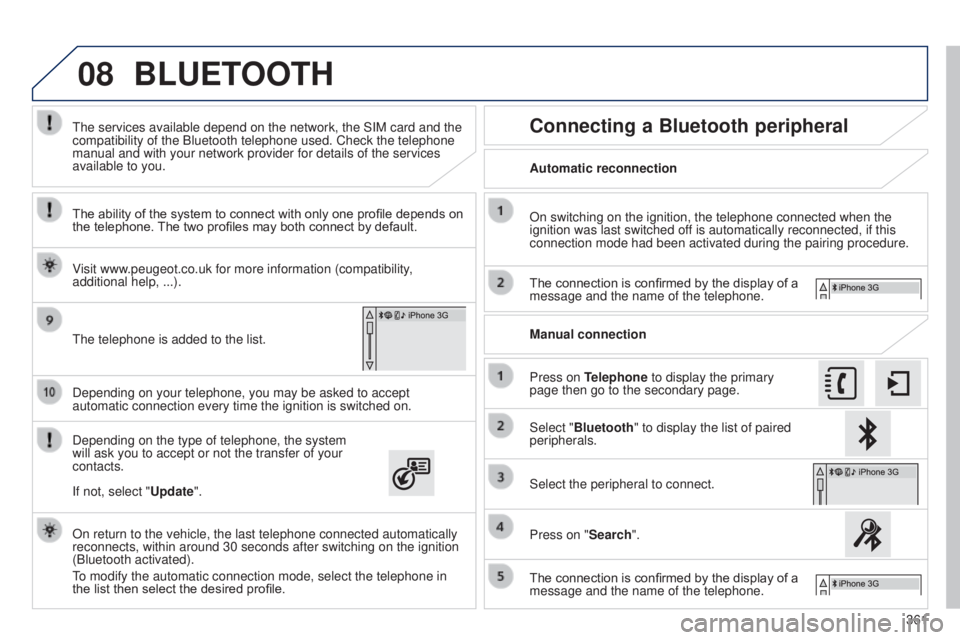
Automatic reconnection
Connecting a Bluetooth peripheral
On switching on the ignition, the telephone connected when the
ignition was last switched off is automatically reconnected, if this
connection mode had been activated during the pairing procedure.
The connection is confirmed by the display of a
message and the name of the telephone.
Press on Telephone to display the primary
page then go to the secondary page. Manual connection
Select "Bluetooth" to display the list of paired
peripherals.
Select the peripheral to connect.
Press on "Search".
The connection is confirmed by the display of a
message and the name of the telephone.