navigation Peugeot 308 2016 Owner's Guide
[x] Cancel search | Manufacturer: PEUGEOT, Model Year: 2016, Model line: 308, Model: Peugeot 308 2016Pages: 398, PDF Size: 9.38 MB
Page 335 of 398
333
308_en_Chap10c_SMegplus_ed02-2015
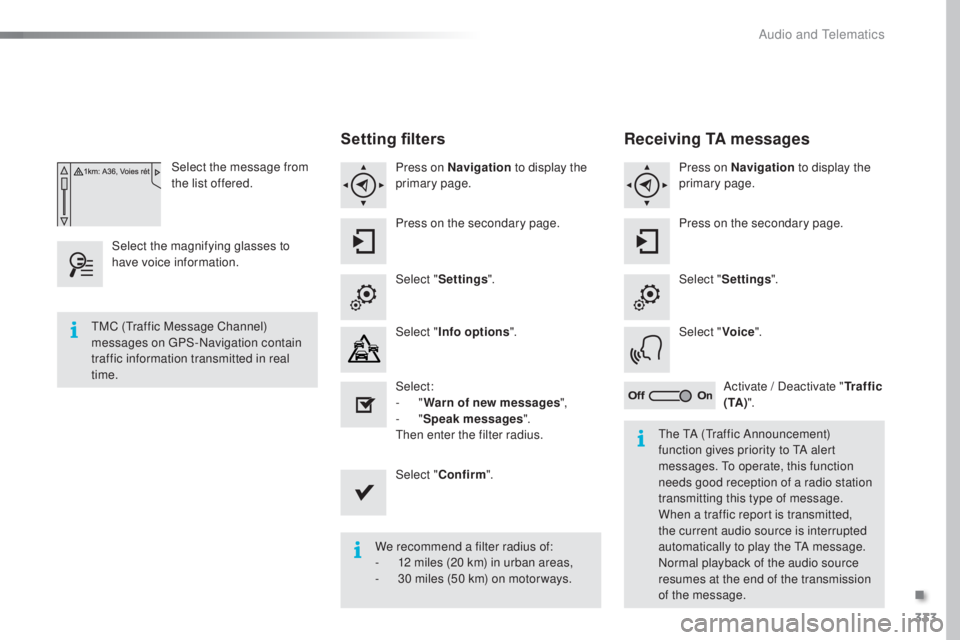
Select the message from
the list offered.
Select the magnifying glasses to
have voice information.
Setting filters
Press on Navigation to display the
primary page.
Press on the secondary page.
Select " Settings ".
Select " Info options ".
Select:
-
" W
arn of new messages ",
-
" S
peak messages ".
then en
ter the filter radius.
Select " Confirm ".
We recommend a filter radius of:
-
12 m
iles (20 km) in urban areas,
-
30 m
iles (50 km) on motor ways.
tMC (tra
ffic Message Channel)
messages on
gPS
-Navigation contain
traffic information transmitted in real
time.
the tA (tra
ffic Announcement)
function gives priority to
tA al
ert
messages.
to op
erate, this function
needs good reception of a radio station
transmitting this type of message.
When a traffic report is transmitted,
the current audio source is interrupted
automatically to play the
tA me
ssage.
Normal playback of the audio source
resumes at the end of the transmission
of the message.
Receiving TA messages
Press on Navigation to display the
primary page.
Press on the secondary page.
Select " Settings ".
Select " Voice".
Activate / Deactivate " Tr a f f i c
( TA ) ".
.
Audio and telematics
Page 337 of 398
335
308_en_Chap10c_SMegplus_ed02-2015
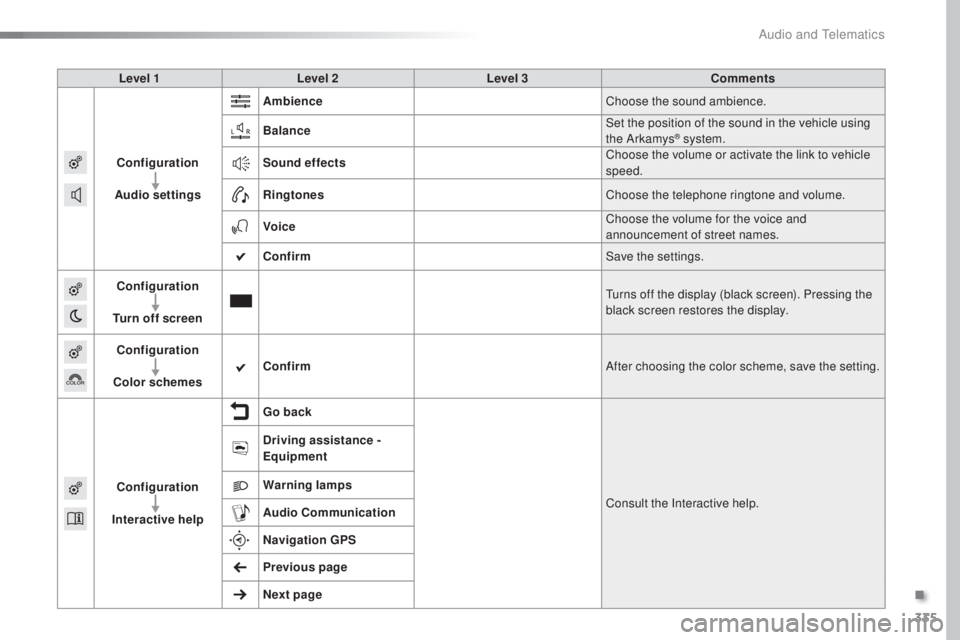
Level 1Level 2 Level 3 Comments
Configuration
Audio settings Ambience
Choose the sound ambience.
Balance Set the position of the sound in the vehicle using
the Arkamys
® system.
Sound effects Choose the volume or activate the link to vehicle
speed.
Ringtones Choose the telephone ringtone and volume.
Voice Choose the volume for the voice and
announcement of street names.
Confirm Save the settings.
Configuration
Turn off screen
tur
ns off the display (black screen). Pressing the
black screen restores the display.
Configuration
Color schemes Confirm
After choosing the color scheme, save the setting.
Configuration
Interactive help Go back
Consult the Interactive help.
Driving assistance -
Equipment
Warning lamps
Audio
Communication
Navigation GPS
Previous page
Next page
.
Audio and telematics
Page 346 of 398
344
308_en_Chap10c_SMegplus_ed02-2015
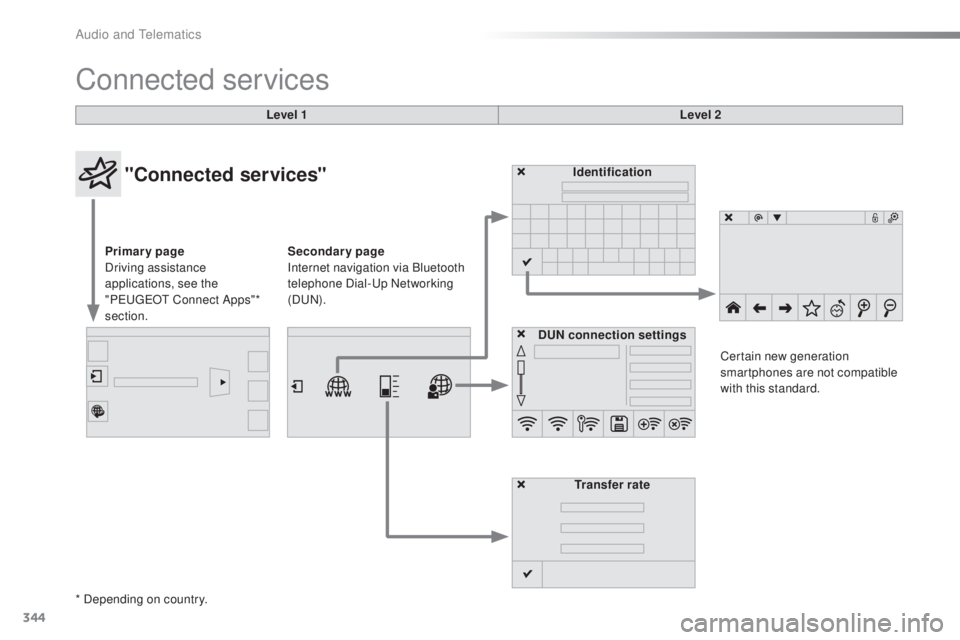
Connected services
Level 1Level 2
"Connected services"
Primary page
Driving assistance
applications, see the
"P
eu
ge
Ot C
onnect Apps"*
section. Identification
DUN connection settings Transfer rate Certain new generation
smartphones are not compatible
with this standard.
Secondary page
Internet navigation via Bluetooth
telephone Dial-
up
Networking
(D
uN).
*
Depending on country.
Audio and telematics
Page 356 of 398
354
308_en_Chap10c_SMegplus_ed02-2015
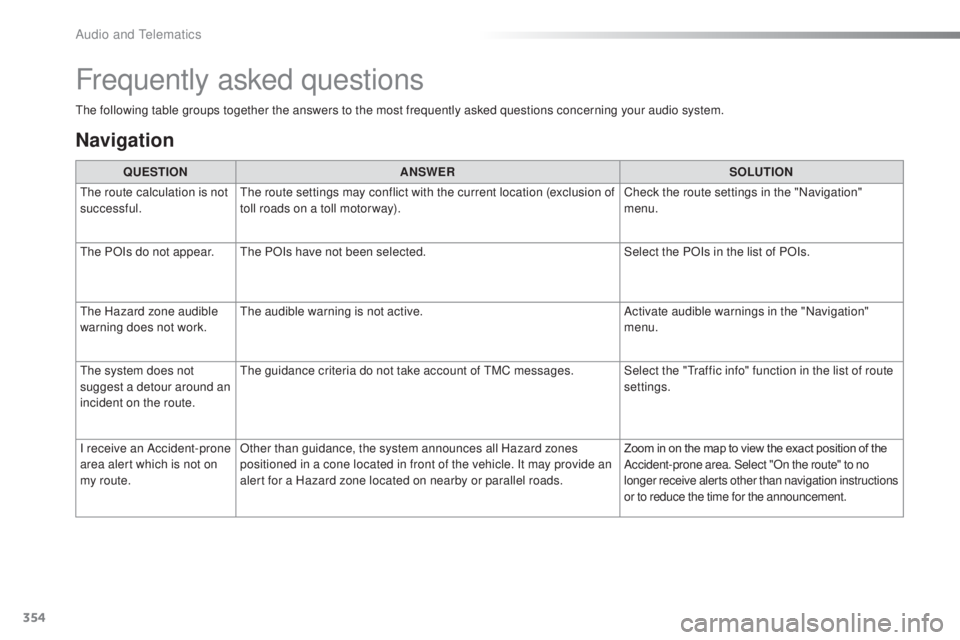
the following table groups together the answers to the most frequently asked questions concerning your audio system.
Frequently asked questions
Navigation
QUESTIONANSWER SOLUTION
the r
oute calculation is not
successful.
the r
oute settings may conflict with the current location (exclusion of
toll roads on a toll motor way). Check the route settings in the "Navigation"
menu.
the P
OIs do not appear.
the
POIs have not been selected. Select the POIs in the list of POIs.
the H
azard zone audible
warning does not work.
the a
udible warning is not active. Activate audible warnings in the "Navigation"
menu.
the s
ystem does not
suggest a detour around an
incident on the route.
the g
uidance criteria do not take account of
tMC m
essages. Select the "
tra
ffic info" function in the list of route
settings.
I receive an Accident-prone
area alert which is not on
my route. Other than guidance, the system announces all Hazard zones
positioned in a cone located in front of the vehicle. It may provide an
alert for a Hazard zone located on nearby or parallel roads.
Zoom in on the map to view the exact position of the
Accident-prone area. Select "On the route" to no
longer receive alerts other than navigation instructions
or to reduce the time for the announcement.
Audio and telematics