buttons Peugeot 308 2017 Owner's Guide
[x] Cancel search | Manufacturer: PEUGEOT, Model Year: 2017, Model line: 308, Model: Peugeot 308 2017Pages: 392, PDF Size: 10.16 MB
Page 184 of 392
182
308_en_Chap06_conduite_ed01-2016
the dynamic cruise control must be selected in
the "Driving assistance " menu.
F
t
u
rn the wheel 1 to the " CRUISE" position:
cruise control mode is selected, but not
started (Pause).
F
P
ress one of the buttons 2 or 3 : the current
speed of your vehicle becomes the cruise
speed setting.
th
e cruise control is activated (ON).
By default, the inter-vehicle time is set at
2
seconds.
Otherwise, the last setting made will be used
when switching on the system.
Switching on
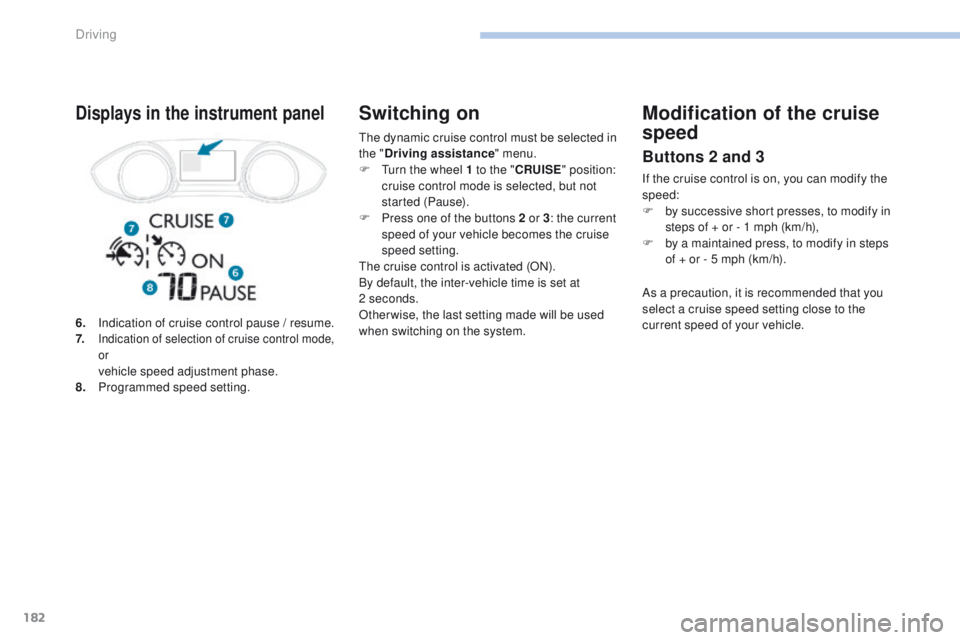
6. Indication of cruise control pause / resume.
7. Indication of selection of cruise control mode,
or
vehicle speed adjustment phase.
8. P rogrammed speed setting.
Displays in the instrument panelModification of the cruise
speed
Buttons 2 and 3
If the cruise control is on, you can modify the
speed:
F
b
y successive short presses, to modify in
steps of + or - 1 mph (km/h),
F
b
y a maintained press, to modify in steps
of
+ or - 5 mph (km/h).
As a precaution, it is recommended that you
select a cruise speed setting close to the
current speed of your vehicle.
Driving
Page 188 of 392
186
308_en_Chap06_conduite_ed01-2016
In the event of a fault with the dynamic cruise
control, you are alerted by an audible signal
and display of the message message "Driving
aid functions fault".
Have the system checked by a P
e
uge
Ot
dealer or a qualified workshop. When the cruise control is working, take
care if making a maintained press on
one of the cruise control programmed
speed modification buttons: this can
lead to a very quick change in the
speed of your vehicle.
Do not use the dynamic cruise control
on slippery sur faces or in heavy traffic.
When descending a steep hill, the
cruise control may not be able to
prevent the vehicle from exceeding the
programmed speed.
When ascending a steep hill or when
towing, it might not be possible to attain
or maintain the programmed speed.
Operating fault
the operation of the radar, located in
the front bumper, may be disturbed in
certain weather conditions, for example:
with accumulations of snow, ice,
mud,
...
Clean the front bumper, removing the
snow, mud,
...
th
e use of mats not approved by
P
e
uge
Ot
may inter fere with the
operation of the dynamic cruise control.to a void any risk of jamming the pedals:
-
e
nsure that mats are secured
c o r r e c t l y,
-
n
ever fit one mat on top of another.
Driving
Page 213 of 392
211
308_en_Chap06_conduite_ed01-2016
Reinitialisation of the system is done with the
ignition on and the vehicle stationary.
F
C
onfirm the instruction by pressing " Ye s",
an audible signal and a message confirm
the reinitialisation.
Touch screen
the new pressure settings registered
are considered to be reference values
by the system.
Screen C
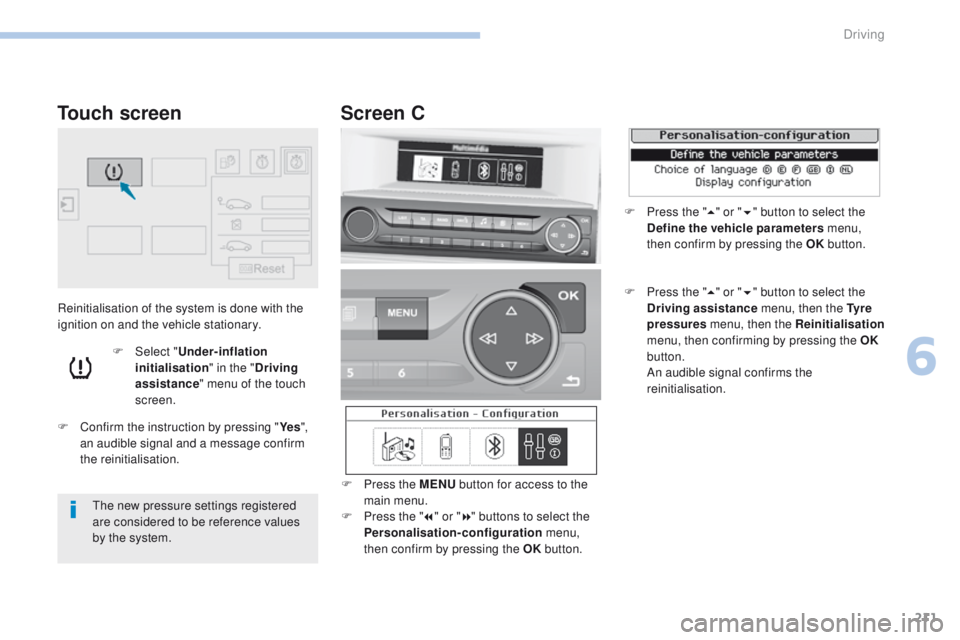
F Press the MENU button for access to the
main menu.
F
P
ress the " 7" or " 8" buttons to select the
Personalisation-configuration menu,
then confirm by pressing the OK button.
F Select "Under-inflation
initialisation " in the "Driving
assistance " menu of the touch
screen.
F Press the " 5" or " 6" button to select the
Define the vehicle parameters menu,
then confirm by pressing the OK button.
F
P
ress the " 5" or " 6" button to select the
Driving assistance menu, then the Ty r e
pressures menu, then the Reinitialisation
menu, then confirming by pressing the OK
button.
A
n audible signal confirms the
reinitialisation.
6
Driving
Page 298 of 392
296
308_en_Chap10b_SMegplus_ed01-2016
First steps
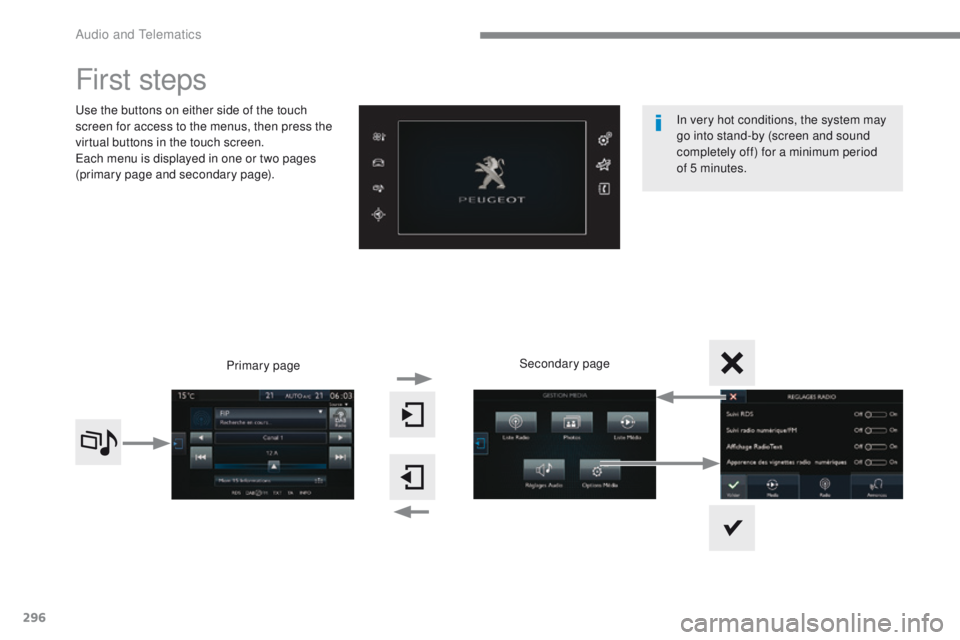
use the buttons on either side of the touch
screen for access to the menus, then press the
virtual buttons in the touch screen.
ea
ch menu is displayed in one or two pages
(primary page and secondary page).
Secondary page
Primary page In very hot conditions, the system may
go into stand-by (screen and sound
completely off) for a minimum period
of
5 minutes.
Audio and telematics
Page 299 of 392
297
308_en_Chap10b_SMegplus_ed01-2016
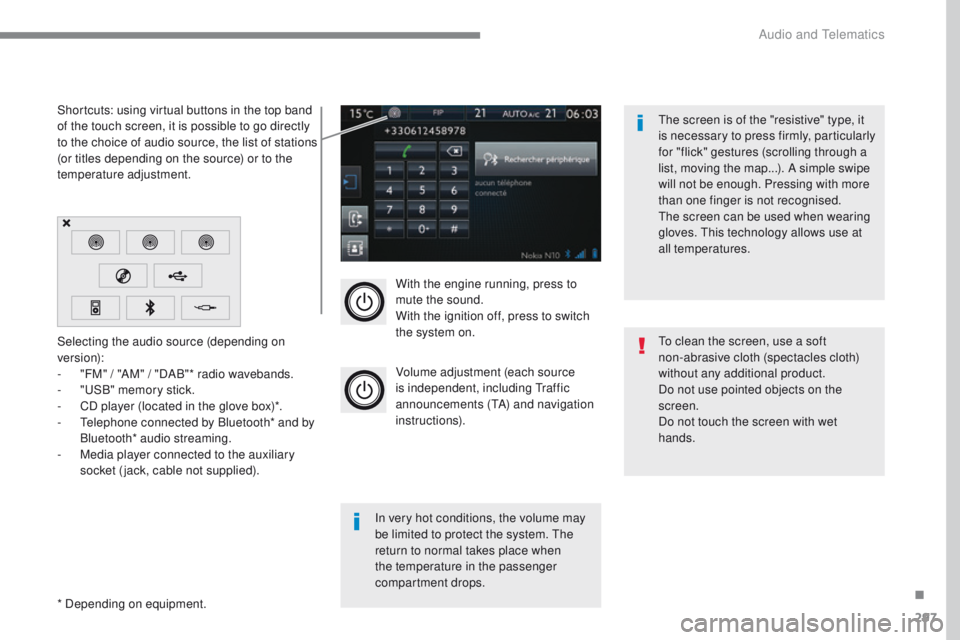
With the engine running, press to
mute the sound.
With the ignition off, press to switch
the system on.
Volume adjustment (each source
is independent, including t
r
affic
announcements (
tA
) and navigation
instructions).
Selecting the audio source (depending on
version):
-
"
FM" / "AM" / "DAB"* radio wavebands.
-
"uS
B" memory stick.
-
C
D player (located in the glove box)*.
-
t
e
lephone connected by Bluetooth* and by
Bluetooth* audio streaming.
-
M
edia player connected to the auxiliary
socket (jack, cable not supplied).
* Depending on equipment. Shortcuts: using virtual buttons in the top band
of the touch screen, it is possible to go directly
to the choice of audio source, the list of stations
(or titles depending on the source) or to the
temperature adjustment.
th
e screen is of the "resistive" type, it
is necessary to press firmly, particularly
for "flick" gestures (scrolling through a
list, moving the map...). A simple swipe
will not be enough. Pressing with more
than one finger is not recognised.
th
e screen can be used when wearing
gloves. t
h
is technology allows use at
all temperatures.
In very hot conditions, the volume may
be limited to protect the system. t
h
e
return to normal takes place when
the temperature in the passenger
compartment drops.
to c
lean the screen, use a soft
non-abrasive cloth (spectacles cloth)
without any additional product.
Do not use pointed objects on the
screen.
Do not touch the screen with wet
hands.
.
Audio and telematics
Page 312 of 392
310
308_en_Chap10b_SMegplus_ed01-2016
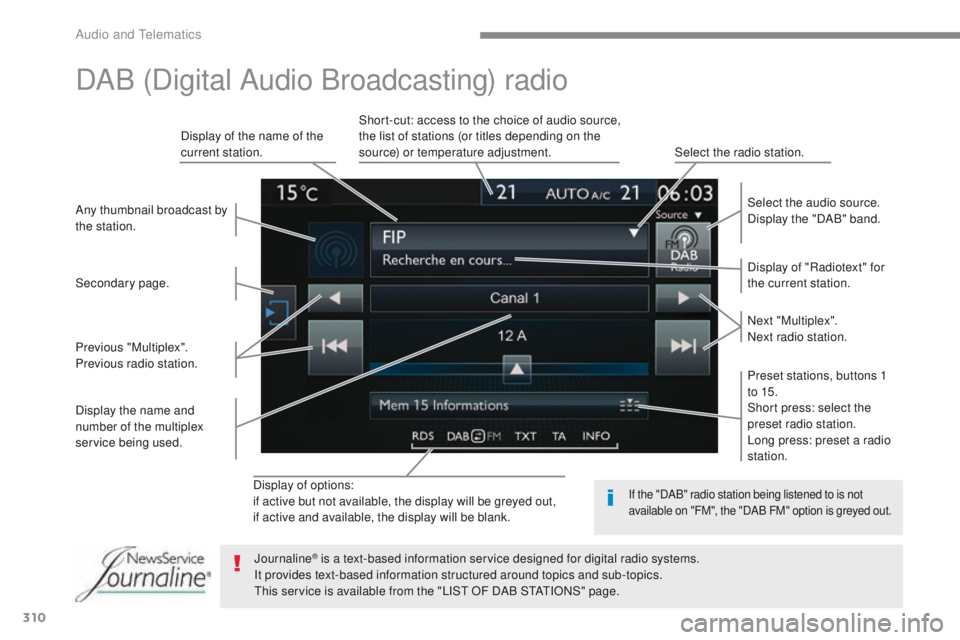
Display of options:
if active but not available, the display will be greyed out,
if active and available, the display will be blank.Display of "Radiotext" for
the current station. Select the audio source.
Display the "DAB" band.
Display of the name of the
current station.
Short-cut: access to the choice of audio source,
the list of stations (or titles depending on the
source) or temperature adjustment.
Select the radio station.
Any thumbnail broadcast by
the station.
Preset stations, buttons 1
to 15.
Short press: select the
preset radio station.
Long press: preset a radio
station. Next "Multiplex".
Next radio station.
Secondary page.
Display the name and
number of the multiplex
service being used. Previous "Multiplex".
Previous radio station.
DAB (Digital Audio Broadcasting) radio
If the "DAB" radio station being listened to is not
available on "FM", the "DAB FM" option is greyed out.
Journaline® is a text-based information service designed for digital radio systems.
I
t provides text-based information structured around topics and sub-topics.
th
is service is available from the "LIS
t
OF DAB S
tAtI
ONS" page.
Audio and telematics
Page 316 of 392
314
308_en_Chap10b_SMegplus_ed01-2016
Bluetooth® audio streaming
Streaming allows audio files on your telephone
to be played through the vehicle's speakers.
Connect the telephone: see the "Telephone"
section, then " Bluetooth".
Choose the " Audio" or "All" profile.
If play does not start automatically, it may be
necessary to start the audio playback from the
telephone.
Control is from the peripheral device or by
using the audio system buttons.
Once connected in streaming mode,
the telephone is considered to be a
media source.
It is recommended that you activate
"Repeat " on the Bluetooth peripheral.
Connecting Apple® players
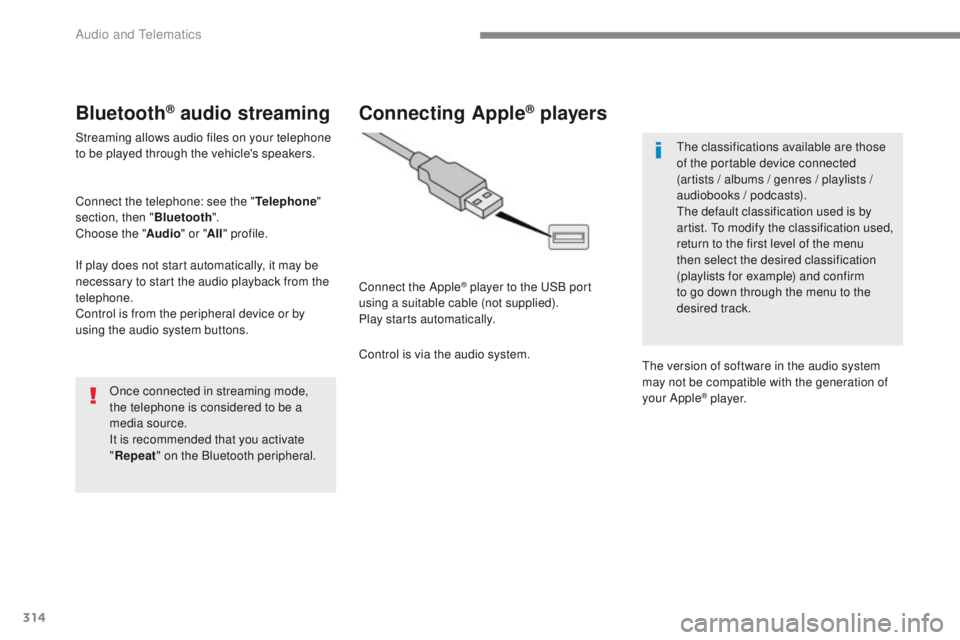
Connect the Apple® player to the uS B port
using a suitable cable (not supplied).
Play starts automatically.
Control is via the audio system.
th
e classifications available are those
of the portable device connected
(artists / albums / genres / playlists /
audiobooks / podcasts).
th
e default classification used is by
artist. t
o m
odify the classification used,
return to the first level of the menu
then select the desired classification
(playlists for example) and confirm
to go down through the menu to the
desired track.
th
e version of software in the audio system
may not be compatible with the generation of
your Apple
® p l aye r.
Audio and telematics
Page 362 of 392
360
308_en_Chap10c_RD45_ed01-2016
First steps
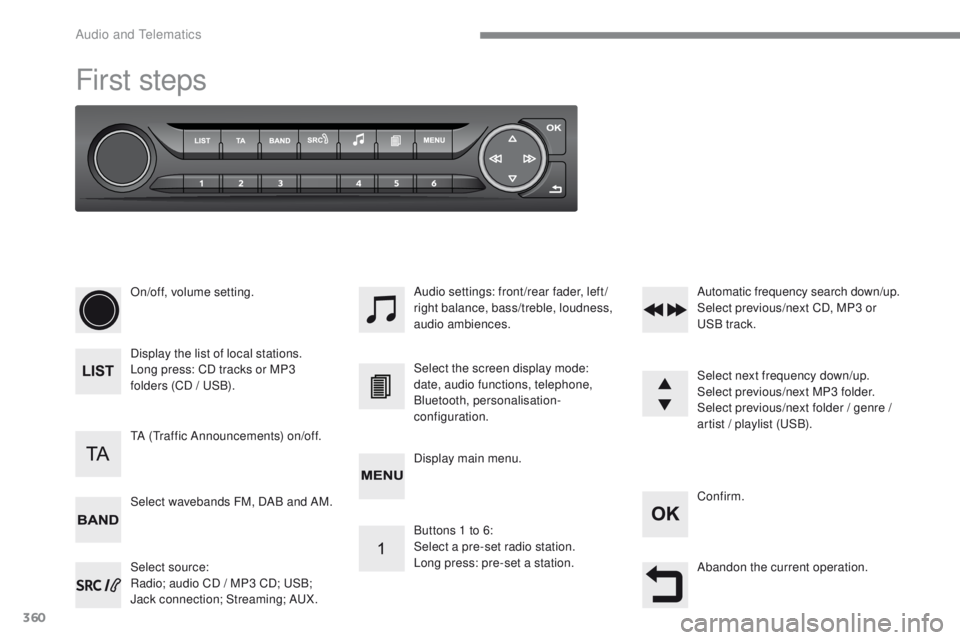
On/off, volume setting.
Display the list of local stations.
Long press: CD tracks or MP3
folders (CD / u
S
B).
Select source:
Radio; audio CD / MP3 CD;
u
S
B;
Jack connection; Streaming; A
uX
.
Select wavebands FM, DAB and AM. Audio settings: front/rear fader, left/
right balance, bass/treble, loudness,
audio ambiences.
tA (tr
affic Announcements) on/off. Select the screen display mode:
date, audio functions, telephone,
Bluetooth, personalisation-
configuration.
Select next frequency down/up.
Select previous/next MP3 folder.
Select previous/next folder / genre /
artist / playlist (
uS
B).
Abandon the current operation. Confirm.
Buttons 1 to 6:
Select a pre-set radio station.
Long press: pre-set a station. Automatic frequency search down/up.
Select previous/next CD, MP3 or
uS
B track.
Display main menu.
Audio and telematics
Page 363 of 392
361
308_en_Chap10c_RD45_ed01-2016
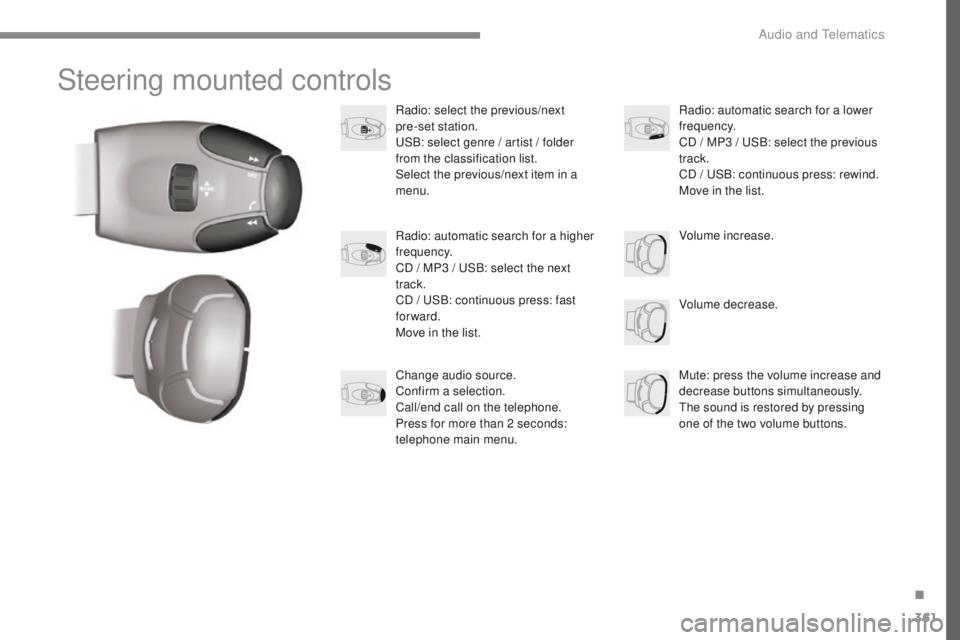
Steering mounted controls
Radio: select the previous/next
pre-set station.
uS
B: select genre / artist / folder
from the classification list.
Select the previous/next item in a
menu.
Volume decrease.
Radio: automatic search for a higher
frequency.
CD / MP3 /
u
S
B: select the next
track.
CD /
u
S
B: continuous press: fast
forward.
Move in the list.
Mute: press the volume increase and
decrease buttons simultaneously.
th
e sound is restored by pressing
one of the two volume buttons. Radio: automatic search for a lower
frequency.
CD / MP3 /
u
S
B: select the previous
track.
CD /
u
S
B: continuous press: rewind.
Move in the list.
Change audio source.
Confirm a selection.
Call/end call on the telephone.
Press for more than 2 seconds:
telephone main menu. Volume increase.
.
Audio and telematics
Page 364 of 392
362
308_en_Chap10c_RD45_ed01-2016
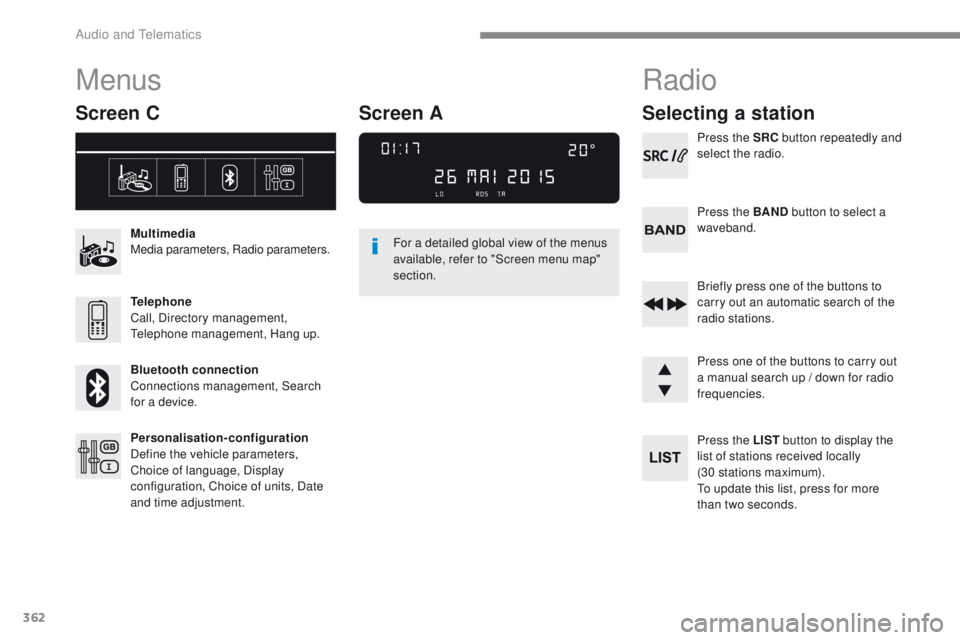
Menus
Screen C
Multimedia
Media parameters, Radio parameters.
Telephone
Call, Directory management,
te
lephone management, Hang up.
Bluetooth connection
Connections management, Search
for a device.
Personalisation-configuration
Define the vehicle parameters,
Choice of language, Display
configuration, Choice of units, Date
and time adjustment. For a detailed global view of the menus
available, refer to "Screen menu map"
section.
Radio
Selecting a station
Press the SRC
button repeatedly and
select the radio.
Press the BAND button to select a
waveband.
Briefly press one of the buttons to
carry out an automatic search of the
radio stations.
Press one of the buttons to carry out
a manual search up / down for radio
frequencies.
Press the LIST button to display the
list of stations received locally
(30 stations maximum).
to u
pdate this list, press for more
than two seconds.
Screen A
Audio and telematics