Radio Peugeot 308 2018 User Guide
[x] Cancel search | Manufacturer: PEUGEOT, Model Year: 2018, Model line: 308, Model: Peugeot 308 2018Pages: 324, PDF Size: 10.72 MB
Page 238 of 324
2
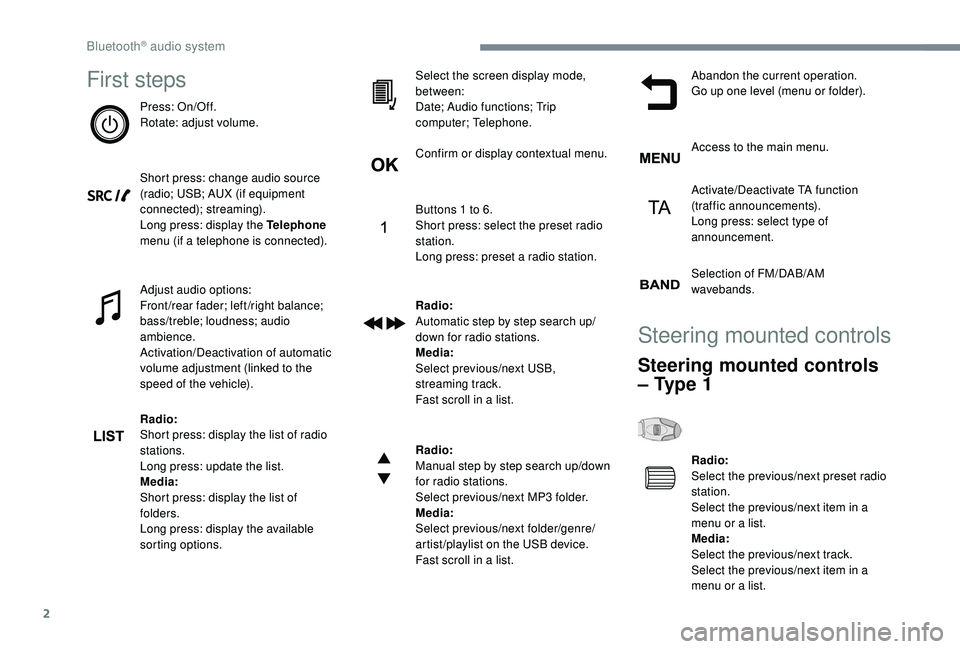
First steps
Press: On/Off.
Rotate: adjust volume.
Short press: change audio source
(radio; USB; AUX (if equipment
connected); streaming).
Long press: display the Telephone
menu (if a telephone is connected).
Adjust audio options:
Front/rear fader; left/right balance;
bass/treble; loudness; audio
ambience.
Activation/Deactivation of automatic
volume adjustment (linked to the
speed of the vehicle).
Radio:
Short press: display the list of radio
stations.
Long press: update the list.
Media:
Short press: display the list of
folders.
Long press: display the available
sorting options.Select the screen display mode,
between:
Date; Audio functions; Trip
computer; Telephone.
Confirm or display contextual menu.
Buttons 1 to 6.
Short press: select the preset radio
station.
Long press: preset a radio station.
Radio:
Automatic step by step search up/
down for radio stations.
Media:
Select previous/next USB,
streaming track.
Fast scroll in a list.
Radio:
Manual step by step search up/down
for radio stations.
Select previous/next MP3 folder.
Media:
Select previous/next folder/genre/
artist/playlist on the USB device.
Fast scroll in a list.Abandon the current operation.
Go up one level (menu or folder).
Access to the main menu.
Activate/Deactivate TA function
(traffic announcements).
Long press: select type of
announcement.
Selection of FM/DAB/AM
wavebands.
Steering mounted controls
Steering mounted controls
– Type 1
Radio:
Select the previous/next preset radio
station.
Select the previous/next item in a
menu or a list.
Media:
Select the previous/next track.
Select the previous/next item in a
menu or a list.
Bluetooth® audio system
Page 239 of 324
3
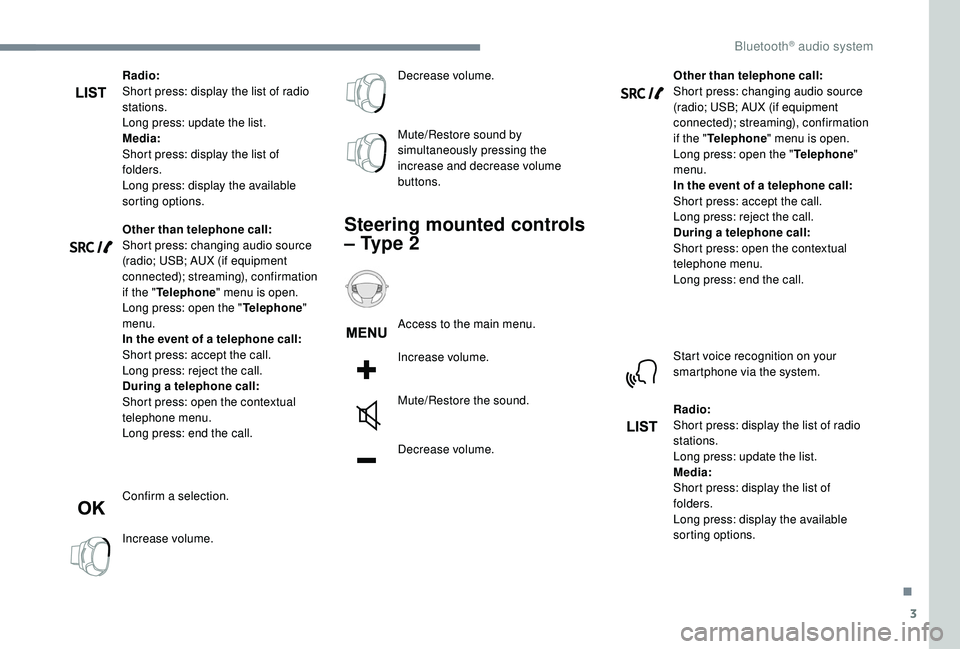
Radio:
Short press: display the list of radio
stations.
Long press: update the list.
Media:
Short press: display the list of
folders.
Long press: display the available
sorting options.
Other than telephone call:
Short press: changing audio source
(radio; USB; AUX (if equipment
connected); streaming), confirmation
if the "Telephone " menu is open.
Long press: open the " Telephone"
menu.
In the event of a telephone call:
Short press: accept the call.
Long press: reject the call.
During a telephone call:
Short press: open the contextual
telephone menu.
Long press: end the call.
Confirm a selection.
Increase volume. Decrease volume.
Mute/Restore sound by
simultaneously pressing the
increase and decrease volume
buttons.
Steering mounted controls
– Type 2
Access to the main menu.
Increase volume.
Mute/Restore the sound.
Decrease volume.
Other than telephone call:
Short press: changing audio source
(radio; USB; AUX (if equipment
connected); streaming), confirmation
if the "
Telephone " menu is open.
Long press: open the " Telephone"
menu.
In the event of a telephone call:
Short press: accept the call.
Long press: reject the call.
During a telephone call:
Short press: open the contextual
telephone menu.
Long press: end the call.
Start voice recognition on your
smartphone via the system.
Radio:
Short press: display the list of radio
stations.
Long press: update the list.
Media:
Short press: display the list of
folders.
Long press: display the available
sorting options.
.
Bluetooth® audio system
Page 240 of 324
4
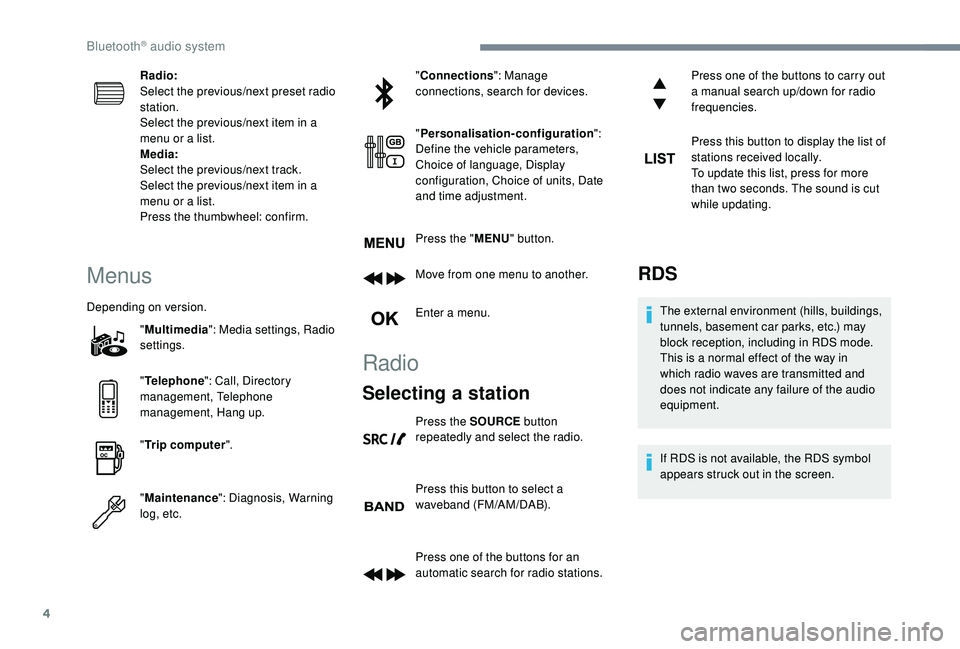
Radio:
Select the previous/next preset radio
station.
Select the previous/next item in a
menu or a list.
Media:
Select the previous/next track.
Select the previous/next item in a
menu or a list.
Press the thumbwheel: confirm.
Menus
Depending on version."Multimedia ": Media settings, Radio
settings.
" Telephone ": Call, Directory
management, Telephone
management, Hang up.
" Trip computer ".
" Maintenance ": Diagnosis, Warning
log, etc. "
Connections ": Manage
connections, search for devices.
" Personalisation-configuration ":
Define the vehicle parameters,
Choice of language, Display
configuration, Choice of units, Date
and time adjustment.
Press the " MENU" button.
Move from one menu to another.
Enter a menu.
Radio
Selecting a station
Press the SOURCE button
repeatedly and select the radio.
Press this button to select a
waveband (FM/AM/DAB).
Press one of the buttons for an
automatic search for radio stations. Press one of the buttons to carry out
a manual search up/down for radio
frequencies.
Press this button to display the list of
stations received locally.
To update this list, press for more
than two seconds. The sound is cut
while updating.
RDS
The external environment (hills, buildings,
tunnels, basement car parks, etc.) may
block reception, including in RDS mode.
This is a normal effect of the way in
which radio waves are transmitted and
does not indicate any failure of the audio
equipment.
If RDS is not available, the RDS symbol
appears struck out in the screen.
Bluetooth® audio system
Page 241 of 324
5
The RDS, if activated, enables you to
continue listening to the same station
by automatic retuning to alternative
frequencies. However, in certain conditions,
coverage of an RDS station may not be
assured throughout the entire country as
radio stations do not cover 100% of the
territory. This explains the loss of reception
of the station during a journey.
Short procedure
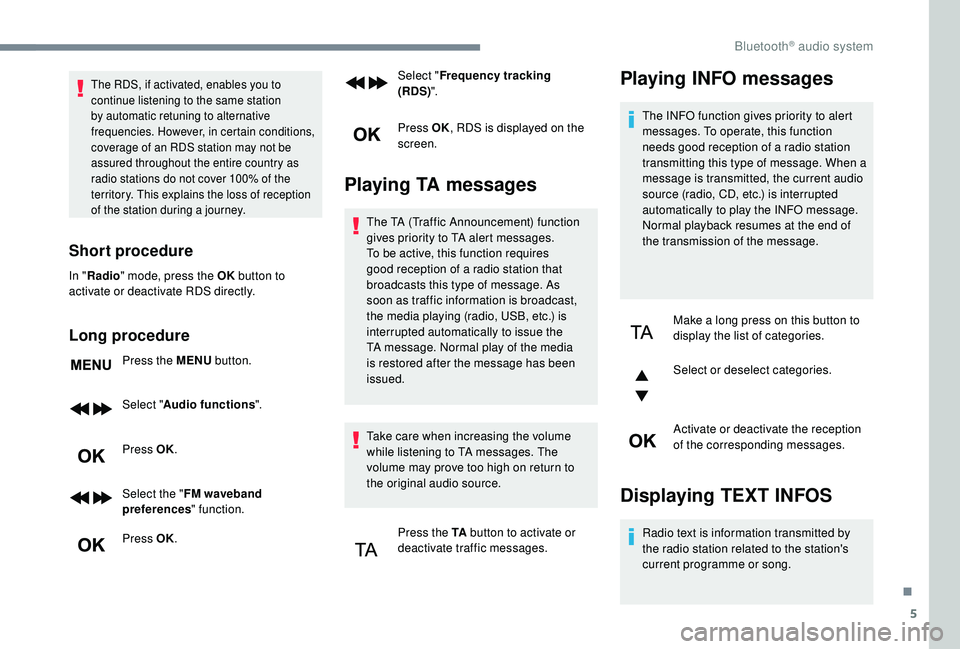
In "Radio " mode, press the OK button to
activate or deactivate RDS directly.
Long procedure
Press the MENU button.
Select " Audio functions ".
Press OK.
Select the " FM waveband
preferences " function.
Press OK. Select "
Frequency tracking
(RDS) ".
Press OK , RDS is displayed on the
screen.
Playing TA messages
The TA (Traffic Announcement) function
gives priority to TA alert messages.
To be active, this function requires
good reception of a radio station that
broadcasts this type of message. As
soon as traffic information is broadcast,
the media playing (radio, USB, etc.) is
interrupted automatically to issue the
TA message. Normal play of the media
is restored after the message has been
issued.
Take care when increasing the volume
while listening to TA messages. The
volume may prove too high on return to
the original audio source.
Press the TA button to activate or
deactivate traffic messages.
Playing INFO messages
The INFO function gives priority to alert
messages. To operate, this function
needs good reception of a radio station
transmitting this type of message. When a
message is transmitted, the current audio
source (radio, CD, etc.) is interrupted
automatically to play the INFO message.
Normal playback resumes at the end of
the transmission of the message.
Make a long press on this button to
display the list of categories.
Select or deselect categories.
Activate or deactivate the reception
of the corresponding messages.
Displaying TEXT INFOS
Radio text is information transmitted by
the radio station related to the station's
current programme or song.
.
Bluetooth® audio system
Page 242 of 324
6
When the radio station is displayed
in the screen, press OK to display
the contextual menu.
Select " RadioText (TXT) display "
and confirm OK to save.
DAB (Digital Audio
Broadcasting) radio
Depending on version
If the current DAB radio station is not
available on FM, "DAB FM" is struck out. When changing region, an update of the
list of preset radio stations is advisable.
Display of the list of all radio stations
and "multiplexes".
Terrestrial digital radio
Digital radio provides a superior audio
quality and also additional categories of
traffic announcements (TA INFO).
The different "multiplex/ensemble"
ser vices offer a choice of radio stations in
alphabetical order.Change of band (FM1, FM2, DAB,
e t c .)
Change of station within the same
"multiplex/ensemble".
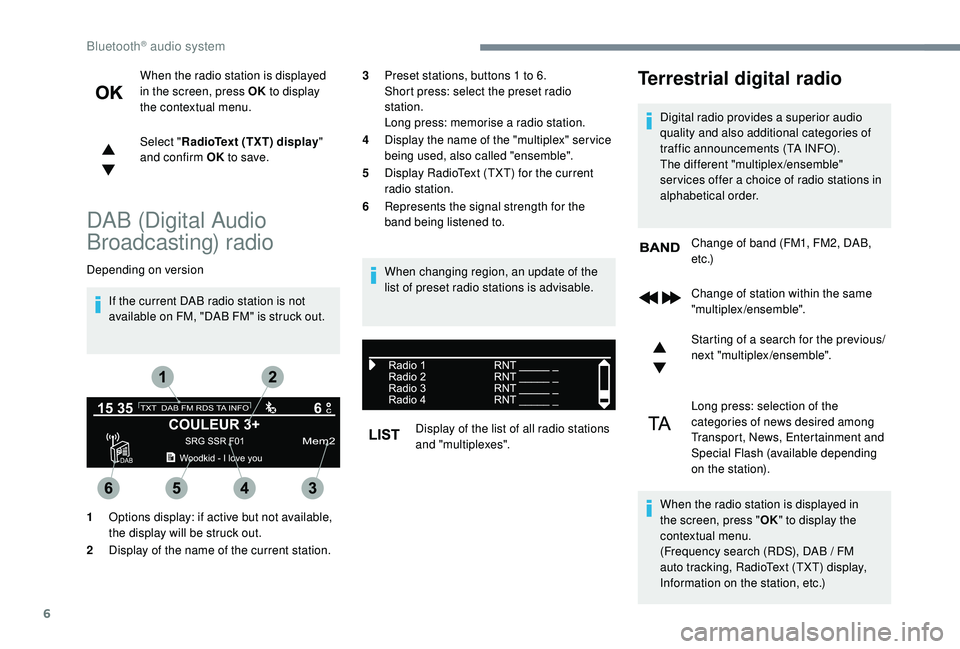
1 Options display: if active but not available,
the display will be struck out.
2 Display of the name of the current station. Starting of a search for the previous/
next "multiplex/ensemble".
Long press: selection of the
categories of news desired among
Transport, News, Entertainment and
Special Flash (available depending
on the station).
When the radio station is displayed in
the screen, press " OK" to display the
contextual menu.
(Frequency search (RDS), DAB
/ FM
auto tracking, RadioText (TXT) display,
Information on the station, etc.)
3
Preset stations, buttons 1 to 6.
Short press: select the preset radio
station.
Long press: memorise a radio station.
4 Display the name of the "multiplex" ser vice
being used, also called "ensemble".
5 Display RadioText (TXT) for the current
radio station.
6 Represents the signal strength for the
band being listened to.
Bluetooth® audio system
Page 250 of 324
14
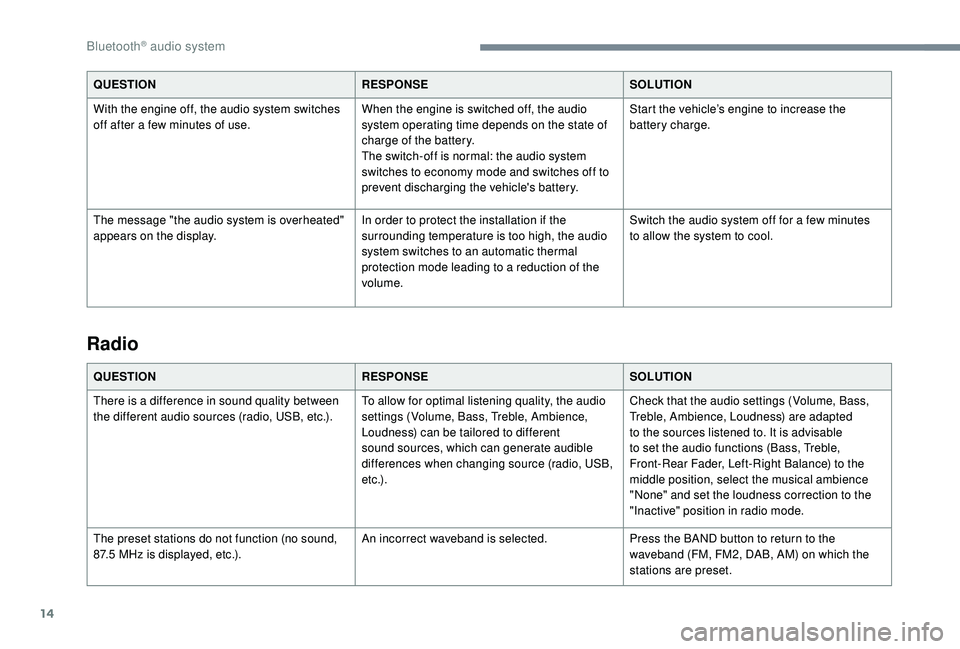
QUESTIONRESPONSESOLUTION
With the engine off, the audio system switches
off after a few minutes of use. When the engine is switched off, the audio
system operating time depends on the state of
charge of the battery.
The switch-off is normal: the audio system
switches to economy mode and switches off to
prevent discharging the vehicle's battery.Start the vehicle’s engine to increase the
battery charge.
The message "the audio system is overheated"
appears on the display. In order to protect the installation if the
surrounding temperature is too high, the audio
system switches to an automatic thermal
protection mode leading to a reduction of the
volume.Switch the audio system off for a few minutes
to allow the system to cool.
Radio
QUESTION
RESPONSESOLUTION
There is a difference in sound quality between
the different audio sources (radio, USB, etc.). To allow for optimal listening quality, the audio
settings (Volume, Bass, Treble, Ambience,
Loudness) can be tailored to different
sound sources, which can generate audible
differences when changing source (radio, USB,
e t c .) .Check that the audio settings (Volume, Bass,
Treble, Ambience, Loudness) are adapted
to the sources listened to. It is advisable
to set the audio functions (Bass, Treble,
Front-Rear Fader, Left-Right Balance) to the
middle position, select the musical ambience
"None" and set the loudness correction to the
"Inactive" position in radio mode.
The preset stations do not function (no sound,
87.5
MHz is displayed, etc.). An incorrect waveband is selected.
Press the BAND button to return to the
waveband (FM, FM2, DAB, AM) on which the
stations are preset.
Bluetooth® audio system
Page 251 of 324
15
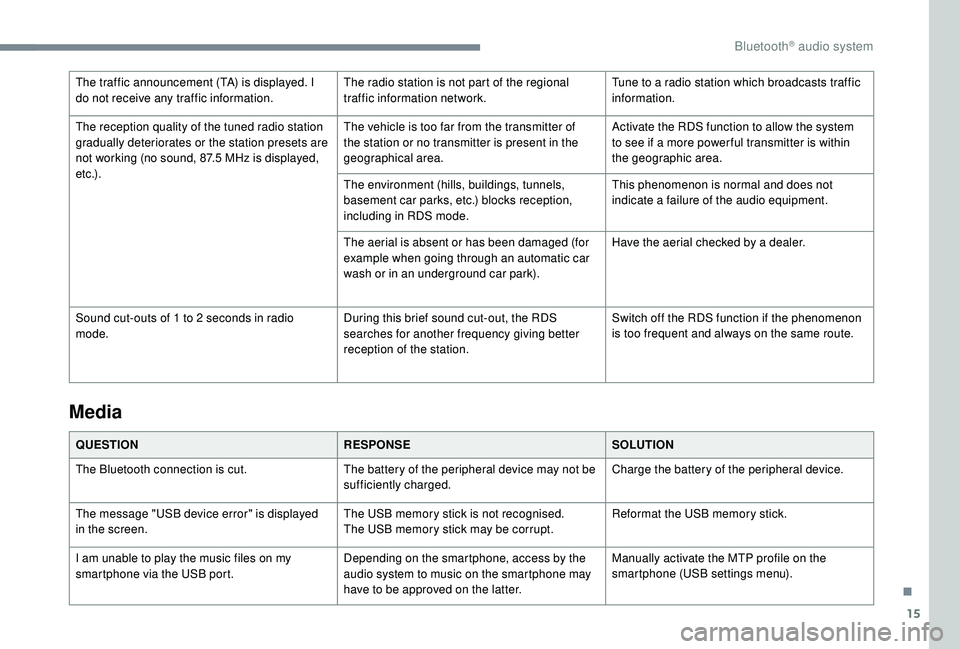
The traffic announcement (TA) is displayed. I
do not receive any traffic information.The radio station is not part of the regional
traffic information network.Tune to a radio station which broadcasts traffic
information.
The reception quality of the tuned radio station
gradually deteriorates or the station presets are
not working (no sound, 87.5
MHz is displayed,
e t c .) . The vehicle is too far from the transmitter of
the station or no transmitter is present in the
geographical area.
Activate the RDS function to allow the system
to see if a more power ful transmitter is within
the geographic area.
The environment (hills, buildings, tunnels,
basement car parks, etc.) blocks reception,
including in RDS mode. This phenomenon is normal and does not
indicate a failure of the audio equipment.
The aerial is absent or has been damaged (for
example when going through an automatic car
wash or in an underground car park). Have the aerial checked by a dealer.
Sound cut-outs of 1 to 2
seconds in radio
mode. During this brief sound cut-out, the RDS
searches for another frequency giving better
reception of the station.Switch off the RDS function if the phenomenon
is too frequent and always on the same route.
Media
QUESTION
RESPONSESOLUTION
The Bluetooth connection is cut. The battery of the peripheral device may not be
sufficiently charged.Charge the battery of the peripheral device.
The message "USB device error" is displayed
in the screen. The USB memory stick is not recognised.
The USB memory stick may be corrupt.Reformat the USB memory stick.
I am unable to play the music files on my
smartphone via the USB port. Depending on the smartphone, access by the
audio system to music on the smartphone may
have to be approved on the latter.Manually activate the MTP profile on the
smartphone (USB settings menu).
.
Bluetooth® audio system
Page 253 of 324
1
PEUGEOT Connect Radio
Multimedia audio system –
Applications – Bluetooth®
telephone
Contents
First steps
2
S
teering mounted controls
3
M
enus
4
A
pplications
5
Radio
6
DAB (Digital Audio Broadcasting) radio
8
M
edia 9
Telephone
11
Settings
16
Frequently asked questions
1
8The different functions and settings
described vary depending on the version
and configuration of your vehicle.
As a safety measure and because it
requires sustained attention by the
driver, the pairing of a Bluetooth mobile
telephone with the Bluetooth hands-free
system of your audio system must be
done with the vehicle stationary
and the
ignition on.
The system is protected in such a way that
it will only operate in your vehicle.
The display of the Energy Economy
Mode message signals that a change to
standby is imminent.
The link below gives access to OSS (Open
Source Software) codes for the system.
https://www.groupe-psa.com/fr/oss/
https://www.groupe-psa.com/en/oss/
.
PEUGEOT Connect Radio
Page 254 of 324
2
First steps
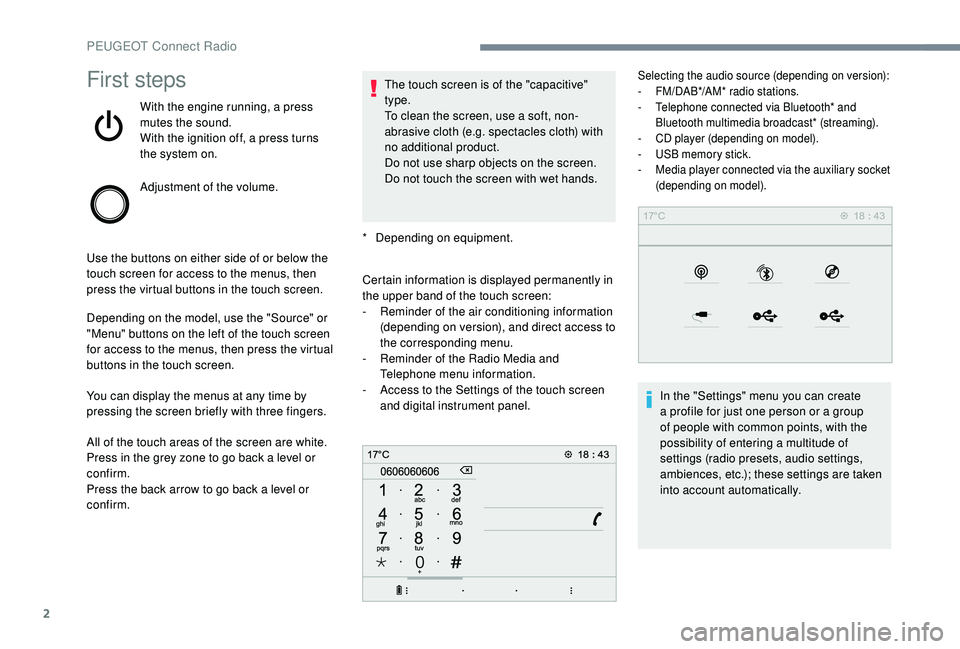
With the engine running, a press
mutes the sound.
With the ignition off, a press turns
the system on.
Adjustment of the volume.
Use the buttons on either side of or below the
touch screen for access to the menus, then
press the virtual buttons in the touch screen.
Depending on the model, use the "Source" or
"Menu" buttons on the left of the touch screen
for access to the menus, then press the virtual
buttons in the touch screen.
You can display the menus at any time by
pressing the screen briefly with three fingers.
All of the touch areas of the screen are white.
Press in the grey zone to go back a level or
confirm.
Press the back arrow to go back a level or
confirm. The touch screen is of the "capacitive"
type.
To clean the screen, use a soft, non-
abrasive cloth (e.g. spectacles cloth) with
no additional product.
Do not use sharp objects on the screen.
Do not touch the screen with wet hands.
*
D
epending on equipment.
Certain information is displayed permanently in
the upper band of the touch screen:
-
R
eminder of the air conditioning information
(depending on version), and direct access to
the corresponding menu.
-
R
eminder of the Radio Media and
Telephone menu information.
-
A
ccess to the Settings of the touch screen
and digital instrument panel.
Selecting the audio source (depending on version):
- F M/DAB*/AM* radio stations.
-
T
elephone connected via Bluetooth* and
Bluetooth multimedia broadcast* (streaming).
-
C
D player (depending on model).
-
U
SB memory stick.
-
M
edia player connected via the auxiliary socket
(depending on model).
In the "Settings" menu you can create
a profile for just one person or a group
of people with common points, with the
possibility of entering a multitude of
settings (radio presets, audio settings,
ambiences, etc.); these settings are taken
into account automatically.
PEUGEOT Connect Radio
Page 255 of 324
3
In very hot conditions, the volume may
be limited to protect the system. It may go
into standby (screen and sound off) for at
least 5 minutes
The return to normal takes place when
the temperature in the passenger
compartment has dropped.
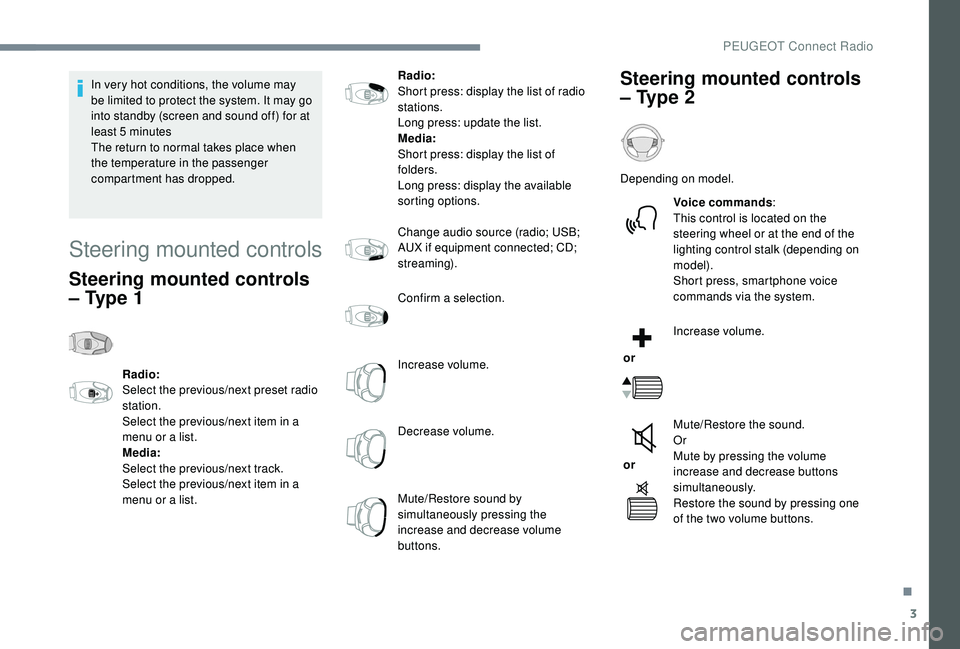
Steering mounted controls
Steering mounted controls
– Type 1
Radio:
Select the previous/next preset radio
station.
Select the previous/next item in a
menu or a list.
Media:
Select the previous/next track.
Select the previous/next item in a
menu or a list. Radio:
Short press: display the list of radio
stations.
Long press: update the list.
Media:
Short press: display the list of
folders.
Long press: display the available
sorting options.
Change audio source (radio; USB;
AUX if equipment connected; CD;
streaming).
Confirm a selection.
Increase volume.
Decrease volume.
Mute/Restore sound by
simultaneously pressing the
increase and decrease volume
buttons.
Steering mounted controls
– Type 2
Depending on model.
Voice commands :
This control is located on the
steering wheel or at the end of the
lighting control stalk (depending on
model).
Short press, smartphone voice
commands via the system.
or Increase volume.
or Mute/Restore the sound.
Or
Mute by pressing the volume
increase and decrease buttons
simultaneously.
Restore the sound by pressing one
of the two volume buttons.
.
PEUGEOT Connect Radio