phone Peugeot 308 2018 User Guide
[x] Cancel search | Manufacturer: PEUGEOT, Model Year: 2018, Model line: 308, Model: Peugeot 308 2018Pages: 324, PDF Size: 10.72 MB
Page 238 of 324
2
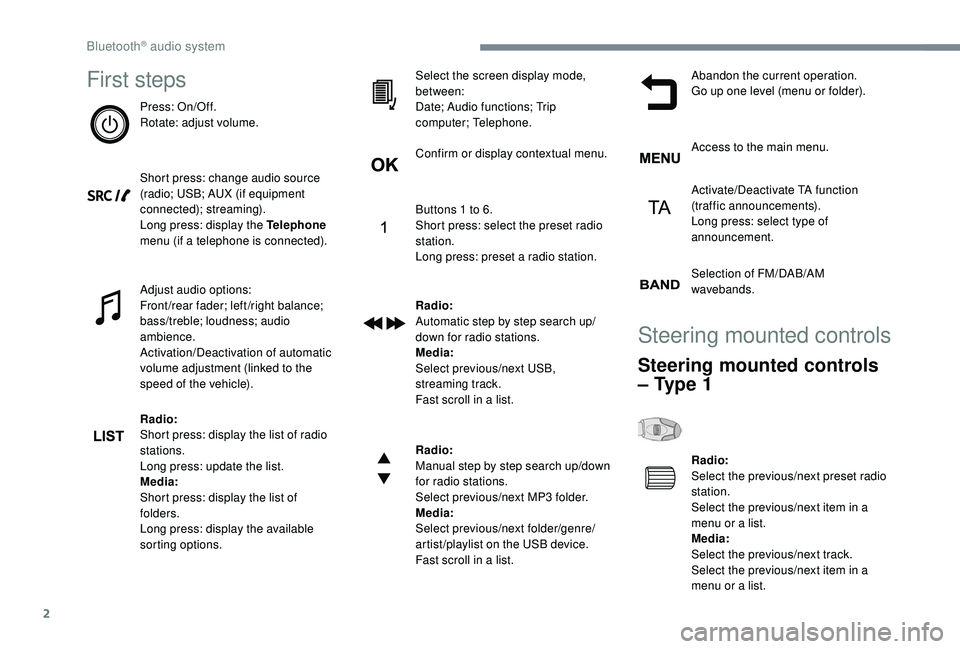
First steps
Press: On/Off.
Rotate: adjust volume.
Short press: change audio source
(radio; USB; AUX (if equipment
connected); streaming).
Long press: display the Telephone
menu (if a telephone is connected).
Adjust audio options:
Front/rear fader; left/right balance;
bass/treble; loudness; audio
ambience.
Activation/Deactivation of automatic
volume adjustment (linked to the
speed of the vehicle).
Radio:
Short press: display the list of radio
stations.
Long press: update the list.
Media:
Short press: display the list of
folders.
Long press: display the available
sorting options.Select the screen display mode,
between:
Date; Audio functions; Trip
computer; Telephone.
Confirm or display contextual menu.
Buttons 1 to 6.
Short press: select the preset radio
station.
Long press: preset a radio station.
Radio:
Automatic step by step search up/
down for radio stations.
Media:
Select previous/next USB,
streaming track.
Fast scroll in a list.
Radio:
Manual step by step search up/down
for radio stations.
Select previous/next MP3 folder.
Media:
Select previous/next folder/genre/
artist/playlist on the USB device.
Fast scroll in a list.Abandon the current operation.
Go up one level (menu or folder).
Access to the main menu.
Activate/Deactivate TA function
(traffic announcements).
Long press: select type of
announcement.
Selection of FM/DAB/AM
wavebands.
Steering mounted controls
Steering mounted controls
– Type 1
Radio:
Select the previous/next preset radio
station.
Select the previous/next item in a
menu or a list.
Media:
Select the previous/next track.
Select the previous/next item in a
menu or a list.
Bluetooth® audio system
Page 239 of 324
3
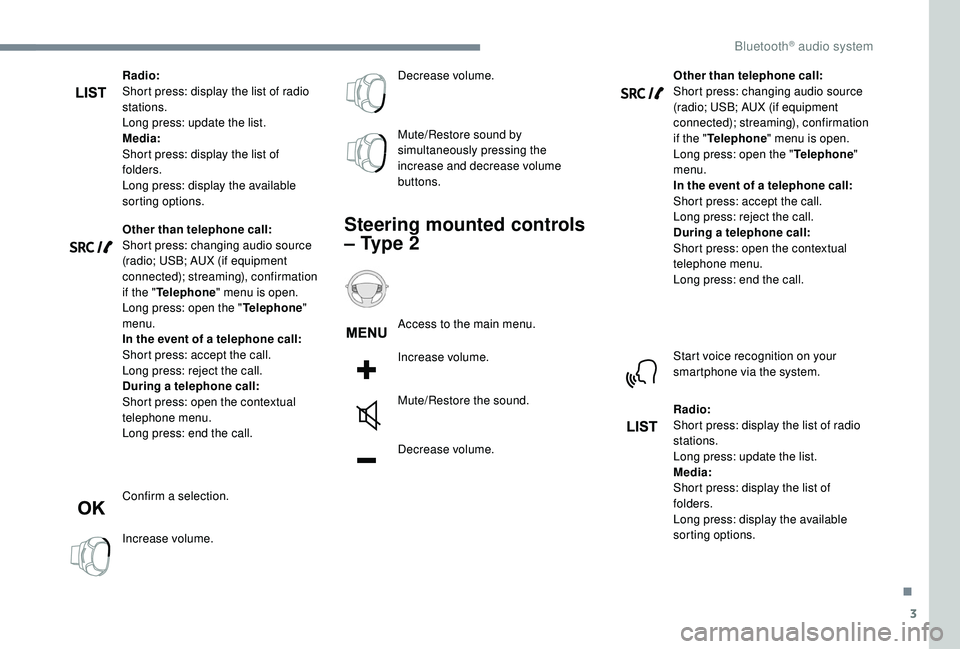
Radio:
Short press: display the list of radio
stations.
Long press: update the list.
Media:
Short press: display the list of
folders.
Long press: display the available
sorting options.
Other than telephone call:
Short press: changing audio source
(radio; USB; AUX (if equipment
connected); streaming), confirmation
if the "Telephone " menu is open.
Long press: open the " Telephone"
menu.
In the event of a telephone call:
Short press: accept the call.
Long press: reject the call.
During a telephone call:
Short press: open the contextual
telephone menu.
Long press: end the call.
Confirm a selection.
Increase volume. Decrease volume.
Mute/Restore sound by
simultaneously pressing the
increase and decrease volume
buttons.
Steering mounted controls
– Type 2
Access to the main menu.
Increase volume.
Mute/Restore the sound.
Decrease volume.
Other than telephone call:
Short press: changing audio source
(radio; USB; AUX (if equipment
connected); streaming), confirmation
if the "
Telephone " menu is open.
Long press: open the " Telephone"
menu.
In the event of a telephone call:
Short press: accept the call.
Long press: reject the call.
During a telephone call:
Short press: open the contextual
telephone menu.
Long press: end the call.
Start voice recognition on your
smartphone via the system.
Radio:
Short press: display the list of radio
stations.
Long press: update the list.
Media:
Short press: display the list of
folders.
Long press: display the available
sorting options.
.
Bluetooth® audio system
Page 240 of 324
4
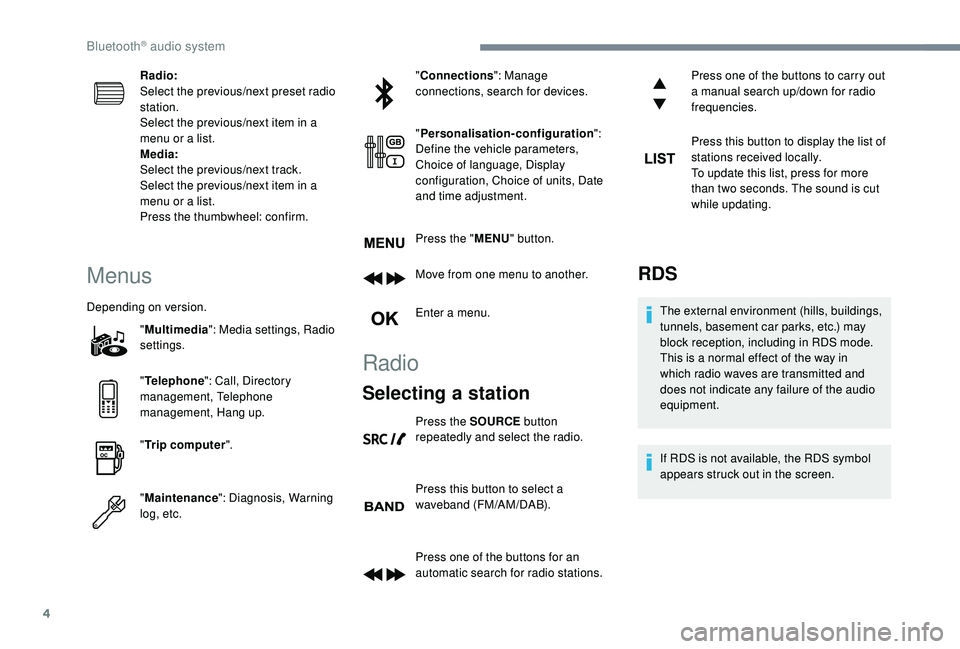
Radio:
Select the previous/next preset radio
station.
Select the previous/next item in a
menu or a list.
Media:
Select the previous/next track.
Select the previous/next item in a
menu or a list.
Press the thumbwheel: confirm.
Menus
Depending on version."Multimedia ": Media settings, Radio
settings.
" Telephone ": Call, Directory
management, Telephone
management, Hang up.
" Trip computer ".
" Maintenance ": Diagnosis, Warning
log, etc. "
Connections ": Manage
connections, search for devices.
" Personalisation-configuration ":
Define the vehicle parameters,
Choice of language, Display
configuration, Choice of units, Date
and time adjustment.
Press the " MENU" button.
Move from one menu to another.
Enter a menu.
Radio
Selecting a station
Press the SOURCE button
repeatedly and select the radio.
Press this button to select a
waveband (FM/AM/DAB).
Press one of the buttons for an
automatic search for radio stations. Press one of the buttons to carry out
a manual search up/down for radio
frequencies.
Press this button to display the list of
stations received locally.
To update this list, press for more
than two seconds. The sound is cut
while updating.
RDS
The external environment (hills, buildings,
tunnels, basement car parks, etc.) may
block reception, including in RDS mode.
This is a normal effect of the way in
which radio waves are transmitted and
does not indicate any failure of the audio
equipment.
If RDS is not available, the RDS symbol
appears struck out in the screen.
Bluetooth® audio system
Page 245 of 324
9
Bluetooth® audio streaming
Streaming allows music files on the telephone
to be played via the vehicle's loudspeakers.
Connect the telephone.
(Refer to the "Pairing a Bluetooth
®
telephone " section).
Activate the streaming source by
pressing SOURCE.
In certain cases, play of the audio
files must be initiated from the
keypad.
Audio files can be selected using the buttons
on the audio system control panel and the
steering mounted controls. The contextual
information can be displayed in the screen,
if the telephone supports the function. The
audio quality depends on the quality of
transmission by the telephone.
Connecting Apple® players
Connect the Apple® player to the USB port
using a suitable cable (not supplied).
Play starts automatically.
Control is via the audio system.
The classifications available are those of the
portable device connected (artists/albums/
genres/playlists). The version of software in the audio system
may not be compatible with the generation of
your Apple
® p l aye r.
Information and advice
Via the USB port, the system can play audio
files with the extension ".mp3", ".wma", ".wav",
".cbr", ".vbr" with a bit rate of 32 to 320
Kbps.
No other file types (".mp4", etc.) can be read.
Files of the ".wma" type should be to the wma
9 standard.
The sampling rates supported are 11, 22, 44
and 48
kHz.
File names should have fewer than 20
characters, avoiding special characters (e.g.
«
? ; ù) so as to avoid any reading or display
problems.
To protect the system, do not use a USB hub.
Use only USB memory sticks formatted
FAT32 (File Allocation Table).
It is recommended that you use genuine
Apple
® USB cables for correct operation.
Telephone
Pairing a Bluetooth®
telephone
As a safety measure and because they
require prolonged attention on the part
of the driver, the operations for pairing
of the Bluetooth mobile telephone with
the Bluetooth hands-free system of your
audio system must be carried out with the
vehicle stationary and the ignition on.
Activate the telephone's Bluetooth
function and ensure that it is "visible to all"
(telephone configuration).
The services available depend on
the network, the SIM card and the
compatibility of the Bluetooth telephone
used.
Check the instructions for your telephone
and with your ser vice provider for the
ser vices to which you have access.
Procedure from the telephone
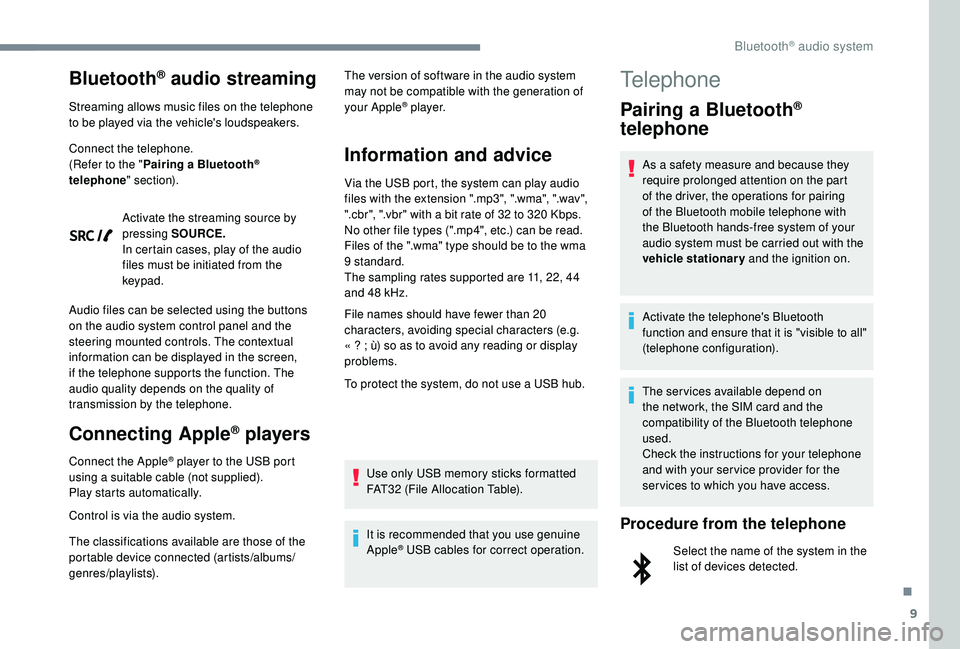
Select the name of the system in the
list of devices detected.
.
Bluetooth® audio system
Page 246 of 324
10
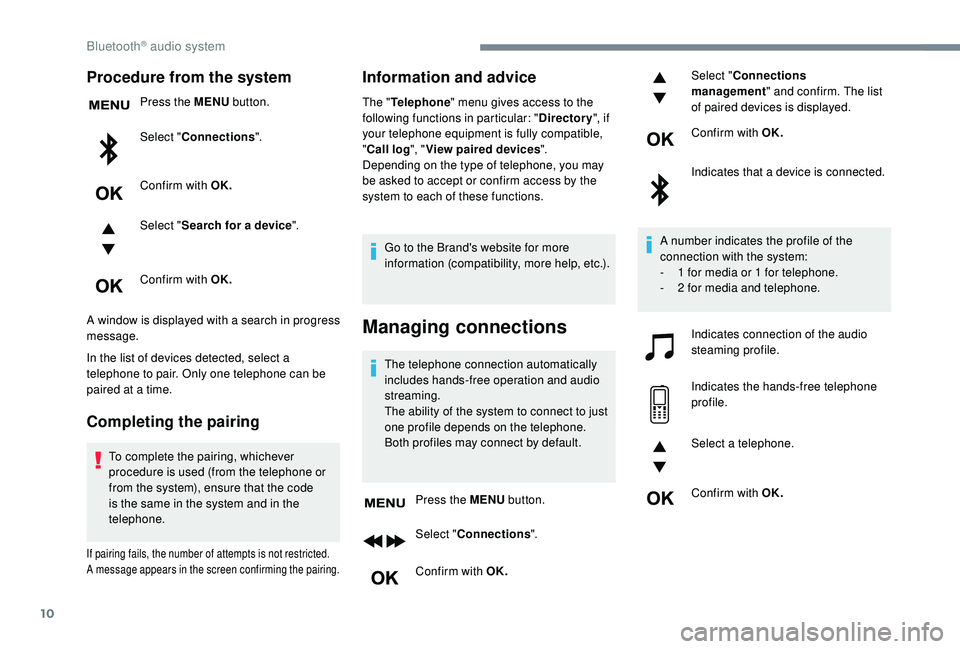
Procedure from the system
Press the MENU button.
Select " Connections ".
Confirm with OK.
Select " Search for a device ".
Confirm with OK.
A window is displayed with a search in progress
message.
In the list of devices detected, select a
telephone to pair. Only one telephone can be
paired at a time.
Completing the pairing
To complete the pairing, whichever
procedure is used (from the telephone or
from the system), ensure that the code
is the same in the system and in the
telephone.
If pairing fails, the number of attempts is not restricted.
A message appears in the screen confirming the pairing.
Information and advice
The " Telephone " menu gives access to the
following functions in particular: " Directory", if
your telephone equipment is fully compatible,
" Call log ", "View paired devices ".
Depending on the type of telephone, you may
be asked to accept or confirm access by the
system to each of these functions.
Go to the Brand's website for more
information (compatibility, more help, etc.).
Managing connections
The telephone connection automatically
includes hands-free operation and audio
streaming.
The ability of the system to connect to just
one profile depends on the telephone.
Both profiles may connect by default.
Press the MENU button.
Select " Connections ".
Confirm with OK. Select "
Connections
management " and confirm. The list
of paired devices is displayed.
Confirm with OK.
Indicates that a device is connected.
A number indicates the profile of the
connection with the system:
-
1 f
or media or 1 for telephone.
-
2 f
or media and telephone.
Indicates connection of the audio
steaming profile.
Indicates the hands-free telephone
profile.
Select a telephone.
Confirm with OK.
Bluetooth® audio system
Page 247 of 324
11
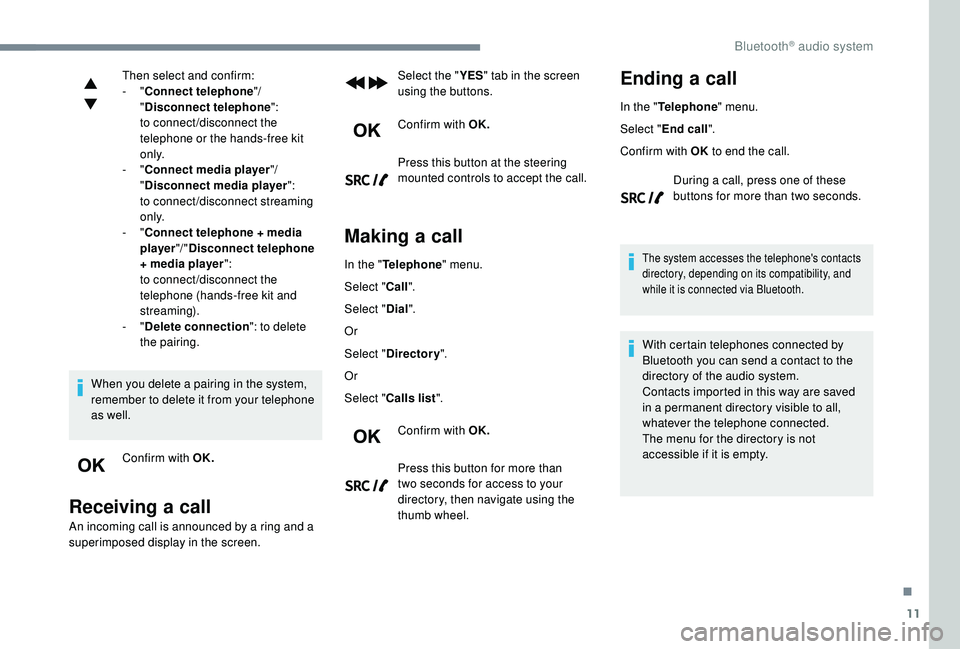
Then select and confirm:
- "Connect telephone "/
" Disconnect telephone ":
to connect/disconnect the
telephone or the hands-free kit
o n l y.
-
"Connect media player "/
" Disconnect media player ":
to connect/disconnect streaming
o n l y.
-
"Connect telephone + media
player "/ "Disconnect telephone
+ media player ":
to connect/disconnect the
telephone (hands-free kit and
streaming).
-
"Delete connection ": to delete
the pairing.
When you delete a pairing in the system,
remember to delete it from your telephone
as well.
Confirm with OK.
Receiving a call
An incoming call is announced by a ring and a
superimposed display in the screen. Select the "
YES" tab in the screen
using the buttons.
Confirm with OK.
Press this button at the steering
mounted controls to accept the call.
Making a call
In the " Telephone " menu.
Select " Call".
Select " Dial".
Or
Select " Directory ".
Or
Select " Calls list ".
Confirm with OK.
Press this button for more than
two seconds for access to your
directory, then navigate using the
thumb wheel.
Ending a call
In the " Telephone " menu.
Select " End call".
Confirm with OK to end the call.
During a call, press one of these
buttons for more than two seconds.
The system accesses the telephone's contacts
directory, depending on its compatibility, and
while it is connected via Bluetooth.
With certain telephones connected by
Bluetooth you can send a contact to the
directory of the audio system.
Contacts imported in this way are saved
in a permanent directory visible to all,
whatever the telephone connected.
The menu for the directory is not
accessible if it is empty.
.
Bluetooth® audio system
Page 248 of 324
12
Managing calls
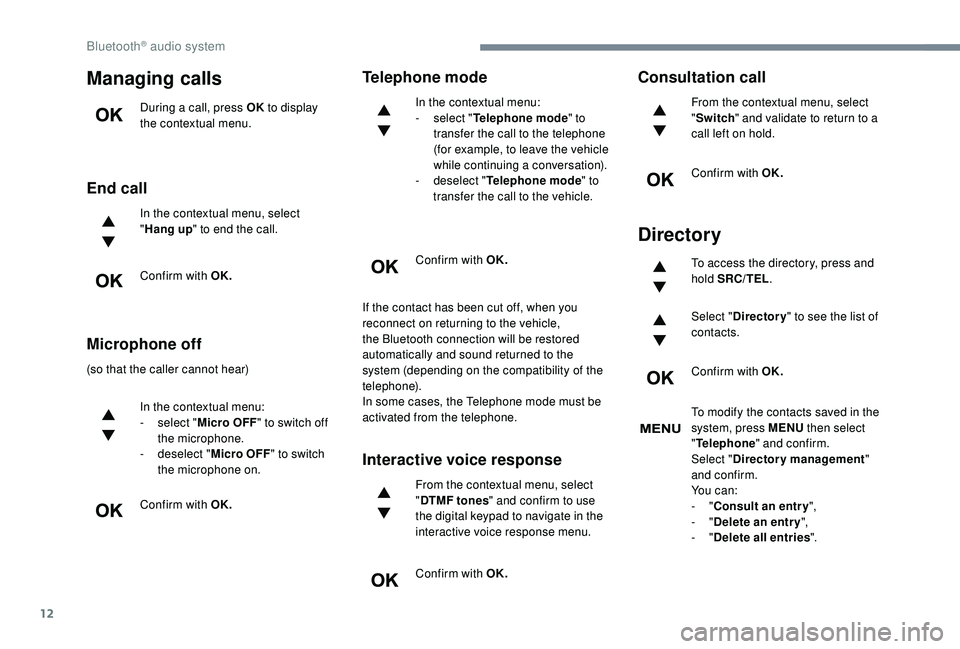
During a call, press OK to display
the contextual menu.
End call
In the contextual menu, select
" Hang up " to end the call.
Confirm with OK.
Microphone off
(so that the caller cannot hear) In the contextual menu:
-
s
elect "Micro OFF " to switch off
the microphone.
-
d
eselect "Micro OFF " to switch
the microphone on.
Confirm with OK.
Telephone mode
In the contextual menu:
- s elect " Telephone mode " to
transfer the call to the telephone
(for example, to leave the vehicle
while continuing a conversation).
-
d
eselect " Telephone mode " to
transfer the call to the vehicle.
Confirm with OK.
If the contact has been cut off, when you
reconnect on returning to the vehicle,
the Bluetooth connection will be restored
automatically and sound returned to the
system (depending on the compatibility of the
telephone).
In some cases, the Telephone mode must be
activated from the telephone.
Interactive voice response
From the contextual menu, select
" DTMF tones " and confirm to use
the digital keypad to navigate in the
interactive voice response menu.
Confirm with OK.
Consultation call
From the contextual menu, select
" Switch " and validate to return to a
call left on hold.
Confirm with OK.
Directory
To access the directory, press and
hold SRC/TEL .
Select " Directory " to see the list of
contacts.
Confirm with OK.
To modify the contacts saved in the
system, press MENU then select
" Telephone " and confirm.
Select " Directory management "
and confirm.
Yo u c a n :
-
"Consult an entr y ",
-
"Delete an entry ",
-
"Delete all entries ".
Bluetooth® audio system
Page 249 of 324
13
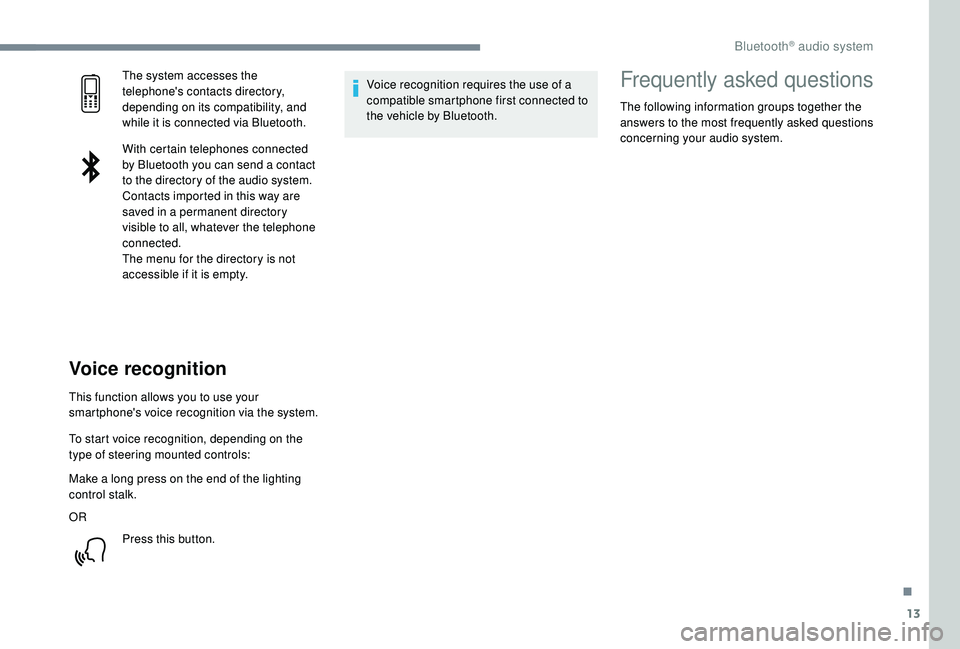
The system accesses the
telephone's contacts directory,
depending on its compatibility, and
while it is connected via Bluetooth.
With certain telephones connected
by Bluetooth you can send a contact
to the directory of the audio system.
Contacts imported in this way are
saved in a permanent directory
visible to all, whatever the telephone
connected.
The menu for the directory is not
accessible if it is empty.
Voice recognition
This function allows you to use your
smartphone's voice recognition via the system.
To start voice recognition, depending on the
type of steering mounted controls:
Make a long press on the end of the lighting
control stalk.
ORPress this button. Voice recognition requires the use of a
compatible smartphone first connected to
the vehicle by Bluetooth.
Frequently asked questions
The following information groups together the
answers to the most frequently asked questions
concerning your audio system.
.
Bluetooth® audio system
Page 251 of 324
15
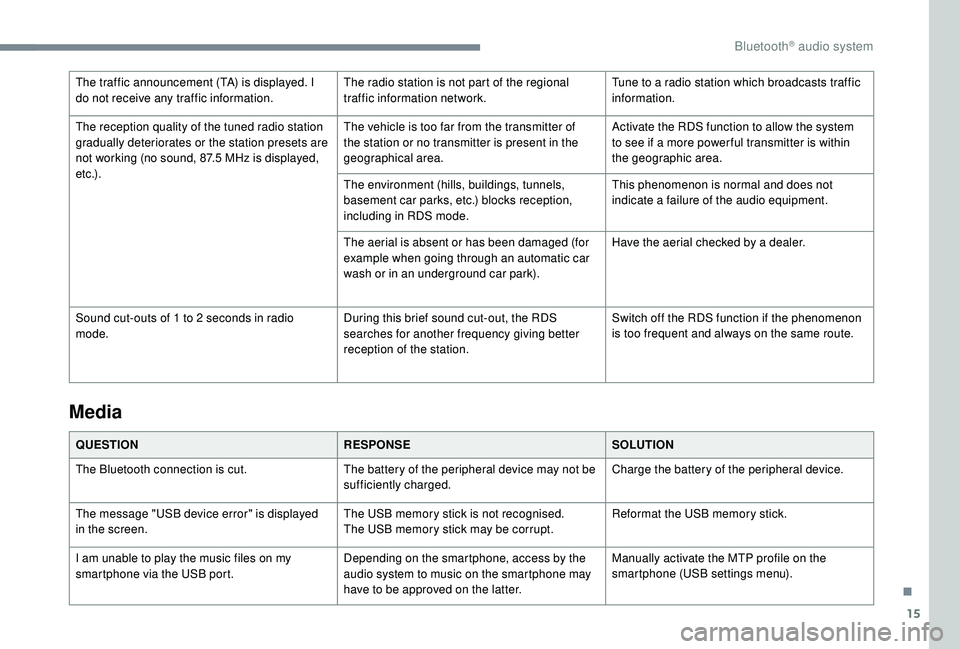
The traffic announcement (TA) is displayed. I
do not receive any traffic information.The radio station is not part of the regional
traffic information network.Tune to a radio station which broadcasts traffic
information.
The reception quality of the tuned radio station
gradually deteriorates or the station presets are
not working (no sound, 87.5
MHz is displayed,
e t c .) . The vehicle is too far from the transmitter of
the station or no transmitter is present in the
geographical area.
Activate the RDS function to allow the system
to see if a more power ful transmitter is within
the geographic area.
The environment (hills, buildings, tunnels,
basement car parks, etc.) blocks reception,
including in RDS mode. This phenomenon is normal and does not
indicate a failure of the audio equipment.
The aerial is absent or has been damaged (for
example when going through an automatic car
wash or in an underground car park). Have the aerial checked by a dealer.
Sound cut-outs of 1 to 2
seconds in radio
mode. During this brief sound cut-out, the RDS
searches for another frequency giving better
reception of the station.Switch off the RDS function if the phenomenon
is too frequent and always on the same route.
Media
QUESTION
RESPONSESOLUTION
The Bluetooth connection is cut. The battery of the peripheral device may not be
sufficiently charged.Charge the battery of the peripheral device.
The message "USB device error" is displayed
in the screen. The USB memory stick is not recognised.
The USB memory stick may be corrupt.Reformat the USB memory stick.
I am unable to play the music files on my
smartphone via the USB port. Depending on the smartphone, access by the
audio system to music on the smartphone may
have to be approved on the latter.Manually activate the MTP profile on the
smartphone (USB settings menu).
.
Bluetooth® audio system
Page 252 of 324
16
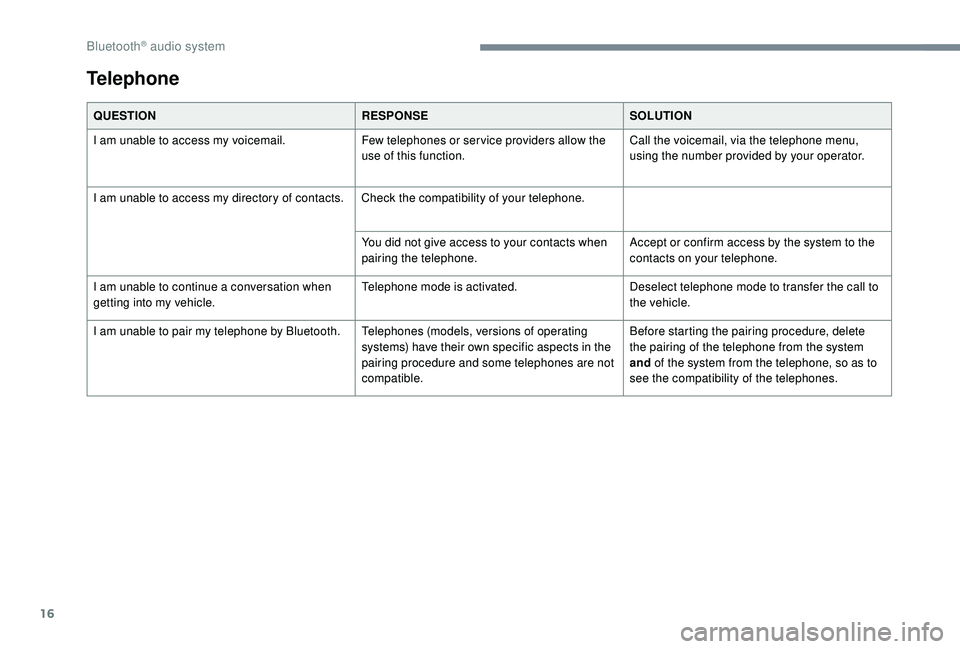
Telephone
QUESTIONRESPONSESOLUTION
I am unable to access my voicemail. Few telephones or ser vice providers allow the
use of this function.Call the voicemail, via the telephone menu,
using the number provided by your operator.
I am unable to access my directory of contacts. Check the compatibility of your telephone.
You did not give access to your contacts when
pairing the telephone.Accept or confirm access by the system to the
contacts on your telephone.
I am unable to continue a conversation when
getting into my vehicle. Telephone mode is activated.
Deselect telephone mode to transfer the call to
the vehicle.
I am unable to pair my telephone by Bluetooth. Telephones (models, versions of operating
systems) have their own specific aspects in the
pairing procedure and some telephones are not
compatible.Before starting the pairing procedure, delete
the pairing of the telephone from the system
and
of the system from the telephone, so as to
see the compatibility of the telephones.
Bluetooth® audio system