steering PEUGEOT 308 2018 Workshop Manual
[x] Cancel search | Manufacturer: PEUGEOT, Model Year: 2018, Model line: 308, Model: Peugeot 308 2018Pages: 360, PDF Size: 12.38 MB
Page 278 of 360
6
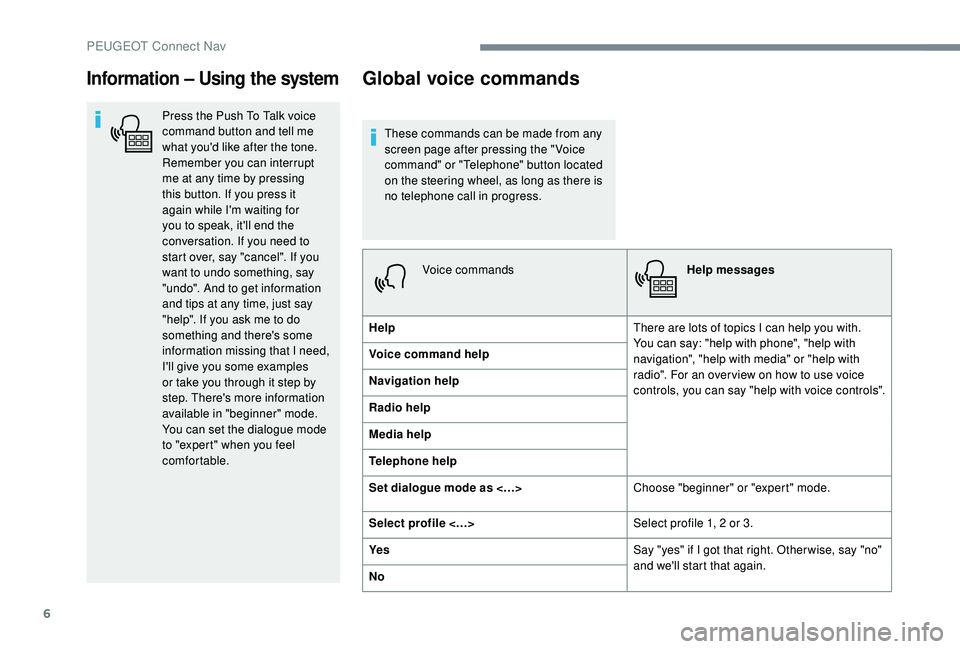
Information – Using the system
Press the Push To Talk voice
command button and tell me
what you'd like after the tone.
Remember you can interrupt
me at any time by pressing
this button. If you press it
again while I'm waiting for
you to speak, it'll end the
conversation. If you need to
start over, say "cancel". If you
want to undo something, say
"undo". And to get information
and tips at any time, just say
"help". If you ask me to do
something and there's some
information missing that I need,
I'll give you some examples
or take you through it step by
step. There's more information
available in "beginner" mode.
You can set the dialogue mode
to "expert" when you feel
comfortable.
Global voice commands
These commands can be made from any
screen page after pressing the " Voice
command" or "Telephone" button located
on the steering wheel, as long as there is
no telephone call in progress.Voice commands Help messages
Help There are lots of topics I can help you with.
You can say: "help with phone", "help with
navigation", "help with media" or "help with
radio". For an over view on how to use voice
controls, you can say "help with voice controls".
Voice command help
Navigation help
Radio help
Media help
Telephone help
Set dialogue mode as <…>
Choose "beginner" or "expert" mode.
Select profile <…> Select profile 1, 2 or 3.
Ye s Say "yes" if I got that right. Other wise, say "no"
and we'll start that again.
No
PEUGEOT Connect Nav
Page 279 of 360
7
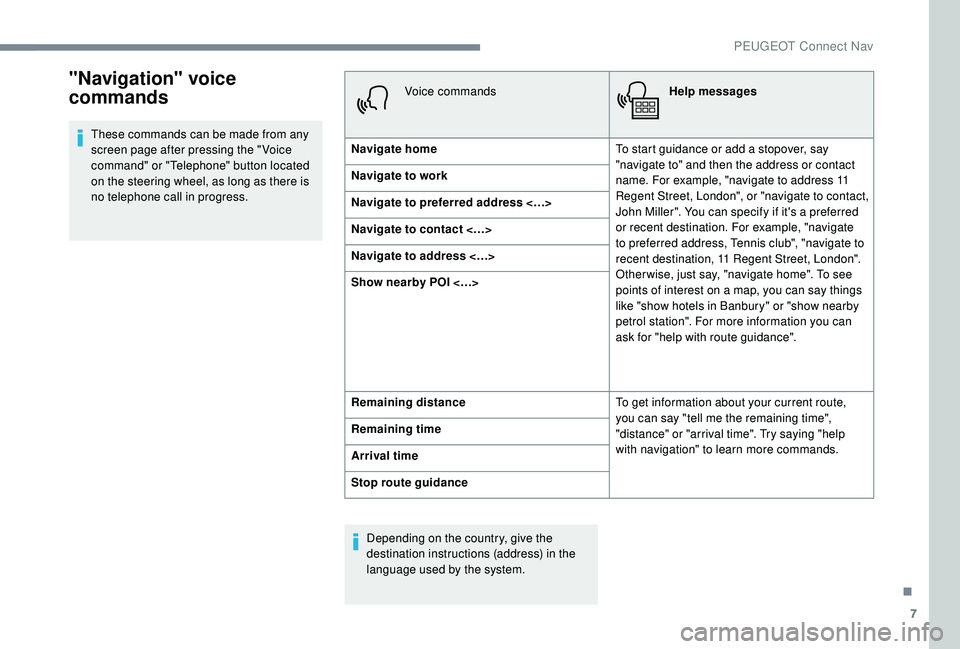
"Navigation" voice
commands
These commands can be made from any
screen page after pressing the " Voice
command" or "Telephone" button located
on the steering wheel, as long as there is
no telephone call in progress.Voice commands
Help messages
Navigate home To start guidance or add a stopover, say
"navigate to" and then the address or contact
name. For example, "navigate to address 11
Regent Street, London", or "navigate to contact,
John Miller". You can specify if it's a preferred
or recent destination. For example, "navigate
to preferred address, Tennis club", "navigate to
recent destination, 11 Regent Street, London".
Other wise, just say, "navigate home". To see
points of interest on a map, you can say things
like "show hotels in Banbury" or "show nearby
petrol station". For more information you can
ask for "help with route guidance".
Navigate to work
Navigate to preferred address <…>
Navigate to contact <…>
Navigate to address <…>
Show nearby POI <…>
Remaining distance
To get information about your current route,
you can say "tell me the remaining time",
"distance" or "arrival time". Try saying "help
with navigation" to learn more commands.
Remaining time
Arrival time
Stop route guidance
Depending on the country, give the
destination instructions (address) in the
language used by the system.
.
PEUGEOT Connect Nav
Page 280 of 360
8
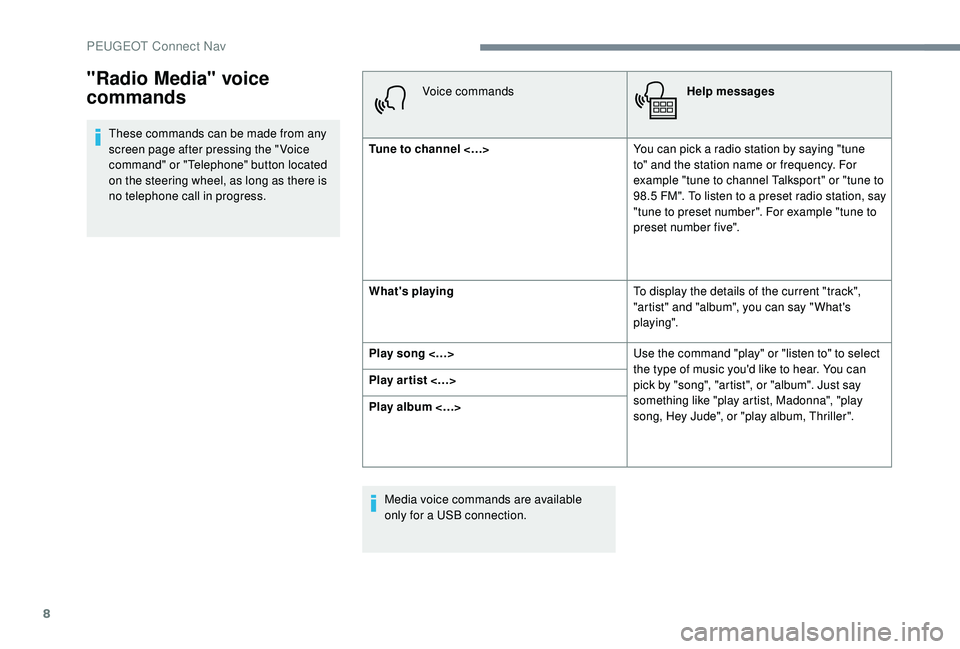
These commands can be made from any
screen page after pressing the " Voice
command" or "Telephone" button located
on the steering wheel, as long as there is
no telephone call in progress.Voice commands
Help messages
Tune to channel <…> You can pick a radio station by saying "tune
to" and the station name or frequency. For
example "tune to channel Talksport" or "tune to
98.5
FM". To listen to a preset radio station, say
"tune to preset number". For example "tune to
preset number five".
What's playing To display the details of the current "track",
"artist" and "album", you can say " What's
playing".
Play song <…> Use the command "play" or "listen to" to select
the type of music you'd like to hear. You can
pick by "song", "artist", or "album". Just say
something like "play artist, Madonna", "play
song, Hey Jude", or "play album, Thriller".
Play ar tist <…>
Play album <…>
Media voice commands are available
only for a USB connection.
"Radio Media" voice
commands
PEUGEOT Connect Nav
Page 281 of 360
9
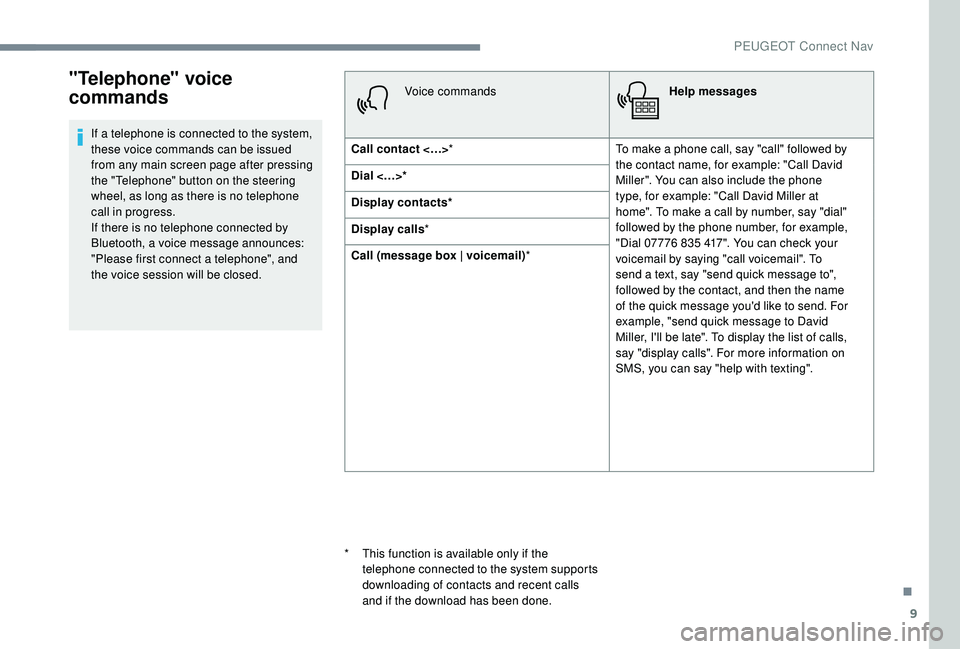
"Telephone" voice
commands
If a telephone is connected to the system,
these voice commands can be issued
from any main screen page after pressing
the "Telephone" button on the steering
wheel, as long as there is no telephone
call in progress.
If there is no telephone connected by
Bluetooth, a voice message announces:
"Please first connect a telephone", and
the voice session will be closed.Voice commands
Help messages
Call contact <…> * To make a phone call, say "call" followed by
the contact name, for example: "Call David
Miller". You can also include the phone
type, for example: "Call David Miller at
home". To make a call by number, say "dial"
followed by the phone number, for example,
"Dial 07776
835 417". You can check your
voicemail by saying "call voicemail". To
send a text, say "send quick message to",
followed by the contact, and then the name
of the quick message you'd like to send. For
example, "send quick message to David
Miller, I'll be late". To display the list of calls,
say "display calls". For more information on
SMS, you can say "help with texting".
Dial <…>*
Display contacts*
Display calls
*
Call (message box | voicemail) *
*
T
his function is available only if the
telephone connected to the system supports
downloading of contacts and recent calls
and if the download has been done.
.
PEUGEOT Connect Nav
Page 282 of 360
10
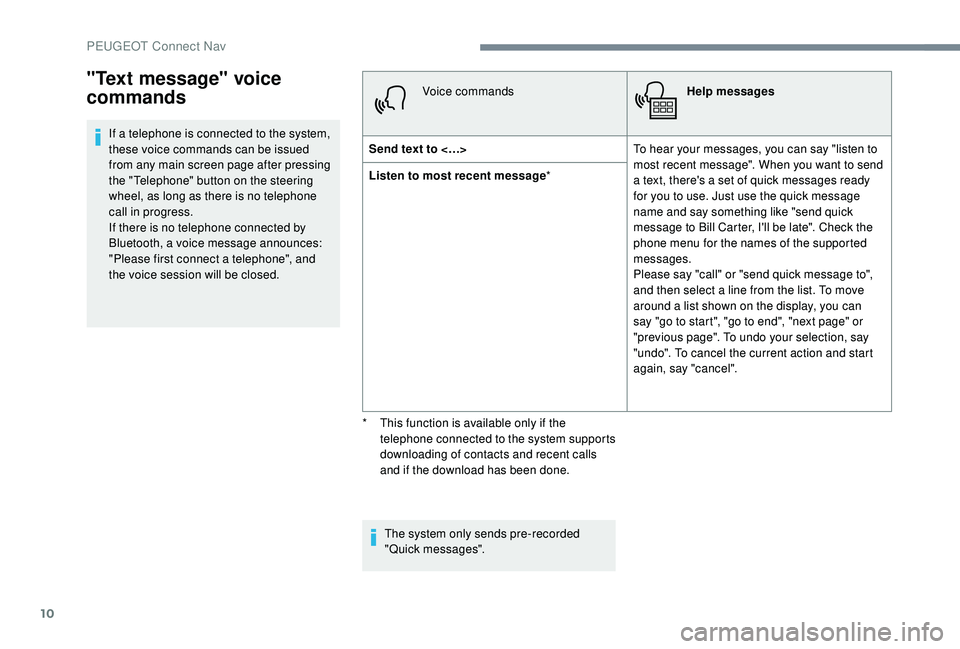
If a telephone is connected to the system,
these voice commands can be issued
from any main screen page after pressing
the "Telephone" button on the steering
wheel, as long as there is no telephone
call in progress.
If there is no telephone connected by
Bluetooth, a voice message announces:
"Please first connect a telephone", and
the voice session will be closed.Voice commands
Help messages
Send text to <…> To hear your messages, you can say "listen to
most recent message". When you want to send
a text, there's a set of quick messages ready
for you to use. Just use the quick message
name and say something like "send quick
message to Bill Carter, I'll be late". Check the
phone menu for the names of the supported
messages.
Please say "call" or "send quick message to",
and then select a line from the list. To move
around a list shown on the display, you can
say "go to start", "go to end", "next page" or
"previous page". To undo your selection, say
"undo". To cancel the current action and start
again, say "cancel".
Listen to most recent message
*
The system only sends pre-recorded
"Quick messages".
"Text message" voice
commands
* This function is available only if the telephone connected to the system supports
downloading of contacts and recent calls
and if the download has been done.
PEUGEOT Connect Nav
Page 299 of 360
27
Deleting a telephone
Select the basket at top right of the
screen to display a basket alongside
the telephone chosen.
Press the basket alongside the
telephone chosen to delete it.
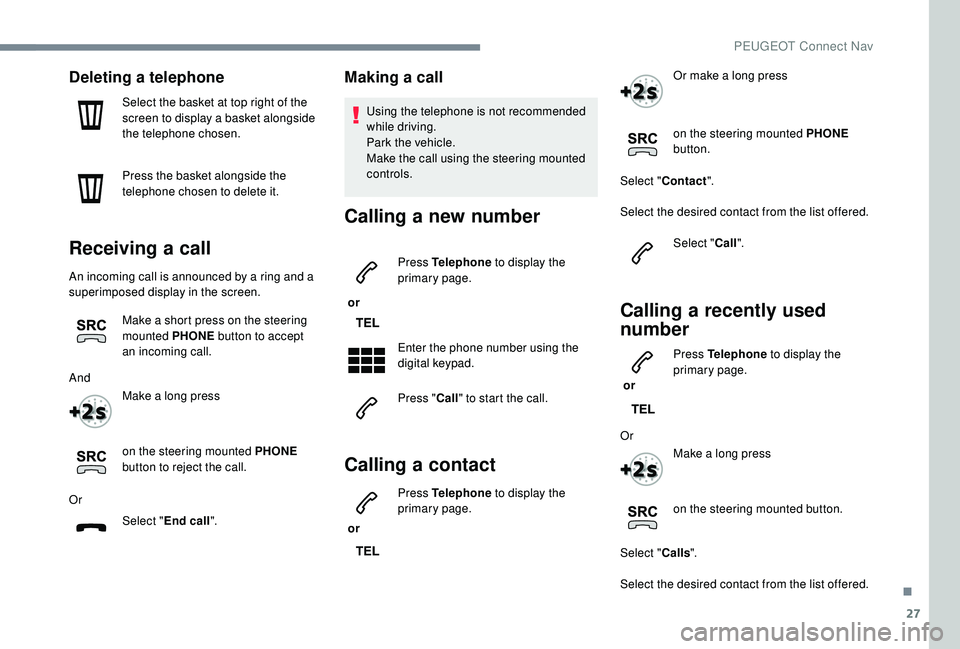
Receiving a call
An incoming call is announced by a ring and a
superimposed display in the screen.Make a short press on the steering
mounted PHONE button to accept
an incoming call.
And Make a long press
on the steering mounted PHONE
button to reject the call.
Or Select "End call".
Making a call
Using the telephone is not recommended
while driving.
Park the vehicle.
Make the call using the steering mounted
controls.
Calling a new number
or Press Telephone
to display the
primary page.
Enter the phone number using the
digital keypad.
Press " Call" to start the call.
Calling a contact
or Press Telephone
to display the
primary page. Or make a long press
on the steering mounted PHONE
button.
Select " Contact ".
Select the desired contact from the list offered. Select "Call".
Calling a recently used
number
or Press Telephone
to display the
primary page.
Or Make a long press
on the steering mounted button.
Select " Calls".
Select the desired contact from the list offered.
.
PEUGEOT Connect Nav
Page 313 of 360
3
In very hot conditions, the volume may
be limited to protect the system. It may go
into standby (screen and sound off) for at
least 5 minutes
The return to normal takes place when
the temperature in the passenger
compartment has dropped.
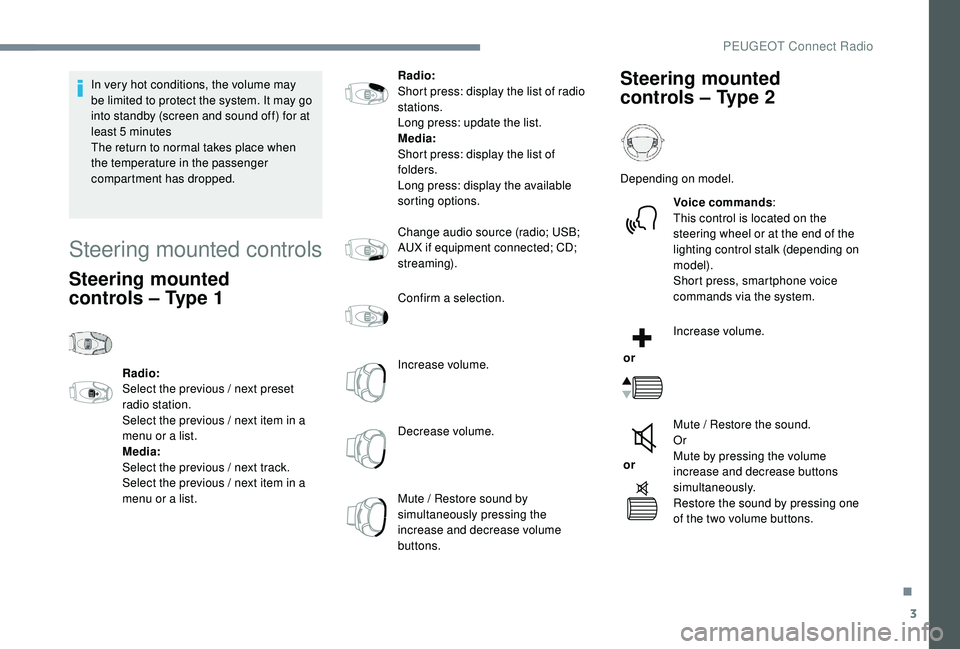
Steering mounted controls
Steering mounted
controls – Type 1
Radio:
Select the previous / next preset
radio station.
Select the previous / next item in a
menu or a list.
Media:
Select the previous / next track.
Select the previous / next item in a
menu or a list. Radio:
Short press: display the list of radio
stations.
Long press: update the list.
Media:
Short press: display the list of
folders.
Long press: display the available
sorting options.
Change audio source (radio; USB;
AUX if equipment connected; CD;
streaming).
Confirm a selection.
Increase volume.
Decrease volume.
Mute / Restore sound by
simultaneously pressing the
increase and decrease volume
buttons.
Steering mounted
controls
– Type 2
Depending on model.
Voice commands :
This control is located on the
steering wheel or at the end of the
lighting control stalk (depending on
model).
Short press, smartphone voice
commands via the system.
or Increase volume.
or Mute / Restore the sound.
Or
Mute by pressing the volume
increase and decrease buttons
simultaneously.
Restore the sound by pressing one
of the two volume buttons.
.
PEUGEOT Connect Radio
Page 325 of 360
15
Press the "PHONE" button to go to the
secondary page.
Press "Bluetooth connection " to
display the list of paired devices.
Press on the name of the telephone
chosen in the list to disconnect it.
Press again to connect it.
Deleting a telephone
Press the basket at the top right
of the screen to display a basket
alongside the telephone chosen.
Press the basket alongside the
telephone chosen to delete it.
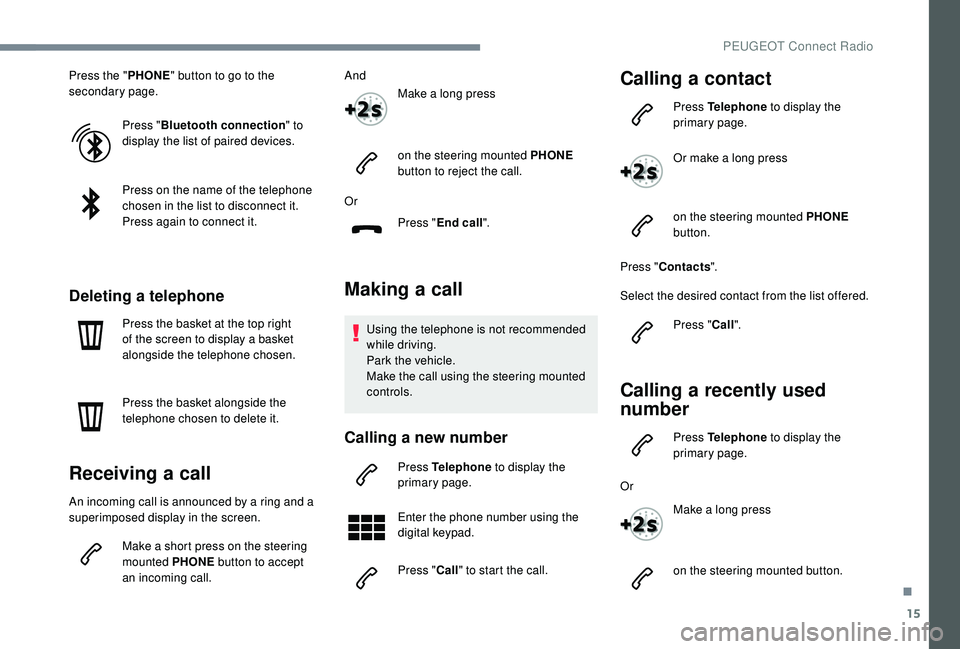
Receiving a call
An incoming call is announced by a ring and a
superimposed display in the screen.
Make a short press on the steering
mounted PHONE button to accept
an incoming call. And
Make a long press
on the steering mounted PHONE
button to reject the call.
Or Press "End call".
Making a call
Using the telephone is not recommended
while driving.
Park the vehicle.
Make the call using the steering mounted
controls.
Calling a new number
Press Telephone to display the
primary page.
Enter the phone number using the
digital keypad.
Press " Call" to start the call.
Calling a contact
Press Telephone to display the
primary page.
Or make a long press
on the steering mounted PHONE
button.
Press " Contacts ".
Select the desired contact from the list offered. Press "Call".
Calling a recently used
number
Press Telephone to display the
primary page.
Or Make a long press
on the steering mounted button.
.
PEUGEOT Connect Radio
Page 334 of 360
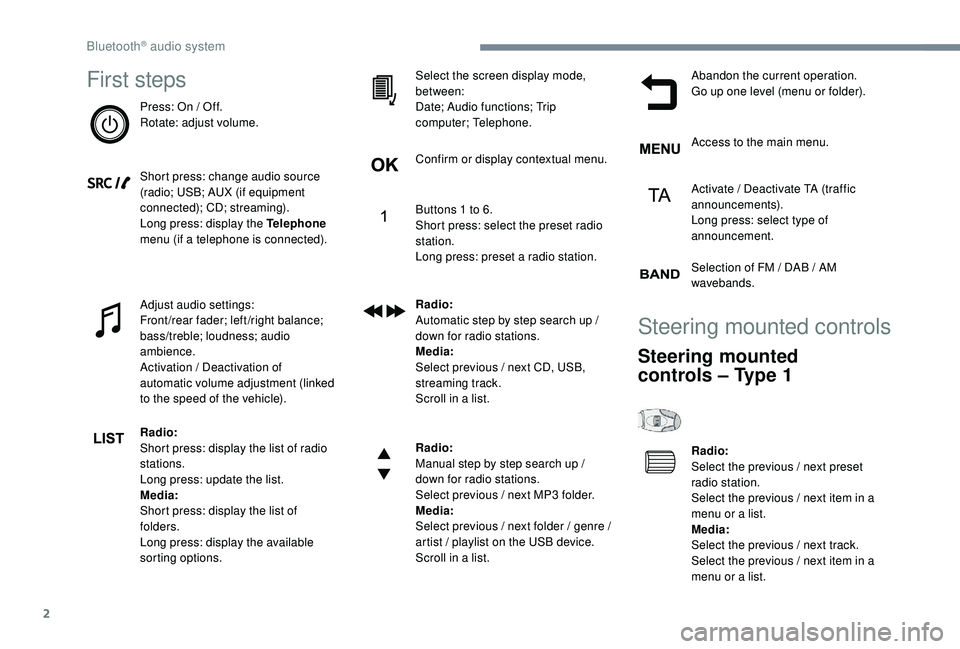
2
First steps
Press: On / Off.
Rotate: adjust volume.
Short press: change audio source
(radio; USB; AUX (if equipment
connected); CD; streaming).
Long press: display the Telephone
menu (if a telephone is connected).
Adjust audio settings:
Front/rear fader; left/right balance;
bass/treble; loudness; audio
ambience.
Activation / Deactivation of
automatic volume adjustment (linked
to the speed of the vehicle).
Radio:
Short press: display the list of radio
stations.
Long press: update the list.
Media:
Short press: display the list of
folders.
Long press: display the available
sorting options.Select the screen display mode,
between:
Date; Audio functions; Trip
computer; Telephone.
Confirm or display contextual menu.
Buttons 1 to 6.
Short press: select the preset radio
station.
Long press: preset a radio station.
Radio:
Automatic step by step search up /
down for radio stations.
Media:
Select previous / next CD, USB,
streaming track.
Scroll in a list.
Radio:
Manual step by step search up /
down for radio stations.
Select previous / next MP3 folder.
Media:
Select previous / next folder / genre /
artist / playlist on the USB device.
Scroll in a list.
Abandon the current operation.
Go up one level (menu or folder).
Access to the main menu.
Activate / Deactivate TA (traffic
announcements).
Long press: select type of
announcement.
Selection of FM / DAB / AM
wavebands.
Steering mounted controls
Steering mounted
controls
– Type 1
Radio:
Select the previous / next preset
radio station.
Select the previous / next item in a
menu or a list.
Media:
Select the previous / next track.
Select the previous / next item in a
menu or a list.
Bluetooth® audio system
Page 335 of 360

3
Radio:
Short press: display the list of radio
stations.
Long press: update the list.
Media:
Short press: display the list of
folders.
Long press: display the available
sorting options.
Other than telephone call:
Short press: changing audio source
(radio; USB; AUX (if equipment
connected); CD; streaming),
confirmation if the "Telephone"
menu is open.
Long press: open the " Telephone"
menu.
In the event of a telephone call:
Short press: accept the call.
Long press: reject the call.
During a telephone call:
Short press: open the contextual
telephone menu.
Long press: end the call.
Confirm a selection.
Increase volume. Decrease volume.
Mute / Restore sound by
simultaneously pressing the
increase and decrease volume
buttons.
Steering mounted
controls
– Type 2
Access to the main menu.
Increase volume.
Mute / Restore the sound.
Decrease volume. Other than telephone call:
Short press: changing audio source
(radio; USB; AUX (if equipment
connected); CD; streaming),
confirmation if the "Telephone"
menu is open.
Long press: open the " Telephone"
menu.
In the event of a telephone call:
Short press: accept the call.
Long press: reject the call.
During a telephone call:
Short press: open the contextual
telephone menu.
Long press: end the call.
Start voice recognition on your
smartphone via the system.
Radio:
Short press: display the list of radio
stations.
Long press: update the list.
Media:
Short press: display the list of
folders.
Long press: display the available
sorting options.
.
Bluetooth® audio system