service PEUGEOT 308 2022 Owner's Guide
[x] Cancel search | Manufacturer: PEUGEOT, Model Year: 2022, Model line: 308, Model: PEUGEOT 308 2022Pages: 260, PDF Size: 7.92 MB
Page 208 of 260
206
PEUGEOT i-Connect Advanced - PEUGEOT i-Connect
This mode allows the vehicle to externally
transmit all the personal data needed for each
valid available connected service.
The personal data required to use the connected services is sent to the
providers of these services.
"Share Data "
This mode allows the vehicle to externally
transmit all the data needed for each valid
available connected service, with the exception
of vehicle location data (e.g. GPS coordinates).
Some connected services may not
function without the vehicle location data.
"Private Mode"
This mode does not allow the vehicle to
transmit personal data outside the vehicle.
Connected services will only perform
local processing inside the vehicle with
limited functions.
This mode will not be applied to the managed functions (emergency or
assistance call) or to specific services to
which the user has consented under the
terms of commercial contracts (Connected
alarm).
If the vehicle is used for professional
purposes or under the terms of specific
contracts (corporate fleet, government
assignment, etc.), some privacy modes will
not be available for the user on the screen,
depending on the data sharing needs of the
services.
To change mode, swipe down from the upper
edge of the touch screen to display all of the
quick settings.
Press this button and select the chosen
mode. The mode is highlighted.
OR
Press the "Settings" application.
In the list, select the "Connectivity".
Select "Privacy Settings".
Choose the mode.
Internet portal
During the first use, upon acquisition of the
vehicle, the user is invited to select the country
of residence for the use of the Internet portal.
If the country is not selected, the notification is
stored in the notification centre and disappears
once the country is selected. Slide a finger on
the touch screen from top to bottom to display all
the notifications.
The selection of a country is necessary to use
the available internet applications.
Press the "Settings" application.
In the list, select the "Connected Services".
Choose the country.
The first time you use it, via a connected mobile device, the system links to your
profile. The connected mobile device serves as
an access key to saved personal information.
First activate the mobile device’s Bluetooth
®
function.
Select the desired application, authentication will
be requested if necessary. This authentication
will be saved for future uses via the mobile
device connected to the current profile.
An authentication will be requested at each use if
the mobile device is not connected to the current
profile or if the Guest profile is used.
With the use of the “Guest” profile, an
identification will be requested for each
use.
Updating the system
Managing devices remotely and
remote updating of software and
firmware.
Being an integral part of the
service used to
provide connected services contract(s), the
required management of devices as well as
the required updating of the software and
firmware associated with the aforementioned
connected service will be carried out remotely,
in particular using "Over the Air" technology.
To do this, a secure connection via radio
network is established between the vehicle
Page 209 of 260
207
PEUGEOT i-Connect Advanced - PEUGEOT i-Connect
10and the Manufacturer's device management
server each time the ignition is switched on,
when a mobile telephone network is available.
Depending on the vehicle's equipment,
the connection configuration must be set
to "Connected vehicle" to enable to the
connection to the radio network.
Irrespective of a valid subscription to a
connected service, the remote management
of devices relating to or connected with
the security of devices, and the updating
of software and firmware, will be carried
out when necessary in order to comply
with a legal requirement applicable to the
Manufacturer (e.g. the applicable law in terms
of product liability, the regulations governing
e-call) or when necessary to protect the
respective vital interests of the vehicle's users
and passengers.
The establishment of a secure connection via
radio network and the corresponding remote
updates are not affected by the privacy
settings and are intended to be carried out
after being initialised by the user in response
to a related notification.
The system can notify the receipt of an update
when it is connected to an exterior Wi-Fi network
or a mobile telephone network.
Large updates are downloaded only via the Wi-Fi
network.
The availability of an update is notified on the
screen at the end of the journey with an option of immediate installation or postponement of
installation.
The installation time is variable and can take
several minutes with a maximum of about 30
minutes. A notification will give an estimate of the
duration and a description of the update.
Update information is available through the
"Settings" application.
Press the "Settings" application.
In the list, select the "Updates" tab.
This button allows you to change the authorisation for automatic downloading
of updates via an exterior Wi-Fi network.
For safety reasons and because it
requires sustained attention on the part
of the driver, the installation must be carried
out with the ignition on but without starting the
engine.
The installation cannot be carried out in the
following cases:
–
engine running.
–
emergency call in progress.
–
insufficient battery level.
–
when charging for electric vehicles.
If an update has failed or has expired, contact a
dealer or a qualified workshop.
The Manufacturer does not charge for the use of this service.
However, the use of Wi-Fi and/or mobile
telephone networks by your smartphone may
incur extra charges if you exceed the data
allowance included in your contract.
Any associated costs will be billed to you by
your mobile telephone operator.
Personalisation
Press and hold the screen from one of the
system's home pages.
Or
Press the "Settings" application.
In the list, select the "Customisation" tab.
Press the "Displays" field.
A page divided into 2 parts is displayed.
Press the HOME button at any time to leave this
page.
Personalising the screen
Press the pencil in the "Customise
Touchscreen" part.
A representation of the organisation of the
different home page ( HOME) Widgets
is
displayed.
A Widget is a reduced window of an application or service.
Adding a Widget
To add a Widget, press "Widget" on the left of the screen.
Or
Page 210 of 260
208
PEUGEOT i-Connect Advanced - PEUGEOT i-Connect
Press one of these buttons on the screen.
Select the desired Widget.
Press the back arrow to return to the
previous page.
Organising the Widgets on a home
page (HOME)
To move a Widget, press and hold it, then drag it
to the desired location.
Adding a page
To add a page, press "Page" on the left of the screen.
Press the back arrow to return to the
previous page.
Deleting a Widget
To move a Widget to the bin, press and hold it, then drag it to the bin.
Personalising the
instrument panel
Press the pencil in the "Customise
Driver Information" part.
The modification of the organisation of the
different Widget is displayed on the instrument
panel in real time.
A Widget is a reduced window of an application or service.
Adding a Widget
To add a Widget, press "Widget" on the left of the screen.
Or
Press one of these buttons on the screen.
Select the desired Widget.
Press the back arrow to return to the
previous page.
Deleting a Widget
To move a Widget to the bin, press and hold it, then drag it to the bin.
Personalising i-Toggles
(depending on equipment)
In the central screen, display the page containing
the button that you want to include.
The shortcuts are used to access an application (air conditioning page, radio
page, etc.) or to perform an action (set the
temperature to 21°, call a selected directory
contact, etc.).
Press and hold the shortcut you want to
replace.
A panel is displayed on the central screen with
all of the eligible shortcuts in boxes.
A notification also informs you of the next step to
perform.
Select the new shortcut required. It will be
duplicated in i-Toggles and will replace the one originally selected. A notification also informs you
of this.
To exit this function at any time, press this
button or press the main "Home" button.
Steering-mounted
controls
Voice control:
Short press, system voice commands
(depending on equipment).
Long press, voice commands of
the
smartphone connected using Bluetooth
® or
Mirror Screen® (Apple®CarPlay®/Android Auto)
via the system.
Increase volume.
Decrease volume.
Mute the sound: long press on the
decrease volume button.
Restore the sound by pressing one of the two
volume buttons.
Incoming call (short press): accept the
call.
Call in progress (short press): hang up.
Incoming call (long press): refuse the incoming
call.
Out of call (short press): access the call log of
the telephone connected via
Bluetooth
®.
Mirror Screen® connected (short press): access
the projected view of the telephone application of
your Mirror Screen
® equipment.
Page 211 of 260
209
PEUGEOT i-Connect Advanced - PEUGEOT i-Connect
10Radio: automatic search for the
previous/next station (in the list of
radio stations sorted by name or by frequencies).
Media: previous/next track, movement in the
lists.
Phone: browse the telephone's call log.
Short press: validate a selection. Out of
selection, display the lists.
Applications
From the home page, press this button to
access the applications wall.
From any page, press the touch screen
with three or more fingers to display the
applications wall.
Help
Access the handbook and watch tutorials.
Media
Select an audio source or radio station.
Mirror Screen®
Smartphone connected with Mirror
Screen®: access to the projected view of
Apple®CarPlay® or Android Auto.
Smartphone not connected: access the menu
allowing you to connect a smartphone.
Navigation
(depending on equipment)
Enter navigation settings and choose a
destination.
Use services available in real time, depending on
equipment.
Voice commands
(depending on equipment)
Use the system or smartphone voice recognition
via the system.
Phone
Telephone not connected: access the
menu allowing you to connect a telephone.
Telephone connected: access the call log,
contacts and telephone settings.
Two connected telephones: access the contents
of the priority telephone with the possibility of
changing the priority of the telephone.
Settings
Main settings for the audio system, touch
screen and digital instrument panel.
Voice commands
First steps
(depending on equipment)
The voice recognition service offers a choice
of 17 languages minimum (French, German,
English (UK), English (US),
Arabic, Brazilian,
Chinese, Spanish, Hebrew, Italian, Japanese,
Dutch, Polish, Portuguese, Russian, Swedish,
Turkish) available with the cellular network and
in line with the language chosen and previously
configured in the system.
The system supports two languages
for cases
where the area in which the vehicle is travelling
is not covered by the cellular network. These languages, referred to as on-board
languages,
are downloaded into the system.
If the chosen language has not been
downloaded, a message on the screen appears
as soon as the cellular network is not connected
for the first time and offers to download it.
T
o use this new language in all areas, download
it beforehand (ignition on without starting the
engine) via the Wi-Fi network.
Apply the download procedure displayed on the
screen.
Downloading this new language removes the
least used on-board language.
Information - Using the
system
When voice commands are activated, say
your command after the audible signal.
For
commands in several stages, interaction
takes place with the system to complete the
initial request.
Some commands self-validate after 7 seconds.
If the system has not taken your command into
account, it will indicate this by a voice message
and an on-screen display.
Opening voice recognition
Voice commands can be used on any
screen page, provided there are no other
sources which take priority in use (reverse,
emergency or assistance call, telephone call,
Page 213 of 260
2 11
PEUGEOT i-Connect Advanced - PEUGEOT i-Connect
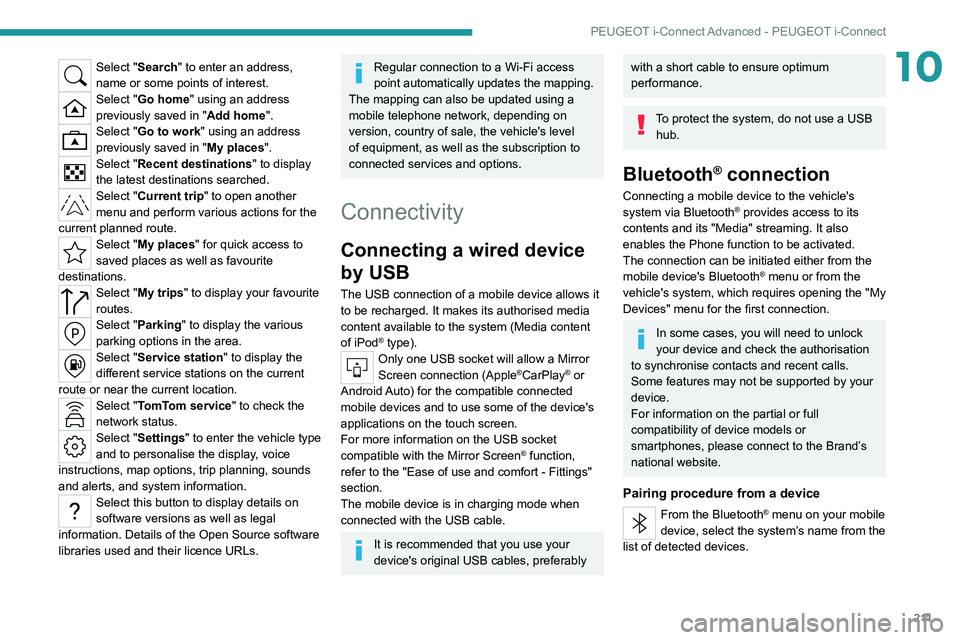
10Select "Search" to enter an address,
name or some points of interest.
Select "Go home" using an address
previously saved in "Add home".
Select "Go to work" using an address
previously saved in "My places".
Select "Recent destinations" to display
the latest destinations searched.
Select "Current trip" to open another
menu and perform various actions for the
current planned route.
Select "My places" for quick access to
saved places as well as favourite
destinations.
Select "My trips" to display your favourite
routes.
Select "Parking" to display the various
parking options in the area.
Select "Service station" to display the
different service stations on the current
route or near the current location.
Select "TomTom service" to check the
network status.
Select "Settings" to enter the vehicle type
and to personalise the display, voice
instructions, map options, trip planning, sounds
and alerts, and system information.
Select this button to display details on
software versions as well as legal
information. Details of the Open Source software
libraries used and their licence URLs.
Regular connection to a Wi-Fi access
point automatically updates the mapping.
The mapping can also be updated using a
mobile telephone network, depending on
version, country of sale, the vehicle's level
of equipment, as well as the subscription to
connected services and options.
Connectivity
Connecting a wired device
by USB
The USB connection of a mobile device allows it
to be recharged. It makes its authorised media
content available to the system (Media content
of iPod
® type).Only one USB socket will allow a Mirror
Screen connection (Apple®CarPlay® or
Android Auto) for the compatible connected
mobile devices and to use some of the device's
applications on the touch screen.
For more information on the USB socket
compatible with the Mirror Screen
® function,
refer to the "Ease of use and comfort - Fittings"
section.
The mobile device is in charging mode when
connected with the USB cable.
It is recommended that you use your
device's original USB cables, preferably
with a short cable to ensure optimum
performance.
To protect the system, do not use a USB hub.
Bluetooth® connection
Connecting a mobile device to the vehicle's
system via Bluetooth® provides access to its
contents and its "Media" streaming. It also
enables the Phone function to be activated.
The connection can be initiated either from the
mobile device's Bluetooth
® menu or from the
vehicle's system, which requires opening the "My
Devices" menu for the first connection.
In some cases, you will need to unlock
your device and check the authorisation
to synchronise contacts and recent calls.
Some features may not be supported by your
device.
For information on the partial or full
compatibility of device models or
smartphones, please connect to the Brand’s
national website.
Pairing procedure from a device
From the Bluetooth® menu on your mobile
device, select the system’s name from the
list of detected devices.
Page 222 of 260
220
Event data recorders
Recording event data
Electronic control units are installed in your
vehicle. These control units process data
received from the vehicle's sensors, for example,
or data they generate themselves or exchange
with each other. Some of these control units are
required for the correct operation of your vehicle,
some others assist you while driving (driving or
manoeuvring aids), while others provide comfort
or infotainment functions.
The following contains general information about
how data is processed within the vehicle.
You will find additional information about the
specific data which is downloaded, stored
and transmitted to third parties and what it is
used for in your vehicle under the keyword
"Data protection". This information is directly
associated with the references for the functions
in question contained in the corresponding
vehicle handbook, or in the general terms and
conditions of sale.
This information is also available online.
Vehicle operating data
The control units process the data used for the
operation of the vehicle.
This data includes, for example:
–
Information about the state of the vehicle
(e.g.
speed, travel time, lateral acceleration,
wheel rotation rate, fastened seat belts display).
–
Environmental conditions (e.g.
temperature,
rain sensor, distance sensor). As a general rule, this data is temporary, is
not stored for longer than one operating cycle
and is only used within the vehicle itself. The
control units often record this data (including the
vehicle's key). This function allows either the
temporary or permanent storage of information
about the state of the vehicle, stresses on
components, servicing requirements, as well as
events and technical errors.
Depending on the vehicle's equipment level, the
data stored is as follows:
–
Operating state of system components
(e.g.
filling level, tyre pressures, battery charge
status).
–
Faults and malfunctions in important system
components (e.g.
lamps, brakes).
–
System reactions in specific driving situations
(e.g.
deployment of an airbag, triggering of
stability control and braking systems).
–
Information about events which have
damaged the vehicle.
–
For electric and rechargeable hybrid vehicles,
the traction battery charge level and the
estimated driving range.
In particular circumstances (e.g.
if the vehicle
has detected a malfunction), it may be necessary
to record data which would otherwise simply not
be stored.
When taking your vehicle in for servicing
(e.g.
repairs, maintenance), the stored operating
data may be read along with the vehicle's
identification number and used if necessary.
The personnel working for the servicing network (e.g.
garages, manufacturers) or third parties
(e.g. roadside assistance agents) may read
the vehicle's data. This also applies to work
carried out under warranty and quality assurance
measures.
This data is generally read via the OBD
(On-Board Diagnostics) port fitted by law to
the vehicle. It is used to report on the technical
state of the vehicle or its components and
facilitates the diagnosis of malfunctions, in
compliance with warranty obligations and for
quality improvement. This data, in particular the
information relating to stress on components,
technical events, operator errors and other
malfunctions, is sent to the Manufacturer, if
necessary, along with the vehicle's identification
number. The Manufacturer's liability may also be
engaged. The Manufacturer may also use the
operating data taken from the vehicle for product
recalls. This data may also be used to check the
customer's warranty and any claims made under
warranty.
Any malfunctions stored in the vehicle may be
reset by an after-sales service company during
servicing or repair work, or at your request.
Comfort and infotainment
functions
Comfort settings and personalised settings
may be saved in the vehicle and modified or
reinitialised at any time.
Page 223 of 260
221
Event data recorders
11Depending on the vehicle's equipment level, this
may include:
–
Seat and steering wheel position settings.
–
Chassis and air conditioning settings.
–
Personalised settings such as the interior
lighting.
Y
ou can enter your own data into the functions
of your vehicle's audio and telematic system, as
part of the selected functionalities.
Depending on the vehicle's equipment level,
this
may
include:
–
Multimedia data such as music, videos or
photos to be read by an integrated multimedia
system.
–
Address book data to be used with an
integrated hands-free system or with an
integrated navigation system.
–
Entered destinations.
–
Data regarding the use of online services.
This data for the comfort and infotainment
functions may be stored locally in the vehicle
or saved to a device that you have connected
to the vehicle (e.g.
smartphone, USB memory
stick or MP3 player). Data that you have entered
yourself may be deleted at any time.
This data may also be transmitted outside the
vehicle at your request, particularly when using
online services in line with the settings that you
have selected. Smartphone integration
(e.g.
Android
Auto
® or
Apple
®CarPlay®)
If your vehicle is equipped accordingly, you can
connect your smartphone or another mobile
device to the vehicle in order to operate it using
the vehicle's integrated controls. Images and
sounds from the smartphone can be transmitted
through the audio and telematics system.
Specific information is simultaneously sent
to your smartphone. Depending on the type
of
integration, this includes data such as location,
day/night mode and other general information
about the vehicle. For more information, please
refer to the user instructions for the vehicle or the
audio and telematics system.
Integrating a smartphone allows you to use
its applications, such as a navigation app or
music player. No other
integration between
the smartphone and the vehicle is possible, in
particular active access to vehicle data. How the
data is processed subsequently is determined
by the supplier of the application being used.
The ability the change settings depends on the
application in question and on the operating
system installed on your smartphone.
Online services
If your vehicle is connected to a wireless
network, data can be exchanged between
your vehicle and other systems. Connection
to a wireless network is made possible
via a transmitter located in your vehicle or a mobile
device that you have provided (e.g.
smartphone).
The online services can be used via this wireless
connection.
These include online services and
applications (apps) provided to you by the
Manufacturer or other suppliers.
Exclusive services
As regards the Manufacturer's online services,
the corresponding functions are described by
the Manufacturer in an appropriate medium
(e.g.
handbook, Manufacturer's website) and the
information about data protection is provided.
Personal data may be used for online services.
The exchange of data for this purpose takes
place over a secure connection, using for
example the Manufacturer's dedicated computer
systems. The collection, processing and use of
personal data for the development of services
are carried out solely on the basis of a legal
authorisation, for example in the case of a
legal emergency call system or a contractual
agreement or else under a consent agreement.
You can activate or deactivate the services and
functions (some may be chargeable) and, in
some cases, the vehicle's entire connection to
the wireless network. This does not include the
statutory functions and services such as the
emergency or assistance call system.
Third-party services
If you use online services provided by other
(third-party) suppliers, these services are subject
Page 224 of 260
222
Event data recorders
to the responsibility, the data protection and
the terms and conditions of use of the supplier
in question. The Manufacturer often has no
influence over the content exchanged in this
regard.
Please therefore ensure that you are aware of
the nature, extent and purpose of the collection
and use of personal data as part of the third-
party services provided by the service provider
in question.
Page 229 of 260
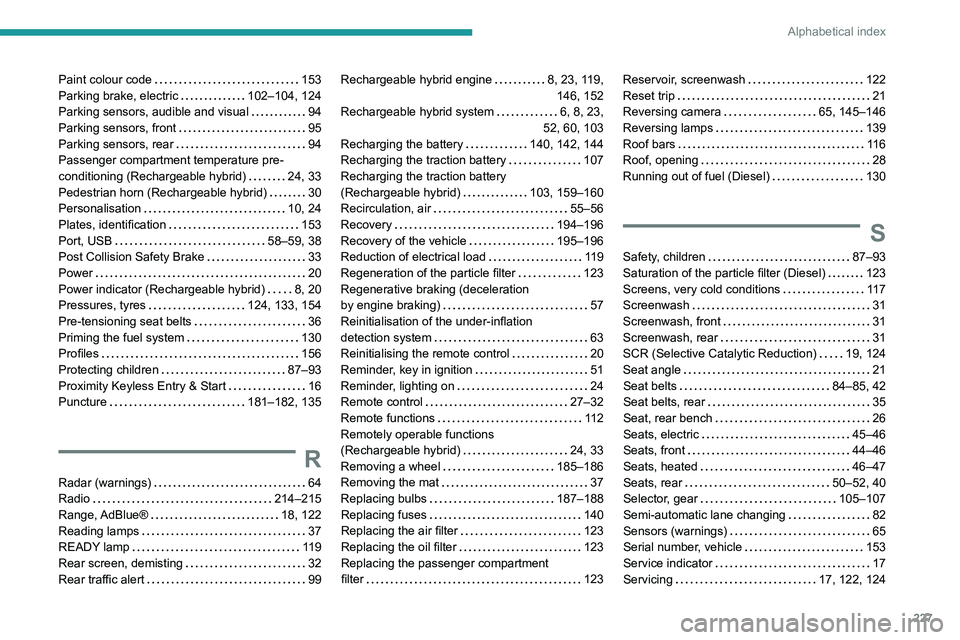
227
Alphabetical index
Paint colour code 153
Parking brake, electric
102–104, 124
Parking sensors, audible and visual
94
Parking sensors, front
95
Parking sensors, rear
94
Passenger compartment temperature pre-
conditioning (Rechargeable hybrid)
24, 33
Pedestrian horn (Rechargeable hybrid)
30
Personalisation
10, 24
Plates, identification
153
Port, USB
58–59, 38
Post Collision Safety Brake
33
Power
20
Power indicator (Rechargeable hybrid)
8, 20
Pressures, tyres
124, 133, 154
Pre-tensioning seat belts
36
Priming the fuel system
130
Profiles
156
Protecting children
87–93
Proximity Keyless Entry & Start
16
Puncture
181–182, 135
R
Radar (warnings) 64
Radio
214–215
Range, AdBlue®
18, 122
Reading lamps
37
READY lamp
119
Rear screen, demisting
32
Rear traffic alert
99
Rechargeable hybrid engine 8, 23, 119,
146, 152
Rechargeable hybrid system
6, 8, 23,
52, 60, 103
Recharging the battery
140, 142, 144
Recharging the traction battery
107
Recharging the traction battery
(Rechargeable hybrid)
103, 159–160
Recirculation, air
55–56
Recovery
194–196
Recovery of the vehicle
195–196
Reduction of electrical load
119
Regeneration of the particle filter
123
Regenerative braking (deceleration
by engine braking)
57
Reinitialisation of the under-inflation
detection system
63
Reinitialising the remote control
20
Reminder, key in ignition
51
Reminder, lighting on
24
Remote control
27–32
Remote functions
11 2
Remotely operable functions
(Rechargeable hybrid)
24, 33
Removing a wheel
185–186
Removing the mat
37
Replacing bulbs
187–188
Replacing fuses
140
Replacing the air filter
123
Replacing the oil filter
123
Replacing the passenger compartment
filter
123Reservoir, screenwash 122
Reset trip
21
Reversing camera
65, 145–146
Reversing lamps
139
Roof bars
11 6
Roof, opening
28
Running out of fuel (Diesel)
130
S
Safety, children 87–93
Saturation of the particle filter (Diesel)
123
Screens, very cold conditions
11 7
Screenwash
31
Screenwash, front
31
Screenwash, rear
31
SCR (Selective Catalytic Reduction)
19, 124
Seat angle
21
Seat belts
84–85, 42
Seat belts, rear
35
Seat, rear bench
26
Seats, electric
45–46
Seats, front
44–46
Seats, heated
46–47
Seats, rear
50–52, 40
Selector, gear
105–107
Semi-automatic lane changing
82
Sensors (warnings)
65
Serial number, vehicle
153
Service indicator
17
Servicing
17, 122, 124