ECO mode PEUGEOT 308 2023 Repair Manual
[x] Cancel search | Manufacturer: PEUGEOT, Model Year: 2023, Model line: 308, Model: PEUGEOT 308 2023Pages: 260, PDF Size: 7.97 MB
Page 211 of 260
209
PEUGEOT i-Connect Advanced - PEUGEOT i-Connect
10Pairing procedure from a device
From the Bluetooth® menu on your mobile
device, select the system’s name from the
list of detected devices.
In order to make your system’s
Bluetooth® visible, first open the "My
Devices " menu on the system.
Continue the first connection procedure
proposed by the system and on the device.
For example: validating pairing codes.
Pairing procedure from the system
Press the "Settings" application.
In the list, select the "Connectivity" tab.
Select "My Devices ".
Select the name of the mobile device that
you want to connect, from:
–
The list of known devices (if the device has
already been connected to the system).
or
–
The list of detected devices (if the device
has never been connected to the system or
previously deleted from the system).
A mobile device already connected to the system will be able to reconnect
automatically when the vehicle is started,
once the user profile has been selected.
Automatic reconnection is put on hold as
soon as the "My Devices" menu is opened.
This is to allow the system to make its
Bluetooth® visible for the connection of a new
device.
The system is disconnected when the driver’s
door is opened and the ignition is switched
off.
Automatic reconnection
The system allows automatic reconnection of
devices already connected and detected when a
user profile is selected.
The priority
reconnected devices are those which
have been linked to the selected user profile or,
failing this, the last connected devices.
Wi-Fi connection
The system has an external Wi-Fi connection
mode for performing system updates.
Press the "Settings" application.
In the list, select the "Connectivity" tab.
Select "Wi-Fi".
Activate/Deactivate "Wi-Fi". The system starts a search for
nearby
Wi-Fi networks. This may take a few
seconds.
Select the Wi-Fi network to connect to and enter
its password.
To protect your system, only networks with a sufficient level of security are
allowed to connect. WPA2 encryption level,
equivalent to a domestic level, is required.
Any network already connected to the system will reconnect automatically as
soon as it is detected by the system and after
having previously activated the Wi-Fi function.
The Wi-Fi connection of the system to a device already connected using a Mirror
Screen
® wireless connection is not possible.
In this case, favour a Mirror
Screen
® connection using the USB socket.
Device management
For each device already connected to the
system using a wireless connection (Bluetooth®
or wireless Mirror Screen® connection), it is
possible to determine a preferred connection
mode (depending on the functions the device
can support). It is therefore possible to determine
whether the device should be connected using
a wireless Bluetooth
® connection or a wireless
Mirror Screen® connection each time the system
is started once the profile is chosen.
Press the "Settings" application.
In the list, select the "Connectivity".
Select "My Devices " to display the list of
paired devices.
Press this button to manage the
connection of a device. CarM an uals 2 .c o m
Page 212 of 260
210
PEUGEOT i-Connect Advanced - PEUGEOT i-Connect
Choose a connection type then confirm this
choice by pressing “APPLY".
Deleting a device
Press the "Settings" application.
In the list, select the "Connectivity".
Select "My Devices " to display the list of
paired devices.
Press this button.
Press "DELETE".
Confirm by pressing “ YES”.
Some devices that have just been
deleted from the system request a
connection, refuse this request.
Mirror Screen®
When a smartphone is connected using
Mirror Screen®, the vehicle's location and
some vehicle data is sent to the smartphone
(e.g. brand, left-hand or right-hand drive, day/
night mode, physical speed).
Apple®CarPlay® smartphone
connection
Connecting just one Apple®CarPlay® smartphone
can be carried out either by USB cable or using
a wireless connection.
First activate the Siri® function on your
Apple® smartphone.
If the device fails to connect, refer to the
Apple website to check that the device is
compatible with this function.
If the problem persists, delete all saved
connections on the smartphone and on the
system before attempting a new connection.
The cable connection requires that you
deactivate the CarPlay function in the Settings,
Bluetooth menu of your smartphone.
In the Bluetooth menu, click on the "i" next to
the relevant vehicle and deactivate CarPlay.
Connect the smartphone to the system
using the USB socket compatible with
Mirror Screen.
Apple
®CarPlay® is automatically launched a few
seconds after the USB connection has been
established. In some cases, it may be necessary
to unlock your device.
The smartphone charges when connected by the
USB cable.
The cable connection allows you to avoid
disconnections, especially when passing through
toll booths.
Only one USB socket enables the Mirror
Screen® connection (Apple®CarPlay®);
refer to the "Ease of use and comfort
- Fittings" section.
It is recommended that you use the device's
original USB cables, preferably with a short
cable to ensure optimum performance. The wireless connection of an Apple
®CarPlay®
smartphone can be initiated from the " My
Devices " menu.
First activate the smartphone’s CarPlay
®
function.
In the Bluetooth menu, click on the "i" next to
the relevant vehicle and activate CarPlay.
Press the "Settings" application.
In the list, select the "Connectivity".
Select "My Devices " to display the device
to be connected to Apple®CarPlay®.
If the device has already been connected to the
system via Bluetooth
®, select the device settings
from the list of known devices and choose
Apple
®CarPlay® as the wireless connection
mode.
If the device has never been connected to the
system before, it will have to be paired (refer to
the "Bluetooth
® connection" section).
The system detects if the smartphone is
compatible with Apple
®CarPlay® and offers to
connect to it following the pairing process.
Subsequent automatic connection of the
smartphone requires activation of the Bluetooth
®
on your device.
As soon as the connection is established, press this button to display the
"Apple
®CarPlay®" interface.To initiate the smartphone voice commands, press and hold the steering-
mounted control button. CarM an uals 2 .c o m
Page 213 of 260
2 11
PEUGEOT i-Connect Advanced - PEUGEOT i-Connect
10Android Auto smartphone connection
Connecting just one Android Auto smartphone
can be carried out either by USB cable or using
a wireless connection.
First install the "Android Auto"
application via "Play Store" on your
smartphone.
The "Android Auto" function requires a
compatible smartphone.
If the device fails to connect, refer to the
Android Auto website to check that the device
is compatible with this function.
If the problem persists, delete all saved
connections on the smartphone and on the
system before attempting a new connection.
To ensure an optimum wireless connection,
we recommend avoiding placing your
smartphone too close to other Wi-Fi networks
to which it can connect automatically.
The cable connection requires that you
deactivate the Android Auto wireless function,
in the Settings menu of the "Android Auto"
application of your smartphone.
Connect the smartphone to the system
using the USB socket compatible with
Mirror Screen
®.
Android Auto is automatically launched a few
seconds after the USB connection has been
established. A validation procedure on the
smartphone has to be followed for the first
connection, with the vehicle stationary.
The smartphone charges when connected by the
USB cable.
The cable connection allows you to avoid
disconnections, especially when passing through
toll booths.
Only one USB socket enables the Mirror
Screen® connection (Android Auto); refer
to the "Ease of use and comfort - Fittings"
section.
It is recommended that you use the device's
original USB cables, preferably with a short
cable to ensure optimum performance.
The wireless connection of an Android Auto
smartphone can be initiated from the " My
Devices " menu.
First activate the smartphone’s Android Auto
®
wireless function, in the Settings menu of the
"Android Auto" application of your smartphone.
Press the "Settings" application.
In the list, select the "Connectivity" tab.
Select "My Devices " to display the device
to be connected to Android Auto.
If the device has never been connected to the
system before, it will have to be paired (refer to
the "Bluetooth
® connection" section).
The system detects if the smartphone is
compatible with Android Auto and offers to
connect to it following the pairing process. If the device has already been connected to the
system via Bluetooth
®, select the device settings
from the list of known devices and choose
Android Auto as the wireless connection mode.
The subsequent automatic connection of the
smartphone requires activation of Bluetooth
® on
your device.
As soon as the connection is established, press this button to display the " Android
Auto" interface.
To initiate the smartphone voice commands, press and hold the steering-
mounted control button.
Media
Changing source
Press the "Media" application.
Press this button to change source (radio,
audio streaming via a USB socket,
Bluetooth
® or Mirror Screen®).
Selecting a radio station
Press the "Media" application.
In the list, select the "Player" tab.
Press one of the buttons to
perform an automatic search for
radio stations.
Or CarM an uals 2 .c o m
Page 215 of 260
213
PEUGEOT i-Connect Advanced - PEUGEOT i-Connect
10First adjust the volume on the portable device (to
a high level).
Then adjust the volume of the system.
If playback does not start, it may be necessary to
start the audio playback from the smartphone.
Control is from the portable device or by using
the system's touch buttons.
Once connected in streaming mode, the
smartphone is considered to be a media
source.
Playing a track
Press the "Media" application.
If several devices are connected, press
this button to select one.
Once the device is connected, browsing through
the files is possible by pressing the
"Playlist" or
"Library"
button.
Short press: go to the previous/
next track.
Long press: fast-forward/rewind in a track.
Repeat the current title or the list of
selected titles.
Random track playback.
Sound deactivation/reactivation.
Configuring audio and radio
settings
Audio settings can be accessed in 2 different
ways.
Via the Media application
Press the "Media" application.
In the list, select the "Settings" tab.
Or
Via the Settings application
Press the "Settings" application.
In the list, select the "Audio and Radio " tab.
It is possible to configure:
–
Sound Settings.
–
Radio Settings.
–
V
olume Settings.
Information and advice
The system supports USB Mass Storage devices
or Apple® devices via the USB sockets. The
adapter cable is not supplied.
Devices are managed using the audio system
controls.
The system will only play audio files with ".wma,
.aac,
.flac, .ogg, .mp3" file extensions, at bit rates
between 32 Kbps and 320 Kbps.
It also supports VBR (Variable Bit Rate) mode.
No other file types (".mp4", etc.) can be read.
".wma" files must be of the WMA 9 standard.
The supported sampling rates are 32, 44 and
48 KHz.
To avoid reading and display problems, we
recommend choosing file names less than 20
characters long that do not contain any special
characters (e.g. “ ? .
; ù).
Use only USB memory sticks in FAT32 format
(File Allocation Table).
We recommend using the original USB
cable for the portable device.
Phone
Receiving a call
An incoming call is announced by a ring and a
display overlaid on the screen.
Accepting the call:
briefly press the telephone button on the
steering-mounted controls to accept an
incoming call.
Or
Press this touch screen button.
Ending the call:
press and hold...
...the telephone button on the steering-
mounted controls to refuse the call.
Or
Press this touch screen button. CarM an uals 2 .c o m
Page 220 of 260
218
Vehicle data recording and privacy
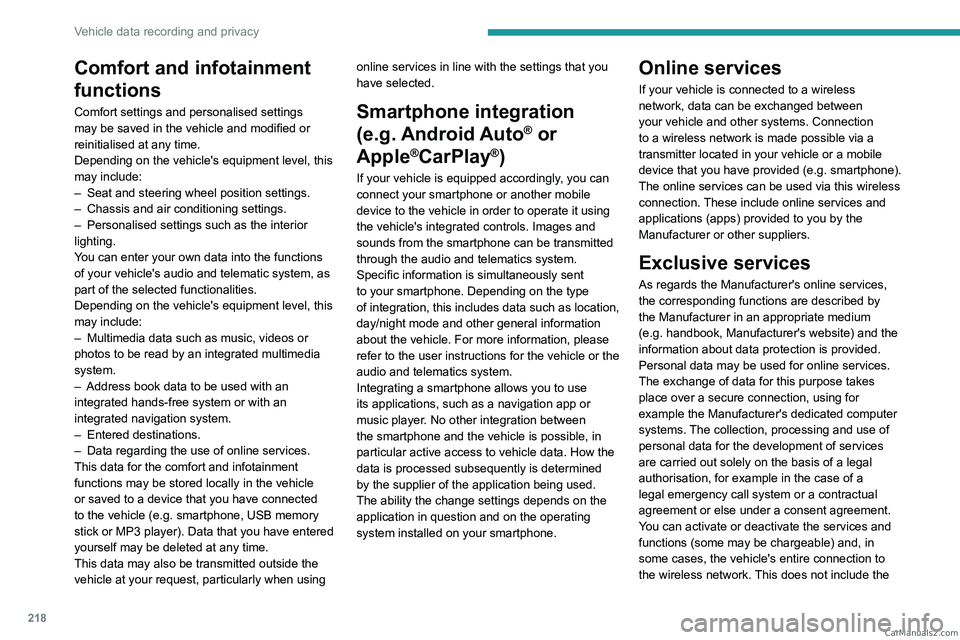
Comfort and infotainment
functions
Comfort settings and personalised settings
may be saved in the vehicle and modified or
reinitialised at any time.
Depending on the vehicle's equipment level,
this
may
include:
–
Seat and steering wheel position settings.
–
Chassis and air conditioning settings.
–
Personalised settings such as the interior
lighting.
Y
ou can enter your own data into the functions
of your vehicle's audio and telematic system, as
part of the selected functionalities.
Depending on the vehicle's equipment level,
this
may
include:
–
Multimedia data such as music, videos or
photos to be read by an integrated multimedia
system.
–
Address book data to be used with an
integrated hands-free system or with an
integrated navigation system.
–
Entered destinations.
–
Data regarding the use of online services.
This data for the comfort and infotainment
functions may be stored locally in the vehicle
or saved to a device that you have connected
to the vehicle (e.g.
smartphone, USB memory
stick or MP3 player). Data that you have entered
yourself may be deleted at any time.
This data may also be transmitted outside the
vehicle at your request, particularly when using online services in line with the settings that you
have selected. Smartphone integration
(e.g.
Android
Auto
® or
Apple
®CarPlay®)
If your vehicle is equipped accordingly, you can
connect your smartphone or another mobile
device to the vehicle in order to operate it using
the vehicle's integrated controls. Images and
sounds from the smartphone can be transmitted
through the audio and telematics system.
Specific information is simultaneously sent
to your smartphone. Depending on the type
of
integration, this includes data such as location,
day/night mode and other general information
about the vehicle. For more information, please
refer to the user instructions for the vehicle or the
audio and telematics system.
Integrating a smartphone allows you to use
its applications, such as a navigation app or
music player. No other
integration between
the smartphone and the vehicle is possible, in
particular active access to vehicle data. How the
data is processed subsequently is determined
by the supplier of the application being used.
The ability the change settings depends on the
application in question and on the operating
system installed on your smartphone.
Online services
If your vehicle is connected to a wireless
network, data can be exchanged between
your vehicle and other systems. Connection
to a wireless network is made possible
via a
transmitter located in your vehicle or a mobile
device that you have provided (e.g.
smartphone).
The online services can be used via this wireless
connection.
These include online services and
applications (apps) provided to you by the
Manufacturer or other suppliers.
Exclusive services
As regards the Manufacturer's online services,
the corresponding functions are described by
the Manufacturer in an appropriate medium
(e.g.
handbook, Manufacturer's website) and the
information about data protection is provided.
Personal data may be used for online services.
The exchange of data for this purpose takes
place over a secure connection, using for
example the Manufacturer's dedicated computer
systems. The collection, processing and use of
personal data for the development of services
are carried out solely on the basis of a legal
authorisation, for example in the case of a
legal emergency call system or a contractual
agreement or else under a consent agreement.
You can activate or deactivate the services and
functions (some may be chargeable) and, in
some cases, the vehicle's entire connection to
the wireless network. This does not include the CarM an uals 2 .c o m
Page 223 of 260
221
Alphabetical index
Checking tyre pressures
(using the kit)
178, 180
Checks
167, 168–170
Checks, routine
168–170
Child lock
93
Children
83, 89–90
Children (safety)
93
Child seats
83, 86–88
Child seats, conventional
88, 91–92
Child seats, i-Size
90–92
Child seats, ISOFIX
89–92
Cleaning (advice)
149, 173–175
Closing the boot
29, 33
Closing the doors
29, 33
Collision Risk Alert
130–132
Configuration, vehicle
10, 23
Connection, Bluetooth
209–210
Connectivity
214
Consumptions
23
Container, AdBlue®
171
Control, emergency boot release
33
Control, emergency door
31
Control, heated seats
45–46
Controls, steering mounted
101–102
Control stalk, lighting
65–66
Control stalk, wipers
71–73
Control unit
151–153, 157
Courtesy lamps
60–61
Cruise control
113–114, 116–117
Cruise control, adaptive
113–114, 118–119
Cruise control by
speed limit recognition
113–114Cup holder 56
D
Date (setting) 215
Daytime running lamps
66
Deactivating the passenger airbag
84, 88–89
Deadlocking
27, 29
Deferred charging
24, 158
Deferred charging
(Rechargeable hybrid)
23–24, 150, 155
Defrosting
47, 55
Defrosting, front
55
Defrosting, rear screen
55
Demisting
47, 55
Demisting, front
55
Demisting, rear
55
Diagnosis, vehicle
20
Dials and gauges
10
Digital instrument panel
10
Dimensions
199
Dipstick
18, 167
Direction indicators (turn signals)
66, 185
Display screen, instrument panel
10
Domestic charging
153
Domestic charging (Rechargeable hybrid)
157
Door pockets
56
Doors
33
Drive Assist Plus
11 8
Driver’s attention warning
134–135
Driving
42–43, 94–95, 110
Driving abroad 70
Driving aids camera (warnings)
109
Driving aid shortcuts
11 0
Driving aids (recommendations)
108
Driving economically
8
Driving modes
103
Driving positions (storing)
45
Dynamic stability control (DSC)
80
E
EBFD 79
Eco-driving (advice)
8
ECO mode
103
Electric automatic gearbox
(Rechargeable hybrid)
100
Electronic brake force distribution (EBFD)
79
Emergency braking assistance (EBA)
80
Emergency call
77–78
Emergency switching off
97
Emergency warning lamps
76, 176
Emissions control system, SCR
19, 170
Energy economy (mode)
165
Energy economy mode
165
Energy flows
23
Energy recovery
20, 102
Engine
170
Engine compartment
165–166
Engine, Diesel
147, 167, 176, 197
Engine, petrol
104, 166, 195
Engines
194–195, 197 CarM an uals 2 .c o m
Page 225 of 260
223
Alphabetical index
J
Jack 177–178, 181
Jump starting
187
K
Key 26–27, 31
Key, electronic
28–29
Keyless Entry and Starting
26, 28–29, 95–96
Key not recognised
97
Key with remote control
26, 95
Kit, hands-free
209
Kit, puncture repair
177–178
Kit, temporary puncture repair
177–180
Klaxon
77
L
Labels, identification 200
Lamps, parking
66
Lamps, rear
185
Lamps with Full LED technology
67, 69
Lane assist
118, 123–124
Lane keeping assist
135
Leather (care)
175
LEDs - Light-emitting diodes
66, 185
Level, AdBlue®
168
Level, brake fluid
168
Level, Diesel additive
168–169
Level, engine coolant 18, 168
Level, engine oil
18, 167
Levels and checks
167–169
Level, screenwash fluid
72, 168
Light-emitting diodes - LEDs
66, 185
Lighting, boot
64
Lighting dimmer
21
Lighting, exterior
65, 68
Lighting, guide-me home
67
Lighting, interior
60–61
Lighting, mood
60
Lighting, welcome
67–68
Loading
162–163
Load reduction mode
165
Locating your vehicle
27
Locking
27, 29
Locking from the inside
30
Locking the doors
30
Log, alerts
20
Long-distance blind spot monitoring
138
Long objects, transporting
60
Lumbar
44
M
Mains socket (domestic network) 151–152
Maintenance (advice)
149, 173
Maintenance, routine
109, 168, 170
Manoeuvring aids (recommendations)
108
Map reading lamps
60
Markings, identification
200
Massage function 46
Massage, multi-point
46
Mat
59, 110
Menu, shortcuts
23
Mirror, rear view
48
Mirrors, door
47–48, 55, 138
Mirror, vanity
57
Misfuel prevention
148
Mobile application
24, 55, 155, 158
Motor, electric
104, 149, 198
Motorised tailgate
33–34, 36
Mountings, ISOFIX
89, 91–92
N
Net, high load retaining 62
Net, luggage retaining
61
O
Obstacle detection 139
Oil change
167
Oil consumption
167
Oil, engine
167
On-board tools
64, 176–178
Opening the bonnet
165–166
Opening the boot
28, 33
Opening the doors
28, 33 CarM an uals 2 .c o m
Page 226 of 260
224
Alphabetical index
P
Pads, brake 169–170
Paint
174, 200
Paint colour code
200
Parking brake, electric
98–100, 170
Parking (sensors)
139
Parking sensors, audible and visual
139
Parking sensors, front
140
Parking sensors, rear
139
Passenger compartment temperature
pre-conditioning (Rechargeable hybrid)
24, 55
Pedestrian horn (Rechargeable hybrid)
77
Personalisation
10, 24
Plates, identification
200
Port, USB
57, 60
Post Collision Safety Brake
80
Power
20
Power indicator (Rechargeable hybrid)
9, 20
Pressures, tyres
170, 179, 200
Pre-tensioning (seat belts)
83
Priming the fuel system
176
Profiles
202
Protecting children
84, 86–90
Proximity Keyless Entry and Start
28
Puncture
178–179, 181
R
Radar (warnings) 109
Radio
211–212
Range, AdBlue® 18, 168
Reading lamps
60
READY (warning lamp)
165
Rear bench seat
49
Rear cross traffic alert
144
Rear screen (demisting)
55
Rechargeable
hybrid engine
9, 23, 165, 192, 198
Rechargeable
hybrid system
6, 9, 23, 96, 104, 149
Recharging the battery
187–188, 190
Recharging the traction battery
153
Recharging the traction battery
(Rechargeable hybrid)
149, 155, 157
Recirculation, air
54
Recorder, trip distance
21
Reduction of electrical load (mode)
165
Regeneration of the particle filter
169
Regenerative braking
(deceleration by engine braking)
102
Reinitialising the remote control
32
Reinitialising the under-inflation
detection system
108
Reminder, lighting on
65
Remote control
26–29, 31
Remote functions
158
Remotely operable functions
(Rechargeable hybrid)
24, 55
Removing a wheel
182–183
Removing the mat
59
Replacing bulbs
184–185
Replacing fuses
186Replacing the air filter 169
Replacing the oil filter
169
Replacing the passenger
compartment filter
169
Reservoir, screenwash
168
Resetting the trip
21
Reversing camera
109, 140–142
Reversing lamps
185–186
Roof bars
162–163
Roof, opening
40
Running out of fuel (Diesel)
176
S
Safety, children 84, 86–90
Saturation of the particle filter (Diesel)
169
Screens, very cold conditions
163
Screenwash
72
Screenwash, front
72
Screenwash, rear
72
SCR (Selective Catalytic Reduction)
19, 170
Seat angle
44
Seat belts
82–83, 88
Seat belts, rear
82
Seats, electric
44–45
Seats, front
43–45
Seats, heated
45–46
Seats, rear
49–50, 87
Selector, gear
100, 102–103
Semi-automatic lane changing
126
Sensors (warnings)
109 CarM an uals 2 .c o m
Page 227 of 260
225
Alphabetical index
Serial number, vehicle 200
Servicing
17, 168, 170
Settings, equipment
10, 23
Shield, snow
163
Sidelamps
66, 185
Silent vehicle warning sound
(Rechargeable hybrid)
77
Smartphone
24, 57
Snow chains
107, 164
Snow screen
163
Socket, 12 V
57
Socket, 12 V accessory
57, 63
Speakers
59
Speed limiter
113–115
Speed limit recognition
111 – 11 2
Speedometer
10, 110
Sport mode
103–104
Spotlamps, side
68
Stability control (ESC)
79, 81
Starting a Diesel engine
147
Starting/Stopping the vehicle
95
Starting the engine
95–96
Starting the vehicle
96, 102
Starting using another battery
97, 187
State of charge, battery
23
Station, radio
211–212
Stay, engine bonnet
166
Steering wheel
11 0
Steering wheel (adjustment)
47
Stickers, customising
174
Stopping the vehicle
96, 102
Stop & Start
22, 52, 55, 105–106, 147, 165, 169, 189Storage 56–61
Storage box
64
Storage wells
61, 64
Storing driving positions
45
Stowing rings
61
Sunshine sensor
51
Sun visor
57
Suspension
170
Switching off the engine
95
Synchronising the remote control
32
T
Tables of engines 195, 197–198
Tailgate
33
Tank, fuel
147–148
Technical data
195, 197–198
Telephone
209–210, 213–214
Temperature, coolant
18
Time (setting)
215
Tool box
64
Tools
176–178
Topping-up AdBlue®
172
Top Tether (fixing)
89, 91–92
Total distance recorder
21
Touch screen
22–24, 55
Towball, quickly detachable
159–162
Towbar
81, 158
Towbar with quickly
detachable towball
159–162
Towed loads
194–195, 197–198
Towing
192–193
Towing another vehicle 192–193
Towing the vehicle
192–193
Traction battery charge
153
Traction battery
(Rechargeable hybrid)
20, 149–150, 155
Traction control (ASR)
80
Trailer
81, 158
Trailer stability assist (TSA)
81
Trajectory control systems
79
Triangle, warning
176
Trip computer
21–22
Tyres
170, 200
Tyre under-inflation detection
107, 179
U
Under-inflation (detection) 107
Unlocking
26, 28
Unlocking from the inside
30
Unlocking the boot
26, 29
Unlocking the doors
30
Unlocking the tailgate
26, 29
Updating the time
215
V
Vehicle data recording and privacy 217
Ventilation
51
Visibility
55
Visiopark
142
Visiopark 1
140 CarM an uals 2 .c o m